GPT Image 2.0 landed with little fanfare but changed a lot about how people think about AI image generation. Unlike earlier models that produced recognizable patterns, soft skin, or that slightly painted quality that gives away the AI origin, GPT Image 2 pushes output so close to photographic reality that the difference becomes genuinely difficult to spot. Whether you want product visuals, portrait photography, or conceptual art with a raw photographic feel, this model represents a real step forward in what text-to-image can produce.
What GPT Image 2.0 Actually Does
GPT Image 2 is OpenAI's second generation image synthesis model. It takes a text prompt, processes the semantic meaning behind every word, and renders a photorealistic image that reflects the described scene, atmosphere, and style. The model was trained on a massive corpus of visual data, which gives it an unusually strong grasp of real-world lighting physics, facial anatomy, material textures, and spatial perspective.
What sets it apart from earlier generation models is not just resolution but coherence. When you describe a scene with multiple interacting elements, such as "a woman reading a book by a rain-streaked window at dusk," GPT Image 2 understands how the window light would reflect on the book, how the ambient dusk color temperature would fall across her face, and how depth of field would naturally apply across the scene. That spatial reasoning is what creates the photorealistic result, rather than the photorealistic appearance being pasted on top of a generic composition.
How the Model Interprets Your Prompts
The model treats your prompt as a scene description, not a search query. Every noun, adjective, and modifier you include contributes to what gets rendered. "Warm light" is processed differently from "golden afternoon light from the left," and the output reflects that specificity. This means the quality of your result is directly proportional to the detail and intent in your prompt.
GPT Image 2 also handles context stacking well. You can layer camera angle, lens type, lighting source, subject details, and background atmosphere all into one prompt and the model will attempt to honor each element without one canceling another out. This behavior makes it particularly valuable for users who already have a clear visual direction in mind.
Where It Beats Previous AI Image Models
The improvements over GPT Image 1 are most visible in three areas:
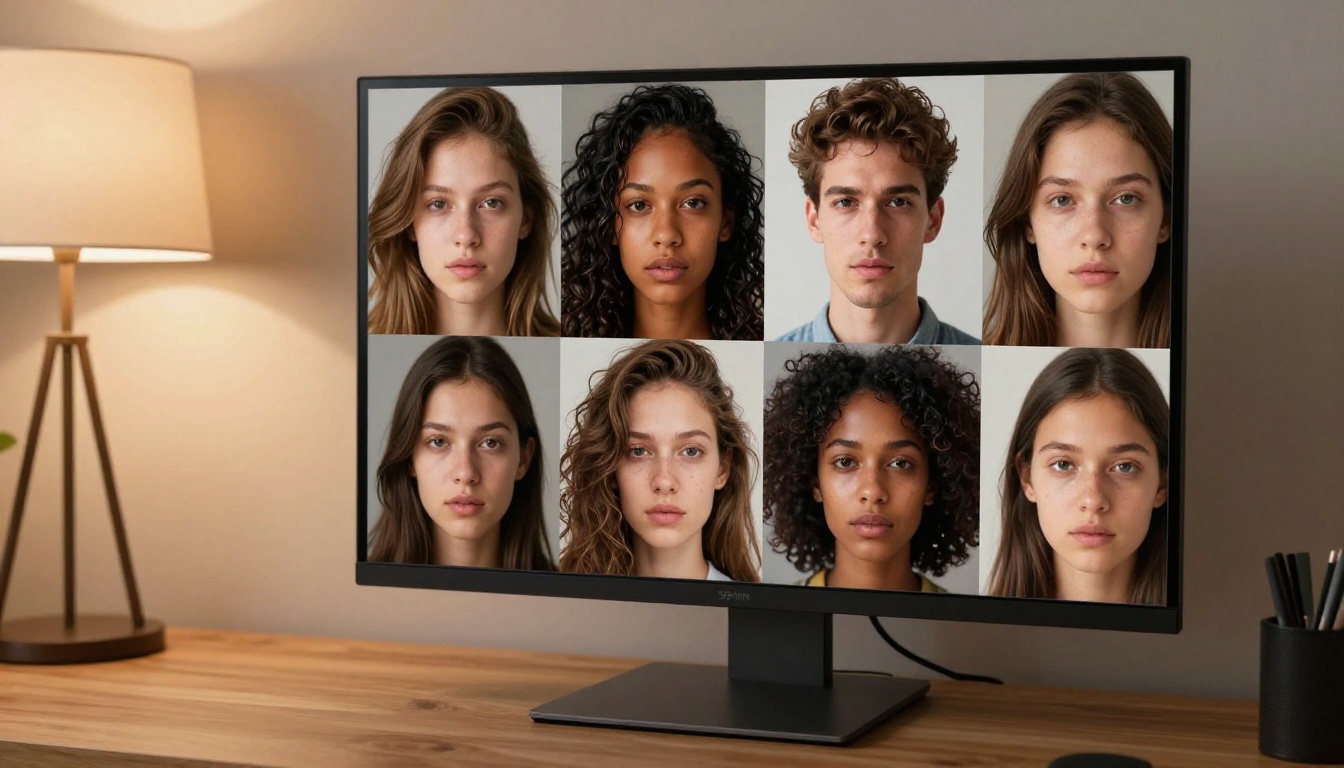
- Facial detail: Skin pores, natural asymmetry, and eye reflections render with far more photographic accuracy
- Lighting physics: Shadows, highlights, and color temperature feel believably captured rather than digitally constructed
- Text within images: GPT Image 2 handles on-image text significantly better than most alternatives, though it still benefits from short, clearly specified copy
Writing Prompts That Work
The single most impactful thing you can do to improve your GPT Image 2 outputs is write better prompts. The model is capable of extraordinary results, but a vague prompt produces a vague image. Specificity is the differentiator.
The 4 Elements Every Good Prompt Needs
Think of every image prompt as having four layers:
| Layer | What It Controls | Example |
|---|
| Subject | Who or what is in the frame | "A 35-year-old woman with auburn hair" |
| Environment | The setting and background | "Sitting in a bright Parisian cafe at noon" |
| Lighting | Direction, quality, and color of light | "Diffused overhead light from skylights, warm tungsten fill from the left" |
| Camera | Lens type, angle, depth of field | "Shot with 85mm f/1.8, shallow depth of field" |
When all four layers are present, the model has everything it needs to render a coherent photographic scene. Missing any one layer leaves the model filling in defaults, which often produces generic-looking output.
💡 Tip: Add "Kodak Portra 400 film grain texture" to your prompt to introduce a subtle photographic grain that makes AI-generated images look far less artificially smooth.
3 Common Prompt Mistakes
1. Being too abstract: "Beautiful sunset" gives the model almost nothing to work with. "Warm orange and pink sunset seen from a cliff edge in Big Sur, California, 6pm light, shot with 24mm wide-angle f/8" gives it everything.
2. Overloading with conflicting styles: Mixing "photorealistic" with "watercolor style" or "cyberpunk neon" creates visual confusion in the output. Commit to one visual language per generation.
3. Neglecting atmosphere: Physical details describe the scene. Atmospheric details describe how the scene feels. "A fog-softened early morning light with slight haze on the background hills" adds cinematic depth that purely descriptive prompts miss.
How to Use GPT Image 2 on PicassoIA
GPT Image 2 is directly available on PicassoIA, meaning you can access it without an API key, a subscription tier negotiation, or technical setup. The process from opening the model to downloading your first image takes less than two minutes.
Step 1: Open the Model Page
Go to the GPT Image 2 page on PicassoIA. You will see the prompt input field immediately, with a generation history panel if you have used the platform before. No configuration is required before your first generation.
Step 2: Write Your Prompt
In the prompt field, write a complete scene description following the four-layer structure above: subject, environment, lighting, camera. Aim for at least 30 to 50 words for your initial test. The model handles long prompts without degradation, and longer usually means more faithful output.
For portraits, include: age, hair description, expression, clothing, setting, and light direction.
For landscapes: time of day, weather conditions, specific geography, focal length, and color temperature.
For products: surface material, background, light source direction, reflections, and shadow quality.
Step 3: Generate and Refine
After generating, evaluate what the model rendered correctly and what drifted from your intent. If the lighting is right but the composition feels off, modify the camera angle specification. If the colors feel oversaturated, add "muted color grading" or "natural color tones" to your next iteration. GPT Image 2 responds well to refinement across multiple generations.
💡 Tip: Save prompts that produce strong results. A reliable prompt for one subject type often transfers directly to other subjects with minimal modification.
Which PicassoIA Models Stack Up Alongside It
GPT Image 2 is not the only model worth using for photorealistic image generation. PicassoIA offers a range of alternatives that each have distinct strengths depending on your use case.
For Pure Photorealism
Seedream 4.5 from ByteDance produces 4K output with strong color fidelity and excellent portrait quality. Its handling of natural daylight in outdoor scenes is particularly strong. For users who need consistently high-resolution outputs across diverse subject types, Seedream 4.5 is one of the most reliable options on the platform.
Krea 2 Large prioritizes compositional coherence and photographic realism over stylistic interpretation. Complex scenes with multiple interacting subjects tend to render with more structural accuracy in Krea 2 Large than in many competing models.
Riverflow v2.5 Pro scores images for quality before delivering them, which means the model self-filters for output quality. The result is consistently high-fidelity images at up to 4K resolution with fewer failed generations requiring reruns.
For Creative Flexibility
Ideogram v4 Quality handles text within images better than almost any other model currently available, making it the preferred choice when your image needs to include readable words, labels, or typographic elements. Its photorealistic mode is also competitive with the top models.
Recraft v4.1 Pro delivers print-ready 2K images with art-direction precision. If you need to match a specific visual brief with controlled output, Recraft's approach to prompt adherence makes it easier to hit a defined target aesthetic consistently.
Flux Redux Dev specializes in creating image variations from existing images, which is useful when you have a reference visual and want to produce variations without starting from scratch each time.
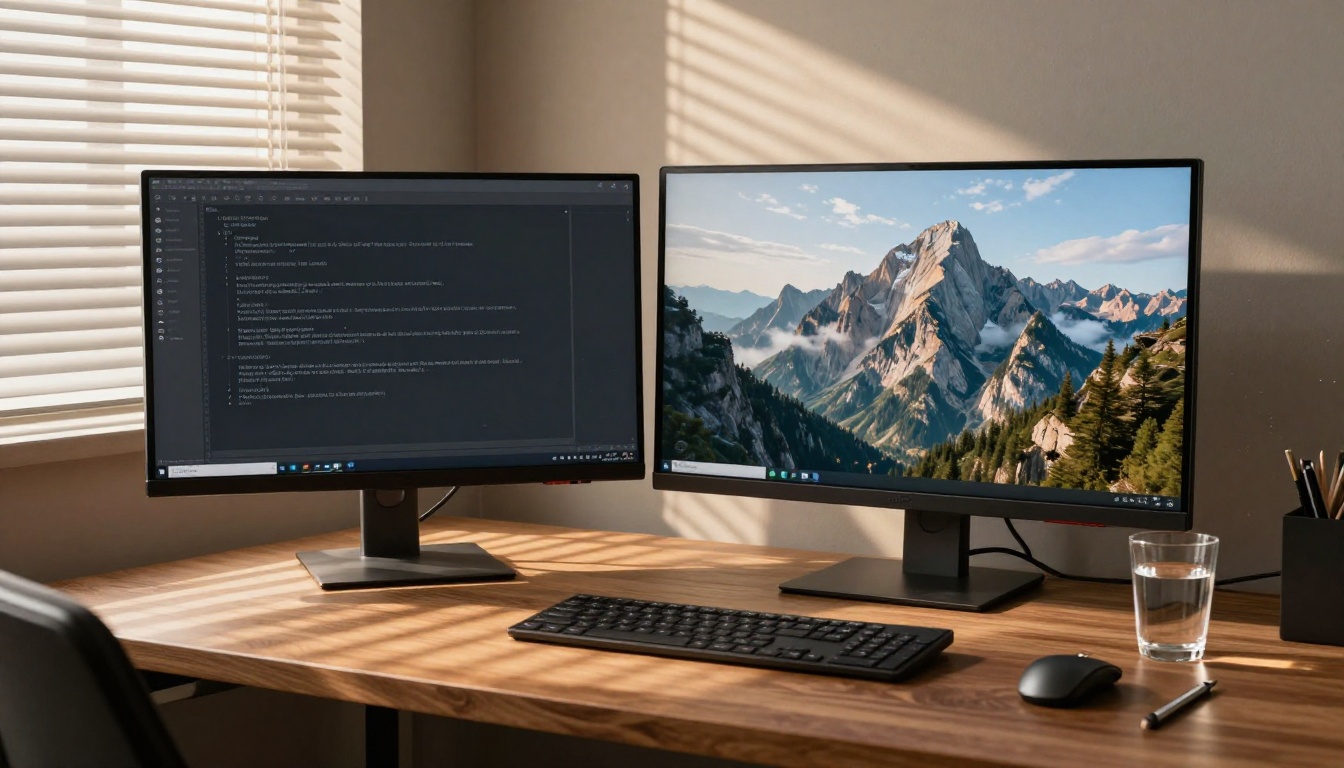
GPT Image 2 vs Other Leading Models
How does GPT Image 2 compare to the other strong models on PicassoIA? Here is a direct breakdown across the dimensions that matter most for practical use:
| Model | Photorealism | Portrait Quality | Text in Image | Speed | Resolution |
|---|
| GPT Image 2 | Exceptional | Excellent | Very Good | Moderate | Up to 4K |
| Seedream 4.5 | Excellent | Excellent | Good | Fast | 4K |
| Krea 2 Large | Excellent | Very Good | Good | Moderate | High |
| Ideogram v4 Quality | Very Good | Good | Exceptional | Moderate | High |
| Recraft v4.1 Pro | Very Good | Good | Very Good | Moderate | 2K+ |
| Riverflow v2.5 Pro | Very Good | Very Good | Good | Fast | 4K |
💡 Tip: For most professional photorealistic work, start with GPT Image 2 or Seedream 4.5. If text legibility within the image is critical, switch to Ideogram v4 Quality.
Real-World Uses That Actually Work
The theoretical capability of GPT Image 2 matters less than what it does in practice. Here are the use cases where it consistently delivers results.
Product Photography
This is where GPT Image 2 provides the most immediate commercial value. Describe a product on a specific surface, in a specific lighting setup, against a specific background, and the model renders a photorealistic product shot that would otherwise require a photography studio and post-processing workflow. The output quality is sufficient for e-commerce platforms, social media ads, and website hero images.
For product images, focus your prompt on: surface material (marble, oak, matte concrete), light source (window light from left, softbox overhead), background simplicity (white seamless, textured linen), and shadow type (natural, dropped, no shadow).
Social Media Visuals
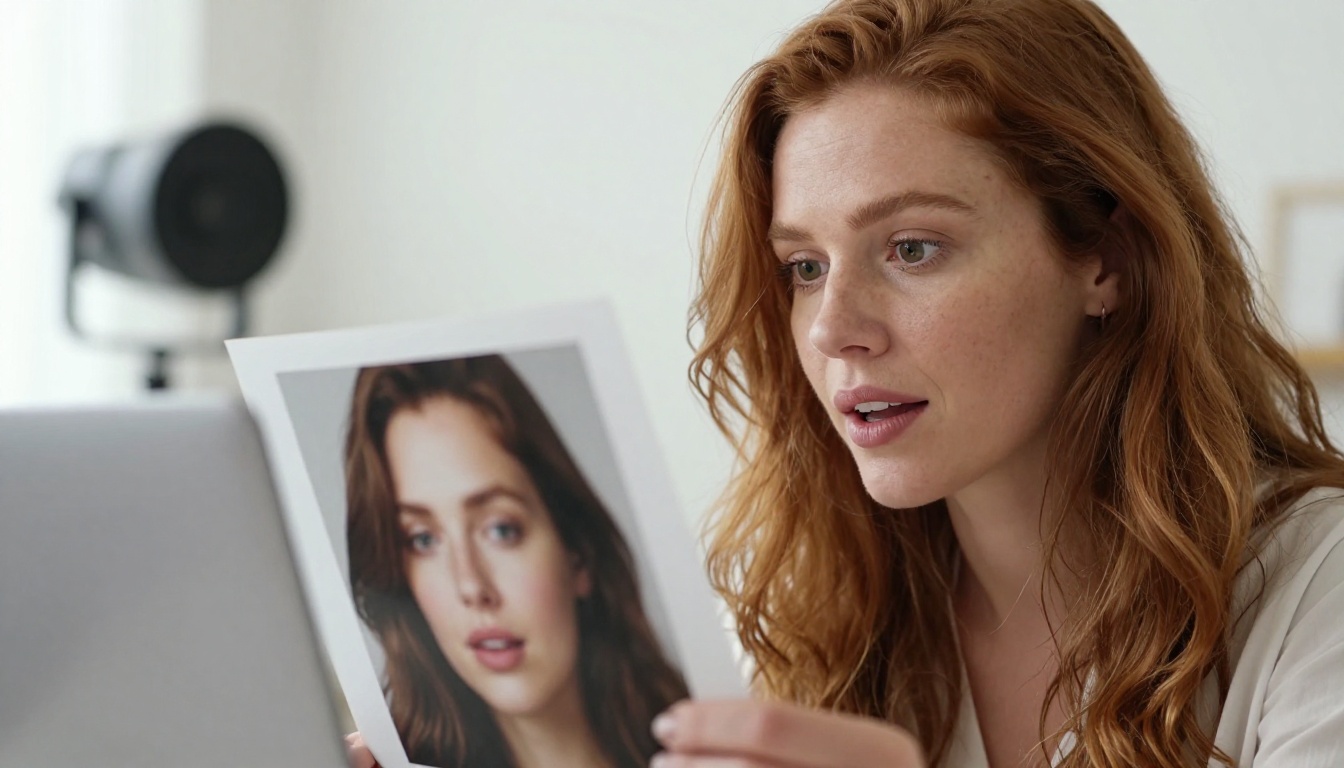
Brands producing social content at volume find GPT Image 2 particularly useful for generating consistent lifestyle imagery across campaign themes. The model can maintain visual consistency across a series of images if your prompts share the same lighting references, color palette descriptors, and stylistic language.
For social content, focus on 16:9 or 1:1 framing, bright natural light, and subjects with expressions that communicate specific emotions clearly. Simpler compositions read better at small sizes on mobile platforms.
Creative Projects
Writers, directors, game designers, and concept artists use GPT Image 2 as a fast ideation tool. When you need to visualize a scene or character quickly without committing to a full illustration, generating four to six prompt variations in under two minutes is significantly faster than any alternative workflow. The model's spatial coherence makes it well-suited for storyboarding and mood board creation.
Getting More From Every Image
Generating a strong base image is the beginning, not the end. Several tools on PicassoIA extend what you can do after the initial generation.
Use Super Resolution to Boost Detail
If a generated image is nearly what you need but you want higher resolution for print or large-screen display, PicassoIA's super-resolution models can upscale by 2x or 4x while preserving fine texture detail. This is particularly useful for portraits where facial detail at small output sizes looks natural but at print scale shows the limits of base resolution.
When Editing Makes Sense
PicassoIA Image Editor Pro provides unlimited editing generations, which makes it the right tool when you have a strong base image but need to correct specific areas, swap out background elements, or expand the canvas with outpainting. Rather than regenerating the entire image from scratch when one element is wrong, targeted inpainting fixes specific zones while preserving the rest of the composition.
Qwen Image Edit Plus handles AI-driven object replacement and fine scene edits with strong prompt adherence. It is particularly useful when you need to change clothing, swap props, or modify the background of an otherwise strong generation without restarting from zero.

The Real Difference Is in the Prompt
Everything above points to the same practical truth: GPT Image 2 is a powerful model, but your prompt is the actual variable. Two people generating images with the same model will get dramatically different results based solely on how they describe what they want.
The models available on PicassoIA, including GPT Image 2, Seedream 4.5, Ideogram v4 Quality, and PicassoIA Image, are each strong enough to produce professional-grade imagery. The meaningful skill gap is not in knowing which button to press. It is in building the visual vocabulary to describe exactly what you see in your head.

Practice with variety. Try portrait prompts, landscape prompts, product prompts, and architectural prompts. Notice what language the model responds to and what descriptions it interprets loosely. Over time, a personal prompt style develops that produces consistent, predictable results.
The Fastest Way to Get There
The fastest path from "I want an AI image" to "I have the image I want" runs through three things:
- Specificity in your prompt: Subject, environment, lighting, camera angle
- Iteration without frustration: Each generation teaches you what the model responds to
- The right model for the job: Use the comparison table above to match model strengths to your specific use case
💡 Tip: If you are stuck on a prompt, describe the image as if you were giving directions to a photographer standing at the scene. Tell them where to stand, what lens to use, where the light is coming from, and exactly what to focus on.
Try It Right Now
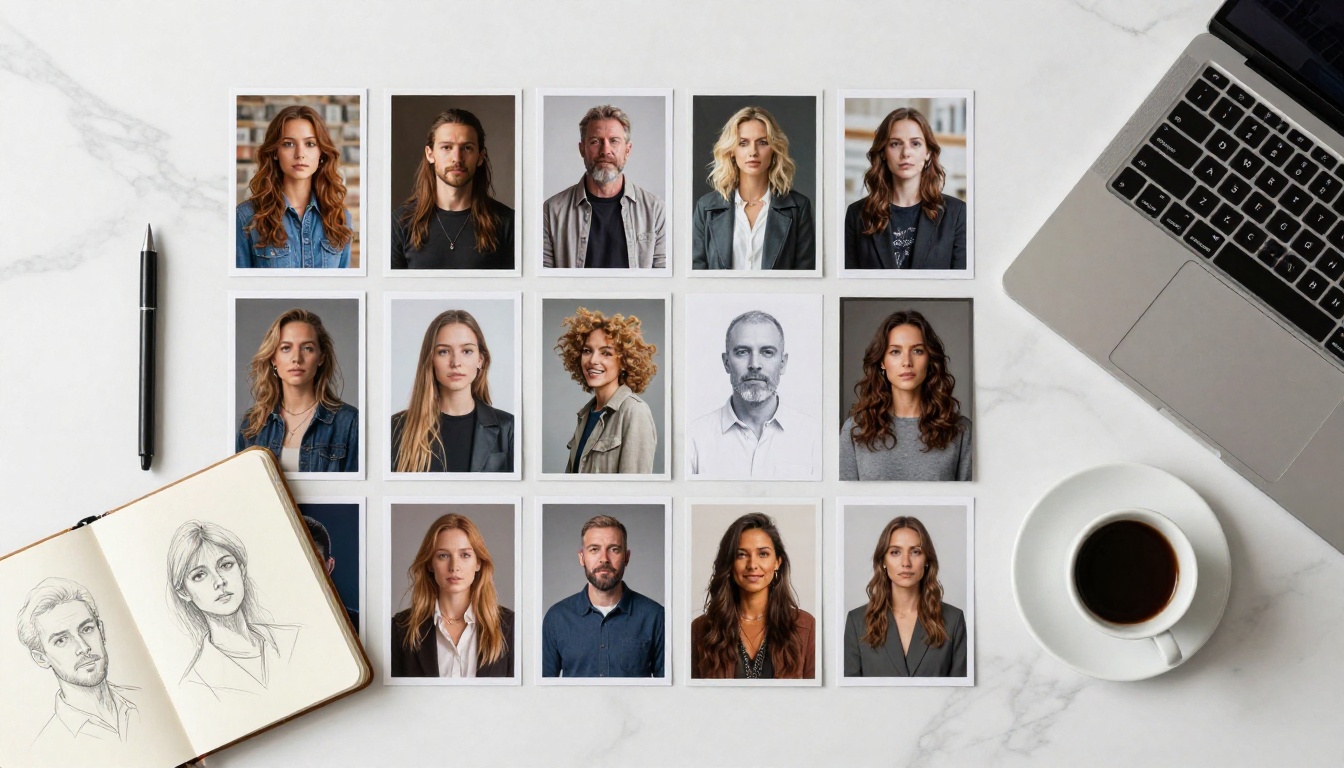
GPT Image 2 is waiting on PicassoIA alongside 90+ other text-to-image models. No subscription required to start. Pick a prompt, pick a model, and see what comes back. The best way to internalize everything above is to run 10 generations with 10 different prompt styles and pay close attention to which variables produce the biggest changes in output quality.
If you want to go beyond GPT Image 2, the full model catalog at picassoia.com/en/all-models shows every available model across image, video, audio, and editing categories. Something in that catalog will fit what you are trying to make.
Start with one image. Adjust the prompt. Generate again. That loop, repeated consistently, is how strong visual content gets made with AI.


