How to Remove Backgrounds with AI for Free (No Skills Needed)
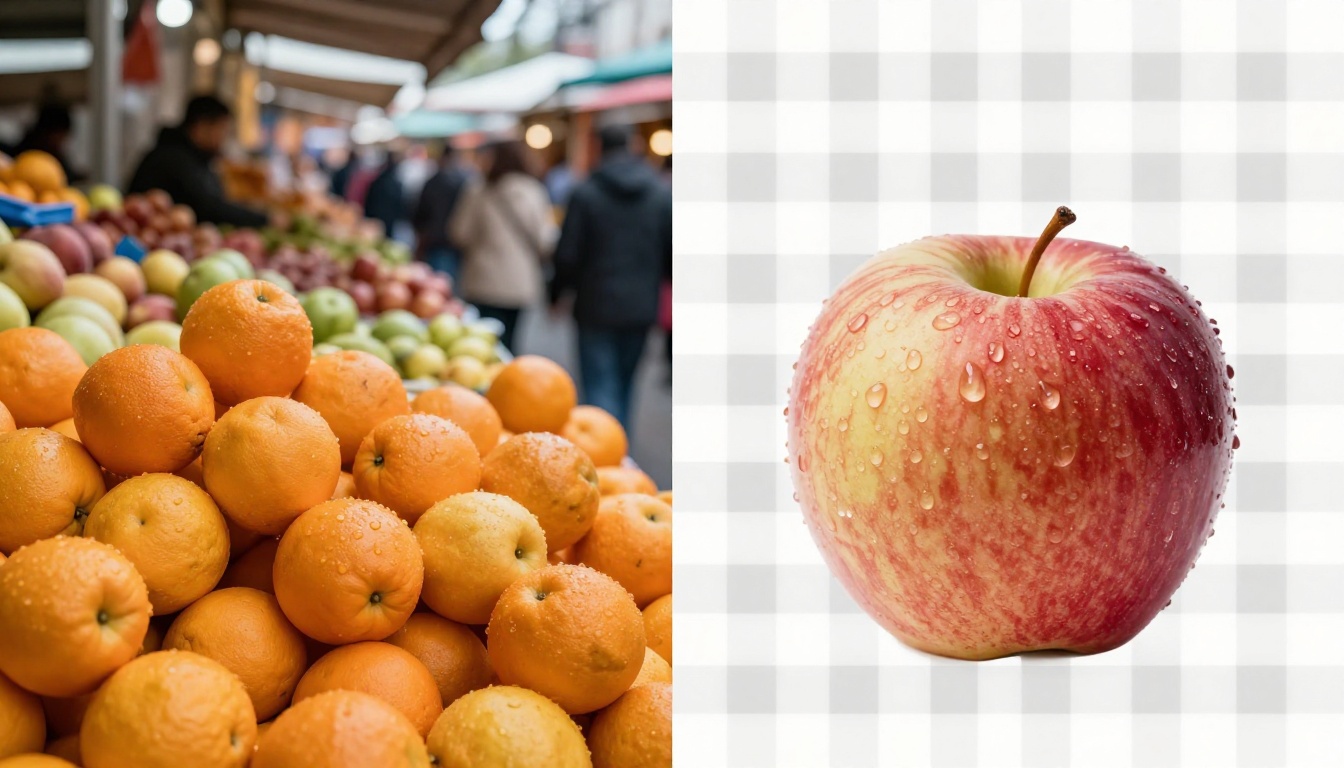
Getting a clean, transparent cutout used to take hours in Photoshop. Today, free AI background removal tools do it in under five seconds. This article covers how the technology works, which free tools deliver real results, how to get the cleanest edges on hair and glass, and what to do with your cutouts once the background is gone, from product listings to social media graphics.
Getting a clean, transparent cutout used to mean hours in Photoshop, a graphics tablet, and a steady hand for the pen tool. Now? Free AI tools handle it in under five seconds. Whether you're a solo seller photographing products on your kitchen table, a designer assembling social ads at scale, or a creator who just needs a quick cutout for a thumbnail, removing backgrounds with AI has become one of the most practical time-savers in digital work. The quality is there. The speed is there. And for most use cases, so is the price: free.
Why Backgrounds Block Good Images
The Old Way Ate Your Time
Manual selection in Photoshop demanded pixel-level precision. Flyaway hair was a nightmare. Transparent glass was worse. A single product image could take 20 to 30 minutes when the background was cluttered, and that time added up fast across a full catalog. Freelancers charged $5 to $15 per image for the service. Agencies built entire production pipelines around it. For small businesses, it was a genuine bottleneck between shooting a product and getting it listed online.
What Changed With AI
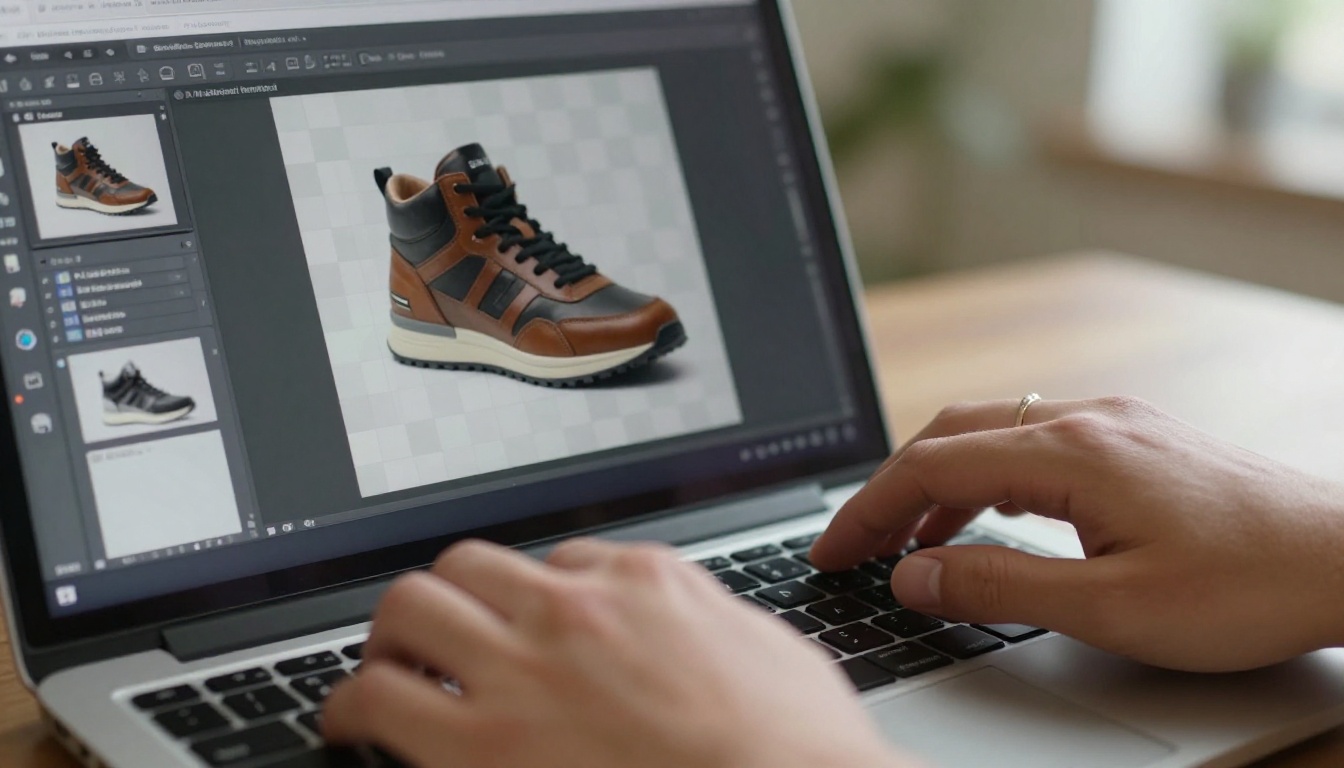
Modern AI background removal uses deep learning models trained on millions of images. They identify edges, detect subject boundaries, handle transparency like glass and sheer fabric, and separate subjects from backgrounds in a single pass. The accuracy on complex edges, including individual hair strands and soft fur, is dramatically better than even the best Photoshop select-and-mask workflow. More importantly, it takes seconds instead of minutes, and it requires no skill to operate.
💡 The best free AI tools today match the quality of professional manual editors for most standard product and portrait shots. The gap has effectively closed.
How AI Background Removal Actually Works
The Science in Plain Terms
The technology behind modern background removers is called semantic segmentation. The model assigns a class label to every pixel in an image: "person," "background," "sky," "product," and so on. Once the subject pixels are identified, a second pass runs a matting algorithm that handles the semi-transparent transition zone at edges, which is the zone where hair strands, soft fabric, and translucent glass create ambiguity between subject and background.
The best models, like Bria Remove Background on PicassoIA, are trained on proprietary datasets with diverse subjects, lighting conditions, and background types. That breadth of training data is why they outperform older approaches on difficult shots, including people photographed against complex backgrounds, products on patterned surfaces, and animals with thick coats.
What Affects Result Quality
Three factors determine whether you get a crisp cutout or a rough edge:
Source image resolution: More pixels per edge means more data for the model to work with. Higher resolution input produces sharper output.
Subject-to-background contrast: Strong contrast between subject and background makes segmentation more reliable. A dark product on a white background is easier to cut than a dark product on a dark surface.
Lighting consistency: Even, diffused lighting reduces shadows at edges. Shadows that fall across the subject-background boundary can confuse edge detection.
💡 Shoot products against a single-color background whenever possible. Even a plain bed sheet or foam board works. It gives the AI a significant head start and produces cleaner cutouts without any post-processing.
How to Use Bria Remove Background on PicassoIA
PicassoIA includes Bria Remove Background, one of the most accurate free background removal models available. Bria's model is specifically trained for commercial and creative use cases, handling portraits, products, and complex subjects without requiring any editing experience.
Step 1: Upload Your Image
Go to the Bria Remove Background model page on PicassoIA. Click the upload area and select your image file. JPG, PNG, and WebP files are all supported. The model performs best on images where the subject is clearly the dominant element in the frame.
Step 2: Run the Model
Click the generate button. Bria's model processes your image through its segmentation and matting pipeline and returns a PNG file with a fully transparent background. There are no settings to configure and no sliders to adjust. The model makes its own decisions about edges, and for the vast majority of images, those decisions are correct. Processing typically completes in two to five seconds.
Step 3: Download and Place
Download the output PNG. The transparency is fully preserved in the file format, so you can place the cutout directly onto any new background in Canva, Photoshop, Figma, PowerPoint, or any tool that supports PNG transparency. The file is ready to use immediately, with no additional editing required for most images.
Where Clean Cutouts Make the Biggest Difference
Product Photography for Online Stores
White or transparent backgrounds are the standard for most e-commerce platforms. Amazon requires pure white. Etsy and Shopify perform better with clean isolated product shots. Running your raw photos through Bria Remove Background gives you marketplace-ready images without a professional photographer, a studio rental, or a lightbox setup.
Platform
Background Standard
AI Removal Suitable?
Amazon
Pure white (#FFFFFF)
Yes
Etsy
Clean, simple backgrounds
Yes
Shopify
Transparent or white
Yes
Instagram
No restriction
Yes
Google Shopping
White preferred
Yes
eBay
White or light gray
Yes
Social Media and Content Creation
Cutouts let you build layered visuals fast. Drop a product or person onto a branded color, a textured background, or a seasonal scene. Social media content that once required a designer and a full production session can be assembled in minutes when you have clean transparent PNGs ready. For creators who publish at high volume, this is a material advantage.
Presentations and Marketing Materials
Isolated subjects drop cleanly into PowerPoint, Keynote, or Google Slides without the awkward white rectangle that appears when you place a JPEG with a solid background onto a colored slide. Finance decks, pitch presentations, training materials, they all read as more polished when assets are properly isolated.
Headshots and Portrait Photography
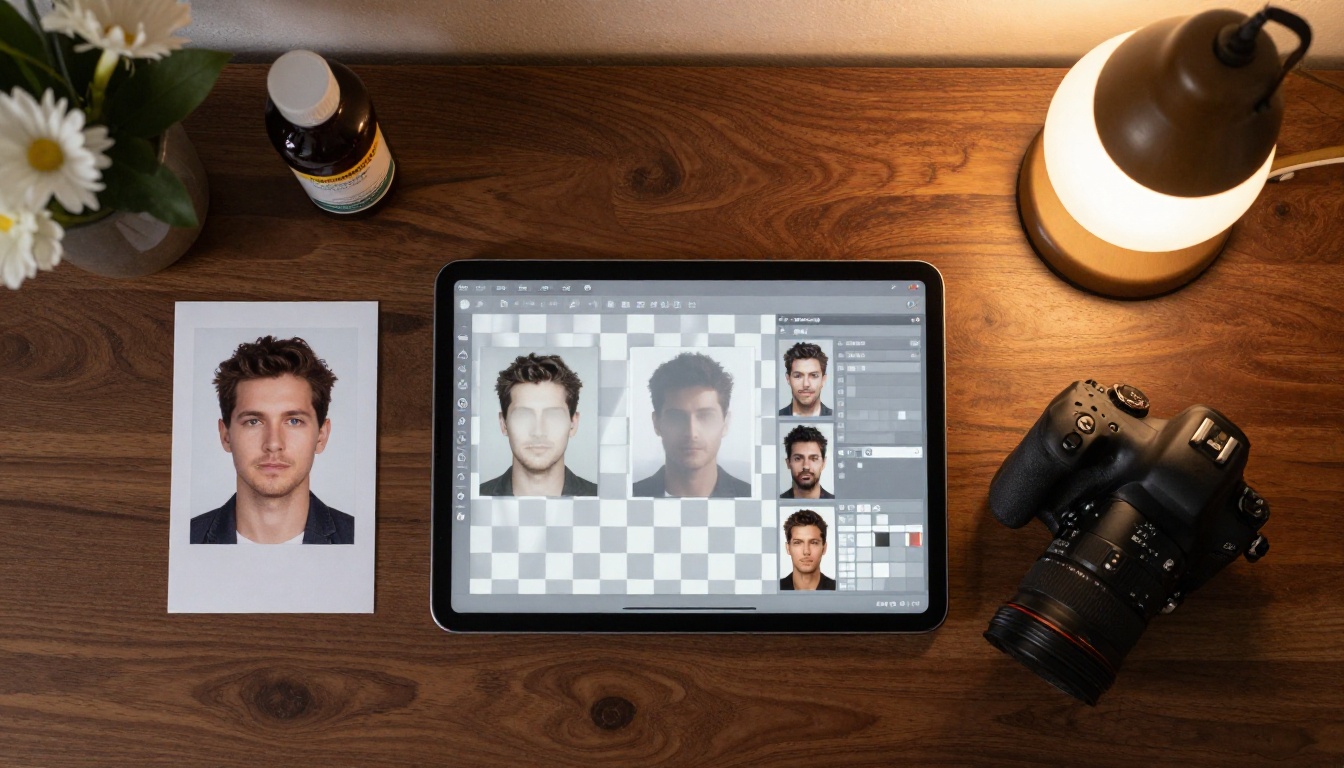
For professional headshots, swapping the background for a neutral gray or a branded color is standard across corporate directories, LinkedIn profiles, and passport photos. AI background removal handles this in one step that used to require a dedicated retoucher.
Getting Better Results on Difficult Images
Hair and Fur: The Real Test
Hair is the definitive benchmark for any background removal tool. Individual strands catch light at different intensities, create semi-transparent zones where they overlap the background, and blend in unpredictable ways when the background is busy. Modern models like Bria Remove Background use dedicated matting specifically to handle this, but you can help:
Avoid busy backgrounds behind hair: A cluttered background behind curly or fine hair creates ambiguity the model has to resolve pixel by pixel
Use rim or backlighting on hair: Lighting that visually separates hair from the background dramatically improves edge detection accuracy
Shoot at higher resolution: More pixels per strand give the model more data to work with at the edge
Glass, Bottles, and Transparent Objects
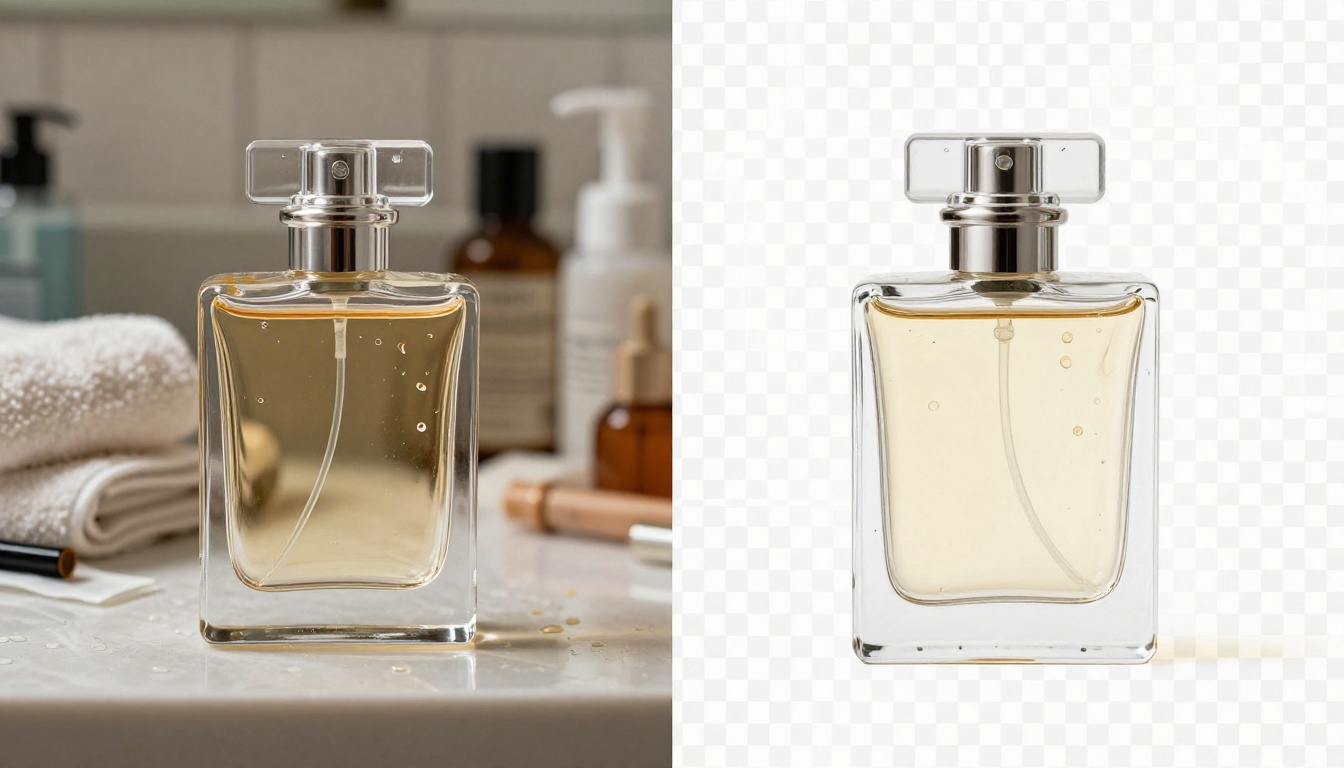
Glass is hard because the background shows through it. The model has to decide what belongs to the subject and what is background visible through refraction. Results vary depending on the complexity of what shows through the glass and how reflective the surface is.
For glass products, these shooting conditions improve results:
Photograph against a white or very light single-color background
Use diffused, even lighting to minimize sharp reflections (a lightbox or softbox works well)
Avoid placing strongly colored objects near the glass that will show as colored refraction inside the subject
💡 For products combining both opaque and transparent elements, photograph each component separately and composite them after background removal. This produces dramatically cleaner results than trying to cut both in a single pass.
Clothing and Soft Fabric
Soft fabric edges, particularly sheer fabrics, lace, and light scarves, present challenges when they overlap a complex background. Hard-edged products like electronics, footwear, and packaged goods are consistently easy for current models. For clothing, the main variable is how well-separated the garment edge is from the background in the original shot.
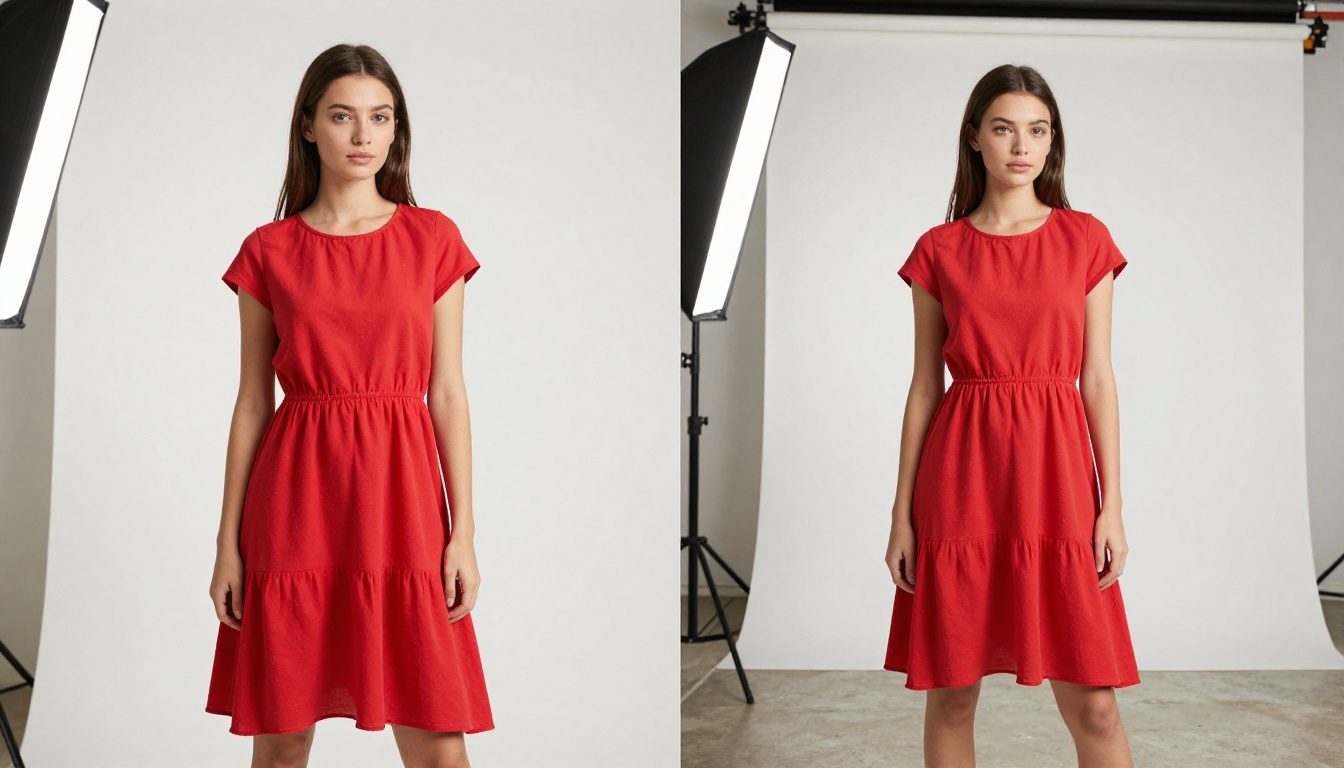
Practical tip for clothing photography: Steam or iron garments before shooting. Wrinkles create shadows that fall at fabric edges, and those shadows can cause the model to misidentify edge pixels as background, particularly when subject and background tones are similar.
What to Do After the Background Is Gone
Place It on a Generated Background
Once you have a clean PNG, placing it on a new background is straightforward in any design tool. But you can go further. PicassoIA's text-to-image models let you generate entirely new photorealistic backgrounds to drop your subject into. Generate a lifestyle setting that matches your brand, a seasonal scene for a campaign, or a neutral environment for catalog use, then composite your cutout on top. The result looks shot on location because the lighting and perspective are consistent.
Run It Through Super Resolution
Background removal sometimes exposes compression artifacts at edges that were invisible before the background was removed. If you're using cutouts for print materials like catalogs, banners, or product packaging, run them through a super-resolution model to sharpen edges and recover fine detail. PicassoIA's super-resolution models upscale 2x to 4x while preserving edge sharpness, which matters for anything that will be printed large.
Video Background Removal
The same technology extends to moving footage. Robust Video Matting on PicassoIA handles video background removal by tracking subjects frame-by-frame, producing clean transparent video output without a physical green screen. For content creators, this opens up composite video production that previously required dedicated studio setup.
Free vs. Paid: The Real Difference
What Free Actually Gives You
PicassoIA gives you access to Bria Remove Background without requiring a paid subscription for standard use. The model produces full-resolution output without watermarks. For individual creators and small businesses processing a reasonable monthly volume, free access handles everything they need at the quality level they need.
The real constraint at free tier is throughput. Processing images one at a time through a web interface works fine up to a point. When you need to run hundreds of product images through removal as part of a catalog update, manual upload-and-download adds friction that eats into the time savings you gained from using AI in the first place.
Volume Changes the Calculation
Monthly Image Volume
Free Tier Works?
Notes
Under 50 images
Yes
Free tools handle this without issue
50 to 200 images
Usually
Manual workflow becomes tedious at the upper end
200 to 500 images
Partially
API access starts to matter here
500+ images
No
Batch API integration is necessary
Real-time video
No
Requires dedicated compute pipeline
💡 For small Etsy or Shopify stores processing under 50 product images per month, free AI background removal fully replaces hiring a photo editor. The economics are straightforward.
Scaling Batch Background Removal
Automating High-Volume Workflows
When image volume is high, manual processing stops making sense. Professional operations running 500+ images per day use background removal via API calls integrated directly into their product information management system, their e-commerce platform, or a custom internal tool. The output PNG is generated automatically when a new product photo is uploaded, with no human in the loop.
PicassoIA's model access supports integration into custom pipelines through standard API calls. You can automate the full flow: incoming product image arrives, gets processed by Bria Remove Background, output PNG gets stored alongside the source image in your asset management system.
Keeping Files Organized at Scale
A batch pipeline needs consistent output naming so automated systems can match cutouts to their source product listings. A simple convention that works:
product-sku-original.jpg
product-sku-cutout.png
This keeps your file management clean across thousands of images and multiple product categories. Any downstream system that needs to reference the cutout can find it by constructing the filename from the SKU.
Quality Checks at Volume
At scale, you also need automated quality checks. Not every image will be processed perfectly. A simple pixel-count check on the transparent region of the output PNG can flag images where too much or too little was removed, routing them to a human reviewer. This keeps error rates manageable without requiring manual review of every image.
Try It on Your Most Difficult Images
The quality gap between free AI background removal and professional manual editing has essentially closed for standard commercial photography. Products, portraits, and most marketing scenarios are handled consistently well by current models like Bria Remove Background on PicassoIA.
The fastest way to verify this for your specific use case is to test it on your hardest images. Upload the shots with fine hair, reflective surfaces, or complex fabric edges and see how the output holds up. Most people are surprised by how well current models handle what used to be the hard cases.
From there, the platform gives you more to work with. Pair background removal with PicassoIA's text-to-image models to generate new environments for your subjects. Use super-resolution to upscale cutouts for print. Run video through Robust Video Matting for motion content. Every visual asset you produce becomes more versatile when the background is under your control rather than fixed at the moment of capture.