Kling vs Seedance: Prompts, Examples and Settings for Beginners
Kling and Seedance both turn a sentence into a short video with sound, but they reward different prompts. This side-by-side shows the settings that matter, copy-ready examples, and how to run each model on PicassoIA.
You typed a sentence, pressed generate, and got a clip where the camera drifted the wrong way and the character's hand looked like a bunch of bananas. Everyone's first AI video goes something like that. The good news is that most bad clips come from a mismatch between the prompt and the model, not from a lack of talent. Kling and Seedance are the two names beginners hear first, and they behave differently enough that the same prompt can look great in one and mediocre in the other.
This article puts them side by side. You get the settings that actually change your results, a prompt formula you can copy, paired examples, and step-by-step instructions for running both on PicassoIA. No jargon walls, no theory dumps.
💡 Short version: Kling v3 is the one to reach for when you want tight control over shots and camera moves. Seedance 2.5 is the one to reach for when you want long clips, dialogue and heavy use of reference images. Details below.
Kling vs Seedance in 60 Seconds
Both models are text-to-video and image-to-video systems that generate sound along with the picture. Kling comes from Kuaishou. Seedance comes from ByteDance. Both families have shipped several versions, which is why beginners get confused: "Kling" can mean v1.5, v3, Omni or Motion Control, and "Seedance" can mean 1 Pro, 1.5 Pro, 2.0 Mini or 2.5.
For a fair comparison, this article focuses on the two flagship versions currently on PicassoIA: Kling v3 Video and Seedance 2.5.
Feature
Kling v3 Video
Seedance 2.5
Max clip length
Up to 15 seconds
Up to 30 seconds
Output quality
720p (standard) or 1080p (pro)
480p or 720p
Multi-shot scripting
Up to 6 shots in one video
Single prompt, use references and frames
Negative prompt
Yes
No dedicated field
Native audio
Optional toggle, off by default
On by default, with lip-synced dialogue
Reference images
Start and end frame
Up to 30 reference images plus first and last frame
Aspect ratios
16:9, 9:16, 1:1
16:9, 4:3, 1:1, 3:4, 9:16, 21:9, adaptive
Prompt limit
2,500 characters
2,000 characters
💡 Specs shift as platforms update their models. The numbers above come from the model pages on PicassoIA. Check the model page before you plan a long project around a specific limit.
What Each Model Does Best
Where Kling v3 Shines
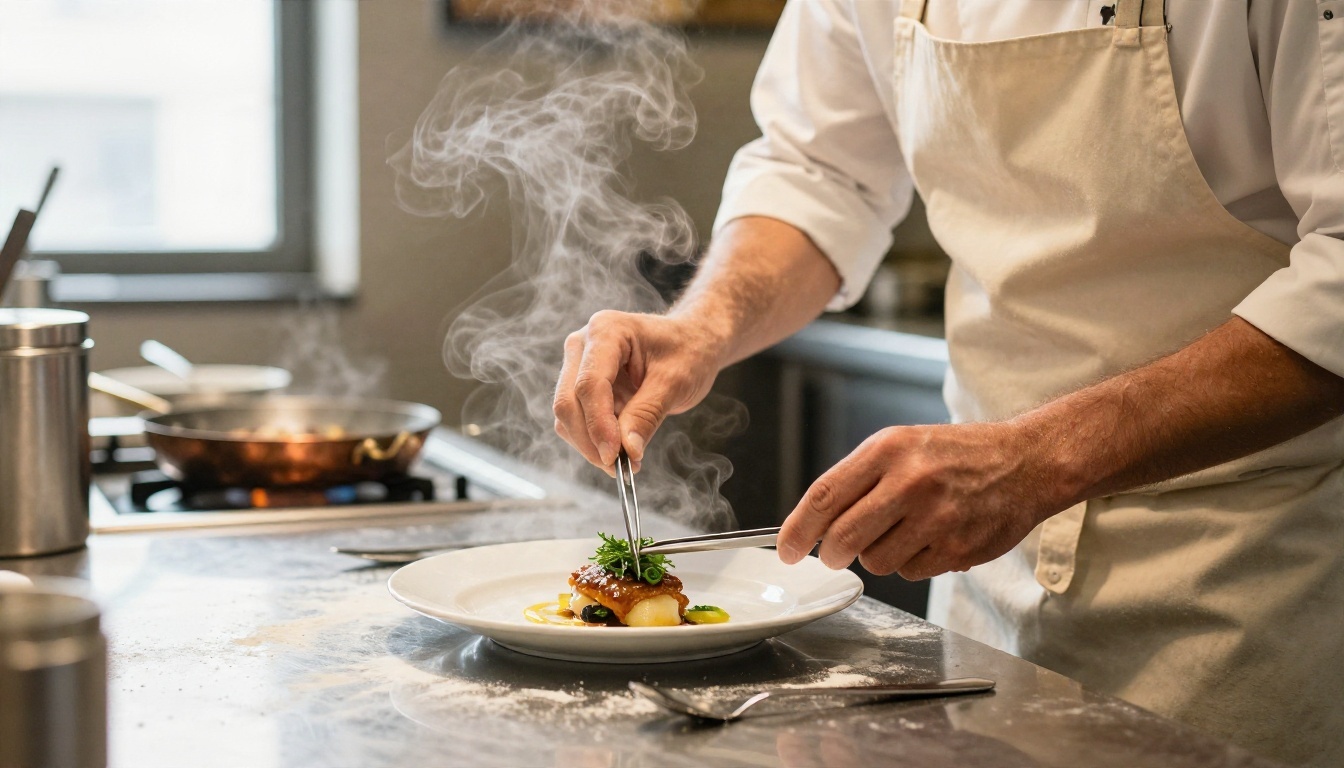
Kling v3 behaves like a disciplined camera operator. If you write "slow push-in on the chef's hands as steam rises", you tend to get exactly that: a slow push-in, hands in the frame, steam in the air. It follows instructions about motion and composition closely, which makes it comfortable for beginners who like to describe a shot and see it come back as described.
Three features make it special:
Multi-shot scripting. You can define up to six scenes, each with its own prompt and duration, inside a single video. A wide establishing shot, a close-up, a reaction: all in one render.
Negative prompts. Type "blurry, extra fingers, text overlay, flickering" into the negative field and the model steers away from those problems.
Start and end frames. Upload two images and the clip travels from one to the other. Great for product reveals and simple before-and-after moments.
Where Seedance 2.5 Shines
Seedance 2.5 feels more like a director with a big reference folder. Its headline strengths are long clips, reference-driven consistency, and audio that feels baked into the scene rather than pasted on top.
Long single takes. A clip can reach 30 seconds in one generation, so you do not have to stitch five short segments together and hope the lighting matches.
Character consistency. You can attach up to 30 reference images and call them in the prompt as [Image1], [Image2] and so on. The same face, jacket or product shows up shot after shot.
Dialogue with lip-sync. Put spoken lines in double quotes and the character's mouth follows the audio. Beginners tend to love this because it turns a silent clip into a tiny scene.
Which Version Should You Pick
There is a cheaper, lighter lane too. Seedance 2.5 Lite is free and unlimited for clips up to 10 seconds, which makes it the best place to practise prompts without worrying about credits. Seedance 2.0 Mini and Seedance 1.5 Pro are older siblings that still produce clean results with audio. On the Kling side, Kling v3 Omni Video pushes toward 1080p text-to-video, and Kling v3 Motion Control is built for animating a character with a reference movement.
A simple rule works for most beginners: practise on Seedance 2.5 Lite, then switch to Kling v3 or Seedance 2.5 for the clip you plan to share.
Settings That Change Your Results
Most beginners spend ten minutes on the prompt and zero minutes on the settings. That is backwards. Four settings decide whether a clip is usable.
Duration and Resolution
Start short. A 5-second clip renders faster, costs less and shows you whether the idea works. Only extend to 10 or 15 seconds once the first five look right. Longer clips give the model more time to drift: faces change, props vanish, backgrounds slide.
On Kling v3, the mode switch matters. Standard renders 720p and is the cheap way to test. Pro renders 1080p and is what you want for the final version. On Seedance 2.5, pick 720p for finals and 480p for quick tests.
💡 Test at the lowest resolution and shortest duration. Upgrade only the clip you plan to keep.
Audio On or Off
Seedance 2.5 generates audio by default, including dialogue, sound effects and background music. Kling v3 has the audio toggle off by default, so you must switch Generate Audio on if you want ambient sound.
If you plan to add your own music in an editor, turn audio off on both. It prevents a clash between generated and added sound. If the clip is going straight to social media, leave it on and write a sound cue into the prompt (more on that below).
Negative Prompts and References
On Kling, the negative prompt field is a free quality filter. A reliable starter list:
blurry, low resolution, distorted hands
text, watermark, subtitles
flickering, jittery motion, morphing faces
Seedance has no dedicated negative field, so you flip the logic: describe what you want in positive terms and use reference images to lock the look. "A calm, steady shot with natural skin" does more than "no shaky camera".
Aspect Ratio and Frame Images
Pick the ratio for the platform before you generate. 9:16 for vertical feeds, 16:9 for YouTube and websites, 1:1 for squares. Kling ignores the aspect ratio setting when you upload a start image, because it takes the ratio from the image. Seedance asks for adaptive when you use first and last frame images.
A Prompt Formula Beginners Can Copy
Long poetic prompts are tempting. Resist them. Both models respond best to a clear structure in plain language.
The Five-Part Formula
Write the prompt in this order:
Subject. Who or what is on screen, with two or three concrete details.
Action. What happens, in order, over the length of the clip.
Setting. Where, what time of day, what the weather does.
Camera. How the camera moves and how close it sits.
Sound and mood. Ambient noise, dialogue, music style, colour feel.
A template you can paste and edit:
A [subject with details] [action in chronological order] in [setting and light]. The camera [movement and distance]. Sound: [ambient noise, dialogue in quotes].
Keep it between 40 and 120 words. Shorter prompts leave too much to chance; longer ones start to contradict themselves.
Camera Motion Words
Camera language is where Kling tends to pull ahead, and a handful of phrases cover nearly every beginner need:
Phrase
What you get
Slow push-in
Camera creeps toward the subject, adds tension
Gentle pull-back
Camera retreats, reveals the setting
Tracking shot, side view
Camera moves alongside a walking subject
Static tripod shot
No camera movement, subject moves alone
Slow orbit
Camera circles the subject
Aerial descent
Camera drops from high above toward the ground
Handheld, subtle sway
Documentary feel, slight natural wobble
Pick one camera move per shot. Asking for a push-in, an orbit and a tilt at the same time is how clips turn to soup.
Dialogue and Sound Cues
Seedance 2.5 reads dialogue from double quotes. Write it like this:
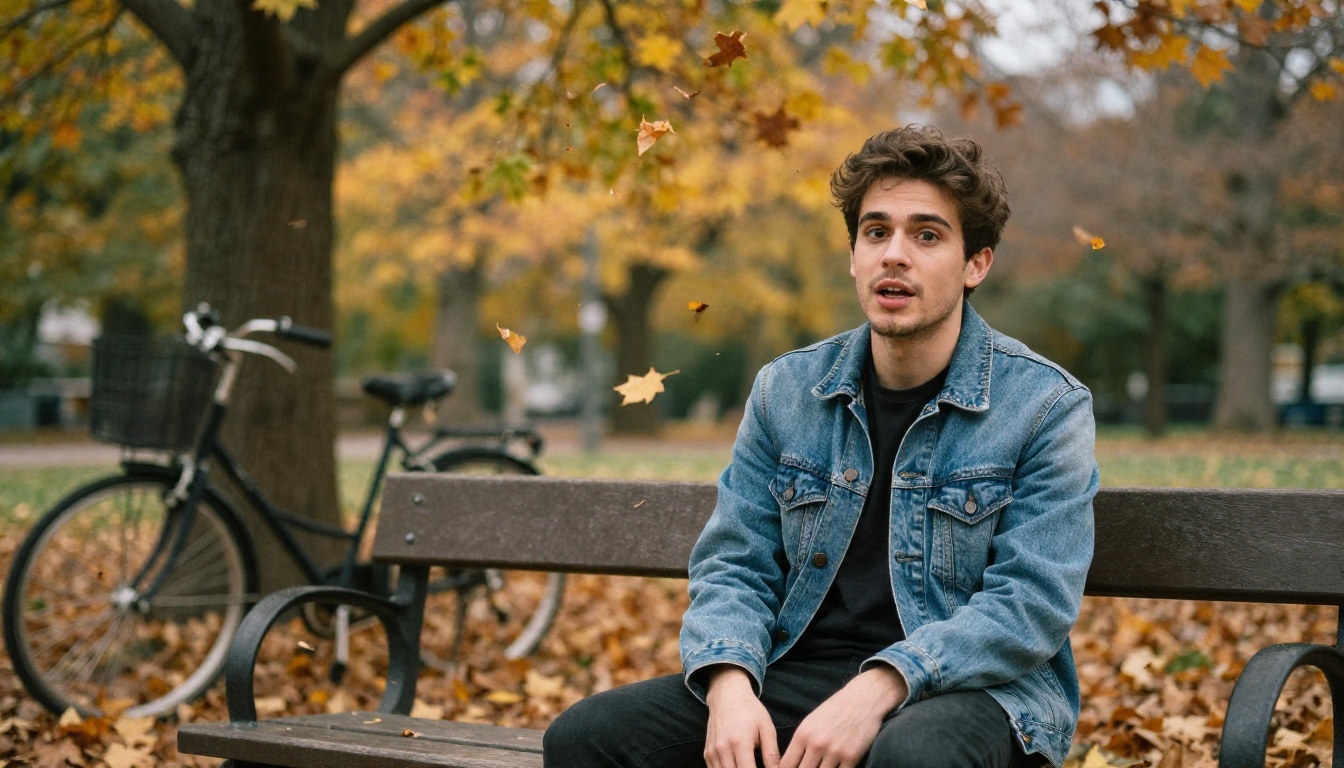
A young man in a denim jacket sits on a park bench and says, "I almost forgot how quiet autumn is." Leaves drift behind him. Soft wind and distant birdsong.
Keep lines short, one or two sentences per clip. A line that runs longer than the clip forces the model to rush the delivery. On Kling v3, switch Generate Audio on and describe ambient sound in words ("soft wind, rustling leaves") for a similar effect.
Side-by-Side Prompt Examples
Here are three pairs to test yourself. Same idea, tuned for each model.
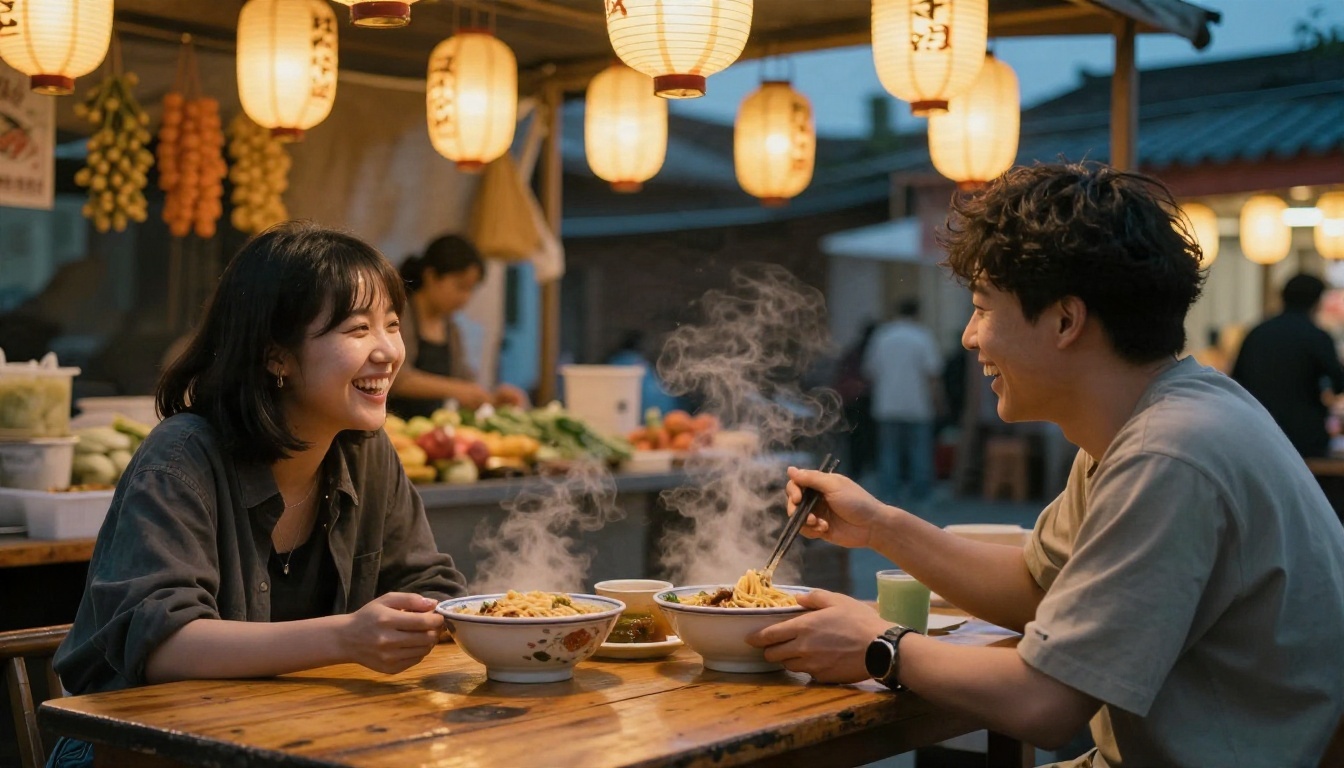
Example 1: Night Market Scene
Kling v3 version:
Two friends sit at a wooden table in an outdoor night market, paper lanterns glowing overhead, steaming noodle bowls between them. They laugh and clink chopsticks. Medium shot, static tripod, shallow depth of field. Warm amber light, soft crowd murmur.
Negative prompt: blurry, text, distorted hands, flickering
Seedance 2.5 version:
Two friends [Image1] and [Image2] sit at a wooden table in an outdoor night market under paper lanterns. One says, "Okay, this is the best bowl I have ever had." The other laughs and lifts their chopsticks. Slow push-in, warm amber tones. Crowd chatter, sizzling pans, soft music.
Notice how Kling gets the camera spelled out and a negative prompt, while Seedance gets reference tags and spoken dialogue.
Example 2: Mountain Sunrise
Kling v3 version:
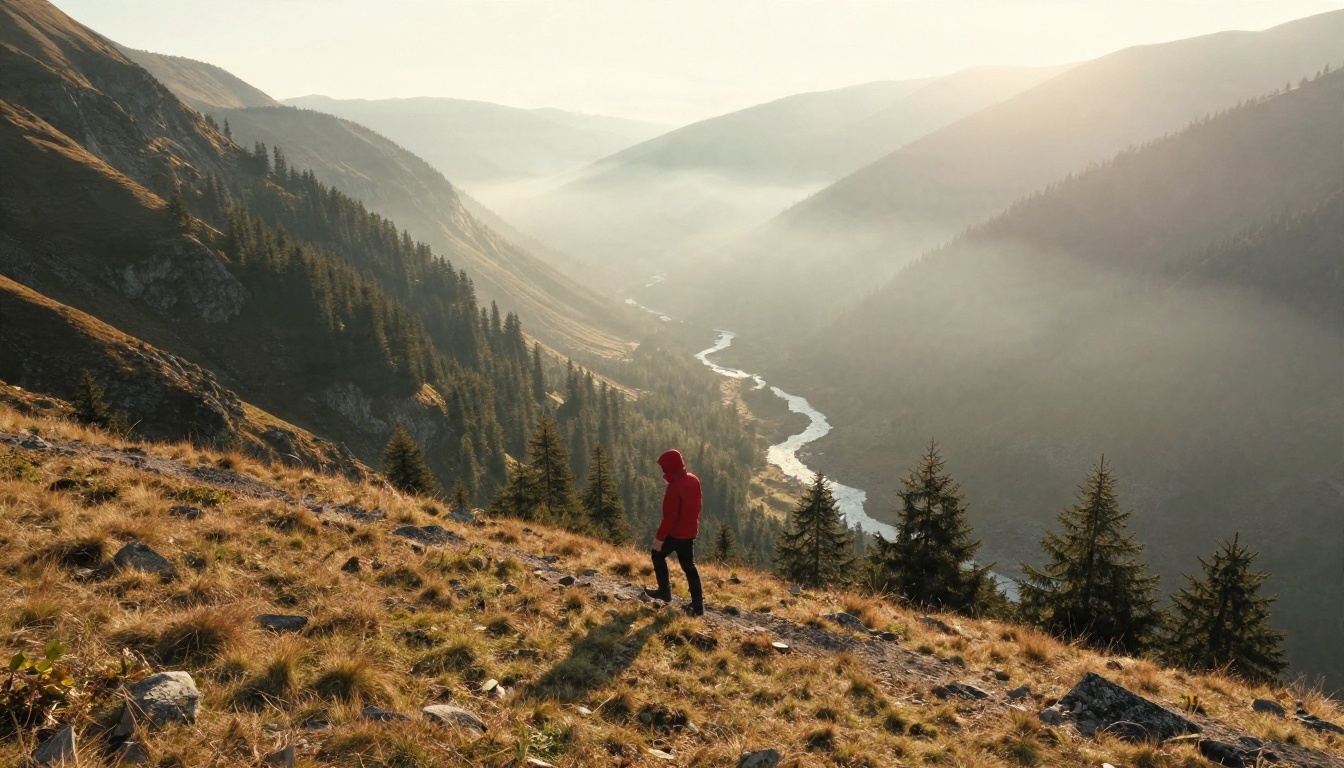
A lone hiker in a red jacket walks along a ridge above a misty valley at sunrise. Aerial shot slowly descending toward the hiker, then settling into a tracking move from behind. Warm low sunlight, long shadows, drifting fog.
Seedance 2.5 version (10 seconds):
A lone hiker in a red jacket walks along a ridge above a misty valley at sunrise. The camera starts high above the valley, glides down, and settles behind the hiker. Wind across the grass, distant bird calls, a quiet cinematic score that rises slowly.
Landscape shots with no people are the easiest way to compare models for the first time. There is no face or hand to fail, so you judge pure motion, light and sound.
Multi-Shot Scripts With Kling
Multi-shot is Kling v3's party trick. You pass a JSON array where each shot has its own prompt and duration, and the total must equal the clip length. A 10-second example:
[
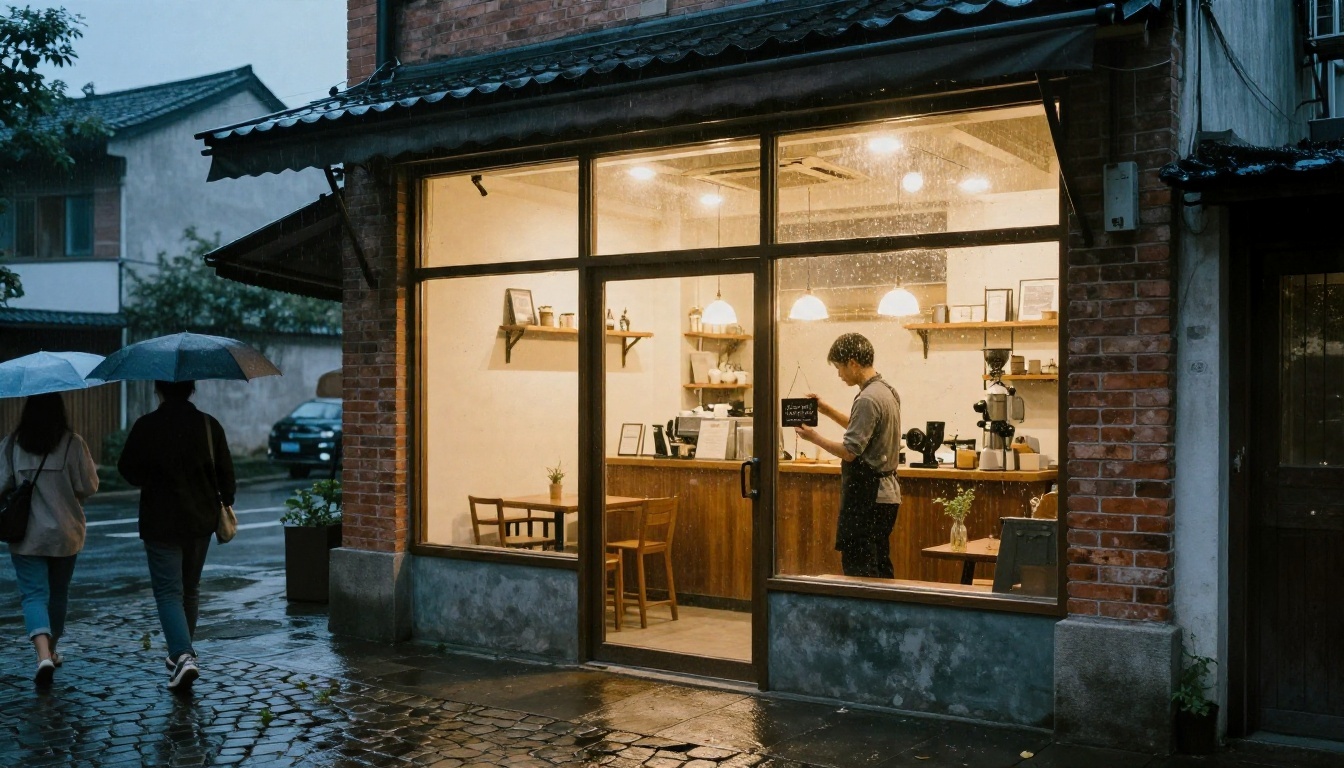
  {"prompt": "Wide shot of a small coffee shop exterior at dusk, warm light on wet cobblestones", "duration": 3},
  {"prompt": "Medium shot, a barista flips the door sign to open, smiling", "duration": 3},
  {"prompt": "Close-up of steam rising from a fresh cup on the counter", "duration": 4}
]
You can use up to six shots, with at least one second each. For beginners, three shots is the sweet spot: establishing, subject, detail. That is the same structure professional editors use for ads and short stories.
Run Both on PicassoIA
Both models sit in the same text-to-video collection, so switching between them takes a click. The settings panel works the same way: write a prompt, adjust options, generate.
Write your prompt (maximum 2,000 characters). Put spoken lines in double quotes.
Choose Resolution: 480p for tests, 720p for the final.
Set Duration. Use 5 for a first test, or -1 and let the model pick a length.
Pick an Aspect Ratio. Use adaptive if you upload a first and last frame.
Leave Generate Audio on, or switch it off if you are adding your own soundtrack.
Optional: add up to 30 Reference Images and call them as [Image1], [Image2] in the prompt.
Optional: add a Seed value. Reusing the same seed makes a result easier to repeat, though repeatability is not guaranteed.
Generate, check the first three seconds, and refine.
Want to practise before spending anything? Run the same prompts on Seedance 2.5 Lite first.
Five Beginner Mistakes to Skip
Cramming too many actions. A 5-second clip fits one action, not a plot. "Walks in, sits, opens the laptop, smiles, waves" fails. "Walks in and sits" works.
Stacking camera moves. One move per shot. If you want three, use Kling's multi-shot.
Skipping the test run. Always render at the cheapest settings first. Upgrade resolution on the version you like.
Writing dialogue longer than the clip. About two spoken words per second is a safe pace.
Fighting the model. If Kling keeps ignoring a detail, try the same idea on Seedance with a reference image. If Seedance drifts, try Kling with a start image and a negative prompt. Switching is faster than rewriting ten times.
A final tip on reference images: use a clean, well-lit photo of the subject on a plain background. Messy references create messy video.
Pick One and Make a Clip
Here is the shortest path from reading to creating:
Want control over the camera and a clean multi-shot story? Open Kling v3 Video, keep the clip at 5 seconds, standard mode, and add a negative prompt.
Want a longer scene, talking characters or a consistent face? Open Seedance 2.5, write one line of dialogue in quotes and attach a reference image.
Want to experiment for free? Start with Seedance 2.5 Lite and test five prompts back to back.
Take one of the examples above, paste it into both models, and compare the results on your own screen. Ten minutes of side-by-side testing will teach you more than any comparison table. Picasso IA puts both families in one place, so you can switch models without changing tools, accounts or workflow. If you want to see what else is available, browse the full list at picassoia.com/en/all-models, pick a model, and make your first clip today.