You typed a perfect prompt, hit generate, and got a portrait with six fingers, a smeared background and a random watermark in the corner. That is exactly what a negative prompt is built to prevent. In Leonardo AI, the negative prompt box lets you list what you do not want to see, so the model steers away from it while it draws. Used well, it saves tokens, saves rerolls and makes your first result far more usable.
This article gives you ready to paste negative prompt examples, explains the settings that change how strongly they work, looks at what you can do for free, and shows alternatives on PicassoIA when Leonardo's limits or model choices get in the way.
What a Negative Prompt Does
A normal prompt describes what should appear. A negative prompt describes what should be pushed away. During generation, the model compares the image it is building against both instructions and nudges the result toward the first while steering it away from the second.
Think of it as a filter on common failure modes. Typical targets are:
- Anatomy problems: extra fingers, fused limbs, twisted hands, asymmetrical eyes
- Image quality problems: blur, low resolution, grain you did not ask for, jpeg artifacts
- Unwanted additions: text, logos, watermarks, borders, frames
- Style drift: cartoon look when you wanted a photo, or the reverse
💡 Important: a negative prompt lowers the chance that something appears. It does not guarantee the element is gone. If a stray object keeps showing up, treat the negative prompt as one tool among several and also rewrite the main prompt.
Why It Matters More on Some Models
Older diffusion models made frequent anatomy mistakes, so long negative lists were almost mandatory. Newer models follow the main prompt much more closely, and some do not expose a negative prompt field at all. Availability depends on the model you pick inside Leonardo, so check the panel for the model you selected before you build a routine around it.
Where to Find the Field in Leonardo
In Leonardo's image generation panel, the negative prompt sits in its own separate box under the main prompt. You do not need special syntax or minus signs. You simply type the unwanted items separated by commas.
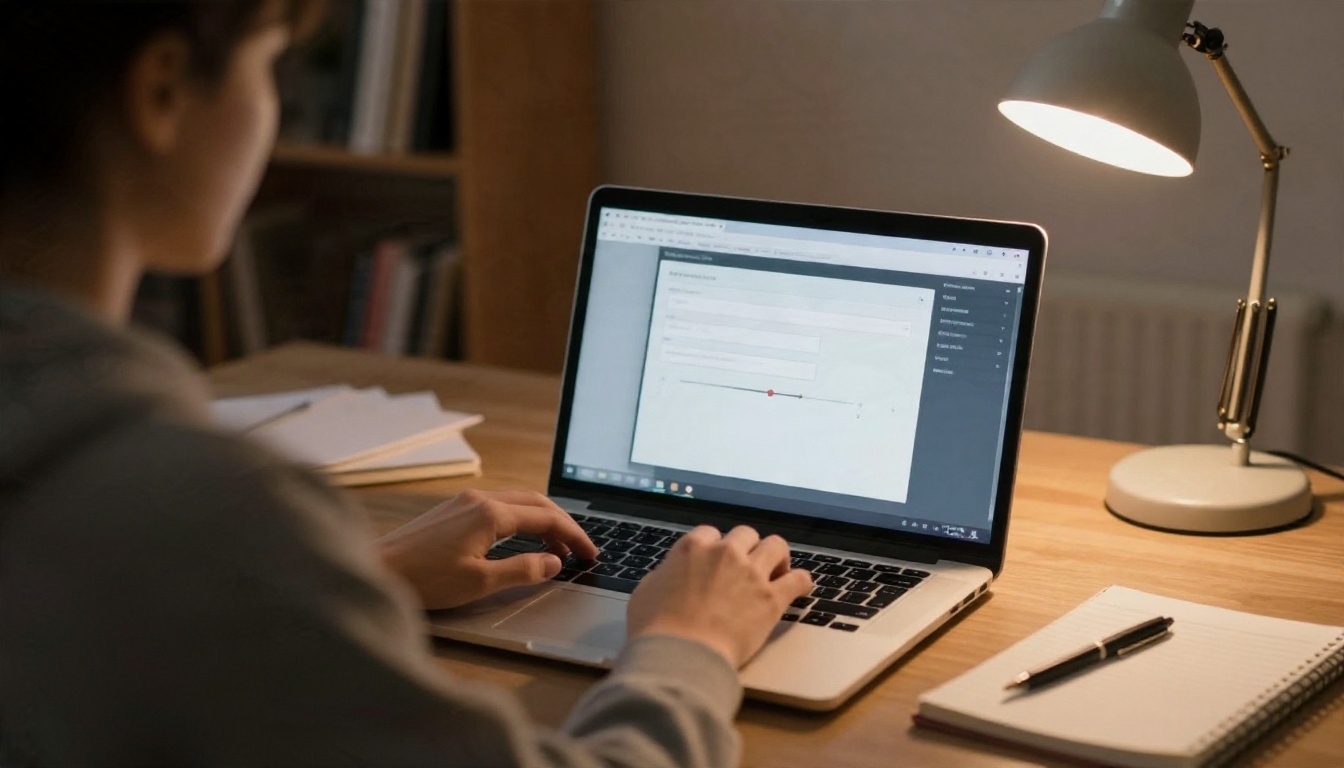
If you cannot see the box, the usual reason is the model. Some current models are tuned so that the main prompt does all the work, and the interface hides the field for them. Switching to a model that supports it brings the box back.
| Situation | What you will likely see | What to do |
|---|
| Model supports negative prompts | A separate negative prompt box | Fill it with short, specific terms |
| Model ignores negative prompts | No box, or no visible effect | Rewrite the main prompt in positive terms |
| Image to image or editing flow | Box may be missing | Describe the desired result precisely instead |
Negative Prompt Examples You Can Copy
Short and specific beats long and vague. Here are lists organized by goal. Paste one, test it, then trim whatever does nothing.
Universal Starter List
This works as a safety net for most photographic prompts:
blurry, low quality, low resolution, jpeg artifacts, watermark, text, signature, logo, cropped, out of frame, distorted, deformed
For Realistic Portraits
extra fingers, missing fingers, fused fingers, extra limbs, bad hands, bad anatomy, asymmetrical eyes, crossed eyes, plastic skin, waxy skin, overexposed face, heavy retouching
Pair this with a main prompt that names a lens, a light direction and a skin detail such as "visible pores". Photographic words in the main prompt pull the model toward real photos more reliably than a negative list can.
For Products and Objects
motion blur, out of focus, dirty background, clutter, reflections of the photographer, warped edges, melted shapes, duplicate objects
For Interiors and Architecture
people, crowd, tilted horizon, warped walls, distorted perspective, messy room, oversaturated colors, fisheye distortion
For Cinematic and Moody Scenes
flat lighting, harsh flash, overexposed, washed out, noise, banding, oversharpened, halo
Quick Reference Table
| Goal | Negative terms worth trying |
|---|
| Clean hands | extra fingers, bad hands, fused fingers, extra limbs |
| Sharp image | blurry, out of focus, motion blur, low resolution |
| No text | text, watermark, signature, logo, caption |
| Natural skin | plastic skin, waxy skin, airbrushed, oversmoothed |
| Clean framing | cropped, out of frame, border, frame, tilted |
| Photo not illustration | cartoon, drawing, painting, illustration, sketch |
Settings That Change the Outcome
The negative prompt does not work alone. Several other controls in Leonardo decide how much weight it gets.
Guidance Scale
Guidance (sometimes labelled prompt strength) sets how strictly the model follows your text, positive and negative together. Low values give the model freedom and produce softer, looser images. High values push harder on every instruction and can burn in contrast or create odd textures.
A practical range is the middle of the slider. Start there, then move one notch at a time. If the negative prompt seems ignored, raise guidance slightly before you add ten more words to the list.
Model Choice
This is the biggest lever. A model that exposes a negative field and responds to it will behave very differently from one that does not. When you test a list, always test it on the same model, same seed if available and same main prompt, otherwise you cannot tell what caused the change.
Style and Preset Selection
Style presets add their own hidden direction. A preset tuned for illustration will fight a negative list that says "illustration". If you want photographic results, pick a photographic preset first, then use negatives for cleanup.
Number of Images per Run
Generating several images per prompt shows you whether the negative prompt works consistently or only once. Lay out the results side by side. If three of four show the same flaw, the list needs changing. If only one does, you are looking at normal variation.
💡 Pro habit: change one thing per run. New negative term, or new guidance value, never both together.
Mistakes That Waste Your Tokens
Most disappointing results come from a handful of habits.
- Writing a wall of terms. Fifty words of negatives dilute each other. Keep it to 8 to 15 targeted items.
- Negating what the main prompt asks for. Asking for "cinematic" and excluding "dark" at once sends mixed signals.
- Using full sentences. "I do not want any hands that look weird" works worse than "bad hands, extra fingers".
- Copying lists blindly. A list written for an older model can be dead weight on a newer one.
- Skipping the positive side. Saying "sharp focus, 85mm lens, natural skin texture" up front prevents many problems a negative list tries to patch later.
A Simple Testing Routine
- Write your main prompt and generate four images with no negative prompt.
- Note the two most frequent flaws.
- Add only the terms that target those two flaws.
- Generate again with the same settings.
- Keep what helped, delete what did not, and save the final list as a reusable template.
Free Options and Limits
Leonardo AI offers a free tier that gives you a daily allowance of generation credits, so you can try prompts, including negative prompts, without paying. The exact allowance, the models included and the queue speed change over time, so check the current plan page inside your account before you plan a project around it.
Some practical points when working on a free plan:
- Credits run out fast if you rerun prompts blindly, so test negative lists with fewer images per run
- Higher resolution and extra features usually cost more credits
- Features available on paid plans, such as private generation or larger output, may be locked
The cheapest generation is the one you do not have to repeat. That makes a tested negative prompt template one of the best ways to stretch a free allowance.
Free Alternatives on PicassoIA
If you hit a daily limit or want a model that handles negatives differently, PicassoIA gives you a broad set of image models in one place. Two of them come from the same family of models Leonardo offers: Phoenix 1.0 and Lucid Origin.

The pattern is useful: classic diffusion models like Stable Diffusion reward a negative list, while newer models reward a precise main prompt.
How to Use Negative Prompts on PicassoIA
The clearest place to practice is Stable Diffusion, because its form includes a real negative prompt input.
Step by Step
- Open the Stable Diffusion page on PicassoIA.
- Write your main prompt in the Prompt field. Include lens, light and texture words, for example: "portrait of a woman by a window, soft light from the left, 85mm lens, visible skin pores".
- In Negative Prompt, paste the portrait list from earlier in this article.
- Set width and height. The model accepts multiples of 64 up to 1024, so 1024 by 768 is a solid landscape choice.
- Leave guidance scale near its default of 7.5, then adjust in small steps.
- Use inference steps around the default of 50 for detail, or lower for quick drafts.
- Pick a scheduler. The default DPMSolverMultistep is a reliable starting point.
- Set a seed if you want to compare two negative lists on the same composition.
- Generate, compare, and edit one variable at a time.
Parameter Tips
| Parameter | Suggested start | Why |
|---|
| Guidance scale | 7.5 | Balanced obedience to positive and negative text |
| Inference steps | 40 to 50 | Cleaner detail with fewer artifacts |
| Scheduler | DPMSolverMultistep | Stable default |
| Seed | Fixed while testing | Isolates the effect of each negative term |
| Outputs | 2 to 4 | Shows consistency |
Using Phoenix 1.0 Without a Negative Field
Phoenix 1.0 works differently. Its form offers a style preset, contrast level, three generation modes (fast, quality, ultra) and aspect ratio choices, but no negative prompt input. So you move the negatives into the main prompt as positives:
| Instead of this negative | Write this in the main prompt |
|---|
| blurry, out of focus | tack sharp focus, crisp detail |
| bad hands, extra fingers | natural hands with five fingers |
| text, watermark | clean image, no overlays |
| plastic skin | natural skin texture with visible pores |
| cartoon, illustration | photographic, shot on 85mm lens |
Choose a photographic preset such as pro color photography or pro film photography to lock the look in, and use ultra mode when detail matters more than speed.
💡 Tip: if a model has no negative field, a preset plus a clear photographic main prompt does most of the work a negative list would have done.
A Template You Can Reuse
Here is a clean pair you can paste into a model that supports both fields.
Main prompt:
Candid portrait of a woman in a cream sweater by a window, soft daylight from the left, 85mm f/1.8 lens, visible skin pores, natural hands, shallow depth of field, Kodak Portra 400 grain
Negative prompt:
blurry, extra fingers, bad hands, plastic skin, watermark, text, cartoon, cropped, low resolution, deformed
Run it four times, keep the best frame, then refine. Over a few sessions you will build a short personal list that fits the way you work, and you will stop reaching for the long copied ones.
Frequently Asked Questions
Do negative prompts work on every model?
No. Behavior varies by model. Some respond strongly, some weakly and some do not offer the field. When in doubt, test with and without it.
How long should a negative prompt be?
Eight to fifteen precise terms is a healthy range. Longer lists rarely add value.
Can I use the same list in every tool?
Usually it is a good starting point, but plan to trim it. Each model reads text a little differently.
What should I do when a flaw will not go away?
Rewrite the main prompt with the opposite quality, lower the scene complexity, change the seed, or try a different model.
Try It Yourself on PicassoIA
The fastest way to understand how negative prompts behave is to run the same scene through two or three models and compare. Open Stable Diffusion for a dedicated negative input, try Phoenix 1.0 for high resolution output with presets, and test Seedream 4.5 when you want sharp 4K detail from a precise prompt. Paste the examples from this article, change one setting at a time, and keep the lists that work. Browse the full catalog at picassoia.com/en/all-models and start creating your own images today.


