You downloaded the LTX 2 workflow, hit Queue, and watched your graphics card choke before the first frame appeared. An out-of-memory error is the most common first experience with this model, and it has nothing to do with your skill. LTX 2 is a 19 billion parameter audio and video model, and it was designed with big GPUs in mind. The good news is that there are three practical ways around the wall: the distilled model, GGUF quantized files, and online generation that moves the heavy lifting off your machine entirely.
This article lays out all three, with honest numbers, the trade-offs nobody puts in the release notes, and a clear way to decide which route fits your hardware and your patience.
Why LTX 2 Needs So Much Memory
LTX 2 from Lightricks generates video and synchronized audio in one pass. That is a lot of capability packed into a single checkpoint. The weights alone, at full precision, are very large, and the model does not run alone. It needs a text encoder, a video decoder, an upscaler stage in many workflows, and room for the latent frames while they are being denoised.
The Three Memory Hogs
| Component | Why it hurts | Typical fix |
|---|
| Main transformer (19B) | Biggest single block of weights | FP8, NVFP4 or GGUF quantization |
| Gemma 3 12B text encoder | Often as heavy as a whole image model | Quantized encoder, or offload to system RAM |
| Latent frames and decoder | Grows with resolution and clip length | Lower resolution, fewer frames, tiled decoding |
Most people blame the main model, but the Gemma 3 text encoder is the hidden culprit. Community reports describe it as a real bottleneck, with some setups needing well over 20GB just to run the encoder in its original form. That is why 16GB cards can struggle even when the main model file is in FP8.
💡 If you see an out-of-memory error before any sampling step starts, the text encoder is almost certainly the cause. Fix that first, not the resolution.
Realistic VRAM Tiers
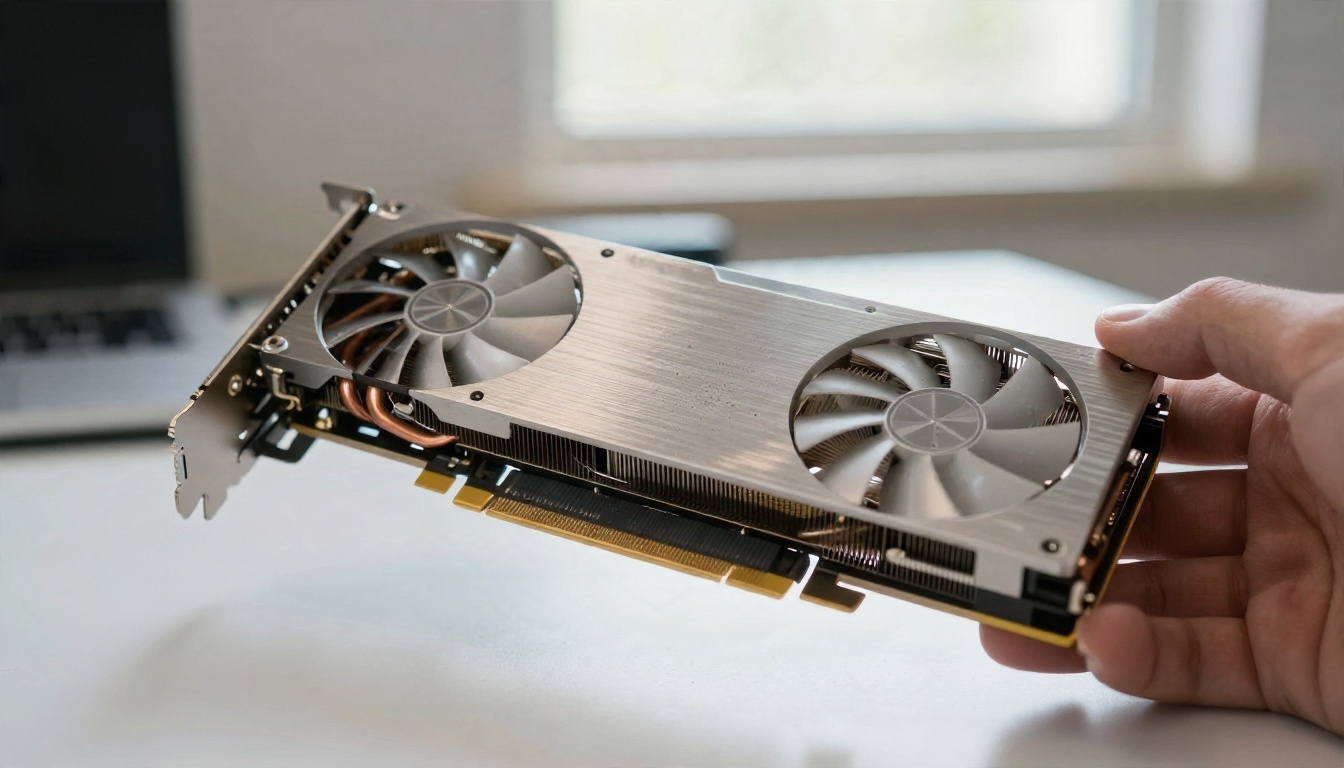
Community and vendor figures do not agree with each other, so treat these as ballparks rather than promises:
- 32GB and up: the comfortable zone for the full model, especially with the distilled checkpoint and FP8.
- 16GB to 24GB: workable with FP8 or distilled files plus careful settings.
- 12GB: possible with Q4 level GGUF files and a quantized text encoder.
- 8GB: possible only with aggressive offloading, lower resolution, and a lot of system RAM (64GB is the number you will see repeated).
That last tier works, but "works" can mean a single short clip takes a long time. Keep that in mind when we get to the speed comparison.
The Distilled Model Route
If you only change one thing, change this. The distilled version of LTX 2 was trained to reach a good result in far fewer sampling steps than the standard model. Fewer steps means less time on the GPU and less pressure on memory while it runs. Lightricks itself points to the distilled pipeline as the sensible choice for fast iteration on smaller hardware.
What Distillation Actually Changes
A normal diffusion model refines noise gradually over dozens of steps. A distilled model has been taught to take bigger jumps. The result is a model that finishes in a handful of steps, usually with a simpler guidance setup.
What you gain:
- Much shorter generation times per clip
- Lower peak memory during sampling
- No extra speed-up LoRA to load, which saves a little more memory
- Easier settings, because there is less to tune
What you give up:
- Slightly less fine detail on complex textures
- A bit less prompt flexibility on tricky compositions
- Less room for negative prompt tricks
For short social clips, concept tests and storyboard motion, that trade is excellent. For a final hero shot that needs maximum texture, the full model still has an edge.
Distilled Plus FP8
The most reliable local setup for a 16GB to 24GB card is the distilled checkpoint in FP8. FP8 stores each weight in 8 bits instead of 16, which roughly halves the file size with a modest quality cost. Community testers generally report that FP8 looks better than the lowest GGUF quants when your card can hold it, so do not drop to GGUF just because you can.
💡 NVFP4 files exist too, but they target newer NVIDIA hardware. If your card is older, FP8 or GGUF is the safer pick.
GGUF: Squeezing Into 8GB to 12GB
GGUF is the file format that made large language models usable on ordinary computers, and it has now reached video. A GGUF file stores weights at a lower bit depth, with names like Q3, Q4, Q5, Q6 and Q8 telling you roughly how many bits each weight uses. Lower number, smaller file, more quality loss.
Picking a Quant Level
| Quant | Approx. quality | Memory pressure | Best for |
|---|
| Q2 | Visibly degraded | Lowest | Last resort tests only |
| Q3 | Soft, some artifacts | Low | 8GB cards with offloading |
| Q4 | Good balance | Moderate | 10GB to 12GB cards |
| Q5 / Q6 | Close to FP8 | Higher | 12GB to 16GB cards |
| Q8 | Near original | High | 16GB and up |
A Q4 variant is the sweet spot for most people. Community guides put a Q3 file near 8GB on disk needing roughly 9 to 10GB of VRAM, and a Q4 file in the 11 to 12GB range. Those numbers come from user write-ups, so expect a few gigabytes of variation depending on resolution, frame count and what else is running on your PC.
Combine Distilled and GGUF
The best low-VRAM stack that people report is a distilled GGUF paired with a quantized Gemma text encoder. One popular community setup used a Q4 distilled file around 14GB and a heavily quantized Gemma encoder around 6GB. Because the distilled file already contains the speed-up behavior, you skip loading a separate LoRA, which helps on tight budgets.
Notice that those two files together are bigger than 8GB. The trick is that they are not both resident on the GPU at once. The workflow loads the encoder, encodes your prompt, unloads it, and then loads the main model. That is where system RAM and a fast SSD matter.
Settings That Save Memory
If you go local, these adjustments give the biggest return:
- Start small. Generate at a modest resolution first, then upscale the winners.
- Cut the frame count. Fewer frames cuts memory use almost in proportion.
- Reserve VRAM for the system. A launch flag that reserves some VRAM for Windows or your display keeps the driver from pushing you into a crash.
- Use tiled decoding. The decoder is a common late-stage failure point.
- Close the browser. A browser with hardware acceleration can quietly hold a gigabyte or more.
- Keep the text encoder off the GPU when possible, and let it run from system RAM.
💡 System RAM is the unsung hero of low-VRAM video. If an 8GB card is your limit, 64GB of RAM is worth more than any setting tweak.
What Low-VRAM Local Setups Really Cost
People talk about whether a model can run on 8GB. They talk much less about what that costs in practice. Be ready for these:
- Setup time. Matching the right checkpoint, text encoder, VAE and custom nodes takes an evening the first time, and community reports often mix up LTX 2 with later point releases like 2.3 and 2.5.
- Version confusion. A GGUF file built for one release will not necessarily load in a workflow built for another. Check the exact version before downloading anything large.
- Disk space. A tidy collection of checkpoints, encoders and quants easily reaches 80 to 100GB.
- Heat and noise. Running an 8GB card at its limit for long jobs is loud.
- Time per clip. Offloading to system RAM can turn a one minute render into several minutes.
None of this makes local generation a bad idea. If you enjoy tuning, want full privacy, or generate a high volume, it can be very rewarding. But if your goal is simply to get a good clip today, the cost-benefit changes quickly.
Online Options Without the Setup
Online generation skips every problem above. You do not match files, you do not worry about VRAM, and your own GPU stays free for other work. You type a prompt, optionally add a photo, and the clip comes back.

LTX Models Available on PicassoIA
PicassoIA hosts several members of the LTX family, so you can pick based on the job rather than your hardware:
| Model | Best for | Link |
|---|
| LTX 2 Distilled | Fast drafts, text to video, image to video | LTX 2 Distilled |
| LTX 2 Pro | Higher fidelity final clips | LTX 2 Pro |
| LTX 2.5 Fast | Quick turnaround with the newer release | LTX 2.5 Fast |
| LTX 2 Retake | Re-doing one section of an existing clip | LTX 2 Retake |
| LTX Video | The original real-time style model | LTX Video |
That range matters. On a local low-VRAM machine you are locked into whichever single checkpoint you managed to squeeze in. Online, you can draft with the distilled model and switch to Pro for the final render, using the same prompt.
How to Use LTX 2 Distilled on PicassoIA
The distilled model is the natural online counterpart to the low-VRAM local route: quick, forgiving and cheap to iterate on. Here is the workflow.

Step by Step
- Open the model page. Go to LTX 2 Distilled.
- Write your prompt. Describe the subject, the action in order, the camera move and the lighting. One clear sentence per beat works better than a long tangle.
- Choose an aspect ratio. Pick from 16:9, 9:16, 4:3, 3:4, 1:1 or 21:9. Use 9:16 for vertical social posts and 21:9 for a cinematic feel. Note that the ratio is ignored if you upload an image, because the clip follows the photo.
- Add an image (optional). Upload a still to animate it. The image strength value runs from 0 to 1. Keep it near 1 when you want the motion to stay faithful to your photo, and lower it when you want the model to take liberties.
- Set the frame count. The default is 121 frames. The number must follow the pattern 8 times k plus 1, so values like 81, 97, 113 and 121 are valid. Fewer frames means a shorter clip.
- Try prompt expansion. The expansion toggle turns a short idea into a richer scene description before generation. It is off by default, so switch it on when your prompt is only a few words.
- Lock a seed. Once a result looks right, keep the seed and change only one thing at a time. That makes comparisons honest.
- Generate and review. Render, watch, and adjust.
Prompt Tips for Distilled Output
- Lead with the subject, then the motion, then the camera, then the light.
- Describe sound if you want the audio to match: wind, footsteps, distant traffic.
- Keep motion simple. One main action per clip gives cleaner results than three at once.
- Use plain photographic language. Terms such as "shallow depth of field", "slow dolly in" and "soft window light" steer the model well.
💡 A clean workflow: draft three seeds on the distilled model, pick the best, then re-run that prompt on LTX 2 Pro for the final version.
Speed and Quality Compared
Here is how the routes stack up for someone with an 8GB to 12GB card.

| Factor | Local GGUF (8GB) | Local distilled FP8 (16GB) | Online LTX 2 Distilled |
|---|
| Setup effort | High | Medium | None |
| Time per clip | Slowest | Moderate | Fast |
| Quality ceiling | Limited by quant | Good | Good, with Pro as an upgrade |
| Hardware load | Maxed out | Heavy | None |
| Privacy | Full | Full | Server side |
| Cost | Hardware you own | Hardware you own | Pay per use or free tiers |
| Flexibility | One checkpoint at a time | One checkpoint at a time | Switch models freely |
The pattern is clear. Local wins on privacy and long-term cost per clip if you generate constantly. Online wins on speed to first result and on freedom to compare models.
Who Should Pick What
- You own a 24GB or 32GB card and like tinkering: go local with distilled plus FP8.
- You own a 12GB card and have 32GB or more of RAM: try Q4 GGUF, and keep an online option for deadlines.
- You own an 8GB card or a laptop GPU: treat local as an experiment, and use online generation for real work.
- You have no dedicated GPU: online is the only sensible path.
When Another Model Fits Better
LTX 2 is excellent for speed and for native audio, but it is not the only choice, and a low-VRAM situation is a good moment to compare. Since online generation removes the hardware limit, you can try several families with the same prompt:
Many of these would be impossible to run side by side on a single 8GB card, which is exactly why testing them online is so useful.

Common Mistakes to Avoid
Most failed low-VRAM runs come down to the same few errors.
- Mixing versions. A text encoder, VAE or GGUF built for one release can fail silently or produce garbage with another.
- Chasing the smallest file. Q2 saves memory and costs you the look of the clip. A Q4 file at lower resolution beats a Q2 file at higher resolution almost every time.
- Ignoring system RAM. Offloading only works if your RAM can take the load. At 16GB of RAM, an 8GB card will swap to disk and crawl.
- Starting at full resolution. Draft small, upscale later.
- Changing five settings at once. Change one value, keep the seed, compare.
- Skipping the update step. Workflow nodes and drivers get memory improvements often. An old install can use far more VRAM than a fresh one.
💡 Before blaming your hardware, update your workflow nodes and your GPU driver. It is the cheapest fix on the list.
A Practical Workflow for Any Budget
This hybrid plan works for most creators with modest hardware:
- Draft online with LTX 2 Distilled to test prompts and seeds quickly.
- Pick the best seed and refine the prompt wording.
- Upgrade the winner with LTX 2 Pro when you need extra fidelity.
- Fix a weak section using LTX 2 Retake rather than regenerating the entire clip.
- Use local generation for private or high volume tasks once your GGUF setup is stable.
You also do not need to treat video as a separate world. PicassoIA includes super resolution for upscaling, AI video enhancement for stabilizing and restoring clips, lipsync for talking characters, and text to speech and music generation if you want to build the soundtrack yourself.
Try It Yourself Today
You do not need a 24GB card, a 64GB RAM kit or an evening of file matching to see what LTX 2 can do. Open LTX 2 Distilled on PicassoIA, type one sentence describing a scene you have in your head, and watch the first clip arrive in a few moments. Change the seed, switch the aspect ratio, upload a photo you love and set the image strength to see how closely it follows.
When one model is not quite right, move to another with the same prompt. Browse every available option at picassoia.com/en/all-models, and keep your local GPU for the jobs where it earns its place. Your hardware set the limit for local runs. It does not have to set the limit for your ideas.


