Large Language ModelsGenerate imagesGenerate videos
MCP Apps Examples: Interactive UI in Claude and ChatGPT, Shown With Real Demos
MCP Apps let a tool return a working interface instead of plain text. This article walks through the official example apps, from 3D maps to budget sliders, shows the server and view code behind them, and explains how to build your own inside Claude and ChatGPT.
Ask an AI assistant for a map and you used to get a paragraph describing one. Put an MCP App behind the tool and the same question returns a real map in the chat: pinned, zoomable, ready for your next follow-up. That jump from describing to showing is the whole point of MCP Apps, and the fastest way to see why it matters is to look at working examples instead of the spec. This article walks through the official demos, the products already shipping with the extension, the code pattern behind every one of them, and what it takes to build your own interactive UI inside Claude and ChatGPT.
What MCP Apps Actually Are
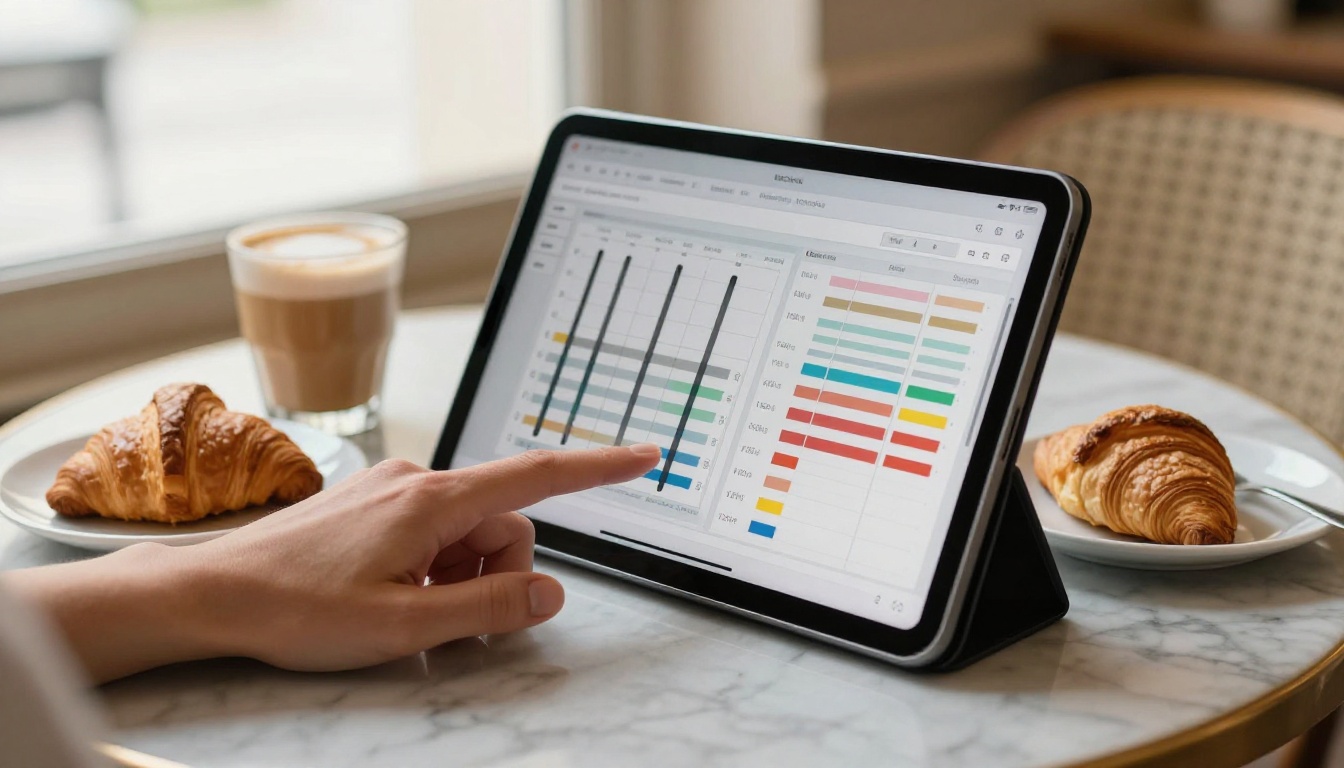
MCP Apps is the first official extension to the Model Context Protocol. It was announced on January 26, 2026, and it lets a tool return an interactive interface that renders directly in the chat window, not just text or JSON. Charts, forms, dashboards and 3D scenes all live inside the conversation, right next to the model's answer.
From Text Replies to Live Interfaces
A normal MCP tool is a function. The model calls it, gets data back, and describes the result in prose. That works until the data is a 40-row table or a route across a city, and then prose becomes a bad interface.
With MCP Apps, a tool can point at a UI resource. The host (the chat app) fetches that resource and displays it in a sandboxed iframe. The host passes the tool's data into the interface, and the interface can call other tools back through the host. The conversation and the UI stay in sync, so a click in a chart can become the next question to the model.
The idea did not come from nowhere. It builds on two community efforts: the MCP-UI project, led by Ido Salomon and Liad Yosef, and OpenAI's Apps SDK. Anthropic and OpenAI worked on one shared specification instead of shipping two rival ones, which is why a single app can target both assistants.
Where Claude and ChatGPT Fit
Claude and ChatGPT are the two big hosts, but they are not alone. The ext-apps repository also lists VS Code, Goose, Postman, MCPJam, the mcp-use inspector and the Alpic Playground as clients that render these apps.
💡 Host support varies. MCP Apps is a specification, and every client decides how much of it to implement. Test your app in each host you care about before promising anything to users.
The Official Example Apps
The modelcontextprotocol/ext-apps repository ships about 18 example apps, and the example servers publish as @modelcontextprotocol/server-<name> packages, so you can try one without writing a line of code. Here is the lineup at a glance.
Example
What it shows
Worth copying for
Map
3D globe built on CesiumJS
Spatial views the user can drag and tilt
Three.js
Interactive 3D scenes
Heavy rendering inside a sandbox
ShaderToy
GLSL shaders running live
GPU graphics in an iframe
Sheet Music
ABC notation rendered as a score
Domain specific renderers
Wiki link graph
Link graph of wiki pages
Node by node browsing
Cohort Heatmap
Retention across user groups
Dense analytics at a glance
Customer Segmentation
Scatter and bubble charts
Clusters the user can inspect
Scenario Modeler
SaaS projections
Inputs that redraw outputs
Budget Allocator
Sliders plus charts
Controls tied to live totals
System Monitor
Operating system metrics
Data that keeps changing
PDF Server
Chunked document viewer
Large files in pieces
Video Resource
Binary video through MCP
Non-text payloads
Transcript
Speech to text
Audio input
Say Demo
Text to speech
Audio output
QR Code
Code generator
The smallest useful app
Maps and 3D Scenes
The Map example renders a 3D globe with CesiumJS. Ask the assistant to show a city and the globe flies there. You can drag, zoom and tilt it like any mapping app, because it is a live interface and not a screenshot. The view talks to the host over the same channel as everything else, so what the user does on the map can shape what the model says next.
Three.js and ShaderToy push the same idea toward graphics. One renders interactive 3D scenes, the other runs GLSL shaders live. Neither needs a server round trip for every frame, which shows that GPU-heavy rendering works fine inside the sandbox. If your tool returns geometry, terrain or anything spatial, these are the two to copy.
Dashboards and Charts
Analytics is where interactive UI pays off fastest. Cohort Heatmap shows retention across user groups. Customer Segmentation draws scatter and bubble charts with clusters you can inspect. System Monitor streams operating system metrics as they change, and the wiki link graph demo draws a graph you can follow node by node.
Each one replaces a long, hard-to-read answer with something you can scan in two seconds. The system monitor is the example to study if your data changes while the user is looking at it, because it shows how a view can keep updating after the first result arrives.
Sliders and Planning Tools
Budget Allocator pairs sliders with charts so you can move money between categories and watch the totals react. Scenario Modeler does the same for SaaS projections: change your growth and cost assumptions, and the revenue curve redraws. These two are the best teaching examples in the repository because the pattern is simple. The user moves a control, the app recalculates, and the chart updates.
💡 Tip: If a calculation is cheap, run it inside the view. Save tool calls for data that lives on your server.
Documents, Music, and Media
PDF Server serves a document in chunks, so a large file does not have to arrive in one piece. Sheet Music turns ABC notation into a readable score. Video Resource streams binary video through MCP, Transcript handles speech to text, Say Demo speaks text aloud, and the QR Code app generates a scannable code in a single call. Each one is small, and each shows a different kind of payload an app can handle.
Products Already Shipping Today
The Launch Partners
The announcement named ten launch partners: Amplitude, Asana, Box, Canva, Clay, Figma, Hex, monday.com, Slack and Salesforce. The use cases described around the launch were collaborative design, data exploration dashboards, project coordination and incident response. In other words, the same patterns you just saw in the demos, applied to tools people already pay for.
That matters for anyone building on the standard. A spec with ten recognizable names on day one is a spec that clients will keep implementing, and it means the interface you build today is not a bet on a single vendor.
What Users Actually See
In the chat, an MCP App looks like a panel inside the conversation. The user can interact with it directly, and the model stays part of the exchange. Behind the scenes, the host asks for user consent before tools run, and every message between the view and the host is a JSON-RPC message that can be logged and audited.
Teams tend to adopt this fastest for review work. One person asks a question in the chat, the panel appears, and everyone at the table can point at the same chart instead of reading the same paragraph.
How One App Works Under the Hood
Every MCP App is built from three pieces: a tool, a resource, and a view.
Tool, Resource, View
The tool declares which interface it uses through _meta.ui.resourceUri, a ui:// address. The resource returns the HTML bundle for that address. The view is the code running inside the iframe. The official quickstart server looks like this:
import {
  registerAppResource,
  registerAppTool,
  RESOURCE_MIME_TYPE,
} from "@modelcontextprotocol/ext-apps/server";

registerAppTool(
  server,
  "get-time",
  {
    title: "Get Time",
    description: "Returns the current server time.",
    inputSchema: {},
    _meta: { ui: { resourceUri } },
  },
  async () => {
    const time = new Date().toISOString();
    return { content: [{ type: "text", text: time }] };
  },
);

registerAppResource(
  server,
  resourceUri,
  resourceUri,
  { mimeType: RESOURCE_MIME_TYPE },
  async () => {
    const html = await fs.readFile(path.join(DIST_DIR, "mcp-app.html"), "utf-8");
    return { contents: [{ uri: resourceUri, mimeType: RESOURCE_MIME_TYPE, text: html }] };
  },
);
Notice that the tool still returns plain text content. A host without MCP Apps support gets a usable answer, and a host with support gets the interface on top of it.
Calling Tools From the Interface
Inside the iframe, the App class from @modelcontextprotocol/ext-apps handles the conversation with the host. It receives the tool result, and it can call server tools of its own:
import { App } from "@modelcontextprotocol/ext-apps";

const app = new App({ name: "Get Time App", version: "1.0.0" });

app.ontoolresult = (result) => {
  const time = result.content?.find((c) => c.type === "text")?.text;
  serverTimeEl.textContent = time ?? "[ERROR]";
};

getTimeBtn.addEventListener("click", async () => {
  const result = await app.callServerTool({ name: "get-time", arguments: {} });
});

app.connect();
If you build with React, the package ships hooks at @modelcontextprotocol/ext-apps/react, including useApp and useHostStyles. Under the hood the two sides talk through a PostMessageTransport, which is the iframe's message channel wrapped for MCP.
Why the Sandbox Matters
A chat app that renders interface code from a third-party server is running someone else's code next to your conversation. The whole design assumes that code is untrusted, and that is a good thing.
Four Layers of Protection
Sandboxed iframes restrict permissions and network access, so the view can only do what the host allows.
Pre-declared templates mean the host knows which interface a tool will use before it runs, which makes injecting surprise content much harder.
Auditable JSON-RPC messages turn every exchange between the view and the host into a record you can inspect.
User consent is required before tools run, so a panel cannot quietly act on your behalf.
💡 Building for a company? Ask your security team to read those four points. They will recognize the model: it is the same one used for embedded third-party widgets, tightened for an AI chat.
Build Your Own in an Afternoon
Pick a Starter Template
The repository includes basic starter apps in React, Vue, Svelte, Preact, Solid and vanilla JavaScript. Pick the one that matches the front-end stack your team already uses, copy it, and swap the example tool for your own. The server side stays the same no matter which template you choose.
Let Agent Skills Do the Setup
The repository also ships four agent skills that automate the boring parts:
create-mcp-app scaffolds a brand new MCP App.
migrate-oai-app converts an existing OpenAI app to the shared standard.
add-app-to-server adds an interface to tools on a server you already run.
convert-web-app turns an existing web app into a hybrid web and MCP App.
Design Mistakes to Avoid
Hard-coded widths. A chat panel is narrow, and on a phone it is narrower still. Build for the smallest size first.
Ignoring the host theme. Use useHostStyles or the equivalent so your panel matches light and dark mode in the host.
Tool calls for cheap math. Every call goes through the host, so keep trivial calculations inside the view.
No text fallback. Return useful text content from every tool, as the quickstart does, because not every host renders the interface.
Use Claude Sonnet 5 on PicassoIA
Writing the server, the HTML bundle and the glue code is mostly typing, and Claude Sonnet 5 on PicassoIA is built for exactly that. It handles multi-step coding and tool-use tasks, and it reads images, so a wireframe sketch can go straight into the request.
Open the model page. Go to Claude Sonnet 5 and find the prompt box.
Write the prompt. Describe the tool, its input schema and what the view should show. For example: "Write an MCP App with one tool, show-budget, and a React view with three sliders that redraw a bar chart. Use @modelcontextprotocol/ext-apps."
Set the effort level. The effort setting runs from low to max. Low is the default, turns thinking off and answers fastest. Switch to high or max when the app touches several files.
Attach a wireframe. Use the image field for a sketch of the panel. The max_image_resolution setting scales the image down before sending, which saves time and cost.
Add a system prompt. Fix the stack once, such as "TypeScript, React, return full files only", and reuse it across the whole project.
Split big requests. A single response tops out at 8,192 tokens, so ask for the server file first and the view file second.
If you want a second opinion on the same prompt, GPT 5.6 Sol is also on the platform and built for complex coding tasks.
💡 Check the output against the quickstart. Models sometimes guess older API names. Compare the imports and the registerAppTool call with the snippets above before you run anything.
Try It on PicassoIA
Every good interface starts as a picture in your head. Before you write a single line of code, generate the mockups, hero visuals and demo scenes for your app on PicassoIA. Seedream 4.5 makes sharp 4K stills from a short description, Flux 2 Pro is a strong pick for photo-style scenes, GPT Image 2 follows long prompts closely, and P Image returns images in about a second when you want to iterate fast.
Start with a simple prompt: a laptop on a wooden desk showing a clean dashboard with a map and two sliders, soft morning light, shallow depth of field. Run it, tweak one detail, and run it again. When a still is not enough, the platform's text-to-video models can turn the same idea into a short clip.
Pick a model, type your first prompt, and see what you can create. The full catalog is at picassoia.com/en/all-models.