Most people pick an AI video generator the wrong way. They watch one dazzling demo reel, subscribe, and discover three weeks later that the clips top out at 720p, last five seconds, and burn through credits at a rate nobody mentioned. If you are producing footage for clients, ads or a brand channel, the spec sheet matters far more than the showreel. This article walks through professional video generation as it actually works in late 2026: which online tools deliver, what the resolution ceilings really mean, which settings change the result, and what a usable clip costs once you count the failed attempts.
What "Professional" Actually Means
The word gets thrown around loosely, so let me pin it down. A professional clip is one you can hand to a client without apologising for it. That usually means a clean 1080p frame or better, motion that does not melt, audio that fits the scene, and a duration long enough to cut into a timeline.
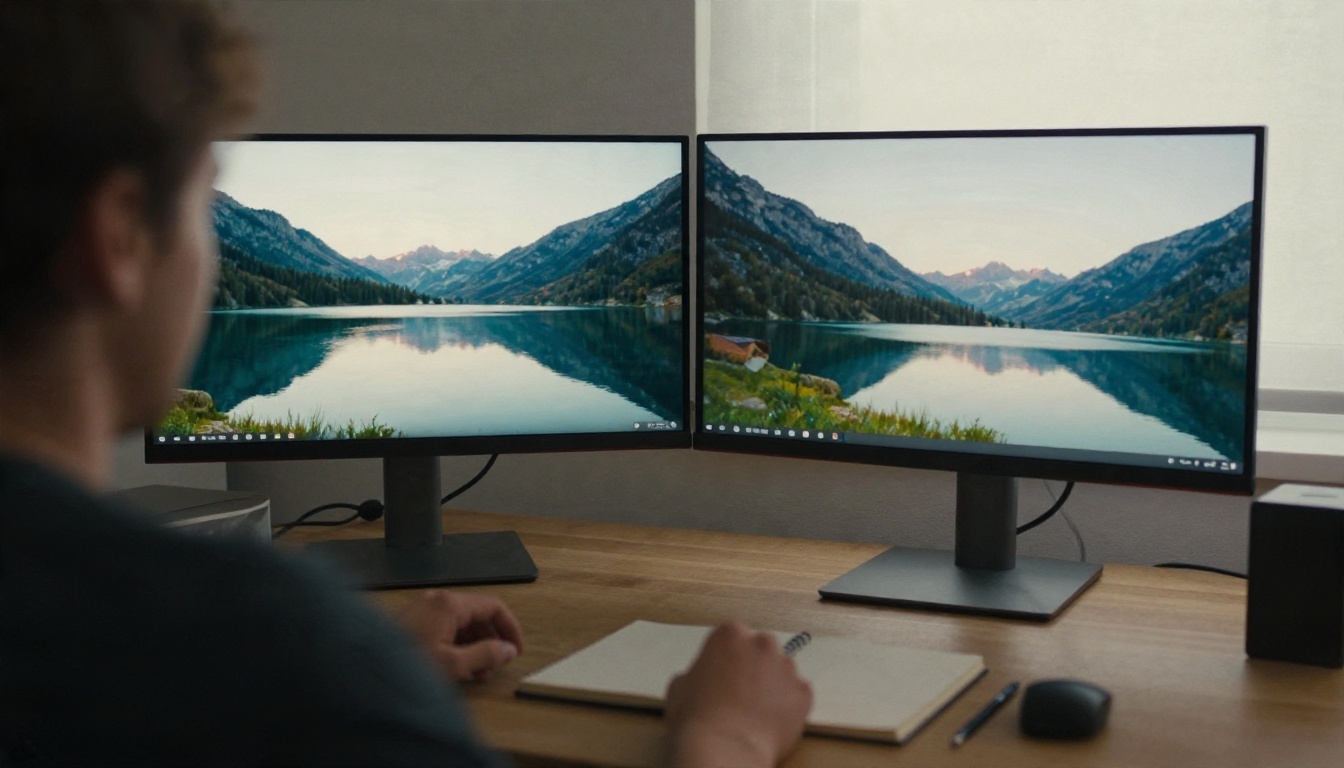
Resolution is not quality
A 4K label tells you how many pixels the file contains, not how good they look. Some models render natively at high resolution. Others generate at 720p or 1080p and run an internal upscale pass. Both can produce a sharp result, but they behave differently when you push them with fine textures such as hair, fabric weave or foliage.
When you review a clip, pause on a detailed frame and zoom to 200%. Smeared edges and plastic skin show up immediately, whatever the file claims.
Duration, audio and control
Three other specs separate working tools from toys:
- Clip length: five seconds is fine for social loops, but a talking scene or an establishing shot often needs eight to fifteen.
- Native audio: dialogue, ambience and effects generated with the picture save hours in post.
- Control inputs: start frames, reference images and motion references let you keep a character consistent from shot to shot.
💡 Tip: Write down your three non-negotiables before you compare tools. If audio and a start frame matter and 4K does not, you will eliminate half the market in a minute.
The market has settled into a few families. Here is where each one fits, based on current specs and what is available on PicassoIA today.
The Veo 3.1 family
Google's Veo line is the benchmark many studios use for realism and synchronized sound. On PicassoIA you can choose between three tiers: Veo 3.1 for the highest fidelity, Veo 3.1 Fast for quicker turnaround, and Veo 3.1 Lite when you are testing ideas and want to spend less per attempt.
Veo is strongest on natural lighting, believable physics and clean dialogue. It is weaker when you want long, multi-scene sequences inside a single generation.
Kling v3 and Kling Omni
Kling has become the value pick for many creators. Kling v3 Video handles cinematic camera moves well, while Kling v3 Omni Video pushes to 1080p with broader input options. If your footage involves a person performing a specific action, Kling v3 Motion Control lets you drive a character with a reference movement, which is hard to get any other way.
Sora 2 and Sora 2 Pro
OpenAI's models remain popular for stylised, story-driven shots. Sora 2 produces text-to-video with synced audio, and Sora 2 Pro targets higher-definition output. Pro is also the most expensive per second of the major options, so reserve it for final renders rather than experiments.
💡 Note: Third-party reports about Sora's availability and limits have conflicted in recent months. Check the current status on the model page before you plan a project around it.
Seedance, Wan and Hailuo
These three families cover the middle ground well:
LTX for fast 4K
Lightricks has pushed hard on resolution. LTX 2 Pro and LTX 2.5 Fast both target 4K output, and the Fast variant is built for short turnaround. They are worth testing when pixel count is the deliverable, for example a broadcast spec or a large display.
Side-by-side summary
| Model family | Typical top resolution | Notable strength | Best for |
|---|
| Veo 3.1 | 1080p (4K reported via some plans) | Realism, synced audio | Hero shots, dialogue |
| Kling v3 Omni | 1080p | Value, motion control | Character action, ads |
| Sora 2 Pro | HD | Stylised storytelling | Final renders |
| Seedance 2.5 | Up to 30 s clips | Length | Long scenes |
| Wan 3 Prime | 1080p | Cinematic look | Mid-budget work |
| Hailuo 02 | 1080p | Motion quality | Product and lifestyle |
| LTX 2 Pro / 2.5 Fast | 4K | Pixel count, speed | High-resolution deliverables |
Resolution Limits You Will Hit
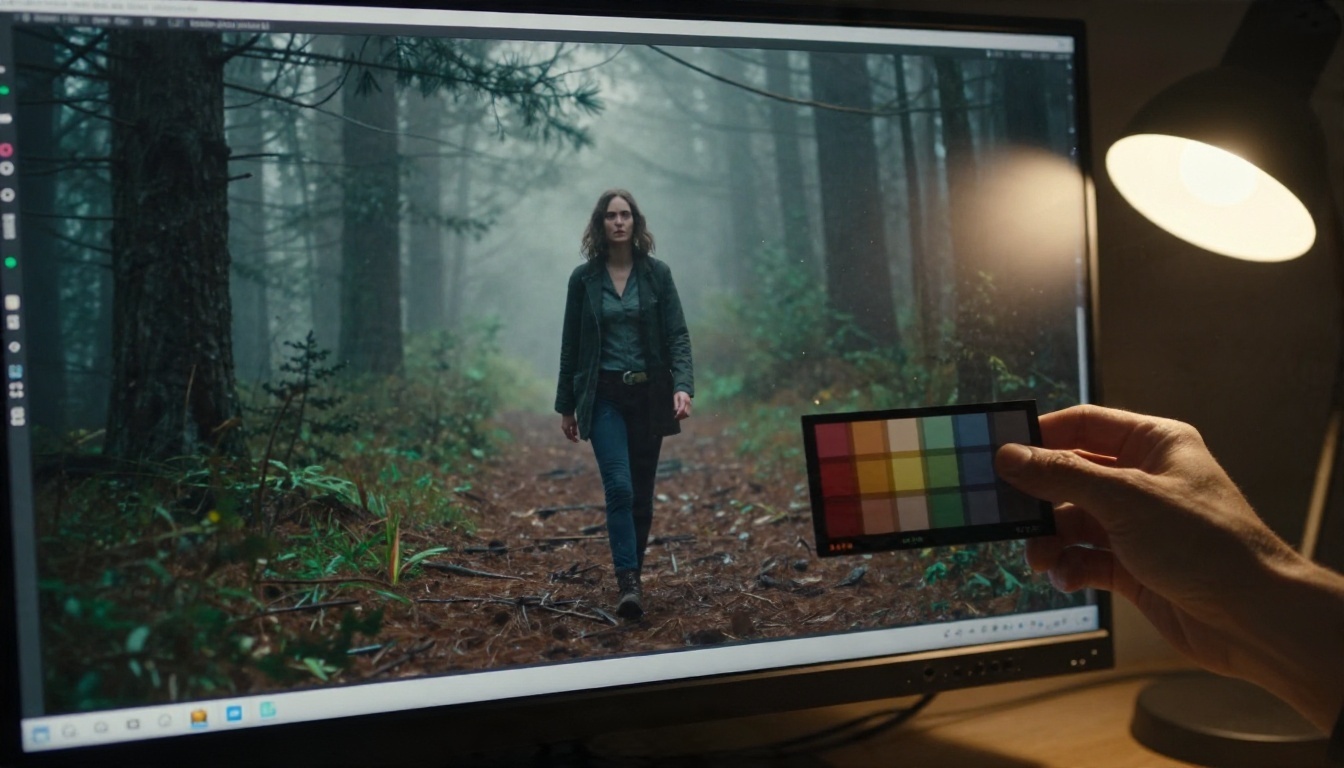
Native versus upscaled
Almost every provider quotes a maximum, but that maximum often depends on the plan, the clip length or the mode. Several tools reduce resolution when you ask for longer clips. Others lock 4K behind a higher tier.
If a model tops out at 1080p and your delivery is 4K, you do not have to give up. A dedicated upscaler can close the gap. On PicassoIA, Video Upscale sharpens footage in 4K and up to 120fps, Upscale v1 handles 4K video upscaling, and Video Increase Resolution goes as far as 8K. For budget work, Real ESRGAN Video is a reliable option.
💡 Tip: Generate at the model's native sweet spot, then upscale once at the end. Upscaling a rough draft wastes money and amplifies flaws.
Aspect ratio and duration caps
Vertical 9:16 is now supported by most major tools, but some restrict it to lower resolutions. Duration caps vary widely: five to eight seconds is the norm, ten to fifteen is common on premium tiers, and only a few models reach 25 or 30 seconds.
For longer scenes, you have two choices. Pick a long-clip model like Seedance 2.5, or generate several short shots and cut them together. Editors usually prefer the second approach, because shots under six seconds are easier to control and easier to reroll.
Settings That Change Results

Prompt structure that works
Treat your prompt like a shot description, not a wish. A reliable order is:
- Subject and starting pose: who or what is in frame.
- Action over time: what changes during the clip.
- Camera movement: slow dolly-in, handheld follow, locked-off wide.
- Lighting and atmosphere: golden hour, overcast, tungsten interior.
- Sound cues: footsteps, rain, quiet room tone.
Keep it to one action per clip. Asking a model to show a character entering, turning, speaking and leaving in five seconds is how you get warped limbs.
Image-to-video for consistency
If a brand character or product has to look identical across shots, start from a still. Generate your frame with an image model, check every detail, then animate it. This gives you control over composition before you spend video credits, and it is the single most effective way to avoid the "different face every shot" problem.
For reference-driven projects, PicassoIA Reference To Video accepts your own images, video and audio, and Bruma Reference to Video offers a similar approach.
Audio settings
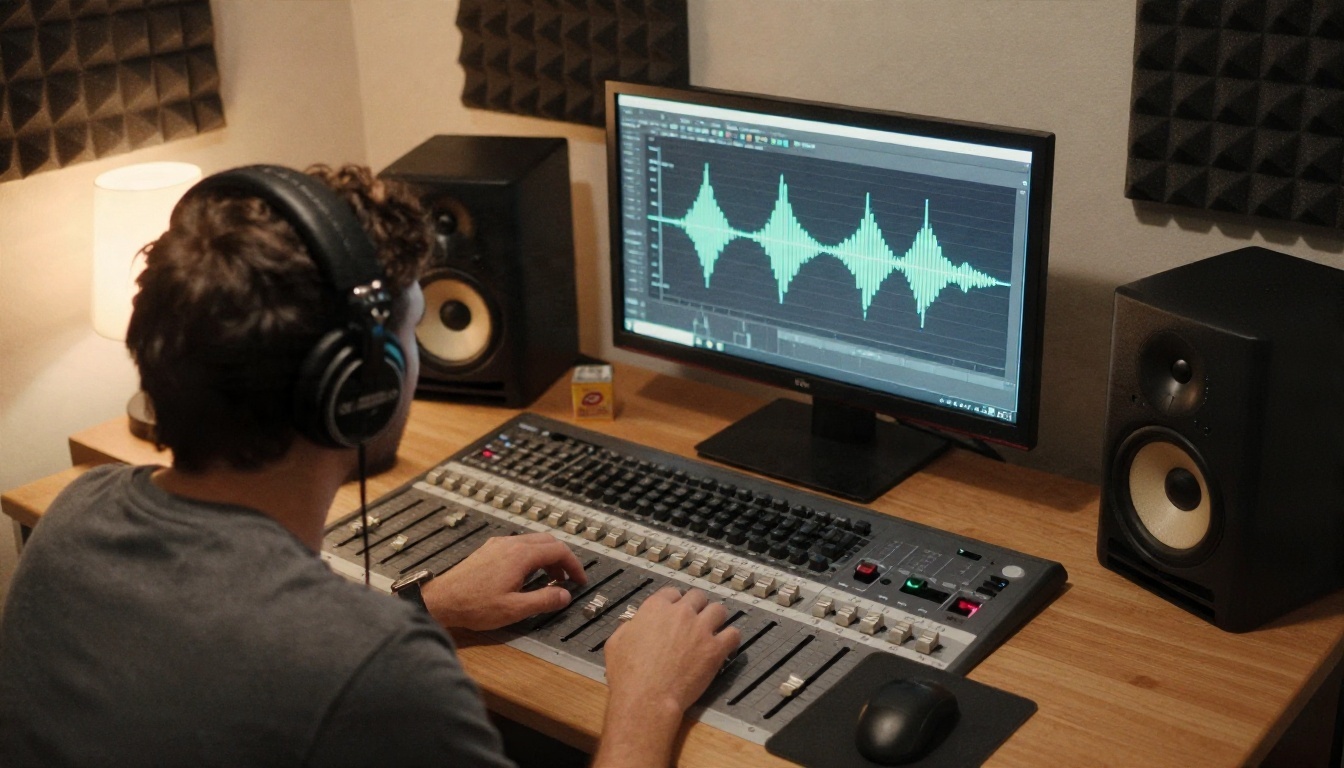
Native audio is convenient, but treat it as a rough pass. Generated dialogue can drift in tone, and ambience sometimes loops audibly. Many professionals keep the generated track for reference, then rebuild the sound in an editor. If you need controlled voices, pair your footage with a lipsync or text-to-speech model rather than relying on the video model alone.
💡 Tip: Describe sound in the prompt the same way you describe light. "Distant traffic, soft rain on glass" gives a model far more to work with than "ambient sound".
The Real Cost of Each Clip

Per-second math
Pricing is where marketing and reality diverge. Reported figures from third-party comparisons shift often and sometimes conflict, so treat these as ballpark numbers and confirm before budgeting:
| Tier | Reported cost per second | What it means for a 10 s clip |
|---|
| Budget and lite models | Roughly $0.05 to $0.10 | About $0.50 to $1.00 |
| Mid-range 1080p models | Roughly $0.15 to $0.40 | About $1.50 to $4.00 |
| Premium or 4K tiers | Roughly $0.50 to $0.75 | About $5.00 to $7.50 |
Subscriptions follow a similar pattern. Entry-level plans start in the single digits per month, mainstream plans sit around $20, and top-tier access can run to $200 per month.
The multiplier nobody mentions
The sticker price is for one successful clip. In practice, you will generate three to six attempts before one is usable. A $2 clip becomes a $10 clip once you count rerolls. Budget for the attempts, not the winner.
Cheap drafts, expensive finals
The smartest way to lower cost is to separate exploration from delivery. Use a lite or fast model to test the idea, the camera move and the composition. Only after you have a winning prompt should you send it to a premium model. A fast tier such as Veo 3.1 Lite or Hailuo 02 Fast costs a fraction of the flagship, and the prompt carries over.
A Workflow That Saves Credits
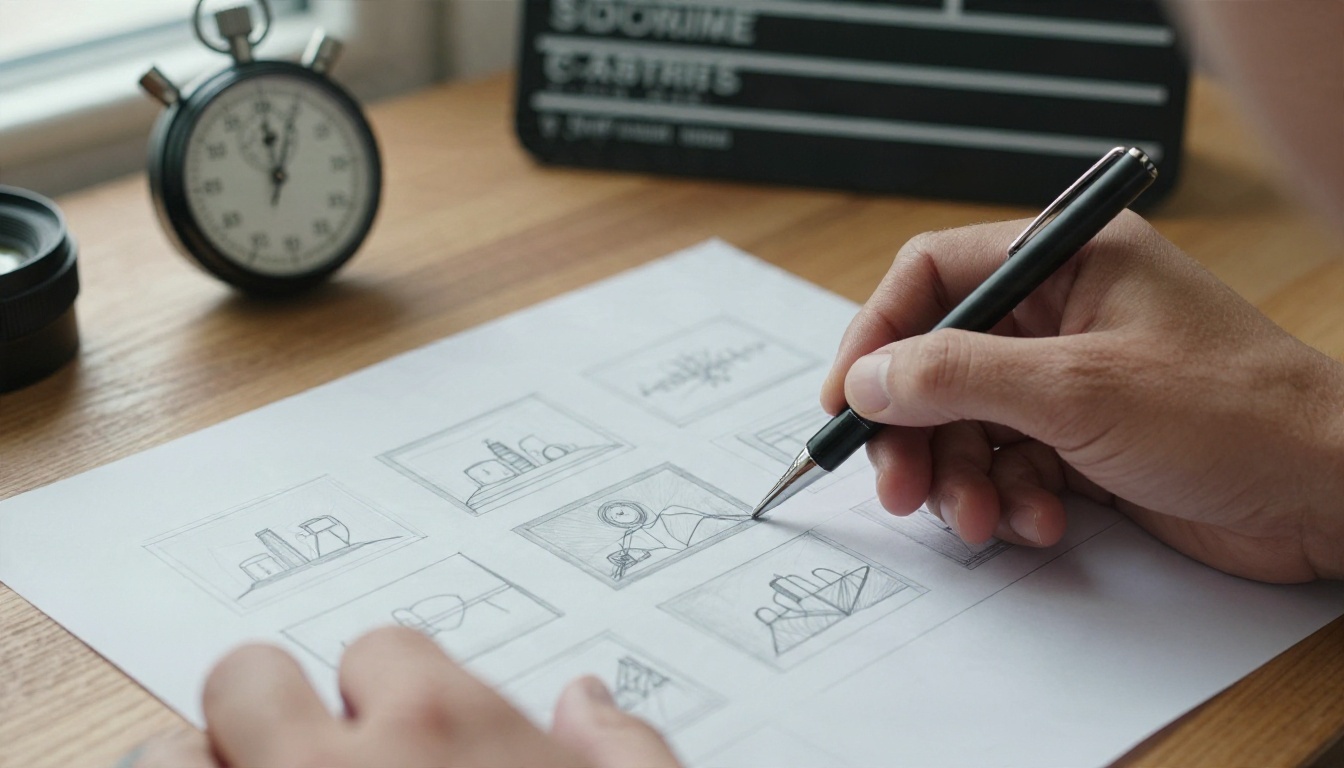
Here is the sequence I recommend for client work:
- Storyboard first. Sketch each shot on paper. Five boxes of stick figures beat an hour of random prompting.
- Generate stills. Create the key frames with an image model and approve them.
- Draft with a fast model. Animate each still on a lite tier and judge motion only.
- Rewrite the prompt. Fix whatever went wrong, usually by removing detail rather than adding it.
- Render the final. Send the approved prompt and still to your premium model at the highest native resolution.
- Upscale once. Run the chosen clip through an upscaler if the delivery spec requires 4K.
- Cut and mix. Assemble in your editor and replace or refine the audio.
Teams that follow this pattern commonly cut their per-project cost in half, because the expensive model only ever sees prompts that already work.
Mistakes That Waste Budget
Freelancers and small teams repeat the same errors. Avoid these:
- Chasing 4K for social posts. A phone screen cannot show the difference, and you pay for it in credits.
- Overloaded prompts. More adjectives rarely mean better output. Short, specific direction wins.
- Skipping the still. Going straight from text to video makes consistency a lottery.
- Judging at thumbnail size. Review every candidate at full screen, with sound on.
- Locking into one tool. Different models win at different shots. A product turntable may suit Hailuo, a talking scene may suit Veo, and a long walk-and-talk may suit Seedance.
💡 Tip: Keep a simple log of prompt, model, seed and result. After ten clips you will know exactly which model suits which kind of shot.
Start Your First Clip Today
Choosing a tool is easier when you can try several in the same place. On Picasso IA you can run Veo, Kling, Sora, Seedance, Wan, Hailuo and LTX from one account, then send the best result through an upscaler without exporting to another service. Begin with a storyboard of three shots, create the stills, test them on a fast model, and send the winners to a premium one.
Open the full catalog at picassoia.com/en/all-models, pick two models from the table above, and run the same prompt through both. Ten minutes of side-by-side testing will tell you more than any comparison article, including this one.


