Most AI models fail at one thing: readable text. This article breaks down exactly why that happens and shows you the prompt structures, model choices, and contrast rules that produce clean, legible AI-generated text every time, from storefront signs to book covers.
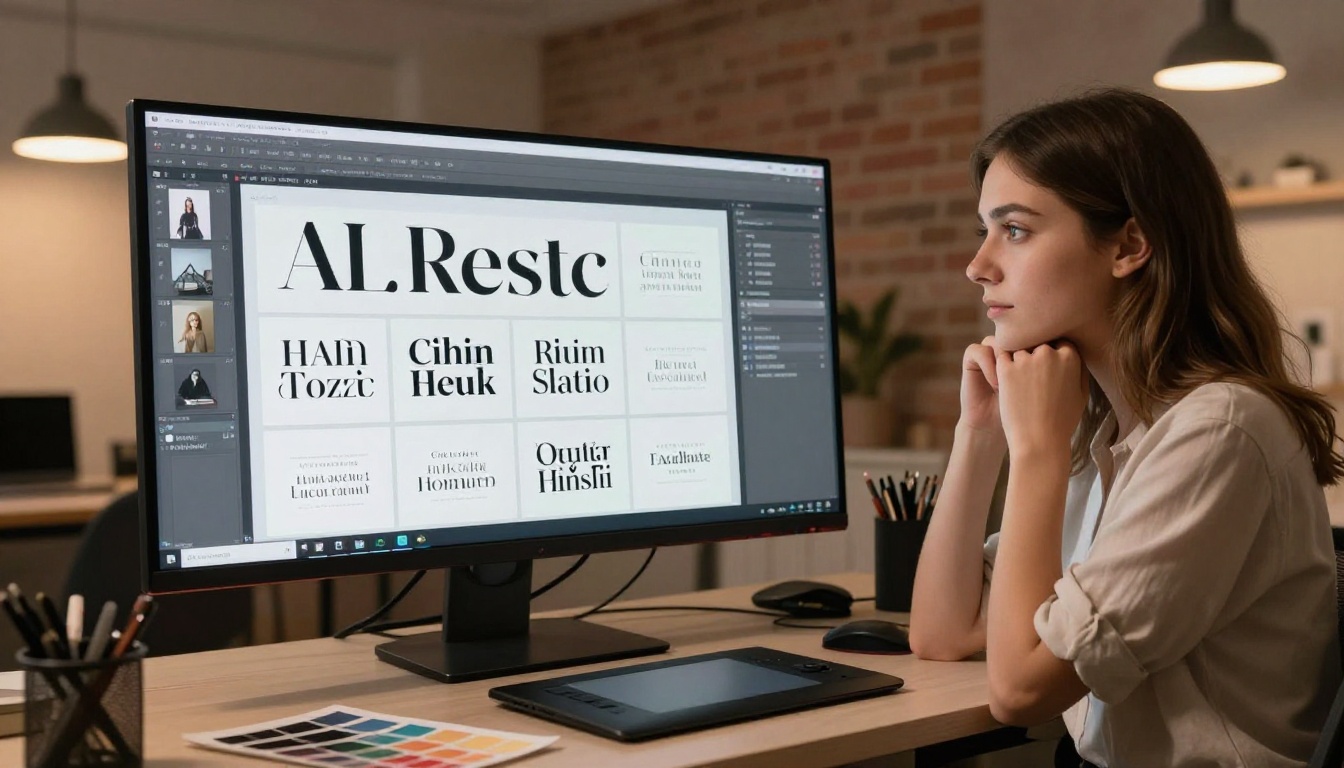
Text has always been the embarrassing failure of AI image generation. You type a prompt asking for a storefront sign that says "GRAND OPENING," and what comes back looks like a blender full of letters ran into a wall. Smeared serifs. Backwards R's. Words that almost make sense. For anyone who needs clean, legible AI-generated text inside images, for social content, product mockups, signage concepts, or creative projects, this is the problem that either kills the workflow or forces an expensive detour through post-production.
This article is not about workarounds. It is about writing prompts that produce clean AI text in images, the first time, with the right models, using structures that have been tested and refined across hundreds of generations.
Why Text Is Hard for AI Models
The letterform problem
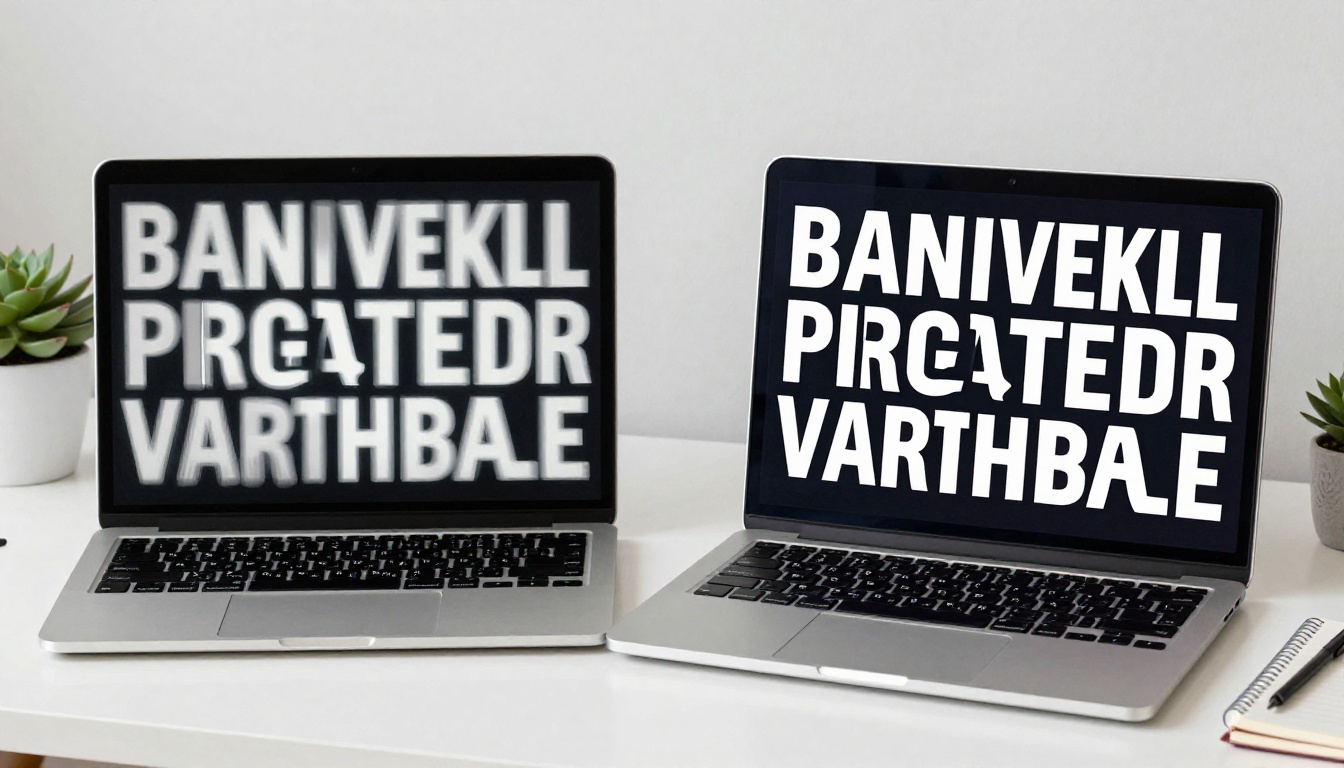
AI image generators are trained on patterns, not language rules. Where a human sees the letter "A" as a logical shape with specific proportions, a diffusion model sees a cluster of pixels that statistically correlates with other patterns in its training set. When you ask for text inside an image, the model is not rendering type. It is hallucinating something that looks statistically similar to text it has seen before.
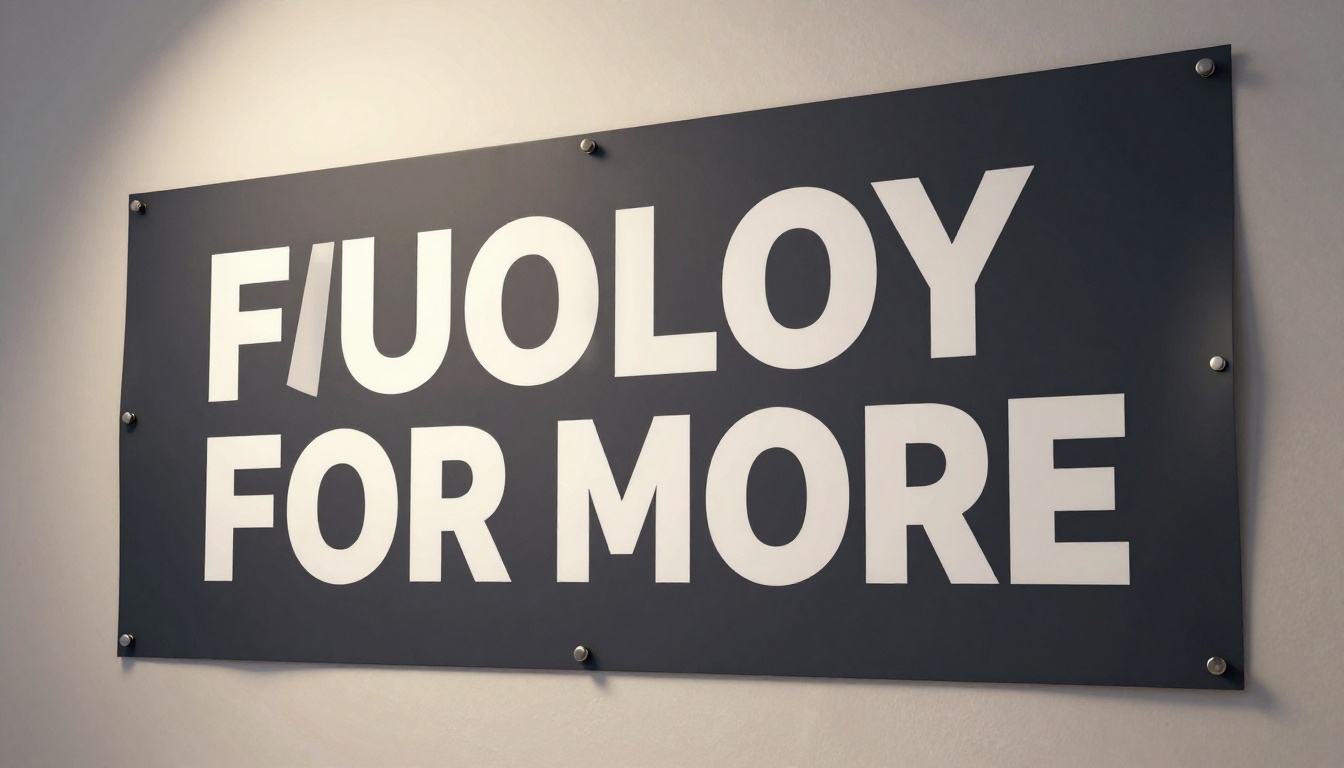
This is why you get "almost words." The model knows a word should look a certain way, so it produces something that has the right vibe of letters but fails the moment you try to actually read it. Characters blend into each other. Spacing collapses. Letters reverse or fragment.
How training data shapes the result
Models that were specifically fine-tuned on graphic design assets, typographic images, and real-world signage consistently outperform general-purpose generators when it comes to text. The training data quality matters more than raw parameter count here. A model that has seen millions of clean, labeled text samples in real photographs will produce statistically sharper letterforms than one trained on a broader mix.
This is why model selection is the first decision you make, not the last.
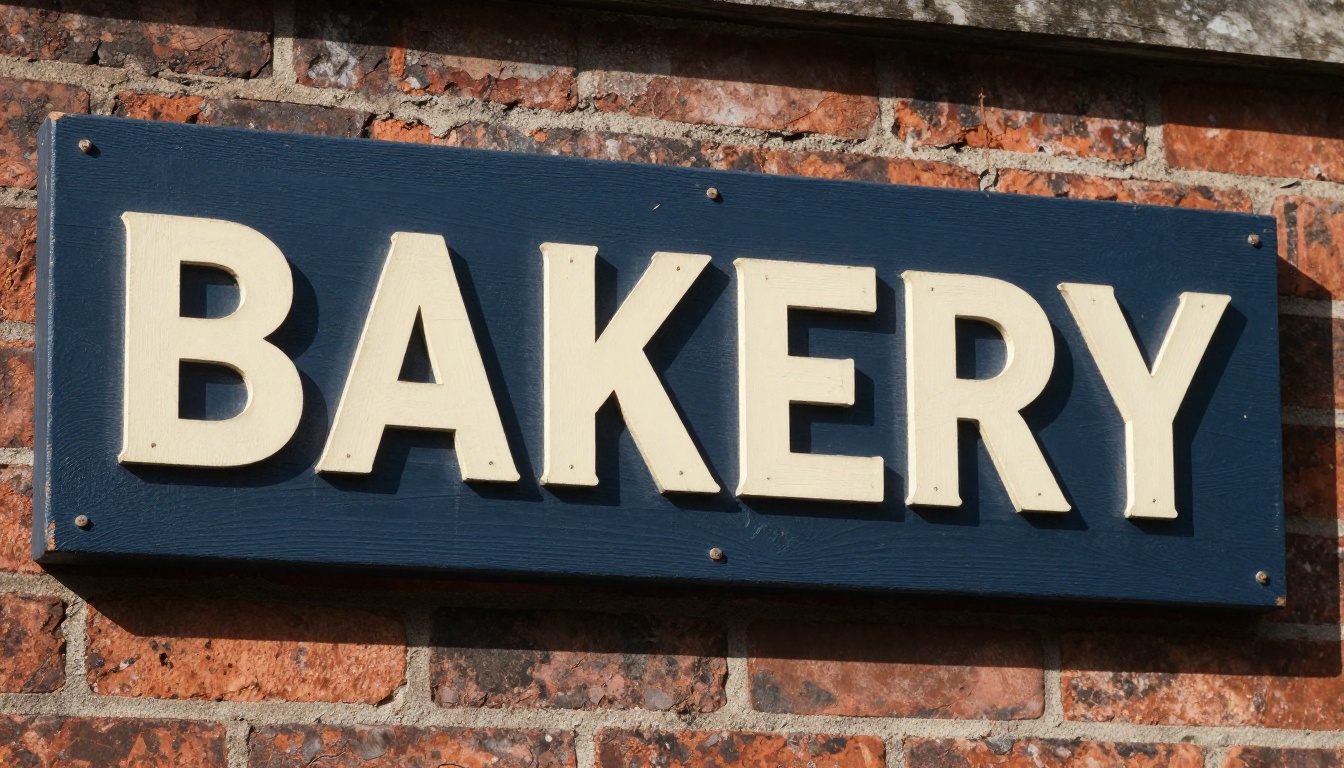
💡 Quick test: Before investing hours in a project, run this one-line prompt on any model you plan to use: "a white sign on a brick wall with the word "HELLO" in black bold serif font, photorealistic". If the letters look garbled, switch to a different model before going further.
The Models That Actually Get It Right
Not all AI image generators handle text equally. Three stand out for consistent, readable AI text rendering in images.
Ideogram v3
Ideogram v3 Turbo and Ideogram v3 Balanced are purpose-built with text rendering as a core capability. The architecture explicitly handles letterforms, which means you get accurate characters instead of hallucinated ones. It handles multi-word text, complex phrases, and even punctuation with a reliability that no other model in general use can match.
Main strength: Posters, social media graphics, product labels, short quotes, signage concepts.
Primary advantage: You write exactly what you want the image to say, in quotes, and it actually renders it.
GPT Image 2
GPT Image 2 benefits from OpenAI's language model integration, meaning it has a grasp on the semantic context of the text you want displayed. It does not just render letters: it factors in that "SALE ENDS SOON" needs to read urgently, and it builds that into composition and type weight choices. The output is naturally balanced and contextually appropriate for commercial imagery.
Main strength: Marketing assets, e-commerce product shots, ad creative with text overlays.
Recraft 20B
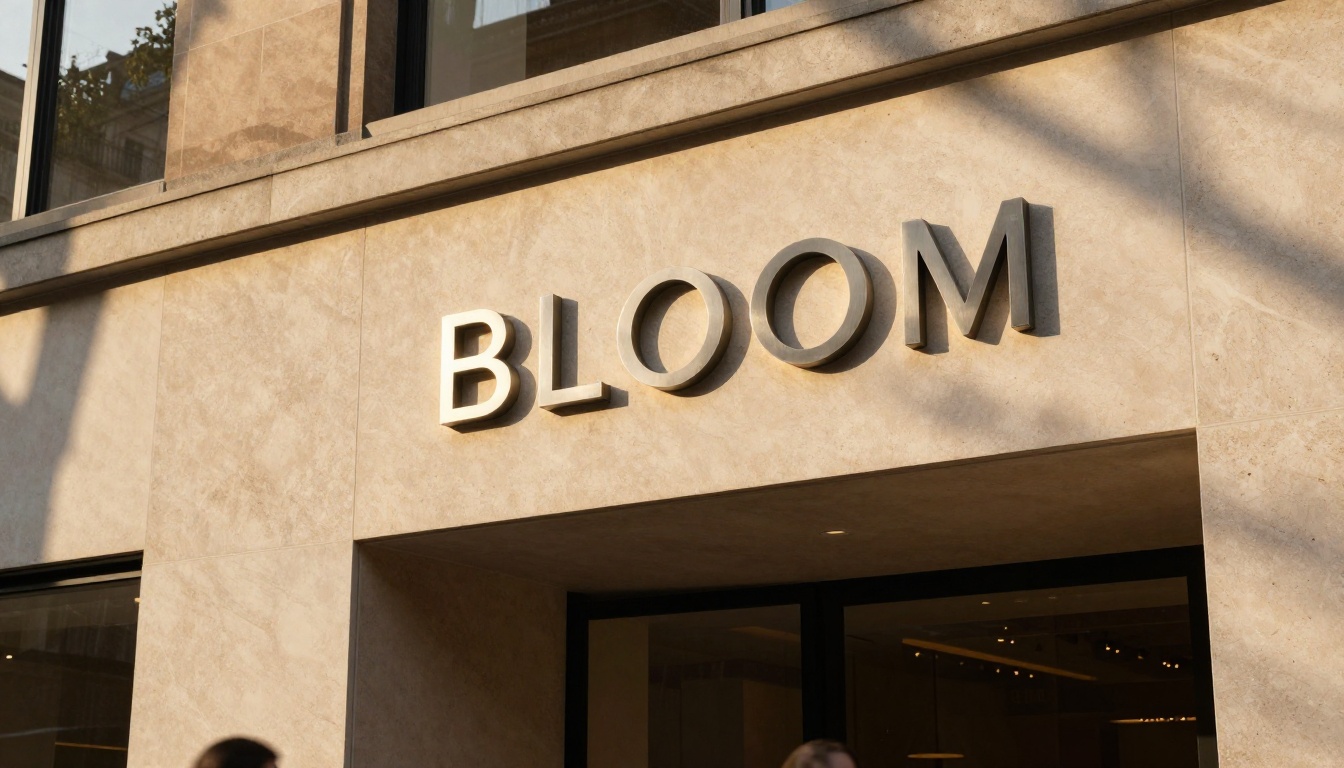
Recraft 20B was trained heavily on vector graphics and design assets, which gives it superior letterform accuracy. It produces particularly clean sans-serif and geometric type. If your project requires crisp, modern text in a minimal style, this model often outperforms Ideogram on pure typographic precision.
Main strength: Logo mockups, app UI screens, minimal design assets, geometric type styles.
The structure of your prompt determines everything. Random word dumps give random results. When you follow a consistent anatomy, you control the output.
Quote the exact text every time
This is the most important rule for prompts that produce clean AI text in images: put the words you want rendered inside quotation marks, directly in your prompt. The model treats quoted text as an instruction to render literal characters, not as a general description.
Wrong: a sign that says grand opening in red letters
Right: a storefront sign with the text "GRAND OPENING" in bold red uppercase sans-serif letters on a white background
The difference between these two prompts in output quality is dramatic. The first gives the model interpretive freedom on the letterforms. The second constrains it to a specific literal string. Always quote.
💡 Pro tip: Keep the quoted text short. Ideogram handles up to about 6-8 words reliably. Long sentences fragment more often. If you need a full paragraph of text in an image, break it into multiple shorter generation passes and composite them afterward.
Name the font, style, and weight
AI models respond well to typographic vocabulary. Describing a typeface by its characteristics, weight, style, classification, and historical reference, dramatically improves output over vague descriptors like "nice font."
Effective font descriptors:
bold Helvetica-style sans-serif
elegant Garamond-style serif
condensed industrial sans-serif
handwritten brushstroke calligraphy
Art Deco geometric display type
monospace courier-style font
slab serif like Rockwell
You do not need exact font names. The style description is enough. What matters is giving the model specific typographic information rather than generic requests.
Background contrast is non-negotiable
The single most preventable cause of illegible AI-generated text is low contrast between text color and background. When you specify a pale yellow sign with white letters, the model has to render two very similar tonal values in close proximity. The letterforms lose their edges and bleed into the background.
High-contrast combinations that work well:
White text on dark navy, black, or charcoal
Black text on white, cream, or light grey
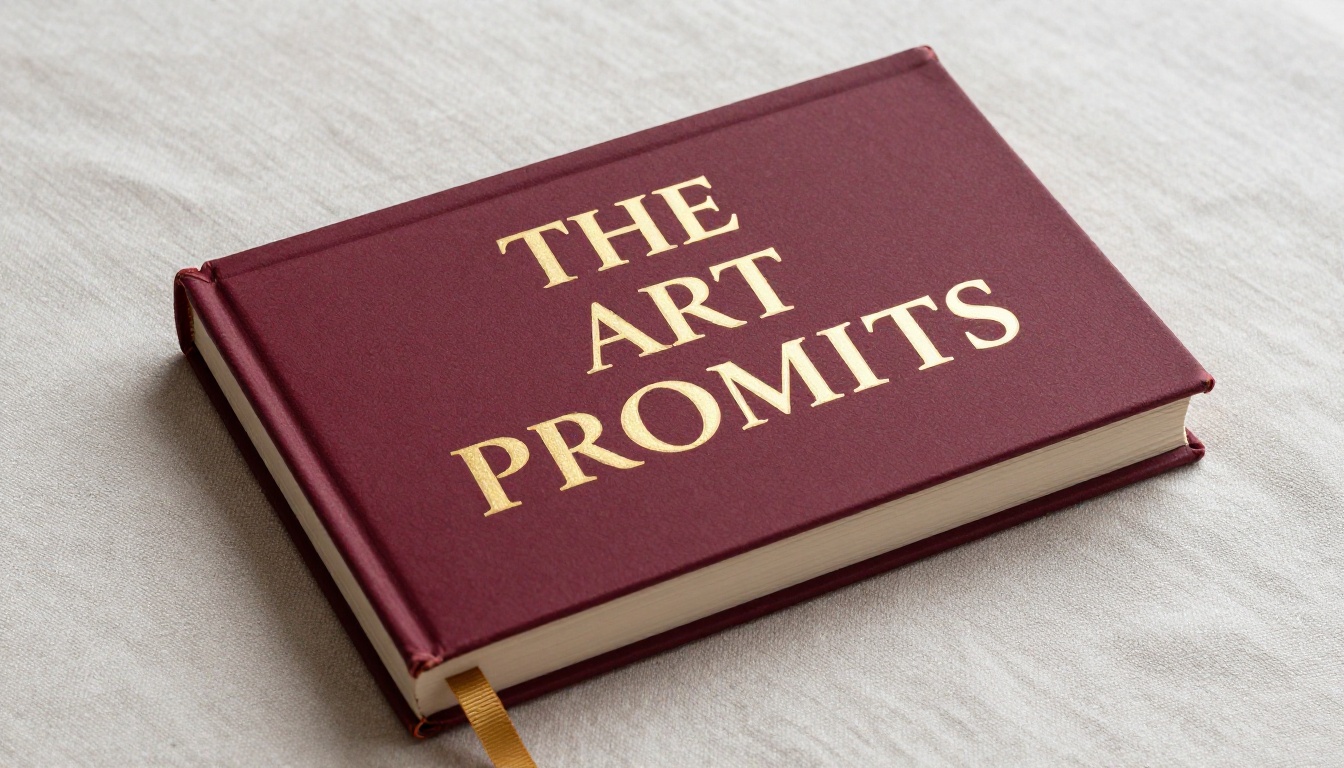
Gold text on deep burgundy or forest green
Warm red text on off-white or pale stone
Avoid in your prompts:
Similar tones for text and background (light on light, dark on dark)
Busy patterned backgrounds without a clear text area
Gradient backgrounds that shift across the text zone without definition
When in doubt, add high contrast and clearly legible text directly to your prompt. These are semantic cues the model responds to reliably.
15 Ready-to-Use Prompt Templates
These templates are ready to copy, paste, and modify. Each follows the anatomy rules: quoted text, font specification, contrast specification, and context.
Business and marketing
1.a professional business card on a dark navy background with the text "JOHNSON & CO." in crisp white Helvetica-style bold sans-serif, photorealistic product shot, 85mm f/2.8, Kodak Portra grain --ar 16:9
2.a luxury packaging box with the text "PREMIUM RESERVE" in gold embossed serif lettering on matte black, high contrast, close-up macro shot, natural studio lighting, photorealistic
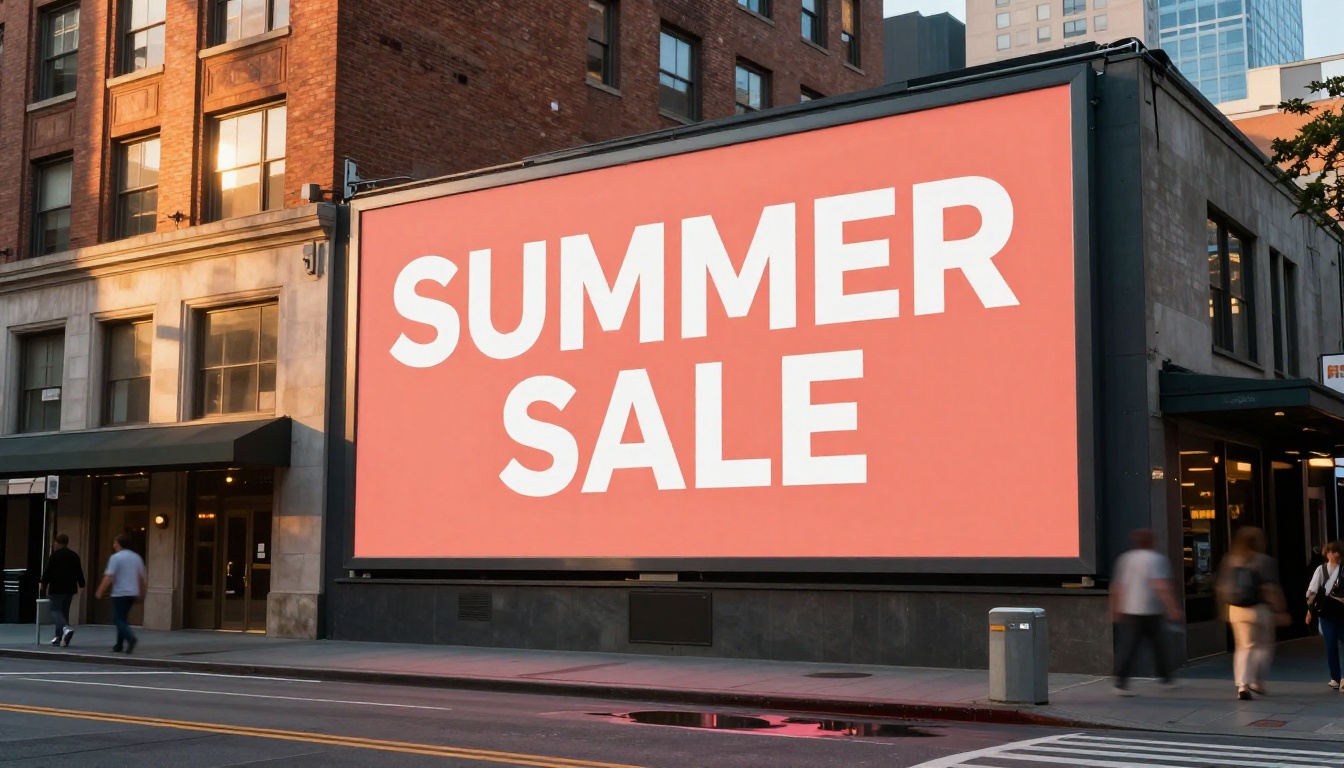
3.a retail window display with vinyl lettering reading "SEASONAL SALE" in clean bold red sans-serif on a white background, storefront photography, 35mm lens, afternoon light
4.a real estate yard sign with the text "SOLD" in bold dark red capitals on white, sharp and legible, shallow depth of field, residential neighborhood background, photorealistic
5.a coffee shop menu board with the text "COLD BREW" in clean chalk lettering on dark green chalkboard, overhead directional light, photorealistic, 50mm lens
Social media and banners
6.a horizontal social media banner with the text "NEW ARRIVALS" in white bold uppercase sans-serif on a clean terracotta background, minimal composition, centered, photorealistic print mockup
7.an Instagram story mockup with the text "SAVE THE DATE" in black elegant serif on a cream linen textured background, soft natural window light, flat lay product shot
8.a promotional graphic with the text "LIMITED TIME" in condensed black caps on white with a thin red border, high contrast, sharp rendering, editorial product photography style
9.a YouTube thumbnail mockup showing a dark background with the text "WATCH THIS" in bold white sans-serif with a bright yellow underline accent, sharp text, photorealistic screen mockup
10.a social media ad graphic with the text "FREE SHIPPING" in clean bold white letters on a deep forest green background, high contrast, centered composition, photorealistic print quality
Logos and signage
11.an outdoor metal signage plaque mounted on stone wall with the text "THE GROVE" in brushed stainless serif letters, golden hour light, architectural photography, 24mm f/8, photorealistic
12.an illuminated storefront sign box with the text "OPEN" in clean bold white LED letters on black background, night photography, photorealistic, 35mm lens
13.an engraved stone building plaque with "FOUNDED 1923" in deep-cut serif capitals, black granite, natural daylight, close-up, photorealistic architectural detail
14.a vehicle livery vinyl wrap with the text "EXPRESS DELIVERY" in bold white sans-serif on dark grey van, side view, parking lot, natural daylight, photorealistic
15.a minimalist logo mockup on white paper with the letters "BL" in black geometric sans-serif inside a circle, flat lay on wood desk, natural light, 90mm macro lens, photorealistic
How to Use Ideogram v3 on PicassoIA
Ideogram v3 Turbo is available directly on PicassoIA, and it is the fastest path to clean AI text rendering without any setup. Here is the exact workflow.
Step 1: Open Ideogram v3 Turbo on PicassoIA
Go to the Ideogram v3 Turbo model page on PicassoIA. No API key needed. No local installation. Click and generate.
Step 2: Write your prompt using the anatomy
Use this structure as your base:
[Scene description] with the text "[YOUR TEXT]" in [font style] on [background description], [lighting], [camera], photorealistic
Example:
a modern coffee shop chalkboard sign with the text "TODAY'S SPECIAL" in clean white chalk lettering on dark slate grey, soft overhead pendant light, 50mm lens, photorealistic
Step 3: Set the aspect ratio
For most text-bearing images, 16:9 gives you room for the text to breathe within the composition. Square (1:1) works well for social media post formats. Choose based on your output use case.
Step 4: Run and evaluate
Check the output immediately for three things:
Are all characters correct and in the right order?
Is the text legible at the size it appears in the image?
Does the text sit cleanly against the background with no bleed or artifacts?
If any of these fail, iterate on the prompt before regenerating. The most common fix is increasing the contrast specification or simplifying the quoted text.
Step 5: Refine typography details
Add more specific font descriptors if the initial style does not match your vision. Try adding Futura-style geometric sans-serif or Times New Roman-style transitional serif. Each typographic reference nudges the model toward a specific letterform quality.
You can also use PicassoIA Image Editor Pro to repair any text areas in an already-generated image. Its inpainting capability lets you select a specific region and re-generate just the text zone with a new, more precise prompt, without touching the rest of the composition.
5 Mistakes That Break AI Text
Most failed text-in-image generations come down to five predictable errors. Fixing these removes the majority of the problem.
1. Not quoting the text
If your prompt says a sign that says welcome, the model treats "welcome" as a thematic instruction, not a literal string to render. Put it in quotes: a sign with the text "WELCOME". This single change has more impact than any other adjustment.
2. Too many words in one image
Asking for a full sentence or paragraph of text inside a single AI-generated image pushes the model well past its reliable range. Stick to 1-5 words for best results. If you need longer text, generate the image separately and composite type in post, or use Recraft 20B, which handles longer strings better than most alternatives.
3. Low contrast specification
The contrast between text and background is where legibility lives or dies. Always specify colors that sit clearly apart on the tonal scale. If you leave this ambiguous, the model picks visually interesting over practically legible.
4. Vague font descriptions
"Nice font" and "elegant letters" give the model almost nothing useful to work with. Be specific: condensed bold grotesque sans-serif, classic Italian slab serif, Art Nouveau hand-lettered display type. Precise typographic vocabulary produces controlled output.
5. Text on busy backgrounds
Complex textures, busy patterns, and detailed backgrounds create visual noise that competes with letterforms. The result is text that drowns in the image. Add text area on solid color panel to your prompt to give the model permission to simplify the zone where the letters will appear.
Prompt Variations by Text Placement
Where text sits in the image matters as much as what it says. Different placements call for different prompt approaches.
Centered hero text
For large, centered headline text that dominates the image:
product poster with the text "BOLD." in heavy condensed black sans-serif centered on a clean white background, generous white space, editorial photography style, 50mm lens, photorealistic
Corner or lower-third text
For text positioned at the edge of the frame, like a social media caption overlay:
lifestyle photo with the text "MADE WITH CARE" in small-weight white italic sans-serif in the lower left corner, over a blurred warm interior background, high contrast text area, photorealistic
Text integrated into props
For signs, books, posters, and packaging within the scene:
a flat lay with a hardcover book showing the title "NOTES" in gold serif lettering on navy cloth cover, surrounded by coffee and reading glasses, natural window light, photorealistic overhead shot
Repair and Refine with Inpainting
Sometimes the image is almost right but one or two characters are malformed. Regenerating the full image risks losing a composition you like. This is exactly the use case for PicassoIA Image Editor Pro.
Its inpainting tool lets you draw a selection mask over just the text area and re-generate it independently. You write a new prompt focused only on the text zone: "SALE" in clean white bold sans-serif on dark navy, high contrast, sharp letterforms, photorealistic. The rest of the image stays intact.
This approach works well when:
One letter in a word has reversed or fragmented
The overall composition is strong but the text rendering failed
You want to swap the actual words without changing the surrounding scene
Seedream 4.5 is another strong option for photorealistic scenes where text appears on real-world objects like packaging, clothing, or printed materials. It handles photographic realism extremely well, which makes the text feel naturally embedded rather than artificially overlaid.
More Models Worth Knowing
Beyond the core text-optimized models, PicassoIA offers additional tools that serve specific text-in-image workflows.
Flux Dev and Flux Pro are strong all-around generators that perform well for text when paired with precise prompts. They shine in artistic and editorial contexts where the text is part of a larger visual composition rather than the primary focal point.
Stable Diffusion 3 introduced significantly improved text rendering compared to earlier SD versions. It handles complex multi-element scenes with embedded text better than its predecessors, particularly for scenes where text appears on real objects within a photographic composition.
For vector-style text rendering where clean edges are a hard requirement, Recraft 20B SVG produces scalable vector output directly. This is the right choice when text will be printed at large format or used in contexts that demand resolution independence.
GPT Image 2 also deserves mention for its ability to handle longer phrases than most models, and for producing commercially polished results where the text styling feels intentional rather than generated.
💡 Browse all 185+ text-to-image models including the full Ideogram, Recraft, Flux, and GPT Image families at picassoia.com/en/all-models.
Start Creating Your Own Text Images
Clean AI text in images is not a matter of luck. It is a matter of prompt structure. Quote your text, specify your font, set your contrast, choose the right model, and the results shift dramatically.
The models are ready. Ideogram v3 Turbo is the fastest starting point for most text-in-image needs. PicassoIA Image Editor Pro handles repairs and refinements without losing your composition. Recraft 20B is the precision tool for clean geometric type.
Pick one of the 15 templates above, swap in your own text, and run it. The first generation will tell you immediately whether the model and prompt combination is working. From there, iteration is fast. A tweak to the font descriptor, a contrast adjustment, a more specific background description, and the image lands exactly where you need it.
Every project that needs text in an image, social content, product packaging mockups, ad creative, brand identity work, can use these prompts as the foundation. Try them at picassoia.com and see what clean AI-generated text actually looks like when the prompt is doing its job.