You have a portrait you love and a photo of a jacket you want that person to wear. Or a sofa that is almost perfect, plus a fabric swatch in the exact green you had in mind. Describing all of that in words alone usually gives you a vague guess. Showing the model a second picture gives it something concrete to copy. That is the whole idea behind Qwen Image Edit with a reference image, and it is why this model has become a favorite for outfit swaps, product mockups and consistent characters.
This article shows how reference-based editing works, which prompts get reliable results, what goes wrong most often, and which online alternatives are worth trying when Qwen is not the right fit.
What Reference Image Editing Means
Standard text-to-image generation starts from nothing. You type a sentence and the model invents every pixel. Image editing starts from a photo you already have, and a reference image adds a second photo that supplies a specific detail: a garment, a material, a face, a color palette or a lighting mood.
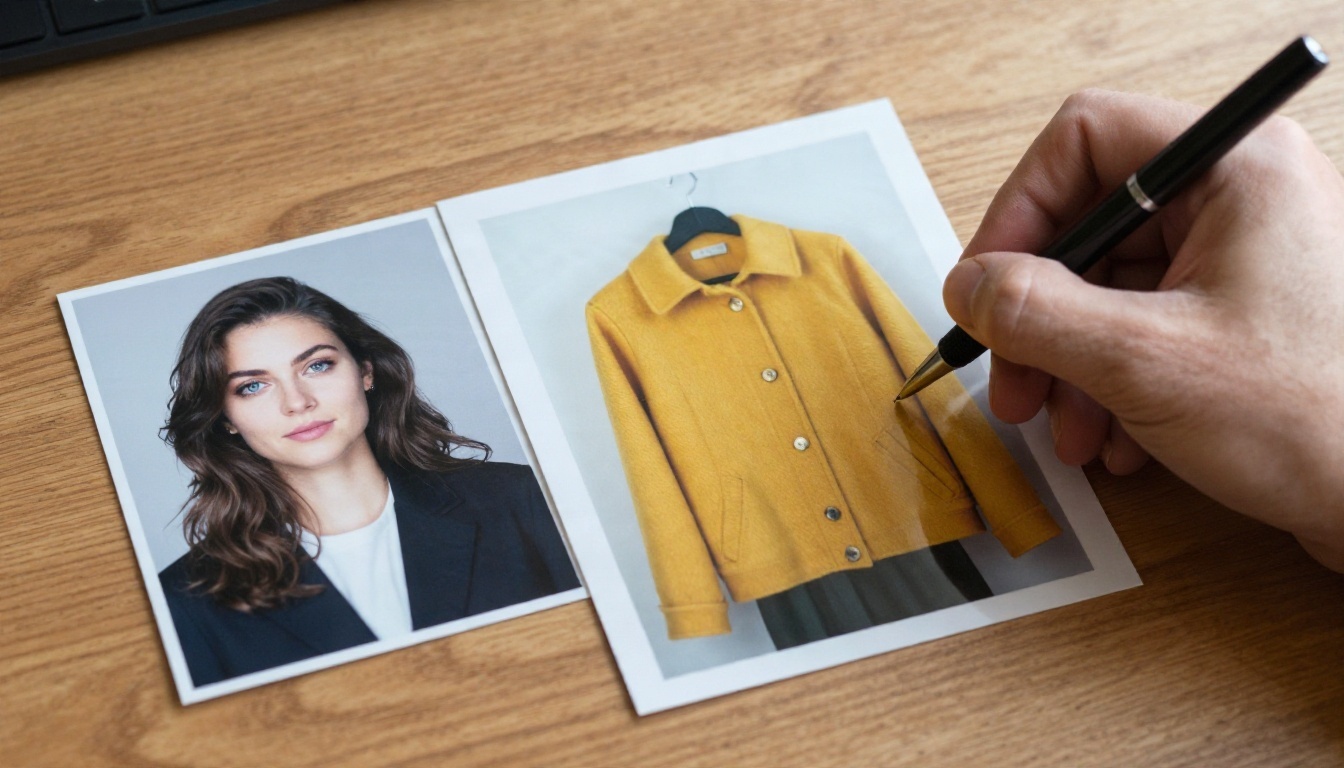
Base Image vs Reference Image
Think of it as two roles:
- Base image: the photo that gets edited. Its pose, framing and background are what you want to preserve.
- Reference image: the photo that donates something. It might be a mustard wool jacket, a velvet swatch or a second person.
In current Qwen editing releases, the first image you supply usually acts as the base, and the extra images act as sources for attributes. The 2511 version of the model accepts up to three input images, which is enough for a person, a garment and a scene.
Why Qwen Handles It Well
Qwen Image Edit comes from Alibaba's Qwen team and builds on a large image foundation model with strong text rendering and a good grasp of instructions written in plain language. Two things make it useful for reference work:
- Identity retention. Faces stay recognizable across edits more often than with many older editors.
- Instruction following. You can say "keep the pose and background" and the model mostly respects it.
PicassoIA hosts several variants, so you can pick the one that matches your task. Qwen Image Edit 2511 is the newest multi-image option, Qwen Image Edit Plus is a solid all-rounder, and the LoRA-based variants cover narrower jobs like product blending and shot-to-shot continuity.
💡 Quick rule: if your edit needs a second photo as a source, start with Qwen Image Edit 2511. If you only need to change something inside a single photo, Edit Plus is usually enough.
Prompts That Actually Work
Most failed edits come from prompts that describe the result but not the relationship between the images. A good reference prompt answers three questions: what stays, what changes, and where the change comes from.
The Three Part Formula
Use this structure:
[Keep this] + [Change this] + [Using this from the reference]
| Part | Purpose | Example wording |
|---|
| Keep | Locks what must not move | "Keep the man's face, pose and the street background unchanged." |
| Change | Names the exact target | "Replace his navy coat with a different jacket." |
| Source | Points to the reference | "Use the mustard wool jacket from the second image." |
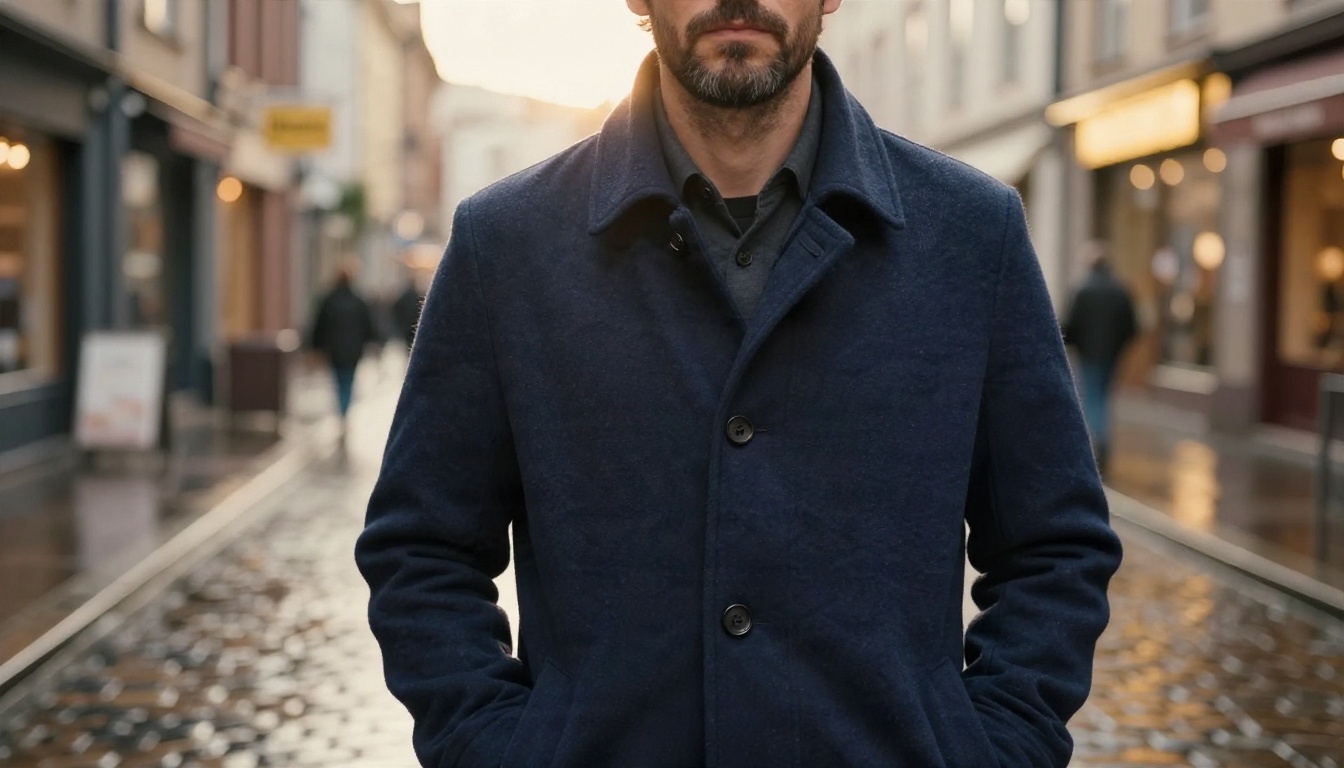
Put together: "Keep the man's face, pose and the rainy street background unchanged. Replace his navy coat with the mustard wool jacket shown in the second image, matching its texture and collar shape."
Copy-Ready Prompt Templates
Here are templates you can paste and adapt. Swap the nouns for your own subjects.
- Outfit swap: "Dress the person in image 1 in the outfit from image 2. Keep their face, hairstyle, pose and background exactly the same."
- Material swap: "In image 1, change the sofa upholstery to the green velvet shown in image 2. Keep the room layout, window light and shadows."
- Product recolor: "Recolor the sneakers in image 1 to match the olive suede in image 2. Keep the studio background and the soft shadow under the shoes."
- Style match: "Match the warm, low-contrast color grading of image 2 on image 1 without changing any objects or faces."
- Person insertion: "Place the woman from image 2 next to the man in image 1, same rooftop setting, matching the warm sunset light."
Words That Help and Words That Hurt
Small phrasing choices matter more than people expect.
| Helps | Hurts |
|---|
| "Replace X with Y from image 2" | "Make it look like image 2" |
| "Keep the background unchanged" | No mention of what stays |
| "Match the fabric texture and stitching" | "Make it better" |
| One change per prompt | Five changes in one sentence |
| Naming the image number | Ambiguous "the other photo" |
💡 Tip: If a prompt feels long, split it. Two short edits in sequence almost always beat one overloaded instruction.
Real Examples You Can Reproduce
The scenarios below are the ones people ask about most. Each includes the setup, the prompt and what to check afterward.
Example 1: Swapping a Jacket
Base: a street portrait of a bearded man in a navy coat. Reference: a flat photo of a mustard wool jacket.
Prompt: "Keep the man's face, beard, pose and the wet cobblestone street unchanged. Replace the navy coat with the mustard wool jacket from image 2. Keep the golden backlight on the fabric edges."
Check: collar shape, button count and whether the light on the new fabric matches the scene. If the jacket looks pasted on, add "blend naturally with the scene lighting."
Example 2: Changing Furniture Fabric
Base: a Scandinavian living room with a gray linen sofa. Reference: a photo of green velvet.
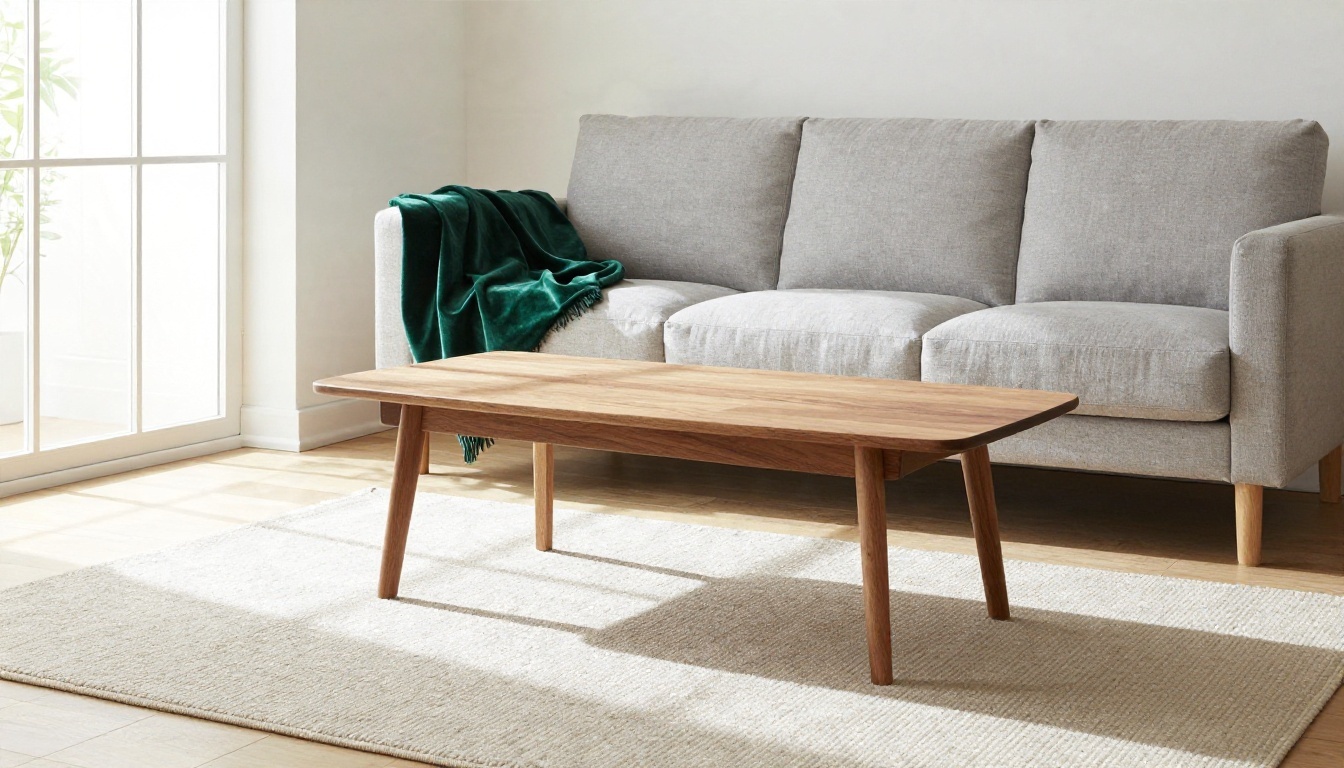
Prompt: "Reupholster the gray sofa in image 1 using the green velvet from image 2. Keep the sofa shape, cushions, rug, window light and all other furniture unchanged."
Check: velvet should show a soft sheen where light hits the arm and darker pile in the creases. Flat green means the model copied the color but not the texture. Ask for "visible velvet pile and sheen."
Example 3: Recoloring a Product
Base: white leather sneakers on a studio block. Reference: olive green suede sneakers.
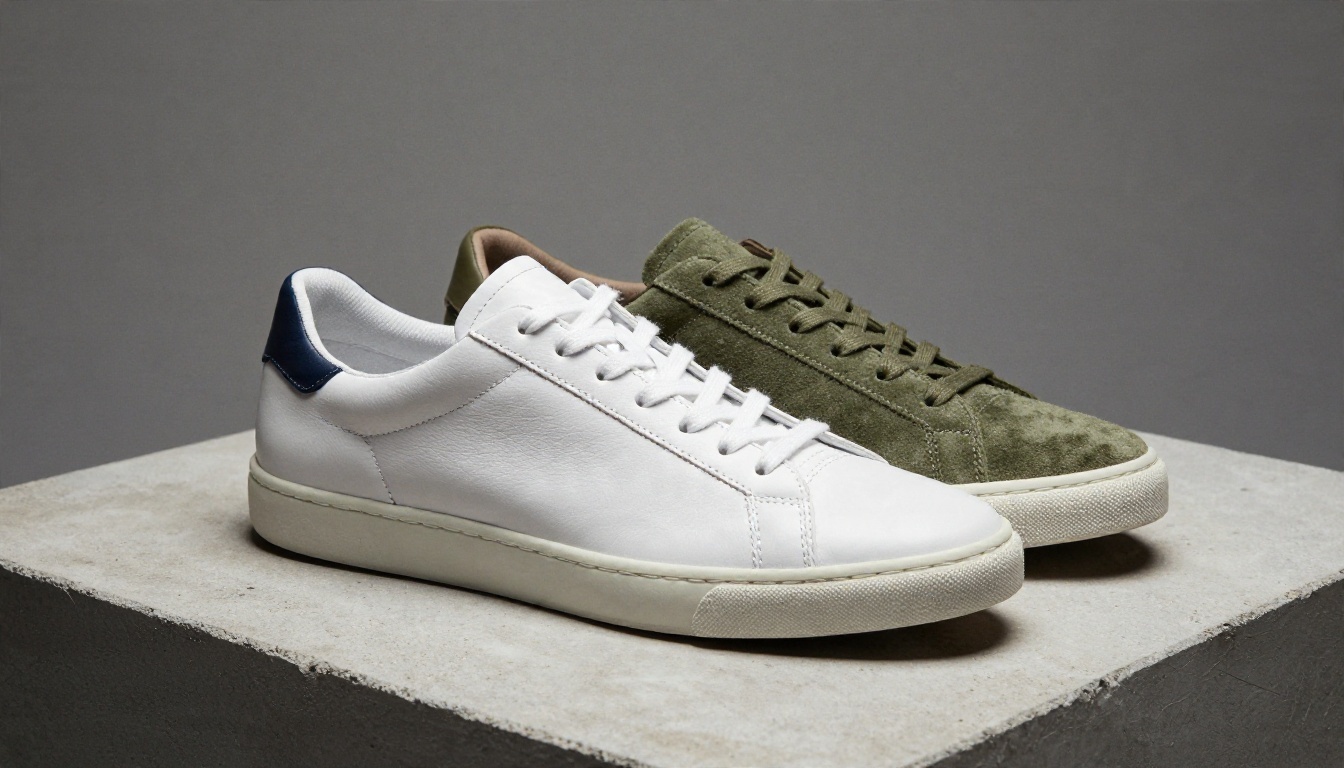
Prompt: "Change the white sneakers in image 1 to olive suede matching image 2. Keep the shoe shape, laces, sole, concrete block and softbox shadow identical."
This one matters for online sellers. One real photo shoot becomes a full colorway catalog, and the Qwen Image Edit Plus LoRA Fusion model is built for exactly this kind of product blending.
Example 4: Putting Two People in One Frame
Base: a rooftop photo of one person. Reference: a portrait of a second person.
Prompt: "Add the woman with short black hair from image 2 standing beside the man in image 1 on the same rooftop. Match the warm sunset side light and keep both faces recognizable."
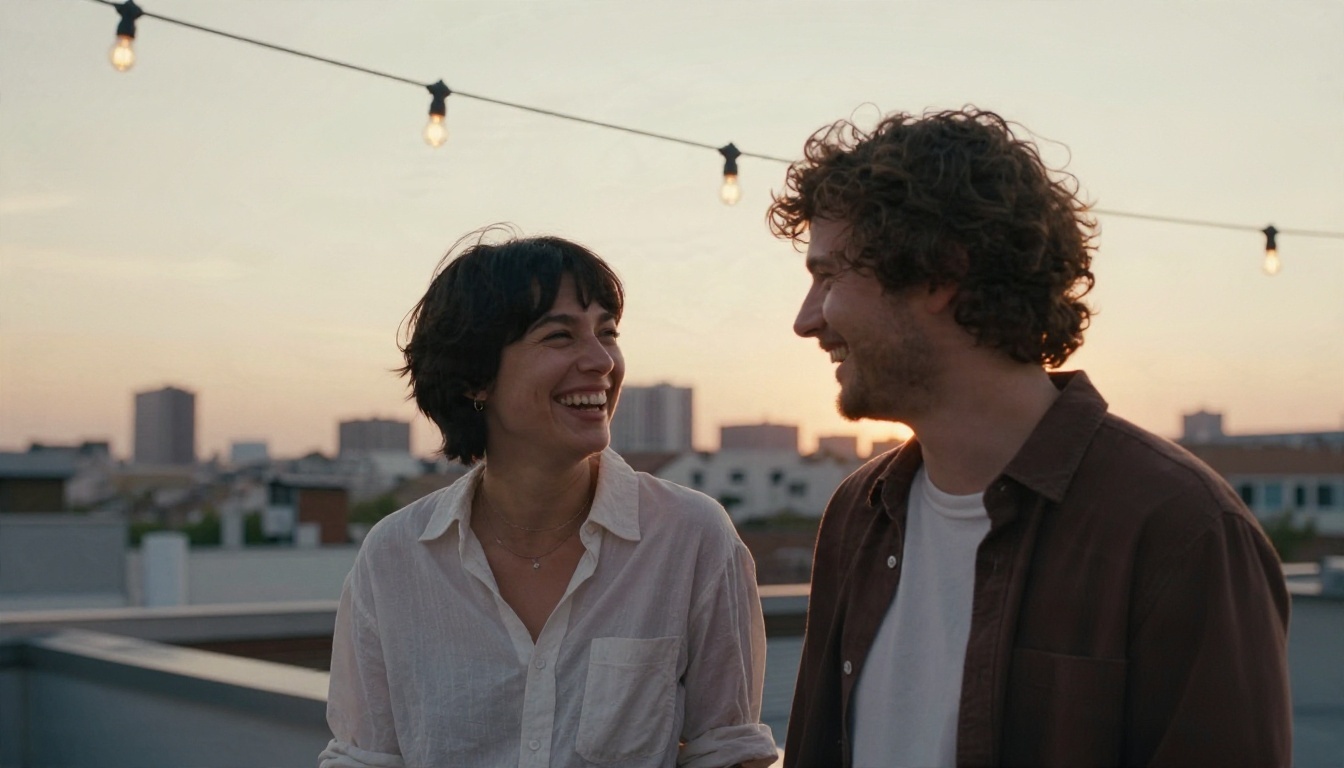
Check: face likeness, relative height and shadow direction. This is the hardest task on the list, so expect two or three tries.
Example 5: Matching a Color Mood
Base: a portrait with flat color. Reference: a photo with a rich, warm greenhouse tone.
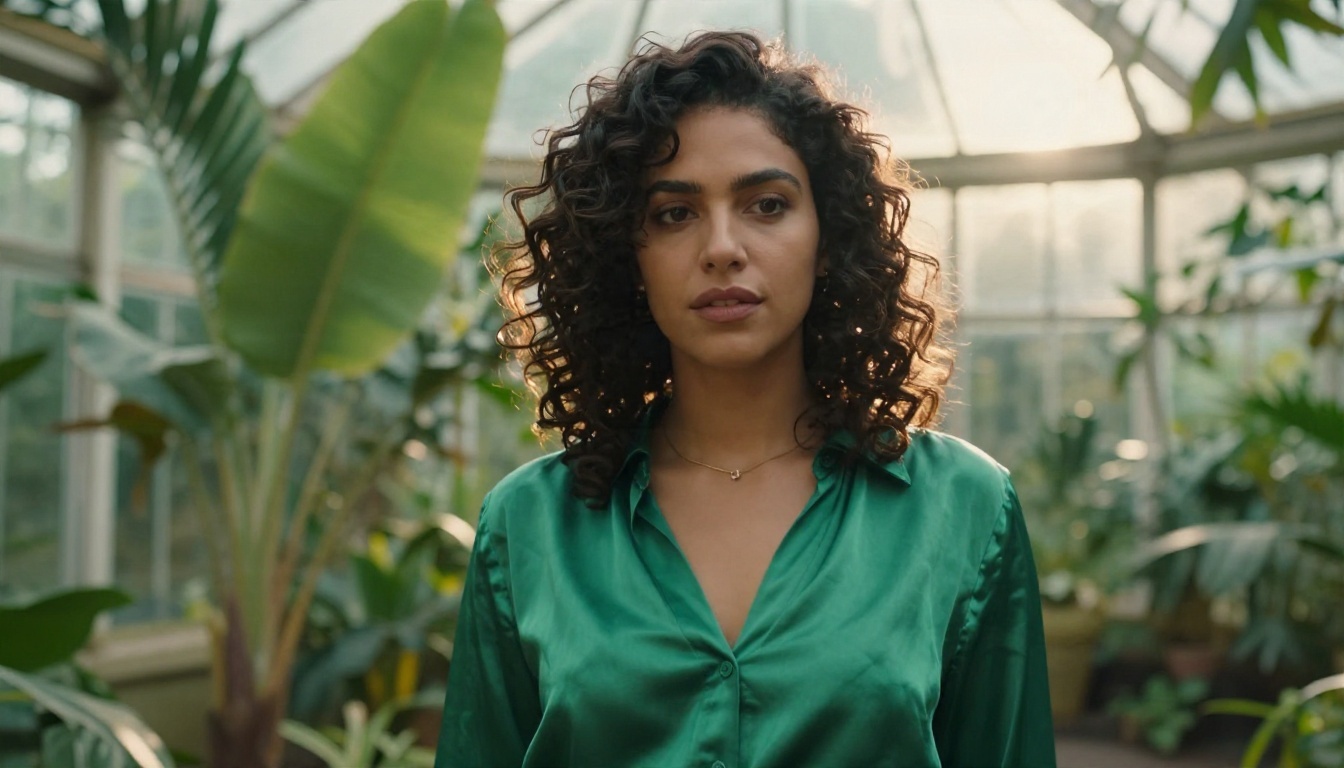
Prompt: "Apply the color grading, warmth and soft contrast of image 2 to image 1. Do not change faces, clothing shapes or composition."
How to Use Qwen on PicassoIA
You do not need a local GPU, a ComfyUI graph or a Python environment. The models run in the browser.
Step by Step Workflow
- Open Qwen Image Edit 2511 on PicassoIA.
- Upload your base image first. Order matters because the first image is treated as the main subject.
- Upload one or two reference images. Crop them tightly so the garment, material or face fills most of the frame.
- Write your prompt using the keep, change, source formula.
- Generate, then compare the result against the base image at full size.
- If something drifted, add one sentence naming what drifted and run it again.
Settings and Prep Tips
| Item | Recommendation |
|---|
| Reference crop | Tight crop on the thing you want copied |
| Reference lighting | Even, neutral light copies more cleanly |
| Number of images | Two is the sweet spot, three needs very clear prompts |
| Resolution | Use sharp inputs, blurry references give blurry textures |
| Iterations | Plan on two or three runs for people, one or two for objects |
💡 Tip: Community testers have reported artifacts when three references are combined with a speed-tuned variant. If you see smeared textures, drop to two images or use the standard model.
Choosing the Right Qwen Variant
Mistakes That Ruin Results
Most disappointing outputs trace back to the same handful of habits.
Overloaded Prompts
Asking for a new outfit, a new background, a new hairstyle and a new mood in one go splits the model's attention. Each requested change dilutes the others. Do one change, check it, then do the next.
Cluttered Reference Photos
If your reference jacket is being worn by someone with a busy scarf, a bag and a hat, the model may borrow all of it. Use clean references with a single subject and a plain background wherever possible.
Forgetting to Say What Stays
Without an explicit "keep" clause, the model is free to reinterpret the face, the pose or the background. Always name at least two things that must remain identical.
Mismatched Lighting
A reference shot under harsh noon sun pasted into a soft overcast scene will look wrong, even if the object itself is perfect. Add a line such as "adjust the lighting on the new item to match the base photo."
Expecting One Perfect Run
Reference editing is probabilistic. Treat the first output as a draft. Pros typically generate several candidates and pick the cleanest one.
Online Alternatives Worth Trying
Qwen is not the only option, and for some jobs it is not the best one. These models are all available on PicassoIA, so you can compare them with the same inputs.
Fast and Flexible Editors
Flux Kontext Fast is quick and good at targeted, instruction-style edits on a single image. P Image Edit returns results in about a second, which makes it great for rapid trial and error before you commit to a slower model.
Strong Multi-Image Models
Nano Banana handles multi-photo composition well and is friendly to casual prompts. Nano Banana Pro pushes output resolution higher for print and large displays. Seedream 4.5 is another strong choice for reference-driven edits with sharp detail, and GPT Image 2.5 Sunburst is useful when the edit includes readable text.
An Unlimited Editing Option
If you plan to run dozens of variations, the number of generations matters. PicassoIA Image Editor Pro offers unlimited photo editing online, so you can iterate without watching a counter.
Side by Side Comparison
💡 Workflow idea: draft the edit with a fast model, then rerun the winning prompt on Qwen Image Edit 2511 or Seedream 4.5 for the final version.
Which Model for Which Job
Picking the right model saves more time than polishing prompts.
Pick Qwen When
- A face must stay recognizable across several edits.
- You need to combine a person, an item and a scene.
- Your prompt is long and specific, and you want it followed closely.
Pick Something Else When
- You only need a quick background or color change on one photo, where P Image Edit is faster.
- You want a very high resolution output, where Nano Banana Pro shines.
- You are generating from scratch rather than editing, where Qwen Image 3 or Qwen Image 3 Pro can build a photorealistic base image first.
Mobile Editing on the Go
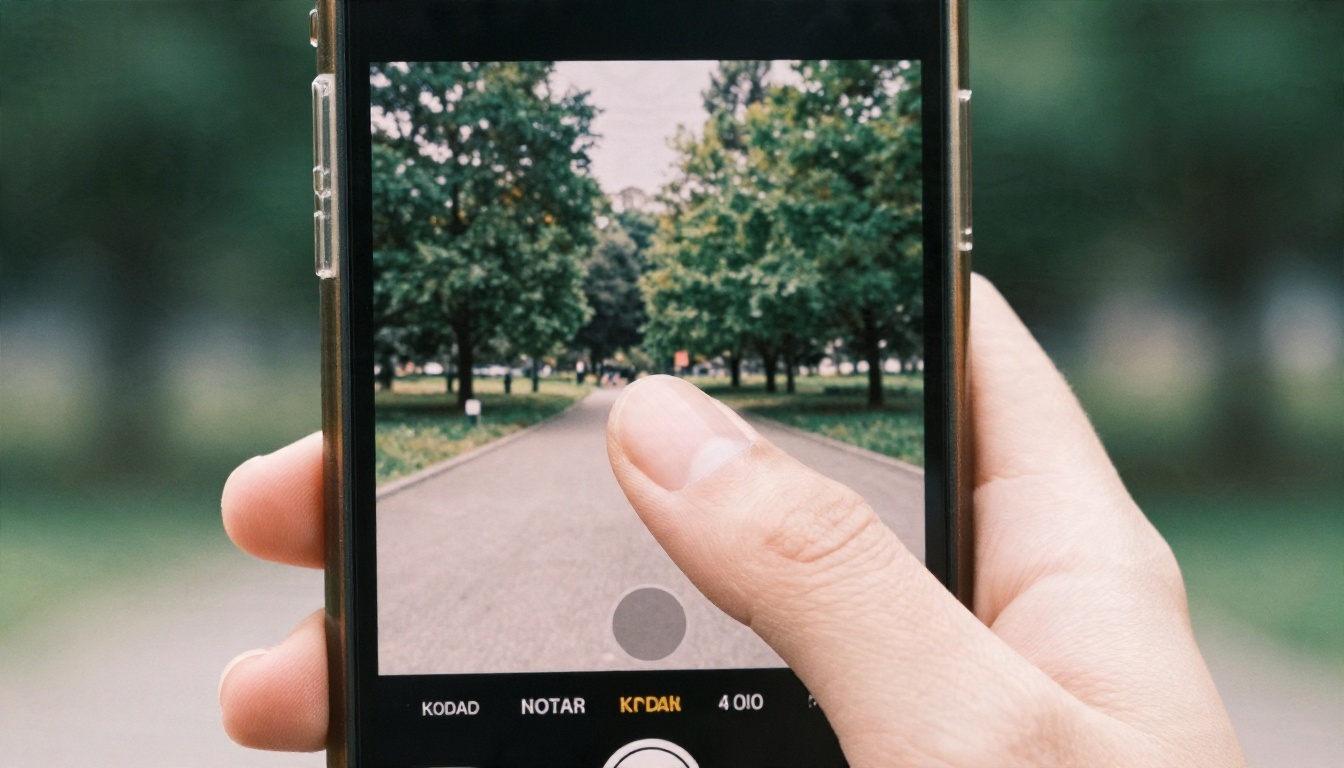
You do not need a desktop for any of this. Upload from your phone, write the prompt with the keep, change, source pattern, and run the edit anywhere. Short prompts also suit small screens, which is one more reason to keep each edit to a single change.
Try It on Your Own Photos
The fastest way to see how reference editing behaves is to run it on pictures you care about. Pick one portrait, one garment photo, and write a single sentence using the keep, change, source formula. Run it on Qwen Image Edit 2511, then send the same inputs to Nano Banana and Seedream 4.5 and compare the three results side by side. Within a few minutes you will know which model suits your style of work.
Open Picasso IA, upload your first pair of images and run your first edit today. When you want to see everything on offer, browse the full catalog at picassoia.com/en/all-models and keep experimenting with new prompts, new references and new combinations.


