Removing backgrounds from anime AI art has never been faster, and that is not an exaggeration. What once took a skilled editor 30 minutes of careful path-tracing now takes about three seconds with the right AI tool. Whether you are cutting out a hero character for a game asset, isolating a waifu PNG for a custom sticker, or compositing anime figures into a live-action scene, the bottleneck is no longer the work itself. It is knowing which tool to trust with anime's notoriously tricky edge cases.
This article walks through the full picture: why anime art is harder to process than photographs, how AI models handle the challenge, how to use Bria Remove Background on PicassoIA for the fastest results, and how to set up your generation workflow so every cutout comes out clean on the first try.
Why Anime Art Fights Back
Anime AI art presents a specific set of challenges that make background removal genuinely harder than processing a standard photograph. Most background removal tools were designed with real-world photography in mind, and their assumptions fall apart the moment they encounter anime-style illustration.
The Hair Problem
Nothing exposes a weak background remover faster than anime hair. Long flowing strands, wispy flyaways, twin-tail ends that fan out against the sky, and translucent ribbons all create hundreds of micro-edge transitions. A simple thresholding algorithm sees a light-blue sky and light-blue hair tips and clips both. AI-powered alpha matte generation handles these semi-transparent edges by predicting opacity per pixel rather than making a hard yes/no cut. The result is hair that retains its natural softness on the edges rather than looking like it was cut with scissors.
The problem compounds when the character has stylized hair colors, white-blonde highlights that blend into a pale background, or dark-blue shading at the roots that reads as a shadow element to a naive model. A model trained specifically on illustration data has seen these patterns thousands of times and handles them correctly.
Flat Colors vs. Complex Gradients
Traditional background removal tools love high contrast. They struggle when an anime character's white uniform sits against a pale sky, or when a soft gradient blends a character's outline into the scene. AI models trained on anime-style data have learned to read shape and context, not just color delta. They separate foreground from background even when the color values overlap substantially, because they understand what a character looks like as a whole object rather than a collection of isolated pixels.
This is particularly relevant with AI-generated anime art, which often produces smooth gradient skies, soft bokeh backgrounds, and lighting scenarios that intentionally blend the character into the scene. The right tool reads the semantic structure of the image and isolates accordingly.
Semi-Transparent Elements
Veils, water splashes, lens flare effects, and glowing auras in anime AI art are semi-transparent by nature. Hard-edge tools destroy them outright, cutting them away along with the background. Neural-network-based removal preserves partial opacity so these elements look natural when placed on a new background. The model outputs a gradient alpha value for each pixel in these zones rather than a binary clip.
How AI Background Removal Actually Works
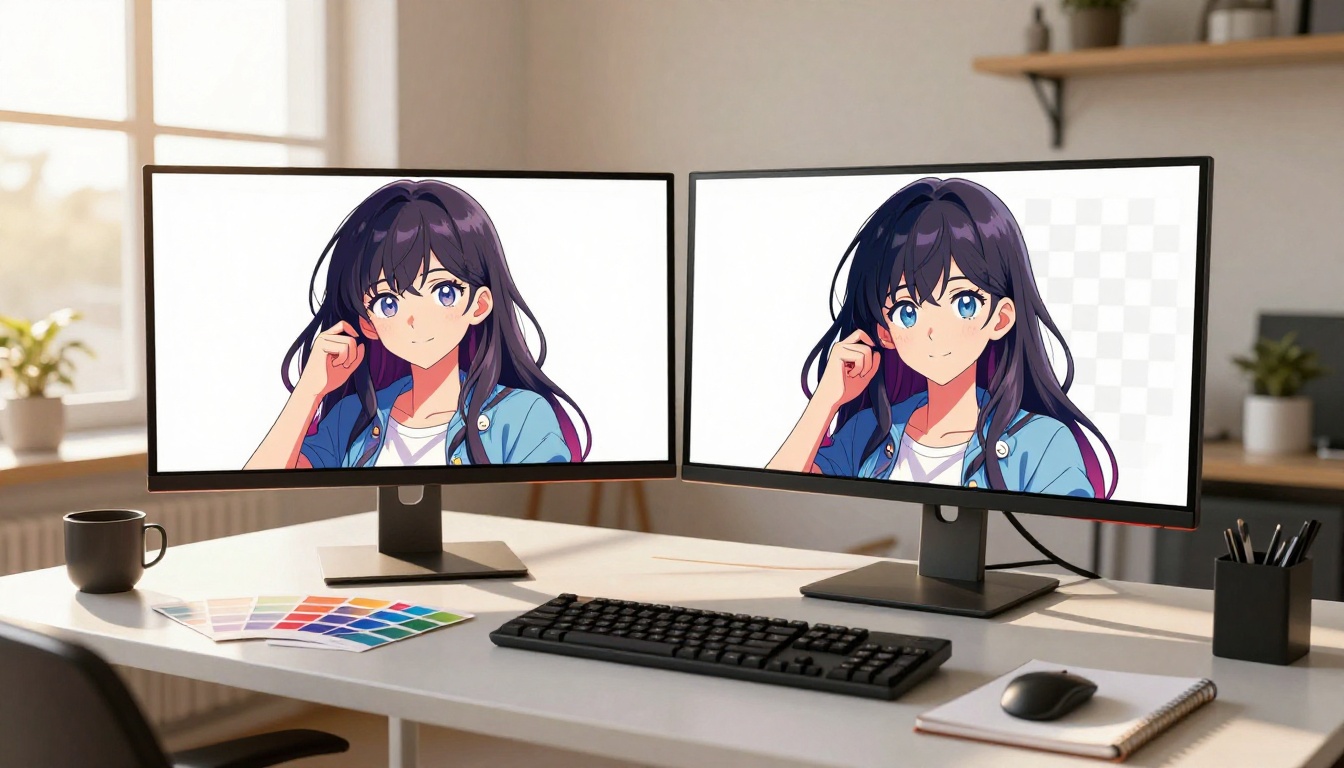
Understanding the mechanics behind AI background removal helps you make better decisions about source image quality, edge case expectations, and how to prompt your anime generation for cleaner cutouts later.
Semantic Segmentation
Modern AI background removers do not simply detect edges. They first classify every pixel in the image: "is this part of the foreground subject or part of the background?" This semantic step is what allows the model to handle complex anime compositions where a character might overlap a building, a crowd, or a detailed sky scene. The model reads the image as a scene, not a flat pixel array, and makes decisions based on what things are, not just what color they happen to be.
For anime art specifically, this means the model can correctly identify a character's arm even when it overlaps a similarly-colored wall, because it understands what arms look like in the context of a figure, not because the arm happens to contrast with the background.
Alpha Matte Generation
Once the model determines what is foreground, it generates an alpha channel with per-pixel opacity values between 0 (fully transparent) and 255 (fully opaque). This is what produces the soft, natural-looking edge on anime hair, clothing frills, and any element that blends gradually into the background. The output is a proper RGBA PNG rather than a binary cutout. When placed on a new background, the edges feather naturally and the composite looks seamless rather than hard-masked.
The quality of this alpha matte is the single biggest differentiator between background removal tools. A high-quality matte preserves semi-transparent zones, fine hair detail, and soft edge gradients. A low-quality matte creates a hard halo, missing strands, and clipped semi-transparent elements.
Training Data Matters for Anime
Not all background removal models perform equally on anime-style art. Models trained primarily on real-world photography can confuse the high-saturation flat fills of anime with decorative background elements and clip them incorrectly. Models like Bria Remove Background, which are fine-tuned on diverse illustration and digital art datasets, produce visibly sharper results with significantly less fringing on stylized images. Choosing the right model for the content type is the single most impactful decision you can make before running a removal pass.
💡 Pro Tip: If your anime source image has a complex scene behind the character, try generating a cleaner version first with a simpler background before running background removal. A soft gradient or solid color behind the character gives the AI less to confuse, and you will get a better alpha matte on the first pass.
The Bria Remove Background model on PicassoIA is built on the BRIA RMBG v2.0 architecture and delivers production-ready transparent PNGs in seconds. Here is the step-by-step process for getting the cleanest possible results on anime AI art.
Step 1: Prepare Your Source Image
Before uploading, verify three things. First, resolution: at minimum 512x512 pixels, but 1024x1024 or above is strongly recommended for anime characters with detailed hair. Higher resolution gives the model more edge data and produces sharper cutouts on fine details. Second, format: JPEG and PNG both work as inputs. If your source is a heavily compressed JPEG with visible artifacting around the edges, run it through a super-resolution upscaler before removal. Third, background complexity: simple or moderate backgrounds yield the cleanest results. Dense, detailed backgrounds with colors that blend into the character are harder but still manageable with this model's semantic approach.
Step 2: Upload and Run
Open Bria Remove Background, drop your anime image into the upload zone, and trigger the generation. The model processes in a few seconds regardless of image complexity. You will see a preview with the transparent areas rendered as a checkerboard pattern, which is the standard way to display transparency on a non-transparent background.
Step 3: Inspect the Edges
Zoom into the hair, clothing edges, and fine details before accepting the output. Look for fringing, which is a faint color halo from the original background clinging to the edge pixels. If present, a quick levels or hue adjustment in any editor removes it in seconds. Check ribbons, veils, and any glow effects, as the model should preserve most of these with graduated opacity. Look for any thin elements that may have been inadvertently removed, such as antenna accessories, single strands of hair, or weapon tips. These are rare with this model but worth a thirty-second check.
Step 4: Download as PNG
Always save as PNG to preserve the alpha channel. JPEG does not support transparency, so saving as JPEG fills all transparent areas with white and destroys the cutout entirely. WebP is a valid option if you need smaller file sizes with transparency preserved, particularly for web delivery.
| Format | Supports Transparency | File Size | Best For |
|---|
| PNG | Yes | Larger | Print, compositing, final assets |
| JPEG | No | Smallest | Web display without transparency |
| WebP | Yes | Small | Web delivery with transparency |
Generating Anime Art Built for Easy Isolation
If you are generating anime characters from scratch on PicassoIA before cutting them out, you can significantly simplify the removal process by building certain habits into your prompt writing and generation settings from the start.
Prompt for Simple Backgrounds
When your end goal is a transparent cutout, specify the background deliberately in your generation prompt. Prompts that include "white background," "solid color background," or "gradient sky, minimal detail" produce images where the foreground-background boundary is extremely clear. The Bria Remove Background model will segment these nearly perfectly with no post-processing required. This is the single highest-leverage habit for anyone who generates and then cuts out anime art regularly.
Increase Contrast Between Character and Background
High tonal contrast between the character and background gives the removal model the clearest signal. A dark-haired character on a pale background, or a bright white outfit against a deep blue or green, creates unambiguous foreground/background boundaries. If you have freedom in how you generate the image, choose prompt directions that naturally produce this contrast. It costs nothing in generation time and saves significant work on the removal pass.
Avoid Overlapping Elements
Characters that overlap with background objects create ambiguous zones where the model must make judgment calls. A sword blade that extends behind a building, hair that blends into a forest canopy, or a flowing cape that merges with a stormy sky all complicate the segmentation. Either position the character with clear negative space around all edges, or plan for a brief manual touch-up on ambiguous zones after the AI pass.
💡 Pro Tip: The most reliable workflow is to generate with "seamless white studio background" in your prompt, run Bria Remove Background, then composite onto any scene you want. This two-step method almost always produces a cleaner result than trying to remove a complex generated background directly.
Real Use Cases for Transparent Anime PNGs
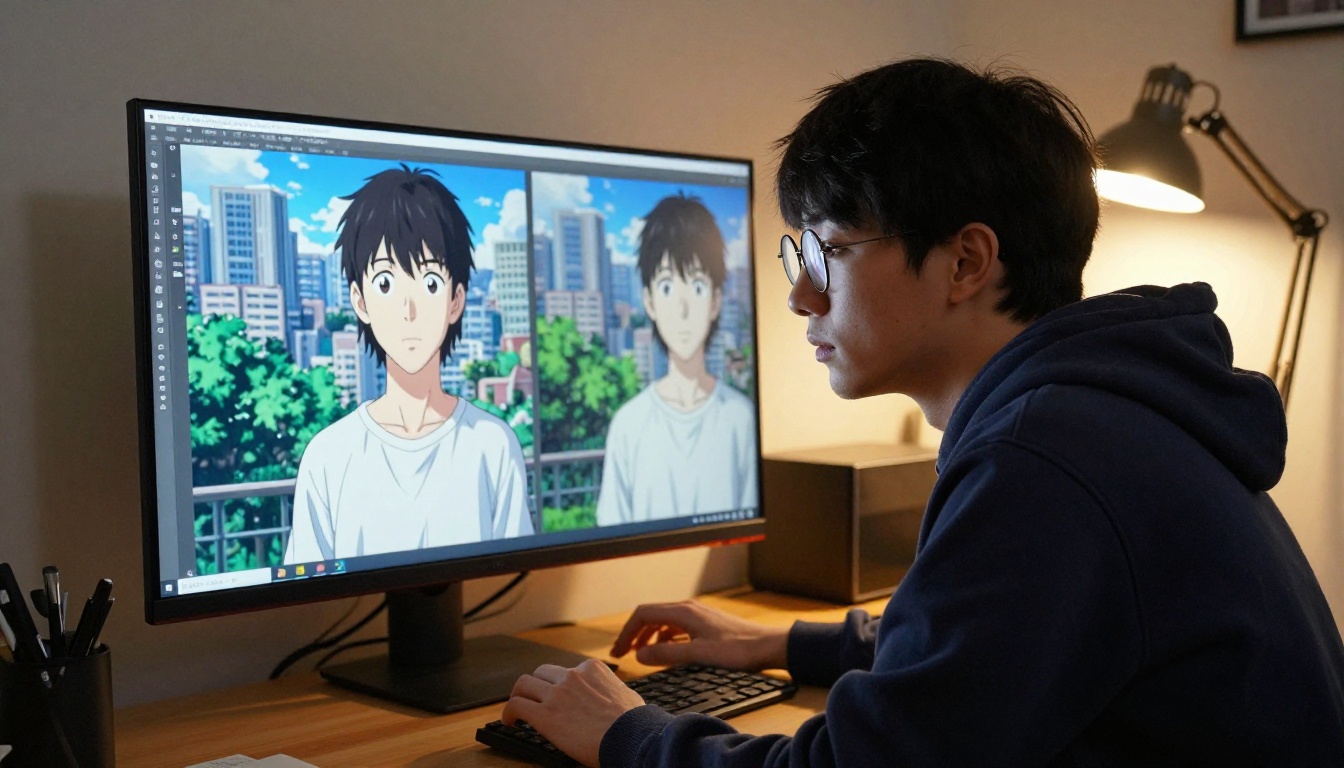
Clean anime cutouts have a wide range of practical applications. Here are the most common ones, along with the specific requirements each use case places on your transparent PNG.
Print-on-Demand and Merchandise
Transparent PNGs are the standard format for print-on-demand platforms. T-shirt printers, sticker shops, and acrylic keychain manufacturers all require a clean RGBA file so the subject can print on any product color without a white box around it. Anime character cutouts are among the highest-converting designs on POD platforms, and clean edges are non-negotiable for professional-looking output. DPI requirements typically start at 300 for small merchandise and go up to 600 DPI for large-format prints, so make sure you start with a high-resolution generation rather than a small image upscaled after the fact.
Telegram and Discord Stickers
Custom sticker packs with anime AI art characters are massively popular on messaging platforms. Telegram requires 512x512 pixel PNG files with transparency for static stickers. Discord supports custom server stickers at similar specifications. Running your art through Bria Remove Background gets you a deployment-ready sticker file in under a minute, with no additional editing required for clean-background source images.
Visual Novel and Game Assets
Visual novel engines, RPG Maker, Ren'Py, and Unity all work with sprite sheets that rely on transparent backgrounds. Solo developers and small studios generating anime characters with AI can output production-ready sprites by removing backgrounds after generation, cutting weeks of traditional illustration work down to a generation-and-removal pipeline that takes minutes per character. The main requirement for this use case is consistent edge quality across all sprites in the set, which the Bria model delivers reliably on standardized inputs.
Compositing Into New Scenes
Removing the original background opens up an anime character for placement in any visual context: a real-world photograph, a custom painted environment, another AI-generated scene, or a fully digital background. This is the core workflow for creating fan art composites, YouTube thumbnails, wallpapers, and narrative visual content. The transparent PNG becomes a reusable asset that can be dropped into dozens of different compositions without ever re-editing the original.
Mistakes That Destroy Your Cutout
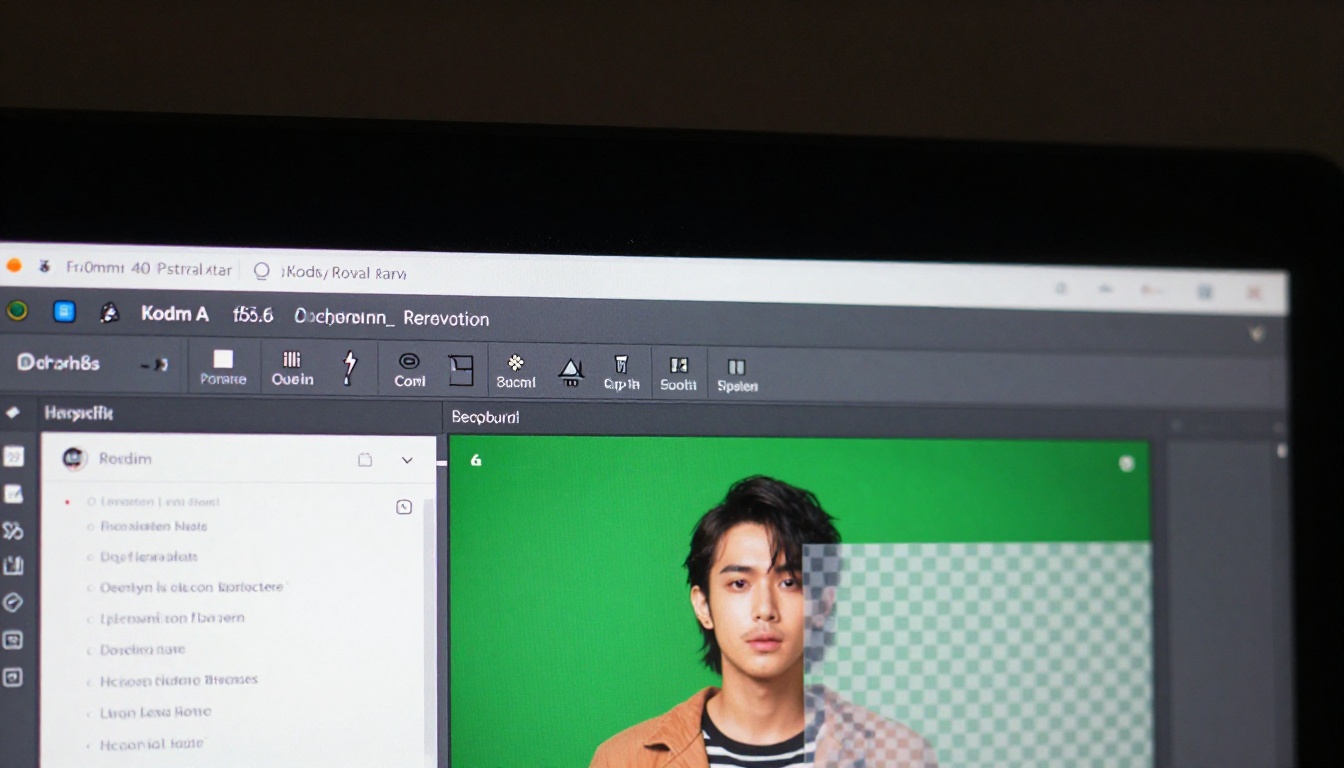
Getting a bad cutout is almost always preventable. These are the most common failure points and how to avoid each one.
Starting with a Low-Resolution Source
Background removal models work on pixel data. If your source image is 256x256 pixels, the edge data is so compressed that even an excellent model will produce jagged, aliased results on fine details. For anime characters with complex hair, aim for at least 1024x1024 before running removal. If you are working with a small source image, run it through a super-resolution upscaler first to recover as much edge information as possible before the removal pass.
Skipping the Inspection Step
Accepting the first output without zooming in is a common speed trap. A cutout that looks clean at 50% zoom often shows fringing, missing strands, or rough edges at 100%. Spend fifteen seconds inspecting before downloading. It saves far more time than a retouching pass after the fact.
Using the Wrong Color Mode
Some tools output cutouts in indexed color mode or with incorrect gamma encoding, which distorts the alpha channel when placed on certain backgrounds. Always verify your final PNG opens correctly in your target software before committing it to a product or composite. If the edges look correct in a preview but fringe in your editor, check the color profile and bit depth of the exported file.
Expecting Perfection on Every Image
No AI model achieves perfect results on 100% of images. Images with hair that matches the background color exactly, extremely dense layered backgrounds, or unusual stylization may need a manual touch-up pass. AI gets you 90 to 95% of the way there in seconds. The remaining edge cases are a quick manual fix in any editor, not a full restart.
Speeding Up a High-Volume Workflow

If you are processing many anime images for a sprite library, a 50-item sticker pack, or a content batch, a few workflow habits make a significant efficiency difference across the entire set.
Standardize Your Source Resolution
Generate all source images at the same resolution before running removal. This eliminates quality variability across a batch and means you can process a set without manually checking each image for size issues first. Pick your target resolution based on the most demanding end use in the batch, then generate everything at that size from the start.
Pair with Super Resolution First
If you are working with lower-resolution AI art, run it through PicassoIA's super-resolution tools before background removal. Upscaling 512px anime art to 1024px before the removal pass significantly sharpens edge quality on fine details. The added step takes seconds per image but saves manual retouching time across an entire batch, making it a net efficiency gain even though it adds one processing step.
Consistent Background Colors in Generation
If you are batch-generating anime characters with planned background removal, use a consistent prompt fragment for the background across all images in the set. Something like "flat pastel blue background, no detail" or "plain white background, studio lighting" applied uniformly gives the removal model identical conditions for each image, producing consistent edge quality throughout the batch rather than variable results from different background types.
💡 Pro Tip: For a batch of 20 or more anime sprites, generate all images with "flat pastel blue background, no detail" first, then run all through Bria Remove Background in sequence. The consistent background produces uniform edge quality across the entire batch.
Compositing After Removal
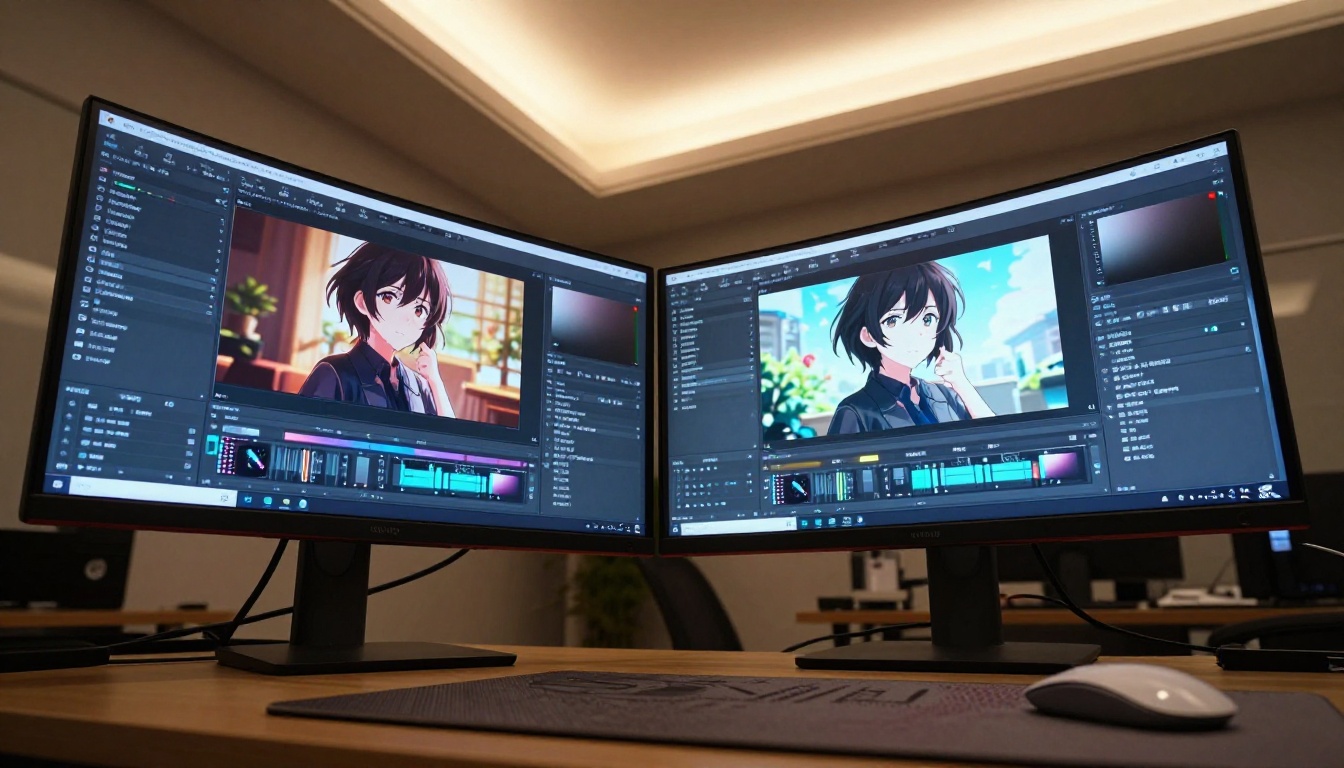
Getting a clean transparent PNG is only half the process. Where you place the character determines the final quality of the result.
Color Matching the New Background
When you composite an isolated anime character onto a new background, the character's internal lighting should match the new scene's light direction and color temperature. A character lit from the left will look pasted-on against a background with strong right-side lighting. Either choose backgrounds that match your character's lighting, or apply a color grading adjustment layer on the character to harmonize it with the new environment. Even a subtle warm/cool shift applied to the character can make a composite feel cohesive rather than assembled.
Drop Shadow and Ambient Occlusion
A character placed on a background without any shadow looks immediately artificial. Adding a subtle drop shadow or soft ambient occlusion beneath the character grounds them visually in the scene. In any graphic editor, this is a non-destructive effect applied on a separate layer, so it can be adjusted without touching the cutout itself. Even a very subtle 10 to 15% opacity black shadow along the feet and lower body dramatically improves how the composite reads at first glance.
Start Creating on PicassoIA
The entire workflow described here is available on PicassoIA right now. Generate your anime character with any of the platform's text-to-image models, bring it directly into Bria Remove Background, and download a production-ready transparent PNG in seconds. No separate subscriptions, no app switching, no waiting for complex selections to process.
If you want the cleanest possible cutout on detailed anime hair and clothing, the combination of a high-resolution generation pass followed by a single removal run delivers results that rival hours of manual selection work. The platform also gives you access to super-resolution tools to upscale before removal and effects tools to work with after, all in one place.
The speed is real, the quality holds up under scrutiny, and the barrier to creating polished anime assets has never been lower. Pick a character concept, generate it with a clean background, run the removal, and your transparent PNG will be ready before you finish reviewing this page. Head over to picassoia.com/en/all-models and start with Bria Remove Background.


