You generate a great shot of your hero. Red hair, mustard jacket, a face you actually like. Then you ask for the same person in a rainy cafe, and the AI hands you a stranger with a similar coat. That single problem, character drift, is the reason Runway Gen 4 References got so much attention, and it is also why people immediately ask three follow-up questions: how well does it hold a character, how far do the free credits go, and why do clips stop after a few seconds?
This article answers all of it in plain terms. You will see how References work, how to write prompts that keep a face stable, what the free plan realistically buys, where the duration ceiling sits, and which alternatives are worth trying when Runway is not the right fit. Along the way you will also find a working walkthrough on PicassoIA, where Gen4 Image and Gen4 Turbo are available to try right now.
💡 Quick note on numbers: Runway changes plan names, credit costs and model lineups often. The figures below reflect what was reported at the time of writing. Always check Runway's own pricing page before you budget a project.
What Gen 4 References Actually Do
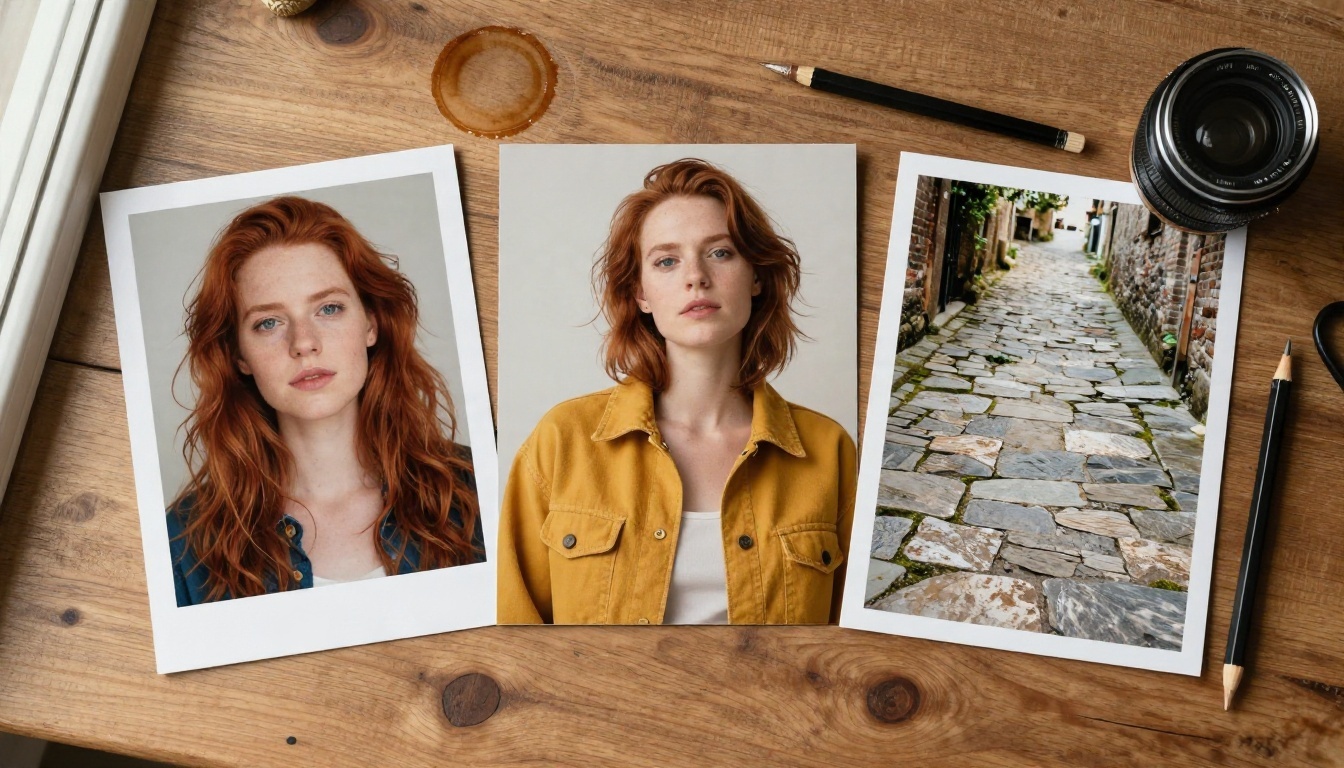
Gen 4 References is Runway's way of telling the model: "this is the person, this is the object, this is the place. Keep them." Instead of describing a character in words and hoping for the best, you upload photos and the model uses them as visual anchors for every new image it creates.
Up to Three Anchors
The feature accepts up to three reference images per generation. In practice that usually means one for the character's face, one for a signature item such as a jacket or a prop, and one for the location or lighting mood. You can also spend all three on the same character from different angles, which tends to help when the face is unusual or the haircut is distinctive.
References vs. Image to Video
This is where most confusion starts. References work primarily on the image side. You build a set of consistent stills first. Then you feed a chosen still into an image-to-video model, which animates it. The video model keeps the subject steady because the first frame already contains the right face and outfit.
For video-to-video changes, such as restyling footage you already shot, Runway now points people toward its Aleph line instead. On PicassoIA, both Aleph 2 and Gen4 Aleph handle that kind of recut and restyle job.
| Task | Best tool in the Runway family | Input |
|---|
| Build consistent stills | Gen 4 image with References | Prompt + up to 3 photos |
| Animate a still | Gen 4 Turbo | One first-frame image + prompt |
| Restyle existing footage | Aleph | A video clip + prompt |
Keeping a Character Consistent
Consistency is not magic. It is mostly good inputs and disciplined prompts. Creators who get stable results tend to follow the same few habits.
Pick Clean Source Photos
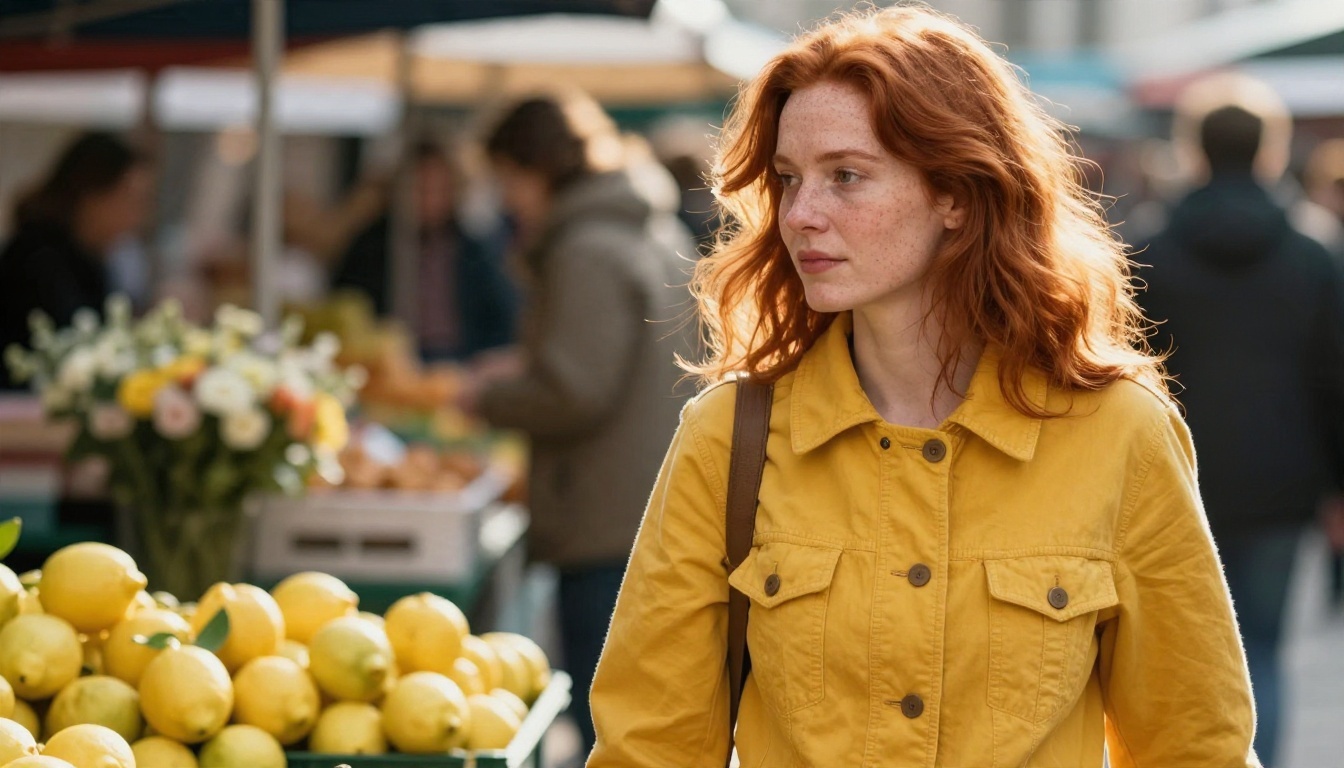
Your reference is the ceiling for quality. If the source photo is blurry, heavily filtered, or shot at a harsh angle, every output inherits that weakness. Choose photos with:
- Even lighting on the face, with no deep shadows across the eyes
- A neutral or simple background so the model does not copy the wrong details
- Sharp focus on the features that define the character, such as hair, freckles or glasses
- A natural expression, since extreme expressions can leak into every output
If you only have one decent photo, use it as the face reference and use a separate close-up of the outfit as the second reference. Splitting identity and clothing helps the model avoid blending them.
Tag and Name Each Reference
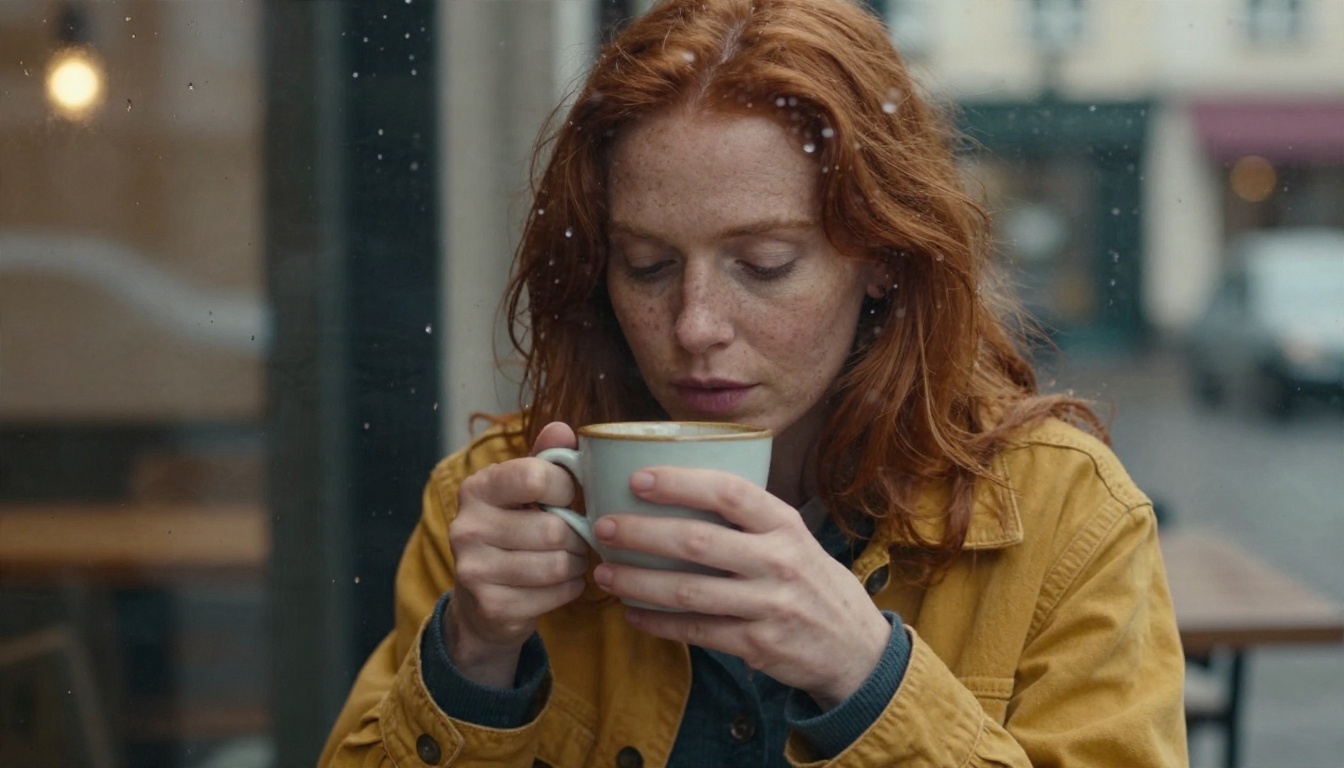
Gen 4 lets you label each reference with a short tag and then call it by name in your prompt. That sounds like a small detail, but it removes ambiguity. A prompt such as "@hero sits by a rain-streaked window holding a ceramic cup" is far clearer than "the woman from the first picture."
Keep tags short, alphanumeric and memorable. Names like hero, jacket and alley are plenty.
Write Prompts That Change One Thing
The most reliable way to hold a character steady is to change only one major variable per generation. Move the character to a new location, or change the camera angle, or shift the time of day. Do not do all three at once.
Here is a simple structure that works well:
- Tag the subject, for example "@hero"
- State the action in one clear verb phrase
- Name the setting and the light
- Name the lens or framing, such as "85mm close-up"
💡 Pro tip: Keep a text file with your character's fixed description and paste it at the start of every prompt. Small wording changes between prompts are a hidden source of drift.
Free Credits: What You Get
Everyone wants to know if they can test References without paying. The short answer is yes, but only briefly.

The One-Time Grant
Runway's free tier has been reported as a one-time grant of 125 credits that does not refill each month. Once they are gone, you need a paid plan to keep generating. That detail surprises many first-time users who assume a monthly top-up.
What Credits Buy
Reported costs in the app sit around 12 credits per second for Gen 4 video and around 5 credits per second for Gen 4 Turbo. Do the math and the free grant stretches to roughly five short Turbo clips, or only two or three standard Gen 4 clips. Image generations cost far less per output, which is why a sensible workflow spends credits on stills first.
| Item | Approximate cost | What 125 credits gets you |
|---|
| Gen 4 video, per second | About 12 credits | Roughly 10 seconds total |
| Gen 4 Turbo video, per second | About 5 credits | Roughly 25 seconds total |
| Paid plans | Monthly credit pools, unused credits usually do not roll over | Varies by plan |
Those estimates are rough, and plan tiers have been renamed over time. Treat them as a planning range, not a quote.
💡 Budget trick: Lock in your character with cheap stills. Only animate the three or four frames you are sure about. Many creators burn half their credits on videos built from a weak first frame.
Free Options That Do Not Expire
If a one-time grant is not enough, PicassoIA offers models you can use without counting every second. Nano Banana Pro generates 4K images free, and Seedance 2.5 Lite is a free and unlimited video generator for clips up to 10 seconds. That makes them useful for testing prompts before you commit credits elsewhere.
Duration Limits Explained
The second big surprise is clip length. Most Runway Gen 4 video outputs are limited to 5 or 10 seconds. For a social teaser that is fine. For a scene with dialogue, it is tight.

Why Clips Stop at 10 Seconds
Longer generation means more frames the model must keep coherent. Faces, hands and backgrounds tend to wander the longer a clip runs, and compute cost climbs fast. Short clips keep quality high and costs predictable, so the ceiling is a deliberate tradeoff rather than a bug.
Gen4 Turbo on PicassoIA follows the same pattern: you pick 5 or 10 seconds, and the output is a 720p clip.
Stitching Longer Scenes
If you need a 30-second scene, you build it from several short shots, the same way a film editor would. A reliable method:
- Generate a wide establishing shot as the first clip
- Generate a medium shot using a new still of the same character
- Generate a close-up for emotional beats
- Use the last frame of one clip as the first frame of the next when you want a continuous move
- Cut them together in your editor with sound and music underneath
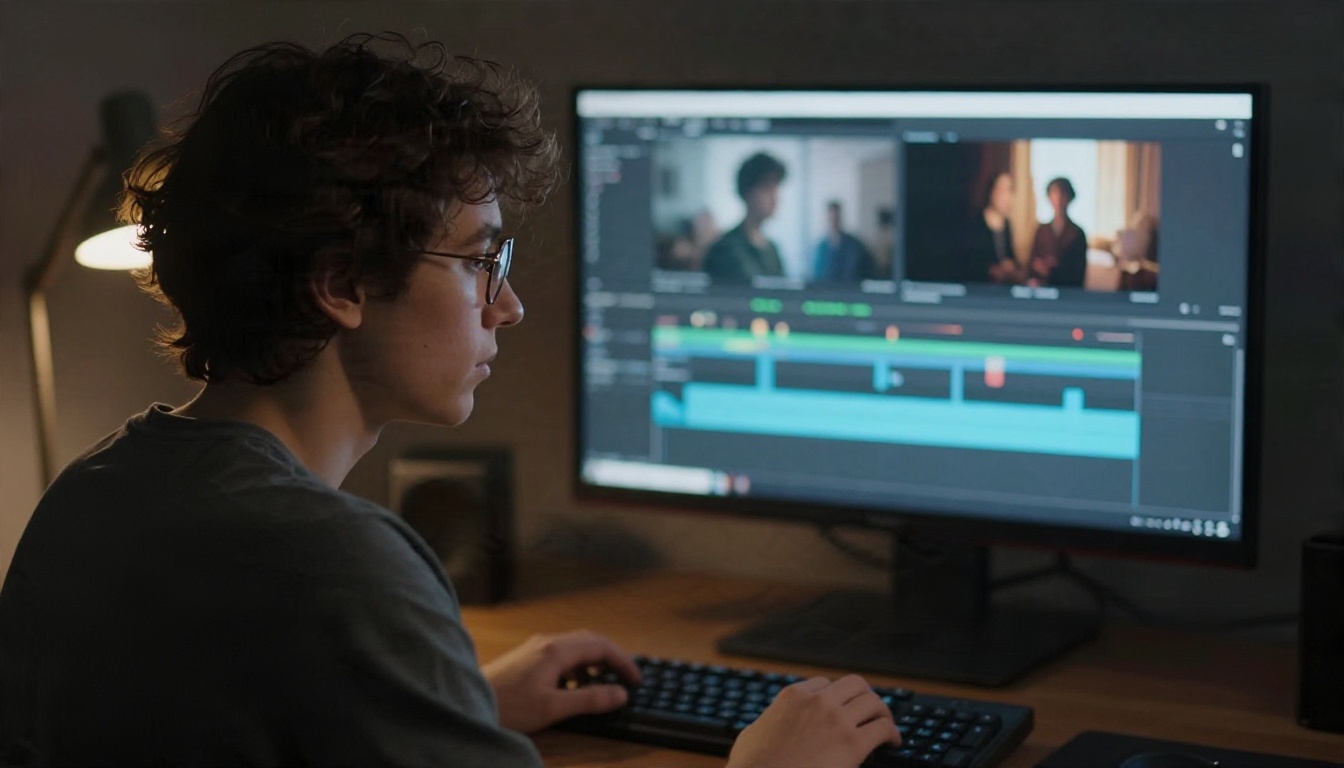
Cutting between angles also hides small differences between clips, which is a handy side effect.
Runway Versus Alternatives
References are good, but they are not the only route to a stable character. Depending on your budget and clip length needs, one of these may fit better.

Kling v3 for Motion
Kling v3 Video and Kling v3 Omni Video handle cinematic movement well, and Omni outputs 1080p. If your problem is not the face but the way a body moves, Kling v3 Motion Control lets you drive a character with a reference performance.
Seedance for Length
If the 10 second ceiling is your main frustration, Seedance 2.5 reaches 30 seconds, while Seedance 2.0 Mini adds native audio at a lighter weight. Fewer stitches means fewer chances for the face to shift.
Veo and Nano Banana
For clips where sound matters, Veo 3.1 Fast and Veo 3.1 Lite generate audio together with the picture. For stills, Nano Banana and Flux Kontext Fast are strong at editing a photo while keeping the subject recognizable, which is a different path to the same consistency goal.
How to Use Gen4 Image on PicassoIA
The References workflow lives in Gen4 Image. It accepts a prompt, up to three reference images and a handful of settings. Here is the process from start to finish.
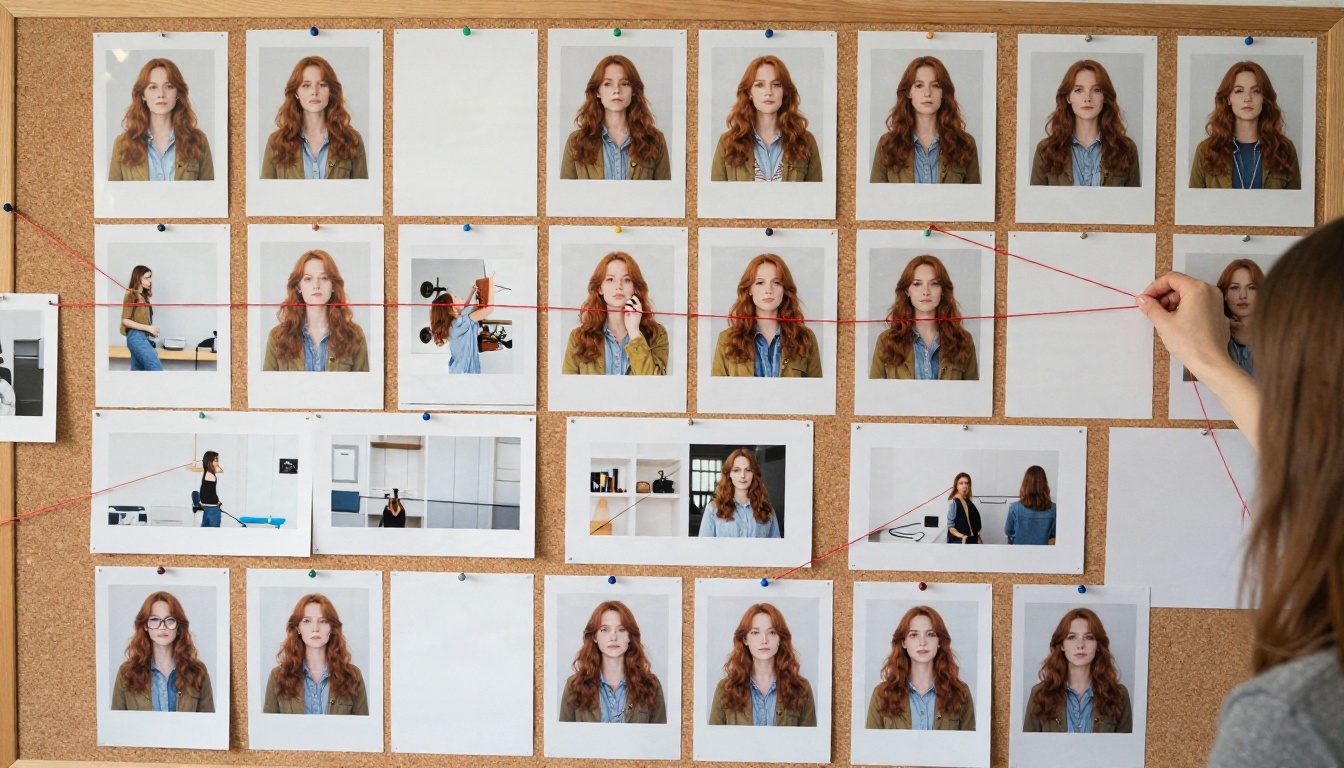
- Open the model page for Gen4 Image.
- Upload your references. Add up to three photos. Images need an aspect ratio between 0.5 and 2, so avoid extreme panoramas.
- Add reference tags. Give each photo a name between 3 and 15 characters, starting with a letter. For example
hero, jacket, alley.
- Write your prompt and call each tag with an @ sign: "@hero walking through a sunlit market, @jacket clearly visible, warm backlight."
- Choose resolution and ratio. 1080p is the default. Aspect ratios include 16:9, 9:16, 4:3, 3:4, 1:1 and 21:9.
- Set a seed if you want to repeat a result exactly while you tweak one word at a time.
- Generate, review, repeat. Save the winners and build your set of consistent stills.
| Setting | Recommended value | Reason |
|---|
| Resolution | 1080p | Sharper faces for animation later |
| Aspect ratio | 16:9 for video, 9:16 for shorts | Matches your final format |
| Seed | Fixed while testing | Isolates the effect of prompt changes |
| References | 2 to 3 | Separates identity from outfit and place |
Animate With Gen4 Turbo
Once you have a still you love, open Gen4 Turbo. Upload the still as the first frame, write a short motion prompt such as "slow push-in, she lifts the cup, steam rises," choose 5 or 10 seconds, and match the aspect ratio to your still. Keep motion prompts simple. One camera move and one subject action are plenty for a short clip.
💡 Reminder: Runway's standard Gen 4 video model is not on PicassoIA. Gen4 Turbo is the video option from that family you can use here, so plan your clips around the 5 and 10 second settings.
Common Mistakes
Even with good tools, a few habits quietly ruin consistency.
- Overloading the prompt. Ten adjectives about the face compete with the reference photo. Let the image do the talking.
- Mixing styles. A reference shot in warm film tones and another in cold studio light confuses the output.
- Skipping the still stage. Animating before you have a locked, approved still wastes credits.
- Changing the seed and the prompt together. You cannot tell which change caused the drift.
- Using one tiny, low-resolution reference. Quality in, quality out.
- Chasing a 30-second take. Build scenes shot by shot instead.

Try It Yourself
You do not need a big budget to test a consistent character workflow. Pick one photo, add a second reference for the outfit, and spend an evening building a six-frame storyboard. Then animate your two best frames.
Open Gen4 Image on Picasso IA to build your references, send your favorite still to Gen4 Turbo, and compare the result with Kling v3 Video or Seedance 2.5 Lite on the same still. Seeing the same character handled by different models in one afternoon will tell you more than any spec sheet. Create your first set today and see how far one good reference photo can go.


