You have one good photo and you want it to move. That is the entire pitch of Runway Gen 4 Turbo, and it is why so many creators reach for it before any other image to video model. Upload a still, type a sentence about the motion, wait a short while, and a clip comes back. The catch is that a handful of small settings decide whether that clip looks like a film shot or a melted screensaver: the first frame, the aspect ratio, the seed, the duration, and the wording of your prompt.
This article walks through each of those settings, states the real duration limit, does the credit math, and sorts out what "free" actually means for this model. Where Runway's own plan details are murky, I say so instead of guessing.
💡 Quick answer: Gen 4 Turbo turns one input image into a clip of 5 or 10 seconds. It costs roughly 5 credits per second on Runway, supports six aspect ratios, and needs an input image because that image becomes the first frame. You can run it on PicassoIA at 720p without managing a Runway subscription.
What Gen 4 Turbo Actually Does
Image in, motion out
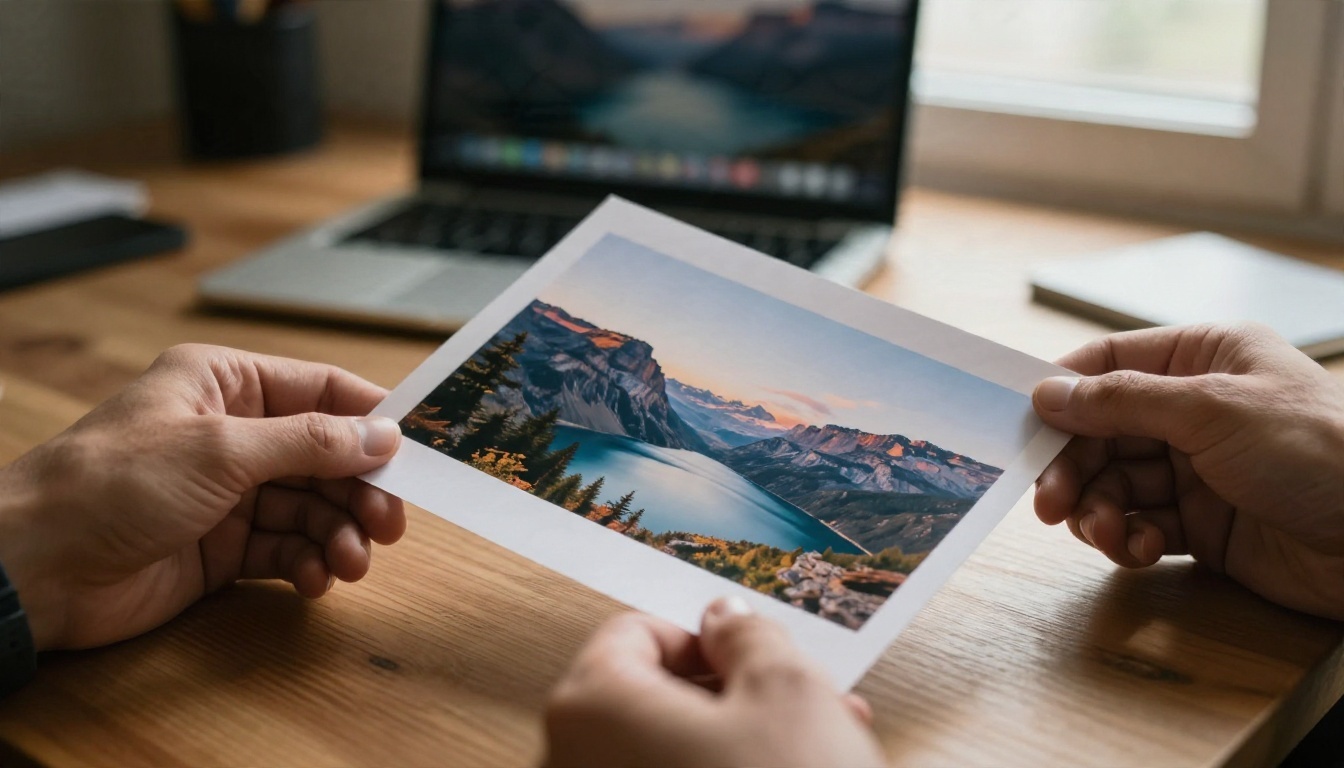
Gen 4 Turbo is an image to video model. It is not a text to video model in the usual sense: you must supply a starting picture, and the model animates it according to your prompt. The picture is locked in as frame one. Everything after that is the model's guess about how the scene would move.
That design is a strength. Because the subject, lighting and composition already exist in your image, the clip stays consistent with what you chose. Text to video models invent the subject from scratch, which means more variation and more surprises.
Turbo versus standard Gen 4
The "Turbo" label means speed and lower cost. Runway's help material describes Turbo as using about 5 credits per second, against roughly 12 credits per second for standard Gen 4. Runway also suggests testing ideas in Turbo first, then switching to the heavier model when you have a prompt worth polishing.
| Feature | Gen 4 Turbo | Standard Gen 4 |
|---|
| Input | Image required | Image required |
| Cost per second | About 5 credits | About 12 credits |
| Best use | Fast tests, many iterations | Final, polished takes |
| Duration options | 5 or 10 seconds | 5 or 10 seconds |
| Speed | Faster | Slower |
Runway has since moved its flagship label to a newer Gen 4.5 model, but Turbo remains the budget workhorse for image to video, and that is exactly why people still search for it.
Image to Video Settings That Matter
The first frame decides everything
If you take one thing from this article, take this: the quality of your input image caps the quality of your video. A soft, noisy or heavily compressed photo produces a soft, noisy clip. A sharp image with clear depth, one obvious subject and room around that subject gives the model something to work with.
Practical rules for first frames:
- Use a sharp image at 1280 pixels wide or larger.
- Leave breathing room around the subject so the camera can move.
- Avoid text, logos and crowded hands. Small details drift during motion.
- Match the image shape to your target aspect ratio before uploading, so nothing gets cropped unexpectedly.
If you do not have a photo yet, you can make one first with Gen4 Image Turbo or Gen4 Image, which are built to produce clean reference frames that feed straight into a video model.
Aspect ratio options
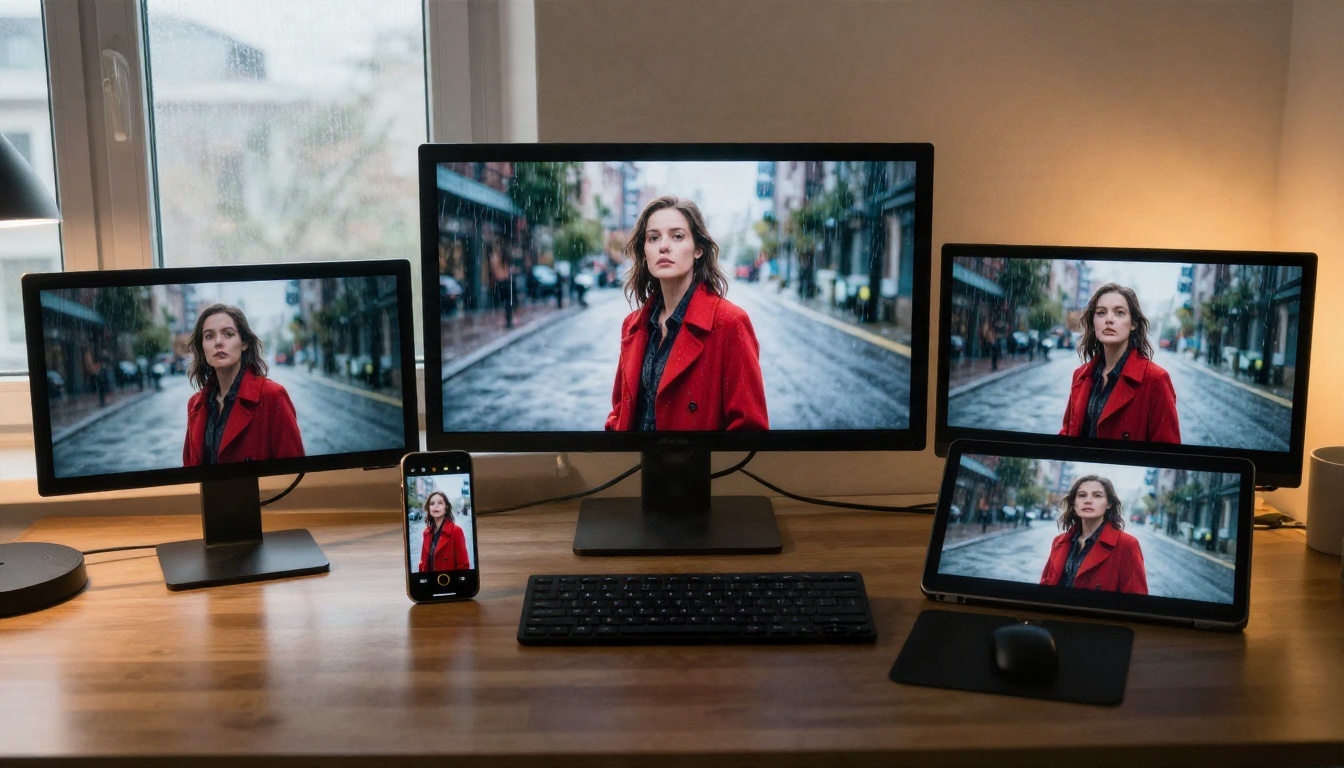
Gen 4 Turbo supports six aspect ratios: 16:9, 9:16, 4:3, 3:4, 1:1 and 21:9. The default is 16:9. Runway warns that choosing a ratio different from your image triggers a crop, so pick the ratio first and prepare the image to match.
| Ratio | Where it fits |
|---|
| 16:9 | YouTube, websites, presentations |
| 9:16 | TikTok, Reels, Shorts, Stories |
| 1:1 | Feed posts, product listings |
| 4:3 and 3:4 | Classic framing, portrait posters |
| 21:9 | Cinematic banners, hero headers |
💡 Tip: Compose a vertical image for 9:16 from the start. Cropping a wide image into a vertical clip often cuts off the very subject you wanted to animate.
Seed for repeatable results
The seed is a number that controls the random starting point of the generation. Leave it blank and every run is different. Set it to a fixed number and the same image, prompt and settings give you the same result again.

Use it in two ways:
- Comparing prompts. Lock the seed and change only one word in the prompt. Now any difference you see comes from your wording, not luck.
- Rerolling. Keep the prompt identical and change only the seed. The cost stays the same, and you get a fresh take on the motion.
Motion prompt basics
Because the image already shows the subject, your prompt should describe movement and camera, not the scene. "A woman in a red coat on a rainy street" repeats what the model can already see. "Slow push in, rain falling, coat hem swaying in the wind" tells it what to do.

A reliable prompt pattern is subject motion + camera motion + atmosphere, in one or two sentences. Keep it short. Long prompts with five different actions usually produce confused motion because five seconds is not much time.
Duration Limit Explained
5 seconds versus 10 seconds
The hard limit for Gen 4 Turbo is 10 seconds per generation. You choose between two options only: 5 seconds or 10 seconds. There is no 7 second setting and no slider between them.

| Duration | Credits on Runway (approx.) | Good for |
|---|
| 5 seconds | 25 | Social loops, product reveals, tests |
| 10 seconds | 50 | Establishing shots, slow camera moves, story beats |
A practical note: longer is not automatically better. Ten seconds gives the model more time to drift. Faces can change slightly, objects can warp, and the scene can wander away from your first frame. Slow, simple motion survives ten seconds well. Busy action usually looks better at five.
Making clips longer than 10 seconds
Need 30 seconds? Plan for multiple clips. The reliable workflow:
- Generate the first clip from your starting image.
- Export the last frame of that clip as a still.
- Use that still as the first frame of the next generation.
- Repeat, then join the clips in any video editor.
Keep your prompt and style consistent between segments, and trim the first and last few frames of each clip so the joins feel smooth. If a long single take matters to you, a model such as Seedance 2.5, listed on PicassoIA for videos up to 30 seconds, avoids the stitching entirely.
Free Options That Work
Runway free plan credits
Here is where reports disagree, so read this part carefully. Most sources agree that Runway's free plan grants 125 one-time credits that do not refill each month. At the Turbo rate, that is enough for about five 5-second clips, or two 10-second clips plus one 5-second clip.

What sources do not agree on:
- Some say the free plan includes Gen 4 Turbo for image to video. Another review says free credits cannot be spent on video at all.
- Free output may carry a watermark and lower limits.
- Plan cards change often, so any number you read online, including these, can be out of date.
💡 Tip: Check Runway's own pricing page before you upload your best photo. Treat 125 credits as a trial, not a monthly allowance.
Free routes on PicassoIA
If you want to keep making clips after a trial runs dry, the better question is which model gives you the most output for the least friction. On PicassoIA you can run Gen4 Turbo directly, and there are other options worth knowing:
Pick Seedance 2.5 Lite when volume matters, and Gen 4 Turbo when you want that specific Runway look and motion style.
How to Use Gen4 Turbo on PicassoIA
Gen 4 Turbo is available on PicassoIA as an image to video model with 5 and 10 second durations and six aspect ratios. Here is the process from a blank screen to a finished clip.
Step by step
- Open the Gen4 Turbo model page.
- Upload your first frame. Use a sharp image that already matches your target shape.
- Write the motion prompt. One or two sentences: subject movement, camera movement, atmosphere.
- Choose the duration. Start with 5 seconds for tests, and move to 10 seconds only for slow shots.
- Pick the aspect ratio. Match your image: 16:9 for widescreen, 9:16 for vertical.
- Set a seed if you plan to compare prompt variations. Leave it blank for pure exploration of different takes.
- Generate, review, and adjust one thing at a time.
Parameter cheat sheet
| Parameter | Options | My default |
|---|
| Prompt | Free text | One short motion sentence |
| Duration | 5 or 10 seconds | 5 seconds |
| Aspect ratio | 16:9, 9:16, 4:3, 3:4, 1:1, 21:9 | Match the source image |
| Seed | Any integer or blank | Fixed while testing |
| Image | Required first frame | Sharp, uncluttered |
Prompts That Hold Up
Four prompts worth copying
The right wording depends on the subject. These patterns work because they ask for one clear motion and one camera move.
| Scene | Prompt example |
|---|
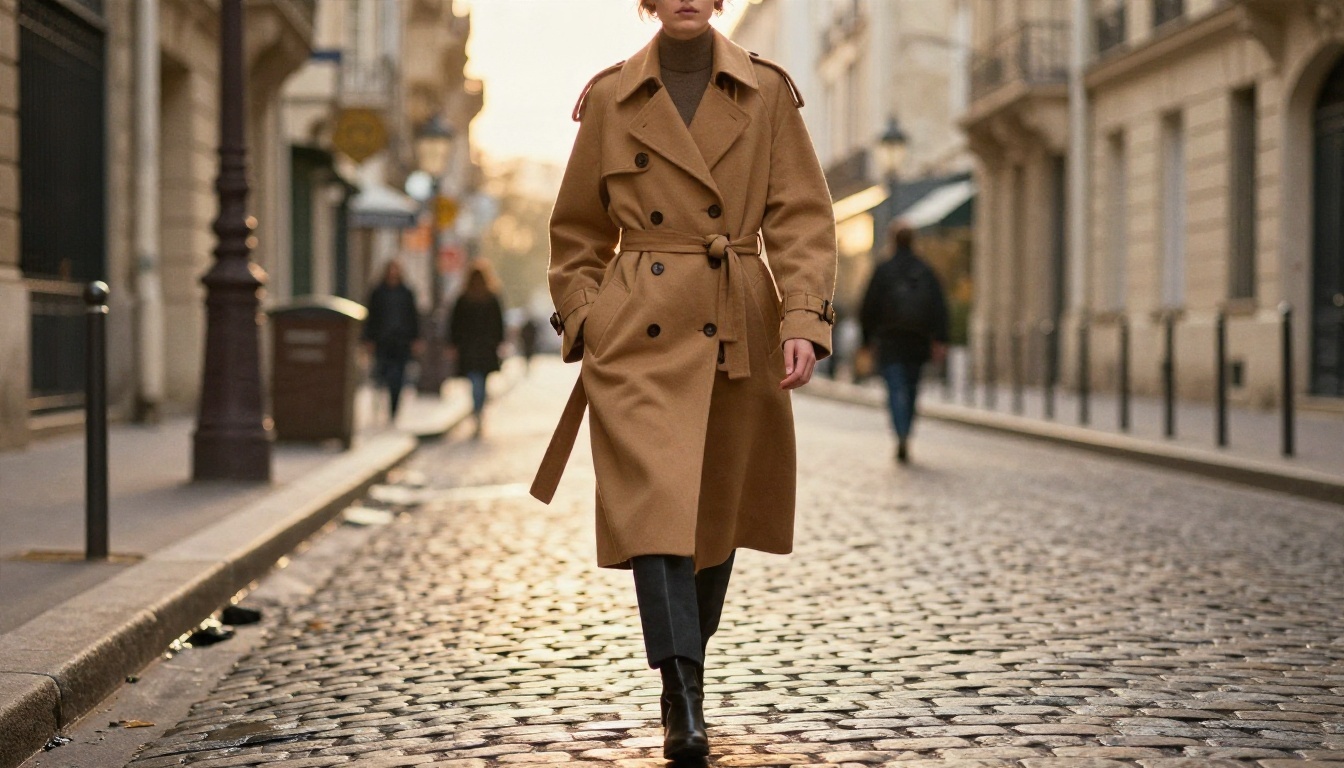
| Fashion walk | "She walks toward the camera, coat swaying, slow tracking shot backward, soft sunrise light" |
| Landscape | "Clouds drift slowly across the sky, water ripples gently, camera glides forward at a steady pace" |
| Portrait | "Subtle blink and a slight smile, hair moves in a light breeze, camera holds still" |
| Product | "Slow orbit around the bottle, light shifts across the glass, shallow depth of field" |
For product work, a steady camera and a gentle light shift look expensive and clean. Fast motion makes labels and edges warp.

Common mistakes
- Describing the picture instead of the motion. The model already sees the image.
- Stacking actions. "She runs, jumps, spins and waves" is four clips, not one.
- Choosing 10 seconds for a busy scene. Drift grows with time.
- Changing five variables at once. You will not know what helped.
- Skipping the seed. Without one, you cannot tell luck from improvement.
A simple loop saves credits: generate at 5 seconds, adjust the prompt once, lock the seed, then spend the 10 second budget only on the version that already works.
Alternatives Worth Comparing
Gen 4 Turbo is strong at consistent, controlled motion from a single photo. Other models win in specific cases, and all of these are on PicassoIA.

| Model | Strength | Best for |
|---|
| Gen4 Turbo | Fast, consistent image to video, 5 or 10 seconds | Quick tests, social clips |
| Kling v3 Video | Cinematic motion | Story shots, realistic movement |
| Veo 3.1 Fast | 1080p output with fast turnaround | Higher resolution needs |
| Seedance 2.5 | Longer clips up to 30 seconds | Single take scenes |
| Seedance 2.5 Lite | Free, up to 10 seconds | High volume experiments |
If you already have a finished video and want to change its look rather than generate a new one, Gen 4 Aleph and Aleph 2 edit and restyle existing footage.
💡 Tip: Run the same first frame and a similar prompt through two models. Five minutes of side by side testing tells you more than any review.
Make Your First Clip Today
The fastest way to understand Gen 4 Turbo is to run it once. Pick a photo you already like, write a single sentence about how it should move, set the duration to 5 seconds and generate. Then change one setting, and watch what happens. After three or four rounds you will have a feel for how the aspect ratio, seed and prompt wording shape the result.
Open Gen4 Turbo on PicassoIA and animate your own image now. If you want more options, browse every image and video model at picassoia.com/en/all-models, build your first frame with Gen4 Image Turbo, and turn it into a clip in the same sitting. Your photo library is full of shots that are waiting to move.


