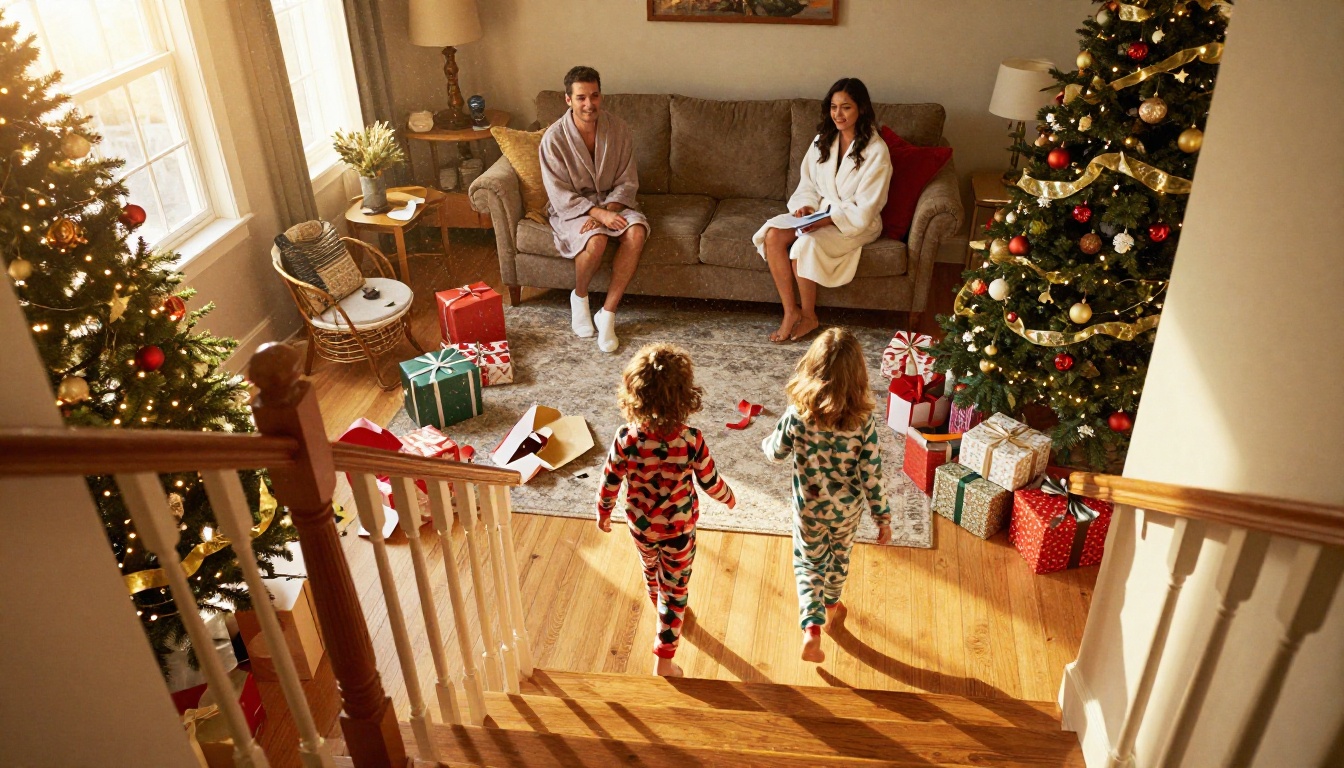
Every December the same question lands in parents' group chats: how do you make a Santa caught on camera clip that looks real enough to make a six-year-old gasp, without paying for it and without handing family photos to a stranger? A Santa caught on camera app promises exactly that. You film your living room, the app drops a red-suited visitor next to the tree, and the kids watch the "proof" on a phone the next morning. This article breaks down how free AI Santa videos for kids work, where the shortcuts hurt, and how to build a custom clip with AI video models on PicassoIA, so the Santa in your video walks through your house instead of a stock backdrop.
What Santa Caught on Camera Apps Do
The Basic Trick
The format is simple. You point your phone at a room, usually the one with the tree, and record a few seconds of footage. The app then composites a Santa into that footage, often with a sleigh bell sound, a flicker of tree lights and a shaky, night-vision look that sells the accidentally caught feeling. The finished clip is short, usually under ten seconds, and meant to be played back to a child as evidence.
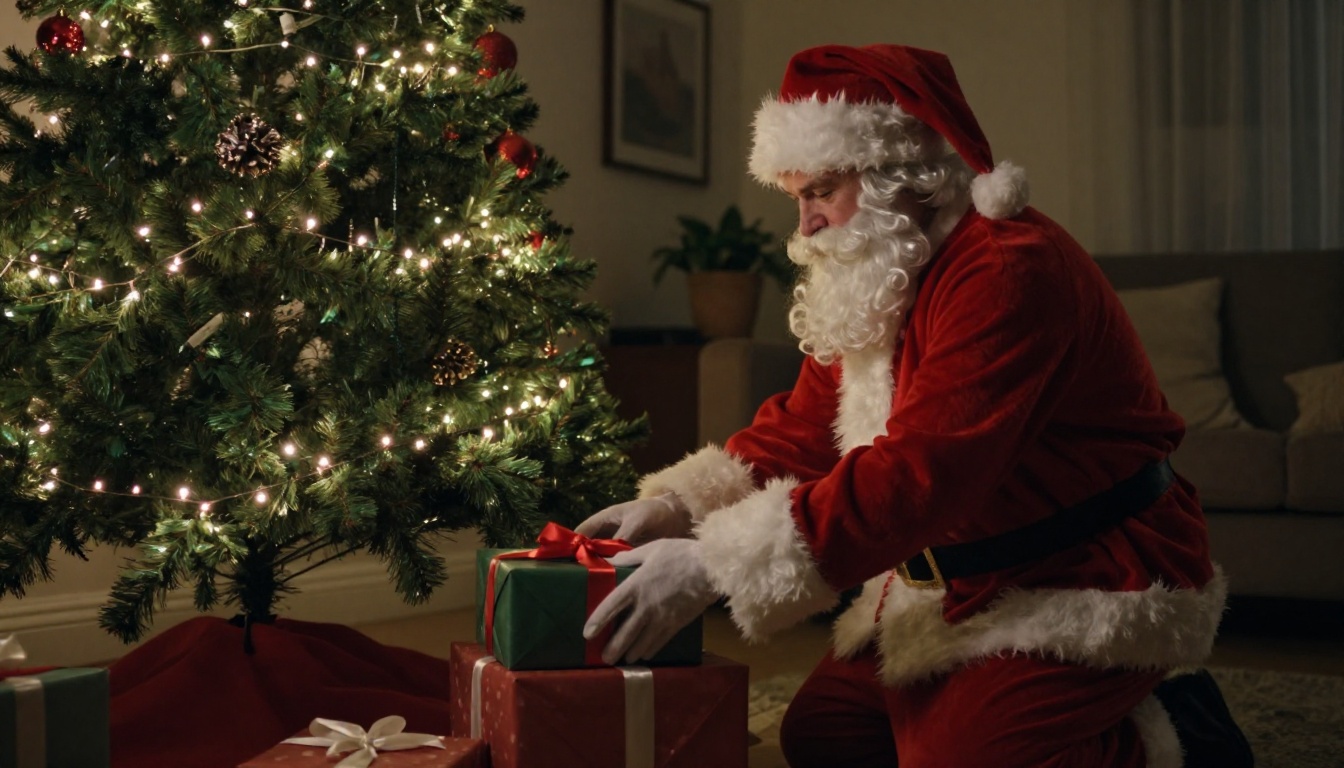
That grainy, corner-of-the-room look is the whole secret. A polished, studio-lit Santa looks like a cartoon. A dim Santa seen from a high corner, half turned away, looks like a security camera caught something it was not supposed to.
Why Kids Believe It
Young children tend to trust what happens in places they know. Their own sofa, their own stockings, their own tree: that is the hook. A generic North Pole backdrop does very little. A clip filmed in the hallway they walk through every day does everything.
It also explains why a caught-on-camera clip feels different from a Santa greeting. A greeting is something Santa says. A caught-on-camera clip is something Santa did, in a place the child recognizes, at a time when nobody was supposed to be watching.
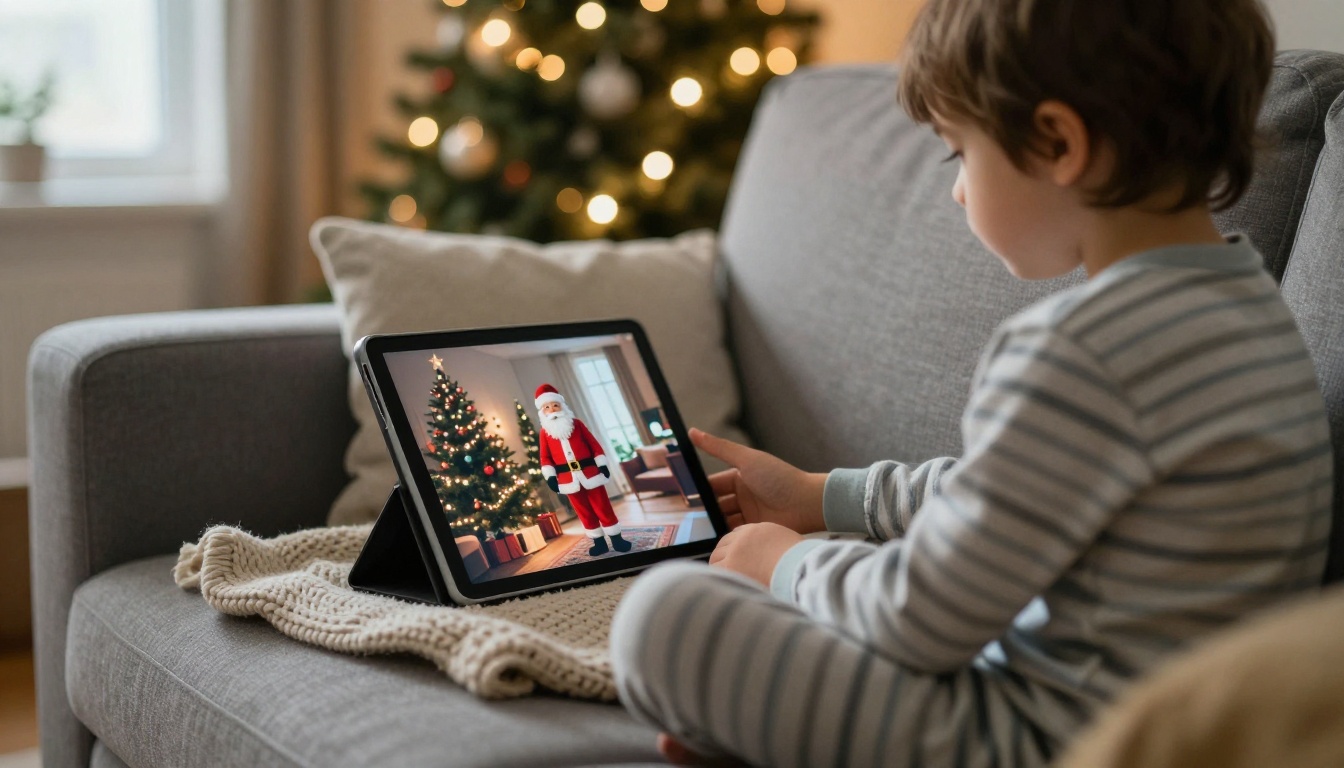
💡 Quick tip: Play the clip on a tablet or a TV, not only a phone. A bigger screen makes the grainy details easier to spot, and kids lean in closer to look for them.
Free Apps or Your Own Clips
Both routes work. The right one depends on how much time you have and how much control you want over the final result.
Where Free Apps Fall Short
Template apps are fast, and for a quick giggle that is enough. The limits show up when you look closer:
- Same Santa for everyone. The suit, the walk and the pose come from a fixed set of templates, so the clip your neighbor's kid sees may match yours.
- Watermarks and caps. Free versions of this kind of app often add a watermark, limit the number of clips or lock the best templates behind a paywall. Check before you plan the whole evening around one.
- Weak room matching. The Santa is pasted on top of your footage, so lighting and shadows may not agree with your room.
- Camera and photo access. Many apps ask for permission to your camera and sometimes your photo library. Read what happens to the footage before you hit record.
When a Custom Clip Wins
A custom clip takes longer, but you decide everything. You choose how Santa looks, where he walks, what he touches and what sound the room makes when he does. You can also make a different scene for each child, or a new one every year, without repeating a template.
| Feature | Template app | Custom AI clip |
|---|
| Setup time | A few minutes | Roughly 20 to 40 minutes |
| Looks like your home | Partly | Fully, built from your own photo |
| Santa's look | Fixed templates | Whatever you describe |
| Sound | Preset jingle | Voice, room tone and music you pick |
| Repeat use | Same style every year | New scene every year |
| Watermark or limits | Common on free tiers | Depends on the plan, check first |
There is also a middle path. Use a template app for a quick first laugh on the night, then save the custom clip for the real reveal on Christmas morning, when the kids are least likely to question where it came from.
Plan the Scene Before You Film
Pick the Right Room
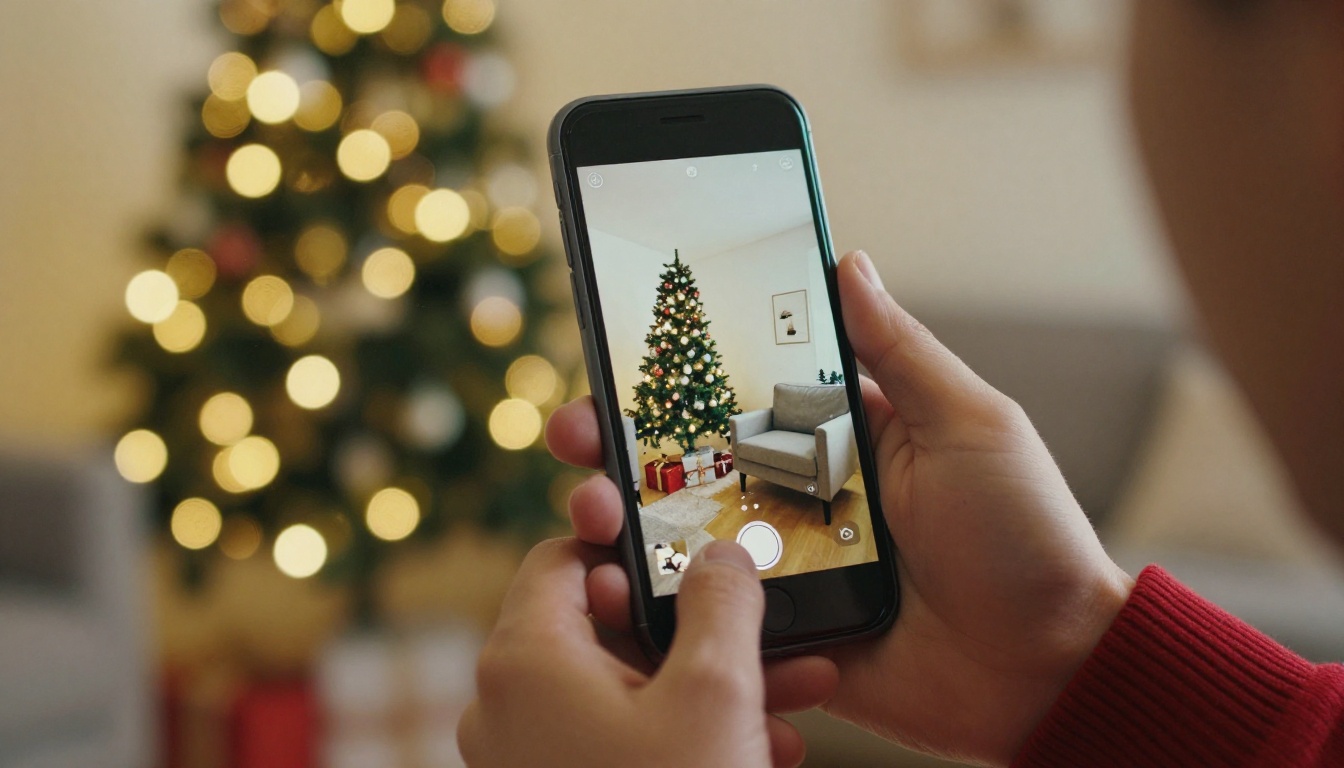
Choose the room with the tree, and film it after dark with the tree lights as the only light source. Low light hides the seams of an AI-made Santa and gives the clip the right nighttime mood. Set your phone on a shelf or a small tripod in a high corner, about the height a security camera would sit, and keep it perfectly still.
Take two things: a ten-second video of the empty room, and one sharp still photo of the same angle. The still is what you will feed to the AI model later. Keep every person out of the frame, including yourself.
Set Props That Tell a Story
Before you shoot, stage the room so the clip has something to react to. A plate with a half-eaten cookie, a short glass of milk, stockings on the mantel and one present that is not yet under the tree give Santa a reason to be in the room and give the kids things to point at later.
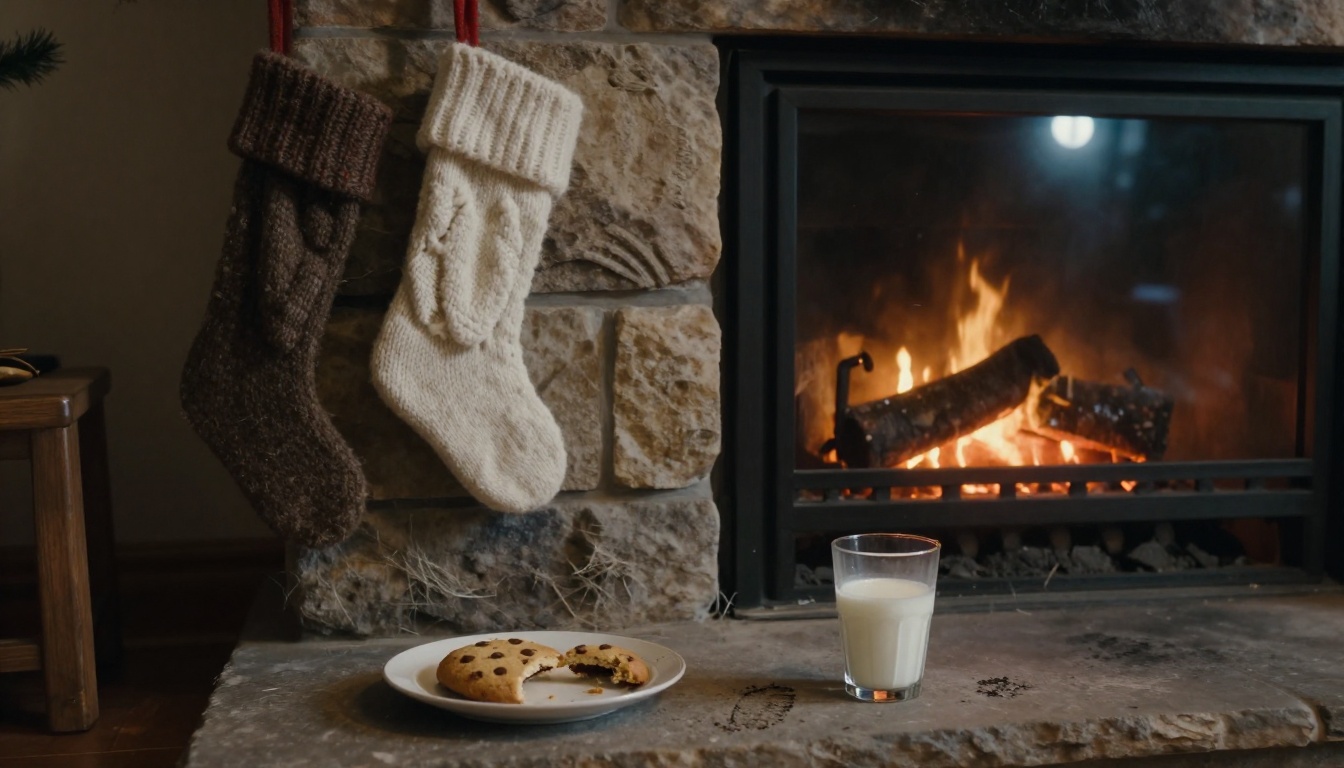
Keep the story to a single beat per clip. Five seconds is not much, so give each clip one moment:
- Santa kneels and places a present.
- Santa notices the cookies and lifts one.
- Santa hears a noise and glances toward the camera.
- Santa walks away from the tree toward the hallway.
Four short clips feel more believable than one long, busy one, and you can play them one at a time over several mornings.
How to Use Seedance 2.0 on PicassoIA
Seedance 2.0 is a good fit for this job because it can start from a still image as the first frame and generate sound in the same pass. According to the model page, it accepts a first-frame image, an optional last-frame image, up to nine reference images, and a prompt where spoken lines go inside double quotes.
Step 1: Build the First Frame
Your first frame decides how real the whole clip feels. You have two good options:
- Edit your own photo. Upload the still of your room to an image editor such as PicassoIA Image Editor Pro or Nano Banana Pro and ask it to add a man in a red Santa suit kneeling beside the tree, back partly turned, with the room left unchanged.
- Generate a stand-in. Describe the room and Santa from scratch with a text-to-image model such as Seedream 4.5, then match the tree and furniture as closely as you can.
Before moving on, check the hands, the beard edge, the suit seams and the shadows. If the lighting on Santa does not match the tree lights, regenerate. A bad first frame will only get worse once it moves.
💡 Quick tip: If you plan several clips, keep Santa looking the same in all of them. Seedance 2.0 supports reference images for character consistency, but they cannot be combined with a first-frame image, so choose one approach per clip: either animate a fixed first frame, or describe the scene and tag your Santa image as a reference.
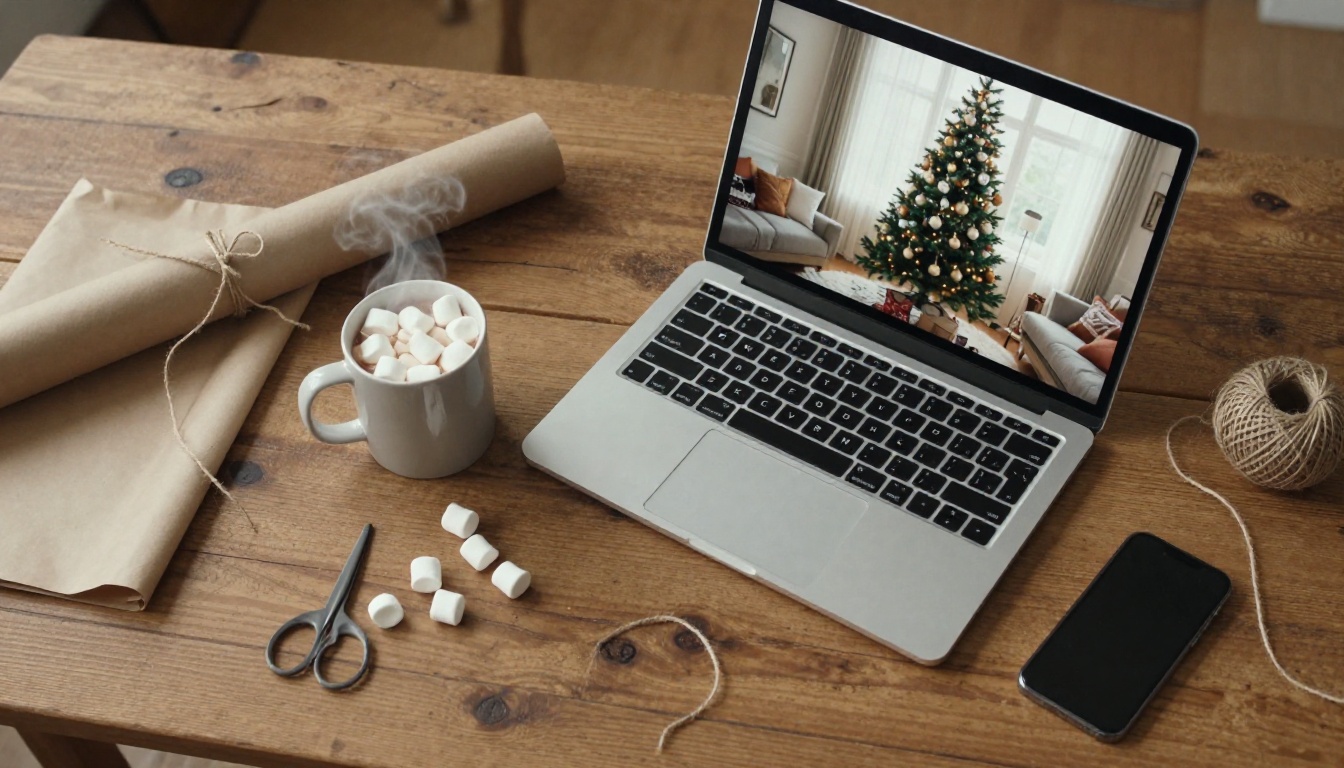
Step 2: Write the Motion Prompt
Describe what moves, in order, then the camera, then the sound. A prompt that works well for this style:
Static high-corner security camera view of a dim living room lit only by Christmas tree lights. A man in a red Santa suit kneels beside the tree, places a wrapped gift among the others, then pauses and turns his head slightly toward a plate of cookies. Slight camera shake, grainy low-light noise. Sound: a soft floorboard creak, faint sleigh bells, a whispered "Ho ho ho."
Three habits help:
- One action per clip. Kneel and place a gift, or glance at the cookies. Not both plus a walk across the room.
- Say "static camera." A camera that does not move looks like a real security camera. Sweeping pans look like a movie.
- Name the sound. Floorboards, bells and a whisper are what make a viewer believe the room is real.
Step 3: Set the Parameters
Seedance 2.0 exposes a short list of settings. These are the ones worth touching:
| Setting | Suggested value | Why |
|---|
| Image | Your Step 1 frame | Becomes the first frame of the clip |
| Duration | 5 seconds | Short clips look more believable |
| Resolution | 720p | Sharp enough for a phone or a TV |
| Aspect ratio | 16:9, or adaptive | Matches a landscape source photo |
| Generate audio | On | Adds creaks, bells and room tone |
| Seed | Fixed once you like a result | Lets you reproduce or adjust that version |
Generate two or three versions and keep the one where Santa's movement looks the least rehearsed.
Other Models Worth Testing
The same first frame and prompt can go through several models. Compare a few and keep the most natural result:
Add Santa's Voice and Sound
Voice Lines That Sound Real
Silence is fine, but a few words make the clip stick. Keep Santa's line short: five to eight words, spoken quietly, as if he does not want to wake anyone. "Now, where did I put that list?" works better than a long speech.
You can write the line directly into the Seedance 2.0 prompt inside double quotes, or build it separately with a text-to-speech model such as MiniMax Speech 2.8 HD or ElevenLabs v3. If you go the separate route, Video Audio Merge can lay the voice track over your clip.
💡 Quick tip: Ask for a low, warm, slightly out-of-breath voice. A booming stage voice breaks the illusion that Santa is sneaking around.
Music and Room Tone
Skip the loud jingle. A security-camera clip works best with almost no music. If you want a bit of atmosphere, make a soft instrumental bed with Lyria 3 and keep it far below the sound effects. Wind outside, a clock tick and a floorboard creak do more for realism than any melody.
Make It Believable, Not Scary
Evidence Beyond the Video
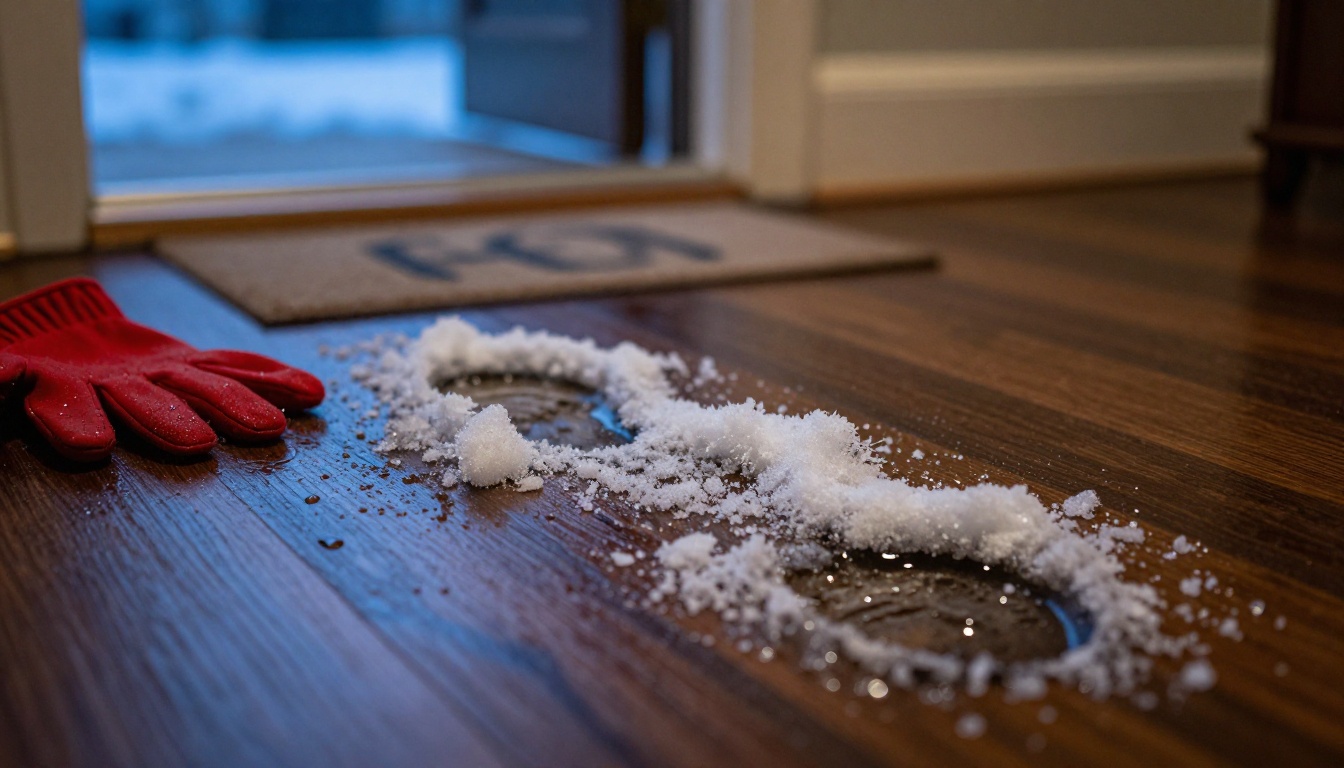
A clip alone is a claim. The house is the proof. Small physical details turn a video into a story the kids can investigate themselves:
| Evidence | How to set it up | Reaction to expect |
|---|
| Boot prints | Damp footprints by the door, made with a wet cloth and a little coarse salt | Kids follow the trail |
| Eaten cookie | A bite taken from the cookie, milk glass nearly empty | Instant checking of the plate |
| Moved present | One gift not where it was the night before | Detective questions |
| Glitter flakes | A few flakes on the hearth or the rug | "He was here!" |
Watching Together With Your Kids
Play the clip with your child, not for them. Sit close, let them narrate what they see, and answer questions with questions: "Did he look at the cookies first?" The best reactions come from kids who feel like they are the ones who spotted something.
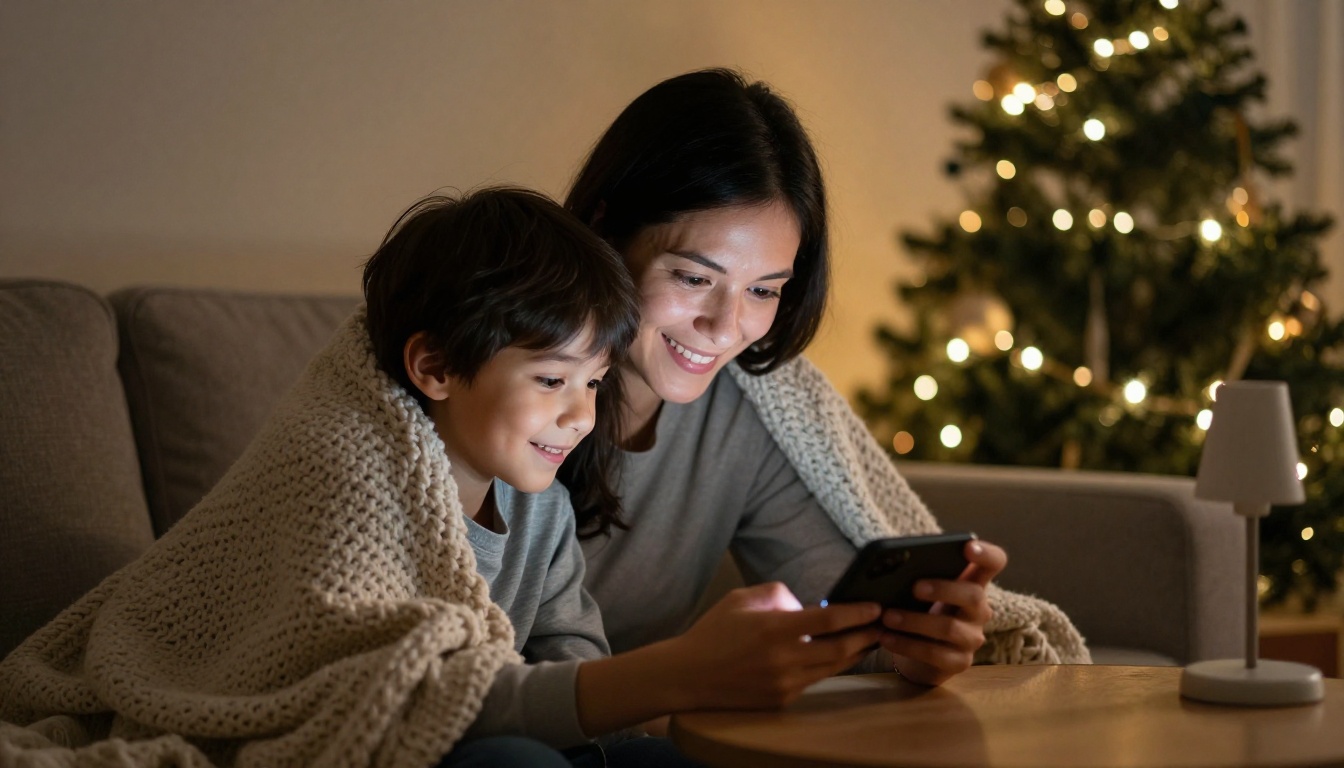
Keep the tone kind. The clip should be about presents and cookies, not about Santa watching how everyone behaved. A visitor who sneaks in to leave gifts is magical. A visitor who monitors the household is not. If your child asks whether it is real, decide your answer ahead of time. Older kids often enjoy helping write the prompt and picking the final take, which turns the surprise into a shared family project.
Privacy Rules for Family Videos
Fake-Santa projects are harmless fun, but they still handle photos and footage from inside your home. A few rules keep that safe:
- Film an empty room. Children do not need to appear in the source photo at all. The room is the star.
- Read the permissions. Before using any app, check what it asks for and what it does with your camera roll. Do not hand faces to a tool you know nothing about.
- Delete the source files. Once the final clip is saved, remove the raw footage and the unused versions.
- Share only with family. A clip made for your kids does not need to go on a public feed.
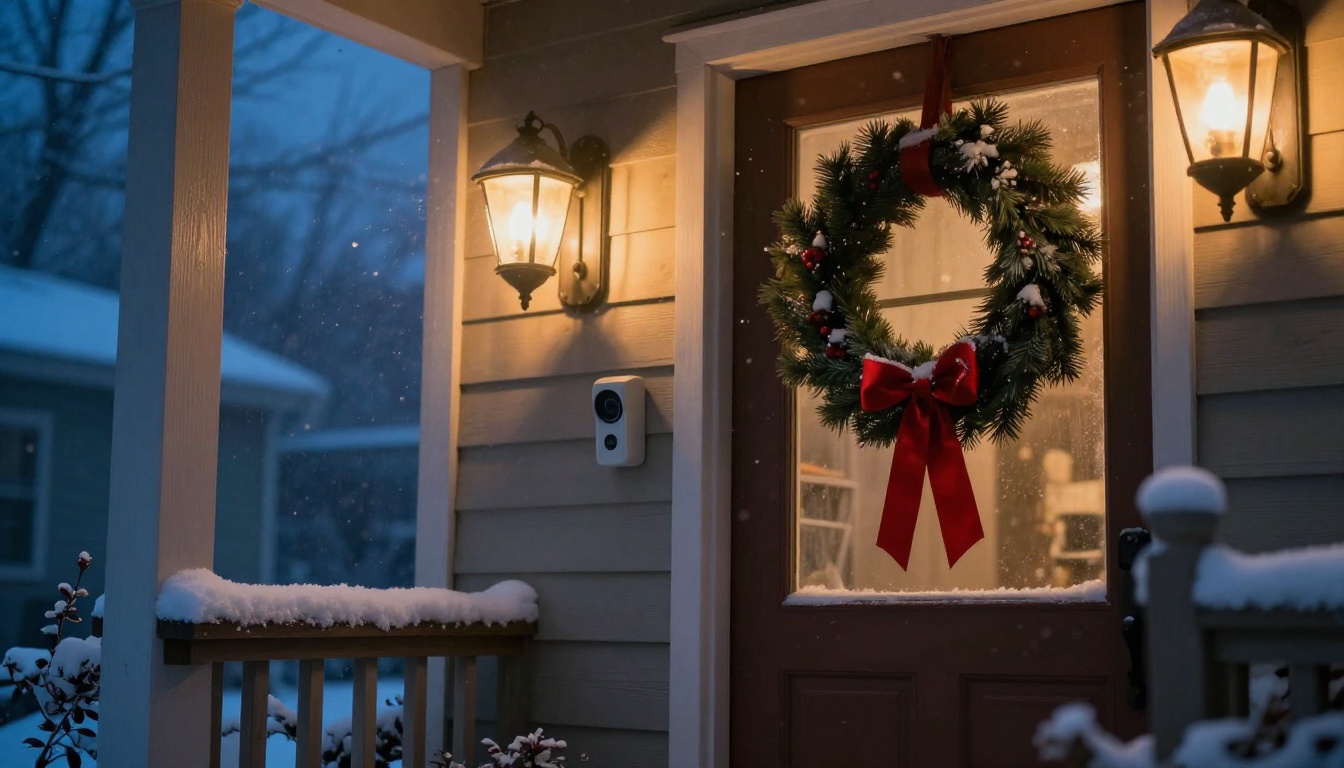
A doorbell camera is the other classic setting for a Santa clip: a snowy porch at night under one warm lamp. The look is easy to copy with a wide frame, cold blue light and slight lens distortion. Build that first frame as a still and animate it the same way. Just keep the result as a standalone video file. Do not upload fake events into a real home security system, so a genuine alert never gets mixed up with a pretend one.
Make Your Own Santa Video Tonight
Pick one room, take one photo and write one sentence of motion. That is all it takes to start. Open Seedance 2.0 on PicassoIA, drop in your first frame, set 720p and five seconds, and press generate. Then try a second scene: Santa at the hearth, Santa on the porch, Santa glancing at the stockings.
Experiment with the models above, swap in a different voice, change the prompt by one detail and compare. Every attempt takes a few minutes, and every clip is one no template app can copy, because it happens in your house. Try creating your own images and videos with Picasso IA, and have the Christmas morning reveal ready before the cookies are cold.