You have two tabs open. One says Seedance, the other says Veo, and every comparison you find disagrees with the last one about price, length and what is actually free. This article settles the three questions that decide most purchases: what can I use without paying, what does one clip really cost, and how long can a single video be. Then it shows real prompt examples so you can judge the output style before spending a cent.
A quick note on sources. The prices below come from public comparisons and reseller listings gathered in late 2026, and they shift often between providers. Treat them as ranges, and always confirm the number on the platform you plan to use.
The Short Answer
If you want the verdict before the details, here it is. Veo (from Google) is the safer pick for polished, realistic single shots with strong audio and up to 4K output on some tiers. Seedance (from ByteDance) is the stronger pick for longer clips, multi-image reference control and cheaper per-second output. Neither wins everything.
| Question | Seedance | Veo |
|---|
| Maker | ByteDance | Google |
| Max clip length per request | 15 s (Seedance 2.0), up to 30 s (Seedance 2.5) | 8 s (4, 6 or 8 s options) |
| Typical resolution | 480p to 1080p | 720p, 1080p, up to 4K on some tiers |
| Native audio | Yes, including dialogue | Yes, including dialogue |
| Free route | Free credits on some apps, free tier on PicassoIA | Limited free access through Google tools, plus PicassoIA |
| Cheapest variant | Seedance 2.0 Mini, Seedance 2.5 Lite | Veo 3.1 Lite |
💡 Tip: Do not compare the names, compare the variants. "Veo" can mean Veo 3.1, Veo 3.1 Fast or Veo 3.1 Lite, and the price gap between them is large. The same goes for Seedance.
Free Options Compared
"Free" means three different things in AI video: a permanent free tier, a pile of trial credits, or an unlimited plan where you pay once for membership. Mixing them up is why so many articles contradict each other.
Free Seedance routes
Seedance 2.0 has been offered through ByteDance's own creative apps with free credits for new accounts and daily credits in some regions. Those credits run out fast, since a single 720p clip can burn a large share of a daily allowance, and the rules change by country and by month.
The most predictable free route is on PicassoIA. Seedance 2.5 Lite is a lightweight version built for 480p and 720p clips of up to 10 seconds, and Elite and Infinite members run it with no per-clip cost and no daily counter. If you generate dozens of test clips while refining prompts, that matters more than any one-time credit bundle.
Free Veo routes
Google has offered limited free access to Veo through its own AI tools, tied to a Google account and capped by daily or monthly quotas. Reports on the exact limits conflict, and some aggregators say there is no free tier at all for the API. The honest summary: expect a handful of free generations, not an open tap.
Veo 3.1 Lite is the budget end of the family and the best place to start if you want Veo's look without Veo's full price.
Free tiers, side by side
| Route | What you get | Catch |
|---|
| Seedance trial credits | A few clips, sometimes daily top-ups | Region locked, credits vanish quickly |
| Google free quota for Veo | A small number of generations | Daily caps, changes without notice |
| Seedance 2.5 Lite on PicassoIA | Unlimited 480p and 720p clips up to 10 s | Elite or Infinite membership |
| Veo 3.1 Lite on PicassoIA | Veo output at the lowest Veo cost | Pay per use |
Real Prices Per Clip
Video models bill by the second of output, and the rate depends on resolution and variant. The mistake most people make is comparing a "per video" Veo price with a "per second" Seedance price. Convert everything to the same clip length first.

Per-second rates reported
These are third-party figures, so read them as a ballpark:
- Seedance 2.0: roughly $0.07 per second at 480p, about $0.15 at 720p and about $0.37 at 1080p. The faster variant is listed near $0.06 at 480p and $0.12 at 720p.
- Veo 3.1 Fast: about $0.10 per second at 720p and around $0.12 at 1080p.
- Veo 3.1 Lite: about $0.05 per second at 720p, the cheapest in the Veo line.
- Full Veo 3.1: priced above Fast, with the exact figure depending on resolution and audio.
Reseller markups can nearly double any of these, so the provider matters as much as the model.
What an 8-second clip costs
Using the figures above, an 8-second 720p clip works out like this:
| Model | Approx. rate | 8-second clip |
|---|
| Veo 3.1 Lite | $0.05 / s | about $0.40 |
| Veo 3.1 Fast | $0.10 / s | about $0.80 |
| Seedance 2.0 Fast | $0.12 / s | about $0.96 |
| Seedance 2.0 (720p) | $0.15 / s | about $1.20 |
| Seedance 2.0 (1080p) | $0.37 / s | about $2.96 |
At 720p, Veo Lite and Veo Fast come out cheaper for short shots. Seedance catches up when you need more than 8 seconds, because you get 15 seconds in one request while Veo needs several requests.
Cheaper variants worth testing
Both families have budget siblings, and for drafts they are the smart choice. On PicassoIA you can run Seedance 2.0 Mini, Seedance 2.5 Lite, Veo 3.1 Lite and the older Veo 3 Fast. A sound habit: draft cheap, then render the winner on the flagship.
💡 Tip: Failed generations are the hidden cost. A model that lands the shot in one try at $1.20 beats a model that needs four tries at $0.40.
Video Length Limits
This is where the two families differ most.
Veo: 4, 6 or 8 seconds
Veo 3.1 gives you three duration options: 4, 6 or 8 seconds. Eight is the ceiling for a single generation. Longer sequences are built with an extend feature that adds another segment, or by chaining separate clips that share a first frame and a reference image. On Veo 3.1 you can also set a start image and an end image, which helps when you stitch shots together.
A detail worth knowing: reference-image mode on Veo only works at 16:9 and 8 seconds, so you trade flexibility for subject consistency.
Seedance: 15 seconds and beyond
Seedance 2.0 accepts any whole number of seconds from 4 to 15 in one request. The newer Seedance 2.5 pushes this to a single 30-second generation with synchronized dialogue, sound effects and music, and lets you reference up to 30 images for character consistency. Seedance 2.5 Lite offers 5 or 10 seconds.
Longer single takes mean fewer visible seams. A 15 or 30 second shot keeps the same lighting, the same face and the same background from start to finish, which is hard to fake by joining 8-second pieces.
Stitching a longer video
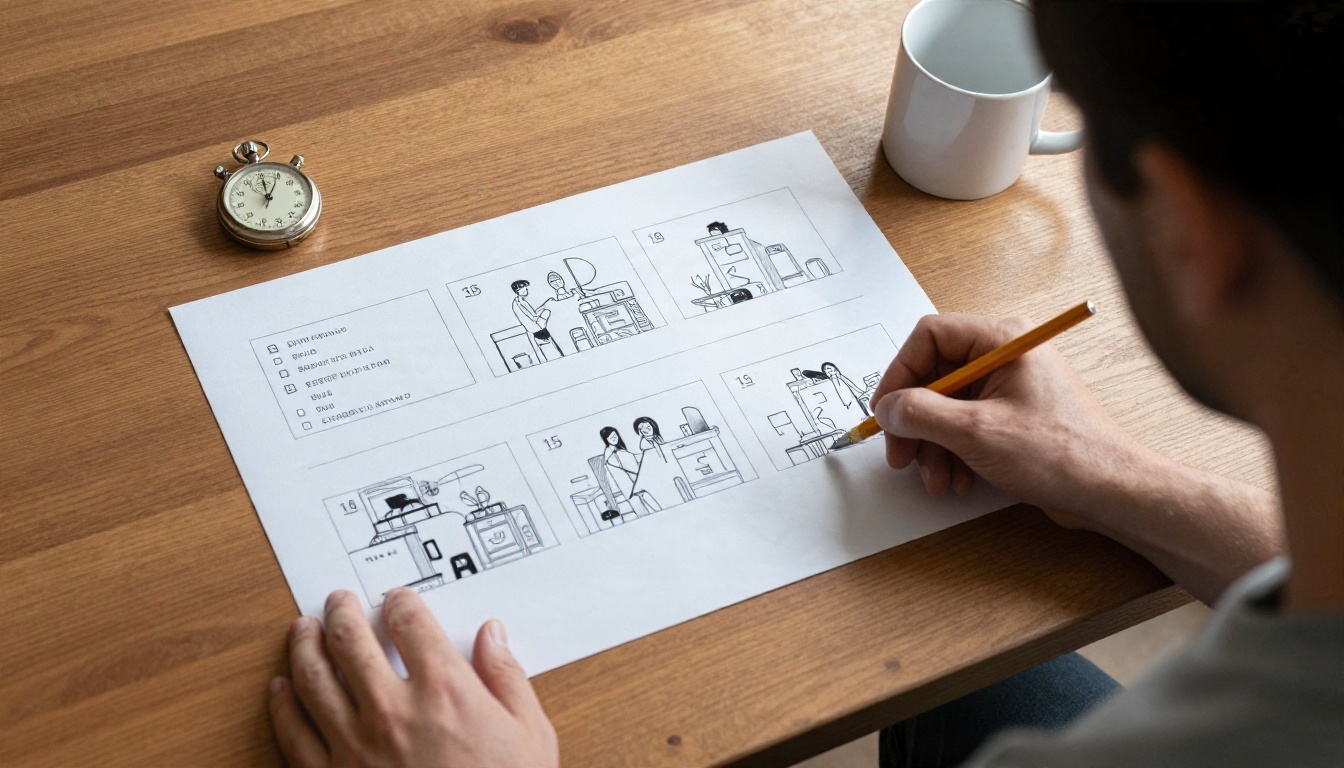
If you need a 60-second piece, neither model produces it in one go. The practical approach:
- Write a shot list with one beat per clip.
- Generate each clip from a still frame so the look stays consistent.
- Reuse the last frame of clip A as the first frame of clip B.
- Join the clips in a normal editor and add one music bed over everything.
Examples With Prompts
Numbers only tell part of the story. These four scenes show the style each family tends to favor. Copy the prompts and test them on both.
Cinematic landscape
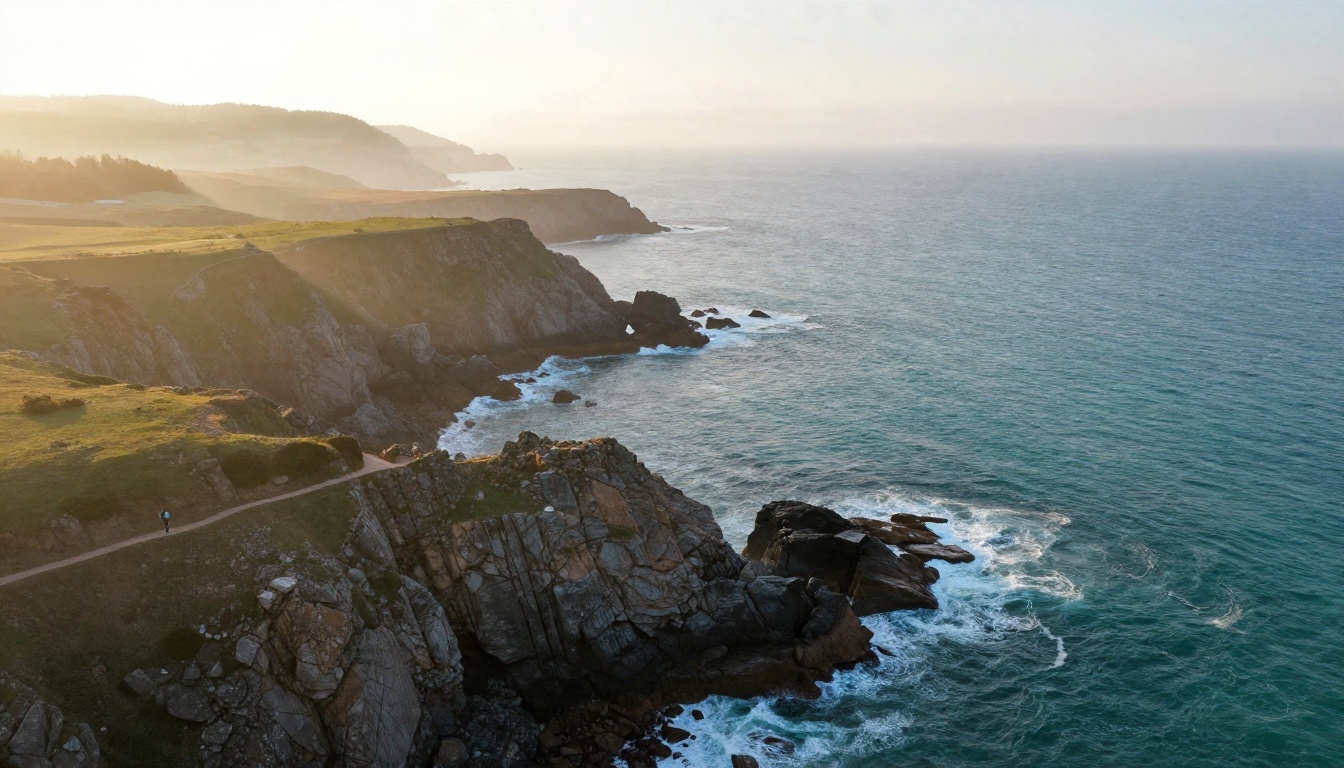
Prompt: A slow aerial glide over a rugged coastline at sunrise, turquoise waves breaking on dark rocks, a lone hiker walking along a cliff path, mist rolling through the valley, soft wind and distant gulls.
Veo tends to excel here. Its handling of water, haze and natural light looks closest to real footage, and an 8-second glide is usually all a landscape shot needs.
Kitchen action

Prompt: Medium close-up of a chef plating a dish in a busy kitchen, flames flaring in a pan behind him, steam rising, he wipes his brow and places a garnish with tweezers, clattering pans and sizzling oil.
Fast hands, steam and fire stress any video model. Seedance does well when you give it more time. With 10 to 15 seconds, the full plating motion fits in one take instead of two.
Dialogue scene
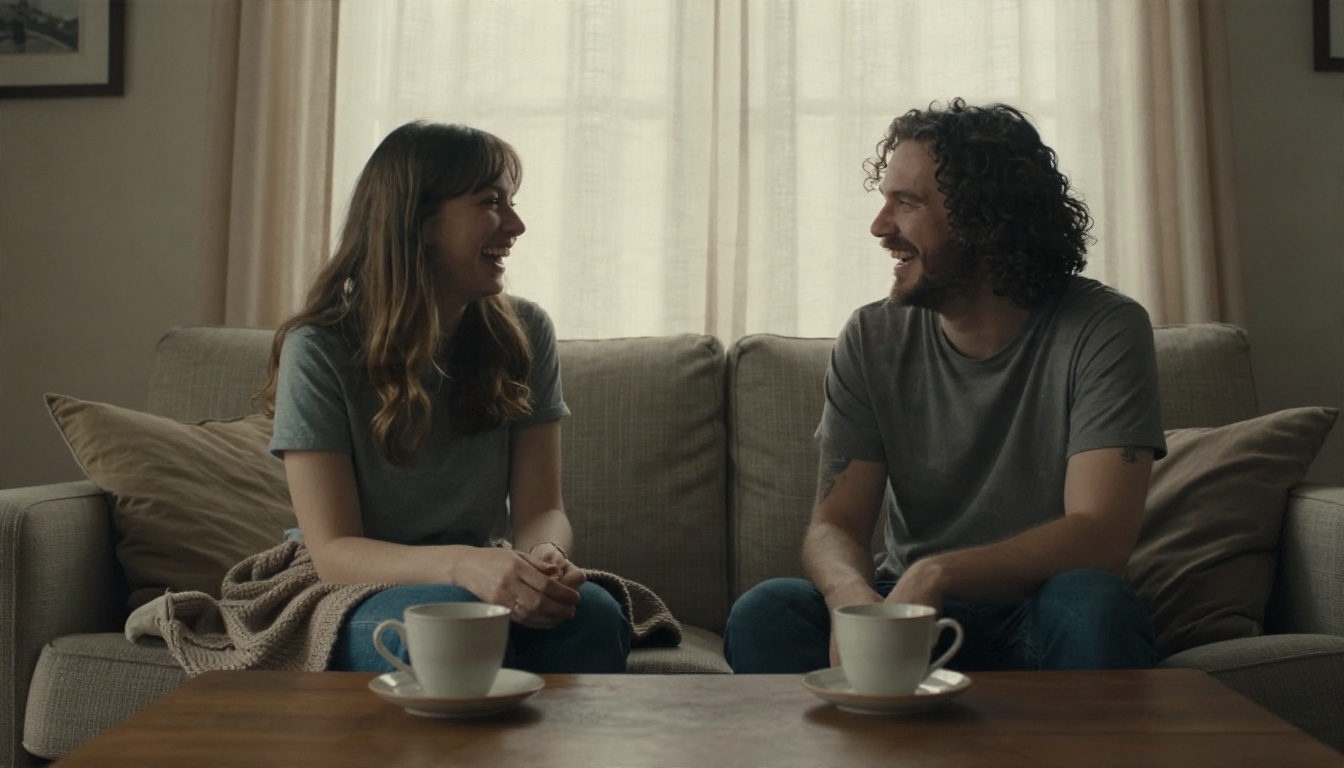
Prompt: Two friends on a sofa in a cozy living room, one says "I booked the tickets for Saturday," the other laughs and says "You are kidding me," warm afternoon light, quiet room tone.
Both families generate synced speech when you put spoken lines inside quotation marks. Seedance 2.5 adds the option of reference audio for tighter lip-sync, while Veo produces context-aware sound that matches the scene on its own.
Product ad
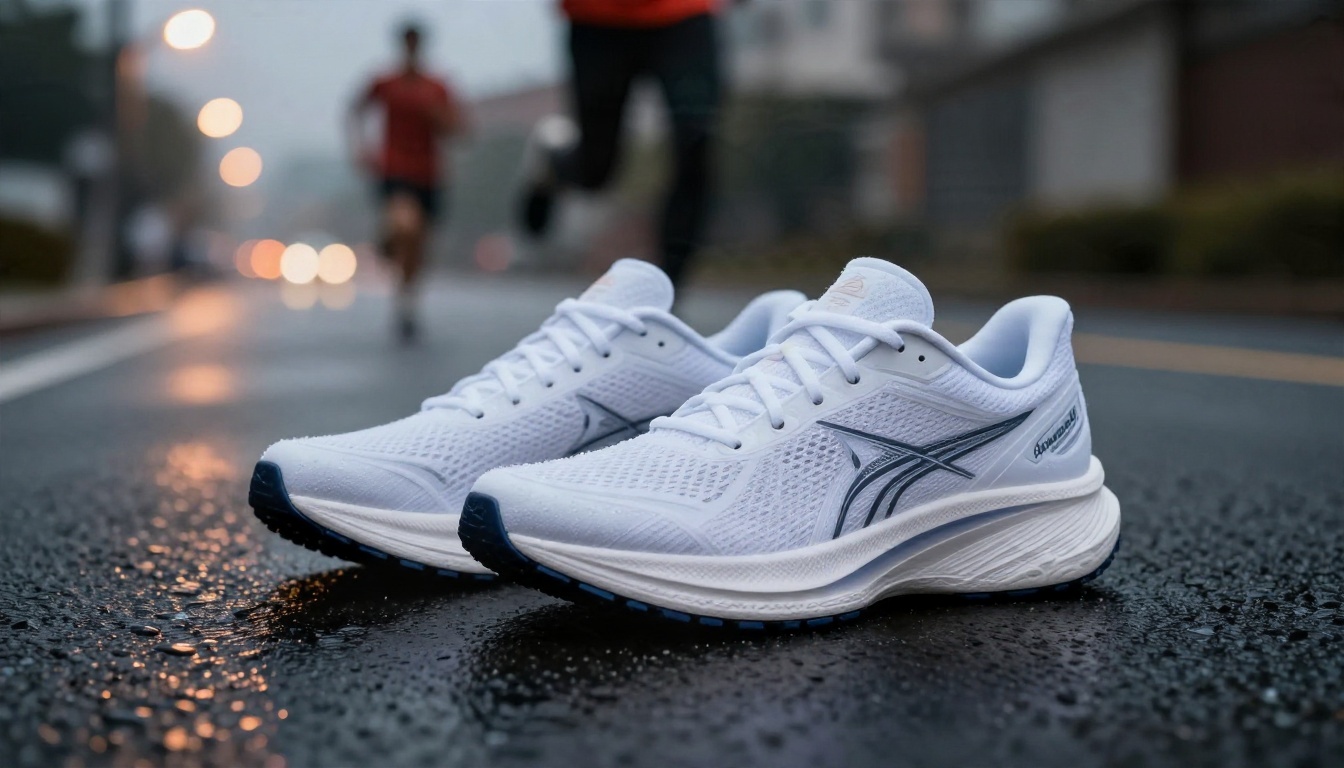
Prompt: Low camera on wet asphalt at dusk, white running sneakers in sharp focus, a sprinter blasts past in the background, water droplets spray from the sole, slow push toward the shoe, rhythmic footsteps.
For ads, feed the model a clean product photo as the first frame and describe only the motion. Veo keeps surfaces crisp. Seedance keeps the product identical across multiple shots when you attach reference images.
Which One Fits You
Pick Veo when
- You want the most natural, camera-like realism in a single short shot.
- Your output is 8 seconds or less, such as social clips, b-roll and ad inserts.
- You need high resolution for a bigger screen.
- You value ambient audio that matches the scene without extra direction.
Start with Veo 3.1 Fast for speed and cost, then move to Veo 3.1 for the final render.
Pick Seedance when
- You need 10, 15 or 30 seconds in one continuous take.
- You want to reference many images, videos or audio files to hold a character steady.
- You plan to iterate heavily and want an unlimited plan.
- You care about lip-sync with your own audio.
Begin with Seedance 2.0 Mini or Seedance 2.5 Lite for drafts and finish on Seedance 2.5.
Use both in one project
Many creators do not choose. They generate landscape and establishing shots on Veo, then dialogue and longer character scenes on Seedance, and join them in an editor. Because both read the same kind of first-frame image, you can feed one shared still to each and keep the look consistent.
How to Use Seedance 2.5 on PicassoIA

Here is the workflow for a 15-second clip with Seedance 2.5. The same steps apply to Seedance 2.5 Lite if you want the unlimited route.
- Open the model page. Go to the Seedance 2.5 page on PicassoIA and choose text-to-video, or upload a first-frame image for image-to-video.
- Write a chronological prompt. Describe the subject, the motion, the camera move and the light in the order they happen. Keep it under 2000 characters.
- Set the duration. Type 15 for a full 15-second shot, or use -1 and let the model pick the best length.
- Choose resolution and ratio. Use 720p for a balanced result and 16:9 for landscape. Switch to 9:16 for vertical posts, or use adaptive if you supply a frame.
- Add dialogue in quotes. Keep audio generation on, and place spoken lines inside double quotation marks.
- Attach references if needed. Add up to 30 reference images and call them [Image1], [Image2] in the prompt to keep a character or product identical.
- Set first and last frames. Provide both images when you need the clip to end on an exact composition.
- Generate, review, adjust. Change one thing at a time, such as the camera move or the light, and fix the seed when you want repeatable results.
💡 Tip: When you want Veo's look instead, open Veo 3.1, pick 8 seconds and 1080p, add a start image, and keep the prompt focused on a single action.
Parameter tips that save credits
- Test the idea at 480p, then re-run the winner at 720p.
- Write one action per clip. Two actions in 8 seconds usually blur.
- Name the camera move: "slow push-in", "gentle pan left", "static tripod".
- Describe the sound you want: "rain on glass, no music".
- Use a negative prompt on Veo to remove unwanted elements, such as text overlays or extra people.
Try Your Own Comparison
The fastest way to settle Seedance vs Veo is to run your own prompt on both and watch the results side by side. Pick one scene from this article, paste the prompt into Veo 3.1 Fast and Seedance 2.5 Lite, and compare motion, audio and length for yourself. Then refine the winner on the flagship model.
Picasso IA puts these video models, plus image, audio and editing tools, in one place, so you can draft, compare and finish without switching platforms. Browse the full catalog at picassoia.com/en/all-models, start with a clip that matters to you, and see which family fits the way you work.


