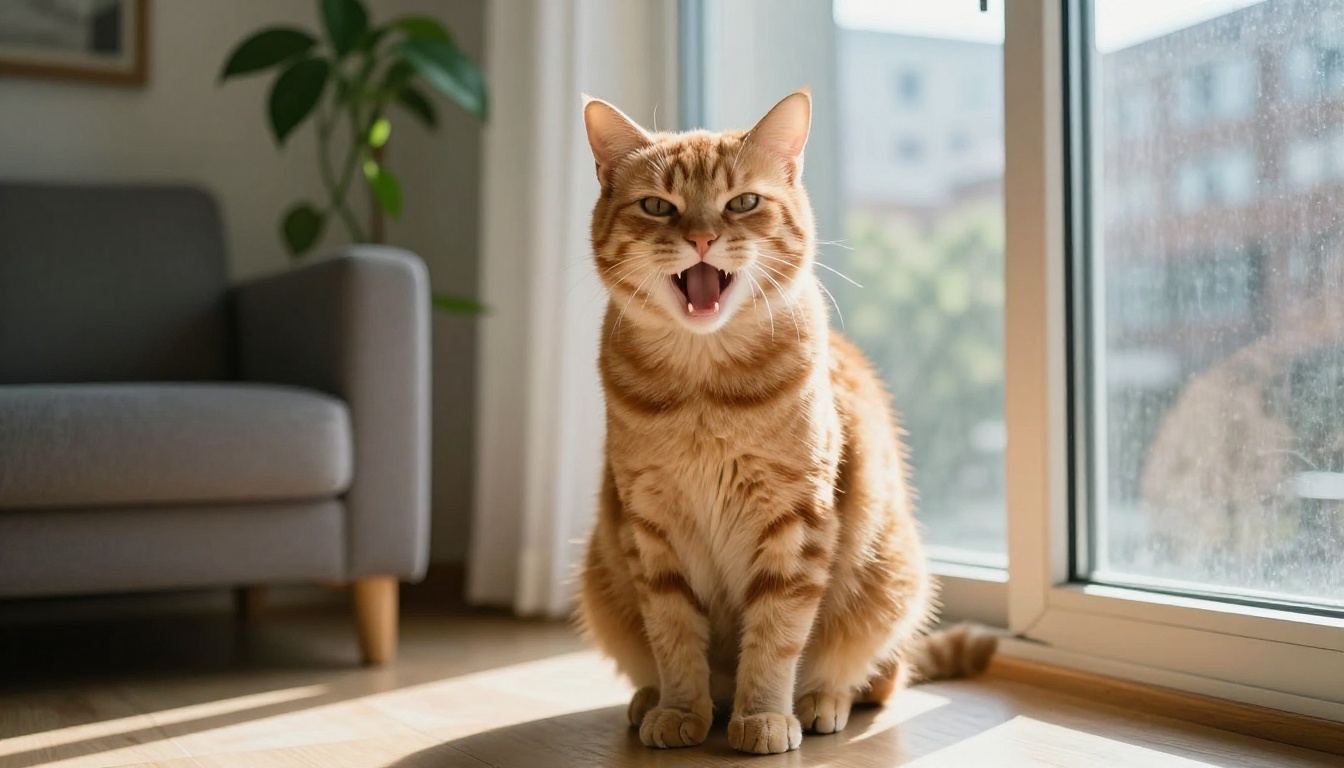
Your dog has opinions about the mailman. Your cat has a long list of complaints about breakfast. Talking pet AI finally lets those opinions come out loud: you take one photo of your dog or cat, add a voice, and the animal's mouth moves with the words in a short video you can post within minutes. There is no film crew, no animation skill involved, and for most clips no cost to try.
This article shows how the free route works from first photo to finished clip. You will see which tools handle pets best, how to pick a photo that actually animates, how to write a line that gets a laugh, and how to run the whole process on PicassoIA. You will also see two very different methods, because "make my pet talk" can mean two different workflows, and choosing the wrong one is the most common reason people give up after a single bad result.
How Talking Pet AI Works
Every talking pet video you see online comes from one of two methods. Knowing which one fits your idea saves a lot of retries.
Photo plus audio method
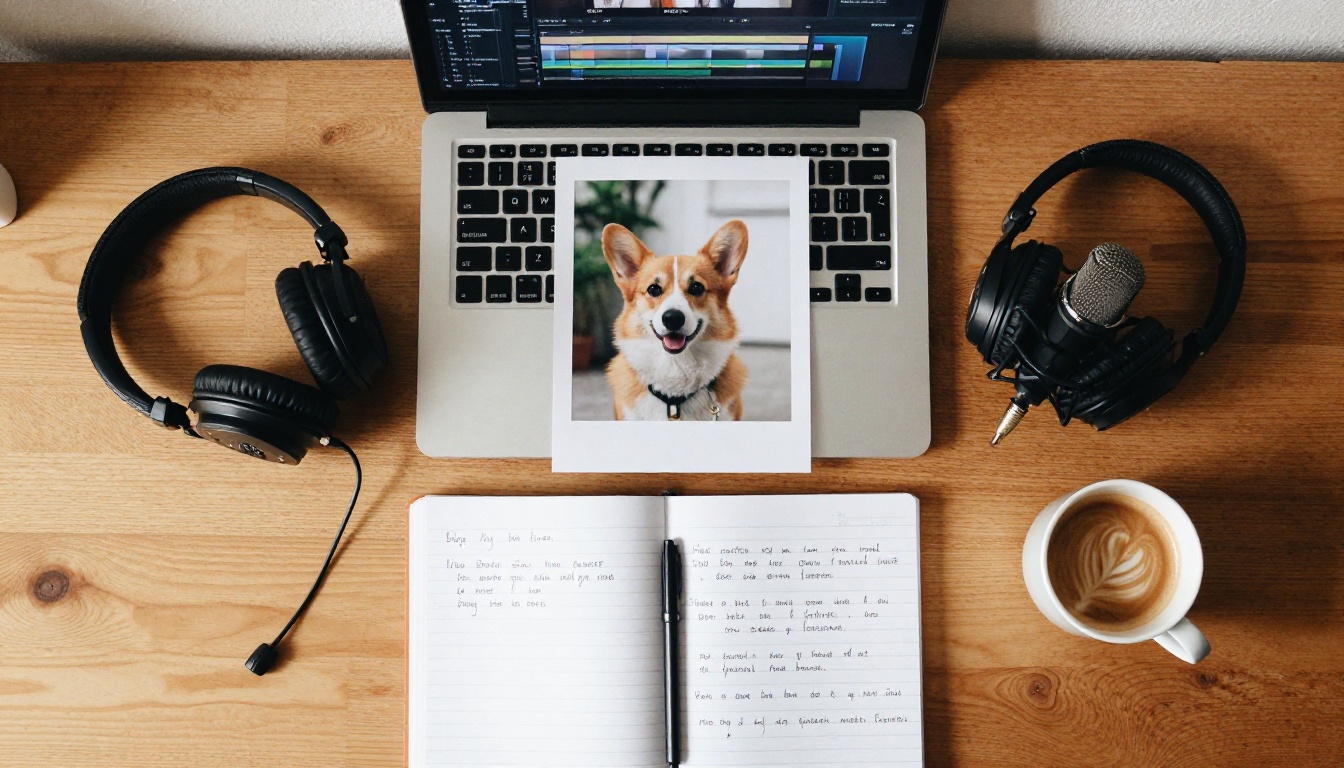
The classic approach uses a lipsync model. You upload one still photo and one audio file, and the model reads the sound frame by frame, then moves the mouth and jaw (and often the head and eyes) so the face seems to speak the recording. On PicassoIA, models like Fabric 1.0 and P Video Avatar work this way.
The big advantage is control. You decide the exact words, the voice, and the tone, because the audio exists before the video does. The trade-off is that lipsync models are built with faces in mind, and most of the examples on their model pages show people. Pets can work well, but the result depends heavily on how clearly the animal's mouth and eyes show up in the photo.
Native audio video method
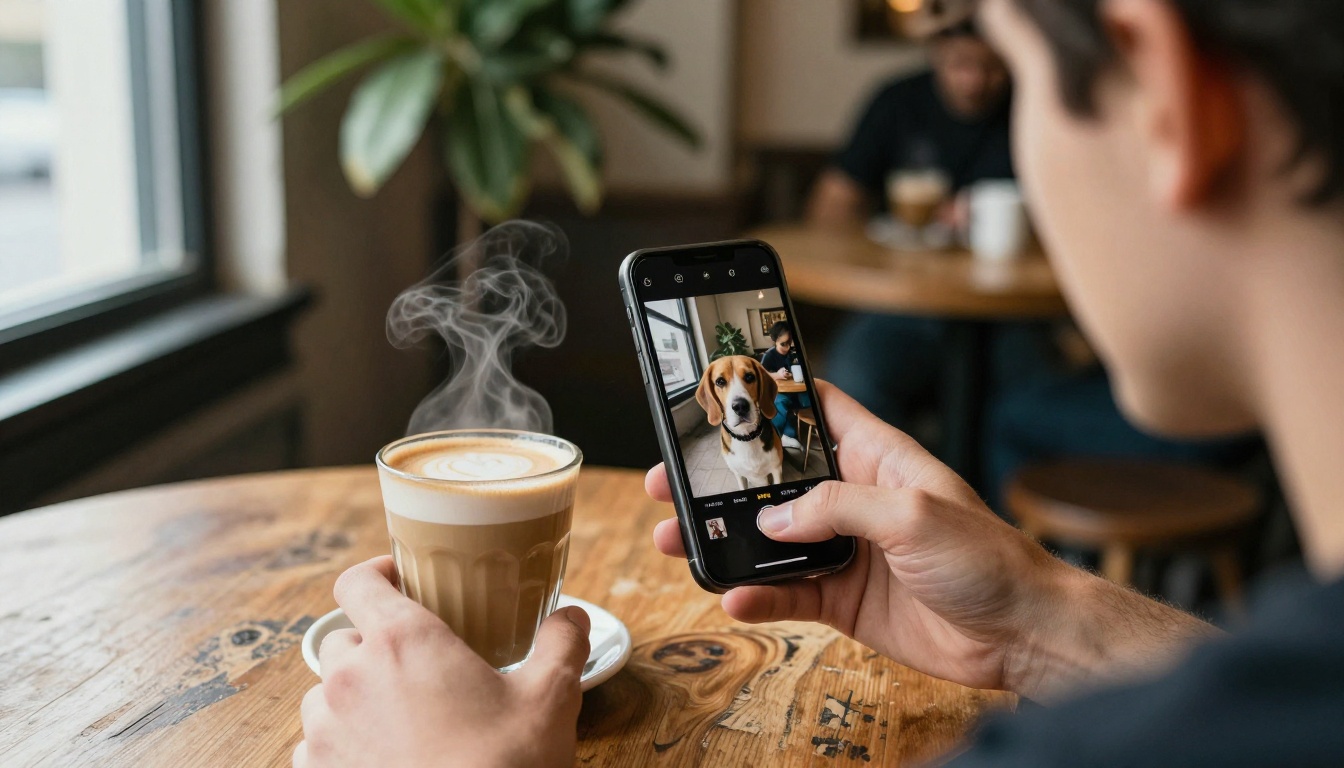
The second method skips lipsync entirely. Some video models generate the picture and the sound together, so you describe the scene and write the line of dialogue inside the prompt. Something like: a golden retriever looks into the camera and says, "I did not touch the sandwich." Models such as Seedance 2.0 and Veo 3.1 Lite are listed with built-in or native audio, which means the voice comes out of the same generation as the video.
This method gives you natural head movement, blinking, and camera motion that a lipsync model does not add on its own. The price is less precision: the model decides how the line sounds, and the wording can drift slightly from what you wrote.
| Photo plus audio | Native audio video |
|---|
| Control over the words | Exact, you supply the audio | Approximate, set by the prompt |
| Voice choice | Any recording or generated voice | Generated with the clip |
| Mouth sync | Built for this job | Depends on the model |
| Scene movement | Mostly face and head | Full scene, camera, and body |
| Best for | Short punchlines and caption style clips | Pets acting out a small scene |
💡 Tip: If you only want to try one thing today, start with the photo plus audio method. It is easier to judge, because you can hear the finished line before the video even exists.
PicassoIA lists 12 lipsync models, and three of them fit the "one photo, one voice" job best. All three run online with no coding, so you can test your own pet before committing to anything.
Fabric 1.0 for quick clips
Fabric 1.0 is the simplest option. It has only three inputs: an image, an audio file, and a resolution of 480p or 720p. The model follows the audio syllable by syllable, so short lines with clear speech tend to sync well. The example run on its model page took about three minutes at 720p, so expect a short wait rather than an instant result.
Choose 480p for fast test runs, then switch to 720p for the version you plan to post.
P Video Avatar for scripts
P Video Avatar is the most flexible tool for pets because it can write the voice for you. You type the exact words, pick one of 30+ voices across 10 languages, and the model creates both the speech and the lipsync. It also has a video prompt field that describes how the subject should look and move while talking, and output goes up to 1080p. If you already have a recording, you can upload it and the built-in voice is skipped.
Omni Human 1.5 for longer audio
Omni Human 1.5 accepts audio up to 35 seconds and has an optional prompt for scene and camera control, plus a fast mode. Its model page describes the input as an image with a human subject, face, or character, so treat it as the least predictable of the three for real animals. It is worth a test when your pet photo has a very human, cartoon-like expression, or when you need a longer monologue.
Side by side comparison
| Model | Input | Top resolution | Voice built in | Audio length | Best for |
|---|
| Fabric 1.0 | Photo + audio | 720p | No | Not stated | Fast one line clips |
| P Video Avatar | Photo + script or audio | 1080p | Yes, 30+ voices | Upload optional | Scripted clips in 10 languages |
| Omni Human 1.5 | Photo + audio + prompt | Not stated | No | Under 35 seconds | Longer lines, camera control |
💡 Tip: Run the same photo and the same audio through two tools. It takes a few minutes and instantly shows which model reads your pet's face better.
Pick the Right Photo
The photo decides most of the result. A lipsync model has to find a mouth, two eyes, and a face outline, and then animate them. Give it an easy face and the video looks charming. Give it a hard one and you get a rubber mask.
Front-facing photos win
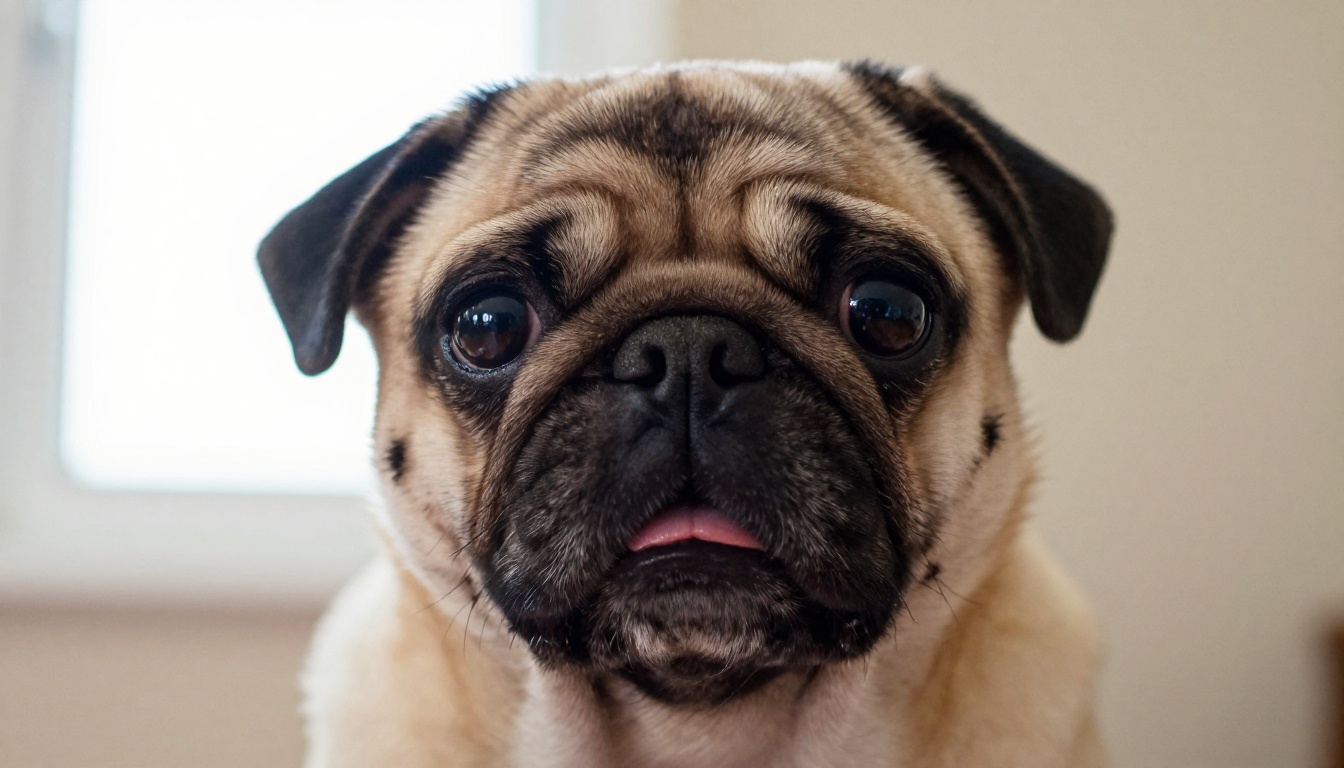
Look at a close, straight-on portrait like the pug below. Both eyes are sharp, the nose points at the camera, and the mouth line is clearly visible. That is the ideal starting frame, because the model does not have to guess what the hidden half of the face looks like.
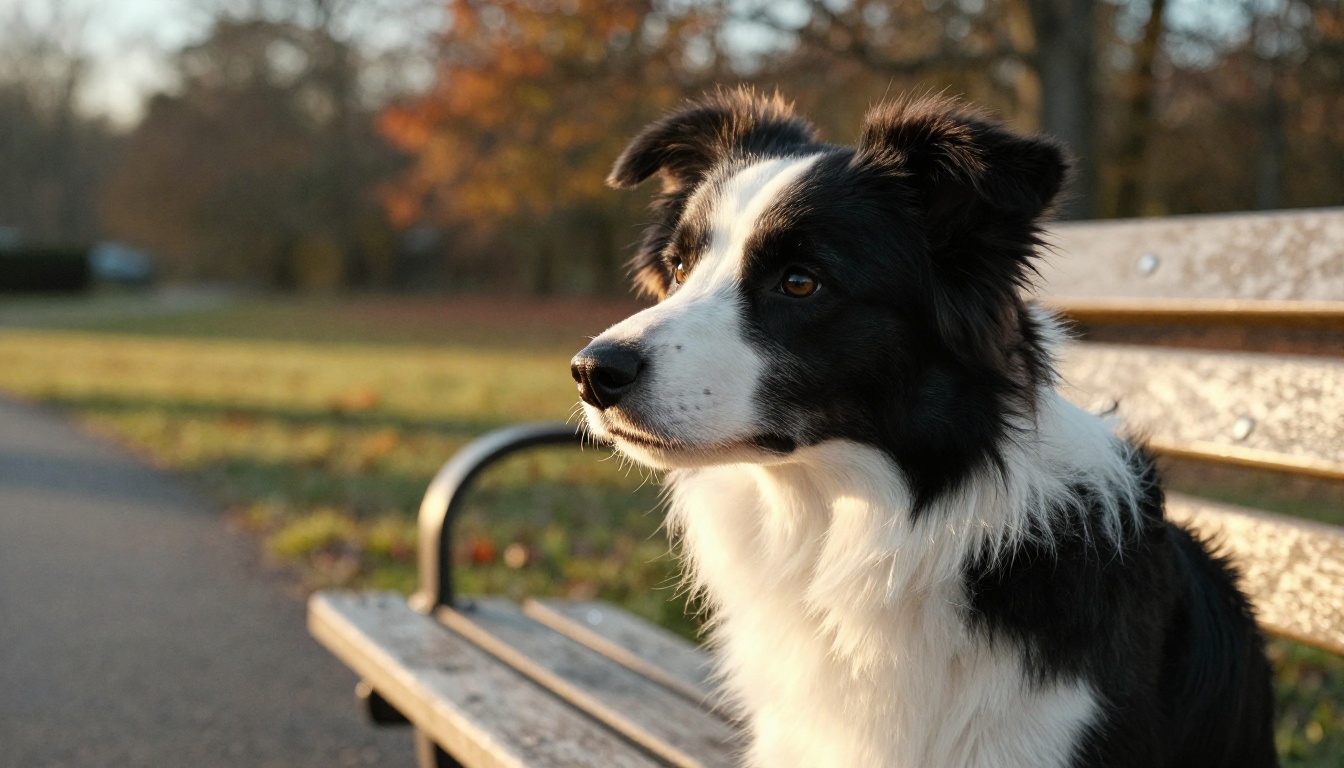
Compare that with a pure side profile, like the border collie below. The beauty of the shot is real, but half the mouth is hidden, and the model has to invent the rest. That is where stretched jaws and drifting eyes come from.
Check the mouth and the light
Before you upload, run through this short checklist:
- One pet only. Several animals in the frame confuse the face detection.
- Visible muzzle. No toy, leash, hand, or long fur blocking the mouth line.
- Even light. Soft window light beats harsh sun, which throws shadows across the muzzle.
- Sharp eyes. Motion blur or a tiny face in the distance gives the model nothing to work with.
- The right format. P Video Avatar accepts jpg, jpeg, png, and webp images.
| Photo trait | Works well | Causes trouble |
|---|
| Angle | Front or slight three quarter | Full profile or looking away |
| Mouth | Visible and relaxed | Hidden by a toy, leash, or shadow |
| Lighting | Even window light | Harsh shadows across the face |
| Framing | One pet, face fills a third of the frame | Several pets, tiny face far away |
| Sharpness | Eyes in focus | Motion blur |
💡 No good photo? Generate one. Pick a photorealistic text to image model from the PicassoIA model library, describe your pet facing the camera in soft window light, and use that image as the starting frame.
Write the Voice First
The audio is half the joke. A perfect video with a flat line gets no laughs, and a great line with a mediocre video still works.
Keep lines short
People speak at roughly two and a half words per second, so a 5 second clip holds about 12 words and a 10 second clip about 25. Shorter is funnier. Try lines like these:
- "I heard the treat bag. Do not lie to me."
- "Day 43. The human still refuses to share the chicken."
- "I did not knock that glass off the table. It jumped."
Match voice to personality
A big, calm dog suits a deep, slow voice. A small, dramatic dog suits a fast, high-energy one. Cats almost always land best with a dry, deadpan delivery. In P Video Avatar, the voice prompt field handles this: it takes style instructions such as tone, pacing, accent, or emotion, and those instructions are not spoken aloud. Try test runs with two or three voices on the same line before picking one.
Generate the audio
If you use Fabric 1.0 or Omni Human 1.5, you need a finished audio file. Create it with a text to speech model, then download it as mp3 or wav:
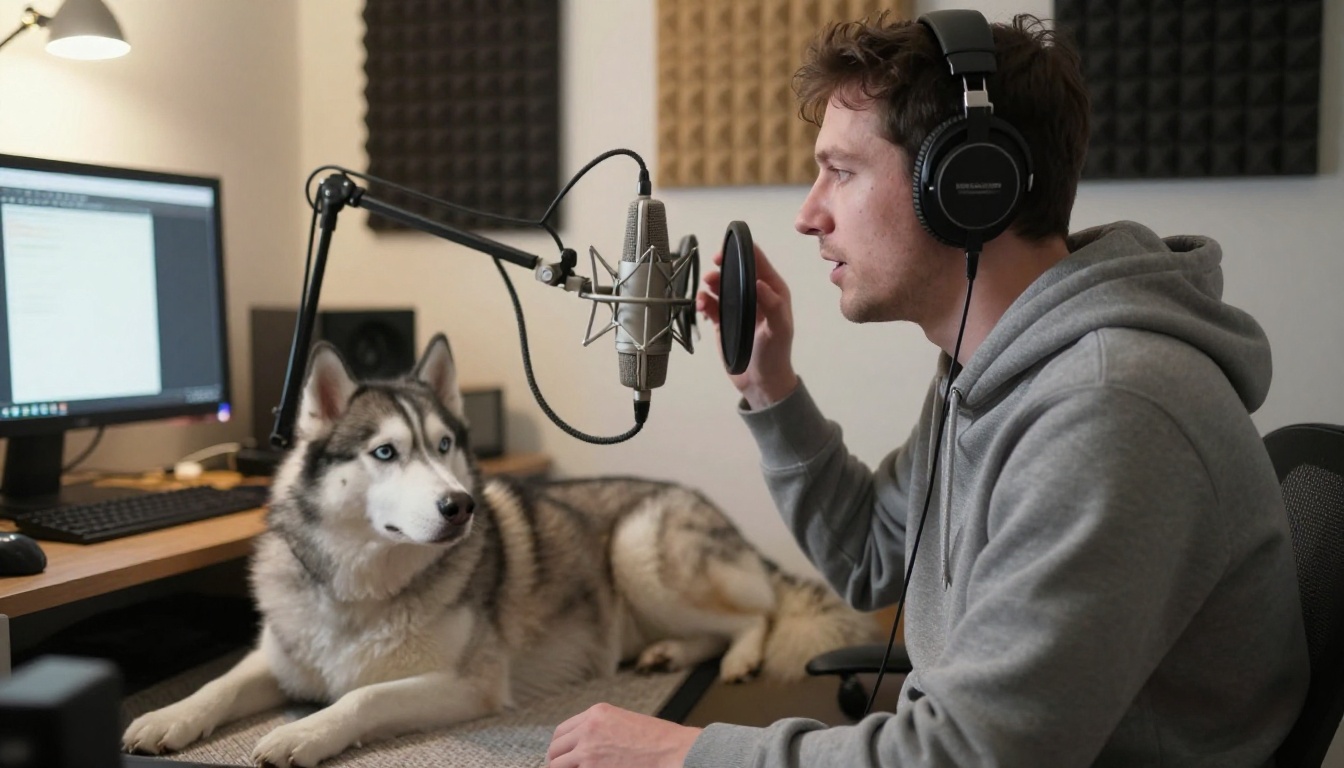
You can also record the line yourself. A phone voice memo in a quiet room is enough, and your own comic timing often beats a synthetic read.
Use P Video Avatar on PicassoIA
P Video Avatar is the tool to pick when you want everything in one place: photo, script, voice, and video.
Step by step
- Open the model page and choose the image input.
- Upload your pet photo. Use a front-facing portrait in jpg, jpeg, png, or webp.
- Type the voice script. These are the exact words the pet will say. Keep it under 25 words.
- Pick a voice and a language. The list includes English (US and UK), Spanish, French, German, Italian, Portuguese (Brazil), Japanese, Korean, and Hindi.
- Write a voice prompt. For example: "Say this in a flat, unimpressed tone with slow pacing."
- Edit the video prompt. The default says "The person is talking." Change it to something like "The golden retriever is talking, head tilting slightly, ears moving, mouth in sync with the speech."
- Choose the resolution. 720p is the default, and 1080p is available for the final render.
- Run it and review. If the result is close, set a seed value so you can repeat it while you adjust one thing at a time.
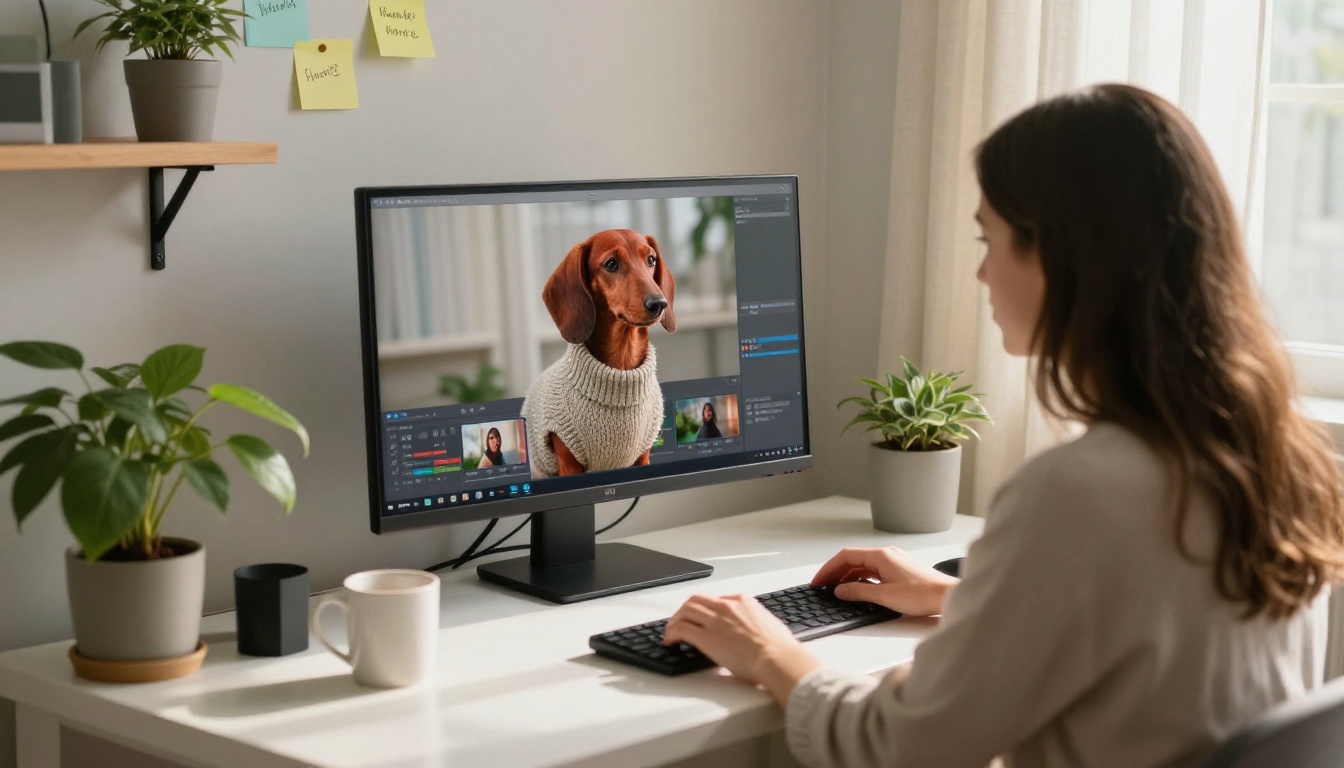
If you upload your own audio file, the model uses it instead of the script and the built-in voice. Fabric 1.0 follows the same pattern with even fewer inputs: image, audio, and resolution. That is all.
Fix common problems
| Problem | Likely cause | Fix |
|---|
| Mouth barely moves | Muzzle hidden in the photo, or noisy audio | Use a clearer front-facing photo and a clean recording |
| Face looks like rubber | Side profile or an extreme crop | Switch to a three quarter or front view with space around the head |
| Voice feels wrong for the pet | Default voice and tone | Test other voices and rewrite the voice prompt |
| Every run looks different | Random seed | Set a seed once you like a result |
| Nothing works on a small animal | The face is too far from a typical face | Try Fabric 1.0, or switch to the native audio method |
Talking Pets With Native Audio Video
When you want your pet to do something besides talk, such as jump on a counter, stare down a camera, or react to a sound, the native audio method works better. The video model handles the movement and the voice in a single pass.
Prompt formula that works
Use this order: pet and pose, then the quoted line, then the camera, then the light and sound.
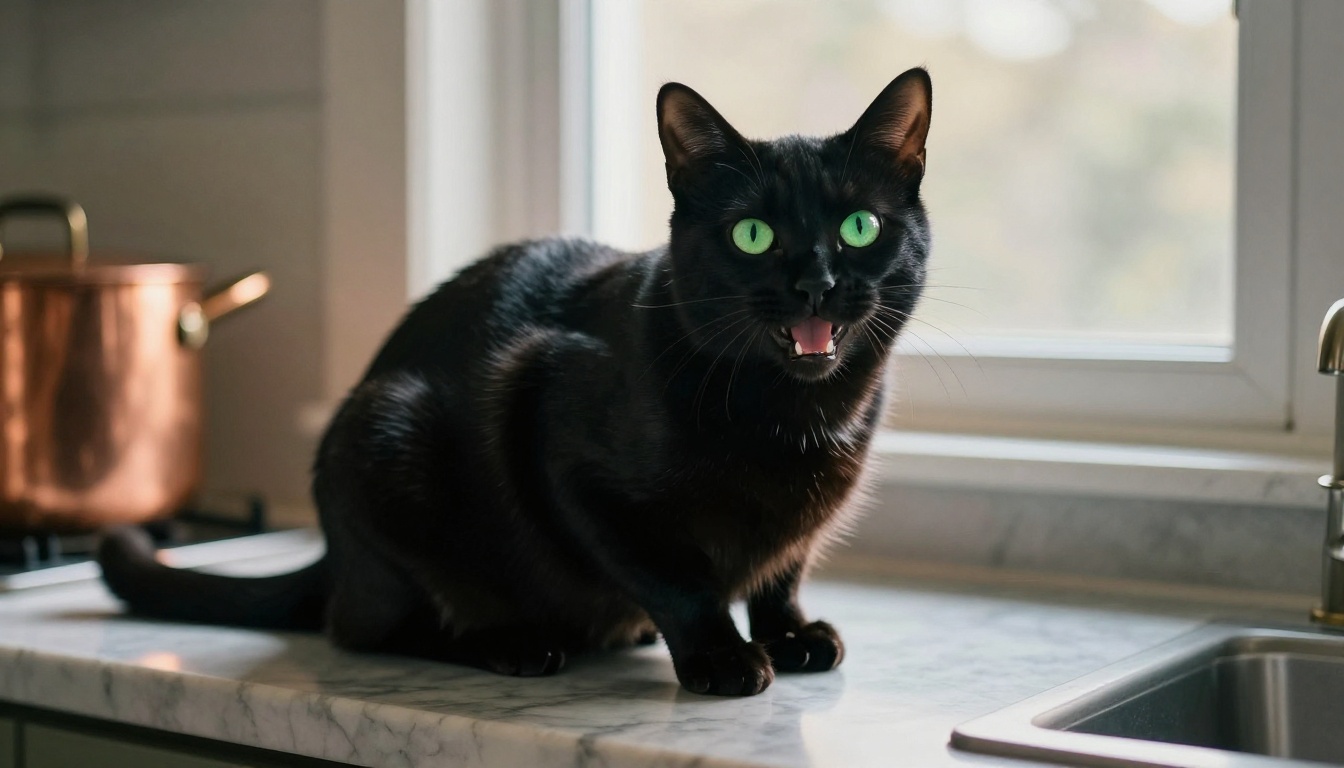
A black cat sits on a marble kitchen counter, looks straight into the camera and says in a dry, tired voice, "I have been waiting at this bowl since sunrise." Slow push in, soft morning light, realistic fur, quiet kitchen sound.
A few habits improve results:
- One pet and one line of dialogue. Two speakers in a single clip often mix voices.
- Quotation marks around the spoken words, so the model separates speech from description.
- A calm camera. Slow pushes and static frames keep the mouth readable.
- Your own photo as the first frame, when the model offers image to video. That keeps your pet's actual markings instead of a lookalike.
- Short clips. Check each model page for supported inputs and clip length before you plan a longer scene.
Models such as Seedance 2.0 and Veo 3.1 Lite are good places to start. If you only need silent motion from a pet photo, Picasso IA Video is listed as a free unlimited generator that works from text or an image, and you can add a voice later.
Clip Ideas People Share
Funny pet videos rarely depend on the technology. They depend on a clear premise. These formats work again and again:
- The guilty confession. The dog denies everything, calmly, with crumbs still on the nose.
- The morning complaint. The cat lists grievances about the breakfast schedule.
- The honest review. Your dog scores a new treat out of ten.
- The daily diary. A dramatic voice reads "Day 12" entries about the sofa, the vacuum, and the squirrel.
- The birthday message. The pet wishes a family member a happy birthday in a gruff voice.
- The fake interview. Two clips, one question from you and one answer from your pet, edited together.
- The language switch. Same photo, same joke, in Spanish or Japanese, using a multilingual voice.
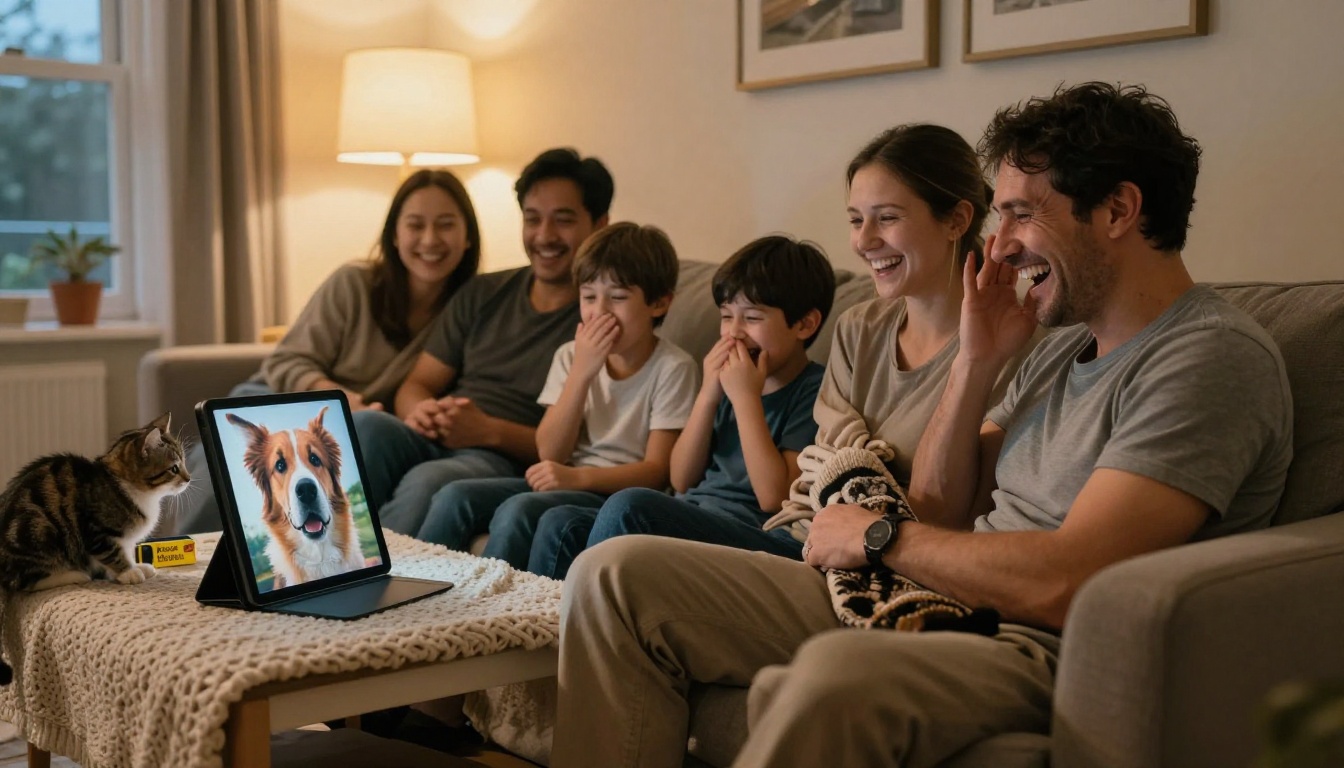
Keep every clip between 5 and 15 seconds, add captions in your editor because most people watch with the sound off, and crop to vertical if you plan to post to short video feeds. Use photos of your own pets or pets whose owners said yes.
Make Your Own Talking Pet
You do not need a studio, a script editor, or a big budget. You need one clear photo and one short line.
Here is the whole routine in four steps:
- Choose a front-facing photo of your dog or cat with a visible mouth and soft light.
- Write a line of about 12 words that sounds like your pet's personality.
- Pick a tool: P Video Avatar if you want to type the script, Fabric 1.0 if you already have audio.
- Run two versions, compare them, and post the funnier one.
Open Picasso IA, upload your pet's best portrait, and let your dog finally explain what happened to the couch cushion. Test a second voice, try a cat with a deadpan line, and mix in the native audio method when you want a full scene. The more you experiment, the faster you find the voice that fits your pet. Ready to hear them speak? Start with the PicassoIA model library and pick the tool that matches your idea.


