Most TikTok slideshows die on the second photo. Someone drops ten pictures in a row, picks a song, hits post, and wonders why nobody stays past the first swipe. The photos are usually fine. What is missing is rhythm: a reason to move from one frame to the next. That is exactly what TikTok slideshow transitions provide, and you do not need to pay for any of them.
This article walks through the free effects inside TikTok, the free apps that add more options, and a set of transition ideas you can copy this afternoon. You will also see how to prepare matching photos so each cut feels deliberate, including a few ways to generate or fix frames with AI when your camera roll lets you down.
What Slideshow Transitions Really Are
A slideshow transition is whatever happens between one photo and the next. It can be a fade, a zoom, a swipe, a spin, or a simple hard cut timed to a drum hit. The best ones are barely noticed. They simply make the sequence feel like a single idea instead of a pile of pictures.
Photo Mode vs Template Mode
TikTok gives you two main routes for a photo post, and they behave very differently.
- Photo Mode creates a swipeable carousel. The viewer controls the pace, and your music plays underneath. Recent guides describe a range of roughly 4 to 35 photos per post, though the exact limits can shift between app versions.
- Template or video slideshow plays automatically, advancing on its own with preset filters and transitions baked in.
If you skip the switch to Photo Mode on the editing screen, the app tends to default to the auto-playing version. That surprises many people, so check which one you are building before you post.
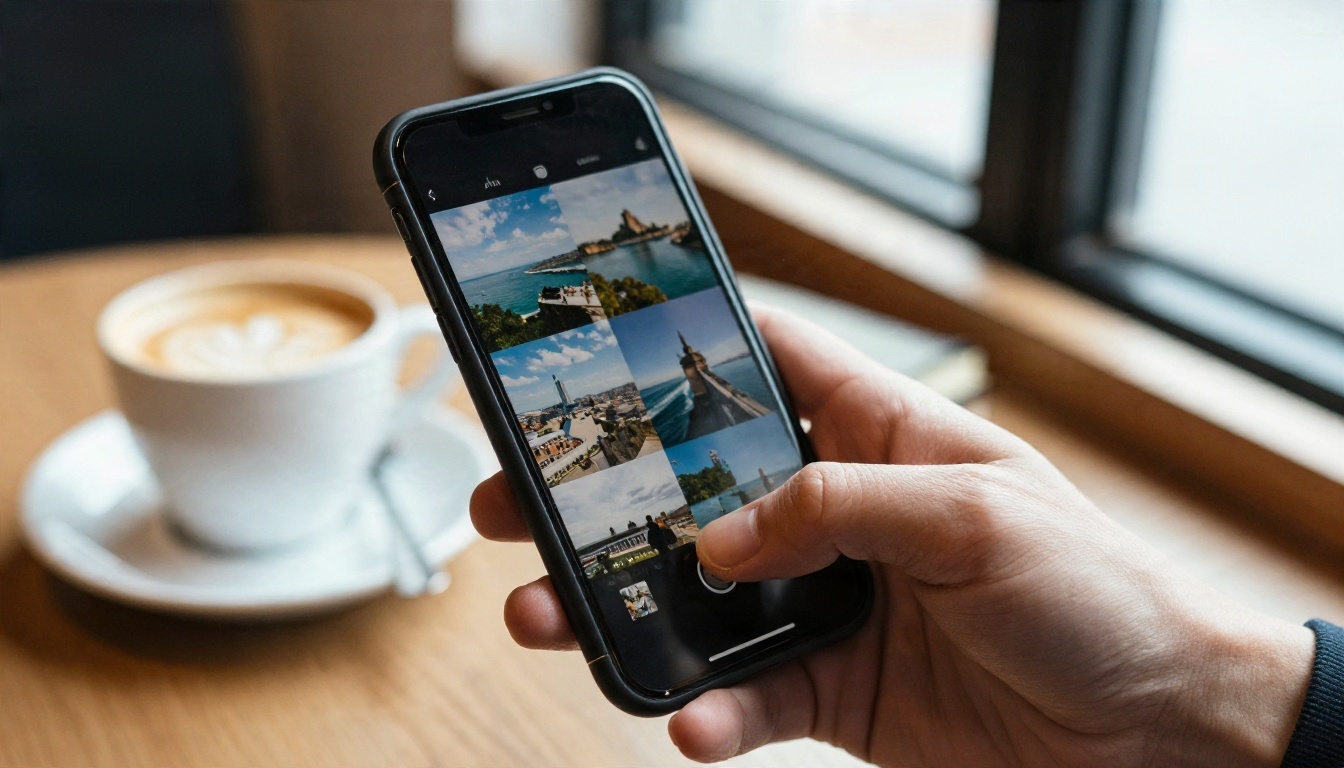
💡 Quick rule: Use Photo Mode when you want people to swipe and linger. Use a video slideshow when you want a fixed, timed experience with real transitions between frames.
Why Transitions Hold Attention
People scroll fast. A transition creates a tiny moment of anticipation: what is the next frame going to look like? When the next frame matches the previous one in position, color, or subject, the brain registers a pattern and wants to see it repeat. That is the whole trick behind spin matches, outfit changes, and before-and-after reveals.

The same logic explains why personal slideshows work so well. Friends and family already care about the subject, so a clean transition just makes the memory feel more polished.
Free Effects Inside TikTok
You can get surprisingly far without leaving the app. The built-in tools are not as flexible as a dedicated editor, but they are quick, and quick matters when you post often.
Built-in Templates
Templates apply a ready-made sequence of filters, timing, and transitions to the photos you select. You pick a template, drop in your pictures, and the app arranges everything to the beat of the suggested track. Labels and layouts change between releases, so treat any menu name you read online as a rough direction rather than a fixed path.
Templates are best for:
- Birthday or holiday recaps
- Trend-driven posts where the template itself is the format
- Fast posts when you only have a minute
Zoom, Pan, and Fade
The editor typically offers simple motion styles such as zoom, pan, fade, and a few 3D-style movements. Used lightly, they add life to still photos. Used on every single frame, they turn into noise.
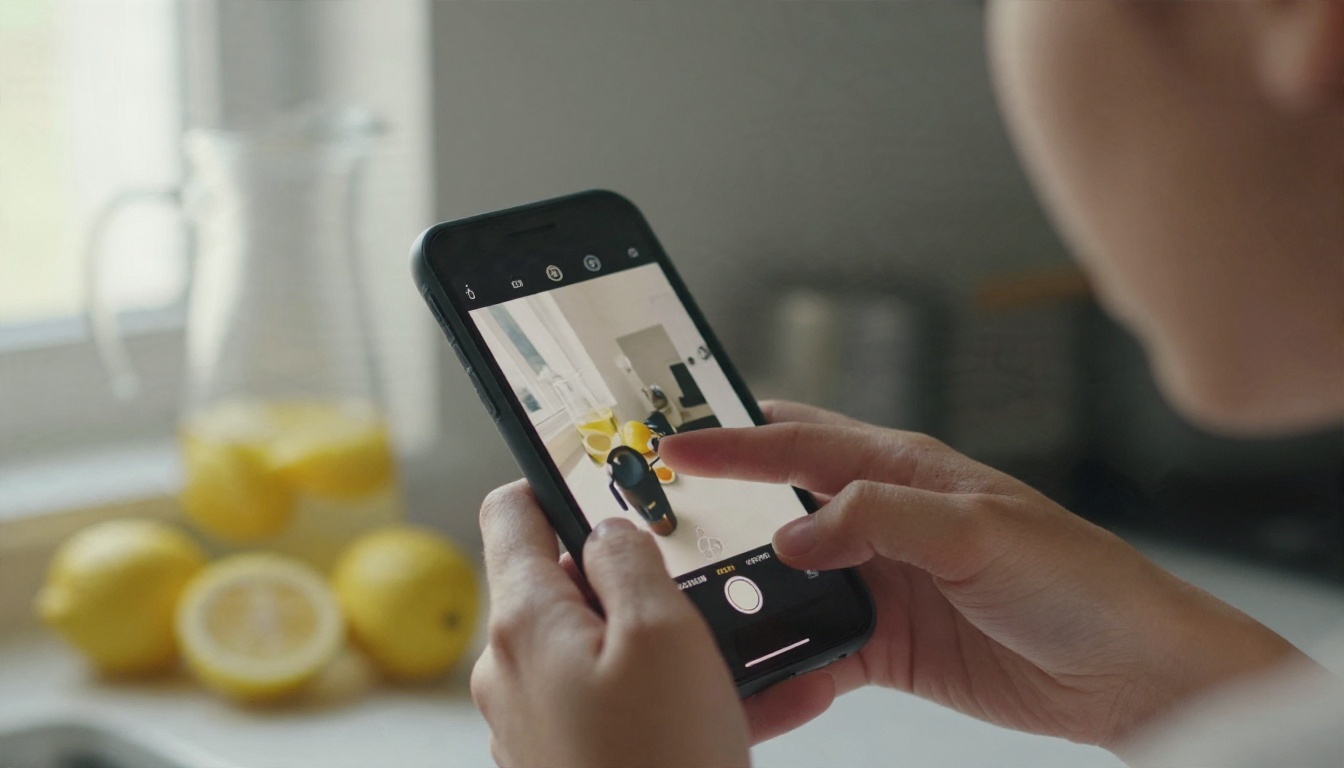
💡 Pick one motion style per post. If the first photo slowly zooms in, let every other photo do the same. Consistency reads as style. Variety reads as indecision.
| Built-in option | Best for | Watch out for |
|---|
| Template | Speed, trend formats | Less control over timing |
| Zoom | Portraits, product close-ups | Cropping faces too tightly |
| Pan | Landscapes, wide scenes | Photos with low resolution |
| Fade | Calm, nostalgic edits | Feels slow with upbeat music |
| Photo Mode swipe | Carousels, tutorials | Viewers set their own speed |
Free Apps Worth Trying
When the built-in tools run out, a second app gives you proper control. Several well-known editors offer a free tier. Pricing and feature limits change often, so check the current free plan before you commit to a workflow.
CapCut and Other Editors
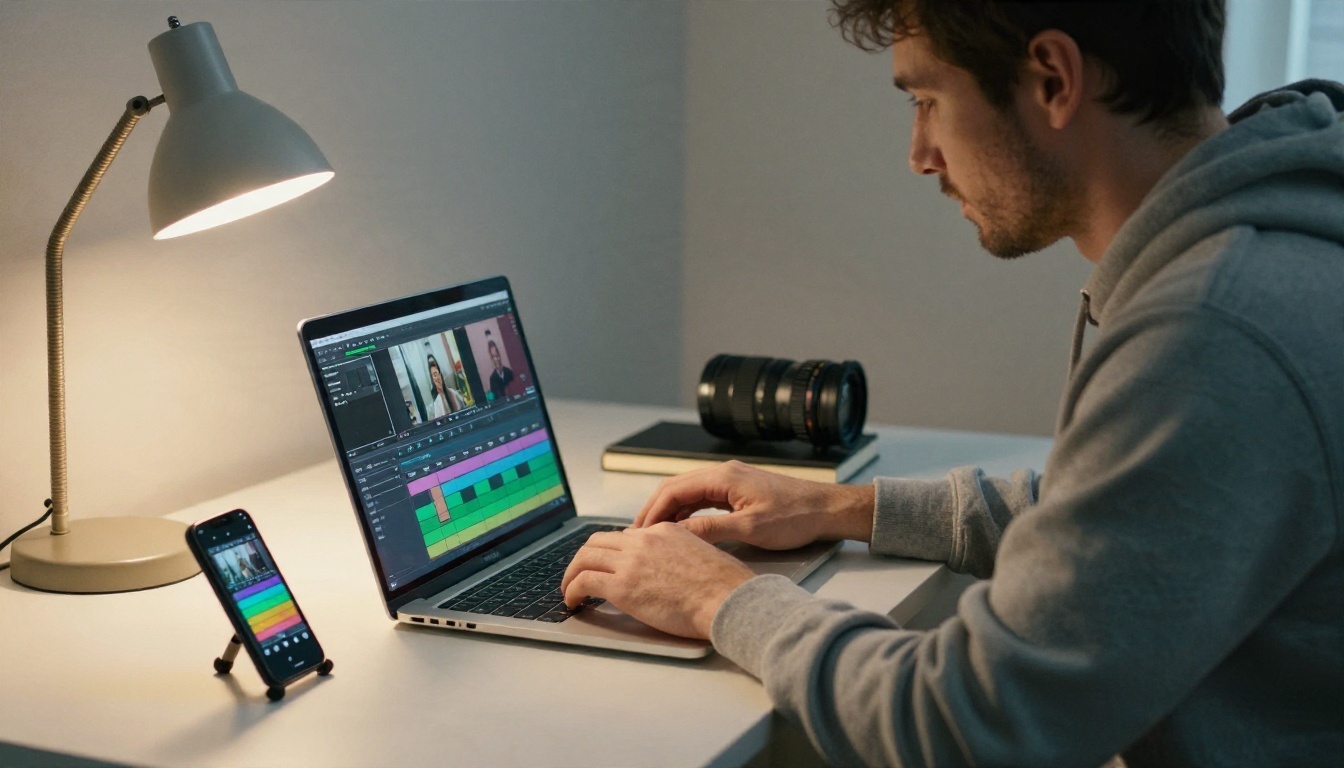
CapCut is the name most creators reach for. It offers custom transitions, keyframes, and beat-synced cuts, and many people use it as their default slideshow editor. InShot is a lighter option that is easy to learn on a phone. VN is popular with creators who want a timeline similar to desktop software. Canva works well if you want text-heavy or branded slides with simple movement.
How They Compare
| App | Strength | Good fit for |
|---|
| CapCut | Custom transitions, beat sync | Creators who post often |
| InShot | Simple, fast phone editing | Beginners |
| VN | Timeline control, keyframes | People who like precision |
| Canva | Layouts, text, brand colors | Small businesses and teams |
💡 Export at vertical 9:16. Slideshows that are exported in the wrong ratio get black bars or awkward crops once TikTok processes them.
Transition Ideas That Work
Here are the formats that keep showing up in popular posts, along with how to build each one.
The Spin Match
Someone spins, and the next photo shows them in a new outfit or location, mid-spin. The trick is to keep the subject in the same spot in the frame, with the same rough body position.
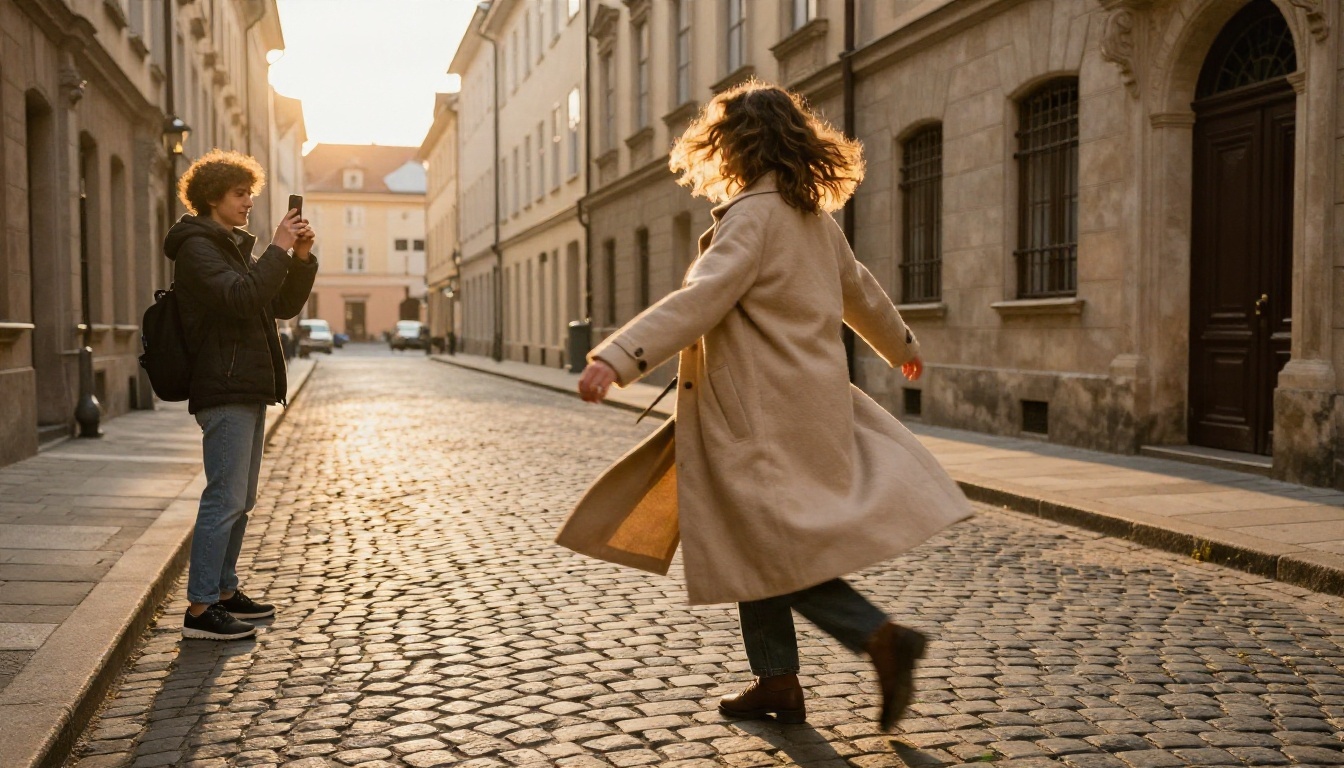
To build it:
- Shoot a short burst of photos while the subject turns.
- Pick frames where the coat, hair, or arms are in a similar position.
- Place the frames back to back with a very short duration on each.
- Add a quick zoom or a flash cut on the beat.
The Swipe Reveal
Each photo shows a small piece of a larger picture, and the final swipe reveals the whole scene. It works well for travel, interior design, and recipes. Because you are in Photo Mode, the viewer does the swiping, which makes the reveal feel personal.
The Before and After
Show the problem in photo one, the process in the middle, and the result at the end. Keep the framing identical across frames. A tripod or a phone propped on a stack of books is enough. Home renovations, hair color changes, and desk makeovers all fit this format.
The Product Drop
Small shops use this constantly. Photo one shows the raw material, photo two a work in progress, photo three the finished item, and the final frame shows the product in context.

More Quick Ideas
- Photo dump with a beat drop: Slow frames build up, then a burst of fast cuts on the chorus.
- Color gradient run: Order photos from warm to cool tones so the slideshow feels like a color story.
- Zoom-through: Each photo ends with a close-up detail, and the next one begins from a similar detail.
- Then and now: Alternate old photos and new ones of the same place or person.
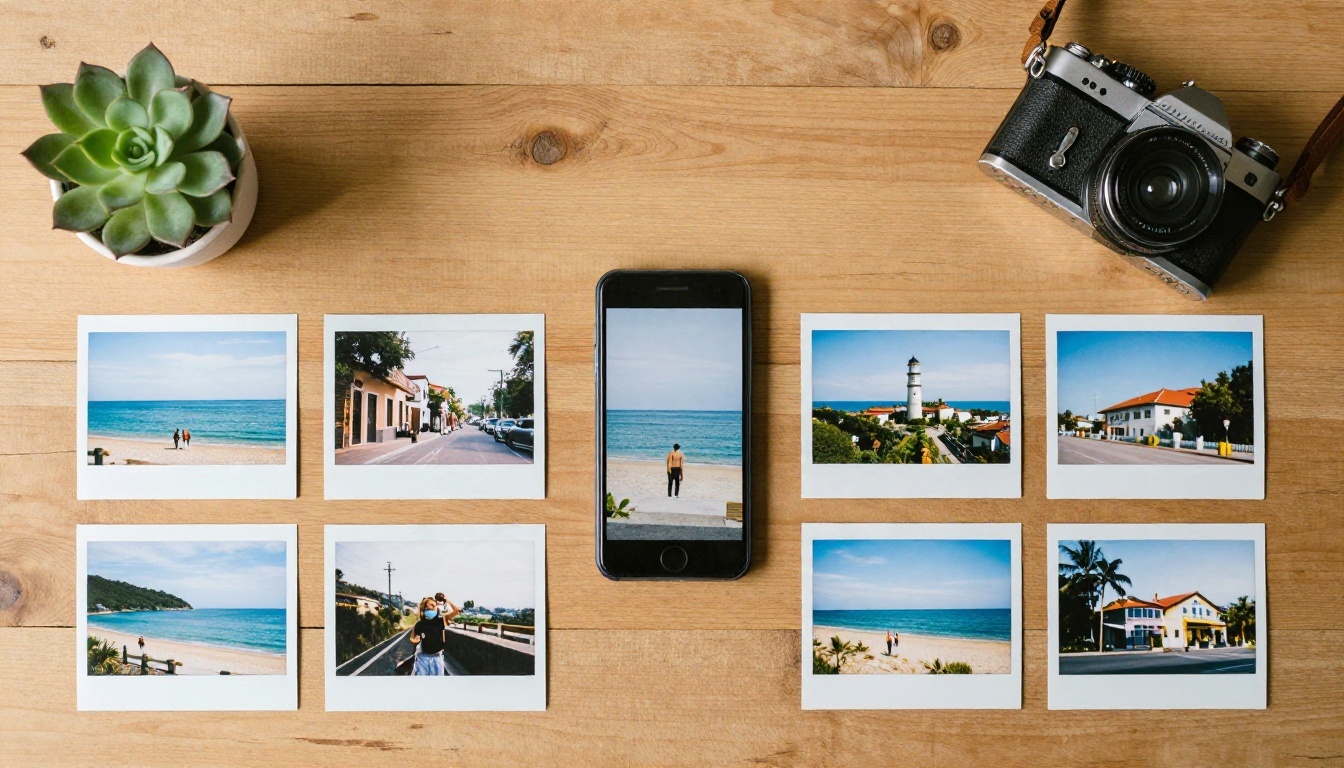
💡 Lay the photos out first. Printing them or arranging them as thumbnails on a table, as in the flat-lay above, helps you spot where the sequence flows and where it stalls.
Shoot Photos That Transition Well
Transitions are only as good as the frames you feed them. Most failed slideshows have a photo problem, not an effects problem.
Match Position and Framing
If you want a smooth cut, keep the subject in the same part of the frame. A subject that jumps from far left to far right feels jarring unless that is the effect you want. Shoot in vertical, and leave a little breathing room around the edges for zoom and pan effects.
Keep Light and Color Consistent
Mixing a warm indoor photo with a cold blue night photo makes a slideshow feel unplanned. Shoot around the same time of day, or apply the same filter to every frame.
| Photo habit | Why it matters |
|---|
| Shoot vertical | Fills the screen, no black bars |
| Hold the phone steady | Keeps spin and zoom matches clean |
| Use one filter | Creates a unified look |
| Shoot extra frames | Gives you choices when matching |
| Avoid heavy compression | Keeps pan and zoom sharp |
Make Your Own Frames With PicassoIA
Sometimes the photos you need do not exist. Maybe the weather ruined your shoot, or you want a consistent set of backgrounds for a product post. AI can help fill those gaps, and you can do it on PicassoIA without leaving your browser.
Generate Matching Frames
When you need a set of images with the same lighting and mood, write one detailed prompt and change a single element each time. Seedream 4.5 is a strong pick for sharp, realistic images in a vertical format. Nano Banana Pro is another good option for clean, natural-looking results. For quick drafts, Nano Banana 2 Lite generates fast, which helps when you are testing a sequence.
A simple recipe:
- Pick a vertical aspect ratio such as 9:16.
- Write the scene once: location, light direction, lens feel, color palette.
- Keep that text identical across prompts, and change only the subject or pose.
- Generate four to six frames and pick the ones that look like they belong together.
Fix and Match Existing Photos
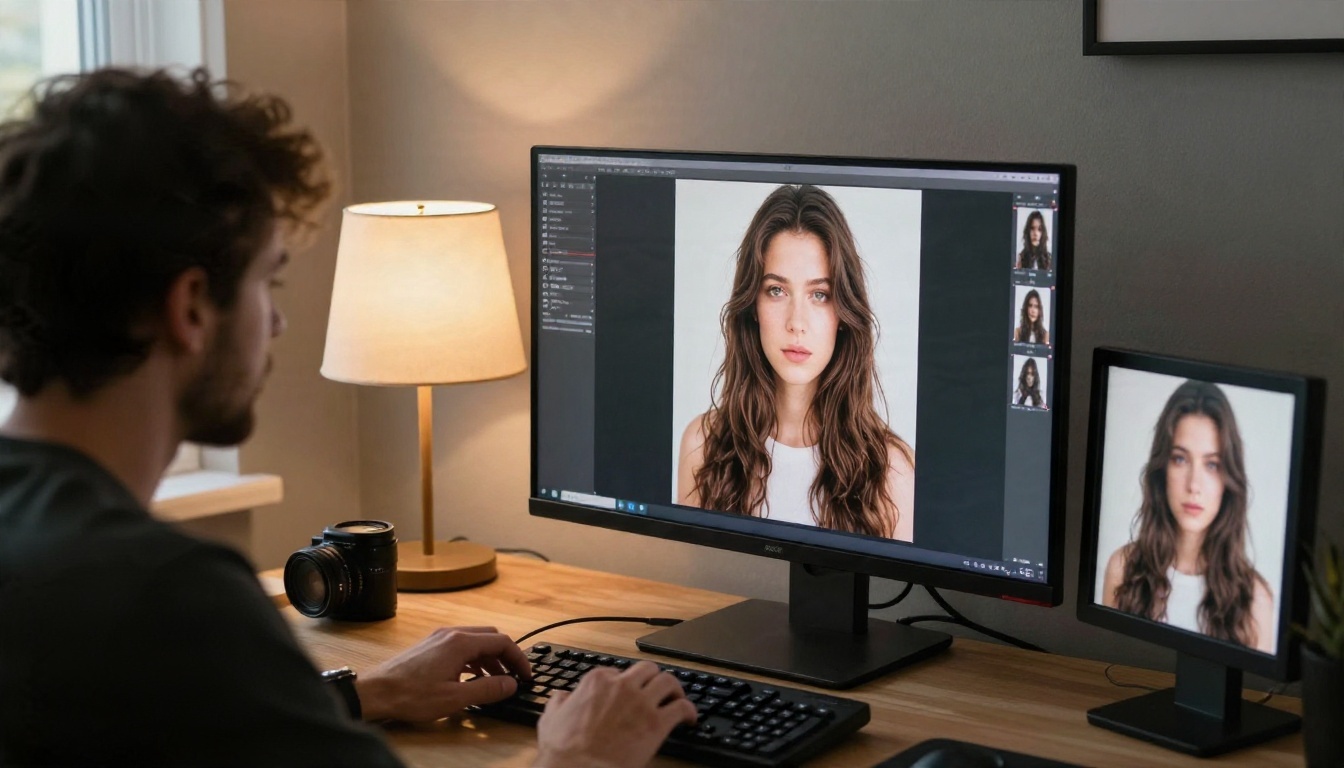
If your photos are close but not quite right, editing is faster than reshooting. Nano Banana handles prompt-based edits such as changing a background, swapping an outfit color, or evening out lighting between frames. PicassoIA Image Editor Pro is built for photo editing and offers unlimited generations, which is useful when you need to tweak a whole set of slides.
Animate Stills Into Short Clips
A static photo can become a short moving clip that you drop into your slideshow as a surprise frame. Kling v3 Video produces cinematic motion, and LTX 2.5 Fast is a quicker choice when you are experimenting. Place one moving clip among still photos and the contrast makes the transition feel like an event.
💡 Try this: Generate three matching stills, animate the last one, and use it as the final frame. The shift from still to motion gives viewers a reason to rewatch.
Common Mistakes to Skip
Too Many Effects
Five different transitions in ten photos looks chaotic. Pick one or two and repeat them.
Ignoring the Music
Cuts that land off the beat feel sloppy. Play the song, tap the rhythm, and set photo durations to match. Faster songs need shorter photo durations.
Low-Quality Source Photos
Zoom and pan effects magnify blur. Use original files, not screenshots or heavily compressed copies.
Skipping the Hook
The first photo decides whether people keep swiping. Put your strongest image first, and add a short caption that promises something, such as "wait for photo 7."
Forgetting Rights for Music and People
Use music available to you in the app, and ask permission before posting photos that clearly show other people. It keeps your account safe and your friends happy.
Try Your Own Slideshow Today
You now have the full toolbox: Photo Mode for swipeable posts, templates for speed, free editors for custom cuts, and a handful of transition formats that reliably work. The next step is simply to make one.
Pick a theme, shoot or generate six to eight matching frames, choose one motion style, and cut to the beat. If your camera roll is missing a shot, head over to PicassoIA and generate it with Seedream 4.5 or Nano Banana, then polish the set in Image Editor Pro. You can also browse every model on picassoia.com/en/all-models and experiment with video options to add a moving frame or two.
Make the first version quickly, post it, and watch where people stop swiping. That single data point will teach you more about transitions than any list of tricks, and your second slideshow will be better than your first.


