You type a line of dialogue into a prompt, press generate, and a few minutes later a person on screen says exactly those words with lips that actually match. That is the promise of Veo 3.1 Fast, and for short clips it mostly keeps it. The catch is in the details: how long a line can be, how many people can talk at once, what happens to accents and numbers, and why you can't hand the model your own voice recording.
This article walks through all of it. You'll see what the lip sync actually is (it is not a separate pass), how the speech sounds, where it fails, and which prompt patterns give the cleanest results. If your project needs something the model can't do, you'll also find the dedicated lip sync tools to reach for instead.
What Lip Sync Means in Veo 3.1 Fast
Most people hear "lip sync" and picture a tool that takes a video plus an audio file and bends the mouth to match. Veo 3.1 Fast doesn't work that way. It generates picture and sound together, so the mouth shape and the spoken audio come out of the same generation. There is no second step where audio gets pasted onto existing footage.
That has two practical effects:
- Sync is built in. Because the model produces both streams at once, mouth movement tends to land on the right syllables without any alignment work from you.
- You don't control the voice file. You describe the voice and the words in text. You can't upload a recording and ask the model to match it.
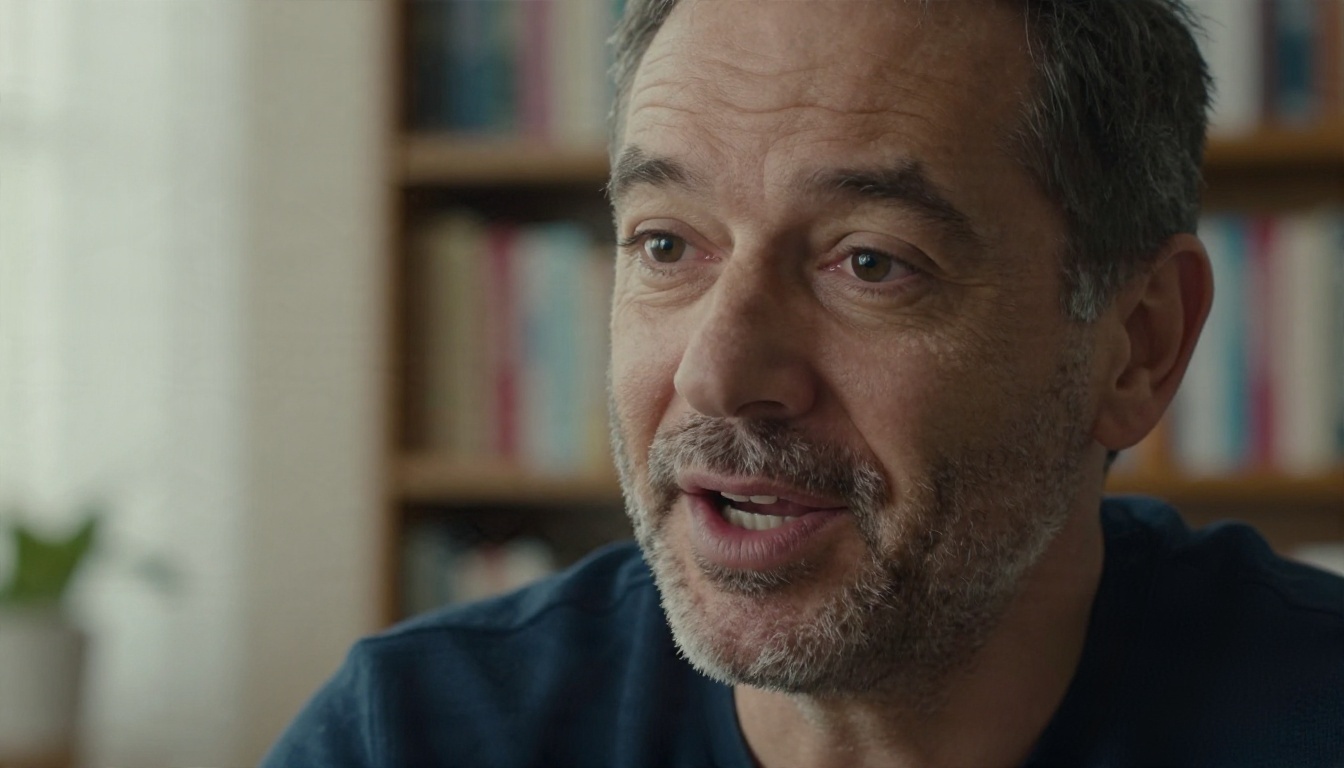
💡 Quick rule: if you want a character to say new words in a voice you invent, use Veo 3.1 Fast. If you already have a finished voice track, use a dedicated lip sync model (covered below).
Where It Sits in the Veo Family
The Veo line has several variants, and the differences matter when dialogue is the point of the clip.
| Model | Best for | Dialogue behavior |
|---|
| Veo 3.1 | Highest quality final shots | Strongest prompt adherence, slower |
| Veo 3.1 Fast | Quick drafts and volume | Same native audio, faster turnaround |
| Veo 3.1 Lite | Cheap tests | Lighter, good for checking a script |
| Veo 3 Fast | Older speed option | Earlier generation of the audio system |
The Fast variant is the sweet spot for most dialogue work. You can run a handful of takes in the time it takes to wait on one slower render, which matters because speech is the part of a clip most likely to need a second or third try.
How the Speech Actually Sounds
Judging audio from a spec sheet is useless, so here is what to listen for in real output.
Voice Quality
Voices come out clear and conversational. Tone, pacing and emotion follow your prompt: a calm narrator sounds calm, an excited presenter sounds energetic. Room sound is generated too, so a kitchen sounds like a kitchen and an office has a faint hum. That ambient layer is a big part of why the clips feel believable instead of dubbed.
Where it can slip:
- Slight synthetic edge on sibilants (the "s" and "sh" sounds), especially in longer lines.
- Flat emphasis on words you wanted stressed. The model picks its own stress pattern unless you spell it out.
- Inconsistent timbre between takes. The same description of a voice will not return the identical voice twice.
Fast Versus Standard Audio
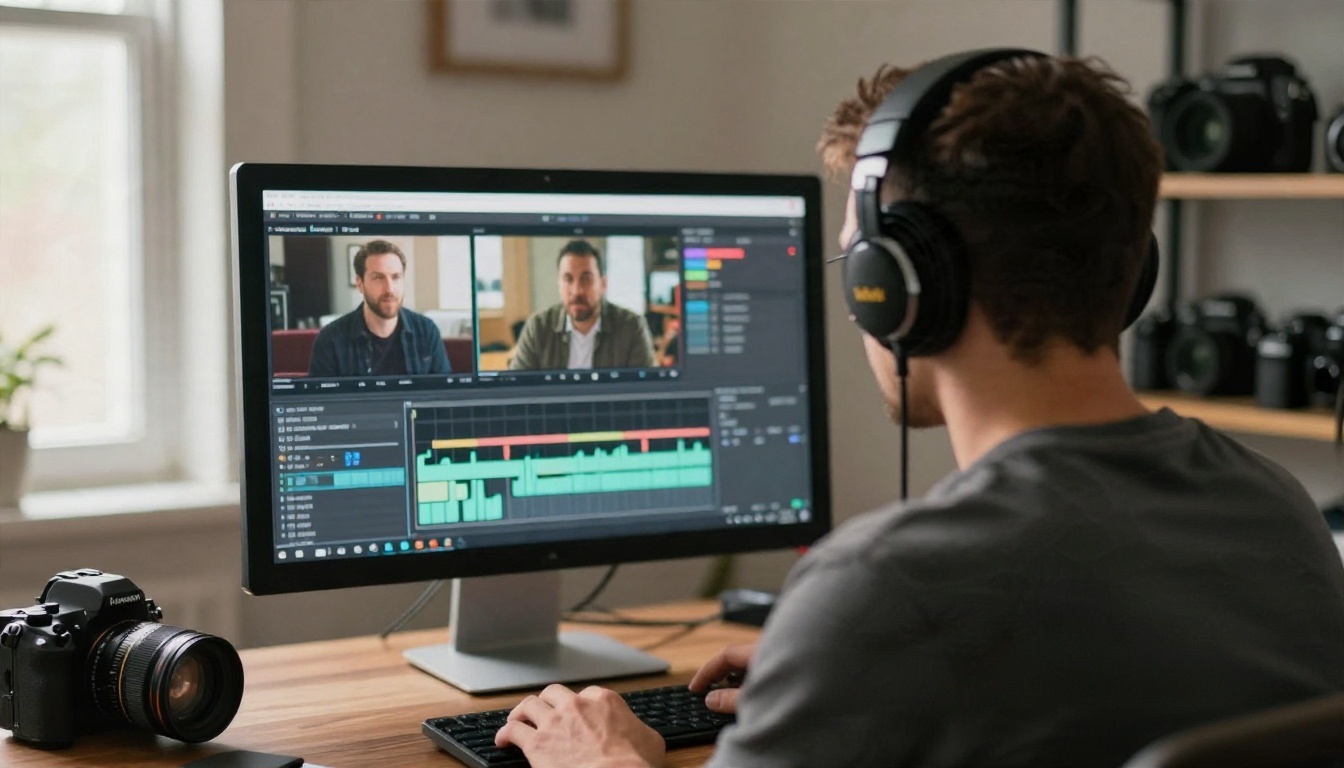
Public opinion on this is mixed, and the honest answer is that it depends on the prompt. Some creators report that the Fast audio is hard to tell apart from the standard model on simple single-speaker lines. Others see a small drop in prompt adherence, such as a missed word or a flatter delivery. Treat Fast as a very good draft engine and use Veo 3.1 for the take you plan to publish if the audio matters a lot.
💡 Workflow tip: lock the script and framing with Fast, then re-run only the winning prompt on the standard model. You spend the extra time once instead of on every attempt.
Mouth Accuracy
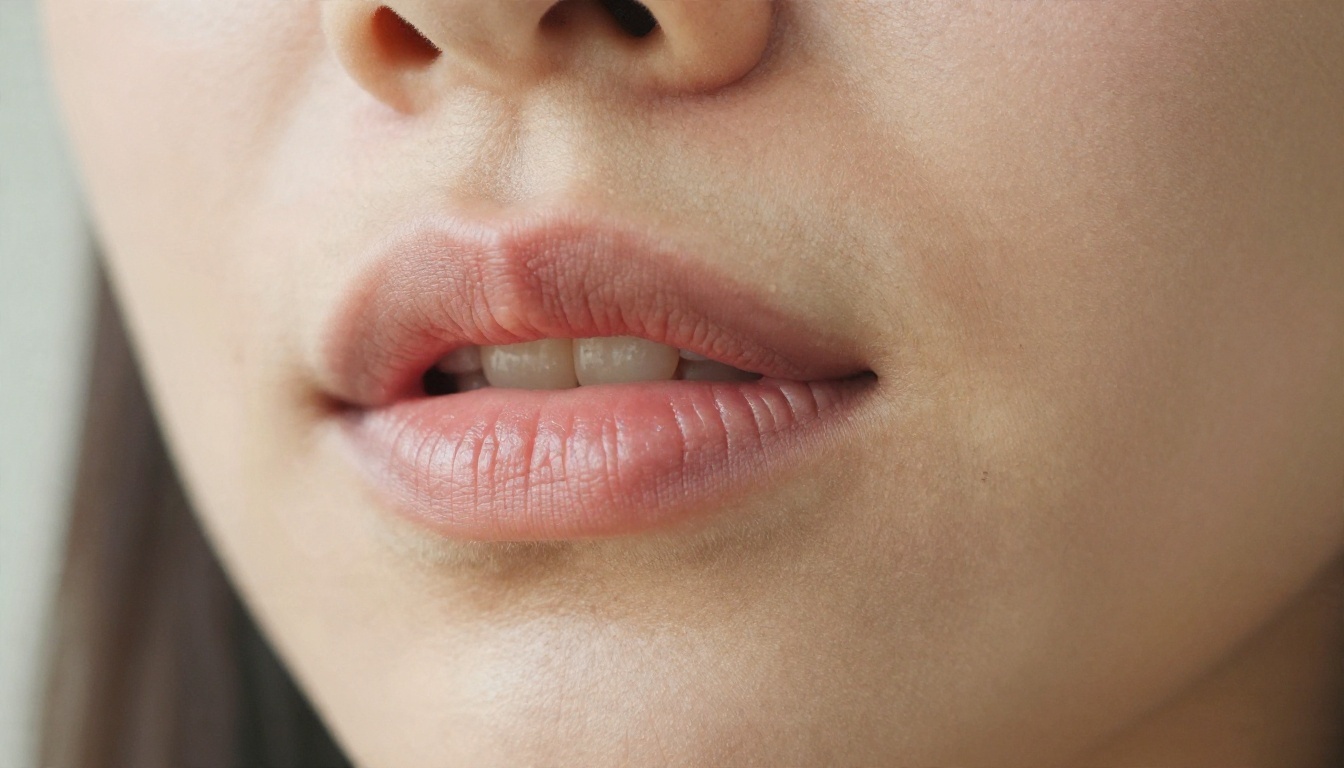
At a normal speaking pace, the lips track vowels and closed consonants (b, m, p) convincingly. Problems show up in three places:
- Fast speech. Rapid lines blur mouth shapes and the sync loosens.
- Extreme close-ups. The closer the camera, the more any mismatch shows.
- Turned heads. Side profiles and looking down hide the mouth, which hides errors, but a half-turn mid-sentence can break the sync.
The Real Limits You'll Hit
Every tool has edges. Know these before you plan a project around dialogue.
Clip Length
On PicassoIA, Veo 3.1 Fast offers 4, 6 or 8 second durations, with 8 as the default. Eight seconds is not much speech. A comfortable speaking pace lands around two to three words per second, so you're looking at roughly 15 to 20 words per clip, and fewer if you want pauses or visible reactions.
| Duration | Realistic spoken words | Good use |
|---|
| 4 seconds | 6 to 9 | A single punchy line or reaction |
| 6 seconds | 10 to 15 | A short statement or product claim |
| 8 seconds | 15 to 20 | A full sentence with a beat of silence |
Long lines tend to go wrong in a predictable way: the model drops a word near the end or compresses the delivery until the mouth blurs. When in doubt, cut the line.
Multiple Speakers
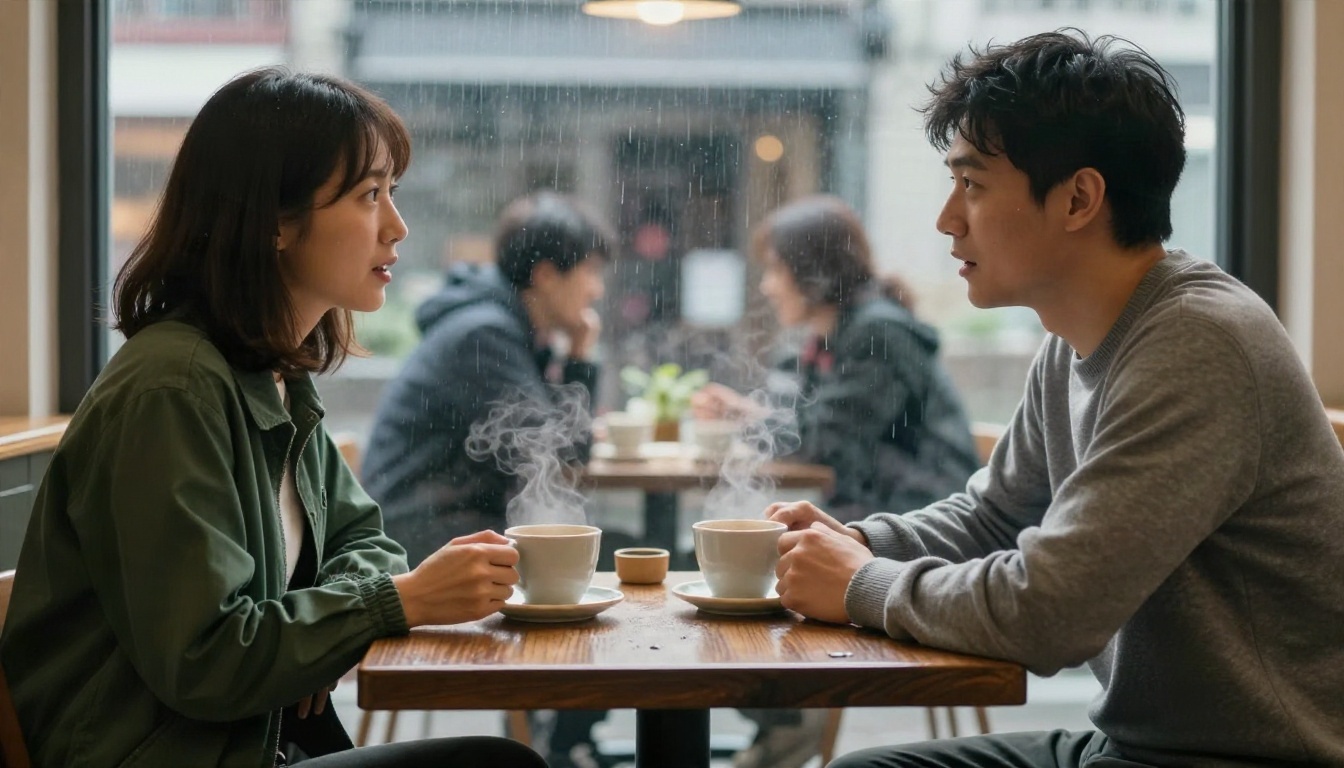
Single-speaker clips are the reliable case. Put two people in frame and the model has to decide who speaks, when, and in which voice. Community reports suggest the success rate drops noticeably, and voices sometimes bleed between characters. The solid workaround is to generate one speaker per clip and cut between them in your editor, the way a real two-camera interview works.
Uploading Your Own Audio
This is the limit that surprises people most. The input list for Veo 3.1 Fast on PicassoIA has a prompt, an optional start image, an optional end frame, duration, resolution, aspect ratio, a seed, a negative prompt and an audio on/off switch. There is no audio upload field. The model can speak for you, but it can't match a voice you recorded.
Numbers, Names and Accents
Plain words work best. Expect more mistakes with:
- Long numbers, dates and phone numbers
- Brand names and unusual surnames
- Heavy regional accents or mixed languages inside a single line
- Acronyms (the model may spell them out or say them as a word)
Write numbers as words, spell tricky names the way they sound, and keep each clip in one language.
Resolution and Format
The model outputs 720p or 1080p, in 16:9 or 9:16. For vertical social clips, pick 9:16 from the start instead of cropping later, since a crop changes how large the mouth is in frame and can make small sync drift more visible.
Prompt Examples That Work
Good dialogue prompts read like a tiny screenplay. State who is speaking, how they sound, what they say, and what the camera does. Put the spoken words in quotation marks so the model treats them as speech rather than description.
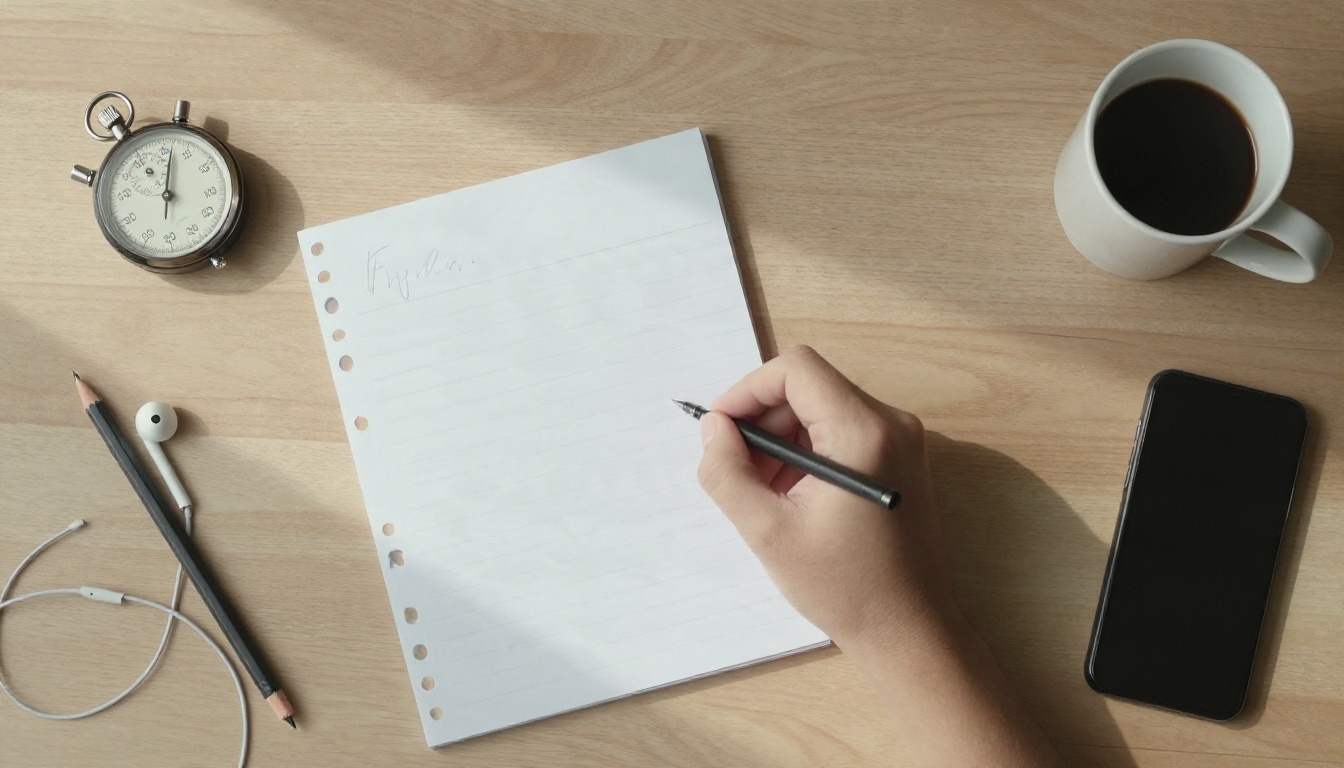
Example 1: Talking to Camera
A woman in her thirties in a bright home studio, oatmeal sweater, speaking directly to camera in a warm, relaxed voice. She says: "I tested three setups this week, and this one is the only one I kept." Static medium close-up, soft window light, faint room tone, no music.
Why it works: one speaker, a line of about 17 words, a still camera and no music competing with the voice.
Example 2: Product Presenter
A young woman in a minimalist kitchen holds a ceramic bottle at chest height and smiles. She says in a friendly, upbeat voice: "Two drops is all you need." Slow push-in, overcast daylight, quiet kitchen ambience.

Why it works: short line, clear action, and a slow camera move that keeps the mouth visible and the face steady.
Example 3: Emotional Close Moment
An elderly woman with silver hair sits by a sunlit window, speaking softly and slowly. She says: "We used to sit right here every morning." Gentle handheld drift, golden light, a clock ticking quietly in the background.
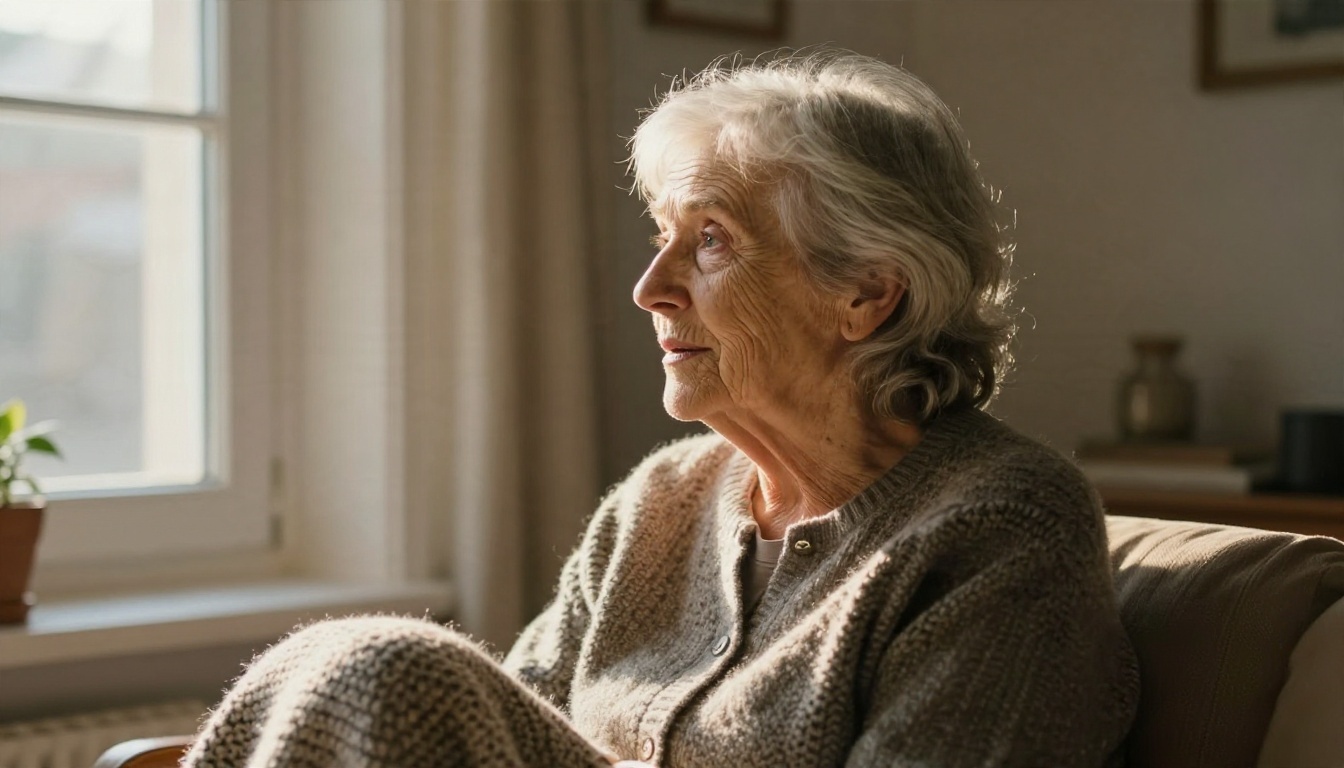
Why it works: a slow delivery gives the model time to shape each word, and a three-quarter angle hides small sync wobble while still showing emotion.
Example 4: Two Speakers (Use With Care)
Two people at a cafe table. The woman says in a clear, curious voice: "Did you read the brief?" Cut to the man, who answers in a low, calm voice: "Twice. We need to talk."
Why it's risky: this relies on the model assigning the right voice to the right face. If it fails, split it into two separate clips.
Prompt Patterns at a Glance
| Do | Avoid |
|---|
| One speaker per clip | Three or more people talking |
| Quote the exact line | Describing speech without the words |
| Name the voice (warm, low, brisk) | Leaving tone unspecified |
| Keep lines under about 18 words | Paragraph-length monologues |
| Add "no music" if clarity matters | Loud ambient scenes that mask speech |
| Use a steady or slow-moving camera | Whip pans and fast cuts mid-line |
💡 If background music keeps appearing, use the negative prompt field to exclude "music, singing, subtitles, captions". Burned-in captions are a common unwanted extra.
How to Use Veo 3.1 Fast on PicassoIA
Here's the exact flow for a clean dialogue take.
- Open the model page. Go to Veo 3.1 Fast on PicassoIA.
- Write the prompt. Use the structure from the examples: subject, voice description, quoted line, camera, lighting, ambient sound.
- Pick a duration. Choose 6 seconds for a typical sentence, 8 for a line with a pause, 4 for a one-liner.
- Choose the aspect ratio. 16:9 for widescreen, 9:16 for vertical clips.
- Set the resolution. Use 720p for fast test takes, then switch to 1080p for the final render.
- Leave audio on. The
generate_audio option is enabled by default. If you switch it off, you lose the speech entirely.
- Add a starting image if you want control of the face. Image-to-video keeps the character consistent with a still you made, which helps when the same person must appear in several clips. Ideal sources are 16:9 or 9:16 at 1280x720 or 720x1280.
- Fill in the negative prompt. Try "subtitles, captions, background music, distorted mouth, extra people".
- Reuse the seed. When a take is close, keep the seed and change one thing at a time (the line, the camera or the voice description) so you can see what actually caused a change.
Parameter Tips
| Parameter | Recommendation for dialogue |
|---|
| Duration | 6 s default, 8 s only if the line needs it |
| Resolution | 720p for drafts, 1080p for delivery |
| Aspect ratio | Match the platform before generating |
| Image | Use a front-facing, well-lit face for the best mouth tracking |
| Last frame | Skip for dialogue; interpolation targets transitions, not speech |
| Seed | Fix it once a take is near the target |
| Negative prompt | Block captions and music |
When to Use a Dedicated Lip Sync Model
Veo 3.1 Fast is great at inventing speech. It's the wrong tool when the audio already exists or when you need a longer take. Here are the alternatives on PicassoIA, matched to the job.
A very productive pairing: generate the visual performance with Veo 3.1 Fast, then record or synthesize the exact voice you want and pass the clip through Lipsync 2 Pro. You get the model's face and motion, and your own voice with locked timing.
Other Video Models With Native Audio
If Veo isn't giving you the voice or style you want, a few other video models also produce sound together with picture:
- Sora 2 for synced audio and natural movement
- Kling v3 Video for cinematic motion and longer shots
- Seedance 2.5 for much longer clips when a single take must run past eight seconds
Each handles dialogue a little differently, so run the same prompt through two or three of them and compare. It costs a few minutes and often saves a lot of retakes.
Common Mistakes and Quick Fixes
- Overloaded line. Fix: cut it to under 18 words, or split into two clips.
- Mumbled or missed word. Fix: simplify the word, spell it phonetically, or rerun with the same seed.
- Two voices that sound alike. Fix: describe contrasting voices (high and bright versus low and gravelly), or generate each character on their own.
- Unwanted captions. Fix: add "subtitles, captions, text overlays" to the negative prompt.
- Mouth slips on a close-up. Fix: pull the camera back one step or use a three-quarter angle.
- Voice changes between clips. Fix: use the same start image and nearly identical voice wording, then smooth the difference in post with a touch of room tone.
A Simple Workflow for Multi-Clip Dialogue
When a scene runs longer than eight seconds, treat it like a real shoot.
- Write the script in beats. One sentence per beat, each under 18 words.
- Make a start image for each character. A consistent face and wardrobe keeps the cuts believable.
- Draft every beat at 720p on Veo 3.1 Fast. Keep the best take of each.
- Re-render the winners at 1080p. Only now do you spend time on the final quality.
- Cut in an editor. Overlap the audio slightly between clips (a split edit) so the transitions don't sound abrupt.
- Add a shared room tone. A low, steady ambience under every clip hides small differences in background sound.
💡 A real conversation almost never shows both faces in the same frame while one person talks. Cutting between single shots is the way real editors work, and it's also the way that suits this model best.
Start Making Talking Clips
You now know what the model does well (short, single-speaker lines with natural room sound), where it struggles (long speeches, crowds, numbers, uploaded voices), and what to use when it doesn't fit. The fastest way to find the edges for your own project is to run a few takes.
Open Veo 3.1 Fast on PicassoIA, paste in one of the prompts above, and change only the spoken line. Try a 4 second punchline, a 6 second statement and an 8 second line with a pause, and compare how the mouth holds up. When you're ready for more control, browse the full set of lip sync and video models at picassoia.com/en/all-models and build your own talking-head pipeline on Picasso IA.


