You have one great photo and you want it to move. A wave rolls in, a coat flutters, the camera drifts forward, and a soundtrack of wind and footsteps appears without you recording anything. That is what the Veo3 Image to Video API: Pricing, Settings, Prompts and Free Options conversation is really about. Google's Veo models can take a single still frame, treat it as the opening shot, and generate a short clip with synchronized audio. The catch is that every second you generate has a price, and a few settings quietly decide whether your bill is a coffee or a dinner.
This article breaks down what the API costs per second, which settings are worth touching, how to write prompts that animate a photo instead of fighting it, and where you can test the same models without a credit card. If you only want to try it right now, jump to the section on running Veo on PicassoIA.
What Veo Image to Video Does
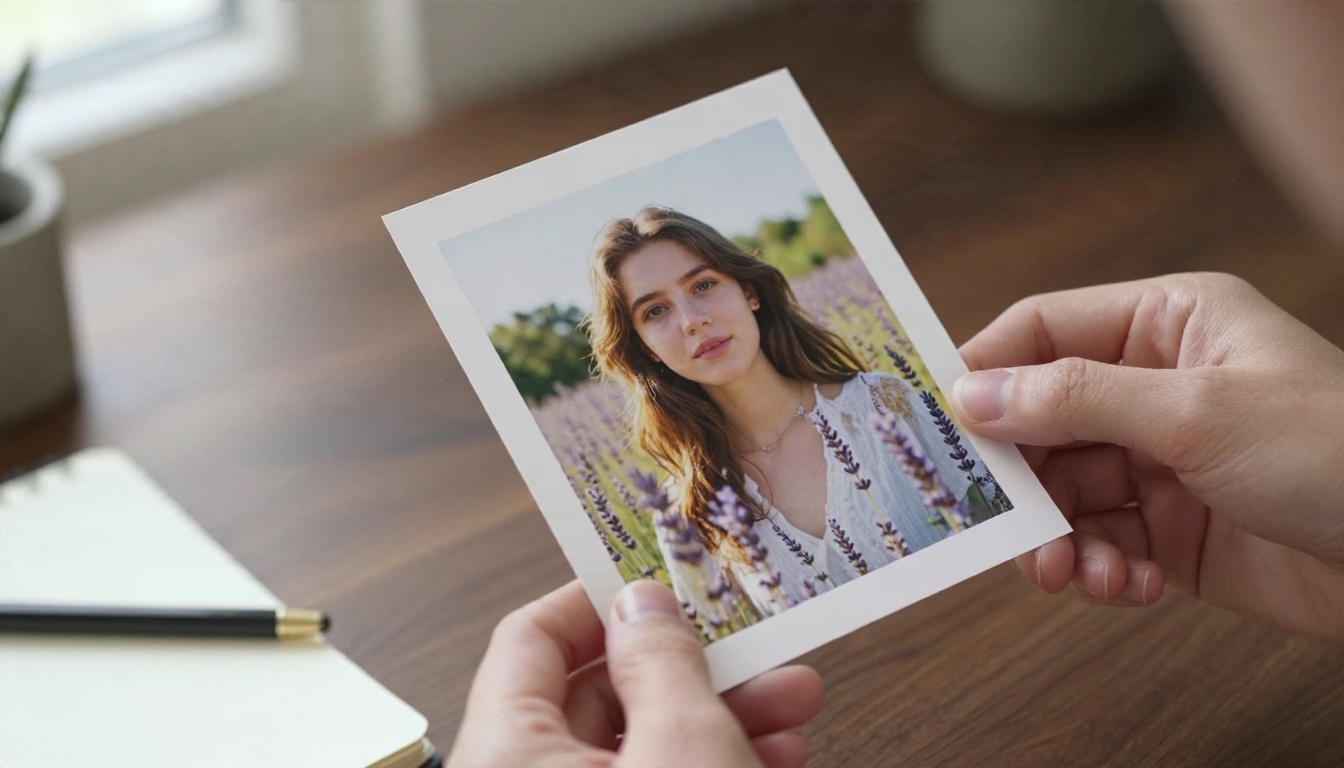
Image to video means you hand the model a picture and a short text instruction. The picture becomes the first frame. The text describes what happens next. The model then invents the motion, the camera behavior, and (with Veo 3 and later) the sound.
That differs from plain text to video in one important way: you control the look. Faces, outfits, product shapes, and color palettes come from your image, so you spend far less time rolling the dice on how a subject appears. For brand work, product shots, and anything that needs consistency, it is the safer path.
Veo 3, 3.1 and the Lite Tier
The naming gets confusing, so here is the short version:
- Veo 3 introduced native audio, meaning dialogue, ambient sound and effects generated alongside the picture.
- Veo 3.1 refined motion, prompt adherence and image conditioning, and added more control over starting and ending frames.
- Fast variants trade a little polish for much lower cost and quicker turnaround.
- Lite is the budget tier, aimed at developers who need volume.
On PicassoIA you can find the family as Veo 3.1, Veo 3.1 Fast, Veo 3.1 Lite and the earlier Veo 3 Fast.
What Comes Out the Other End
Expect a clip of a few seconds, up to eight on the official API, rendered at 720p or 1080p depending on the tier and settings, with an audio track baked in. You do not get a feature film from one call. You get a single, well-composed shot, and a finished video is a sequence of those shots edited together.
The Real Cost of Veo 3
Pricing is the first thing people ask about and the thing most likely to be out of date within weeks. The figures below reflect what published rate cards listed at the time of writing. Treat them as a planning baseline and check Google's current pricing page before you commit to a budget.
Per-Second Rates Compared
Google bills the API per second of generated video, not per clip and not per attempt count. A failed or unwanted result still costs money.
| Tier | 720p | 1080p | 4K |
|---|
| Veo 3.1 Lite | about $0.05 per second | about $0.08 per second | Not offered |
| Veo 3.1 Fast | about $0.10 per second | about $0.12 per second | about $0.30 per second |
| Veo 3.1 Standard | about $0.40 per second | about $0.40 per second | about $0.60 per second |
Older Veo 3 rates were much higher. Fast was once listed at $0.15 per second, and early Veo 3 pricing with audio sat well above $0.50 per second. A price cut in spring 2026 pulled Fast down to the figures above, which is why you will still find outdated numbers on older blog posts.

What a Clip Actually Costs
Multiply the per-second rate by the clip length. An eight-second clip works out like this:
| Tier | 8 seconds at 720p | 8 seconds at 1080p |
|---|
| Lite | about $0.40 | about $0.64 |
| Fast | about $0.80 | about $0.96 |
| Standard | about $3.20 | about $3.20 |
Now the part that hurts: nobody keeps the first generation. A realistic hit rate for image to video is somewhere around one usable clip in two or three attempts when you are still tuning the prompt. At Standard pricing, ten finished clips can mean a hundred dollars of spend. At Lite pricing, the same ten clips cost far less than a streaming subscription.
💡 Budget rule of thumb: prototype every shot on the cheapest tier, lock the prompt, and only then render the winner on Fast or Standard.
Hidden Costs People Miss
- Retries. Every regeneration is billed in full.
- Higher resolution. Moving from 720p to 4K on Fast triples the per-second price.
- Audio. On current Veo tiers audio is part of the price, so there is no discount for turning it off in the way older rate cards implied. Check the current notes for your tier.
- Source image prep. If you generate or upscale the starting photo with another tool, that is a separate line item.
Core Settings That Matter
Most Veo image to video requests expose a small set of parameters. Names vary between providers, but the ideas stay the same.
Duration
The official API works in short steps of roughly four, six or eight seconds. Longer clips cost more and give the model more room to drift, so faces can warp and objects can change shape late in the clip. If you only need a loopable background or a social cutaway, four to six seconds is usually plenty.
One detail worth remembering: higher resolutions on some tiers are tied to the longest duration, so you may not get 1080p at the shortest setting.
Resolution and Aspect Ratio
Choose 720p while testing and 1080p for delivery. Veo supports landscape (16:9) and portrait (9:16). When you feed in an image, make sure its shape matches the output you want. A square photo pushed into a 16:9 frame forces the model to invent the sides, and the invented parts are where artifacts appear.
Seed and Negative Prompt
A seed lets you reproduce a result. Once you find a motion you like, keep the seed and change only one word of the prompt. A negative prompt tells the model what to avoid, such as text overlays, subtitles, extra people, or camera shake. Short and specific beats long and vague.
Start and End Frames
Veo 3.1 added support for giving the model both a first and a last frame, so it interpolates the motion between them. This is the strongest control you have for predictable results, because the model no longer guesses where the shot should land. It is ideal for product reveals, before and after shots, and looping animations.
Prompts That Animate Photos
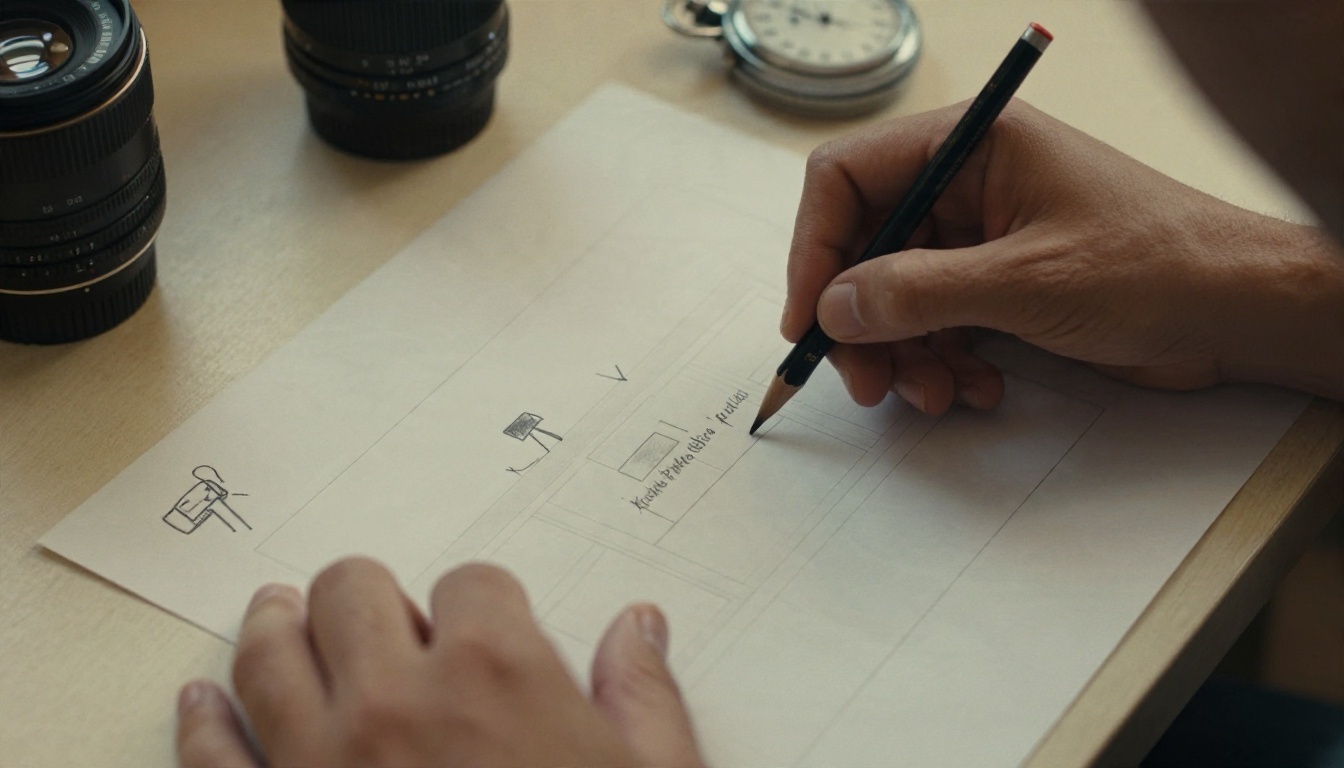
The most common mistake is describing the photo. The model already sees the photo. Your prompt should describe change: what moves, how the camera behaves, and what we hear.
A Simple Prompt Formula
Use this order:
- Subject action: what the person or object does.
- Camera movement: dolly, pan, tilt, orbit, or locked off.
- Environment motion: wind, water, traffic, light shifts.
- Sound: ambient audio, effects, or short dialogue.
- Style anchor: lens or film feel, kept short.
Three Prompts to Copy
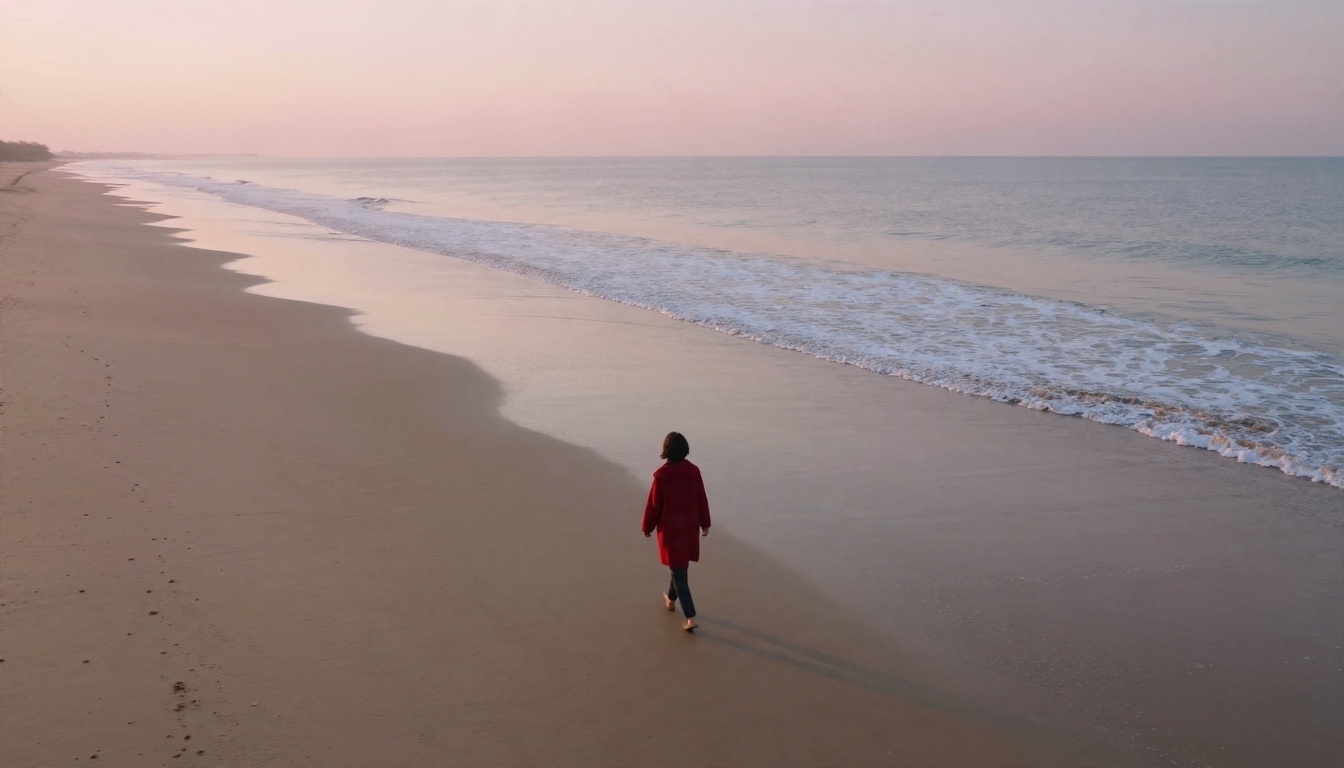
Coastal portrait: "The woman turns her head toward the horizon as wind lifts her hair. Slow dolly-in from behind her shoulder. Waves roll onto the sand. Soft ocean ambience and distant gulls."
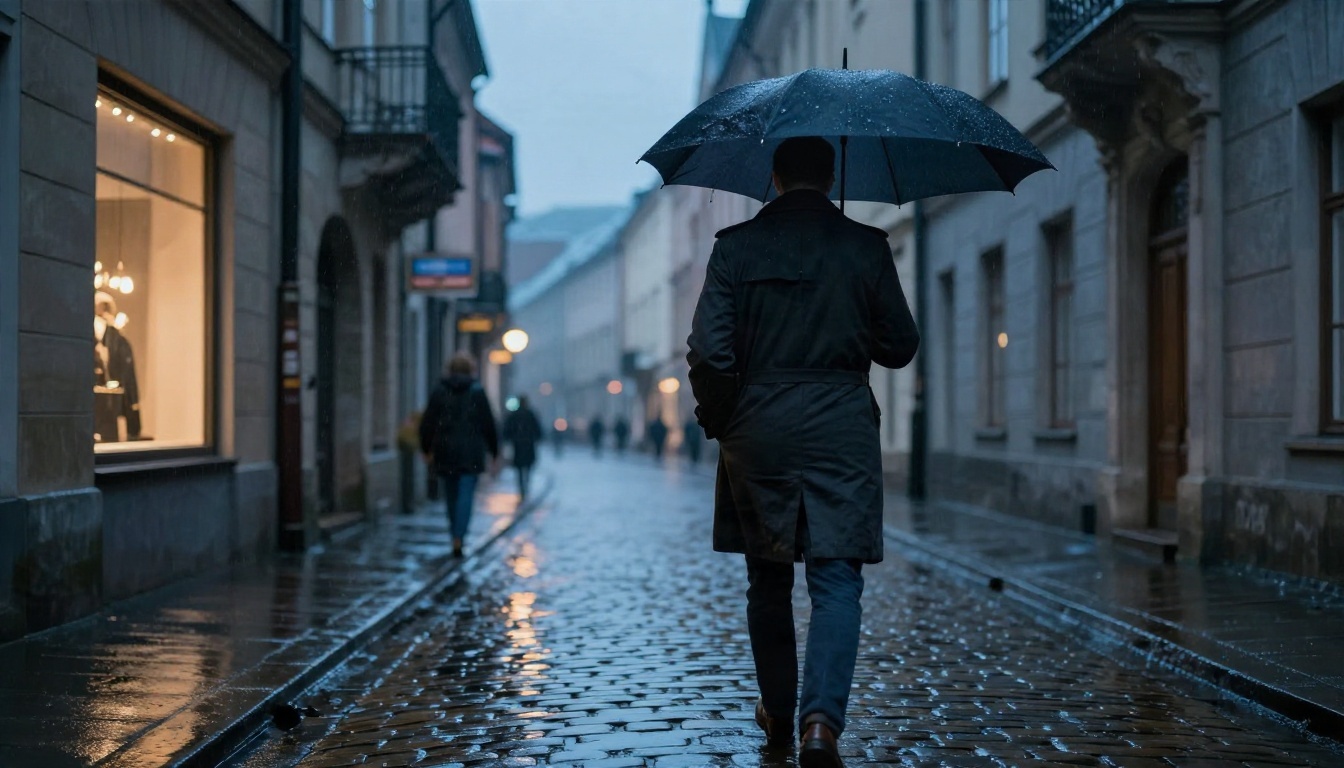
Rainy street: "The man walks forward under the umbrella, rain dripping from the edge. Camera follows at a low angle, slightly behind. Puddles ripple with each step. Steady rain and footsteps on cobblestones."
Product still: "The lid of the jar rotates open slowly while steam rises. Camera orbits a quarter turn to the left. Soft studio light shifts across the glass. Quiet room tone with a faint click."
Mistakes That Waste Money
| Mistake | Why it fails | Better move |
|---|
| Re-describing the image | Wastes prompt space | Describe only the motion |
| Five actions in one clip | Model blends or drops them | One main action per shot |
| Fast camera plus fast subject | Warping and blur | Move one of them at a time |
| Long dialogue lines | Lip movement drifts | Keep spoken lines very short |
| Blurry source photo | Motion amplifies softness | Start from a sharp, clean image |
💡 Tip: if a result is close but flawed, change one thing, not three. Otherwise you will never know what fixed it.
Free Ways to Try It
There is no free tier for the Veo API itself, so the honest answer to "is it free?" is not at the API level. You still have routes that cost little or nothing.
What Google Offers
New cloud accounts have historically received promotional credits, and Google's consumer apps sometimes include a small number of video generations in paid plans or trials. These offers change often, carry usage caps, and may restrict resolution or add watermarks, so check the current terms. Do not build a production plan around a promotion.
Cheaper Alternatives
If your goal is to animate images without watching a meter, other image to video models are worth testing side by side with Veo:

A Cheap Testing Workflow
- Draft the motion prompt with a free or low-cost model.
- Pick the version where the movement feels right.
- Re-run the same prompt and image on Veo 3.1 Lite or Fast.
- Reserve Standard for the one clip a client or audience will actually see.
This keeps the expensive tier for the final render, where its extra fidelity is worth paying for.
Run Veo on PicassoIA
If you want to experiment without wiring up an API key, billing project and request code, you can run the Veo family from the browser on PicassoIA.
Step by Step
- Open the model page for Veo 3.1 Fast. It is the best balance of cost and quality for testing.
- Upload your source image if the model page offers an image input. Pick a sharp photo with a clear subject and space around it for movement.
- Write your motion prompt using the formula above: action, camera, environment, sound.
- Choose aspect ratio and resolution. Start at 720p, then step up once the prompt works.
- Select a duration at the short end while you are testing.
- Generate, review, and adjust one variable at a time.
- When you have a winner, move it to Veo 3.1 for the final render if you need the highest fidelity.
💡 If a clip needs a cheaper draft pass, try Veo 3.1 Lite first.
Prepare the Source Image
A strong first frame saves more money than any setting. Generate or edit your starting photo before you spend on video:
- Use a text to image model to create a clean, well-lit still in the exact aspect ratio you plan to animate.
- Use super resolution to sharpen a soft photo before it becomes frame one.
- Use background removal or inpainting to clear distracting objects that the model might animate in odd ways.

Which Option Fits You
Intent decides the right tool. Here is a quick way to choose.
For Developers
If you are building a product that generates video on demand, use the official API, start on Lite for volume and cost control, and add a Fast or Standard path for premium users. Log every request, cap retries per user, and show a cost estimate before generation. Eight seconds at the wrong tier can cost ten times what you planned.
For Creators and Small Teams
Skip the API. Use a browser platform, draft on cheap models, and spend on Fast only when a shot is approved. You get the same visual quality for a fraction of the setup time.
| If you need | Best starting point |
|---|
| Lowest cost per clip | Veo 3.1 Lite or a Wan model |
| Balanced quality and price | Veo 3.1 Fast |
| Highest fidelity delivery | Veo 3.1 Standard |
| Free and long clips | Seedance 2.5 Lite |
| Cinematic camera feel | Kling v3 Video |
Try Your Own Still Photo
Pick one photo you already like, write one sentence about what should move, and run it. The first result will not be perfect, but it will teach you more about prompts, pricing and settings than any rate card can. Start on a low-cost tier, change one variable at a time, and keep the seed when something works.
PicassoIA puts the Veo family, Wan, Kling and Seedance in one place so you can compare results on the same image and decide where your budget should go. Browse every option at picassoia.com/en/all-models, upload a still, and watch it move.


