You open Vidu 2.0, type a careful prompt, press generate, and get four seconds of footage. Maybe eight, if you picked the longer option. Then you start wondering whether you missed a setting, whether a higher plan unlocks more, or whether another tool simply allows longer clips. This article answers those questions about Vidu AI Vidu 2.0 Maximum Video Length: Resolution, Credits and Alternatives, and it is honest about where the public numbers disagree.
The short version: Vidu 2.0 is built for brief, fast clips. Most listings describe 4 second and 8 second outputs, a resolution ceiling that depends on the mode and the platform you use, and a credit system that looks cheap per clip but gets confusing once resellers add their own pricing. If you need anything longer, you will either stitch clips together or switch to a model designed for longer runs.
💡 Quick answer: Plan around 4 to 8 seconds per Vidu 2.0 generation. Treat claims of 30 second clips with suspicion, because they do not match what the platform listings show.
How Long Is a Vidu 2.0 Clip?
Clip length is the first thing creators hit, and it is the most misreported detail about this model. Vidu 2.0 launched as a speed and price play from ShengShu Technology, not as a long-form generator. That design choice shows up in every duration table you can find.
The 4 and 8 Second Options
Platform listings for Vidu 2.0 consistently show two output lengths: 4 seconds and 8 seconds. One API provider documents a 720p setup that tops out at 4 seconds. Others list both lengths across text-to-video, image-to-video and reference-to-video modes.
In practice, that gives you a simple rule:
- 4 seconds works for a single action: a head turn, a product rotating, a camera push toward a subject.
- 8 seconds gives you room for one small story beat, such as a person entering a frame and sitting down.
- Anything beyond that needs a second generation.
Why One Claim Says 32 Seconds
You may run into an FAQ page that says Vidu 2.0 can produce a 32 second clip. That figure is inconsistent with every other listing, and it does not match the official credit tables, which price 4 second clips. The most likely explanation is a mix-up with a later model or with a multi-clip workflow. Until you see a duration option in the actual generation form, assume the cap is 8 seconds.
💡 Tip: Before you buy credits for any video tool, open the generation form and check the duration dropdown. That one menu tells you more than any review.
Vidu 2.0 Resolution Limits
Resolution is the second area where sources disagree. The pattern behind the disagreement is useful once you spot it.
720p vs 1080p
Some documentation only mentions 720p for Vidu 2.0, while several aggregator pages say image-to-video reaches 1080p. The official credit table also lists low-resolution tiers such as 360p, which are priced at a lower credit count. The sensible reading is that Vidu 2.0 offers several resolution tiers, and the top tier is not available in every mode or on every plan.
| Resolution tier | What it suits | Typical trade-off |
|---|
| 360p | Fast previews and prompt testing | Soft detail, not for publishing |
| 720p | Social posts, drafts, quick ads | Good default for most clips |
| 1080p | Final delivery, larger screens | Higher credit cost, mode limits |
Image-to-Video vs Text-to-Video
The 1080p mention is tied mostly to image-to-video. That makes sense. When you supply a sharp first frame, the model has less to invent, so it can hold detail at a higher resolution. Text-to-video listings tend to stop lower. If sharpness matters to you, start from a strong still image rather than a text prompt alone.
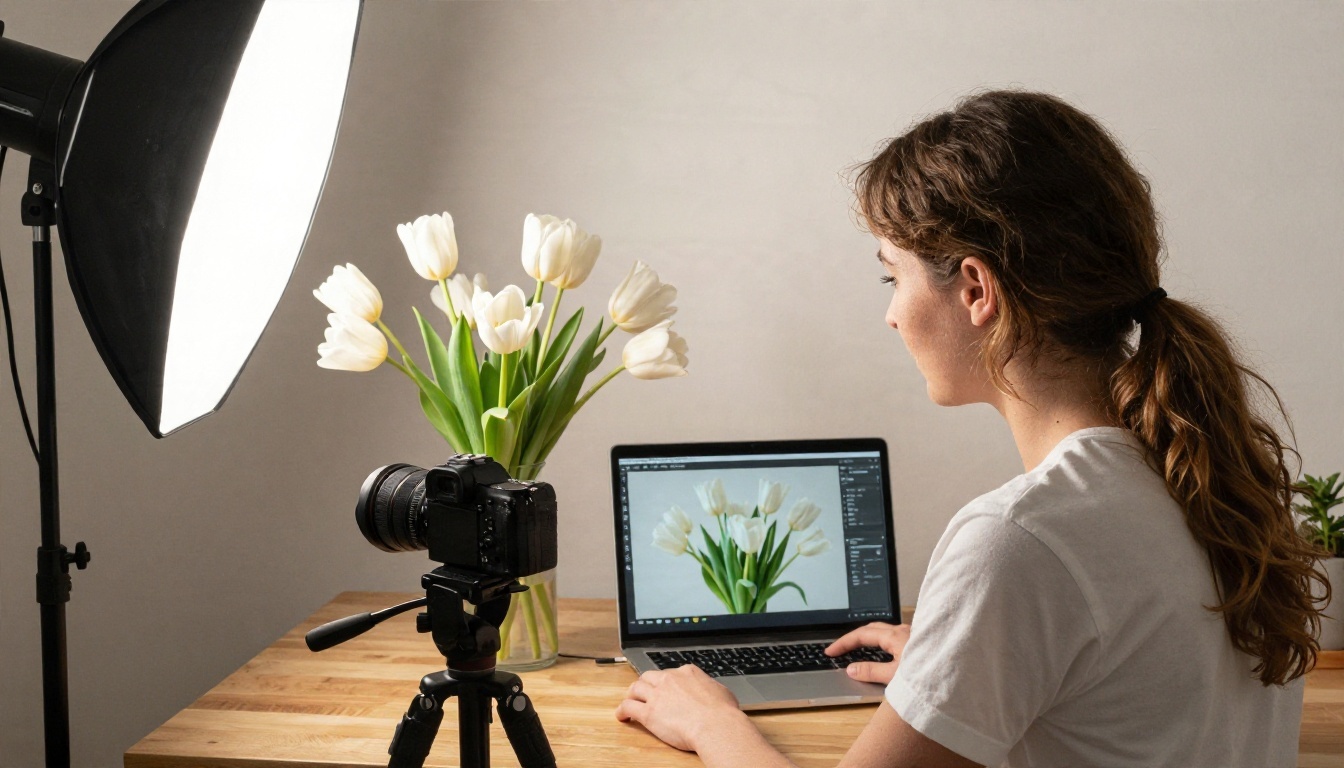
A clean source image should have good lighting, a clear subject, and no heavy compression. A photo of tulips shot in soft window light will animate far better than a blurry screenshot.
What Vidu 2.0 Credits Cost

Pricing is where the conflicting numbers cause real damage, because a wrong assumption costs money. Here is what the available sources say, in plain terms.
The Official Credit Math
Vidu's own pricing page values one credit at roughly $0.005. It lists a 4 second Vidu 2.0 image-to-video clip at 360p for about 20 credits, which is around $0.10, with off-peak generation priced at half. ShengShu's launch announcement quoted a very low per-second rate, around $0.0375 per second, which fits that cheap, fast positioning.
A quick estimate using those figures:
| Clip | Credits (approx.) | Cost (approx.) |
|---|
| 4 seconds, 360p | 20 | $0.10 |
| 4 seconds, 360p, off-peak | 10 | $0.05 |
| 8 seconds at the launch rate | n/a | about $0.30 |
These are estimates drawn from public listings, and credit tables change often, so check the live pricing page before you commit to a plan.
Reseller Pricing Is Different
Third-party platforms that resell Vidu 2.0 through an API quote higher prices. One lists around $0.16 per second for text-only 1080p and $0.19 per second for image-based 1080p. Another lists a 5 or 8 second 720p clip at $0.60. That is four times the launch figure or more.
The lesson is simple: the same model can cost very different amounts depending on where you run it. Always compare the cost per finished second, not the headline credit count.
Failed Renders Still Cost Credits
Reviewers also note that failed or unusable renders still consume credits, and refunds are limited. If you generate many variations, budget for a failure rate of 20 to 30 percent. Short test clips at a low resolution are the cheapest way to protect your balance.
💡 Budget rule: Test the motion at the lowest resolution, then re-render only the winners at full quality.
Getting Past the Length Cap
If you must work with 4 to 8 second clips, editors have been doing this for a century. A film is a chain of short shots, and AI video fits that rhythm well.
Chain Clips With a Last Frame
The most reliable trick is to take the last frame of clip one and use it as the first frame of clip two. Export that final still, feed it into image-to-video, and write a prompt that continues the action. Done carefully, you get a continuous sequence of 12 to 24 seconds.
Watch for these problems:
- Drift: faces and clothing slowly change between clips.
- Lighting shifts: the second clip may pick a slightly different color temperature.
- Motion resets: a camera move that was mid-push can restart from zero.
Plan Shots Under Eight Seconds

The better strategy is to write your storyboard around the limit. Break a 30 second ad into six or seven shots of 4 to 5 seconds each, with a single clear action in each one. Cut between them with a simple transition and add music or narration over the top. Viewers rarely notice short clips when the edit has rhythm.
A prompt formula that works for short clips:
- Subject and starting pose, for example "a barista holding a cup at a wooden counter."
- One action, for example "slides the cup forward."
- Camera move, for example "slow dolly-in."
- Light and mood, for example "warm morning window light."

Vidu 2.0 Is Not on PicassoIA Yet
Here is a straight answer. Vidu 2.0 does not have a model page on PicassoIA at the moment, so you cannot run it there. What PicassoIA does list from the same family are the newer Q3 models, which are a different version with different limits. If your goal is longer, sharper video, these four are the options worth testing today.
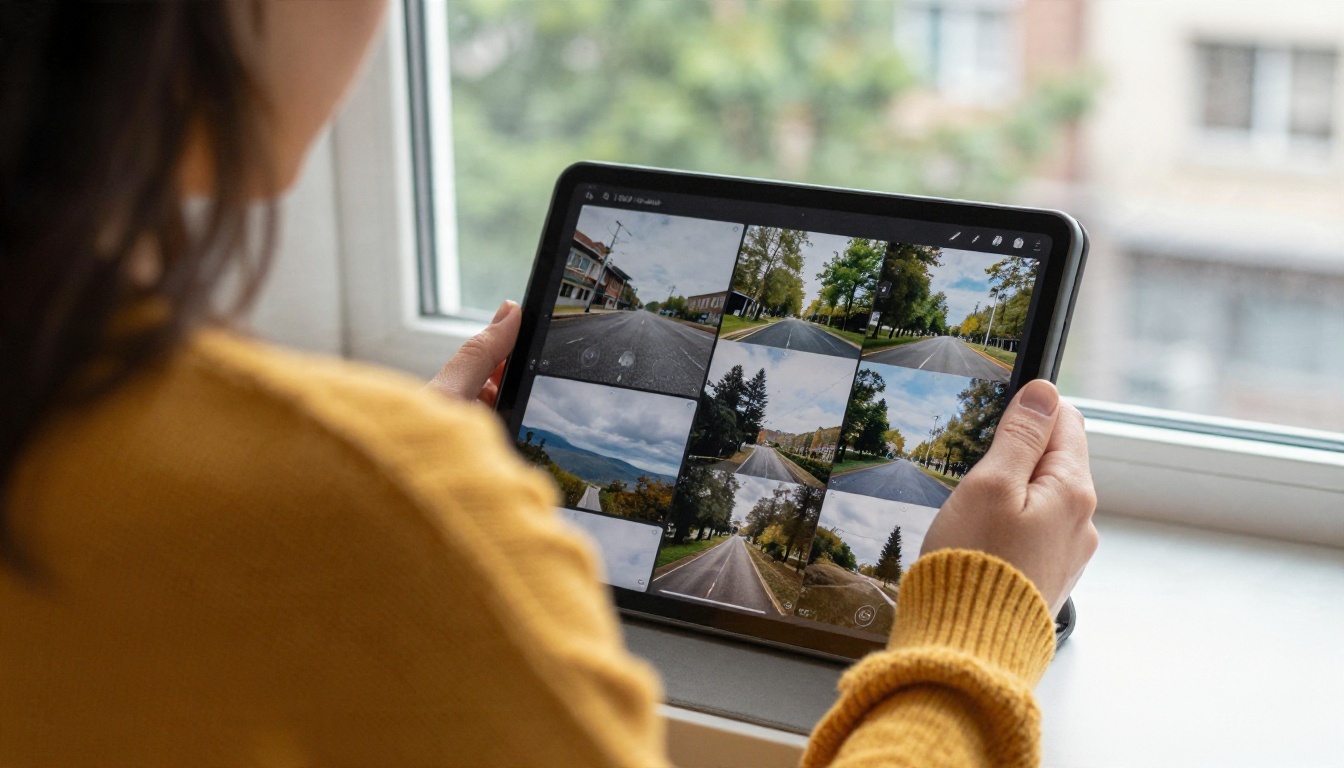
Vidu Q3 Pro
Q3 Pro is the closest relative if you like the Vidu look. It supports text-to-video, image-to-video and start-end-to-video, outputs up to 1080p with synchronized audio, and runs up to 16 seconds. That is twice the longest Vidu 2.0 option people report. A lighter version, Q3 Turbo, targets 1080p text-to-video with audio at a faster pace.
Kling v3 Video
Kling v3 Video reaches up to 15 seconds and supports multi-shot scripting, with up to 6 scenes defined in a single video. Its pro mode renders at 1080p and it can generate native audio. If you want the chaining workflow described above built into one generation, this is a strong pick.
Seedance 2.5
Seedance 2.5 is the longest option in this list, with clips of up to 30 seconds in a single generation. It offers 720p and 480p output, native audio, lip-synced dialogue, and reference images for character consistency. A lighter variant, Seedance 2.5 Lite, handles clips up to 10 seconds.
Veo 3.1 Fast
Veo 3.1 Fast produces 1080p video with audio from a text prompt. It is a good choice when you care most about cinematic realism and quick turnaround. If you want something cheaper still, Veo 3.1 Lite is the lighter sibling.
How to Get Similar Results on PicassoIA
If you want the short, punchy look people like about Vidu, but with more length and resolution, Q3 Pro is the model to try first. Here is how to run it.
Step by Step
- Open the Q3 Pro page on PicassoIA.
- Write your prompt. It accepts up to 5000 characters, so you can describe subject, action, camera and light in detail.
- Choose a mode. Use text alone for text-to-video, add a start image for image-to-video, or add both a start and an end image to control how the clip finishes.
- Set the duration. The default is 5 seconds, and the model supports up to 16.
- Pick a resolution of 540p, 720p or 1080p.
- Leave audio switched on if you want dialogue and sound effects generated with the picture.
- Generate, review, and adjust the prompt.
Parameter Tips
| Setting | Recommendation |
|---|
| Duration | Start at 5 seconds, then extend once the motion looks right |
| Resolution | Test at 540p or 720p, then render the final at 1080p |
| Aspect ratio | Pick 16:9 for video, 9:16 for vertical social clips; it is ignored when you supply an image |
| Start and end image | Use matching aspect ratios, within a 0.8 to 1.25 ratio between them |
| Seed | Fix a seed to repeat a result while you adjust only the prompt |
💡 Pro tip: A start image and end image pair is the closest thing to a built-in version of the last-frame chaining trick. You decide exactly where the clip begins and ends.
Which Option Fits Your Project
Choosing a model comes down to three questions: how long does the clip need to be, how sharp does it need to look, and what are you willing to pay per finished second?
| Model | Max length | Top resolution | Best for |
|---|
| Vidu 2.0 (not on PicassoIA) | 4 to 8 seconds | Varies, up to 1080p in some modes | Fast, cheap short clips |
| Q3 Pro | 16 seconds | 1080p | Vidu style with more length |
| Kling v3 Video | 15 seconds | 1080p (pro mode) | Multi-shot scenes |
| Seedance 2.5 | 30 seconds | 720p | Long single takes, dialogue |
| Veo 3.1 Fast | Short clips | 1080p | Realistic look, quick turnaround |
Social Clips and Ads
For vertical social content, 5 to 8 seconds is usually plenty. Any of these models handles it, and Q3 Pro lets you set a 9:16 aspect ratio directly. Pick based on style and price, not length.
Longer Stories and Dialogue
If your piece needs a character speaking, a scene change, or a 20 second shot, the 4 to 8 second cap of Vidu 2.0 becomes a constraint. Seedance 2.5 and Kling v3 Video fit better here because they were designed for longer runs with audio.
💡 Price check: Whatever you choose, divide the cost by the number of usable seconds you get. A cheap clip that fails half the time is not cheap.
Try Your Own Clips Today
The length cap on Vidu 2.0 is real, the resolution answer depends on the mode, and the credit price depends on where you buy. That is the honest summary. If you want to test a longer clip without spending an afternoon comparing price tables, pick one idea, write a single clear prompt, and run it through two or three models on PicassoIA.
Start with Q3 Pro for a 10 to 16 second clip at 720p. Then try the same prompt in Kling v3 Video and Seedance 2.5 and compare motion, sharpness and audio side by side. You will quickly see which one fits your style, and you can browse every other video and image model at picassoia.com/en/all-models. Make something short, look at what worked, and make the next one better.


