You have a talking head clip, a great voiceover, and a timeline full of dead air. What you need is ten seconds of coffee being poured, a city street at dusk, or a hiker on a ridge, and you need it now. That is the exact problem AI B roll solves, and CapCut is the first editor most creators open to try it. The catch is that "free" in CapCut comes with fine print that changes by account, country, and month.
This article sorts out what you can realistically get for free, which settings make generated footage look filmed instead of generated, and which alternatives give you longer clips when CapCut's credits run dry.
What AI B Roll Actually Means
B roll is the supporting footage that plays over your main shot. When someone talks about their bakery, the cutaways to flour dust, hands shaping dough, and a glowing oven door are all B roll. It hides jump cuts, adds context, and keeps viewers watching.
AI B roll replaces stock libraries and reshoots with clips generated from a text prompt or a still image. You type what you need, wait a minute, and drop the clip onto the timeline above your A roll.
Where Generated Clips Fit Best
Generated footage works best as short atmosphere shots, not hero moments. Think establishing frames, texture close-ups, objects, landscapes, and abstract motion. Faces, hands, and readable text are where models still slip, so keep those on real footage whenever possible.
Where It Still Falls Short
Generated clips usually run only a few seconds, and continuity between two generations is weak. A barista in clip one will not match the barista in clip two. Plan your edit around single, self-contained shots.
What CapCut Gives You for Free
CapCut is free to download and edit with, but its generative features are a different story. Based on what CapCut's own help pages describe, premium AI features run on credits, a virtual currency that can be bought in the app on web, desktop, and mobile. Each credit is priced at roughly one US cent.
Here is how the picture looks in practice:
| Feature | Typically Free? | What to Expect |
|---|
| Basic editing, cuts, transitions | Yes | No credits needed |
| Built-in stock media library | Partly | Many items free, some tied to Pro |
| AI image generation | Limited | Credit based, free allowance varies |
| AI video generation | Limited | Free trial or daily credits in some accounts |
| Export without watermark | Varies | Depends on the feature and your plan |
💡 Check before you commit. Free daily credits, trial length, and which AI video models appear inside CapCut differ by region and account. Some of the newer video generation options launched in only a handful of countries, so you may simply not see them. Open the AI video panel in your own app to confirm what is available to you today.
The Free Credit Reality
If a free allowance appears in your account, treat it like a sample, not a workflow. A few generations a day is enough to test an idea, but a full video with eight cutaways will drain it fast. Budget your credits for the shots that matter most.
Watermarks and Resolution
Marketing pages and in-app labels do not always agree about watermarks and export limits for generated clips. Do a quick test export of a single short clip before you build an entire edit around it. A watermark discovered at the final render is a painful surprise.
Best Settings for Generated B Roll
Whatever tool produces the clip, the same handful of settings decide whether it looks believable. These apply inside CapCut and everywhere else.
Aspect Ratio First
Choose your ratio before you generate. Use 9:16 for Shorts, Reels, and TikTok, 16:9 for YouTube and presentations, and 1:1 or 4:5 only if the platform demands it. Cropping a 16:9 clip into vertical later wastes pixels and often cuts off the subject.
Duration and Pacing
Short clips look better. Ask for 3 to 5 seconds and cut in at the most interesting moment. A longer generation gives the model more time to drift, warp, or invent details you did not ask for.
Prompt Structure That Works
Write prompts the way a cinematographer would brief a camera operator:
- Subject and action: "A barista pours milk into a ceramic cup"
- Setting: "sunlit cafe, wooden counter, morning window light"
- Camera: "slow push in, shallow depth of field"
- Look: "natural color, soft film grain, realistic textures"
Skip vague words like "beautiful" or "amazing". Specific nouns and one clear camera move beat adjectives every time.
Export Settings
Export at the highest resolution your plan allows, 1080p at 24 or 30 fps is a solid default. Match your project frame rate to the clip frame rate to avoid stutter. If the generated clip is lower resolution than your timeline, scale it to 100 to 110 percent and add a touch of sharpening rather than stretching it further.
💡 Quick trick: Add a subtle film grain overlay and a matching color grade across both your real footage and your generated clips. A shared grade hides most of the visual gap between them.
Free Ways to Get B Roll in CapCut
Before paying for credits, check these options. Several cost nothing and often look more authentic than generated video.

Built-In Stock Library
CapCut ships with a media library of stock clips, backgrounds, and overlays. Search by a plain keyword such as "coffee", "traffic", or "keyboard typing" and filter for items that do not carry a Pro badge.
Free Stock Sites
Pexels, Pixabay, and Mixkit offer free stock video that you can import into any editor. Always read the license for your use case, especially for commercial or client work.
Your Own Phone Footage
Ten minutes with a phone gives you more usable B roll than most people expect. Film slow, stable shots: hands working, objects on tables, doors opening, streets at different times of day. Real footage with imperfect lighting often feels more trustworthy than a polished generated clip.
Image to Video From a Still
If you only have photos, animate them. A still of a market stall, a skyline, or a product can become a five second push in or parallax move. This is one of the most reliable ways to get convincing motion, because the model starts from a real frame instead of inventing everything.
Why Credits Run Out Fast
A typical two minute explainer needs around eight to twelve cutaways. Even with careful planning, you will regenerate some of them because of warped hands, odd motion, or the wrong mood.
Plan a Shot List First
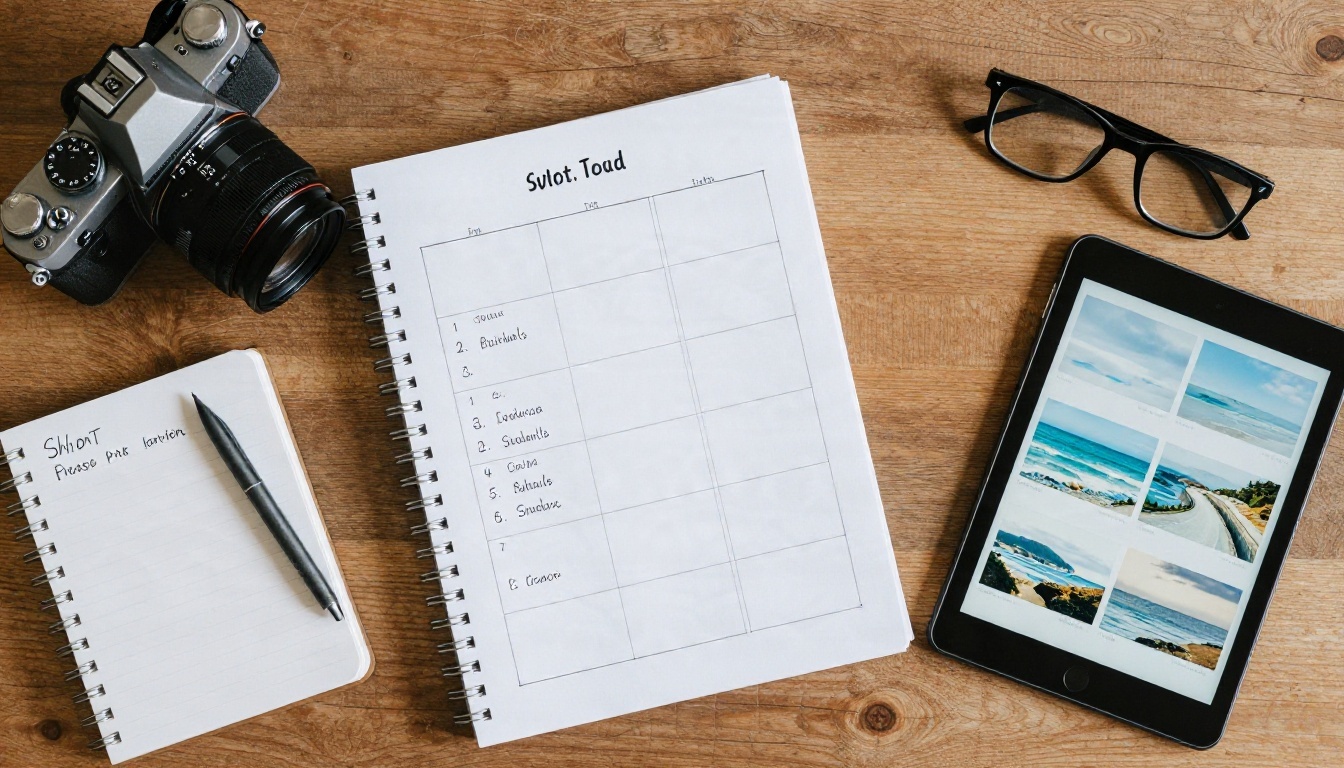
Write your shot list before you open any AI panel. Mark each cutaway as must have or nice to have. Generate the must haves first, and fill the rest with free stock or phone clips.
Reuse Clips Smartly
One strong ambient clip, such as slow rain on a window, can play in three different places if you vary the crop and speed. Mirror it, crop in 120 percent, or reverse it for variety.
Avoid Wasteful Retries
Change one thing per retry. If a clip fails, edit only the camera move or only the subject. Rewriting the whole prompt every time makes it impossible to see what actually helped.
Free Alternatives Worth Trying
When CapCut's allowance ends, you do not have to stop. A separate generator can produce the clip, and you simply import the MP4 into CapCut as you would any footage.
Picasso IA Video Models
PicassoIA hosts dozens of text to video and image to video models in one place, which means you can pick the model that suits the shot instead of accepting whichever one an editor bundles in. A few that suit B roll well:
Build the First Frame With an Image Model
For the most control, generate a still first, then animate it. Nano Banana Pro and Seedream 4.5 both produce photorealistic frames you can feed into an image to video model. Because you approve the look of the first frame, you avoid wasting generations on shots that were wrong from the start.
Free Stock Plus Light Editing
Do not overlook the boring option. A free stock clip, recolored and cropped to match your A roll, is fast and reliable. Pair it with one or two generated hero shots and nobody will spot the mix.
How to Use Seedance 2.5 Lite for B Roll
If you want a free generator that fits neatly beside CapCut, Seedance 2.5 Lite is a practical place to begin. It is described as free and unlimited, with clips up to 10 seconds, which is plenty for cutaways.

Step by Step
- Open the model page on PicassoIA and choose Seedance 2.5 Lite.
- Write a one sentence prompt with subject, setting, and one camera move. Example: "A lone hiker walks along a misty ridge at sunrise, slow tracking shot, natural light, realistic textures."
- Set the length to 4 or 5 seconds for most cutaways. Go longer only for slow landscapes.
- Pick the aspect ratio that matches your CapCut project before you generate.
- Generate, review, and tweak. Change only one element per retry.
- Download the MP4 and import it into CapCut like any other clip.
Prompt Tips for This Model
- Name one camera move: "slow push in", "gentle pan left", or "static tripod shot".
- Add lighting words: "golden hour", "overcast window light", "soft backlight".
- Mention textures: "wet pavement", "wool fabric", "steam rising".
- Leave out text, logos, and crowded faces.
Using an Image as the Starting Point
If you already have a good photo or a generated still, switch to an image to video model such as Wan 2.5 I2V Fast. Upload the frame, describe only the motion, and keep the prompt short. The less you ask the model to invent, the cleaner the result.
Fixing Generated Clips Before Editing
A raw generated clip is rarely perfect. A few quick fixes will bring it closer to finished footage.
Upscale Soft Footage
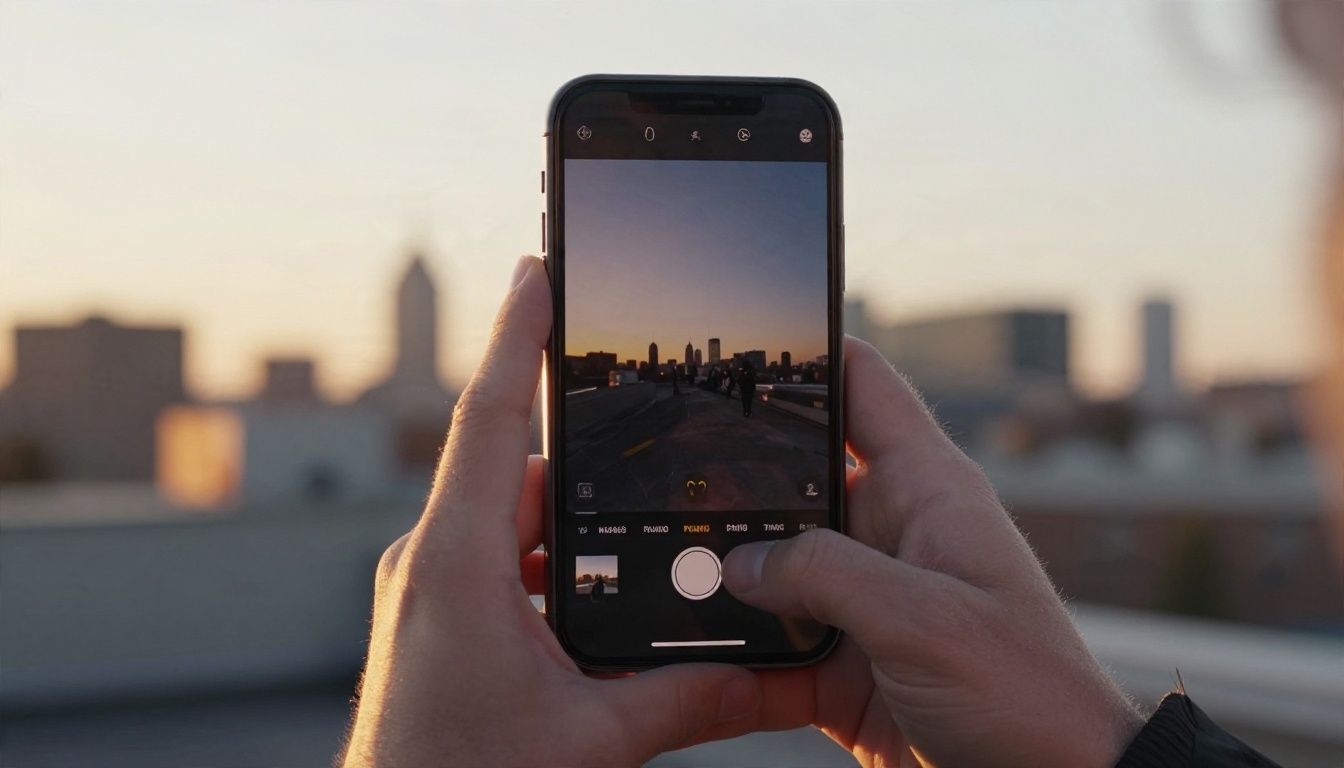
If a clip comes out at lower resolution than your timeline, run it through an upscaler. Video Increase Resolution and Real ESRGAN Video both add resolution to existing clips, and Video Upscale targets sharper 4K output.
Reframe for Vertical
Generated a wide clip and need a Reel? Reframe Video changes the aspect ratio while filling in the new space, so you avoid awkward crops.
Edit With a Text Prompt
When a clip is almost right, P Video Edit lets you change details with a plain sentence instead of regenerating everything. It is a cheaper path than starting over.
Add Sound
Silent B roll feels flat. Video To Sfx v1 adds synced sound effects to a finished clip, so footsteps, pouring liquid, and street noise match what is on screen.
Common Mistakes to Avoid
Mixing Looks
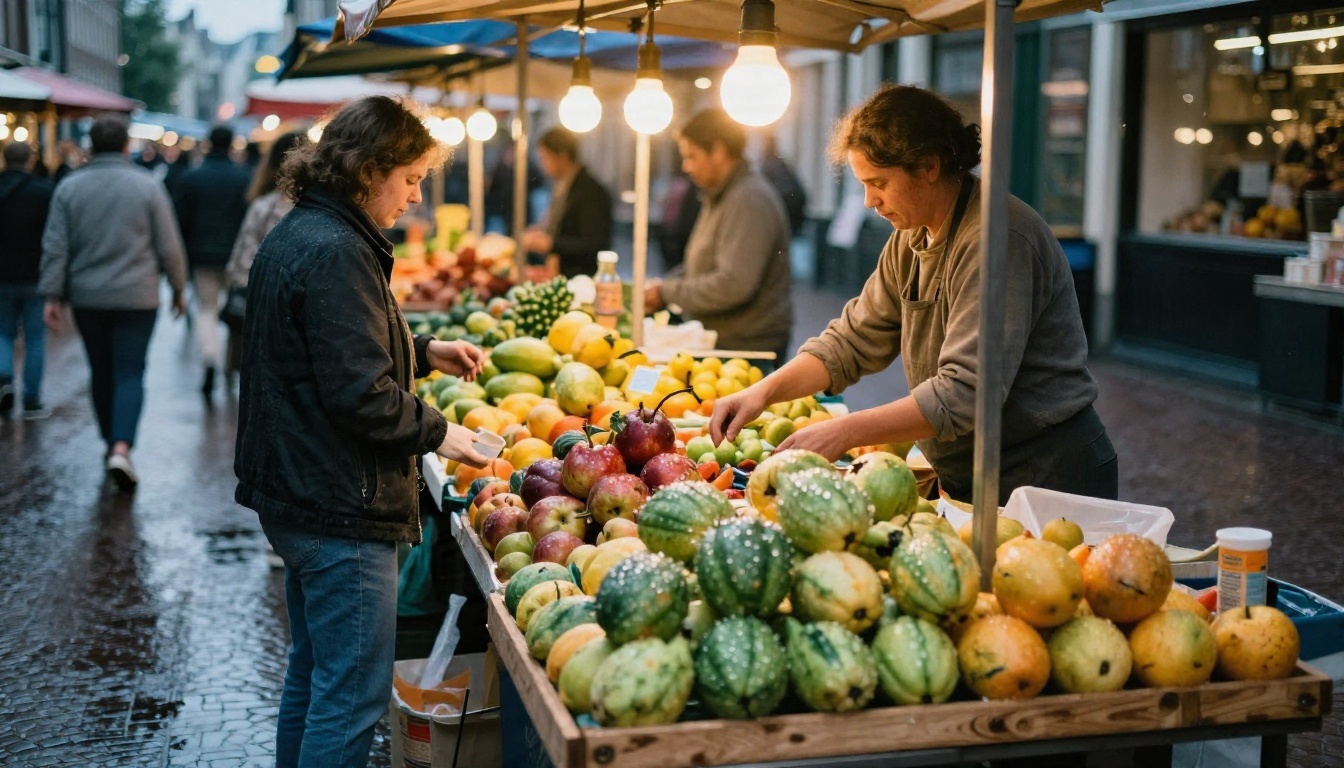
A warm, grainy A roll cut with a clean, cold generated clip looks jarring. Apply one shared color grade to everything.
Overusing One Style
Ten cutaways in the same slow push in rhythm feels robotic. Vary the camera: static, pan, tilt, handheld, wide, close.
Skipping the Rights Check
Read the terms of every tool and stock source you use, particularly for client work and monetized channels. Terms and commercial permissions differ between platforms and change over time.
Forgetting Disclosure
Some platforms ask creators to label realistic AI generated content. Check the current rules on the platform you publish to, and label when required.
Quick Workflow You Can Copy
- Write the script and mark where B roll is needed.
- Build a shot list with must haves and nice to haves.
- Pull free stock and phone clips for the easy shots.
- Generate the remaining shots in CapCut if your credits allow, or in a separate model if they do not.
- Upscale or reframe any weak clip.
- Import everything into CapCut, apply one shared grade, and add sound.
- Export a short test, check for watermarks, then render the final.
Try It Yourself Today
CapCut is a great place to cut and finish a video, but you do not have to depend on its credit meter for every cutaway. Pick a scene from your next project, write a one sentence prompt, and run it through Seedance 2.5 Lite or Kling v3 Video. Compare the results to your free stock clips and see which one sits better in your timeline.
When you are ready to experiment with more options, browse every available model at picassoia.com/en/all-models and build your own B roll toolkit. A few test clips will tell you more than any comparison chart.


