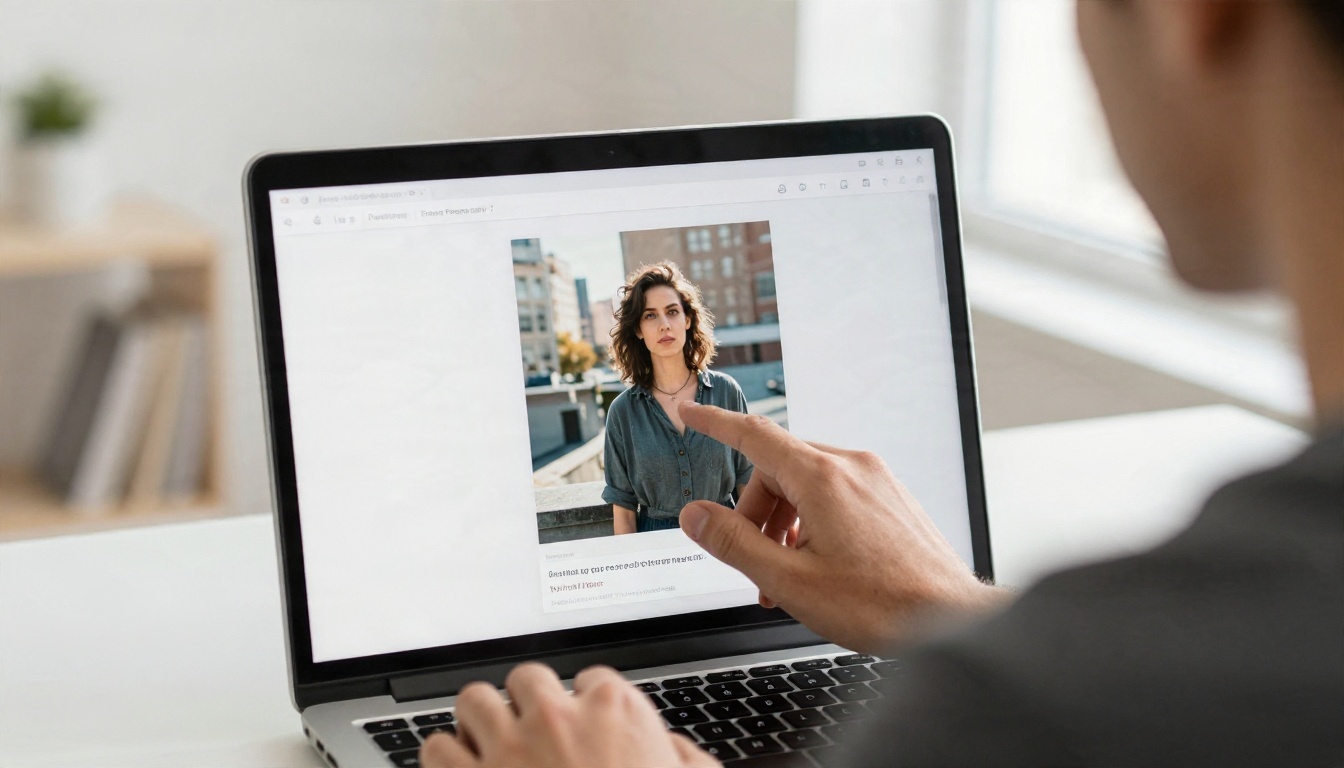
You upload a photo, type one sentence, and the background, the outfit or the whole mood of the picture changes in a few seconds. That is what a prompt-based AI image editor does, and it is also where most people hit the same wall: a daily quota that runs out after five edits, a filter that rejects a harmless bikini photo, or a paywall that appears right when the edit finally looks good. If you have been searching for an AI image editor with prompt and no restrictions, you are really looking for three things: no usage cap, fewer false blocks, and settings that give you control. This article covers all three, with prompts you can copy and free options you can try today.
What "No Restrictions" Really Means
The phrase gets used loosely, and a lot of tools that advertise it do not deliver. Before picking an editor, it helps to separate the kinds of limits you can run into.
Usage caps vs content filters
There are two very different restrictions in AI editing:
- Usage caps: a daily credit allowance, a watermark, a limit on resolution, or a queue that slows you down after a handful of edits.
- Content filters: automated moderation that decides whether your prompt or your photo is allowed.
Most frustration comes from the first one. Editing is an iterative process. You rarely get the right result on the first try, so a tool that gives you three free edits a day is not really free. It is a demo.
The second kind is more nuanced. Over-sensitive filters block swimwear, medical imagery, classical-art nudes, or simple portraits of people in sleepwear. A good editor lets artistic and glamour work through, and keeps a hard line only where it must.
💡 Tip: Judge an editor by how many edits you can run in one sitting, not by how many it promises on the landing page. Ten test edits will tell you more than any feature list.
Hard limits that stay
No serious platform removes every limit, and you should be wary of any that claims to. These stay off the table everywhere:
- Sexual content involving minors, in any form.
- Edits of real people intended to humiliate, deceive or harass them, including non-consensual intimate imagery.
- Fake documents, impersonation and fraud.
- Anything that is illegal where you live.
Inside those lines, there is a wide space for portraits, fashion, travel, product shots, restoration, and tasteful glamour photography. That is the space a good unrestricted prompt editor should serve.
Best Settings for Prompt Editing
Prompt editors look simple, but a handful of settings decide whether you get a clean edit or a messy one. The settings below come from the actual input schema of the editors on PicassoIA.
Aspect ratio and output format
Always start with match_input_image. It keeps the original dimensions, so your subject is not cropped or stretched. Switch to a fixed ratio only when you intentionally want a new layout, such as 9:16 for a vertical story or 16:9 for a banner.
For output format:
| Format | Best for | Notes |
|---|
| WebP | Websites and fast sharing | Small files, quality slider applies |
| JPG | Social posts and email | Universal, quality slider applies |
| PNG | Further retouching | Lossless, larger files |
Set output quality to 90 or above when you plan to crop or upscale later. The default of 95 in PicassoIA Image Editor Pro is a good starting point.
Seeds and reproducibility
A seed is a number that fixes the random starting point of an edit. If you like the lighting in one result and want to try three wording variations, lock the seed. The differences you see will come from your words, not from chance. Leave the seed empty when you want fresh variety.
Reference images
Some editors accept more than one input photo. PicassoIA Image Editor Pro takes up to three, and you refer to them in the prompt as "image 1", "image 2" and "image 3". That unlocks edits like "put the jacket from image 2 on the person in image 1" without any manual masking.
How to Use PicassoIA Image Editor Pro
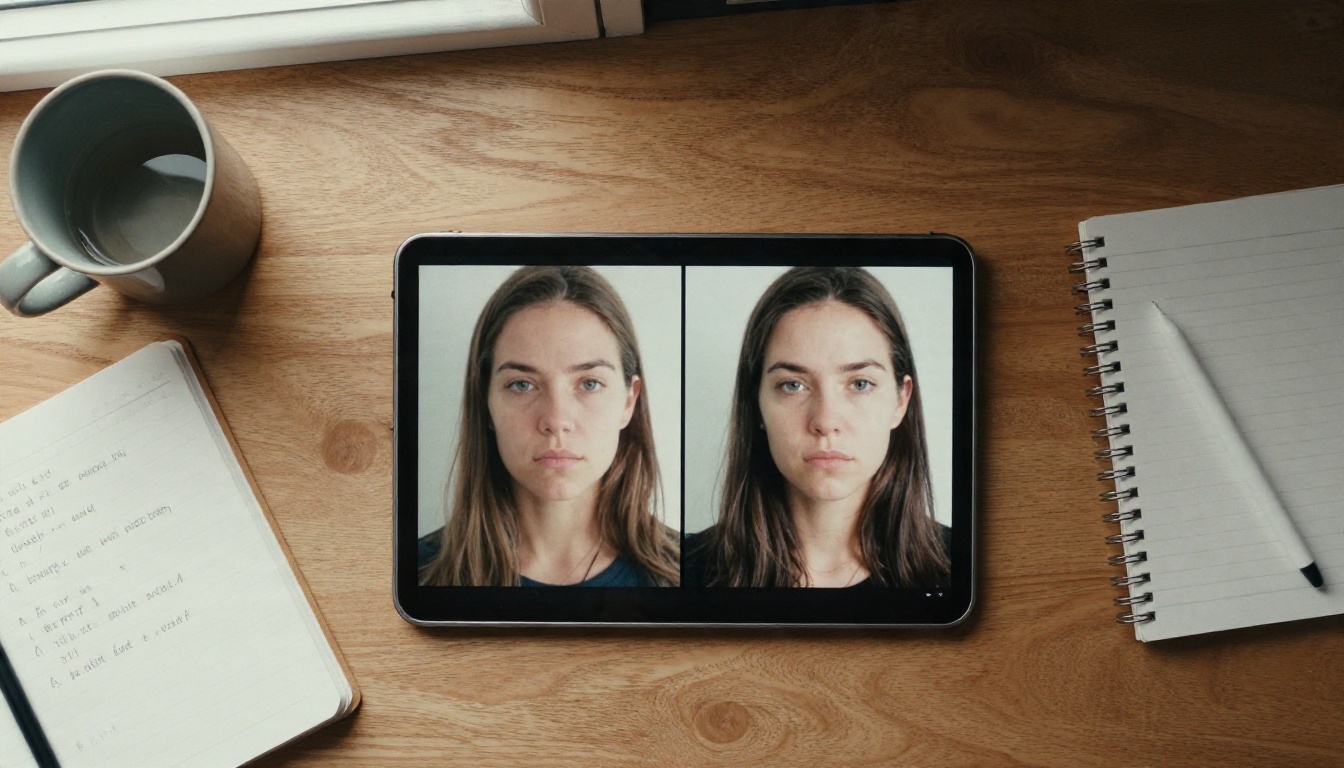
PicassoIA Image Editor Pro is the most direct answer to the "no restrictions" question on usage: it is unlimited, with no per-edit cap and no daily quota, and most edits finish in a few seconds. It is also built for multi-image input, which makes it flexible for real work.
Step by step
- Open the PicassoIA Image Editor Pro page.
- Upload your main photo in the Images field. This is "image 1". Add up to two more references if you need them.
- Write your edit in the Prompt field, in plain language.
- Leave Aspect ratio on
match_input_image unless you want a new layout.
- Pick webp, jpg or png as the output format and keep quality at 95.
- Set Number of outputs to 2 if you want two variations from a single call.
- Press generate, review the result, then adjust the prompt and run it again. Because there is no cap, iteration is free.
Prompt tips
- Name what must stay. "Keep her face, hair and pose exactly the same" protects the subject while you change the rest.
- Change one thing at a time. One background swap, then one outfit change, then the lighting. Stacked edits in a single prompt tend to blur together.
- Describe light, not only objects. "Warm low sun from the left" gives a more believable result than "sunset background".
- Use image numbers. "Apply the color palette of image 2 to image 1" is much clearer than a vague reference.
💡 Tip: If an edit goes wrong, do not rewrite the whole prompt. Copy it, change one phrase, lock the seed, and run again. You will see exactly which words made the difference.
Prompt Examples That Work
Here are real prompt patterns you can paste into any prompt editor. Each one follows the same structure: action, subject to keep, new detail, light.
Background swaps
The most common edit, and the easiest to get wrong if the lighting does not match.
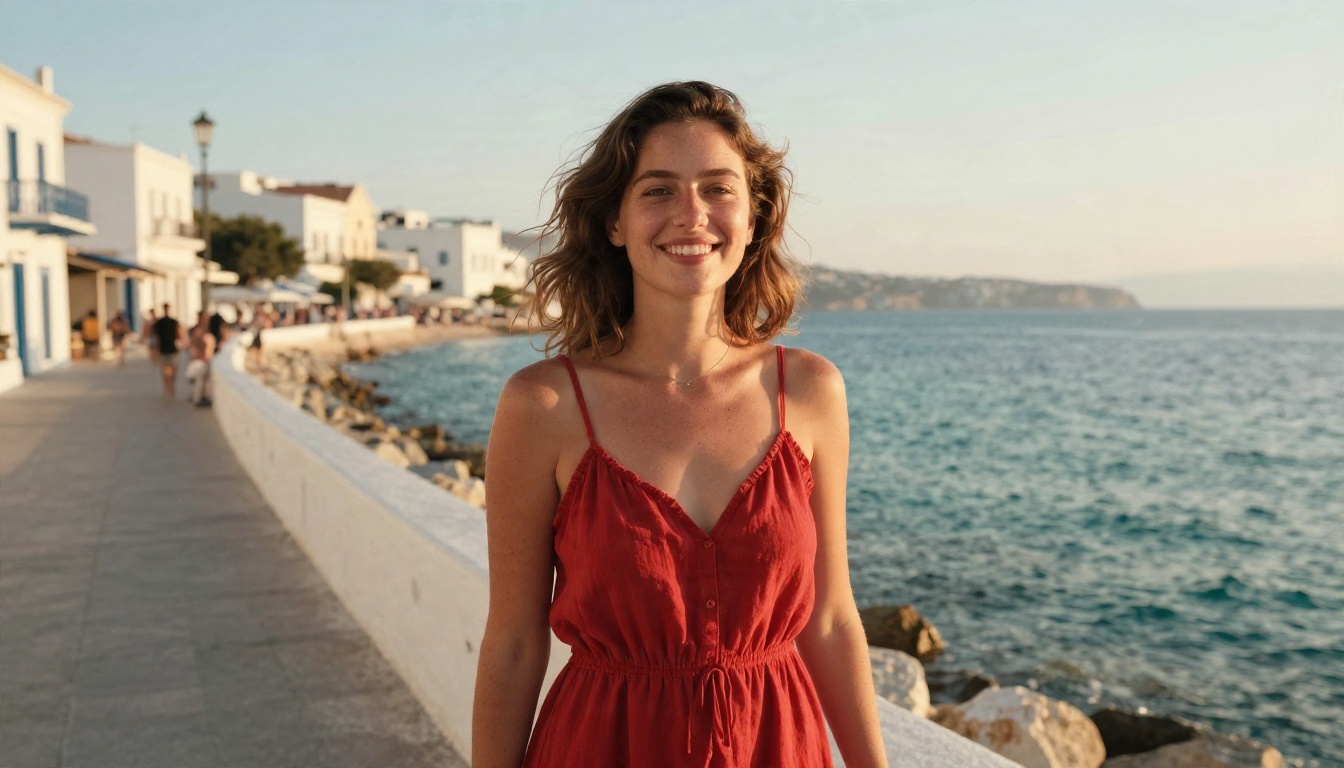
Prompt: "Replace the background with a sunlit Mediterranean seaside promenade, whitewashed buildings, turquoise water. Keep the woman, her red dress and her pose unchanged. Warm golden hour backlight from the right with a soft rim light on her hair."
The last sentence matters. It tells the editor to relight the subject, so she does not look pasted onto the scene.
Outfit and style changes
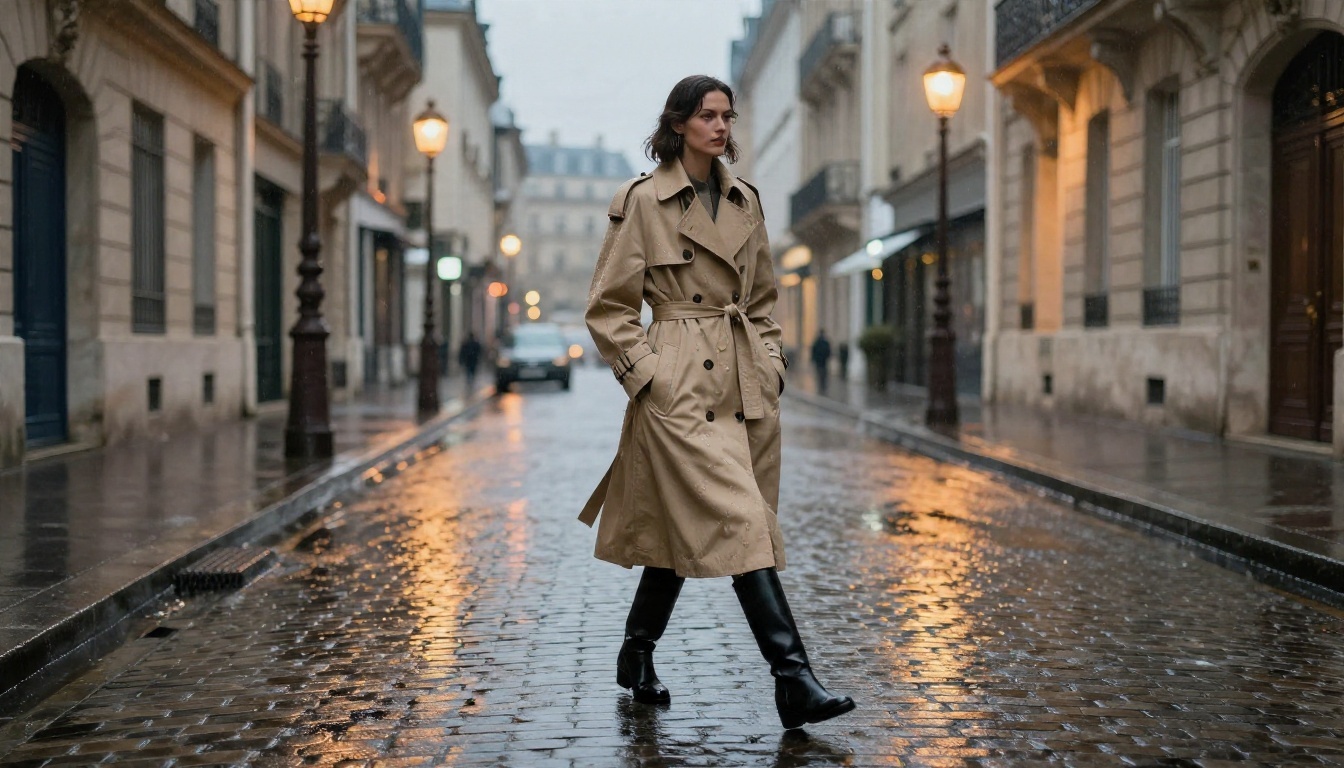
Prompt: "Change her outfit to a tailored beige trench coat and leather boots. Keep her face, hairstyle and walking pose. Set the scene on a rainy Paris street at dusk with wet cobblestones and warm streetlamps behind her."
Be specific about the fabric. "Trench coat" gives a decent result. "Tailored beige cotton gabardine trench coat" gives a better one.
Portrait retouching
Good retouching is subtle. Ask the editor to keep skin texture, or you will get the plastic look everyone dislikes.
Prompt: "Retouch this portrait. Even out skin tone and reduce under-eye shadows, but keep natural pores, freckles and fine facial hair. Brighten the eyes slightly. Do not change face shape or expression."
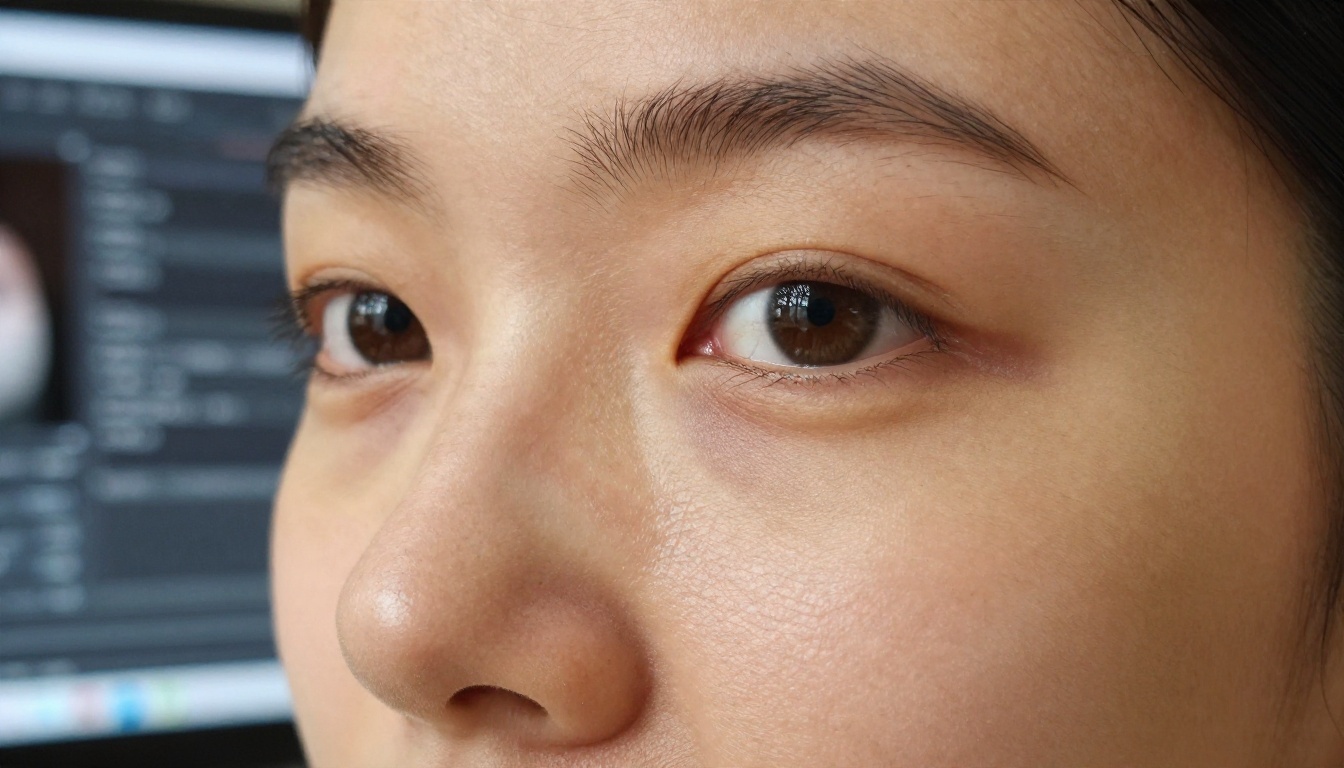
Photo restoration
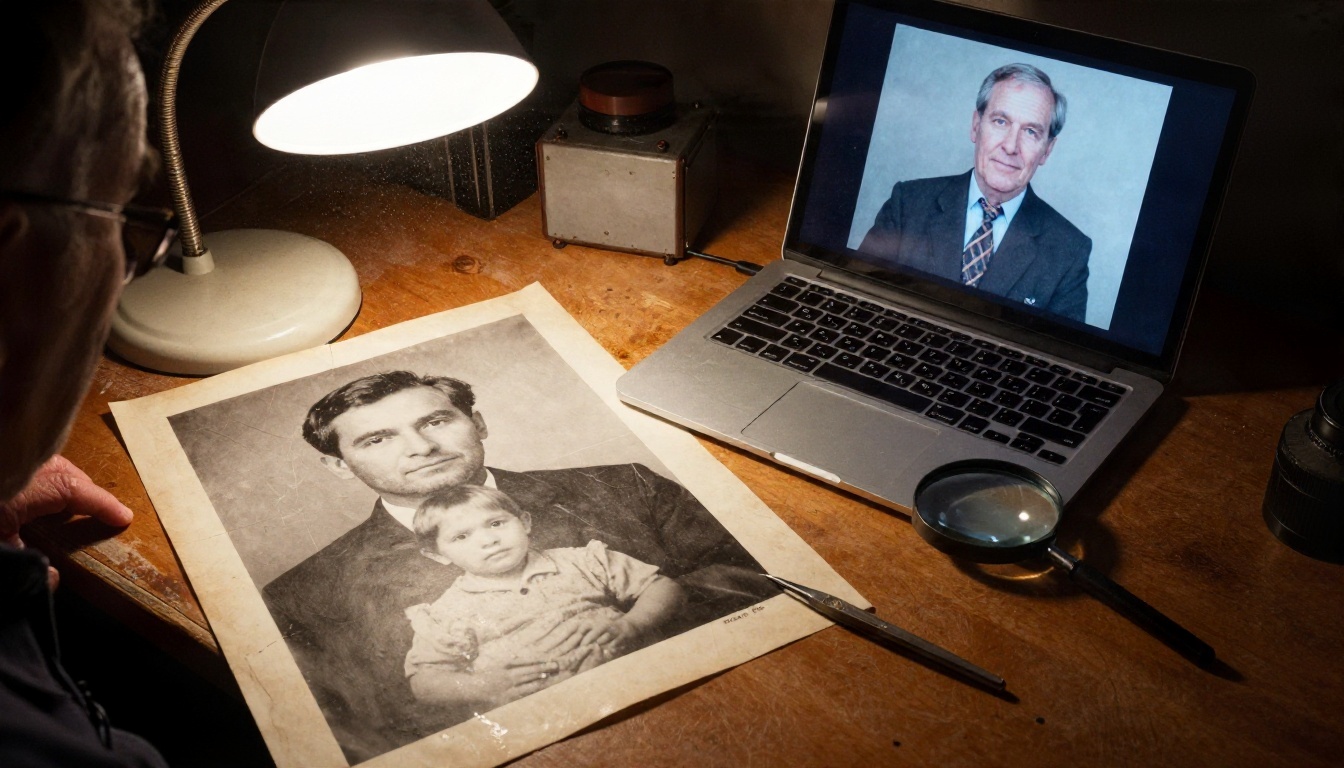
Old scanned prints respond well to prompt editors, because the model can repair scratches and fill missing areas while following a description.
Prompt: "Restore this old family photograph. Remove scratches, creases and dust. Repair torn corners. Add natural, muted color to skin, clothing and background. Keep every face recognizable."
Glamour and beach portraits
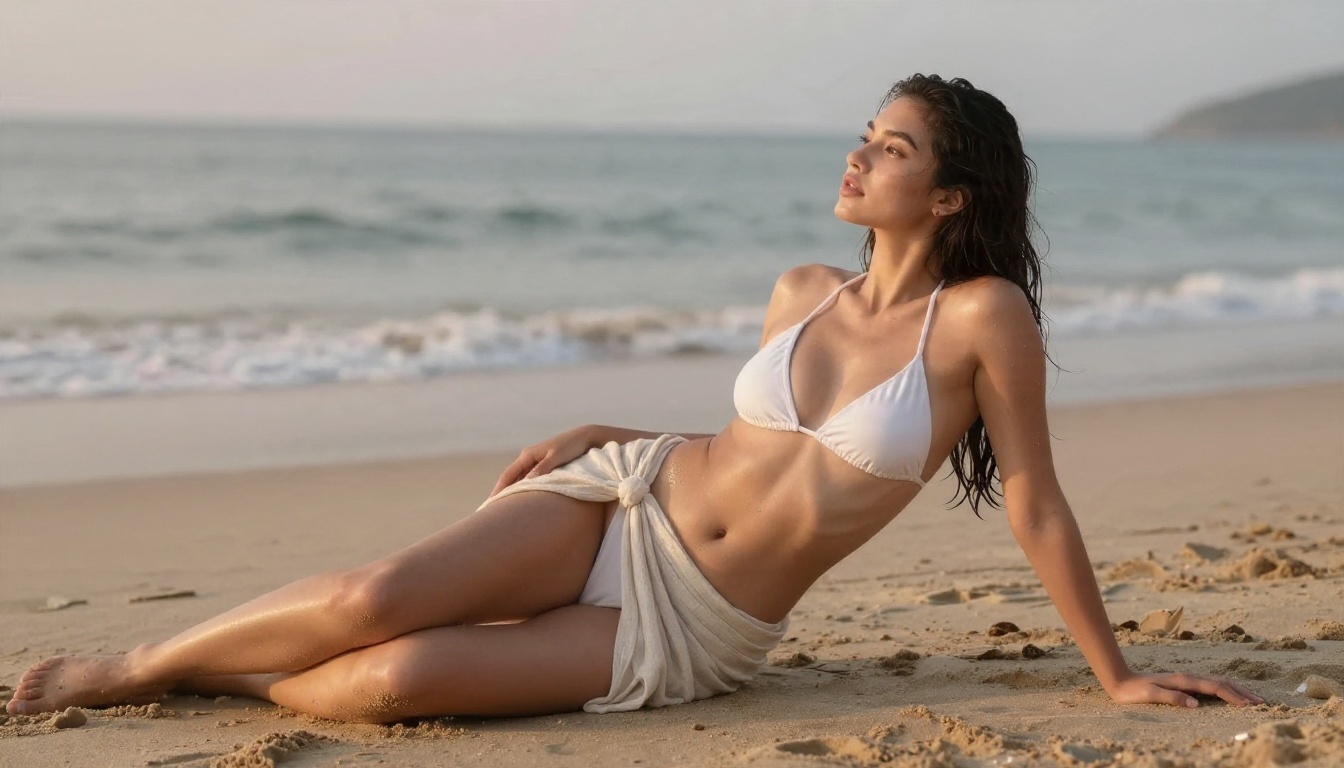
This is where over-sensitive filters waste the most time. Swimwear, beachwear and glamour photography are ordinary categories in fashion and travel work, and a good editor treats them that way. The line to keep is simple: attractive and tasteful, never explicit.
Prompt: "Place the woman on a sandy beach at sunrise wearing a white bikini top and a linen wrap skirt. Keep her face and hair. Soft pink and amber light from the low sun on her left, light ocean haze, natural skin with a faint sea-salt sheen."
💡 Tip: Photographic words make a bigger difference than you would expect. "85mm lens, shallow depth of field, warm film tones, natural skin texture" pulls the result toward a real photograph and away from the airbrushed look.
Free and Unlimited Options Compared
Not every prompt editor is built for the same job. This table compares the editors on PicassoIA that I would reach for, and what each one is best at.
| Editor | Best for | Standout feature |
|---|
| PicassoIA Image Editor Pro | Everyday unlimited editing | No per-edit cap, up to 3 reference images |
| Seedream 4.5 | High-resolution results, relaxed moderation | 2K and 4K output, up to 14 reference images |
| Flux Kontext Fast | Quick instruction-based edits | Fast turnaround on photo edits |
| Nano Banana | Edit and generate in one tool | Strong at preserving the subject |
| Qwen Image Edit Plus | Detailed multi-element changes | Precise control over text and objects |
| Flux Fill Pro | Inpainting and canvas extension | Fills and extends selected areas |
| P Image Edit | Very fast edits | Sub-second photo editing |
Seedream 4.5 for relaxed moderation
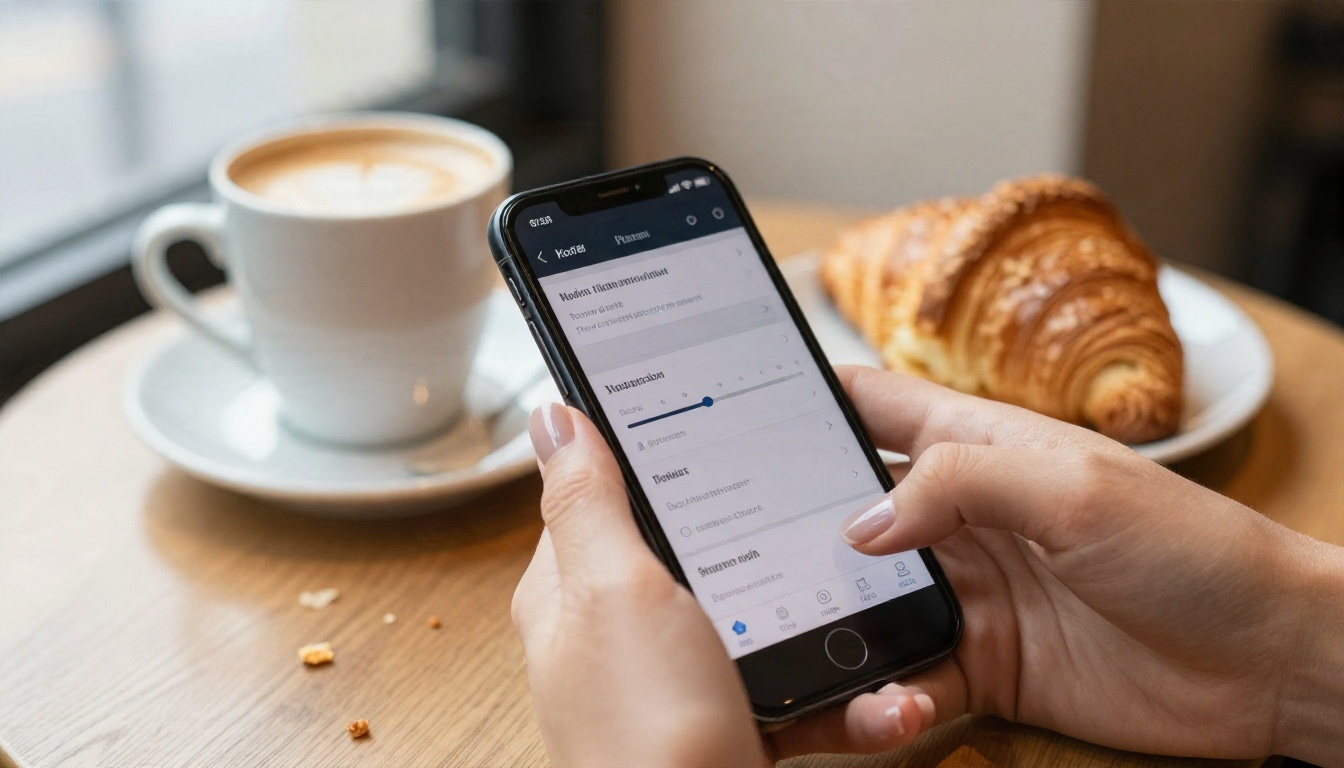
If your main frustration is a filter that blocks harmless artistic work, Seedream 4.5 is the first model to try. Its input schema includes a disable_safety_checker option. When you turn it on, input moderation is relaxed so that only illegal content is blocked. That makes it far more useful for glamour, swimwear and fashion work than editors that reject anything borderline. Use it responsibly and stay inside the hard limits listed earlier.
Other settings that matter in Seedream 4.5:
- Size: 2K by default, 4K when you need print quality. There is no 1K option.
- Image input: upload 1 to 14 reference images for image-to-image edits.
- Aspect ratio:
match_input_image keeps your photo's shape. Nine presets are available, including 21:9.
- Max images: with sequential generation set to auto, one run can produce up to 15 related images, which is handy for character variations.
Other editors on PicassoIA
A few more tools are worth knowing about, and they solve different problems:
💡 Tip: Chain tools for the best finish. Run a big change in Image Editor Pro, then use Seedream 4.5 at 4K for a final high-resolution pass, or a text removal pass to clean up stray lettering.
Common Mistakes to Avoid
Most failed edits come from the same handful of habits.
- Stacking five changes in one prompt. The editor splits its attention and every change comes out weaker. Edit in steps.
- Forgetting to say what stays. If you do not protect the face, it can drift. Add "keep her face, hair and pose unchanged" every time.
- Ignoring light direction. A subject lit from the left on a background lit from the right looks fake. Describe the light in the prompt.
- Using a low-quality source. A blurry, heavily compressed photo gives the model little to work with. Start from the best original you have.
- Over-retouching skin. Asking for "flawless skin" produces a plastic look. Ask for natural texture instead.
- Judging after one try. The first result is a draft. With an unlimited editor, run it three or four times and compare.
- Switching aspect ratio by accident. If the output looks cropped or stretched, check that the setting is still
match_input_image.
A quick prompt checklist
Before you press generate, check that your prompt answers these four questions:
- What should change?
- What must stay exactly the same?
- What does the new light look like?
- What kind of camera look do I want, such as lens, depth of field or film tone?
If all four are answered in two or three sentences, you are ready.
Try Your Own Edits Today
A prompt editor with no daily cap changes how you work. You stop treating each edit as precious and start testing ideas the way a photographer shoots a roll: many frames, a few keepers. Start with PicassoIA Image Editor Pro for unlimited everyday edits, move to Seedream 4.5 when you want 4K output and more relaxed moderation, and bring in the specialist tools when a job calls for inpainting or text removal.
Pick one photo you already own. Swap the background, change the light, retouch the skin without losing the pores, and compare the versions side by side. Then try one of the prompts from this article word for word and adjust it to your own picture. When you want to see what else is available, browse every editor and generator at picassoia.com/en/all-models and build your own set of favorites.


