You drew the panel. The samurai is mid-leap, the speed lines are razor sharp, and the screentone sits exactly where you wanted it. Then it sits on a page and never moves. An AI manga video generator fixes that gap in a few minutes: you upload one still panel, describe what should happen, and get a short clip where hair sways, cloth snaps, rain falls and the camera pushes in. The best part is that you no longer need an animation team or a paid subscription to try it. This article shows which free options work, how to prompt them, and what real panel animations look like.
What a Manga Video Generator Does
A manga video generator is an image-to-video model pointed at comic artwork. It reads your panel as the first frame and predicts how the scene could move over the next few seconds. Some models also create synchronized sound, so a sword swing can arrive with a whoosh instead of silence.
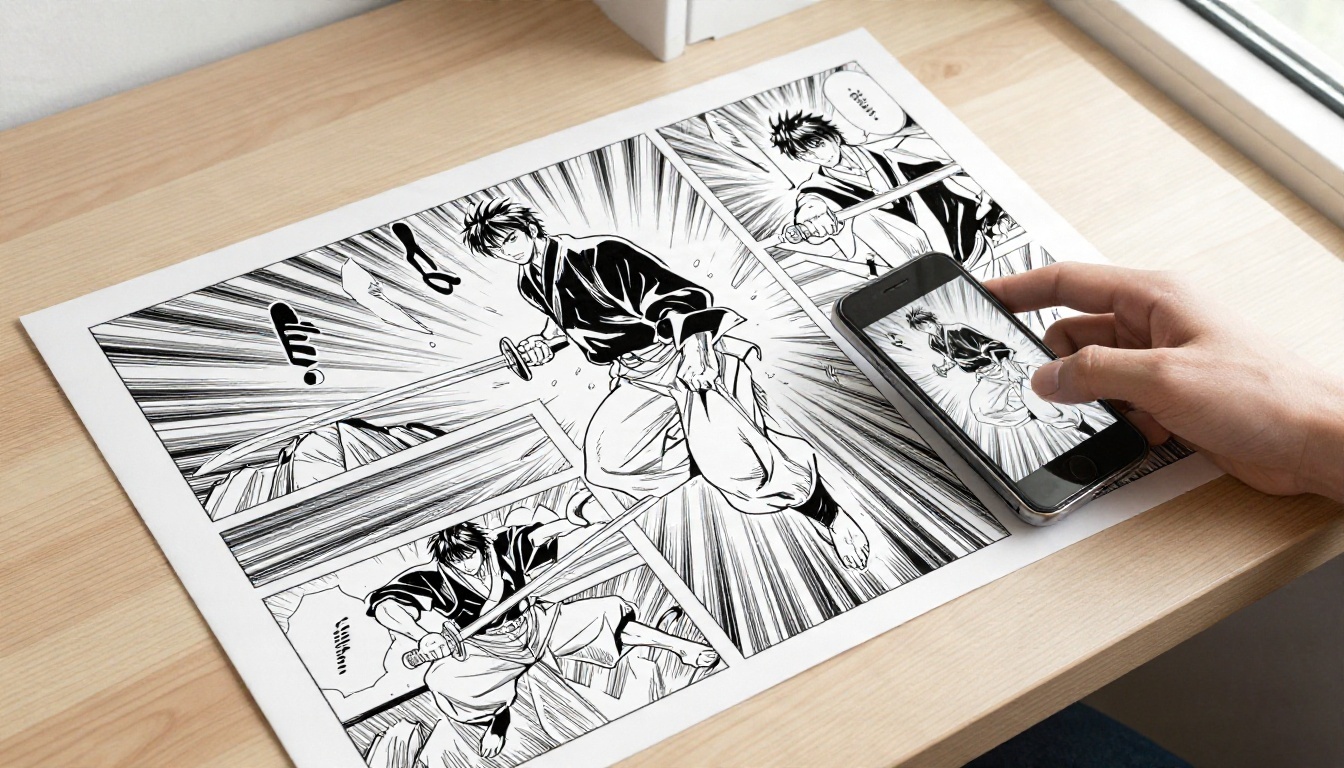
Panels become short clips
Think of it as a motion pass, not a full anime episode. Each generation gives you one beat, usually 5 to 10 seconds: a glance, a punch, a gust of wind through a city street. You then stack those beats into a longer sequence, the same way a storyboard becomes an animatic.
💡 Tip: Treat every panel as one shot. If a panel contains three actions, the model will blur them together. Pick the single moment that matters most and describe only that.
Why free tools exist now
Video models have become cheap enough to run at scale, and several platforms now offer free or unlimited tiers for lighter versions. That is a real shift for manga creators, because experimentation is the whole point. You rarely nail a motion prompt on the first try, so a tool that does not charge per attempt changes how freely you can test.
Typical uses people report for animated panels:
- Chapter trailers for social media and newsletters
- Webtoon promos that loop in a feed
- Pitch reels for publishers or crowdfunding pages
- Reader previews showing a favorite scene in motion
- Storyboard tests before commissioning real animation
Best Free Models for Animating Panels
Not every video model treats black and white linework kindly. Some add color, some smear fine hatching, and some keep the lines stable. The models below are all available on PicassoIA and cover different needs.
Seedance 2.5 Lite for free clips
Seedance 2.5 Lite is the lightweight edition of Seedance 2.5. It accepts an input image as the opening frame, renders at 480p or 720p, and produces clips of up to 10 seconds. Wonder members can run it without a per-clip cost, which makes it the natural starting point for panel testing. It also lets you set an optional last frame image, so you can tell the clip where to end up.
Wan 2.5 I2V Fast for quick tests
Wan 2.5 I2V Fast is built to animate a single image quickly. When you want to check ten panels in one sitting and only keep the best three, speed matters more than polish. It handles gentle camera moves and hair or fabric motion well, which suits most dialogue panels.
Kling v3 and Hailuo for polish
For hero shots, the cover panel, or the final trailer beat, Kling v3 Video delivers cinematic motion with strong subject consistency. Hailuo 2.3 Fast is designed to animate photos into video and responds well to short, direct prompts, while Hailuo 02 goes up to 1080p when you need a sharper export. If you want fast 4K output, LTX 2.5 Fast is worth a test.
| Model | Best for | Speed | Quality tier |
|---|
| Seedance 2.5 Lite | Free, repeated testing, up to 10 s | Fast | Good |
| Wan 2.5 I2V Fast | Batch checking many panels | Very fast | Good |
| Hailuo 2.3 Fast | Short direct prompts, photo-like motion | Fast | Good |
| Kling v3 Video | Hero panels, trailer finale | Medium | High |
| Hailuo 02 | 1080p exports | Medium | High |
| LTX 2.5 Fast | High resolution at speed | Fast | High |
💡 Tip: Start every panel in the cheapest, fastest model. Only move a panel to a premium model once the motion idea itself works.
How to Use Seedance 2.5 Lite on PicassoIA
Here is the workflow I would use for a first panel. It takes about five minutes.
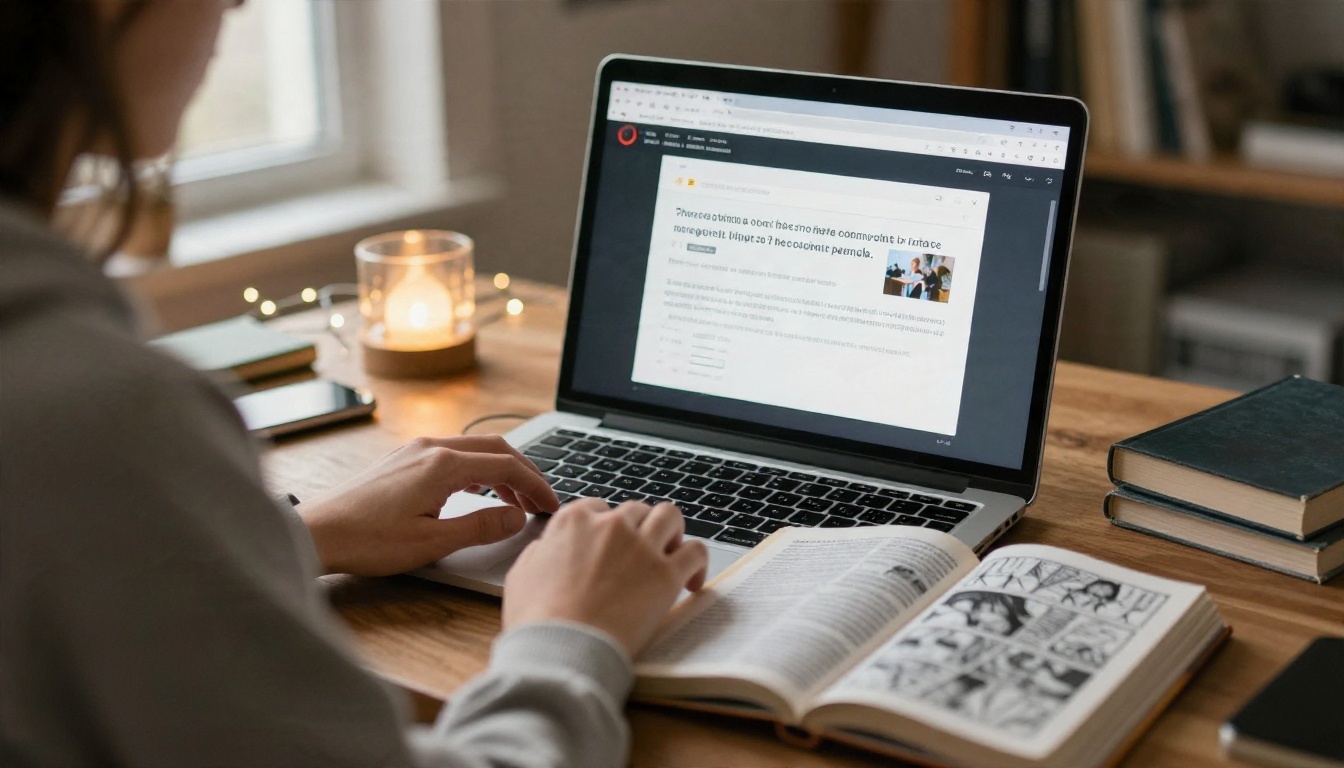
Prep the panel
Open the Seedance 2.5 Lite page and prepare your artwork first.
- Scan or export the panel at a high resolution. A flatbed scan at 600 dpi or a clean digital export both work.
- Crop to a single panel. Remove gutters, speech bubbles and sound effects lettering if you can, because the model may try to animate them.
- Keep the aspect ratio in mind. When you supply an image, the clip inherits its shape, so a vertical panel gives a vertical video.
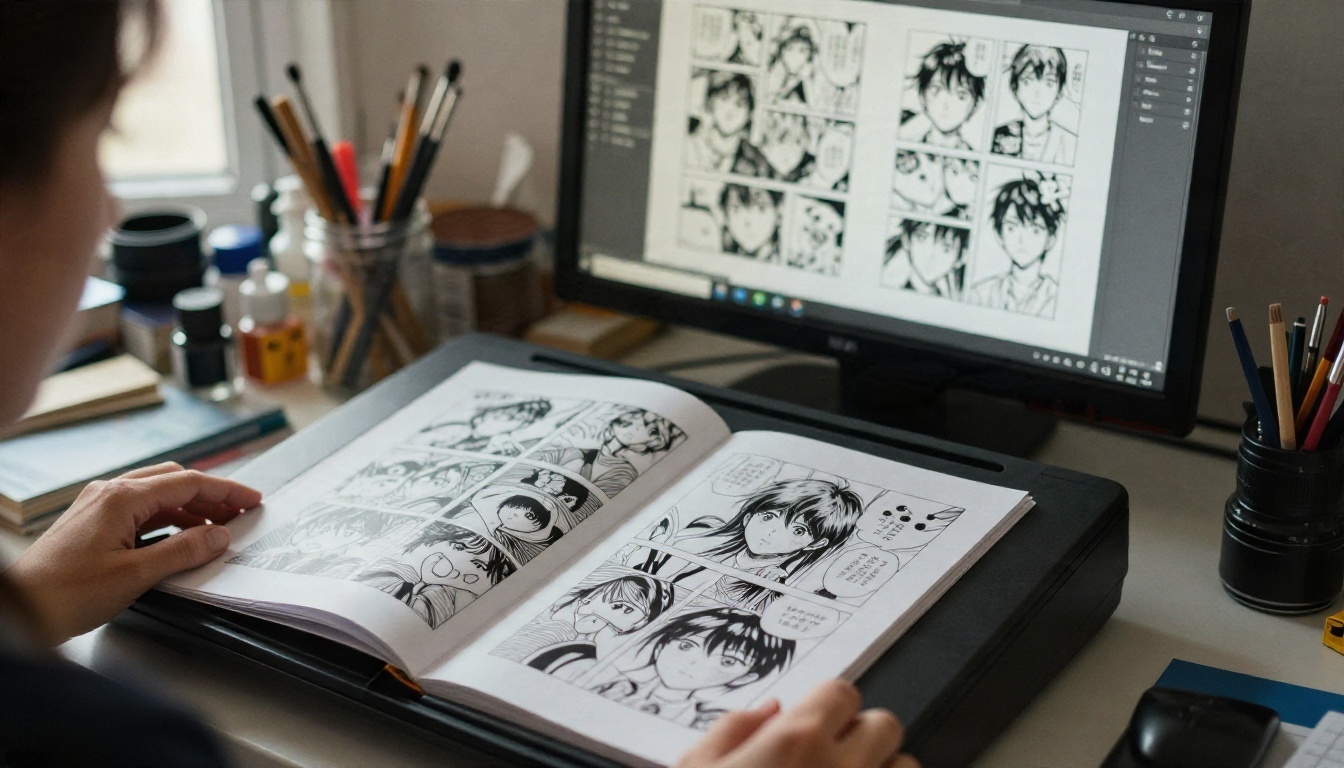
Write the motion prompt
Upload the panel as the input image, then write the prompt in chronological order. Describe what moves, how the camera moves and the mood. A reliable structure is:
[Subject and pose] → [motion over time] + [camera move] + [atmosphere]
For example: "A black haired swordsman crouches on a rooftop. His coat whips in the wind, he springs forward, and the camera tracks him in a slow dolly. Dust lifts from the tiles. Dramatic overcast light, black and white ink look preserved."
Notice the last phrase. Telling the model to keep the black and white ink look reduces random color drift.
Settings that matter
| Setting | Recommended value | Why |
|---|
| Resolution | 720p | Sharper lines than 480p, still fast |
| Duration | 5 s first, 10 s once the idea works | Short clips fail cheaper |
| Aspect ratio | match_input_image | Avoids stretching the panel |
| Save audio | On for trailers, off for silent loops | Audio is generated alongside |
| Seed | Fix it when you like a result | Lets you reproduce and tweak |
| Last frame image | Optional | Defines the ending pose |
Press generate, watch the clip, and then change one thing at a time: the camera move, the intensity of the action, or the length. Changing everything at once makes it impossible to see what helped.
Panel Examples and Prompts That Work
Different panel types need different motion language. These three patterns cover most chapters.
Action panel example
Action panels have the strongest implied motion, so the model has a lot to work with. Describe the direction of the movement and give the camera a job.
Prompt idea: "A swordfighter leaps across the frame, speed lines stretching behind her. Her hair and sleeves trail, the camera pans right to follow the jump, dust and debris scatter. Hard side light."
Keep the action to one verb. "Leaps" is clear. "Leaps, spins, slashes and lands" gives you mush.
Emotional close-up example
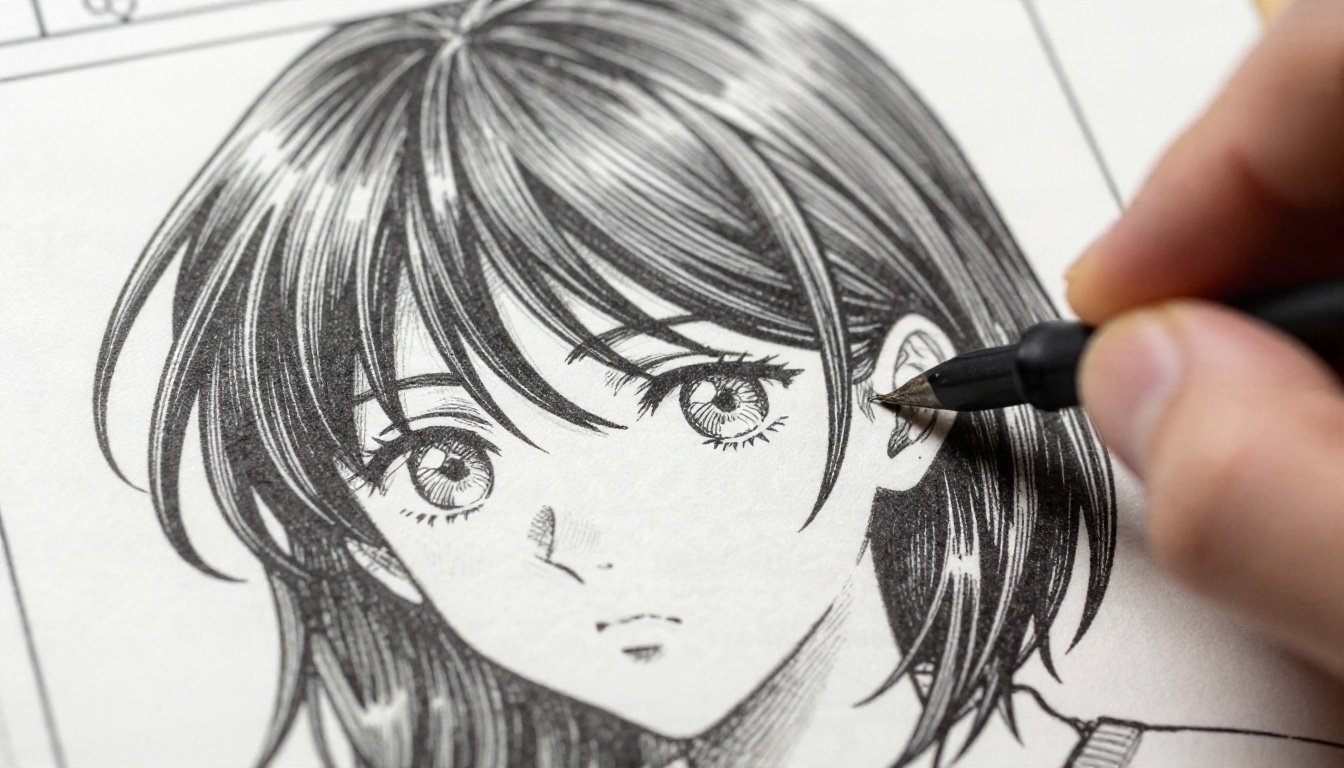
Close-ups are where AI animation looks best, because small motion reads as emotion. The prompt should ask for micro movement: a blink, a breath, hair lifting in a draft, a tear forming.
Prompt idea: "A girl looks off frame with wide eyes. Wind lifts her hair strand by strand, her eyes glisten and she blinks slowly. The camera creeps in a few centimeters. Soft side light, quiet mood."
Establishing shot example
A wide panel of a city, a temple or a mountain road wants ambient motion, not character action. Ask for clouds, rain, lantern flicker, birds crossing the sky and a slow lateral drift.
Prompt idea: "A mountain village at dusk. Smoke curls from rooftops, paper lanterns sway, birds cross the sky, and the camera drifts slowly to the left. Cool blue light fading to amber."
💡 Tip: Establishing shots make excellent loops for a webtoon landing page, because ambient motion hides the seam when the clip restarts.
Fixing Common Problems
Every creator hits the same snags. Here is how to deal with them.
Ink lines wobble
Fine hatching and screentone can shimmer because the model reads them as texture. Three fixes help:
- Use a higher resolution source image and 720p output.
- Ask for a slow, small camera move. Fast moves amplify shimmer.
- Reduce the amount of motion requested. A subtle push-in often looks cleaner than a violent action beat.
Faces drift
When a character changes between the first and last second, the clip feels off. Try these:
- Shorten the clip to 5 seconds.
- Use the last frame image option with a second pose that matches your art style.
- Switch the final render to Kling v3 Video, which tends to hold identity better on hero shots.
- Describe the face less. Over-describing invites reinterpretation.
Color sneaks in
If your panel is black and white, the model sometimes adds tint. State "monochrome ink, high contrast black and white" in the prompt. If you actually want color, say which palette, for example "warm sunset orange and deep teal", and name it once instead of repeating it.
Building a Full Chapter Trailer
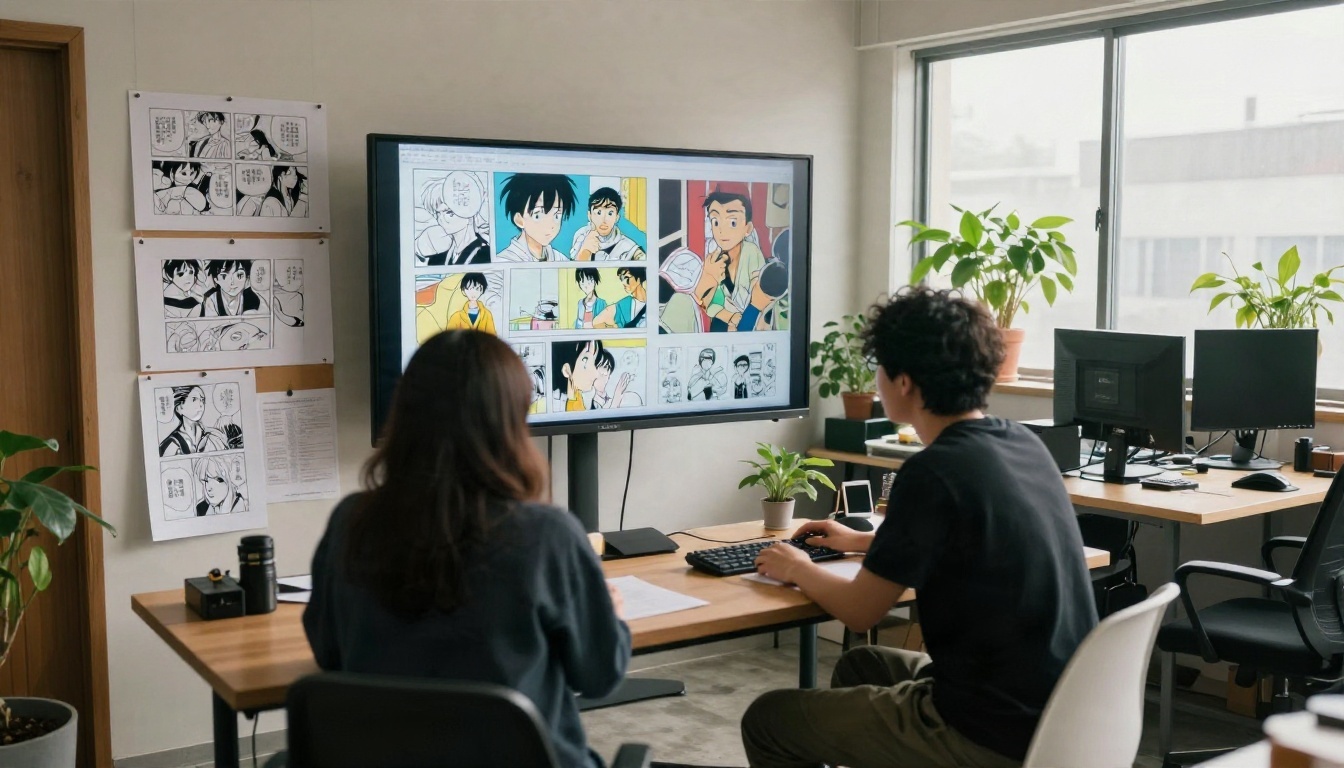
One clip is a demo. Several clips become a trailer. A chapter reel of 30 to 45 seconds usually needs 8 to 12 shots, which is very manageable when generation is free.

Fill gaps with new images
Sometimes the page you need does not exist. Maybe you want an extra reaction shot, a wider angle, or a title card scene. You can generate new artwork with a text to image model and then animate it. Seedream 4.5 produces sharp 4K images, Nano Banana Pro is a strong free option for 4K, and Nano Banana is handy when you want to edit an existing image rather than start from scratch. Match your original linework by describing the style in the prompt, then run the new frame through the same video model as the rest of the sequence.
Sequence, sound and music
Order the clips like a storyboard: an establishing shot, a close-up, an action beat, a reaction, then the hero shot. Keep each between 3 and 6 seconds in the edit, even if you generated 10. Trimming the dead ends is the cheapest way to make AI footage feel intentional.
PicassoIA also offers text to speech for character voices and AI music generation for a theme track, plus video editing and enhancement tools for upscaling and stabilizing the final cut. Put the audio over your clips last, once the visual rhythm is locked.
Honest Limits and Good Habits
No model is perfect with comics, and it helps to know where the edges are before you promise a client anything.
- Text inside panels usually warps. Remove lettering before you animate, and add subtitles later in an editor.
- Crowded panels with many small characters produce chaotic motion. Crop to the focal character.
- Long actions do not fit in a single clip. Break them into two shots and cut between them.
- Your own art is the safest source. If you use someone else's published pages, you need their permission before posting animated versions.
Habits that save time:
- Keep a prompt notebook with the wording that worked for each panel type.
- Fix the seed after a good result and tweak only the camera line.
- Generate three variations of the same panel and pick the cleanest.
- Export at 720p for social, and only re-render hero shots in a higher tier.
Try It on Your Own Panels
The fastest way to see how this works is to run one panel through it. Pick your strongest page, crop a single panel, and open Seedance 2.5 Lite on PicassoIA. Write one clear motion sentence, keep the clip at 5 seconds, and watch what happens. If the result is close, adjust the camera line. If it is great, try the same prompt shape on Wan 2.5 I2V Fast or send the panel to Kling v3 Video for a finished look.
Then keep going. Animate your cover, your best fight, your quietest close-up. Generate the missing panels with an image model, stack the clips, and you have a trailer. Browse every available model at picassoia.com/en/all-models and start building your own animated chapter today.


