You join a client call, and thirty seconds later a guest called "Notetaker" appears in the participant list. Someone asks who invited it. Someone else goes quiet. The conversation you wanted to have just got stiffer. If that sounds familiar, you are not alone, and AI meeting notes without a bot are now a real, practical option for Zoom, Teams and in person meetings alike.
This article walks through the ways to capture a meeting without a bot joining the call, what each approach does well, where it falls short, and how to build a private transcript and summary workflow with tools you control. Fair warning: dropping the bot does not drop your responsibility to tell people they are being recorded. We will get to that too.

Why Bots Make Meetings Awkward
Meeting bots were built for convenience. They join, they record, they send a summary. The trade-off is that everyone on the call can see them, and not everyone likes what they see.
The Guest Who Changes the Room
A bot is a visible participant, and people behave differently when they know a recorder is listening. Candid feedback gets softer. Negotiation gets more careful. In sales calls, hiring interviews and therapy-adjacent conversations, that shift can cost you the honest answer you were after.
There is also the simple social friction. An unexpected bot looks like an uninvited stranger, and some attendees will ask it to leave before the meeting even starts.
When a Bot Is Blocked
Many organizations now restrict third-party bots at the admin level. IT teams worry about where recordings are stored, who can access them and whether sensitive discussions end up on a vendor's servers. If your company blocks external attendees, the bot gets stuck in the waiting room and you get no notes at all.
💡 Quick check: Before you pick a tool, ask your IT team whether external recording apps are allowed. A short email now saves a failed meeting later.
Four Ways to Capture Without a Bot
Bot-free does not mean one single method. Four approaches cover almost every situation, and each has a different privacy and effort profile.
Local Audio Capture on Your Device
Some desktop apps record the audio playing through your computer and the audio from your microphone, then turn it into a transcript and summary. Nothing joins the call. The other participants see only you. Granola is a well known example of this style, and several other note apps have added similar bot-free modes.
The upside is that it works across Zoom, Teams, Google Meet and even phone calls routed through your computer. The downside is that quality depends on your microphone, your headphones and whether you are the one hosting.
Built-In Platform Notes
Zoom, Microsoft Teams and Google Meet each offer their own AI note features. Zoom has its My Notes and AI Companion tools, Teams has Copilot recap and transcription, and Google Meet has its own note taking assistant. Because these are native, there is no outside attendee. Participants usually see a standard recording or transcription notice from the platform.
The catch is licensing. Many of these features sit behind paid plans, and the host or an admin often has to switch them on. Reports also differ across vendors about exactly which meeting types are supported, so check your own plan before you rely on it.
Phone Recording for Rooms
For in person meetings, the simplest tool is the phone already in your pocket. Place it face up in the middle of the table, start a voice memo, and upload the file afterward. A growing number of apps also record in the room and summarize on the spot.
Manual Notes Plus AI Cleanup
The lowest tech option still works. Type or handwrite rough notes during the meeting, then paste them into a language model and ask for a clean summary with action items. You lose the verbatim record, but you keep complete control of what gets captured.

Quick Comparison of Bot-Free Options
| Method | Works on Zoom | Works on Teams | In Person | Privacy Control | Effort |
|---|
| Local desktop capture app | Yes | Yes | Sometimes | Medium, depends on vendor | Low |
| Built-in platform AI notes | Zoom only | Teams only | Limited | High, stays in the platform | Low |
| Phone voice memo plus transcription | Yes (speaker mode) | Yes (speaker mode) | Yes | High, you choose the tools | Medium |
| Manual notes plus LLM summary | Yes | Yes | Yes | Highest | High |
No single row wins every category. If you run many calls a day, a local capture app saves the most time. If privacy rules are strict, the DIY route gives you the most control.
Zoom Options That Skip the Bot
Zoom is the platform where bots show up most often, so it is also where the alternatives are most developed.
Native Zoom Notes
Zoom's own AI note feature can capture and summarize conversations without adding a third-party attendee. Its My Notes tool is described by Zoom as working with Zoom meetings, third-party meetings and in person conversations, which makes it one of the more flexible built-in choices. Participants see Zoom's regular notice rather than a stranger in the list.
Local Capture During a Zoom Call
If your host has not enabled native notes, a desktop app that listens to your system audio is the next best choice. You join as yourself, the app runs quietly on your machine, and the transcript lands in your notes after the call.
A few habits make this work better:
- Wear headphones so the app captures clean audio from the speakers without echo.
- Use a decent microphone, because your own voice is half the transcript.
- Turn on speaker view so names are easier to match to voices later.
- Say names out loud at the start so the summary can label people correctly.

Teams Options Worth Trying
Teams is usually managed by IT, which means policy matters more than preference.
Copilot Recap and Transcription
Microsoft Teams can transcribe meetings and generate recaps through Copilot where licensing allows. A transcript is created inside Microsoft's own environment, so you avoid external vendors altogether. For regulated industries, that single fact often decides the debate.
Bot-Free Third-Party Apps
Tools such as Otter, Fireflies and Fathom have talked up bot-free or lighter modes, though vendors describe the exact behavior differently and it keeps changing. Notion's meeting notes feature records through its desktop app and saves results into your workspace. Treat all of these as "verify before you rely on it" and test on a low stakes call first.
💡 Rule of thumb: If your Teams tenant blocks outside apps, a native option or a local capture on your own device is the only route that will not get you in trouble.
In Person Meetings Without a Bot
Here the "bot" question disappears, because there is no call to join. What matters is audio quality and the room.
Phone on the Table
Put the phone in the center, microphone side up, away from laptops and fans. Keyboard clatter and paper shuffling are the two biggest transcription killers. Keep the group within about two or three meters and ask people to avoid talking over each other.
For rooms larger than eight people, consider a small conference microphone. A phone in the middle of a long boardroom table will miss the far end entirely.
Cafes, Walks and Casual Chats
Informal meetings are the hardest case. Background noise, wind and clinking cups make accuracy drop. Hold the phone closer, keep recordings short and always say at the start that you are recording. A ten minute chat transcribed cleanly beats an hour of mumbling lost in cafe noise.

Build a Private Workflow Yourself
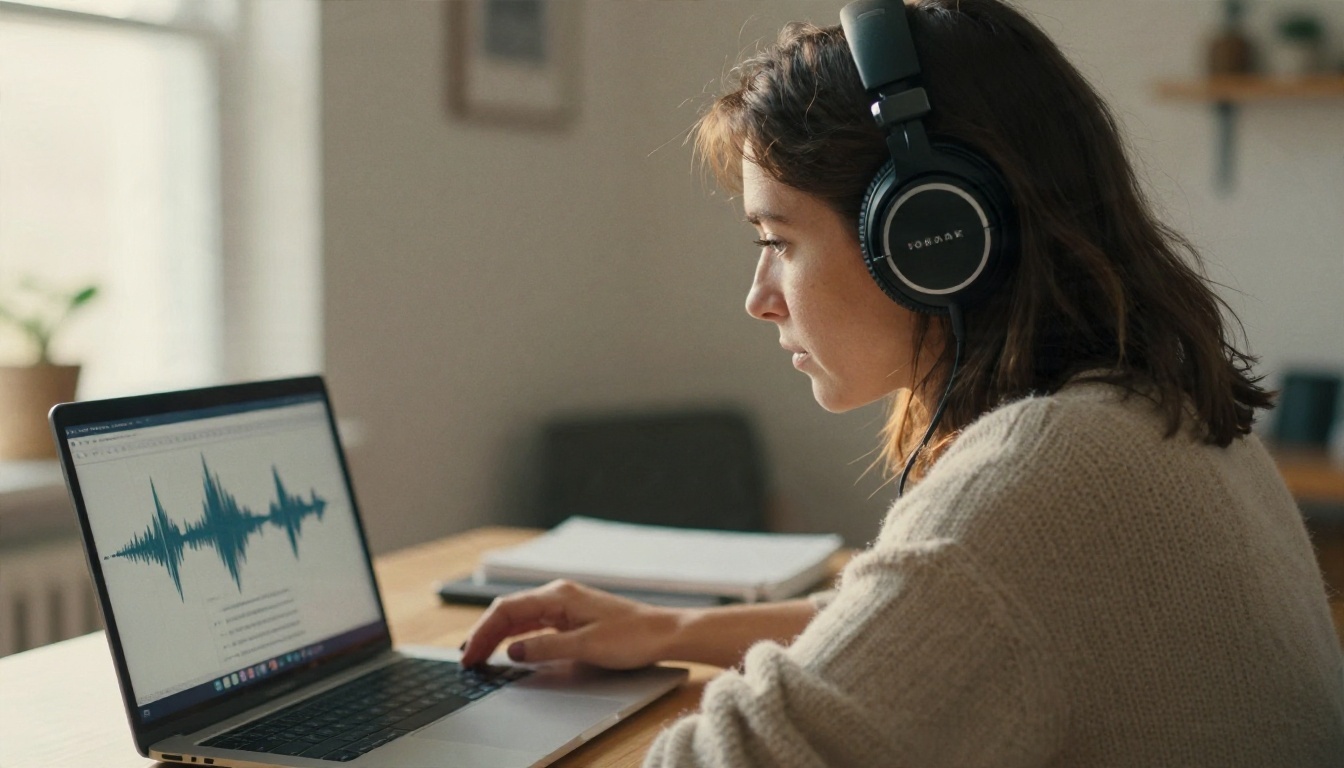
If you want zero third-party attendees and full say over where audio goes, build the pipeline in two steps: transcribe the recording, then summarize the transcript. Picasso IA hosts models for both steps in one place.
How to Use GPT 4o Transcribe on PicassoIA
GPT 4o Transcribe turns a recorded meeting into text. For shorter or budget friendly jobs, GPT 4o Mini Transcribe is a lighter option. Gemini 3 Pro is another speech to text choice when your recording is long or mixes languages.
- Record the meeting. Use a phone voice memo for in person sessions, or your computer's own recorder for Zoom and Teams, and only after everyone has agreed.
- Open the model page. Pick GPT 4o Transcribe from the speech to text collection.
- Upload the audio file. Common formats such as MP3, M4A and WAV work well. If the file is huge, split it into chunks of 20 to 30 minutes.
- Set the language. Choosing the spoken language up front usually improves accuracy on names and technical terms.
- Add a short prompt if available. List unusual names, product terms and acronyms so the model spells them correctly.
- Run the transcription and read the first minute carefully. If the opening is clean, the rest usually is too.
- Copy the transcript into a language model for the summary step.
💡 Parameter tip: Spend two minutes listing the names and jargon in your meeting before you transcribe. Fixing "Kubernetes" spelled five different ways later takes far longer.
Prompt the Summary
Raw transcripts are long and messy. A language model turns them into something people will actually read. Claude Sonnet 5 handles long transcripts and structured output well. GPT 5.6 Terra is a strong option for production ready write ups, and Gemini 3.5 Flash is quick when you just need a fast recap.
Try a prompt like this:
"Here is a meeting transcript. Write a summary in five bullet points, list every decision made, then list action items with the owner and deadline if mentioned. Mark anything unclear with [CHECK]. Do not invent details that are not in the transcript."
That last sentence matters. Language models sometimes fill gaps with plausible guesses, so asking for a [CHECK] marker keeps you honest.
Match the Model to the Job
Consent Comes First
This is the part people skip, and it is the part that causes real trouble. A bot-free tool is quieter, not more permitted. Without a visible bot or platform banner, nobody else knows you are recording unless you tell them.
Know Your Local Rules
Recording laws differ widely. Some places need only one party to consent. Others require everyone on the call to agree. If your attendees sit in different regions, follow the strictest rule among them. When in doubt, ask.
A Simple Script That Works
You do not need legal language. A short, friendly line at the start does the job:
"I'm going to take AI notes on this call so I can send a summary afterward. Is everyone okay with that?"
Wait for a verbal yes, and note it in the transcript. Most people agree without fuss, and some appreciate that you asked. If someone says no, switch to manual notes. That is the end of the discussion.

Protect the Files
Recordings and transcripts can hold salaries, client names and unreleased plans. Store them in a folder with limited access, delete audio you no longer need, and avoid pasting sensitive transcripts into tools your company has not approved.
Mistakes That Ruin Notes
Most bad meeting notes come from a handful of avoidable errors. Here are the ones that show up again and again.
- Recording without telling anyone. It damages trust and may be illegal where you live.
- Poor microphone placement. A phone buried in a bag produces a transcript full of gaps.
- Skipping the review. AI summaries are good, not perfect. Read them before you send them to the client.
- No speaker labels. "Speaker 1 said yes" is useless a week later. Name people early in the call.
- Trusting one tool for everything. A good transcription model and a good summarizing model are often different tools.
- Forgetting to share action items. Notes that sit in your folder help nobody.

A Sensible Review Routine
Spend five minutes after each meeting. Scan the summary against your own memory, fix names, confirm dates and delete anything that should not be shared. Then send action items within the hour while the conversation is still fresh. Teams that do this consistently report fewer "wait, who was doing that?" messages.

Pick the Right Setup for You
If you want a short decision path, use this one:
- You host many Zoom calls and your plan includes native notes: switch them on and tell attendees.
- Your Teams tenant is locked down: use Copilot recap or capture locally on your own device.
- You run in person meetings or interviews: record on a phone with consent, then transcribe and summarize.
- You handle sensitive material: use manual notes or your own transcription and summary workflow with limited file access.
- You are testing: record one low stakes meeting, run it through the pipeline and compare the output with your own notes.
The best setup is the one your colleagues are comfortable with. A tool nobody trusts will not last, however clever it is.
Try It on Your Next Meeting
You do not need a subscription to a bot service to get clean, searchable meeting notes. Record the next meeting with consent, upload the audio to GPT 4o Transcribe, then hand the transcript to Claude Sonnet 5 or GPT 5.6 Terra and ask for decisions and action items. Ten minutes of setup gives you a repeatable process.
Picasso IA also lets you go further than text. Turn your summary into a spoken recap with a text to speech model, or build slides and visuals for the follow up email. Browse every available model at picassoia.com/en/all-models, pick a recording you already have, and see how much time you get back.


