You have a track finished. Maybe you wrote it, maybe you generated it in ten minutes, and now YouTube is asking for something to look at while people listen. Hiring a crew is off the table, and a static album cover with a waveform feels like a lazy move in 2027. This is where an AI music video generator for YouTube earns its place: you describe scenes, pick a format, and get moving footage that you can cut to the beat.
The catch is that these tools come with strings. Every model has a maximum clip length, every YouTube format has its own shape, and "free" can mean anything from truly unlimited to three watermarked tries. This article sorts all of that out so you can decide what to use before you burn an afternoon on the wrong setup.
How AI Music Video Generators Work
Most people imagine a single button that eats a song and spits out a finished video. A few products try to work that way, but the results that look best usually come from a simpler workflow: you build the video from short generated clips and put them on a timeline against your audio.
Audio First, Visuals Second
Start with the song. The track decides the pace, the number of scenes and the mood. A 3 minute indie ballad needs slow camera moves and maybe 20 to 30 clips. A 90 second dance loop needs fast cuts and a punchier palette. If you do not have a track yet, an AI music model can write one from a text prompt. On PicassoIA you can try Lyria 3 Pro for full length songs, Music 2.6 for vocals and lyrics, or Stable Audio 2.5 for instrumental beds and loops.
Clip Based Versus Song Length Output
Video models generate short segments. Some give you 5 seconds, some 10, and a few go much further. Nothing stops you from generating dozens of segments and joining them, and that is how nearly every polished AI music video you have seen on YouTube was made. The model gives you the shots, your editor gives you the song.
💡 Tip: Write down the timestamps of each verse, chorus and bridge before you generate anything. Matching a clip to a section is far easier than trying to rescue random footage later.
Length Limits You Will Actually Hit
There are two separate ceilings: what YouTube accepts, and what the AI model can render in one go. Beginners mix them up constantly.
YouTube Shorts Limits
Shorts accept vertical or square video, and the maximum length is currently 3 minutes. Older articles still say 60 seconds, which is out of date. The recommended frame is 1080 x 1920 pixels in a 9:16 shape. Horizontal footage will not be treated as a Short even when it is short enough, so decide on orientation before you generate anything.
Standard Uploads
Regular horizontal videos have no practical length problem for a music video. A normal song fits easily, and verified channels can go far beyond that. The constraint here is not YouTube, it is how many clips you can afford to generate and stitch.
Per Clip Caps on AI Models
This is the real bottleneck. Here is how the models available on PicassoIA compare for music video work:
For a 3 minute song at an average shot length of 4 seconds, you need roughly 45 shots. If your model gives 10 seconds per clip, you can generate fewer clips and trim them, which is cheaper and gives you more room to cut on the beat.

A Quick Planning Formula
Take the song length in seconds, divide by your average shot length, then add 20 percent for rejected takes. A 210 second track with 5 second shots gives 42 shots, and with the buffer you should plan around 50 generations. If that number looks high, lengthen your average shot or loop a few visuals during the chorus, which is exactly what real music videos do.
Settings That Matter Most
Four decisions shape how your final video looks on YouTube. Get them right before you generate, because fixing them later means regenerating.
Aspect Ratio
Choose by destination, not by habit.
- 16:9 for standard YouTube uploads, TV playback and embeds.
- 9:16 for Shorts and the mobile feed.
- 1:1 works for Shorts too, but it is rarely the best shape for music visuals.
If you want both versions, generate in 16:9 and 9:16 separately. Cropping a wide frame down to vertical often cuts off the singer or the main subject, and re-framing never looks as good as generating natively.
Resolution
YouTube plays 1080p comfortably, and for Shorts, nothing beyond 1080p reaches the viewer anyway. So 720p drafts are fine while you test, and 1080p is the target for the final export. Models such as Kling v3 Omni Video and Hailuo 02 produce 1080p output, and LTX 2.5 Fast goes to 4K if you plan to upscale for a large screen.
Frame Rate
Stick with 24 fps for a cinematic look. Most AI video models output 24 fps natively, and your editor should keep that rate in the project settings. Mixing 24 fps clips into a 30 fps timeline creates tiny stutters that you will notice on slow pans.
Audio Sync
Some models, including Veo 3.1 Fast and Seedance 2.5, generate their own audio. For a music video you almost always want to mute that audio and lay your finished track underneath. Use the generated sound only when you need ambient room tone under a talking scene.
Free Options That Hold Up
Free is only useful if it stays free long enough to finish a video. Here is a realistic look at what you can do without paying.
Unlimited Drafting
Seedance 2.5 Lite is listed as a free and unlimited generator for clips up to 10 seconds. That changes the economics of music video work. You can run twenty variations of the chorus scene and keep the best three, which is how directors actually work.
Free Music
If your track is the missing piece, Music 2.6 is offered as a free full song generator. Pair it with an AI lyric draft from a large language model and you can go from a blank page to a mastered idea in one sitting.
What Free Usually Costs You
| Free feature | Common limit | Workaround |
|---|
| Clip length | 5 to 10 seconds | Plan 4 second shots and cut on the beat |
| Resolution | 720p drafts | Generate finals on a paid model or upscale |
| Daily quota | A handful of renders | Batch your prompts, avoid random retries |
| Watermarks | Common on outside tools | Use platforms with clean exports |
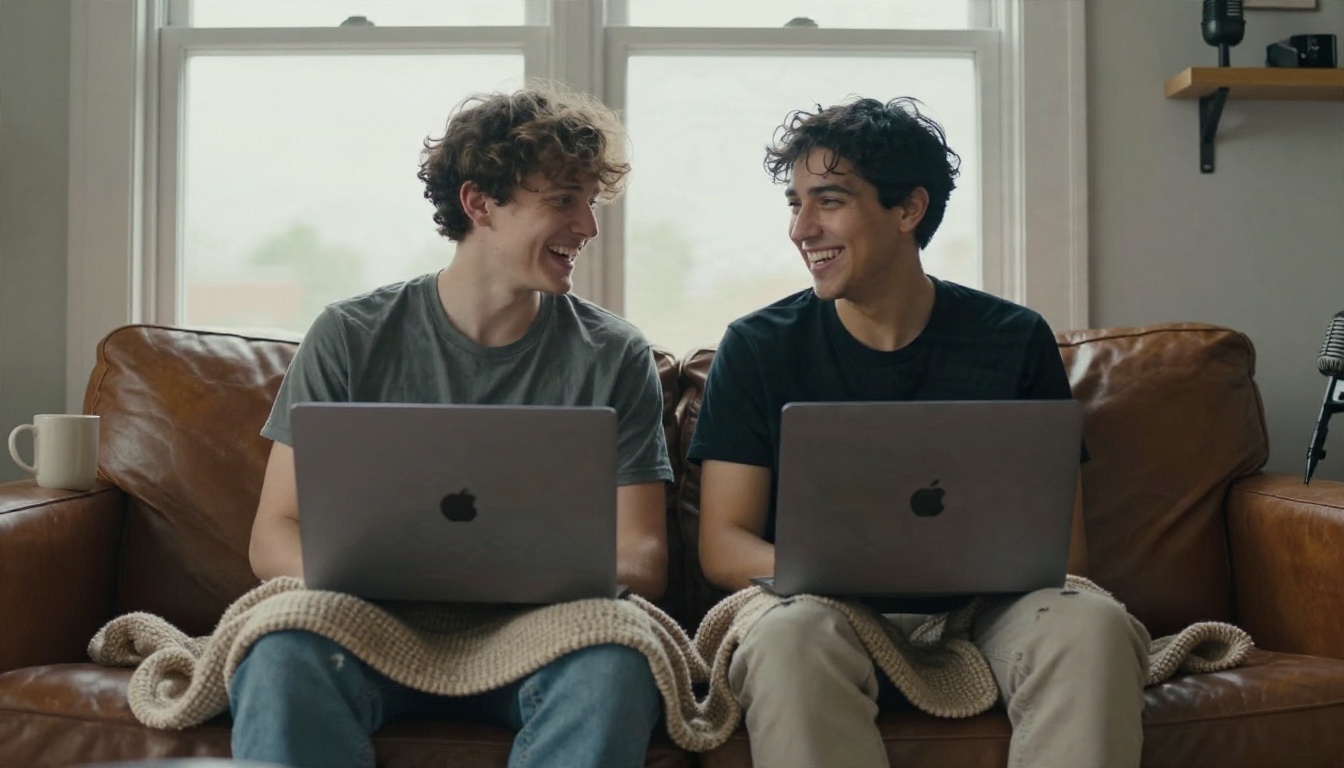
💡 Tip: Draft with the free model, lock the edit, then regenerate only the 5 or 6 hero shots on a higher quality model like Kling v3 Video or Sora 2. Your total cost drops dramatically and the video still looks premium.
How to Use Seedance 2.5 Lite on PicassoIA
This is the fastest way to turn scenes into clips without spending anything. The steps below work the same way for most video models on the platform.
- Open the model page. Go to Seedance 2.5 Lite and sign in.
- Write one scene per prompt. Describe who is in the shot, what they do, the setting, the light and the camera move. Keep it to a single idea.
- Set the aspect ratio. Choose 16:9 for standard uploads or 9:16 for Shorts before you press generate.
- Pick the duration. For beat-matched cuts, 4 to 6 seconds is the sweet spot. Longer clips are best for slow intros and outros.
- Generate and review. Watch each clip with your song playing in another tab. If the motion feels off beat, adjust the prompt wording for speed, not the subject.
- Download and name your clips. Use names like
v1-wide, chorus-close and bridge-slow, so the timeline stays readable.
- Assemble in your editor. Drop the audio on the bottom track, align the clip starts to downbeats and export at 1080p, 24 fps.
If you want a still image to define the look of a character or location first, you can animate that image with Wan 2.5 I2V Fast. Using the same starting frame for several clips keeps the singer's face and outfit consistent across the video, which is the biggest weakness of pure text to video.
Prompts That Match the Music
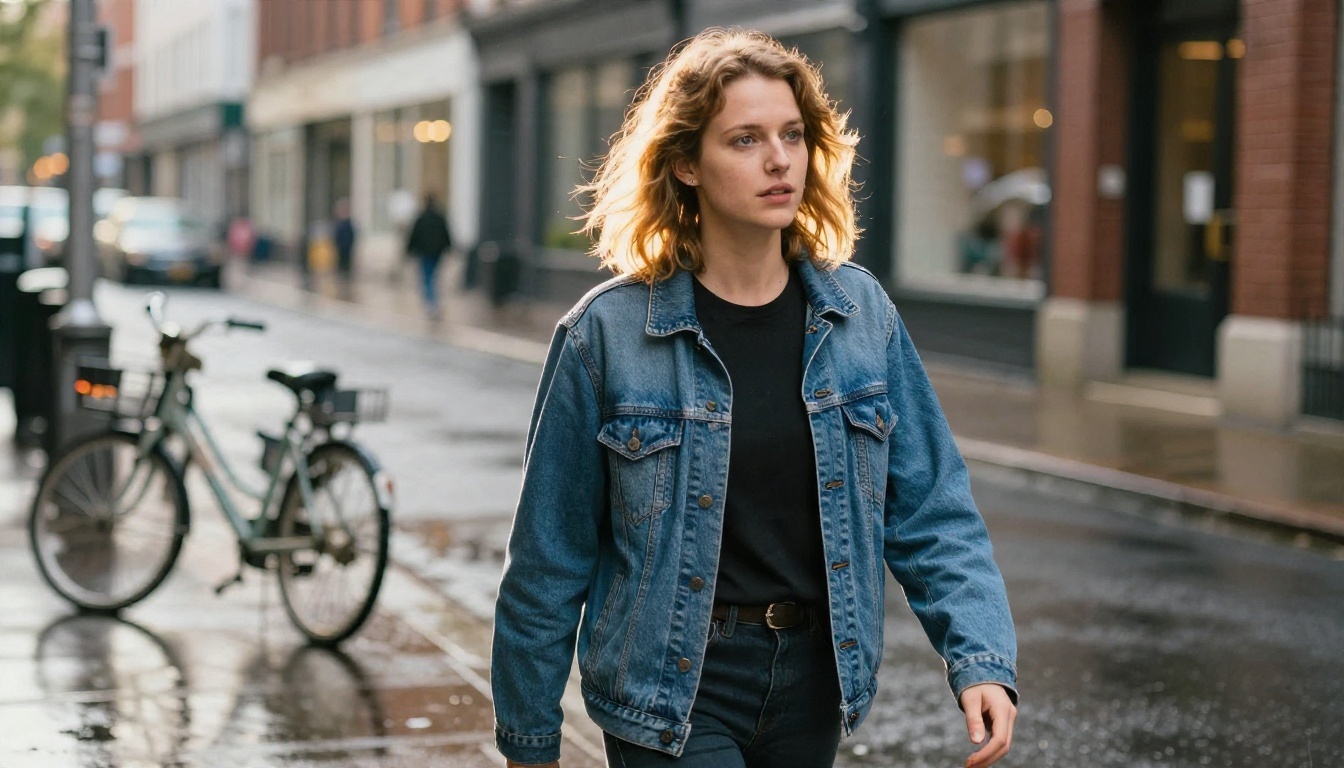
Good prompts are specific about motion. "A singer in a city" gives you a bland, floating shot. "A singer in a denim jacket walks toward the camera down a wet street at golden hour, slow dolly back, shallow focus" gives you something you can cut to a slow ballad.
Slow Songs
Use long lenses, slow dolly moves, soft backlight and minimal subject motion. Words like drifting, lingering and still steer the model toward calm footage.
Fast Songs
Ask for handheld energy, quick pans, jump cuts and close ups of hands, feet and instruments. Keep each clip under 4 seconds so the video never feels slower than the track.
Performance Shots
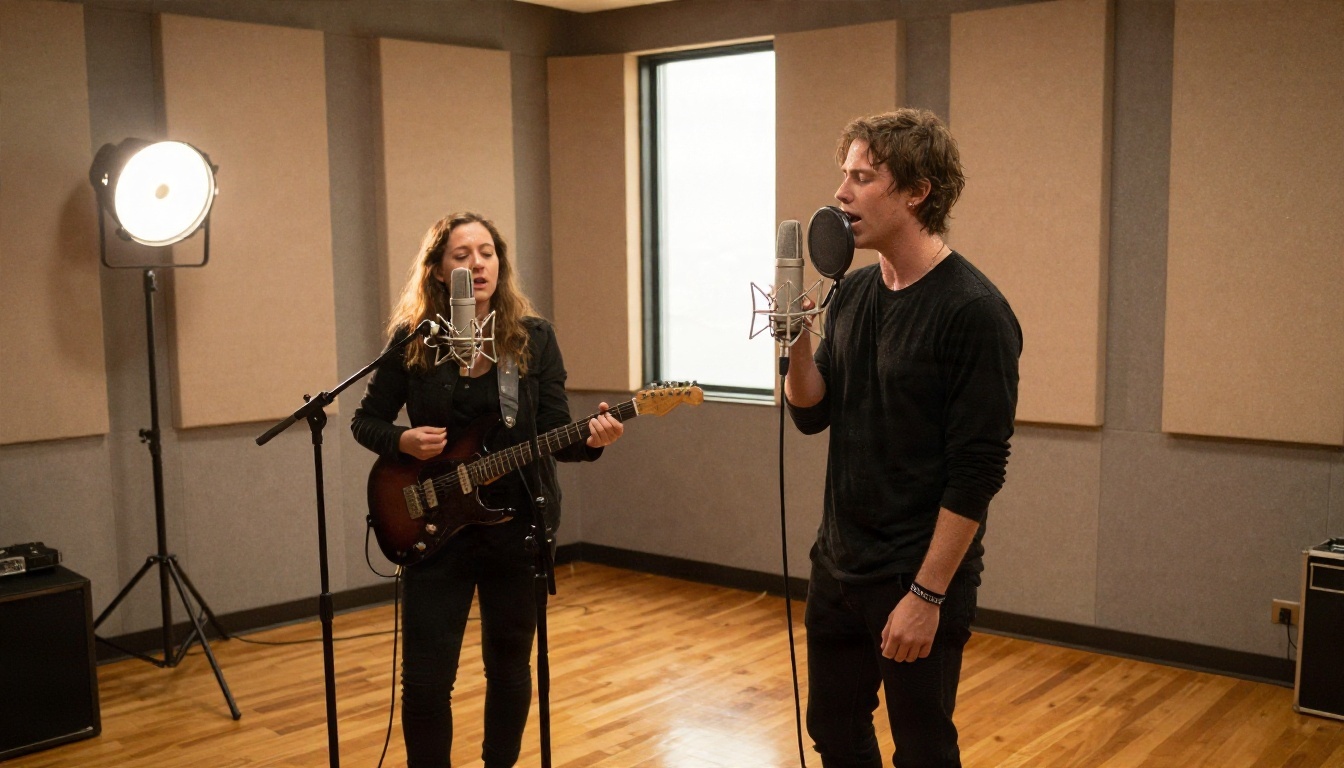
Bands and singers on camera are the hardest shots to get right with AI, because mouth and finger motion rarely lines up with a real recording. A smart workaround is to shoot or generate performance moments from behind, from the side, or in silhouette, then lean on b-roll for the rest. If you do want lip movement, use a dedicated lipsync model from the platform's lipsync category on a clear front-facing image.
Three Mistakes That Waste Hours
1. Generating before choosing a format. A 16:9 clip cannot become a clean vertical Short. Decide first, then generate.
2. Writing prompts that fight the song. If the chorus lands on beat 1 of a bar and your clip starts with a slow fade, the cut will feel wrong. Pick clips that begin with motion when the beat drops.
3. Skipping a consistency check. After 10 clips, put them side by side. If the color, lighting and character outfit drift, add the same style words to every prompt, such as warm film tones, soft grain, natural light, and regenerate the outliers.
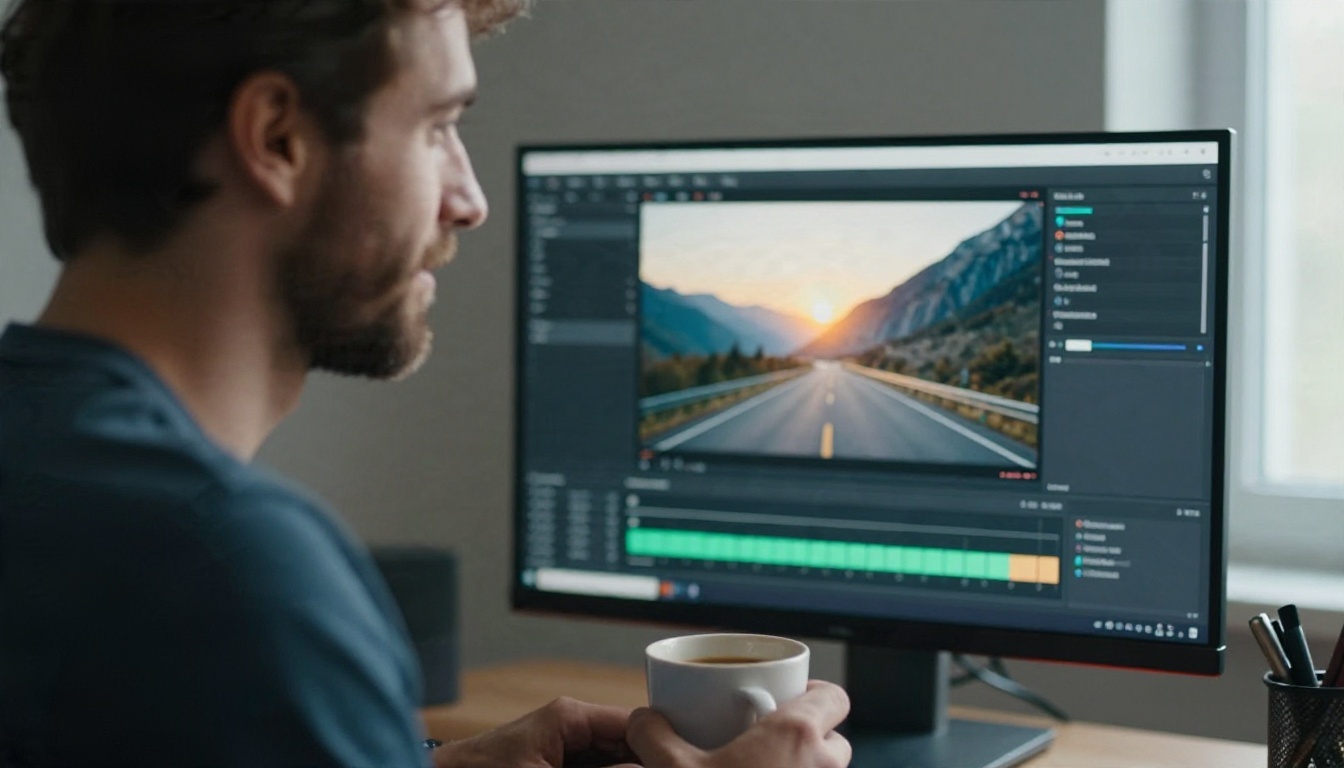
💡 Tip: Export a 30 second test of your best chorus before you commit to the full edit. YouTube compression is harsh on fast motion and fine textures, and it is much cheaper to find that out early.
Publish Without Regrets
Once the edit is locked, run through a short checklist before you hit upload.
- File format: MP4 with H.264 video and AAC audio is the safest choice.
- Resolution: 1920 x 1080 for horizontal, 1080 x 1920 for Shorts.
- Frame rate: Keep the project rate, usually 24 fps.
- Loudness: Aim for a finished mix that does not clip, YouTube will turn down tracks that are too loud.
- Title and thumbnail: Use a photographic still from the strongest chorus shot as your thumbnail.
- Disclosure: YouTube asks creators to label realistic AI generated content. Tick the option when your video contains it.
Build Your First Music Video on Picasso IA
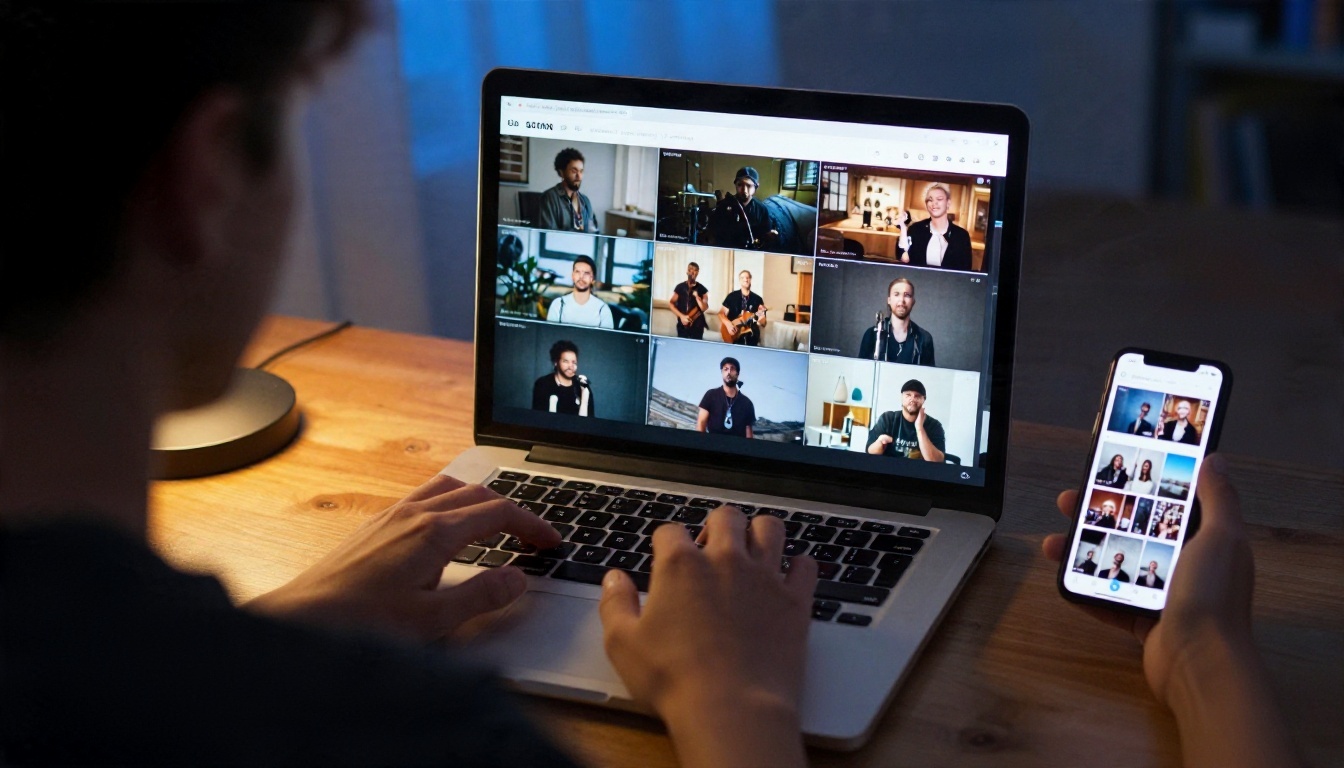
You do not need a budget, a crew or a long weekend. You need a song, a plan for your shot list and a few hours of focused experimenting. Start by writing or generating your track with Lyria 3 Pro or Music 2.6. Then draft your scenes with the free Seedance 2.5 Lite, and polish your best shots with Kling v3 Video or Veo 3.1 Fast.
Open Picasso IA, pick a verse, write a single scene prompt and see what comes back. The first clip will not be perfect, but by the tenth you will have a visual language for your song. Browse every available model at picassoia.com/en/all-models and start your first music video today.


