A shoebox of cracked, faded family prints used to mean a trip to a professional retoucher and a bill that started around the price of a nice dinner. Today a laptop, a phone or a browser tab can lift scratches, sharpen blurred faces and bring color back to a 1950s portrait in under a minute. The catch is that the market is crowded. Some tools are genuinely good, some are free only until you click download, and some quietly smooth every face into plastic. This article sorts through AI photo restoration software, from free options to online tools, phone apps and desktop programs, so you can pick the one that fits your photos and your budget.
💡 Quick answer: For one or two photos, a free online tool is usually enough. For a whole album, or for prints with serious damage, a model based workflow on PicassoIA gives you more control and no per photo paywall.
What AI Restoration Actually Fixes
Before comparing products, it helps to know what the software is doing. Most tools chain several small models together: one finds scratches and dust, another rebuilds faces, another upscales resolution, and an optional one adds color. A few newer tools use a single image editing model that rewrites the photo from a plain language instruction.
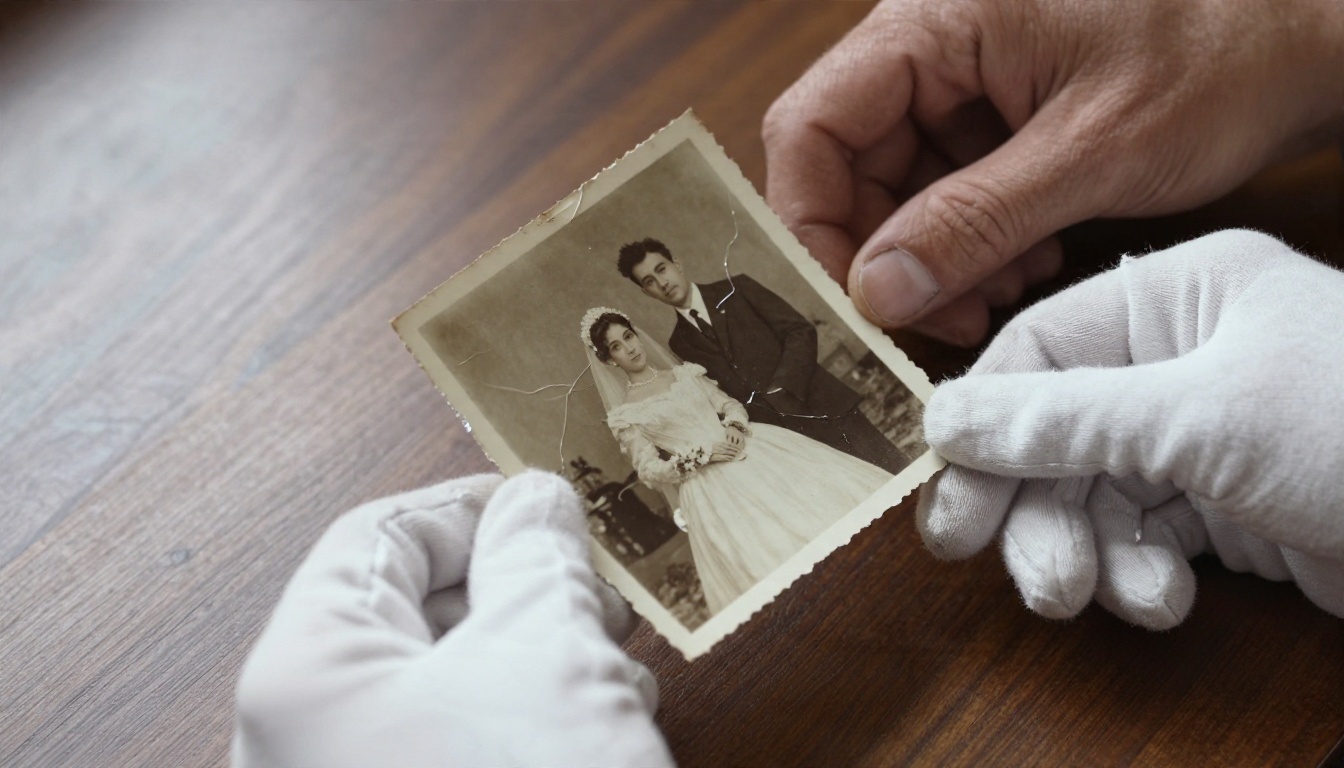
Damage AI Handles Well
These problems respond very reliably to current models:
- Scratches, dust and fold lines. Thin, high contrast marks are the easiest thing for a model to detect and fill.
- Fading and low contrast. Sun faded color prints and gray, washed out black and white photos regain tonal range quickly.
- Soft focus and mild blur. Faces especially get sharper, because face models have seen millions of examples.
- Low resolution scans. Upscaling by 2x to 4x adds believable texture instead of just bigger pixels.
- Missing color. Colorization has become convincing for skin, sky and foliage.
Where It Still Struggles
Be honest with yourself about the limits. Large missing areas, like a torn off corner that took half a face with it, force the model to invent content. Tiny faces in group shots, where each person is only a few dozen pixels wide, often come out looking like a stranger. Heavy water damage with mold patches can confuse scratch detection. And any tool that "rebuilds" a face is guessing, so a relative may notice that the nose or smile is slightly off.
💡 Rule of thumb: If you can still recognize the person in the original with your own eyes, AI will almost always do a good job. If you can't, expect an educated guess.
Scan First, Restore Second
The quality of your input decides the ceiling of the output. Restoring a blurry phone snapshot of a print gives you a worse result than restoring a clean scan of the same print, no matter which software you pick.
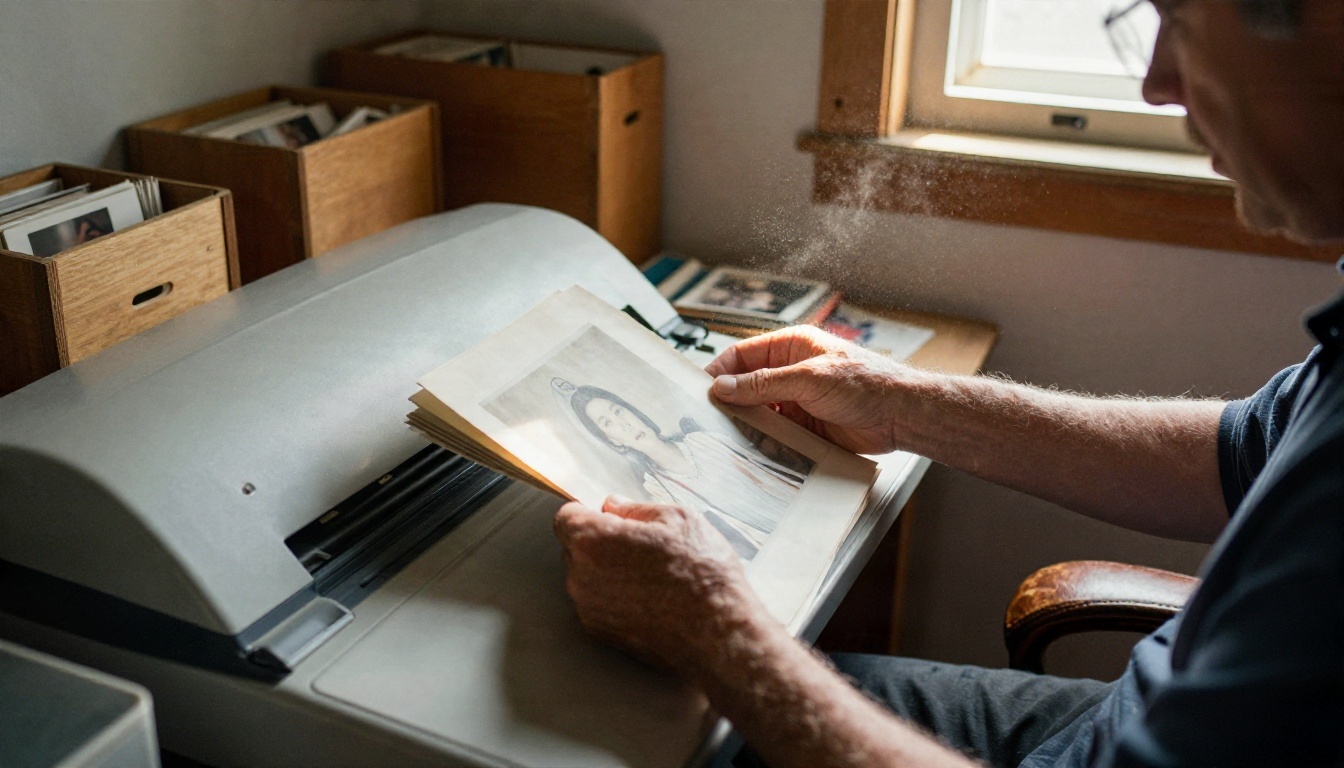
Scanner Settings That Matter
If you own a flatbed scanner, use it. A few settings make a visible difference:
| Setting | Recommended value | Why |
|---|
| Resolution | 600 dpi for small prints, 300 dpi for large ones | More pixels for the AI to work with |
| File format | TIFF or high quality JPEG | Avoids extra compression damage |
| Color mode | Color, even for black and white prints | Keeps yellowing and tone data |
| Auto correction | Off | Let the restoration tool handle contrast |
| Dust removal | Off for prints | Hardware dust filters can soften detail |
Wipe the glass with a microfiber cloth first. Lint on the scanner bed becomes fake "damage" that the AI then tries to repair.
Phone Scans When Pressed
No scanner? A phone works if you are careful. Place the print on a flat, matte surface near a window, avoid direct sun, shoot straight on from above so the edges stay parallel, and turn the flash off. Glare is the enemy: a glossy print shows reflections that no restoration tool can separate from real detail. Dedicated scanning apps that flatten and crop the print are worth using over the standard camera.
Free Options Worth Trying
"Free" means very different things depending on the tool, so read the fine print before uploading a precious photo. Based on 2026 roundups and vendor pages, which change often, the picture looks like this.
Free Tiers From Known Names
- MyHeritage photo tools offer a small number of free enhancements, reported at around five, with a paid plan and a short trial for more. They are tuned for faces in family photos, which is exactly what most people need.
- YouCam runs on iOS, Android and the web. It advertises free use with scratch removal and colorization, and a monthly subscription that was listed at roughly five dollars.
- VanceAI Photo Restorer is an all in one online option that combines scratch repair, face refinement, colorization and upscaling, usually with limited free credits.
- Photopea and Pixlr are browser editors with free versions. They give you manual retouching tools, plus some AI features, without installing anything.
- Colourise style sites specialize in color only, and some allow generous free uploads.
- Open source upscalers like Real ESRGAN are the engine behind many "free" sites. Running one directly removes the middleman.
The Catch With Free Credits
Most free tiers share the same trade offs. Output may be watermarked, capped at a low resolution, or locked behind a credit counter that runs out after a handful of photos. Some services keep your uploads for training or storage for a period you did not choose. If a photo is irreplaceable, check the privacy policy and delete the upload after you download the result.
💡 Test before you trust: Run one photo through two or three free tools and compare the faces at 100 percent zoom. The differences show up fast, and the cheapest result is often not the worst one.
App Choices for Phone Users
If your photos live on your phone and you want results while sitting on the sofa, a mobile app is the fastest route. You photograph or import a print, tap once, and get a repaired version.

What Mobile Apps Do Best
Apps shine at speed and convenience. One tap fixes common damage, a slider controls strength, and sharing the result with a relative takes seconds. Most also include colorization and a simple before and after slider that makes the change easy to judge. For a handful of snapshots, that is plenty.
They are weaker at control. You can rarely choose how strongly faces are rebuilt, you cannot mask an area you want to protect, and exports are often capped at a modest size, which is a problem if you want to print the result at 8 by 10 inches.
Privacy Checks Before Uploading
Almost every restoration app uploads your photo to a server. Before you feed it a family archive, check three things:
- Retention: how long are uploads stored?
- Training: are your photos used to improve the service?
- Account deletion: can you remove everything with one request?
If the answers are vague, treat the app as a tool for non sensitive photos only.
Desktop Software Reviews
Desktop programs still have a place, especially for people who restore photos regularly or want to do manual work beyond a one click result.
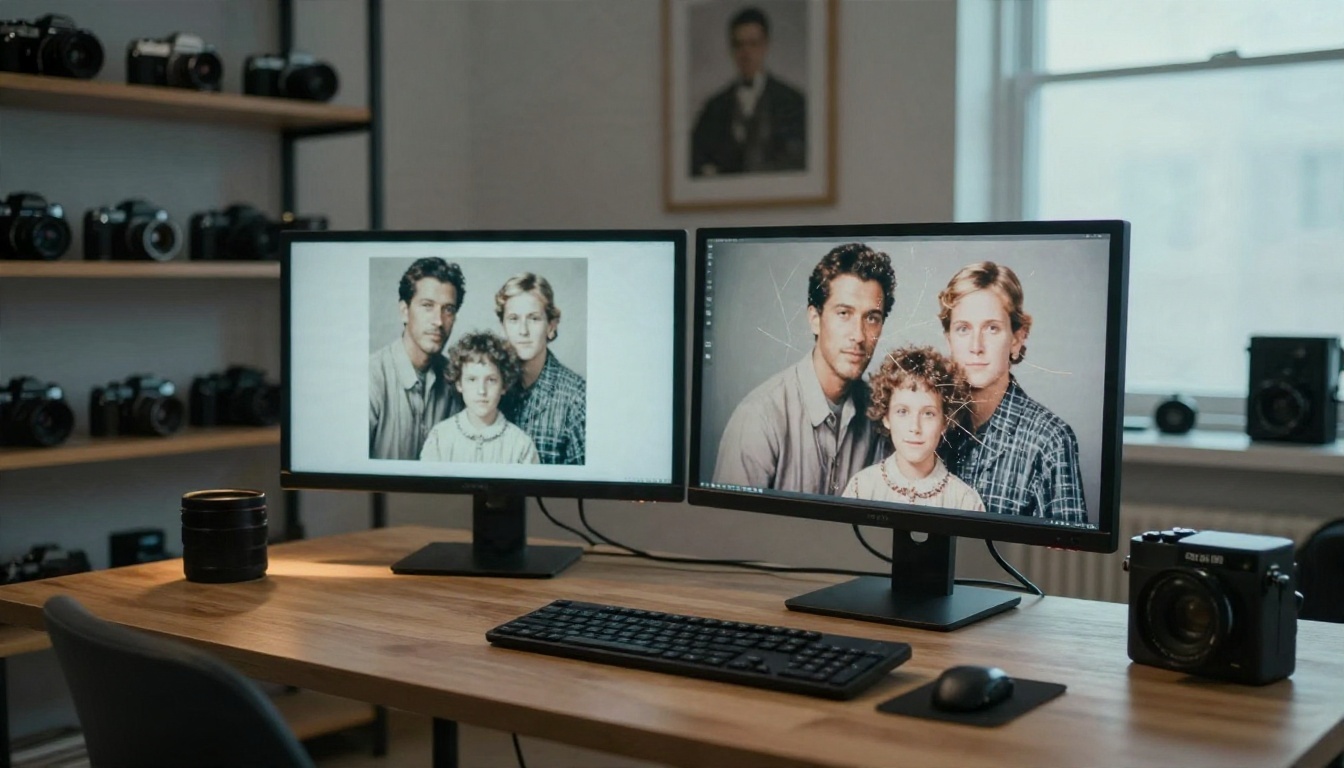
Photoshop and Elements
Photoshop with its Neural Filters is the choice for professionals who want layers, masks and precise control. Its restoration filters can fix scratches and refine faces, and you can dial the effect back on a layer when it goes too far. The price is a subscription and a real learning curve. Photoshop Elements is a more modest alternative sold with a perpetual license, so there is no monthly bill and it works offline.
When Desktop Beats Online
Choose desktop software when you need to:
- Work offline with sensitive or large archives
- Combine AI repair with manual cloning and healing on tricky damage
- Keep full resolution with no upload limit
- Process batches of files in a consistent way
For everyone else, the learning time rarely pays off. A good browser workflow gets you 90 percent of the quality in a tenth of the time.
Restore Photos on PicassoIA
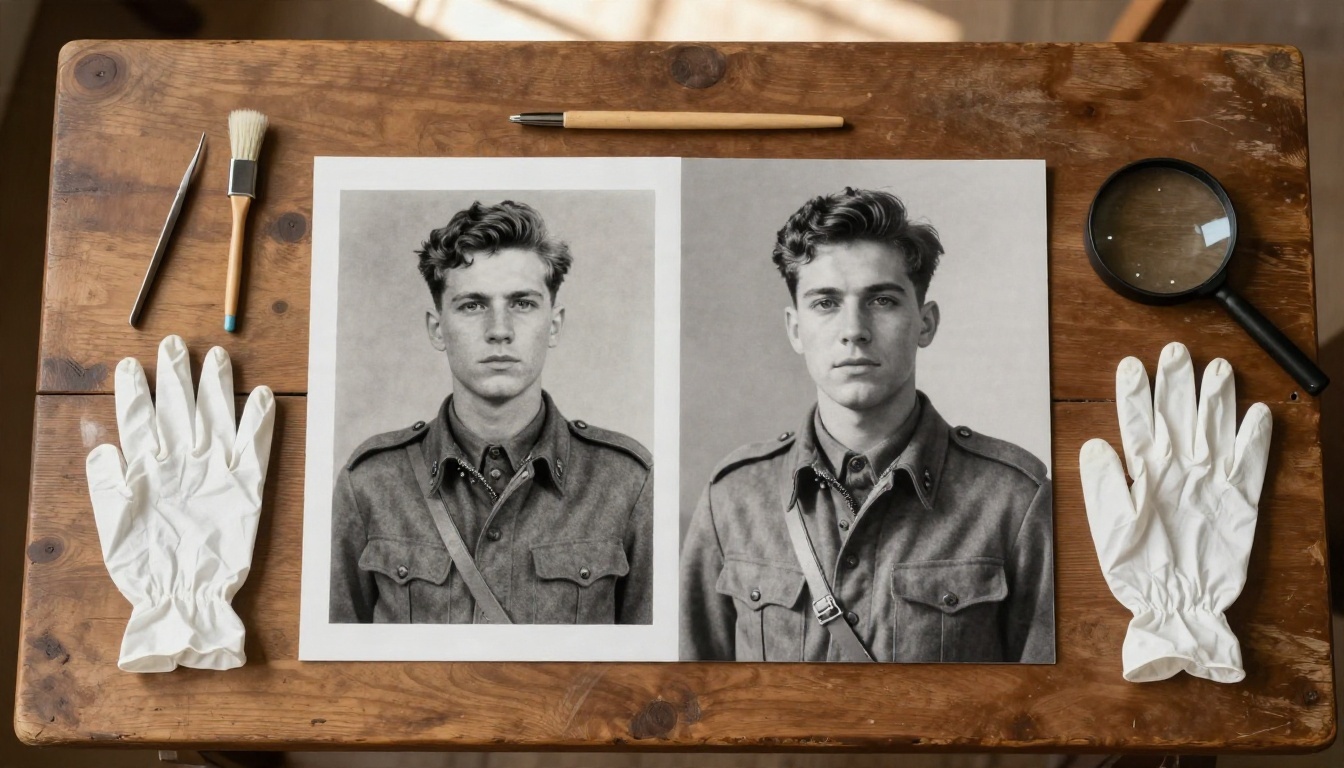
PicassoIA takes a different approach from a single locked tool. Instead of one black box, you pick a model matched to the damage, then chain a second one for upscaling or color. Generations are not tied to a per photo paywall, and you keep control of what happens at each step.
Models Matched to Damage
Step by Step Workflow
- Scan the print at 600 dpi and save it as a TIFF or high quality JPEG.
- Clean the surface by running the scan through Dust And Scratch v2. Check the output at 100 percent zoom for leftover marks.
- Add color if you want it with Image Colorization. Keep the clean black and white version as a backup.
- Upscale last with Image Upscale or Crystal Upscaler for portraits. Upscaling at the end avoids magnifying the damage you just removed.
- Fix stubborn spots with Nano Banana. Describe the repair plainly, for example "repair the torn corner and keep the original clothing and expression".
💡 Parameter tip: When a model offers a strength or creativity slider, start low. A gentle pass that keeps the original face is better than an aggressive one that invents a new nose.
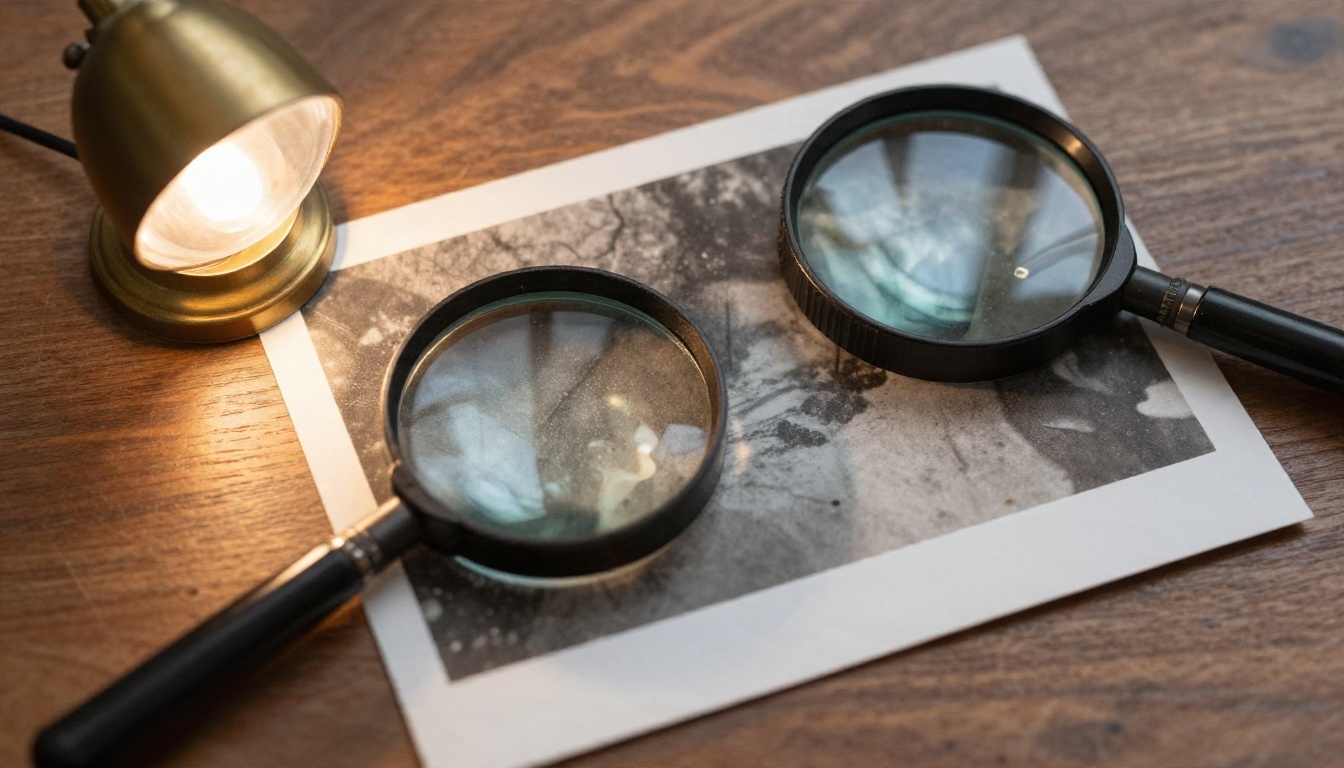
For fixing grainy school photos and small wallet size prints, the upscaling step is where most of the visible gain comes from. A 4x enlargement of a clean scan gives you enough pixels for a proper print, while still looking like a photograph instead of a painting.
Side by Side Comparison
Here is how the main routes stack up on the things that usually decide the purchase.
| Route | Cost | Control | Best for | Weak spot |
|---|
| Free online tools | Free with limits | Low | One or two photos | Watermarks, credit caps |
| Phone apps | Free tier plus subscription | Low to medium | Quick snapshots | Export size, privacy |
| Desktop editors | Subscription or one time license | High | Professional retouching | Learning curve |
| Model based workflow on PicassoIA | Credits and free options | High | Albums, mixed damage | Takes a few extra steps |
My honest read of this table: nobody needs every route. Pick a free online tool for a quick test, then move to a model based workflow once you see how much a second pass improves the result.
Mistakes That Ruin Restorations
Even great software can produce a bad photo when it is pushed too hard. These are the problems that show up most often.
Over Smoothing Faces
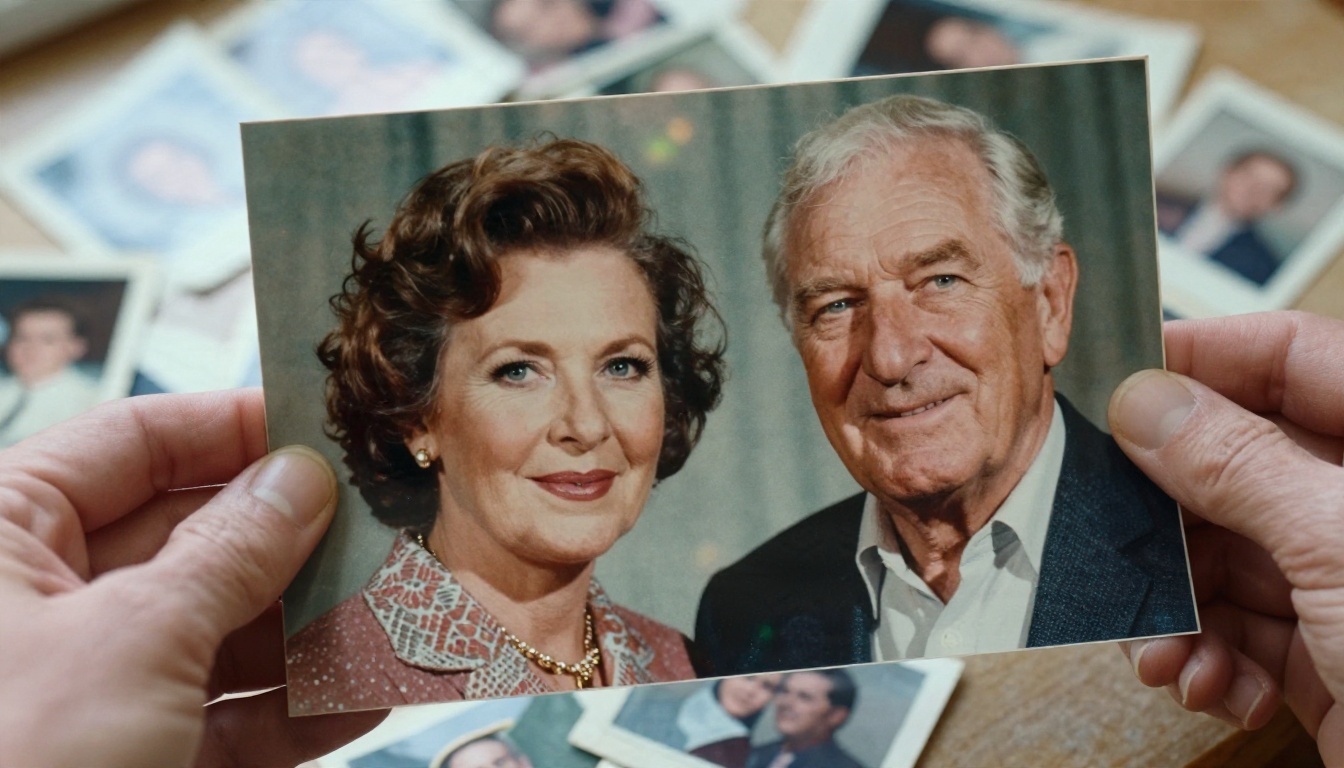
The most common failure is skin that looks waxy. It happens when a face model is set too strong or when a tool runs several face passes in a row. Real faces have pores, wrinkles and slight asymmetry. If the restored version looks younger than the person ever did, dial it back. Compare against the original at 100 percent zoom, not on a thumbnail.
Wrong Colors
Colorization is a guess based on context. Uniforms, flowers and cars are common places where it goes wrong. If you know the real colors, such as a navy dress or a red barn, mention them in a text editing model like Nano Banana and fix the area by hand rather than accepting the automatic result.
Skipping the Backup
Never overwrite your scan. Keep the untouched original, a cleaned version, and the final export as three separate files. Models improve every few months, and a future run of the same scan may give you a better result than today's.
Printing Too Early
A restoration that looks great on a phone can fall apart on paper. Check the output at the size you plan to print, and upscale again if edges look soft. For a 5 by 7 inch print, aim for at least 1500 by 2100 pixels; for 8 by 10 inches, 2400 by 3000.
Choosing the Right Option
If you want a one line recommendation for each type of person:
- Casual user with a few snapshots: try a free online tool or a phone app, compare two, and keep the better one.
- Family historian with an album: use a model based workflow so you can repeat the same steps on every photo and get consistent results.
- Professional or hobbyist retoucher: keep Photoshop for manual control and add AI models for the heavy lifting.
- Privacy conscious user: use desktop software offline, or delete uploads right after each session.
Restore Your First Photo Today
The best test of any software is a photo you actually care about. Pick one print from the shoebox, scan it, and run it through the steps above. Try Dust And Scratch v2 first, add color with Image Colorization, then finish with an upscale. You will see within minutes whether the result earns a spot in a frame.
Want to experiment further? PicassoIA also lets you generate new photorealistic images and edit existing ones, so you can rebuild a missing background or practice on test photos before touching your family archive. Browse every available model at picassoia.com/en/all-models and start restoring your own pictures with Picasso IA.


