You have a clip that is almost right. The street is too grey, a stranger walks through the background, the lighting feels flat. A few years ago you would have opened a timeline, masked frames by hand and lost an evening. Now you can type one sentence and let a model rewrite the footage. The catch is the fine print: watermarks, daily credit caps, 10 second clip limits and sign-up walls that appear right when you click export.
This article sorts the marketing from the reality. You will see what a prompt based video editor actually does, which free plans claim to export without a mark, where the limits hit hardest, and which alternatives on PicassoIA are worth opening today.
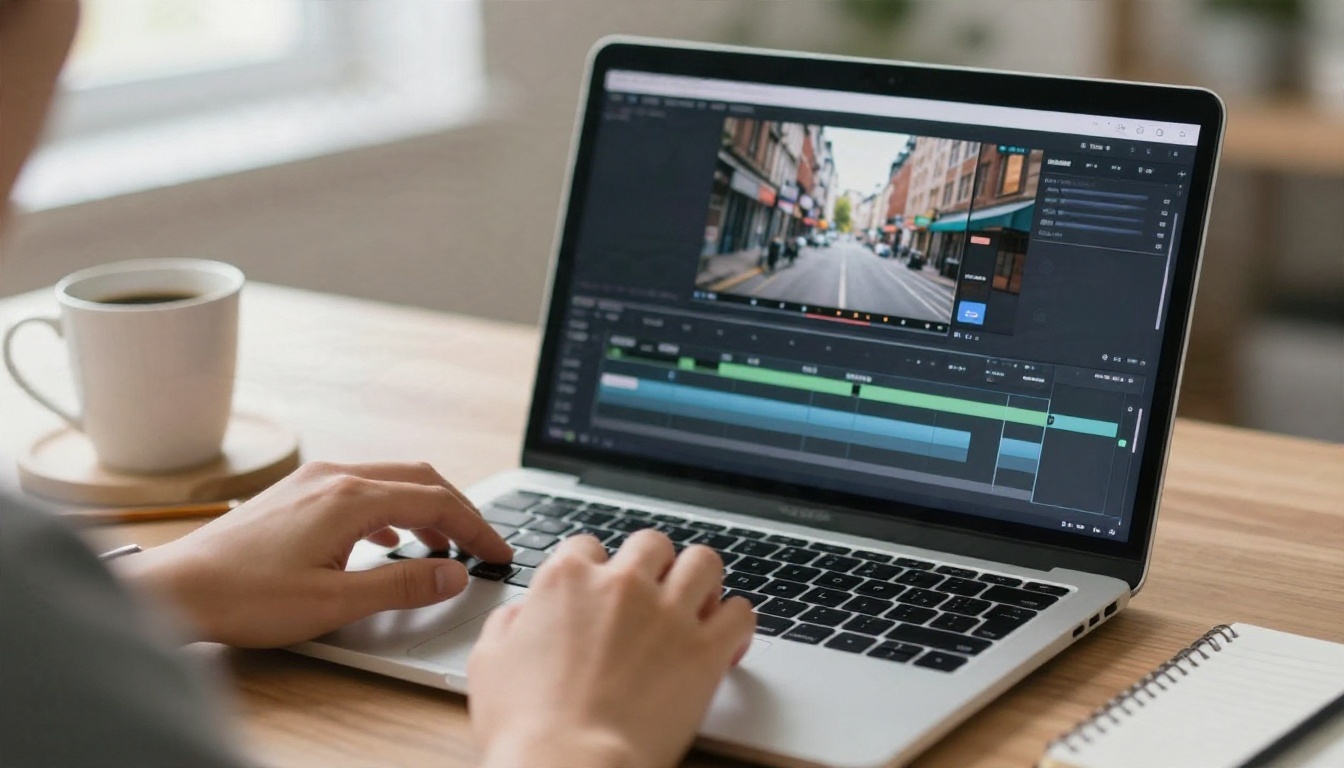
What a Prompt Video Editor Does
A prompt video editor takes an existing video and a written instruction, then returns a new version of that video. You are not dragging clips around. You are describing a change: "make it golden hour", "replace the red jacket with a denim one", "remove the cyclist on the left".
Edit, don't regenerate
This is the part people mix up. Text to video invents footage from nothing. Prompt editing starts from your footage and changes some of it while holding the rest steady: the camera path, the timing, the people. That is why editing models are the better pick when you already filmed something and only need to fix or restyle it.
| Task | Best fit | Starting material |
|---|
| Change lighting, season or style | Prompt video editor | Your own clip |
| Swap clothes, props or backgrounds | Prompt video editor | Your own clip |
| Remove a distracting object | Object erase model | Your own clip |
| Create a scene that was never filmed | Text to video model | Only a prompt |
| Animate a still photo | Image to video model | One image |
Who this suits
- Short form creators who need ten variations of one clip for different platforms.
- Small shops filming product or workshop footage on a phone.
- Students and teachers with no editing software and no budget.
- Editors who want a fast first pass before doing manual polish.
💡 Tip: Good source footage beats a clever prompt. Steady shots, even light and a clear subject give the model something solid to hold onto. Shaky, dark clips produce shaky, dark edits.
Free vs Watermark: The Real Story
"Free" on a landing page rarely means the same thing as "free" in your export folder. Before you spend an hour on a project, check what the final file will look like.
Why watermarks exist
Running a video model costs real GPU time. A watermark is the cheapest way for a service to let you try the tool while stopping you from using the output for free in finished work. Remove the mark and you usually pay, or you accept a tighter cap.
What vendors say about free exports
I searched current vendor pages in November 2026. These are claims made by the companies themselves, so test each one with a throwaway clip before you rely on it.
| Tool | Free plan claim | Watch out for |
|---|
| Magic Hour | Prompt editor, no sign-up | Small shared daily quota across all its tools |
| Satura | Browser editor, no watermark on exports | Check export terms on the free tier |
| Invideo | AI editor and timeline on the free plan, no card | Limits can differ by export type |
| Kapwing | Watermark free exports on Pro | Free exports are the catch |
| Renderforest | Watermark free on paid plans | Free preview only |
| Creatify | Free plan available | Free exports carry a watermark |
| VEED | Free plan available | Free exports include a watermark |
The pattern is clear. A handful of services let you export clean on a free plan, but they tend to cap length, resolution or the number of runs per day. The rest give you a branded preview and ask for a subscription.

Where Free Limits Actually Hit
Watermarks get the attention, but the limits below cost you more time.
Clip length and resolution
Most prompt editors work on short inputs, often between 5 and 15 seconds. Longer videos get trimmed, rejected or billed at a higher rate. Resolution is the other quiet cap: free runs often return 480p or 720p, which looks fine on a phone and soft on a monitor.
Daily credits and queues
Free tiers usually run on credits that refill each day. One edit can eat several credits, so "3 free generations" can mean three attempts, and the first one is rarely the best. Free users also sit in a slower queue at busy hours.
Sign-up walls
"No sign-up" is rare. Many tools let you type a prompt, then ask for an account when the result is ready. Others let you preview but not download. If you are testing, upload a clip you do not mind sharing, since you are sending it to a third party.
💡 Tip: Budget your free runs. Use the first one to test the idea on a 3 second slice, the second to refine the prompt, and the third for the real clip.

Prompt Editors Worth Trying on PicassoIA
PicassoIA lists several video editing models you can run from a browser with your own clip and a text instruction. They behave differently, so pick by task.
P Video Edit for quick prompt changes
P Video Edit is the most direct match for the keyword: upload a video, write what should change, and get an edited clip back. It suits fast iterations, like adjusting colors, swapping an object or changing a setting, without a timeline in sight.
Lucy Edit 2 and Wan 2.7 Videoedit
Lucy Edit 2 is built for text driven edits on existing footage, such as wardrobe, props and scene details. Wan 2.7 Videoedit is another text based editor that works well when you want a stylistic shift while keeping motion consistent.
Aleph 2, Kling o1 and Modify Video
Three heavier options for bigger restyles:
- Aleph 2: edit a single frame and carry that change across the whole video.
- Kling o1: rewrite parts of a clip with a text instruction.
- Modify Video: restyle a clip while keeping its structure.
Older Gen 4 Aleph is also there if you want to recut and restyle in one pass.
| Model | Best for | Typical prompt |
|---|
| P Video Edit | Fast, general edits | "Make the room evening light" |
| Lucy Edit 2 | Clothes, props, details | "Change the shirt to green" |
| Wan 2.7 Videoedit | Style shifts with steady motion | "Turn it into a rainy day" |
| Aleph 2 | One frame edit, full video result | "Add snow on the ground" |
| Kling o1 | Text rewrites of a scene | "Swap the car for a bicycle" |
| Modify Video | Whole clip restyling | "Film look, warm tones" |
How to Write Edit Prompts
The same model can give you a clean result or a mess depending on the sentence you type. Here is a routine that works across most editors.
A five step routine
- Pick a short, steady clip. Five to ten seconds with one clear subject.
- Name the one thing to change. "Change the jacket", not "make it better".
- State what must stay. "Keep the camera movement and the person's face."
- Add look details. Light direction, time of day, material, color.
- Run, compare, refine. Change one phrase per attempt so you know what caused the difference.
Prompts that work
- "Keep everything the same, but change the time of day to sunset with warm low light from the left."
- "Replace the woman's red coat with a navy wool coat. Keep her face, hair and walking pace unchanged."
- "Make the street wet after rain, with soft reflections on the asphalt. Do not change the cars."
- "Give it the look of 35mm film, gentle grain, slightly faded blacks."
Prompts that fail
- "Make it amazing" gives the model nothing to act on.
- Stacking ten changes in one sentence confuses the result.
- Asking for a new camera angle from a static shot usually warps people and objects.
💡 Tip: If a face or logo drifts, add "keep the face and text exactly as in the original" and shorten the clip. Smaller edits hold their identity better.

Fix What Prompts Can't
A prompt editor is not the right tool for every problem. Some jobs have a dedicated model that does them faster and more predictably.
- Wrong length: Trim Video cuts a clip to an exact range before you spend credits on editing.
- Missing subtitles: Autocaption adds captions to a video automatically.
- Unwanted object: Video Erase Object removes something from the shot, such as a passer by or a sign.
- Soft footage: Video Increase Resolution upscales the final clip.
A smart order of operations: trim first, edit second, erase or upscale third, caption last. Each step works on a smaller, cleaner file, and you waste fewer free runs.

A real workflow example
Say a potter films a 12 second clip of hands on the wheel. The light is dull and a customer walks across the back of the frame. The workflow:
- Trim the clip to the best 8 seconds.
- Run an erase model to remove the customer.
- Use a prompt editor: "Warm skylight from above, soft contrast, keep the hands and clay unchanged."
- Upscale and add captions for a short form post.
Four small steps, no timeline software, and each one has a clear job.
When to Generate Instead of Edit
Sometimes you do not have footage at all. Then a text to video model is the better tool, and several are worth knowing.
A common combo: generate a base clip with a text to video model, then refine it with a prompt editor. You get a custom shot and fine control over the look.
Checklist Before You Export
Run through this list before you hit download. It takes a minute and saves a rerun.
- Watermark: is there a logo in a corner, or a faint mark across the frame?
- Resolution: does the file match what you need, or did it drop to 480p?
- Length: did the tool cut the end of your clip?
- Faces and hands: do they hold steady from the first frame to the last?
- Audio: did the original sound survive, or was it stripped?
- Rights: do you own the footage and any music in it?
- Privacy: are you comfortable with the clip sitting on a third party server?
Free alternatives when limits run out
If one tool stops you, you do not have to pay straight away.
- Switch to a second editor from the table above and reuse the same prompt.
- Split the project into smaller clips so each stays inside the free cap.
- Edit the hardest clip with a prompt model, and handle the simple cuts with a basic trimmer.
- Move from editing to generation with a free model such as Seedance 2.5 Lite when you only need new footage.
Try Your First Prompt Edit Today
You do not need a timeline, a render farm or a monthly plan to change a video with words. Pick a short clip, trim it, write one clear sentence and run it through an editor. Compare two models on the same prompt and you will quickly see which one handles your kind of footage best.
Open Picasso IA, start with P Video Edit for a quick change, and move to Aleph 2 or Kling o1 when you need a bigger restyle. If you need new footage instead, try Seedance 2.5 Lite or Kling v3 Video. Every model lives at picassoia.com/en/all-models, so test a few and keep the one that fits your clip.


