The Ghibli filter had its viral moment, and now everyone's feed looks the same. If you want that warm, hand-painted, slightly dreamy look without waiting in a queue, hitting a daily cap, or paying for a tool that only does one trick, you need a better alternative for Ghibli style AI. The good news: the look is not locked inside one app. It is a set of visual habits (soft light, lush greens, quiet moments), and several free tools can reproduce them if you know what to ask for.
This article walks through the free options that still work, what the paid plans actually cost, and a set of prompts you can paste straight into a generator. You'll also see where most people go wrong, so you can skip the muddy, over-sweet results.
Why People Want a Ghibli Alternative
The Look Everyone Copied
A few months of one-click filters flooded social media with near identical portraits: the same pink cheeks, the same blurred sky, the same flat outline. When a style is that easy to apply, it stops feeling special. People who liked the aesthetic in the first place now want something with more control, more variety, and a result that looks like their idea, not a template.
Where Single-Purpose Tools Fall Short
Dedicated Ghibli apps tend to share a few problems:
- One style, one trick. You upload a photo, press a button, and get a filtered copy. You can't change the mood, the time of day, or the composition.
- Credit walls. Many are free for a couple of tries, then ask for a subscription.
- Soft, smeared detail. Filters repaint faces and hands, and the fine detail often turns to mush.
- No text-to-image. If you want a brand new scene from a sentence, a photo filter can't help.
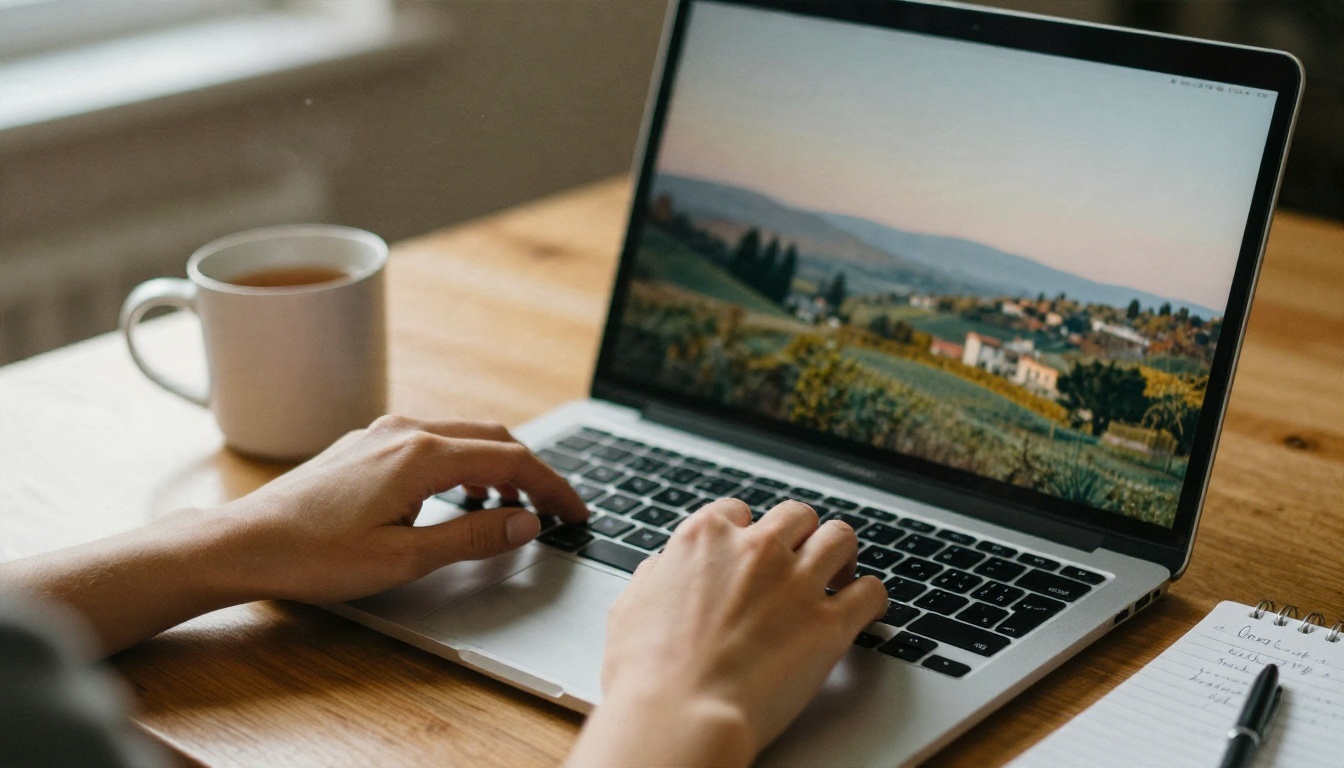
A general text-to-image model solves all four. You describe the scene, pick the model, and regenerate until it feels right.
What Actually Makes the Style Work
Before picking a tool, it helps to know what you're asking the model to copy. Strip away the studio name and five ingredients remain. Put these in your prompt and nearly any capable model will get close.
Soft Palettes and Hand-Painted Skies
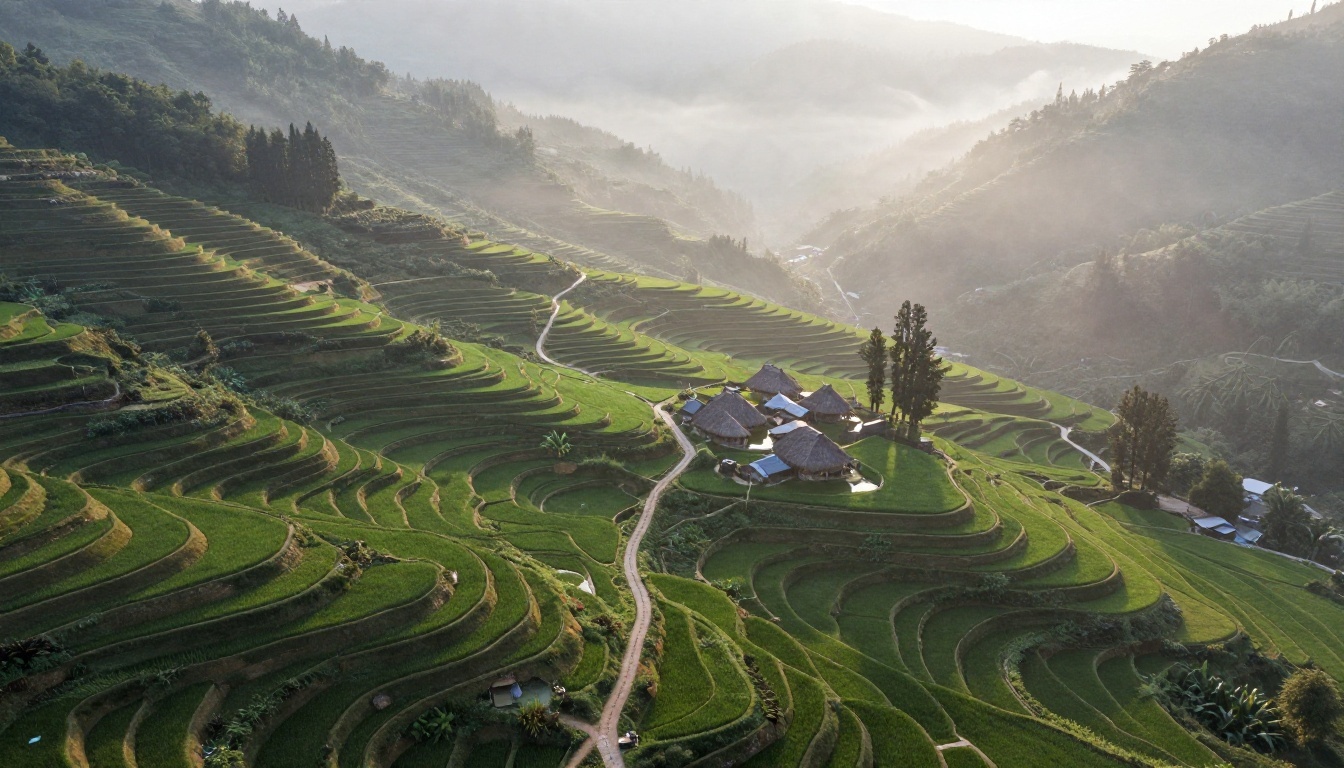
The signature is a sky that looks painted: towering cumulus clouds, a pale blue that shifts toward warm cream near the horizon, and greens that are rich but never neon. Think gouache and watercolor, not glossy digital gradients.
Ordinary Moments, Quiet Wonder
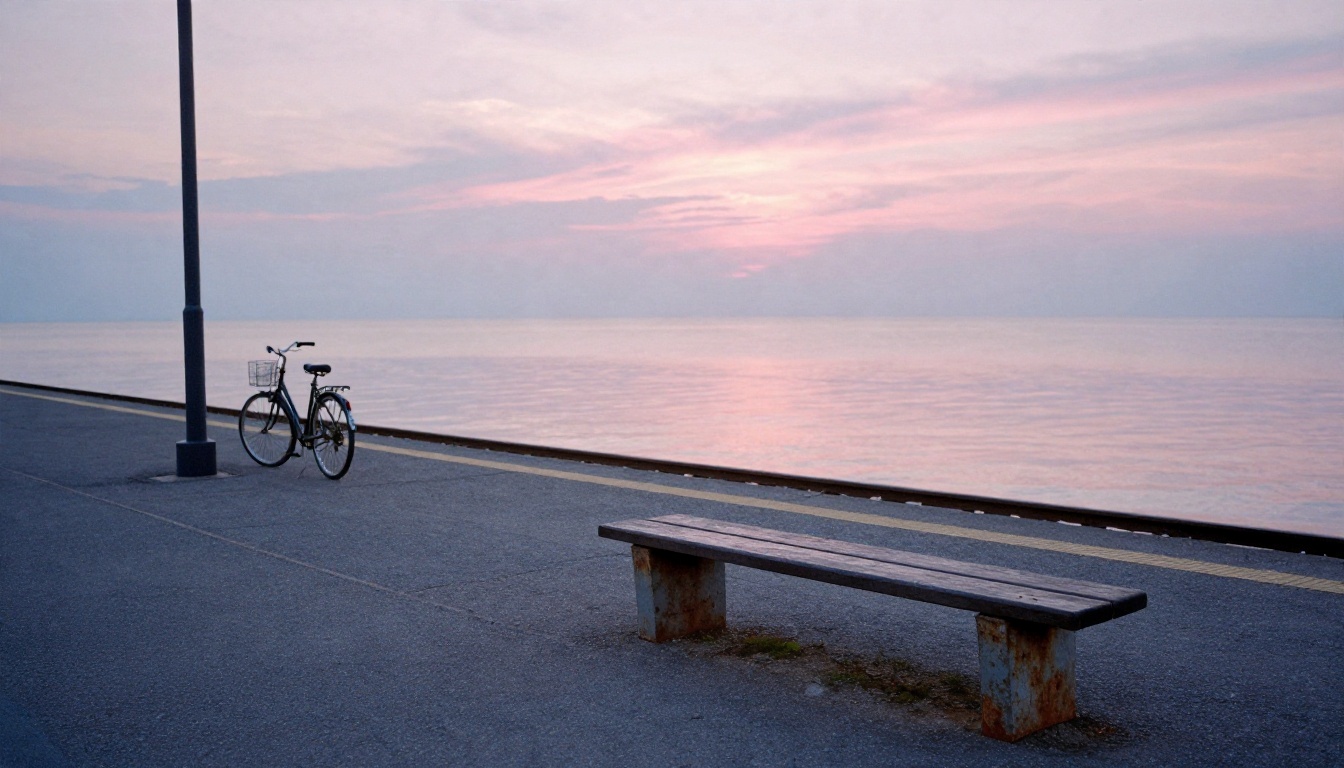
The scenes are rarely about spectacle. A kettle on a stove, a bicycle at a railway platform, a child crouching in wet grass. The charm comes from stillness, and your prompt should ask for it. Models tend to overdo drama unless you tell them not to.
The Five-Ingredient Checklist
| Ingredient | What to type in your prompt |
|---|
| Light | "warm late afternoon sun, soft backlight, dust in the air" |
| Sky | "towering cumulus clouds, hand-painted, pale blue fading to cream" |
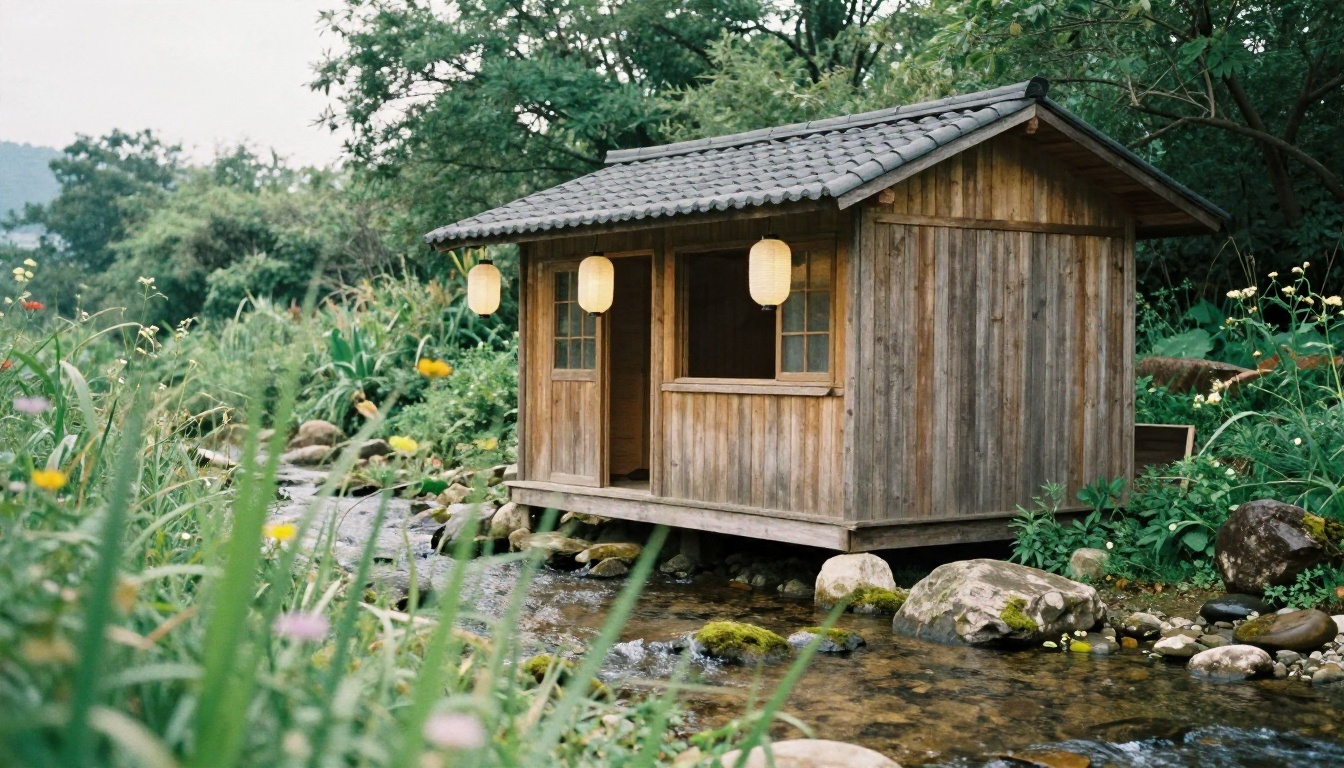
| Nature | "tall grass, wildflowers, moss on stones, layered hills" |
| Texture | "gouache, visible brush strokes, watercolor paper grain" |
| Mood | "quiet, nostalgic, gentle, no action, no drama" |
💡 Tip: Describe the qualities, not the studio. "Hand-painted pastoral animation look with soft gouache textures" usually gives cleaner results than a brand reference, and it keeps your prompts reusable across every model.
Free Options That Actually Work
Free is a moving target. Plans, caps, and watermarks change often, so treat the notes below as a snapshot and check the current terms before you commit.
Chat Assistants and Search Tools
Several mainstream assistants and design apps offer free image generation with daily limits. Google's Gemini, Microsoft's Bing Image Creator and Designer, Adobe Firefly, Canva's image tool, Leonardo, Krea, and Ideogram all have some free allowance. They are convenient, but they usually come with caps, slower queues at peak hours, and style settings you can't fully control.
Open Models on PicassoIA
If you want more range, a model library beats any single app. On PicassoIA you can switch between engines in seconds and compare how each one reads the same prompt. These are the ones worth trying for a painterly, storybook look:
- Seedream 4.5: strong prompt following and clean 4K output. A reliable first pick for lush landscapes and soft light.
- Nano Banana: good at editing an existing picture while keeping the subject intact, so it suits photo-to-painting conversions.
- Nano Banana Pro: a step up in detail and consistency when you need sharper results.
- Qwen Image 3: follows long, descriptive prompts well and handles layered scenes.
- Flux Schnell: very fast, ideal for testing ten variations before you settle.
- Z Image Turbo: quick, sharp, and forgiving with short prompts.
- Ideogram v4 Balanced: handy when you want a little lettering, like a shop sign or a book title, inside the scene.
Free Tier Limits to Expect
Whatever you pick, expect some combination of these trade-offs:
- Daily caps on generations, often resetting every 24 hours.
- Watermarks on free exports.
- Lower resolution on the free tier, with 4K saved for paid plans.
- Queue delays when servers are busy.
- Commercial limits. Personal use is usually fine, but selling prints or using images in ads may need a paid license.
💡 Tip: Run quick drafts on a fast model such as Flux Schnell, then rerun only your best prompt on a heavier model. You'll burn far fewer credits.
Pricing Compared
Prices shift, and third-party directories rarely agree with each other. The table below describes typical patterns rather than promises, so confirm the current numbers on each vendor's own page.
| Option type | Typical free tier | Typical paid entry | Best for |
|---|
| Single-purpose Ghibli filter apps | A few free tries, often watermarked | Roughly $8 to $10 a month, with commercial licenses costing far more | One-off photo conversions |
| Chat assistant image tools | Daily or hourly allowance | Bundled into a general subscription | Casual use inside a chat |
| Design suites | Limited monthly credits | Subscription tied to the whole suite | Social posts and flyers |
| Model libraries like PicassoIA | Several models to try | Pay for what you use or subscribe | Style control, comparing engines |
| Animation-focused tools | Often none | Starts near $7.90 a month, jumps to about $99 for commercial licensing | Moving a finished image |
A few patterns stand out. Filter apps look cheap, but you pay each month for a single function. Suites are good value if you already use them for other work. A model library tends to win when you generate often, because one account gives access to many engines instead of one subscription per style.
Prompts You Can Copy Today
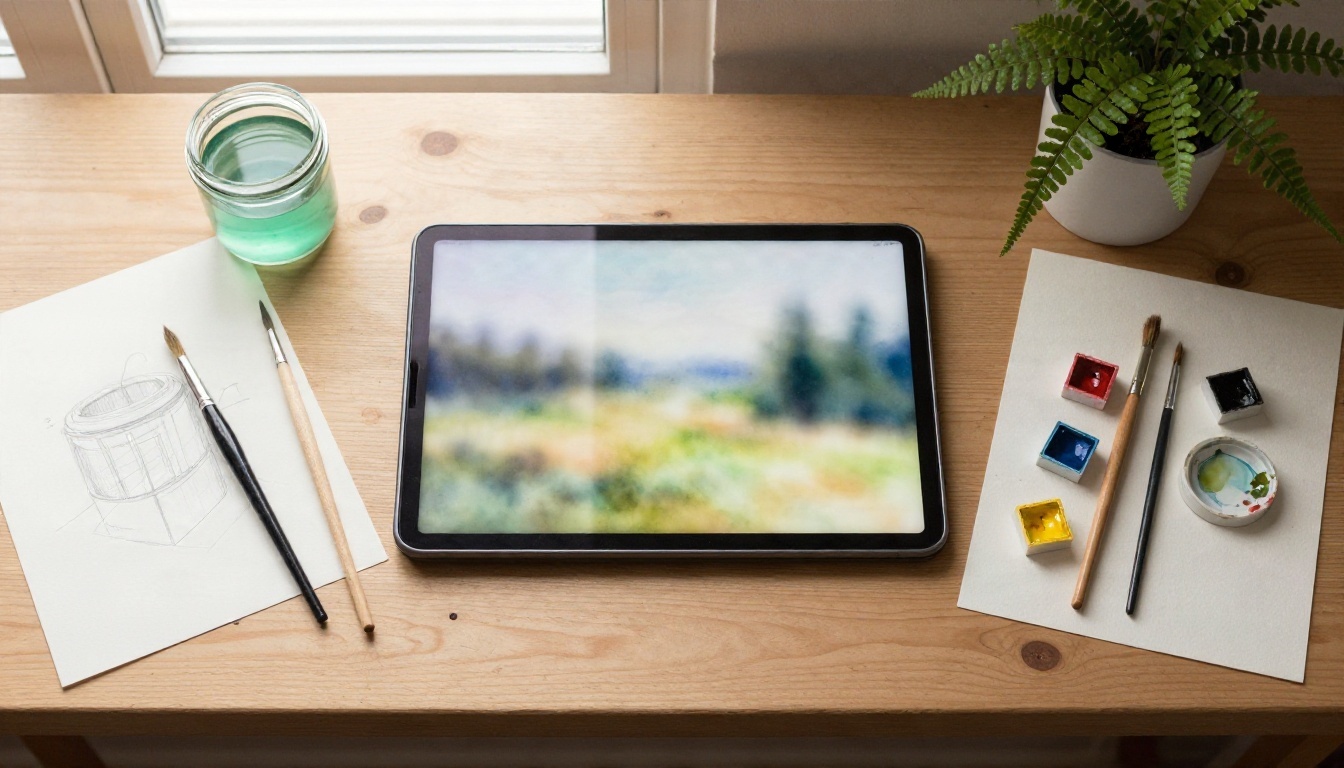
Good prompts follow a rhythm: subject, setting, light, material, mood. Here are three that work as a base. Swap the nouns and keep the structure.
Landscape Prompt
A narrow dirt road winding through green hills toward a small farmhouse with a tiled roof, towering cumulus clouds in a pale blue sky, wild grasses and white flowers in the foreground, warm afternoon sunlight, hand-painted gouache texture, soft brush strokes, quiet and nostalgic mood, wide shot.
This one works across almost every model. If the result looks too glossy, add "visible paper grain, matte finish."
Character Prompt
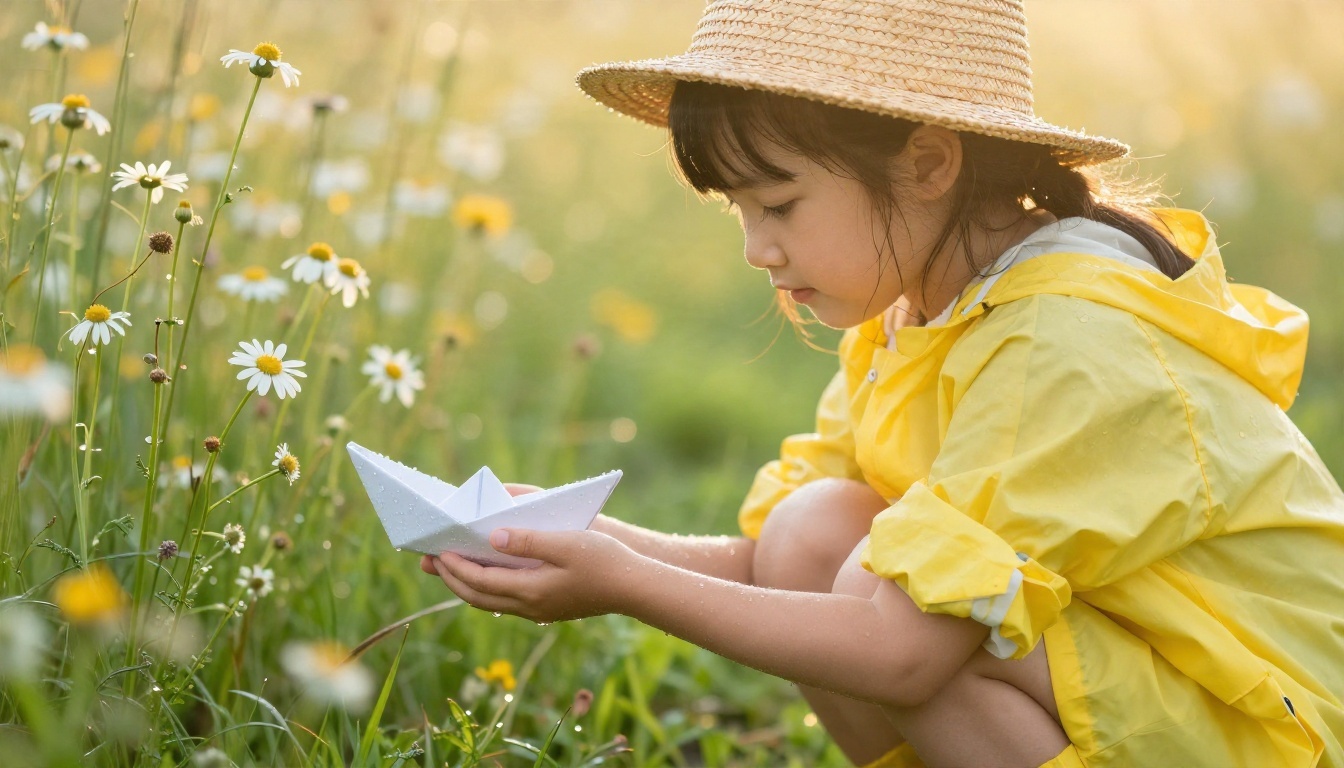
A young girl in a yellow raincoat and straw hat crouching in a meadow after summer rain, holding a small paper boat, water droplets on daisies, golden backlight, soft watercolor shading, simple expressive face, gentle smile, painterly background with blurred trees.
Characters are where models slip. Keep the face simple, avoid asking for extreme detail on eyes, and say "simple expressive face" so the model doesn't over-render.
Interior Prompt
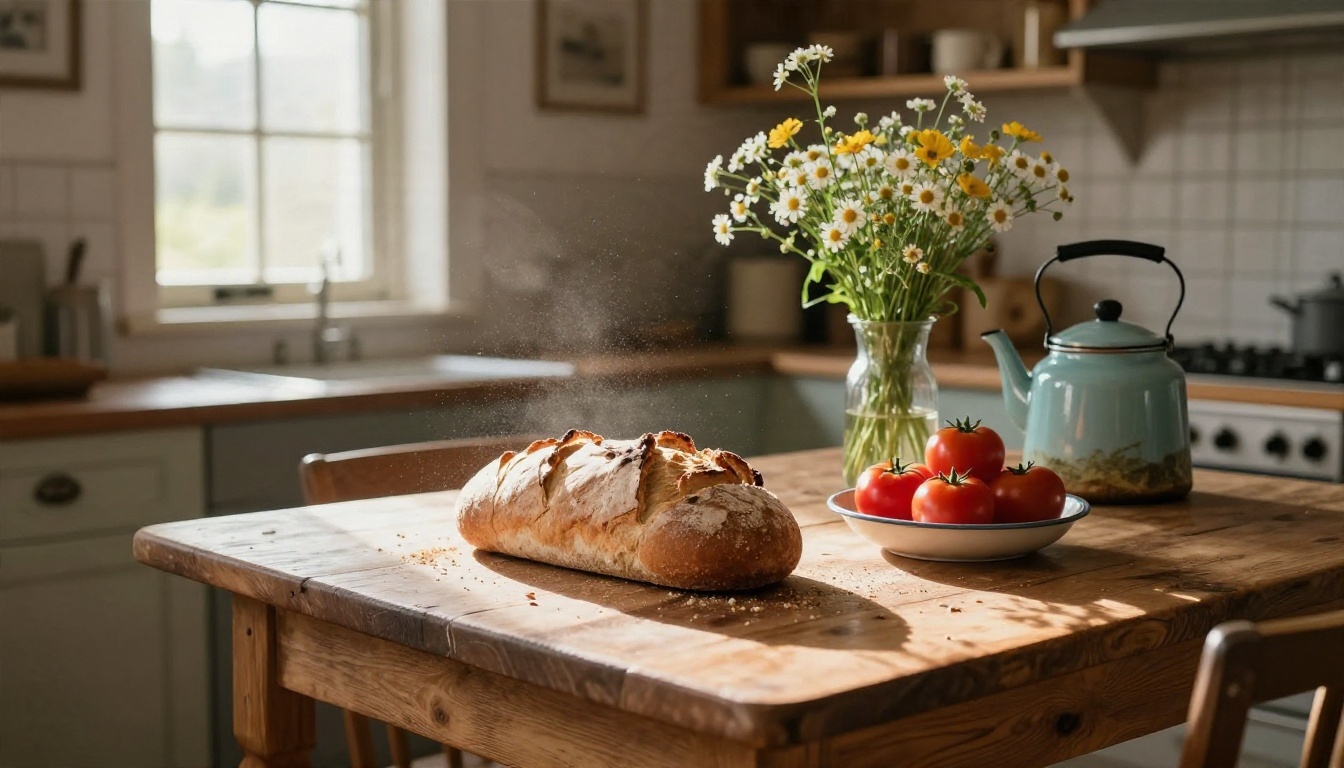
A rustic kitchen with a wooden table, fresh bread, ripe tomatoes, a jug of wildflowers and an enamel kettle, sunlight through a small paned window, dust floating in the light, warm hand-painted look, cozy, slow morning mood, close detail.
Food and domestic objects are a quiet superpower of this style. A plain loaf of bread rendered in warm light can feel more magical than a dragon.
A Reusable Prompt Template
Copy this and fill in the brackets:
- Subject: [who or what, doing a small, quiet action]
- Setting: [place with two or three natural details]
- Light: [time of day, direction, one atmospheric detail]
- Material: [gouache, watercolor, paper grain, brush strokes]
- Mood: [quiet, nostalgic, gentle, slow]
How to Use Seedream 4.5 on PicassoIA
Seedream 4.5 is a solid starting point because it follows detailed prompts closely and produces sharp output without much tuning. Here's the process from blank page to finished image.
- Open the model page. Go to the Seedream 4.5 page on PicassoIA and sign in.
- Paste your prompt. Use the landscape or character prompt above. Keep it to one clear scene.
- Choose the aspect ratio. 16:9 suits landscapes and wallpapers, 3:4 or 2:3 suits portraits and posters, 1:1 suits social posts.
- Set the resolution. Test at a lower size first, then upscale the winner.
- Generate three to four variations. Small wording changes matter. Change one thing at a time: the light, the sky, or the material.
- Refine with a second pass. If the composition is right but the style is off, run the image through Nano Banana with an instruction like "make it look like a soft gouache painting, keep the composition."
- Save and compare. Put your best result next to the first draft. The difference tells you which words earned their place.
💡 Tip: Want the same character to keep appearing? Use a LoRA-based model such as Flux 2 Klein 9B Base LoRA, or train your own with the Qwen Image LoRA Trainer. A custom style trained on your own artwork is the cleanest long-term replacement for a one-click filter.
Not every task needs the same engine. A quick matching table saves time:
5 Mistakes That Ruin the Look
Even a great model produces a bad picture when the prompt works against it. These are the five I see most often.
- Asking for too much. Ten characters, a castle, a dragon, and a sunset in one frame. Keep it to a single quiet idea.
- Forgetting the material. Without words like gouache, watercolor, or paper grain, many models default to a glossy digital finish.
- Over-stylized faces. Huge eyes and heavy shading drag the picture toward generic anime. Ask for "simple, expressive, minimal shading."
- Neon color. Saturated, electric greens and pinks break the gentle palette. Ask for "muted, natural, sun-faded colors."
- Ignoring the background. The sky and landscape carry half the mood. Spend as many words on the clouds and grass as on the character.
A Quick Note on Style and Ownership
Describing a look in general terms is different from copying a specific character or film frame. Stay with the qualities (soft light, painted skies, gentle mood) and avoid reproducing named characters or recognizable scenes. For anything you plan to sell or use in ads, check the commercial terms of the tool you used, since they vary.
Phone-Friendly Workflow
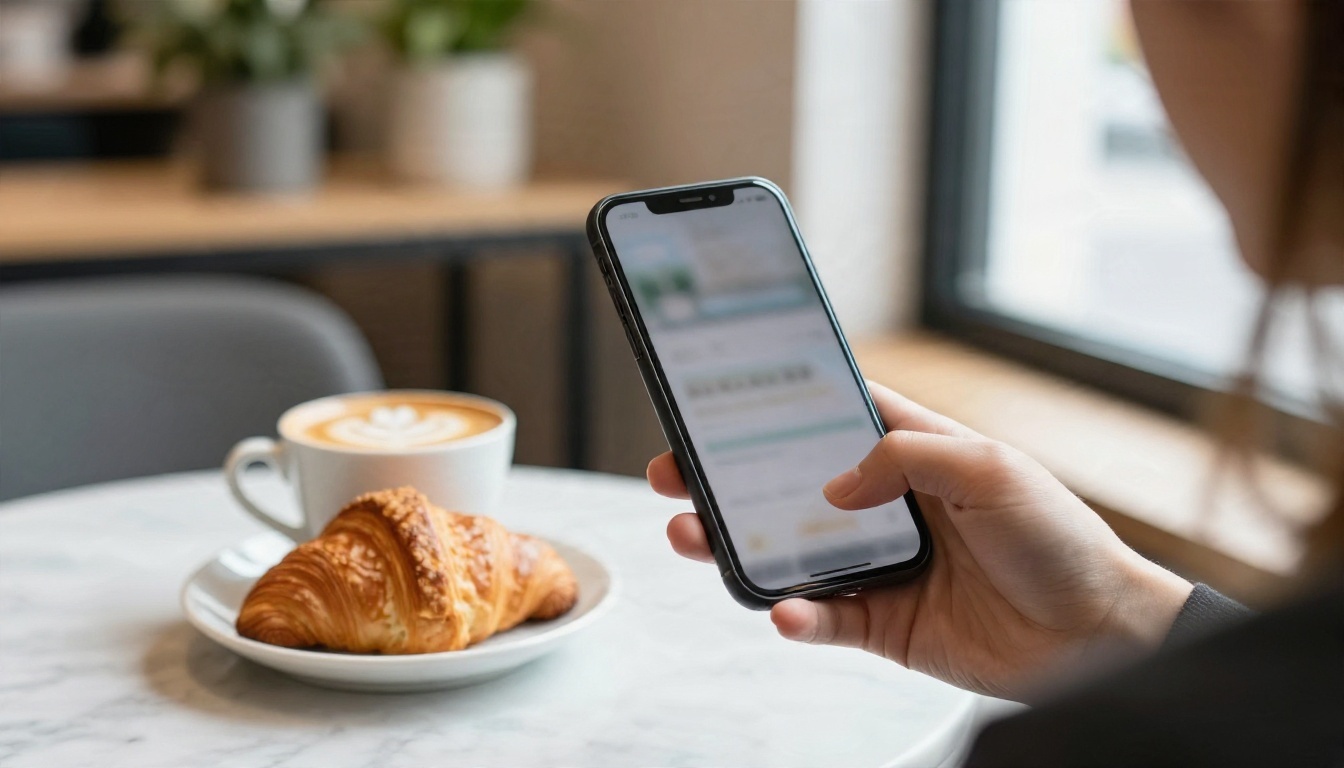
You don't need a desktop. A browser on your phone is enough for drafts, prompt tweaks, and sharing. Many people write prompts in a notes app, test them on a fast model during a break, then run the best version on a heavier engine when they're back at a bigger screen.
Start Making Your Own Scenes
Skip the filter and build your own look. Pick one of the prompts above, open Seedream 4.5 on PicassoIA, and run it three times with small changes. Then try the same prompt on Qwen Image 3 and Flux Schnell to see how each engine reads it. You'll quickly find the one that matches your taste.
Once you have a favorite scene, keep going. Change the time of day. Swap a rainy meadow for a seaside platform. Replace a character with an empty kitchen table. That's how a generic filter look turns into a personal style.
Ready to try it? Browse every available model at picassoia.com/en/all-models, pick two or three, and start creating. Your first good image is usually just a few prompt tweaks away.


