You typed a perfectly normal prompt, a woman in a swimsuit on a beach at golden hour, and Amuse 3.1 gave you a blocked result or nothing at all. That moment sends thousands of people to search for ways to remove censorship from Amuse 3.1. This article explains what the filter does, what I could and could not confirm about its settings, what to check when the app is not working, and which free online alternatives give you tasteful glamour and portrait results without the same friction.
One note up front. Amuse is AMD's local image generator, and it is not on PicassoIA. I will talk about it by name and nothing more. Every tool I recommend below is one you can open in a browser today.
💡 Short answer: I found no official, documented switch in Amuse 3.1 that turns its content filter off. Rather than inventing a menu path, I will show you what to verify yourself and then give you options that don't depend on that filter at all.
What Amuse 3.1 Actually Is
Amuse is a Windows desktop application built around running Stable Diffusion style models on AMD hardware. Version 3.1 arrived with support for Stable Diffusion 3.0 Medium in BF16 precision on Ryzen AI machines, which tells you who the target audience is: people with an AMD laptop or desktop who want a one-click, offline generator.
That focus explains most of its behavior. It is packaged to be easy, safe to ship, and friendly to a broad audience. It was never designed as an open-ended creative workstation.
Local app, local limits
Running locally sounds like total freedom, and many people assume that means no rules. In practice, a packaged desktop app ships with whatever guardrails its publisher chose. The model weights live on your disk, but the wrapper around them decides what gets displayed.
That wrapper is what you run into when a prompt is refused or an output is hidden.
Why a filter exists at all
A publisher distributing an app under a large hardware brand has legal and reputational reasons to include a safety layer. The same logic applies to almost every consumer generator. The filter is a product decision, not a bug, and it does not reflect your intent as a user making lifestyle or fashion imagery.
The practical problem is over-blocking. Words like "bikini", "lingerie", "boudoir" or even "shoulders" can trip a classifier that was tuned conservatively.
Amuse 3.1 Filter Settings Explained
Let's separate verified information from guesswork, because forum threads on this topic are full of confident claims that fall apart the moment you test them.
What I could confirm
Research on this topic turned up the release coverage of Amuse 3.1 and a user comment complaining that the app feels heavily censored. That is an anecdote, not documentation. I could not find a published settings page, release note, or FAQ that describes a toggle for adult or suggestive content.
So treat any tutorial that gives an exact menu path with total certainty with suspicion, unless it names the exact version and shows the screen.
Where to look in the app
If you want to check for yourself, here is a sensible order:
- Open the settings or preferences panel and read every option related to safety, content, or output handling.
- Check the generation panel for per-run options near the prompt box.
- Read the release notes shown inside the app after an update. Behavior changes between 3.0 and 3.1 are exactly where filter changes get mentioned.
- Look at the model selector. Different bundled models can behave differently, and a model swap sometimes changes what passes.
If none of those show a filter control, you have your answer: the app does not expose one.
Why patched builds are a bad idea
Search results will point you to modified installers, patched files and "uncensored" repacks. I would stay away from all of them. Executables from random uploads are a classic way to get malware onto a machine that holds your photos and passwords. You also lose updates, and a patched build can break the NPU or GPU path that makes Amuse fast in the first place.
💡 If a download asks you to disable antivirus before installing, close the tab.
Amuse 3.1 Not Working: Fixes
Sometimes what looks like censorship is actually a technical fault. Before you blame the filter, rule these out.
Blank or flagged outputs
A blank, black or heavily altered image does not always mean the filter fired. Check these causes first:
| Symptom | Likely cause | What to try |
|---|
| Fully black image | Precision or driver mismatch | Update the AMD graphics driver, then restart the app |
| Image appears, then vanishes | Safety layer replaced the output | Rephrase the prompt with neutral wording |
| Same result for different prompts | Cached model state | Restart and reload the model |
| Prompt refused instantly | Trigger word in the text | Remove or replace the flagged term |
If rewording a prompt changes the outcome, the filter is the cause. If nothing changes, look at your drivers.
Crashes, slow runs, driver trouble
Amuse leans heavily on your GPU or Ryzen AI hardware. A few habits prevent most crashes:
- Update your AMD driver before updating Amuse, not after.
- Close other GPU-heavy programs such as games and browser tabs with hardware acceleration.
- Leave enough free disk space for model files, which are large.
- Reinstall cleanly if an update was interrupted. Partial installs cause odd errors.
When the hardware is the limit
A machine with little video memory will struggle with larger models, and no setting fixes that. If generation takes minutes per picture or the app closes without warning, a browser-based generator is a more realistic route than buying new hardware.
Free Online Alternatives That Work
If your goal is tasteful glamour, fashion, swimwear and portrait imagery, a browser tool is easier than fighting a local install. PicassoIA gives you several models for that work, with no downloads and no driver juggling.
Amuse is not on PicassoIA yet. For similar results today, these are the ones I would start with, in this order.
Seedream 4.5 comes first
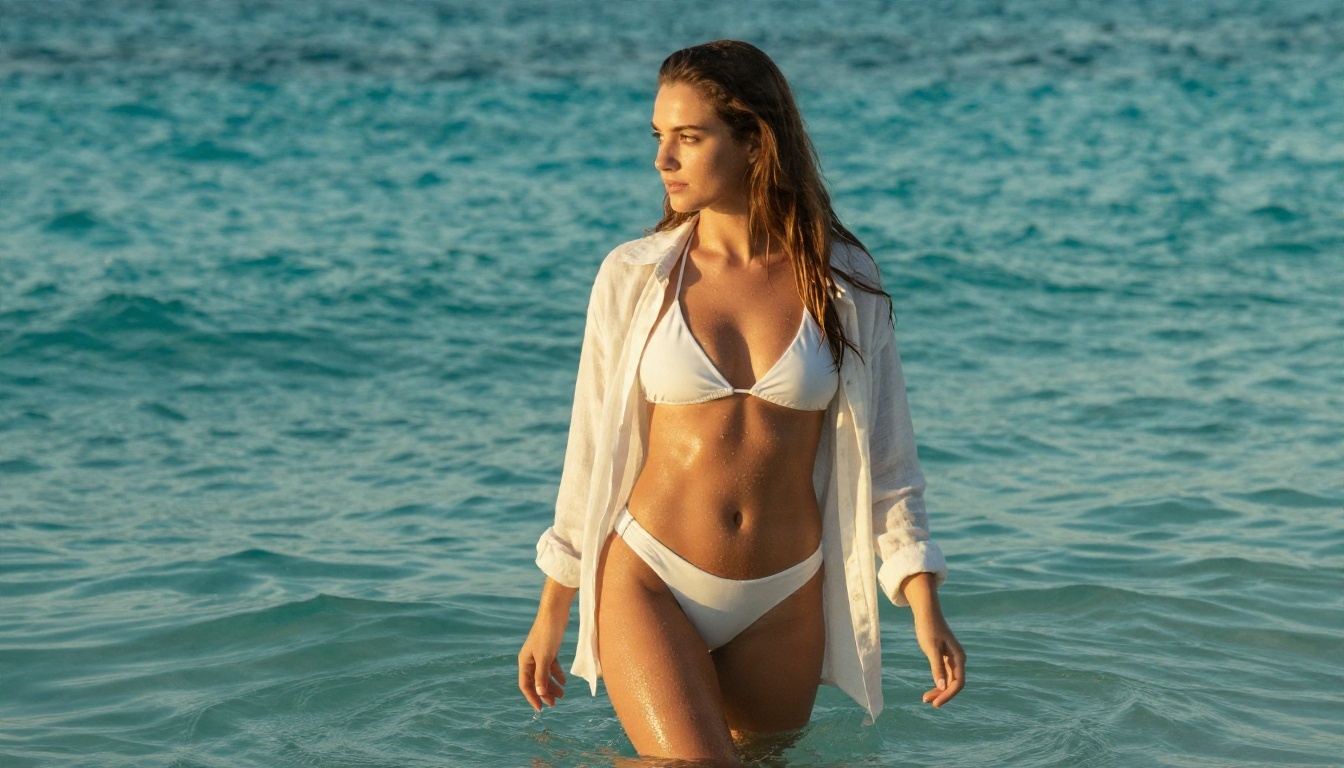
Seedream 4.5 is the model I would reach for first. It renders skin, fabric and light with a photographic feel, follows long prompts closely, and outputs sharp images suited for portraits and lifestyle shots. It is also a strong fit for suggestive but non-explicit glamour work, which is where local apps with strict filters tend to stumble.
PicassoIA Image Editor Pro
PicassoIA Image Editor Pro is the one to choose when you already have a photo and want to change it, or when you want to iterate many times. Its biggest selling point is unlimited generations, so you can try twenty variations of a pose or outfit without watching a counter. Editing existing pictures, swapping clothing, changing backgrounds and adjusting lighting all happen in one place.
Z Image Turbo for speed
Z Image Turbo is built for speed. When you are testing prompts and want results in seconds rather than minutes, it is a good draft model. Find a composition you like there, then refine the final version in Seedream 4.5.
Quick comparison
How to Get Similar Results on PicassoIA
Here is the workflow I use with Seedream 4.5 to get the kind of image people try to force out of Amuse.
Step by step
- Open the model page for Seedream 4.5 on PicassoIA.
- Write the subject first. Say who is in the frame, what they wear and what they are doing.
- Add the setting. Name the room or location and the time of day.
- Describe the light. "Soft window light from the left" or "backlit golden hour sun" does more than any adjective.
- Name the camera. An 85mm lens at f/1.8 gives a flattering portrait look with soft background blur.
- Choose a wide aspect ratio such as 16:9 for scenery and 3:4 or 2:3 for full-body portraits.
- Generate, compare, and refine. Change one detail at a time so you know what caused the difference.
- Move to PicassoIA Image Editor Pro for touch-ups and unlimited variations of your favorite result.
Prompt and parameter tips
- Be specific about skin and fabric. Phrases like "natural skin texture, fine pores, satin with soft sheen" push realism.
- Keep wording tasteful. Suggestive and elegant images read better and perform more reliably than explicit phrasing.
- Use film language. "Kodak Portra 400, fine grain, natural color" gives a warm, believable look.
- Avoid stacking styles. Mixing too many looks in one prompt muddies the result.
- Fix the seed when you like a composition and only want small changes.
💡 Draft in Z Image Turbo, finalize in Seedream 4.5, polish in Image Editor Pro. That three-step loop is fast and cheap.
Local Versus Online: Honest Tradeoffs
Amuse still has real strengths. Here is how the two approaches compare.
| Factor | Amuse 3.1 (local) | Browser generators on PicassoIA |
|---|
| Setup | Install, drivers, model downloads | Open a page |
| Hardware needed | Capable AMD GPU or Ryzen AI | Any device with a browser |
| Offline use | Yes | No |
| Model choice | Limited to bundled models | Many models, one account |
| Filter friction | Strict and hard to check | Depends on the model you pick |
| Iteration limits | Your hardware speed | Unlimited with Image Editor Pro |
| Editing existing photos | Limited | Strong |
If you work offline, care about privacy above all else, or simply enjoy running things on your own machine, Amuse is a fine tool for general imagery. If your work leans toward glamour, swimwear, portraits and fashion, the online route removes most of the obstacles.
Three Mistakes That Waste Your Time
Chasing patched installers
Every hour spent hunting for a modified build is an hour you could spend producing images. The risk to your computer is real and the payoff is uncertain.
Blaming the filter for every failure
A black image is often a driver issue. Test with a harmless prompt like "a bowl of fruit on a table" first. If that fails too, the problem is technical.
Writing prompts like keyword lists
Piles of comma-separated tags perform worse than a clear sentence describing the scene. Modern models respond to natural description of subject, place, light and lens.
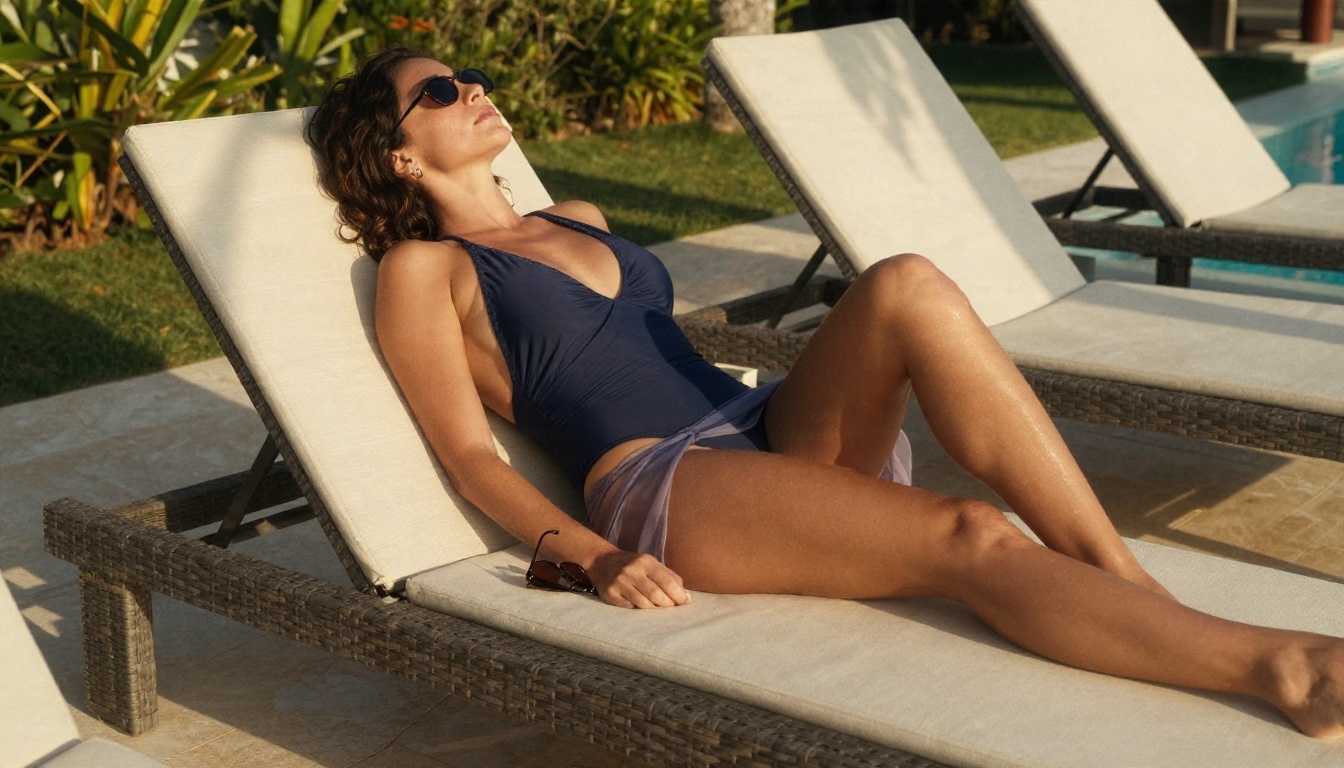
Once you have a portrait you like, PicassoIA offers more than generation:
- Inpainting to repair details such as hands or jewelry.
- Outpainting to extend a tight crop into a wide scene.
- Super resolution to upscale a final pick for print or large displays.
- Background removal for clean product or profile shots.
You can see every available model at picassoia.com/en/all-models.
Try It Yourself Today
The honest summary is simple. Amuse 3.1 has a content filter, I could not verify any official way to switch it off, and patched downloads are not worth the risk. If your prompts keep getting blocked, move the work somewhere that suits it.
Start with Seedream 4.5 for a first portrait, take it into PicassoIA Image Editor Pro for unlimited variations, and use Z Image Turbo when you need quick drafts. Copy one of the prompt structures above, change the outfit and location, and see how close you get on the first try. Then browse the full catalog at picassoia.com/en/all-models and keep experimenting with Picasso IA until you find the look that is yours.