You spent an hour talking with your AI companion. The voice was warm, the conversation went deep, and now it is sitting in an audio file you cannot search, quote, or share. That is a frustrating problem, and the fix is simpler than most people think. The best free way to transcribe AI companion audio does not require expensive software or a paid subscription. It requires knowing which tools actually work and how to feed them the right input.
This article breaks down every method worth using in 2027, compares the top free speech-to-text models available today, and walks you through a step-by-step process so you can go from raw audio to clean, readable text in minutes.
Why AI Companion Audio Gets Lost
Most people discover the transcription problem after it is already too late. They finish a session, close the app, and realize there is no built-in way to retrieve what was said. AI companion platforms are built around the experience of the conversation, not around archiving it.
Conversations That Vanish Fast
Some platforms delete session audio after a short window. Others never store it at all on the user side, only keeping a text log that misses tone, pacing, and the emotional texture of the spoken exchange. If you are using a companion that supports voice output, you are essentially listening to content that disappears the moment it plays.
This is a real issue for people who use AI companions for journaling, emotional processing, language learning, or creative writing research. The spoken word carries information that text transcripts from in-app chat logs do not capture.
What You Actually Lose Without a Transcript
When you skip transcription, you lose more than just the words. You lose:
- Searchability: You cannot search audio. You can search text.
- Quotability: Sharing a specific line from a session requires a written record.
- Memory context: Long-term users often want to feed past conversation summaries back into an LLM session for continuity.
- Personal archives: Many people document AI companion conversations the same way they would a diary or research log.
💡 Even a rough transcript is infinitely more useful than no transcript. A 95% accurate transcription you can search beats a perfect memory you cannot access.

The 3 Real Ways to Capture AI Audio
Before you can transcribe anything, you need the audio file. There are three practical routes, each with real trade-offs.
Method 1: Native App Export
Some AI companion apps include a download or export option for session audio. Check your app settings first. If there is an export button, use it. This gives you the cleanest source file, usually in MP3 or WAV format, which any transcription tool will handle well.
The catch: most companion platforms do not offer this. It is still worth checking, particularly if you are using newer platforms that have invested in user data portability.
Method 2: System Audio Recording
If the app plays audio through your speakers or headphones, your operating system can capture it. Tools like OBS Studio (Windows, Mac, Linux), Blackhole (Mac), and Stereo Mix (Windows) let you record system audio while your session plays.
Steps for this approach:
- Set up your recording tool before starting the AI companion session.
- Start recording, then begin your companion session.
- Let the session play completely before stopping the recording.
- Export the recording as a WAV or high-quality MP3 file.
This method works on any platform and requires no special permissions from the app itself.
Method 3: Upload and Transcribe with AI
Once you have your audio file, the actual transcription step is where AI speech-to-text tools shine. This is the method that produces clean, editable text output, and today's free models are accurate enough for nearly any use case.
Best Free Speech-to-Text Tools Right Now
Three models stand out for AI companion audio transcription in 2027. All three are available on PicassoIA without requiring a local installation.
GPT-4o Transcribe
GPT-4o Transcribe is OpenAI's dedicated audio-to-text model and it handles AI-generated speech exceptionally well. Most synthetic voices used in AI companions are cleaner than human speech, which means this model achieves near-perfect accuracy on them. There is no background noise, no filler sounds, and no accents to confuse the model.
What makes it stand out:
- Handles long audio files without degradation in quality
- Produces punctuated, paragraph-broken output (not just a wall of words)
- Accurately transcribes emotional inflection cues in the output structure
- Supports dozens of languages natively
If your AI companion session is longer than 20 minutes, this is the model to use.
GPT-4o Mini Transcribe
GPT-4o Mini Transcribe is the faster, lighter version. For short clips under 10 minutes, it delivers results almost instantly with accuracy that is hard to distinguish from the full model. It is ideal when you want a quick check on a segment without processing an entire session.
💡 Use GPT-4o Mini Transcribe for shorter clips and quick previews. Switch to the full GPT-4o Transcribe model when accuracy on long-form audio matters most.
The practical difference between the two in most AI companion use cases is minimal. If speed is your priority, start here.
Gemini 3 Pro for Audio
Gemini 3 Pro brings Google's multimodal capabilities to audio transcription. It is particularly strong when the audio contains unusual phrasing, creative language, or emotional narrative, exactly the kind of content that shows up in AI companion roleplay or deep-conversation sessions.
Its context understanding means it handles ambiguous words based on surrounding meaning, producing cleaner transcripts with fewer corrections needed afterward.
How to Use GPT-4o Transcribe on PicassoIA
PicassoIA makes it straightforward to run these models without any setup. Here is the exact process from audio file to finished transcript.
Step 1: Record Your AI Companion Session
Before you open PicassoIA, you need your audio file ready. Use one of the capture methods described earlier. Aim for a WAV file if possible. MP3 at 128kbps or higher also works well. Avoid compressed formats like OGG or OPUS unless they are the only option.
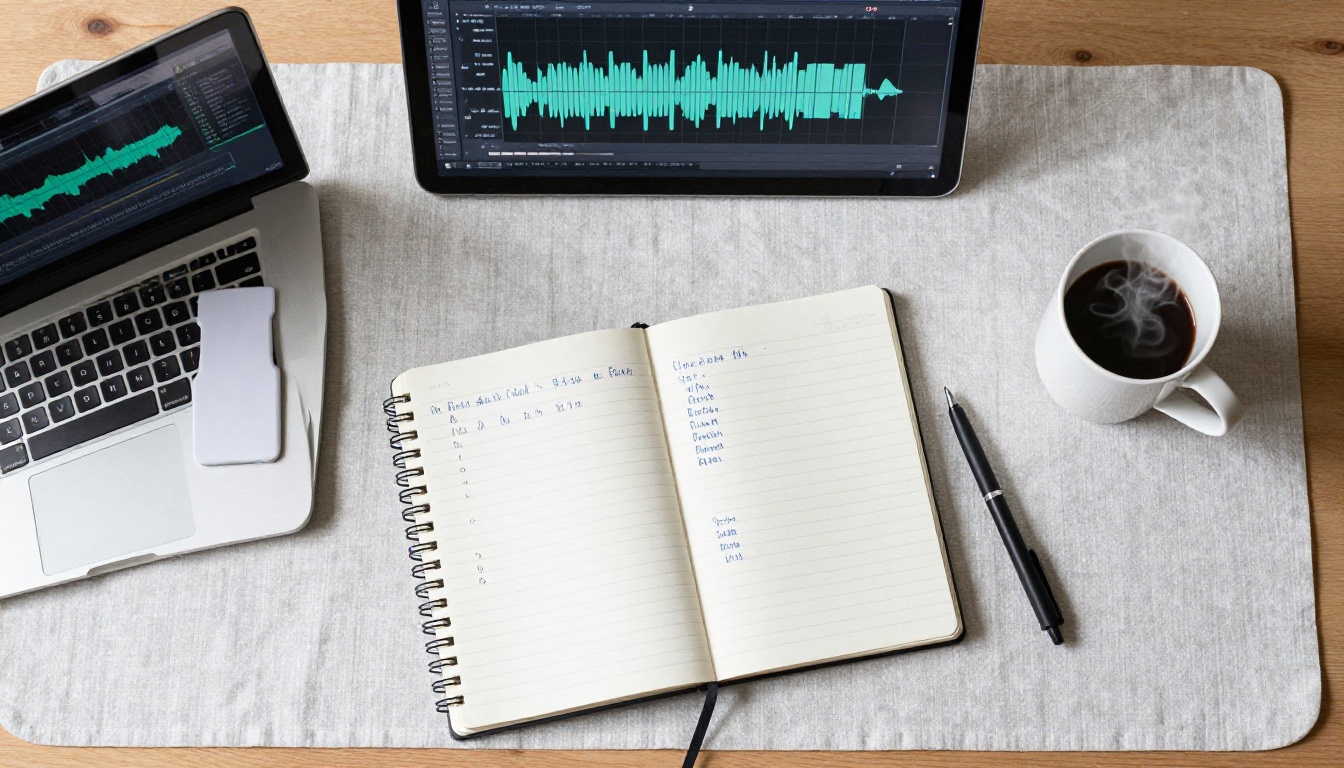
Keep the file under 25MB per upload for best performance. If your session is longer, split it into segments using a free tool like Audacity before uploading.
Step 2: Open GPT-4o Transcribe on PicassoIA
Navigate to the GPT-4o Transcribe model page on PicassoIA. The interface accepts direct audio file uploads. Drag and drop your file or use the file picker.
Optional parameters worth setting:
- Language: Set this to the language of your companion's voice for higher accuracy. Auto-detect works fine for English but specifying the language improves results in other languages.
- Timestamp granularity: Enable word-level timestamps if you want to navigate back to specific moments in the original audio.
Step 3: Read and Copy Your Transcript
The model returns formatted text within seconds for short files, or a minute or two for longer ones. The output includes natural paragraph breaks and punctuation. Copy the text directly, or download it as a text file.
From here, the transcript is yours. You can paste it into a note-taking app, feed it into a document, or run it through one of the LLM models covered in the next section for additional processing.
💡 If the transcript includes the AI's voice and your own (for sessions where you also spoke), GPT-4o Transcribe automatically separates them into distinct paragraphs based on speaking patterns.

What to Do With Your Transcript
Getting the transcript is only step one. The real value comes from what you do with it afterward.
Feed It to an LLM for Summaries
Once you have plain text, you can paste it directly into any large language model for instant processing. PicassoIA hosts some of the most capable LLMs available, all free to use.
GPT-5 handles long transcripts with ease and produces tight, accurate summaries. Ask it to pull out the key themes, emotional arc, or specific details you discussed.
Claude Sonnet 5 is particularly good at narrative compression. It preserves the emotional texture of the conversation while cutting down length dramatically.
Gemini 3 Pro handles complex, multi-topic transcripts well. If your session covered many subjects, it organizes the summary by topic automatically.
Here are prompts that work well with AI companion transcripts:
- "Summarize this conversation in 3 bullet points, focusing on emotional themes."
- "What did the AI companion say about [specific topic]? Quote the relevant lines."
- "Identify the 5 most meaningful exchanges in this conversation."
- "Rewrite this as a first-person journal entry from my perspective."
Spot Patterns in Your Conversations
If you transcribe multiple sessions over time, you build a searchable archive. Run several transcripts through Claude 4.5 Sonnet with a prompt asking it to find recurring themes. This is genuinely useful for people who use AI companions for reflective journaling, tracking mood patterns, or working through ideas over time.
💡 Store transcripts in a plain text file or a simple note-taking app with search. Over months, you will have a searchable record that reveals patterns you would never notice session by session.

4 Things That Ruin Transcription Quality
Even excellent models produce poor results when the source audio is bad. Here are the most common problems and how to fix each one.
Low-Volume Audio
If your recording was done at low volume (common with screen recording tools), the model has less signal to work from. Fix this before uploading by normalizing the audio in Audacity: go to Effect, Normalize, and set the peak amplitude to -1dB. This takes 10 seconds and dramatically improves results.
Background Noise
AI companion audio is usually clean, but if you recorded with system audio capture while other apps were running, background sounds can interfere. Use Audacity's Noise Reduction feature (select a noise sample, then apply Noise Reduction) to strip it out before uploading.
Overlapping Speech
If your recording captured both your voice and the AI's at the same time (rare but possible in some setups), the model may struggle to separate them. When recording, mute your microphone during the AI's responses to avoid this entirely.
Compressed Audio Formats
Highly compressed audio loses frequency information that speech-to-text models rely on. OGG Vorbis at low bitrates, for example, removes exactly the vocal clarity that makes the transcript accurate. Always export your recording as WAV or MP3 at 128kbps minimum before uploading to any transcription tool.
| Audio Format | Quality for Transcription | Recommended? |
|---|
| WAV (uncompressed) | Excellent | Yes, always prefer |
| MP3 (128kbps+) | Very Good | Yes |
| MP3 (64kbps) | Fair | Only if no other option |
| OGG Vorbis | Fair to Poor | Avoid if possible |
| OPUS | Moderate | Acceptable at high bitrate |
Comparing the Full Transcription Workflow
To make the choice concrete, here is how the end-to-end workflow compares across the three methods people typically use.
| Approach | Setup Time | Cost | Accuracy | Searchable Output |
|---|
| Manual note-taking during session | High | Free | Low | Partial |
| App screenshot or screen recording (text only) | Low | Free | Medium | Yes |
| Audio recording + AI transcription | Medium | Free | Very High | Yes |
| Professional transcription service | Low | Paid | Very High | Yes |
The audio recording plus AI transcription route sits squarely at the best point in that table: free, highly accurate, and fully searchable. The only investment is a few minutes of setup the first time you do it.
When to Use Each LLM After Transcription
Start Turning Audio Into Text Today
You do not need to lose another session. The workflow is simple: record the audio, upload it to GPT-4o Transcribe on PicassoIA, copy the result, and optionally run it through one of the LLMs for a summary or analysis. That is the entire process, start to finish, at zero cost.
PicassoIA brings together all the tools in this workflow in one place. The speech-to-text models sit right next to the large language models, so you can move from raw audio to polished summary without switching tabs or paying for separate services.

If you have not tried the speech-to-text tools on PicassoIA yet, the GPT-4o Mini Transcribe is the fastest way to start. Drop in a short clip from any AI companion session and see what you have been missing. Once you get the first transcript back, the habit tends to stick.
Browse all available transcription and language models at picassoia.com/en/all-models and pick the one that fits your session length, language, and output goals.


