You filmed a great ten seconds. Now you have forty minutes of dead air, a shaky intro, and a thumb that keeps hitting the wrong button on a cramped timeline. Picking the best mobile AI video editor is less about the longest feature list and more about how fast an app gets you from raw footage to a clip you are happy to post. This article compares the free apps people actually use for TikTok, shows how to build quick cuts that keep viewers watching, and explains where AI tools outside your phone can fix what a mobile app cannot.
💡 Short version: pick one free app for trimming, captions and music, then send the clips that need extra work (sharpening, reframing, object removal) to a dedicated AI tool. Two tools used well beat five apps used badly.
Best Mobile AI Video Editor: Free Apps, Quick Cuts and Clips for TikTok
The search behind this topic is mostly transactional. You want an app you can install tonight, edit with one hand on the train, and export without a watermark covering half the frame. So the sections below follow that order: what to look for, which free apps deserve a slot on your home screen, how to cut, and what to do when footage is not good enough.
Here is a quick snapshot of the apps and tools that come up again and again in 2026 roundups.
| Tool | Best for | Free tier reality |
|---|
| CapCut | Templates, auto captions, effects | Generous, but some AI features have moved behind a Pro plan according to recent comparisons |
| VN Video Editor | Clean multi-track editing, no watermark | Widely described as the strongest fully free mobile editor |
| InShot | Fast trims, simple filters | Free with ads; premium reported around $3.99 a month |
| Splice | Beat-matched edits | Core editing free, subscription optional |
| Adobe Premiere (mobile) | Precise timeline control | Export reported free up to 4K without watermark; generative credits cost extra |
Prices and tiers change often, so check the in-app screen before you plan a workflow around a free feature.
What Makes a Mobile AI Editor Good

Speed Beats Feature Count
TikTok rewards volume and consistency. If an editor takes six taps to trim a clip, you will skip editing on busy days. The apps that survive on creators' phones share three habits: they open instantly, they keep the timeline readable on a small screen, and they export in the background while you start the next clip.
Test any app with a stopwatch. Import a 30 second clip, cut the first two seconds, add captions, drop in a track, and export. If that takes more than five minutes on your first try, the interface is working against you.
The AI Tools That Matter
Most editors now advertise "AI" everywhere, but only a handful of features change your daily routine:
- Auto captions: accurate speech to text with editable styling.
- Silence and filler removal: cuts the pauses so you do not scrub manually.
- Background removal: lifts you out of a messy room without a green screen.
- Auto beat sync: snaps cuts to the rhythm of a track.
- Smart reframing: converts horizontal footage to 9:16 and keeps the subject centered.
- Text-to-video and generative fill: creates or extends shots you did not film.
Everything else, from sticker packs to voice changers, is nice to have. Judge an app by how well it handles the first five.
💡 Quick test: record yourself saying one sentence with a pause in the middle. Run auto captions and silence removal. If either feature produces errors on a normal speaking voice, move on.
Free Apps Worth Installing
CapCut: The Default Choice
CapCut remains the most cited free option for TikTok because it is built around short vertical video. Templates, auto captions, background removal, and effects live in the same app, and the timeline is simple enough for a first edit.
The catch is the free tier. Several recent comparisons report that features like auto captions, background removal and some AI effects have been shifted behind a Pro subscription at different times, while other sources list the app as free on both iOS and Android. The honest answer is that it changes by region and by update. Open the feature you need before you commit.
VN Video Editor: Free Without Strings
VN is the one reviewers keep calling the closest thing to a free CapCut replacement. You get multi-track editing, keyframe-style animation controls, and exports without a watermark. It has fewer one-tap AI tricks, which means more manual work on captions, but the editing core is solid.
Choose VN if you value control, hate surprise paywalls, and do not mind spending an extra minute on subtitles.
InShot, Splice and Premiere on Mobile

InShot is the pick for quick trims, speed changes and simple filters. The free version shows ads, and the premium plan is inexpensive. Splice leans on automatic beat matching, which suits montage clips like the skate footage above. Adobe Premiere on mobile offers a more precise timeline, and reports say export is free up to 4K without a watermark, with payment only for generative AI credits.
If you are unsure where to begin, install CapCut and VN, edit the same clip in both, and keep the one that feels faster in your hands.
Quick Cuts That Hold Attention
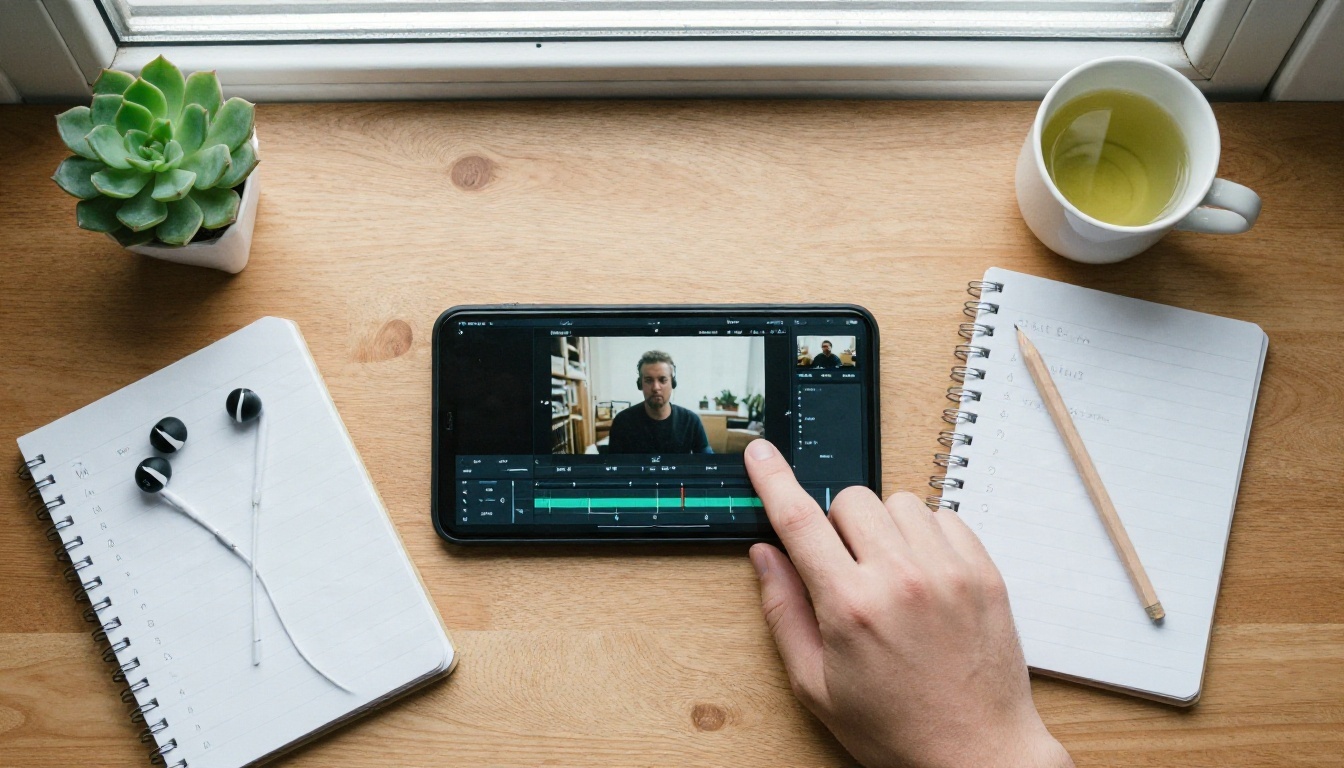
Plan the Cut Before You Film
Fast editing starts before the camera rolls. Write a three-line shot list: the hook, the proof, the payoff. A TikTok that opens with the result and then shows how you got there tends to outlast one that builds slowly.
Aim for a new visual every one to three seconds. That does not mean frantic jump cuts. It means a change of angle, distance, or on-screen element often enough that the eye keeps moving.
Cut on Motion and on Beat
The smoothest cuts hide in movement. When someone turns, reaches, or steps, cut halfway through the action and start the next shot already in motion. Viewers register continuity and ignore the edit.
For music clips, place cuts on the strongest beats. Most free editors offer beat markers you can tap on while the track plays. Put the big visual change, such as a new location or outfit, on the first beat of a bar.
Use this simple rhythm for a 20 second clip:
- 0 to 2 seconds: hook, one bold visual or line of text.
- 2 to 12 seconds: three or four fast shots that prove the hook.
- 12 to 18 seconds: the payoff, slightly longer shot so it lands.
- 18 to 20 seconds: a loop point, so the end flows into the start.
Trim Dead Air First
Before effects, before music, remove the first and last half second of every clip. Most footage starts with fumbling and ends with a reach for the stop button. If you edit in a mobile app, do this pass in one sitting. If a long recording needs to be chopped into several posts, a tool like Video Split cuts a single file into timed segments, and Trim Video sets exact start and end points when your phone's trim handles are too fiddly.
Captions, Sound and Hooks

Auto Captions That Read Well
Many people watch with the sound off, so captions carry the clip. Auto captioning in mobile apps is fast, but it stumbles on names, slang and background noise. Always read through the text once before exporting.
Make captions easy on the eyes:
- Keep lines to six words or fewer.
- Place them in the middle third of the frame, away from TikTok's buttons and username overlay.
- Use one font and two colors at most.
- Highlight the one word that matters in each line.
When your editor's captions are weak, Autocaption adds subtitles to any video from your upload and is a handy fallback for batch clips.
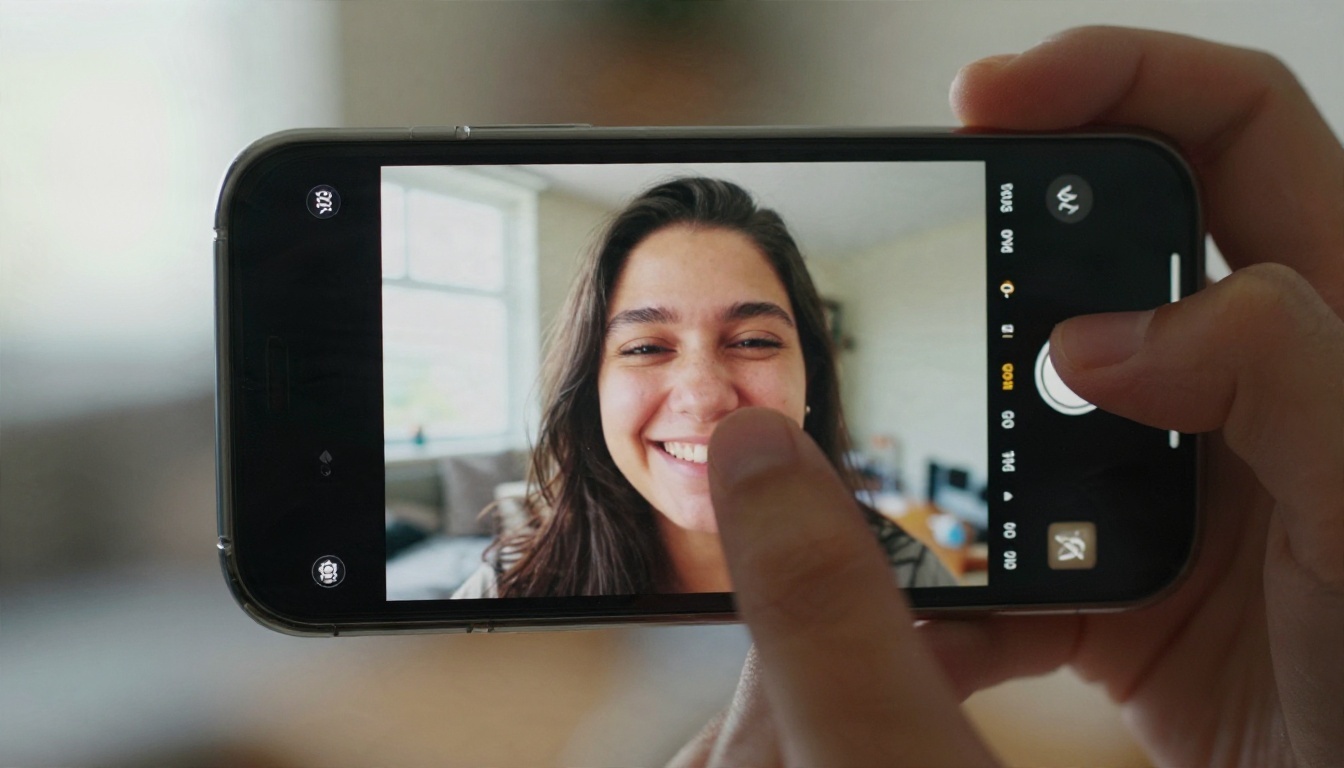
Sound Does Half the Work
A cooking clip with the sizzle turned up and a light beat underneath feels far richer than the same clip in silence. Lower music to about 20 percent when someone speaks, and raise it during pauses. If you filmed a silent clip, Video To SFX v1 can add synced sound effects to match what is on screen, which saves a long hunt through sound libraries.
When Your Phone Is Not Enough
Mobile apps are built for speed. They are not built to rescue a blurry shot, rebuild a background, or reframe a wide clip without losing the subject. That is where AI video tools running in the cloud earn their place. You upload the clip from your phone, run one tool, and download the result.
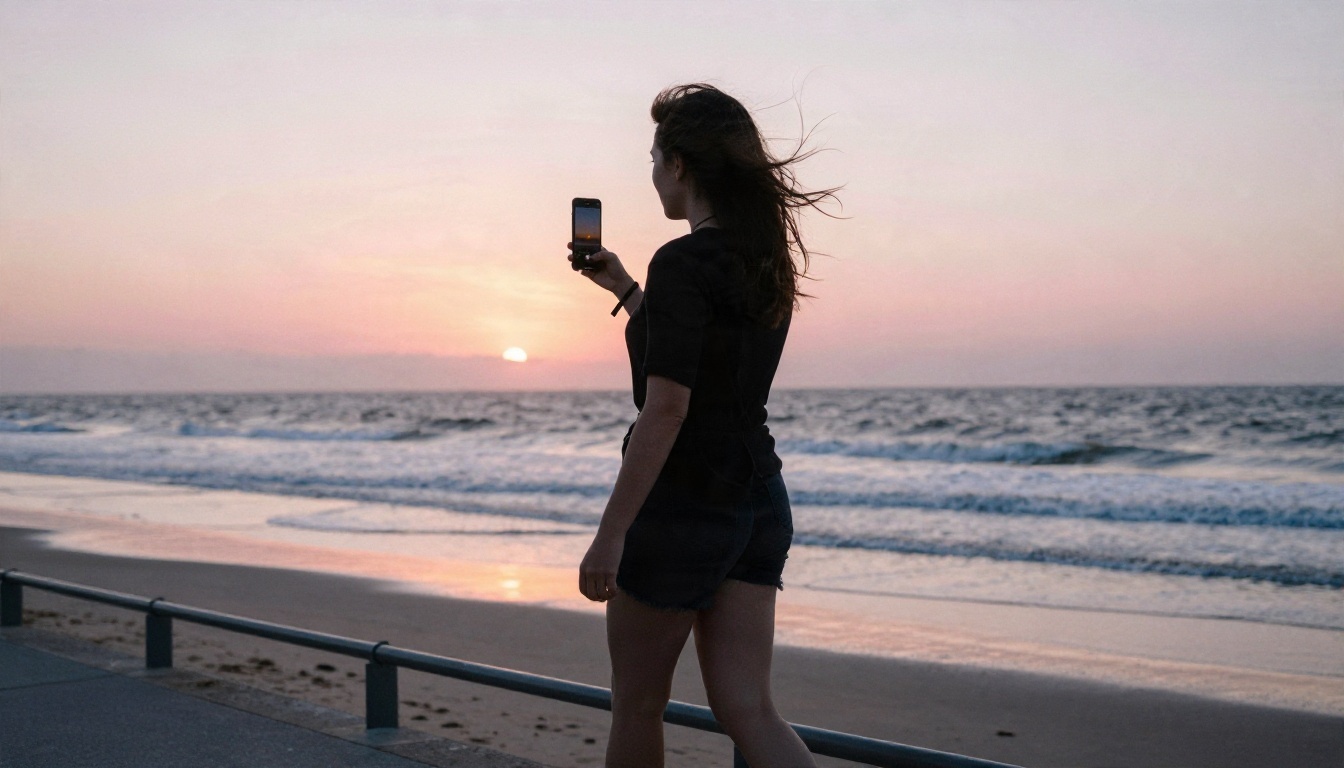
Sharper Footage From Soft Clips
Low light, digital zoom and heavy compression leave footage soft. Video Increase Resolution upscales clips, and Video Upscale targets sharper results at 4K and higher frame rates. Both are worth trying on sunrise or dusk shots where phone sensors struggle.
Fix Framing and Aspect Ratio
You filmed horizontally by accident. It happens to everyone. Reframe Video changes a clip to a new aspect ratio such as 9:16 and fills in the missing area, so you do not need to crop off half the scene.
Remove Clutter and Backgrounds
A stray cable, a passerby, or a messy shelf can ruin an otherwise clean take. Video Erase Object removes unwanted items across frames, and Video Remove Background lifts the subject out without a green screen. These are far more precise than the one-tap background tools in most mobile editors.
💡 Rule of thumb: if the fix takes you more than two minutes in a mobile app, send the clip to a dedicated AI tool instead.
Edit With a Text Prompt

The newest way to edit is to type what you want changed. Instead of masking, keyframing and color grading by hand, you upload a clip and describe the edit in plain words: "make the sky sunset orange," "swap the red jacket for a denim one," or "remove the person on the left."
Several text-driven editors on PicassoIA are worth a test for short social clips:
| Tool | What it does well | Try it for |
|---|
| P Video Edit | Edits a video from a text prompt | Quick changes to objects, lighting or style |
| Lucy Edit 2 | Edits video with text instructions | Outfit, prop and scene swaps |
| Wan 2.7 Videoedit | Prompt-based video editing | Restyling short clips |
| Kling o1 | Rewrites video with text | Larger scene changes |
| Aleph 2 | Edit one frame, restyle the full video | Consistent looks across a clip |
For small businesses that film product clips on a phone, these tools shorten reshoots dramatically. Film one clean take of a mug, then change the colorway or background through a prompt rather than setting up the shot again.
If you need footage you never filmed, a text-to-video model such as Seedance 2.5 Lite or Kling v3 Video can produce b-roll to cut between your own shots.
A Phone Plus Cloud Workflow

Here is a routine that works for most creators and takes about fifteen minutes per clip.
- Film vertical, at the best light you can find. Window light beats any phone filter.
- Do the rough cut in your mobile app. Trim the start and end, remove silence, and arrange the shots.
- Mark the problem shots. Anything soft, crooked, cluttered or horizontal gets set aside.
- Fix them in the cloud. Upscale the soft one, reframe the horizontal one, erase the clutter, or describe the change you want in text.
- Return to the phone for captions and sound. Style the subtitles and balance the music.
- Export once. Keep a high bitrate copy so TikTok's compression has more to work with.
💡 Save time: keep a folder on your phone called "to fix." Drop problem clips there while you are on the move, then batch them in one sitting at home.
Doing the rough cut on a train, as above, is realistic. Doing every fix in the same cramped app is where people lose an evening.
Mistakes That Waste Your Time
Chasing Every New App
New editors appear every month, each promising smarter AI. Switching constantly means relearning menus and rebuilding templates. Pick one primary app and stay with it for a month before you judge it.
Skipping the Final Watch
Before you post, watch the clip once on your phone at full brightness with sound on, then once muted. Typos in captions, audio spikes and awkward cut points show up immediately. Thirty seconds of review saves you from deleting a post an hour later.
Over-Editing Simple Clips
Not every video needs transitions, stickers and three filters. A clean clip with one punchy hook, readable captions and a good sound mix often beats a busy one. Start from the least you can do, then add only what the clip needs.
Ignoring Watermarks and Export Settings
Some free tiers still stamp exports or lower the resolution. Check the export screen before you spend an hour polishing. Export at 1080 by 1920 and 30 or 60 frames per second to match what TikTok expects.
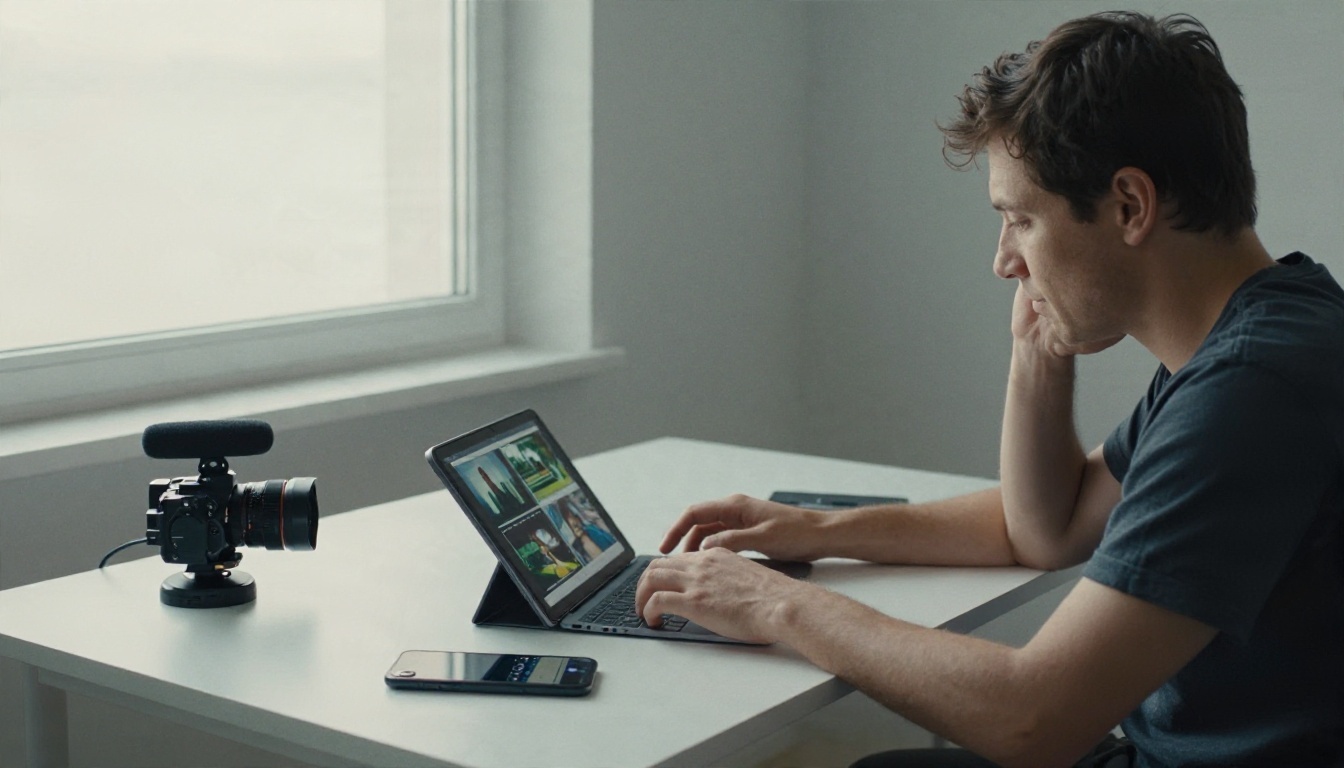
Try It on Your Next Clip
You do not need a studio or a paid suite to post clean TikToks. Install one free mobile editor, cut fast, add readable captions, and send the stubborn clips to a cloud AI tool when your phone runs out of options.
Open your camera roll, pick the clip that has been sitting there because it is a little soft, a little crooked, or a little cluttered, and run it through one of the tools above. Then compare it with the original. The difference tends to make the decision for you.
Ready to experiment? Create and edit with Picasso IA, try the tools linked in this article, and browse every model at picassoia.com/en/all-models. Start with one clip tonight, and you will know by tomorrow which part of your routine deserves to be automated.


