Bullet Time AI Video: Prompt and Free Effect Generator
Bullet time freezes a single instant while the camera sweeps around it. This article shows how to recreate that look with AI video models: the exact prompts, the camera moves that work, the free tools on PicassoIA, and the mistakes that ruin the orbit.
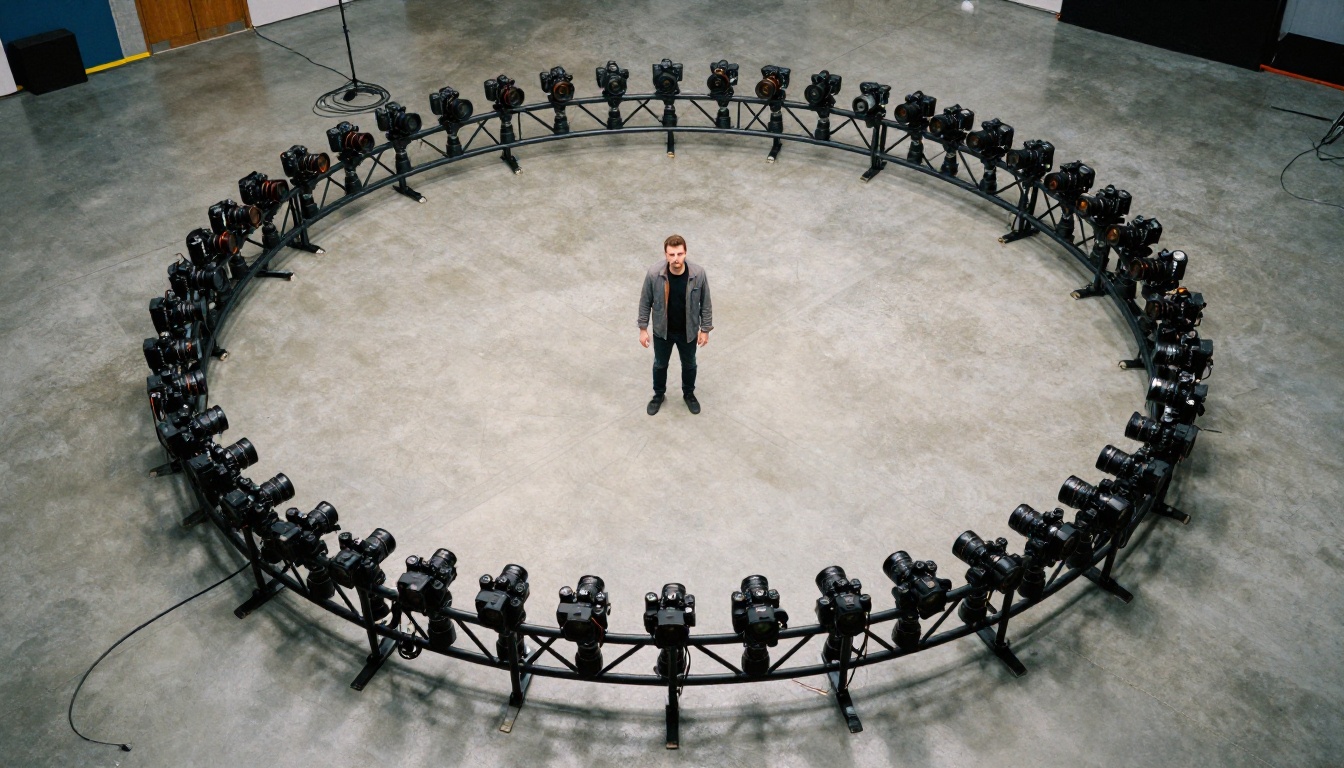
In 1999, The Matrix showed a man in a black coat leaning backward on a rooftop while bullets crawled past him and the camera swept around his body in a slow, impossible arc. Nobody had seen a shot like it, and bullet time still names that look today. The catch was the budget: the original effect needed a curved track holding more than a hundred still cameras, precise triggers, and a team of artists to blend the frames. Now one photo, a carefully written prompt, and a free video model can give you a frozen-moment orbit in a few minutes.
This article shows how to make a bullet time AI video yourself. You get the prompt formula, the camera wording that holds up, five copy and paste prompts, a step by step setup with a free effect generator on Picasso IA, and the mistakes that make an orbit fall apart.
💡 Short answer: Generate a sharp start frame of your subject mid-action, feed it to an image to video model, and prompt for "time frozen, camera orbits 180 degrees, background perfectly still." Keep the clip to 5 or 10 seconds and the orbit under half a circle.
What Bullet Time Actually Is
Bullet time, also called the time freeze effect, time slice, or simply the Matrix effect, splits the world into two clocks. The subject's clock nearly stops, so a leaping body, a splash, or a burst of confetti hangs in place. The camera's clock keeps running, so the viewpoint glides around that frozen instant. The viewer walks around a moment that lasted a fraction of a second.
The result feels strange because we never see it with our own eyes. Real life gives us either a normal speed pan or a locked slow motion shot, never both at once. That mismatch is exactly why the effect looks so striking, and why it is hard to fake.
The Matrix Made It Famous
The idea is older than digital film. In 1878, Eadweard Muybridge lined up a row of cameras beside a racetrack to catch a galloping horse, and photographers kept experimenting with multi camera arrays for the next hundred years. Time slice artists were already building small rigs in the early 1980s. The Matrix turned the method into a cultural reference point, and parodies of it have since appeared in commercials, sports broadcasts, music videos, and cartoons.
Why Real Rigs Cost So Much
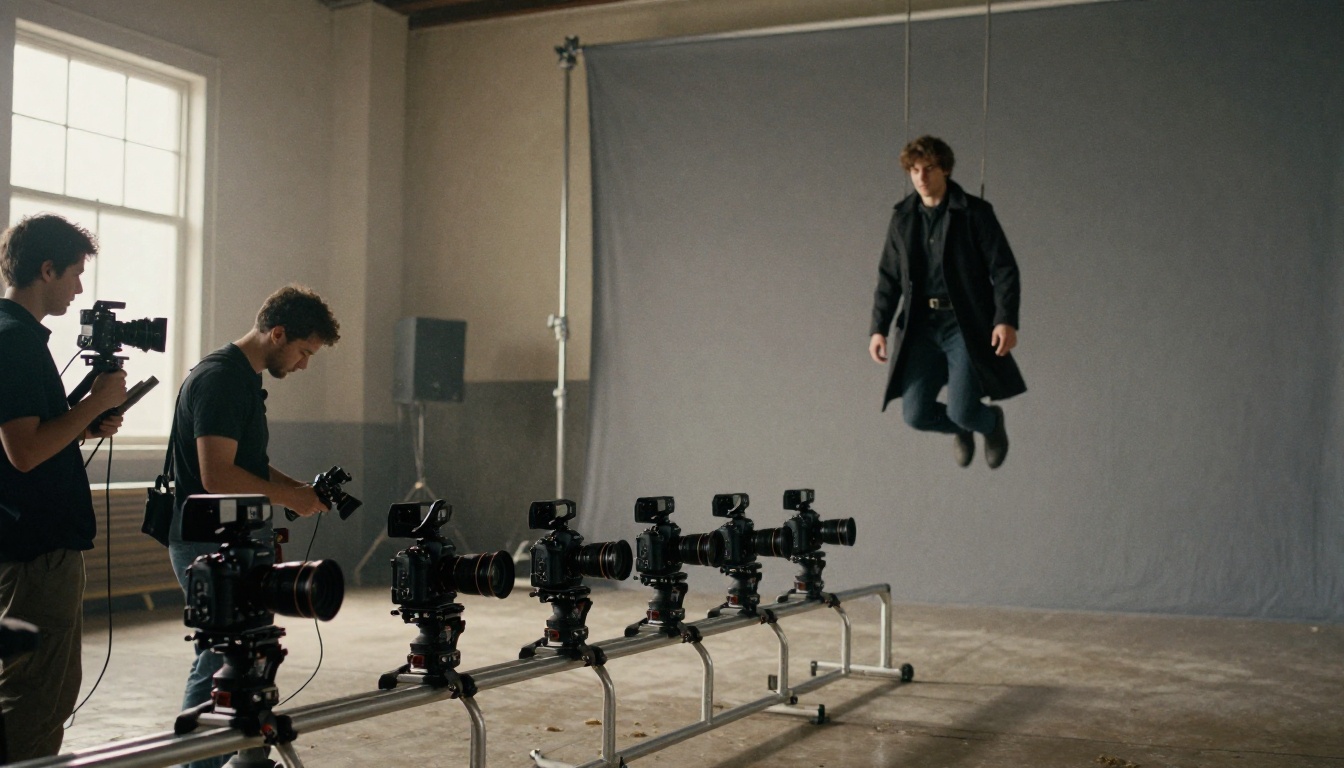
A physical bullet time shot is a logistics problem before it is a creative one:
Dozens to hundreds of cameras, all matched in lens, exposure, and white balance.
Synchronized triggers that fire within a tiny fraction of a second of each other.
A rigid, calibrated track, so every camera points at the same spot.
Heavy post production, because the frames still need to be aligned, smoothed, and blended.
A dedicated studio, plus a crew to run it.
That is why you see the effect in blockbuster scenes and sports replays, and almost never in a small creator's feed.
How AI Recreates the Camera Ring
A video model does not own a hundred cameras. It has seen an enormous amount of footage, so it has picked up how people, objects, and light tend to look from the side or from behind. When you ask for an orbit, it predicts what the scene should look like from each new angle and renders the in-between frames itself. No rig, no sync, no stitching.
Image to Video Does the Heavy Lifting
Text only prompts leave too much to chance, because the model has to invent the subject, the room, and the camera path at the same time. An image to video workflow removes two of those unknowns. Your start frame fixes the subject, the pose, the lighting, and the background, so the prompt only has to describe two things: that time is stopped, and how the camera moves.
Why 180 Degrees Beats 360
The model has to invent everything the start frame cannot show: the back of a head, the far side of the room, the hidden half of a sneaker. The further the camera swings around, the more it has to guess, and the more likely the subject will drift, melt, or change outfit. A half circle keeps most of the subject visible and gives the model less to fabricate. A full 360 in a single 5 second clip also leaves very little time per degree, which makes the motion look rushed.
💡 Rule of thumb: 90 to 120 degrees in 5 seconds, up to 180 degrees in 10 seconds. Past that, expect inventions.
Here is how the two approaches compare:
Physical bullet time rig
AI bullet time video
Cameras
50 to 150 or more
None, one start image
Setup
Days of building and calibration
Minutes
Cost per shot
Studio and crew budget
Free or low, depending on the model
Camera path
Fixed by the track
Described in the prompt
Geometry accuracy
Exact, because it is real
Approximate, unseen sides are guessed
Best orbit
Up to 360 degrees
90 to 180 degrees
Best for
Feature films, sports replays
Social clips, ads, product teasers, concept tests
The Bullet Time Prompt Formula
Good bullet time prompts read like a shot list, not a poem. Cinematic, chronological descriptions work best on the PicassoIA video models, so write what is happening first, what happens next, and how the camera behaves throughout.
Five Parts Every Prompt Needs
Subject and frozen pose. Name the subject and the exact mid-action instant: "a dancer at the peak of a spin," not just "a dancer."
The time instruction. Spell it out: "time is frozen," "everything suspended in mid-air," "no movement in the subject or the particles."
The camera move. Give direction, height, distance, and speed: "smooth 180 degree orbit, clockwise, chest height, constant distance, slow and steady."
A locked background. Say the room, the light, and the props stay still and consistent: "the environment and lighting do not change."
The look. Lens, light, and texture: "35mm lens, soft main light from the left, subtle film grain, photorealistic."
For the classic speed ramp, add one line: the action starts at normal speed, slows to a near stop, then the orbit begins. Only try that on 10 second clips, since a 5 second clip has no room for it.
Copy and Paste Prompts
Swap in your own subject details and keep the structure.
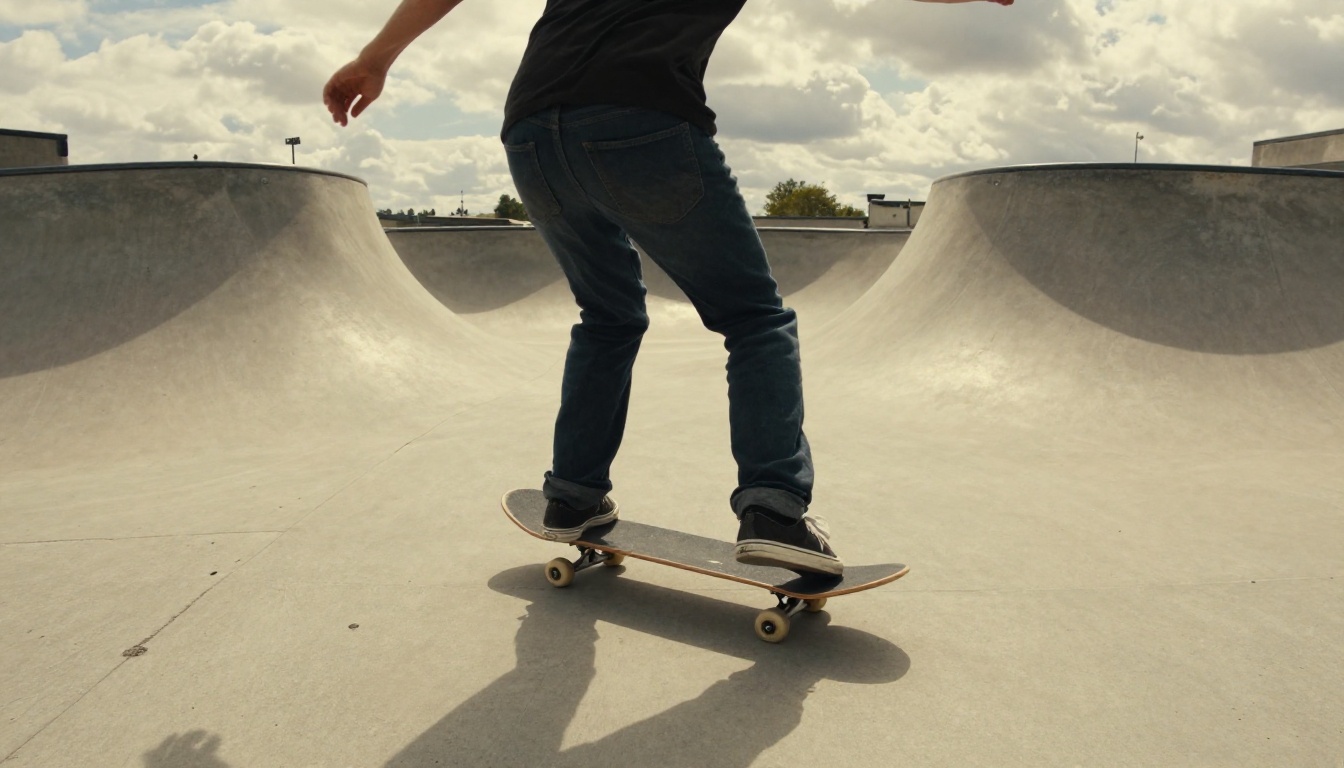
Athlete in mid-air
A parkour athlete in a charcoal hoodie frozen at the peak of a backflip in a black photography studio, chalk dust suspended around her in sharp individual particles. Time is stopped, nothing moves. The camera glides in a smooth 180 degree orbit around her at chest height, constant distance, slow and steady. Soft main light from the left, rim light behind, 35mm lens, subtle film grain, photorealistic.
Water splash
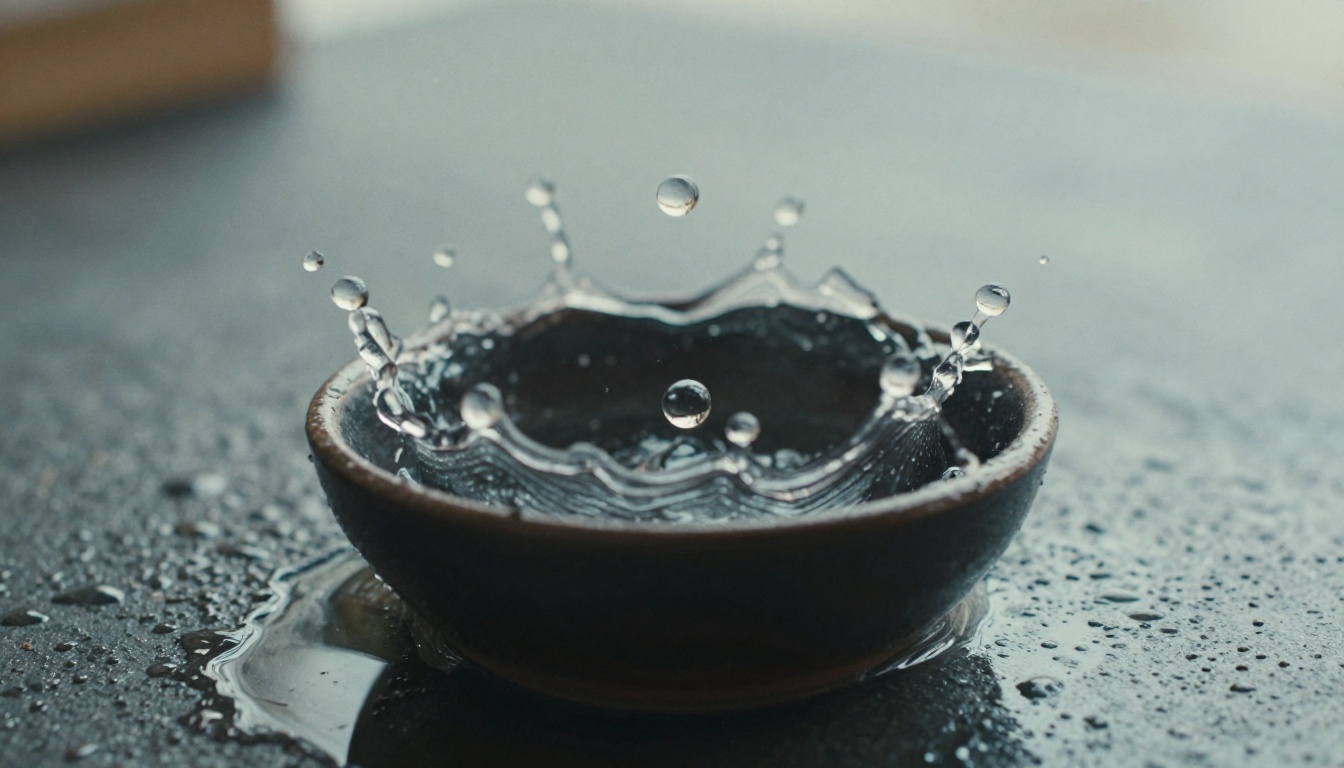
A crown shaped water splash frozen above a dark ceramic bowl, every droplet suspended and perfectly still. The camera starts at a low angle and orbits slowly 120 degrees around the splash while rising slightly. Morning window light from the left, macro lens, shallow depth of field, photorealistic, no motion in the droplets.
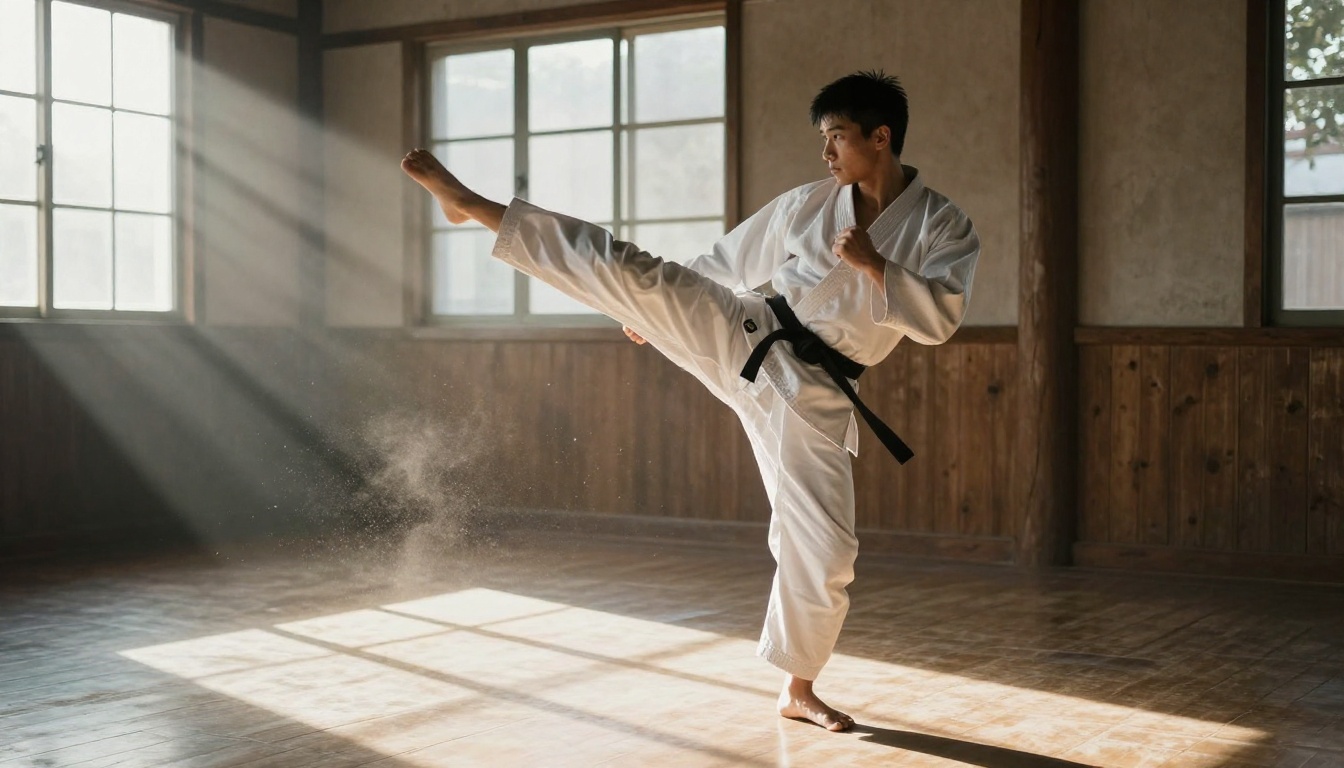
Martial artist with speed ramp
A martial artist in a white gi frozen mid roundhouse kick inside a wooden dojo, dust floating motionless in the sunbeams. The action starts at normal speed, slows to a near stop, then the camera sweeps 90 degrees around him at hip height. Steady dolly arc, warm window light, 85mm lens, realistic skin and fabric texture.
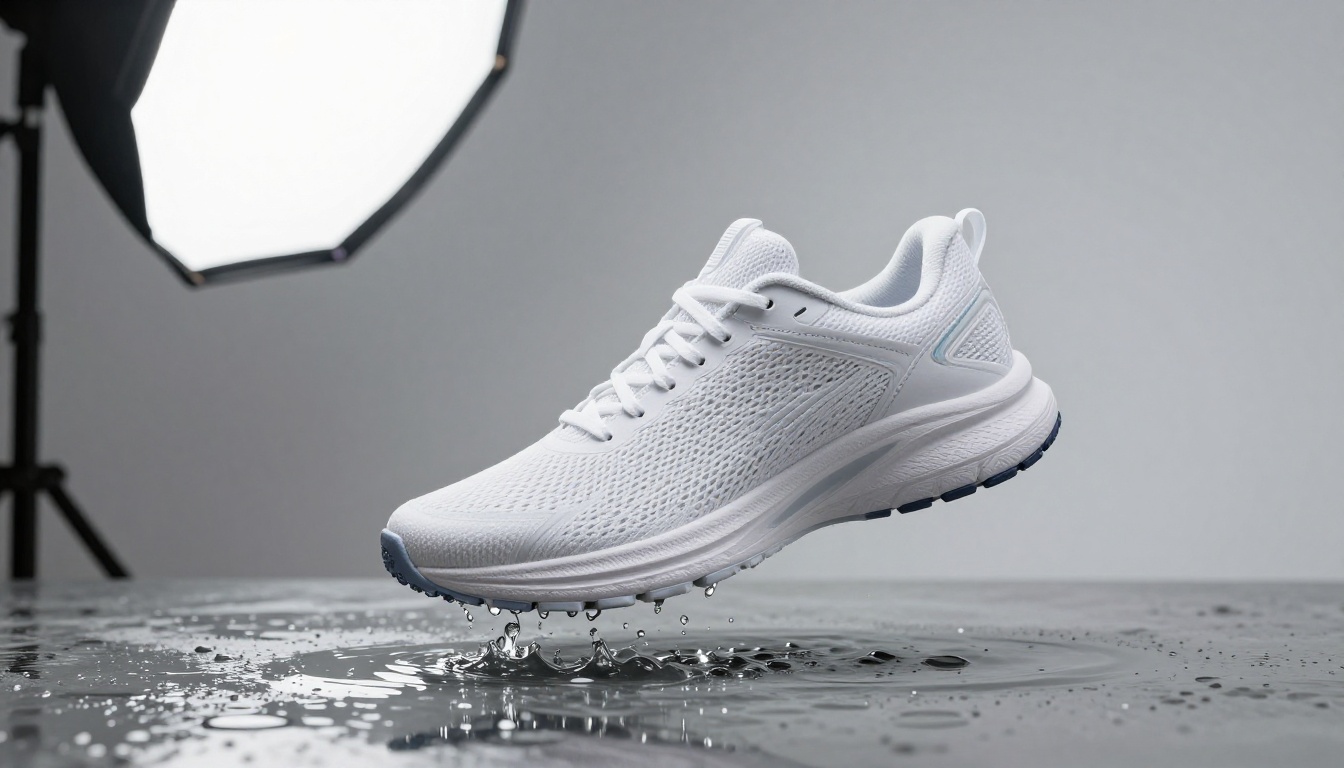
Product shot
A white running sneaker suspended above a shallow pool with a ring of water droplets frozen around the sole. The camera orbits 180 degrees from a front three quarter view to a side profile, smooth and slow, on a seamless grey studio backdrop with a large softbox on the left. Commercial product photography, crisp stitching and mesh detail.
Confetti burst
Colored paper confetti frozen in mid-air above a laughing crowd at an outdoor reception, every piece hanging still. The camera moves in a slow lateral arc from left to right through the confetti, with clear parallax between near and far pieces. Golden afternoon backlight, 135mm lens, natural skin tones.
Seedance 2.5 Lite is a strong first stop for a free effect generator. Its model page describes it as free and unlimited for Wonder members, with clips of up to 10 seconds, an optional input image as the opening frame, and an optional last frame. That is exactly the toolset a bullet time orbit needs.
Build the Start Frame
Your start frame decides almost everything, so spend your time here. Generate it with Seedream 4.5 or Nano Banana 2, or edit an existing photo with Image Editor Pro. Ask for photographic realism, a clear mid-action pose, a clean background, and the subject near the center of the frame.
Two details matter. Avoid motion blur on the subject, because a frozen moment needs a sharp frame. And keep props away from the image edges, since the orbit will have to invent whatever lies beyond them.
Add an End Frame
This is the trick that makes a short clip land a clean orbit. Upload your start frame to Qwen Edit Multiangle, which re-renders a photo from a new camera position. Its rotation setting turns the virtual camera left with positive degrees and right with negative degrees, so a value like 90 gives you a side view of the same subject. Switch off the fast preset if you want the slower 40 step detailed run. Save the result as your end frame.
Then give Seedance 2.5 Lite both images: the original as the input image and the rotated one as the last frame image. The clip animates from the first frame to the last, which pins both ends of the orbit and leaves the model to fill only the middle.
💡 Note: The last frame option requires an input image as the first frame, so you cannot use it with a text only prompt.
Settings Worth Changing
Setting
Options
What to pick
Duration
5 or 10 seconds (default 5)
10 for a speed ramp and a wider orbit, 5 for a quick freeze
Resolution
480p or 720p (default 720p)
480p for drafts, 720p for the takes you keep
Input image
Optional
Always use one for bullet time
Last frame image
Optional, needs an input image
Use the rotated end frame
Seed
Any integer
Lock it once a take looks right
Save audio
On by default
Turn off if you plan to add your own whoosh later
Aspect ratio
Follows the input image
Set it when you create the start frame
The six step run:
Open the model page and switch to the image input.
Upload your sharp start frame as the input image.
Paste one of the prompts above and edit the subject details.
Set duration to 10 seconds and resolution to 480p for the first draft.
Add the rotated end frame as the last frame image if you made one.
Generate, watch for drift on the far side of the subject, then change one thing per run and lock the seed when it works.
If you only want quick tests, Picasso IA Video is described on its page as a free, unlimited generator. Every clip there is a fixed 5 seconds at 24 frames per second, with an optional start image, 480p or 720p output, and a seed. Aim for a 90 degree orbit in that format.
Other Models Worth Testing
Different video models handle camera orbits differently, and the only way to know is to run the same start frame through a few of them. Check each model page for supported inputs and current limits first.
Animates any image, a clean fit for the start frame workflow
Subjects That Freeze Well
Not every subject sells the illusion. The best ones contain a clear cue that time has stopped: a body that cannot hold its pose, or particles that obviously should be falling.
Athletes and Dancers
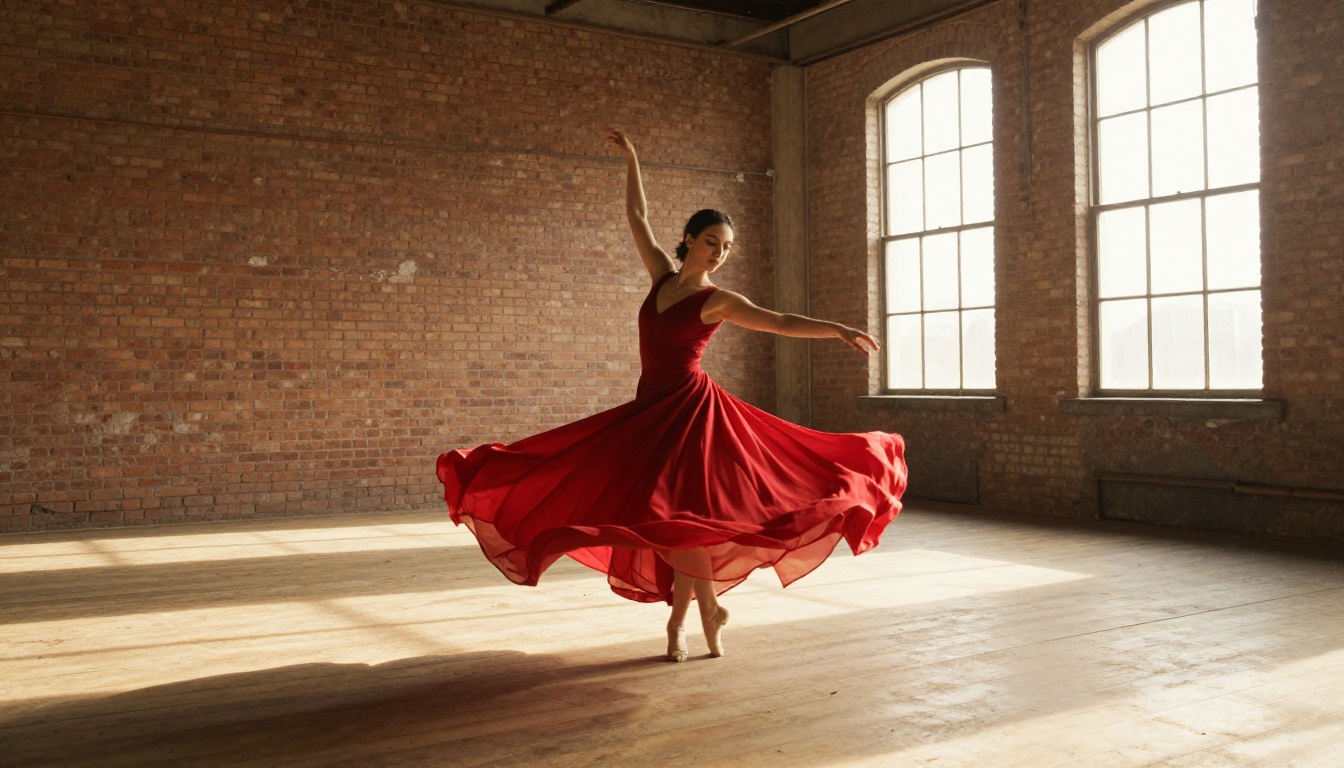
Mid-air poses read as frozen instantly, because gravity makes them impossible to hold. Fabric adds a second cue. A skirt caught in a spiral or a hood lifted by a jump tells the viewer the moment is one frame long. Keep the athlete alone in the frame, dress them in solid colors, and avoid patterns that shimmer during the orbit.
Splashes, Dust, and Confetti
Particles are the clearest proof that time stopped, and they give the orbit natural parallax: near pieces slide past faster than far ones. The risk is shimmer. Thousands of tiny specks can flicker from frame to frame, so prefer fewer, larger pieces, and say "every particle perfectly still" in the prompt.
Product Shots That Float
A floating sneaker, bottle, or pair of headphones with a ring of frozen droplets is the most practical use of the effect for small businesses. The backdrop is simple, the subject is rigid, and the orbit from a three quarter view to a side profile shows off the design. Rigid objects survive an orbit far better than faces or hair.
Mistakes That Ruin the Orbit
Mistake
What you see
Fix
Asking for a full 360
The subject changes shape on the far side
Cap the orbit at 180 degrees, then make a second clip from the rotated end frame
Writing "slow motion" only
The subject keeps moving
Use "time is frozen" and "no movement in the subject"
Cluttered background
Wobbling lines and warped geometry
Choose a simple room with clean floor lines
Motion blur in the start frame
A smeared, soft subject
Regenerate the frame until it is razor sharp
Several subjects
Faces and outfits swap during the orbit
One subject, or a tight pair
Stacked camera moves
A jerky, wandering path
One move per clip
Extreme face close-ups
The face shifts mid-orbit
Frame at waist or chest level and lock the seed
💡 Reroll smart: Change only one variable per run. If you edit the prompt, the seed, and the start frame at once, you will never know which change fixed the problem.
Try Your Own Frozen Moment
Pick one subject, generate one sharp start frame, and run the five part prompt. Then open Seedance 2.5 Lite or Picasso IA Video, add your image, and see how far a half circle can take you. Your first take will probably drift a little on the far side. Your fifth, with a locked seed and a rotated end frame, usually will not.
Picasso IA puts the image models, the video models, and the multi angle editor in one place, so you can build the whole shot without leaving the platform. Browse the full list at picassoia.com/en/all-models, pick a subject from this article, and make your own bullet time video today.