You found the perfect photo. The light is soft, the pose is natural, your smile is real, and the dress is the wrong color. Maybe the red clashes with the venue, maybe the bridesmaid shade changed after the shoot, or maybe you just want to see how that outfit looks in emerald before you buy it. A few years ago, fixing that meant hours of masking and hue sliders. Today you can change dress color in photo files with one sentence of text and a free online editor.
This article shows you exactly how to do it. You will get a simple workflow, copy-ready prompts, a table of color and fabric combinations, real examples, and fixes for the mistakes that make recolored dresses look fake. Everything below works on a phone or a laptop, and you do not need any editing experience.
💡 Quick answer: Upload your photo to PicassoIA Image Editor Pro, type "Change the dress color to emerald green, keep the fabric texture, folds and lighting exactly the same", and run it. That one prompt handles most photos.
Why Dress Color Edits Work Now
Recoloring clothing used to be a masking job. You traced the dress with a selection tool, shifted the hue, and then spent another hour fixing the edges, the shadows and the places where the color leaked onto skin. The result often looked flat because a simple hue shift does not understand light.
Modern image editing models work differently. They read your instruction, find the garment, and repaint it while respecting the folds, the highlights, and the shadows already in the picture.
The Old Way vs. the Prompt Way
| Method | Time per photo | Skill needed | Typical problem |
|---|
| Manual selection and hue slider | 20 to 60 minutes | High | Color spills on skin, flat fabric |
| Mobile color filter apps | 2 to 5 minutes | Low | Changes the whole image, not only the dress |
| AI prompt editing | 10 to 30 seconds | Very low | Needs a clear prompt for best results |
The difference is not only speed. A prompt-based editor treats the dress as an object with material, thickness and reflections. When you ask for "dusty rose satin", it adjusts the sheen as well as the color.
What the AI Actually Changes
When you run a recolor prompt, the model typically updates four things:
- Base color across the whole garment, including inner lining visible at the hem
- Shadow tone, so folds stay darker versions of the new color rather than gray patches
- Highlights, so satin stays shiny and linen stays matte
- Color bounce, the faint glow the dress casts on nearby skin and surfaces
Everything else, such as your face, hair, background and jewelry, should stay untouched. If it does not, the fix is in the prompt, and we will get to that below.
How to Use Image Editor Pro
PicassoIA Image Editor Pro is the easiest place to start because it is built for exactly this kind of edit: you upload a picture, describe the change, and get a new version back. It offers unlimited generations, so you can try five colors on the same photo without worrying about a counter.
Step by Step
- Open the editor. Go to the Image Editor Pro page and sign in.
- Upload your photo. A JPG or PNG works. Photos where the dress is clearly visible give the best results.
- Write your prompt. Name the garment, the new color, and what must stay the same.
- Generate. Wait a few seconds for the first version.
- Compare and refine. If the shade is off, change one word in the prompt (for example "deep emerald" to "light mint") and run it again.
- Download. Save the version you like in full resolution.
Settings That Matter
| Setting | Recommendation | Why |
|---|
| Input image | At least 1024 px on the long side | More pixels give cleaner seams and edges |
| Prompt length | 1 to 3 sentences | Short prompts avoid unwanted extra edits |
| Color wording | Use a named shade plus a tone word | "Burgundy" is clearer than "dark red" |
| Retries | Run 2 to 4 versions | Small differences in shading appear each time |
💡 Tip: Change only one thing per run. If you ask for a new color, a new background and a new hairstyle in one prompt, the model has to guess your priorities and the dress usually suffers.

Prompts That Work Every Time
Most failed edits come from vague wording. A good recolor prompt has three parts: what to change, the new color, and what to keep.
The Basic Prompt Formula
Change the [garment] to [specific color]. Keep the [fabric / texture], folds, shadows and lighting the same. Do not change the face, hair, skin or background.
Here is that formula applied to a few common requests:
- "Change the red cocktail dress to emerald green. Keep the crepe texture, folds, shadows and lighting the same. Do not change the face, hair or background."
- "Change the long dress to burgundy. Keep the chiffon transparency and the way the skirt moves."
- "Recolor the dress to ivory white. Keep the satin sheen and soft shadows on the folds."
Fabric Aware Prompts
The same color looks different on different materials, and naming the fabric helps the model decide how much shine to keep.
| Fabric | Add this to your prompt | What it protects |
|---|
| Satin or silk | "keep the glossy sheen and soft highlights" | Reflections along folds |
| Chiffon | "keep the semi-transparent layers and soft movement" | Light passing through the skirt |
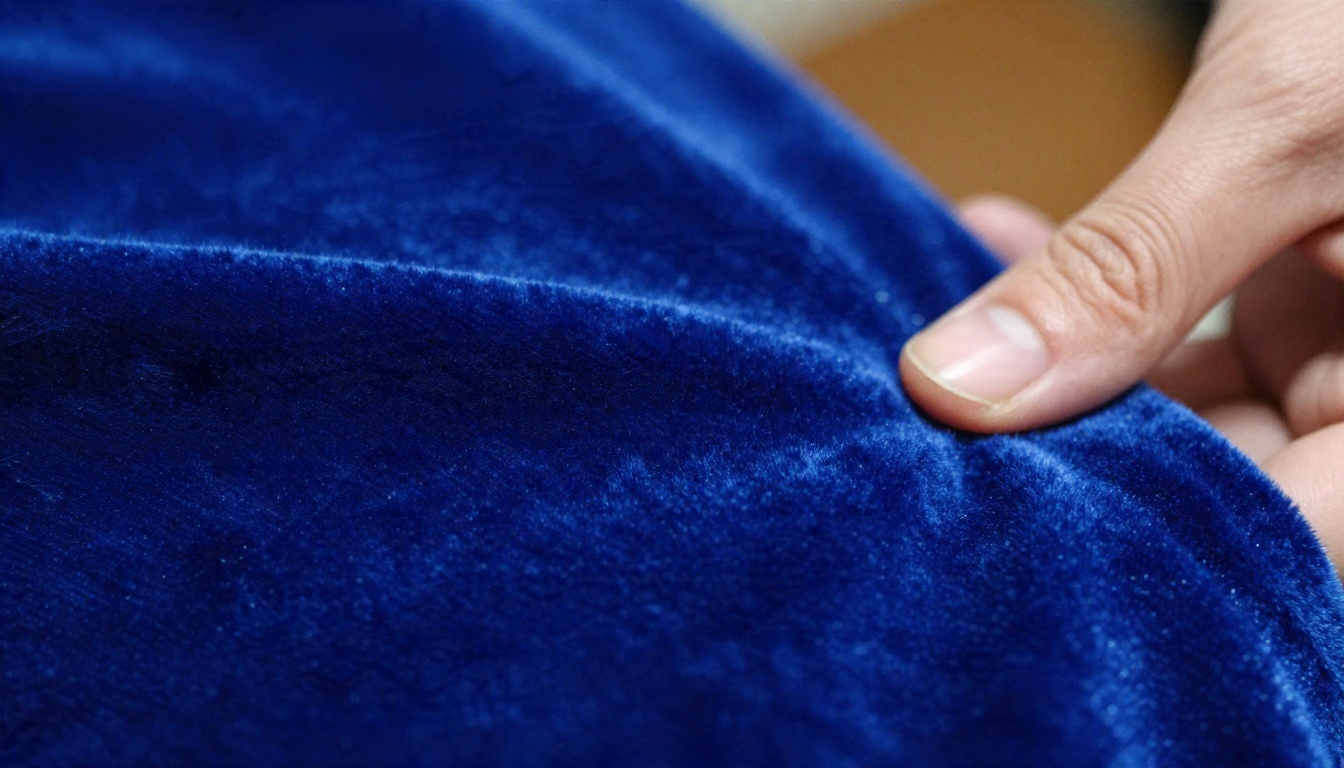
| Velvet | "keep the deep pile texture and rich shadows" | Depth and soft glow at edges |
| Linen or cotton | "keep the matte weave and natural wrinkles" | Realistic surface grain |
| Lace | "keep the lace pattern and the skin visible through the holes" | Fine pattern detail |
| Sequins | "keep the individual sparkle points" | Glitter and tiny reflections |
Color Prompts to Copy
Try these phrases when you want a specific mood:
- Warm and bold: crimson, burnt orange, terracotta, mustard yellow
- Soft and romantic: dusty rose, blush pink, lavender, pale peach
- Cool and calm: sky blue, sage green, teal, navy
- Classic and formal: black, ivory, champagne, deep burgundy
💡 Named shades beat generic ones. "Sage green" will give you a gray green that looks like a real dress. "Green" can come back as bright grass green.
Real Examples With Prompts
Seeing the shades on real photos makes the prompt choices clearer. In each case below, the idea is to start from a photo like the one shown and apply the prompt written under it.
Example 1: Red to Emerald
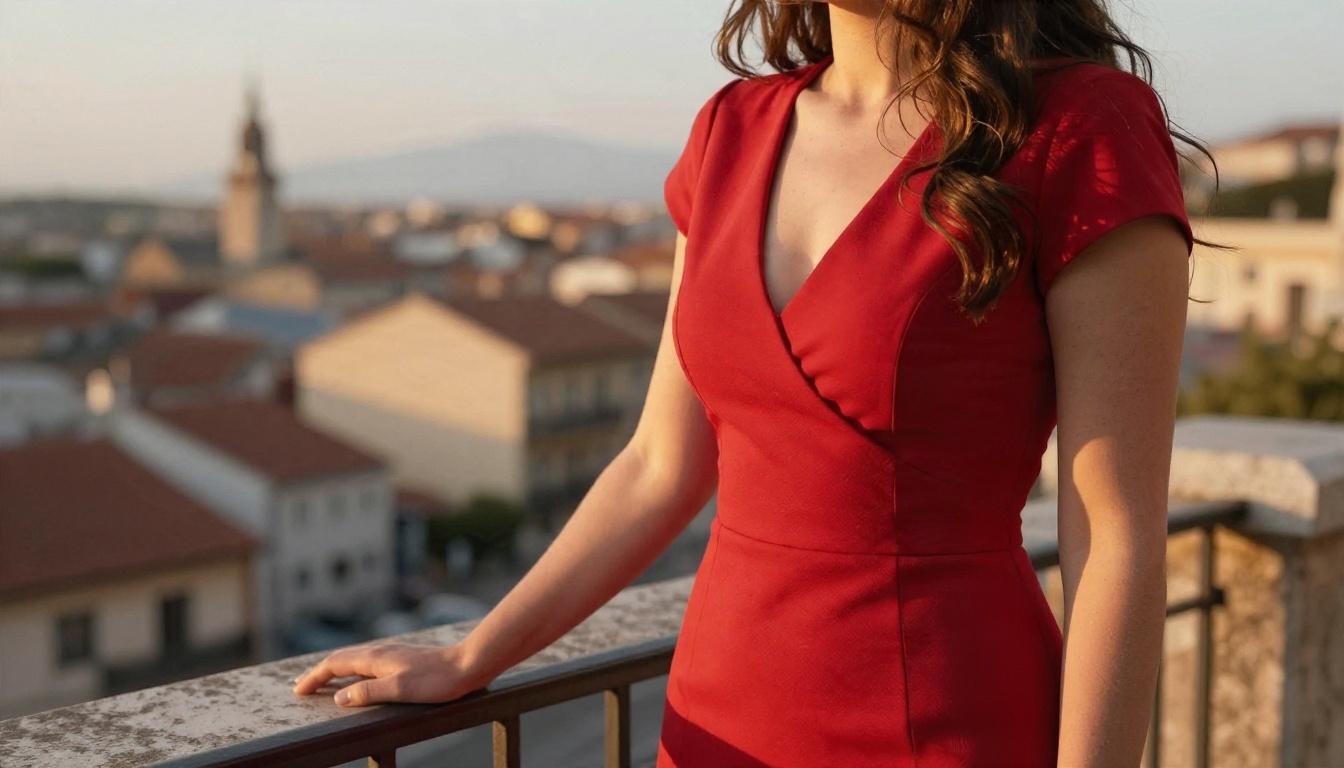
The balcony photo above has a strong red crepe dress under warm golden light. For a cooler look:
"Change the red dress to deep emerald green. Keep the crepe texture, the folds and the warm golden hour lighting. Do not change skin, hair or the background."
The warm light should still tint the highlights, so the green looks like it was photographed at the same moment. That is the main reason to mention lighting in the prompt.
Example 2: Sky Blue Chiffon to Dusty Rose
Flowing fabric is where weak edits fall apart, because chiffon is semi-transparent and the background shows through it.
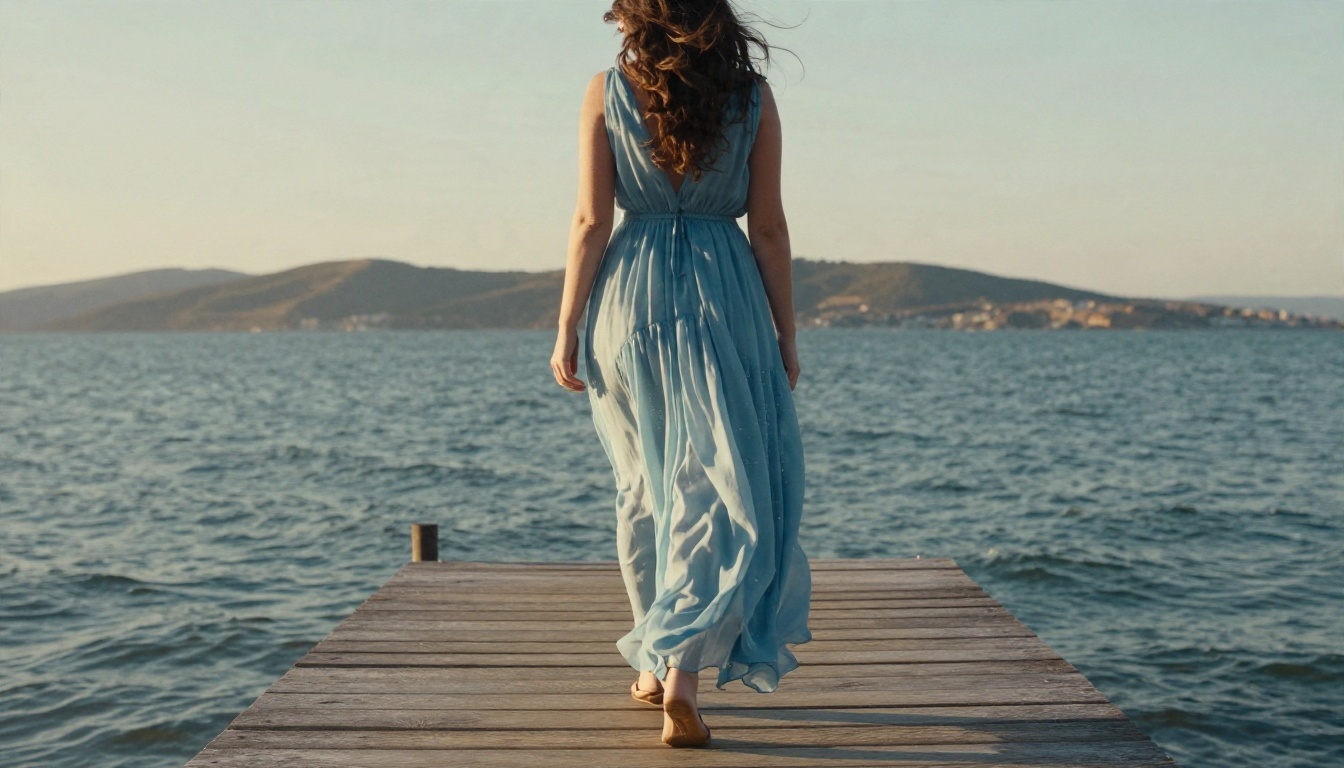
"Change the blue chiffon dress to dusty rose pink. Keep the layered semi-transparent fabric, the wind movement and the soft backlight. Keep the sea and pier unchanged."
Look at the hem after generating. If the water behind the skirt looks pinkish, add "the water stays turquoise" to the next run.
Example 3: Ivory Satin to Sage Green
Light dresses are easy to recolor because there is no strong original color to fight. Pastel shades also show every shadow, so the result tends to look very natural.
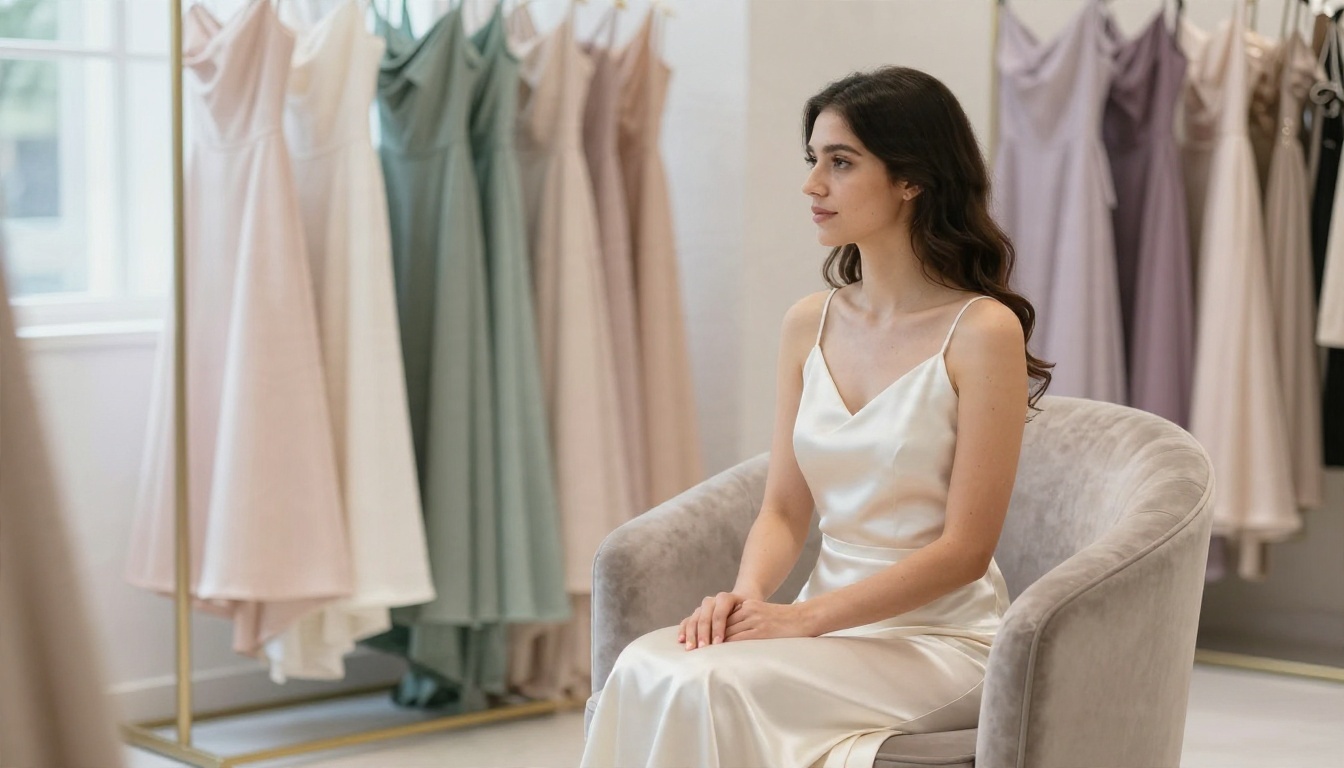
"Change the ivory satin slip dress to sage green. Keep the satin sheen, the soft window light and the dresses on the rack behind her unchanged."
This is a handy trick for shoppers and for brides planning bridesmaid colors. You can test five shades on one photo in a couple of minutes.
Example 4: Black Gown to Midnight Blue
Black is the hardest color to leave, because a black dress hides most of its folds in shadow, so the editor has less detail to work with.
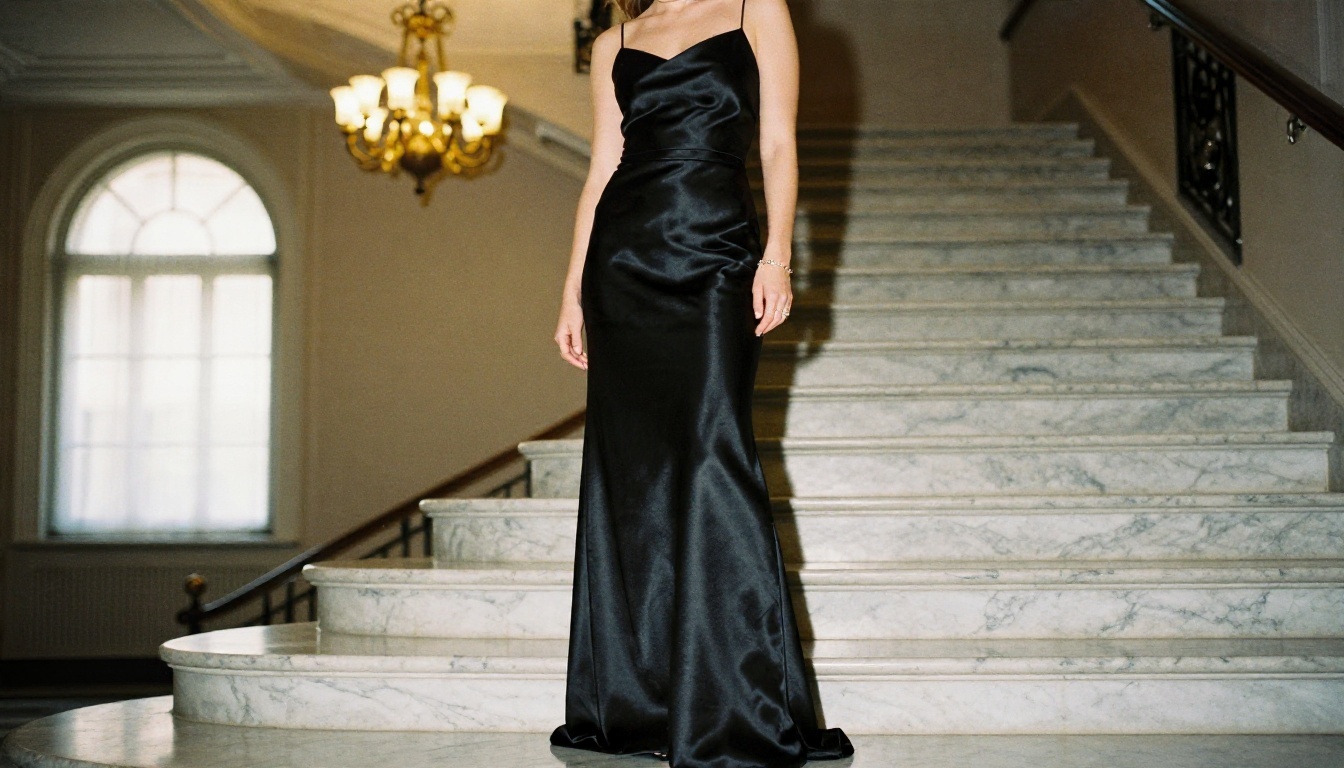
"Change the black evening gown to midnight blue satin. Keep the highlights along the folds and the chandelier reflections. Keep the marble and the jewelry unchanged."
Choose a dark target color (navy, deep green, burgundy) for black dresses. Going from black to pastel yellow asks the model to invent detail it cannot see, and the results are less predictable.
Other Models Worth Trying
Image Editor Pro is a great default, yet different models have different strengths. All of the following are on PicassoIA, so you can switch between them without leaving the platform.
When to Switch Models
Fixing Common Mistakes
Even good tools make errors now and then. These are the five problems you will see most often and how to solve each one.
Color Spills Onto Skin or Hair
You see a faint tint on the arms, neck or hair. Add this line: "Do not change the skin tone, hair color or any accessories." If it persists, name the body part: "The arms and shoulders keep their original skin tone."
Flat, Painted Looking Fabric
The new dress looks like a solid color block with no folds. This happens when the prompt does not mention texture. Add "keep all folds, wrinkles, shadows and highlights" and name the fabric.
Wrong Shade
You asked for blue and got something close to teal. Use specific shade words and a reference object, such as "cobalt blue like a clear afternoon sky" or "a deep wine red, similar to burgundy". Short comparisons work better than long adjectives.
Other Clothes Changed Too
Your jacket, scarf or bag changed color as well. Be explicit: "Change only the dress. The jacket, scarf and shoes stay exactly the same."
Pattern Disappeared
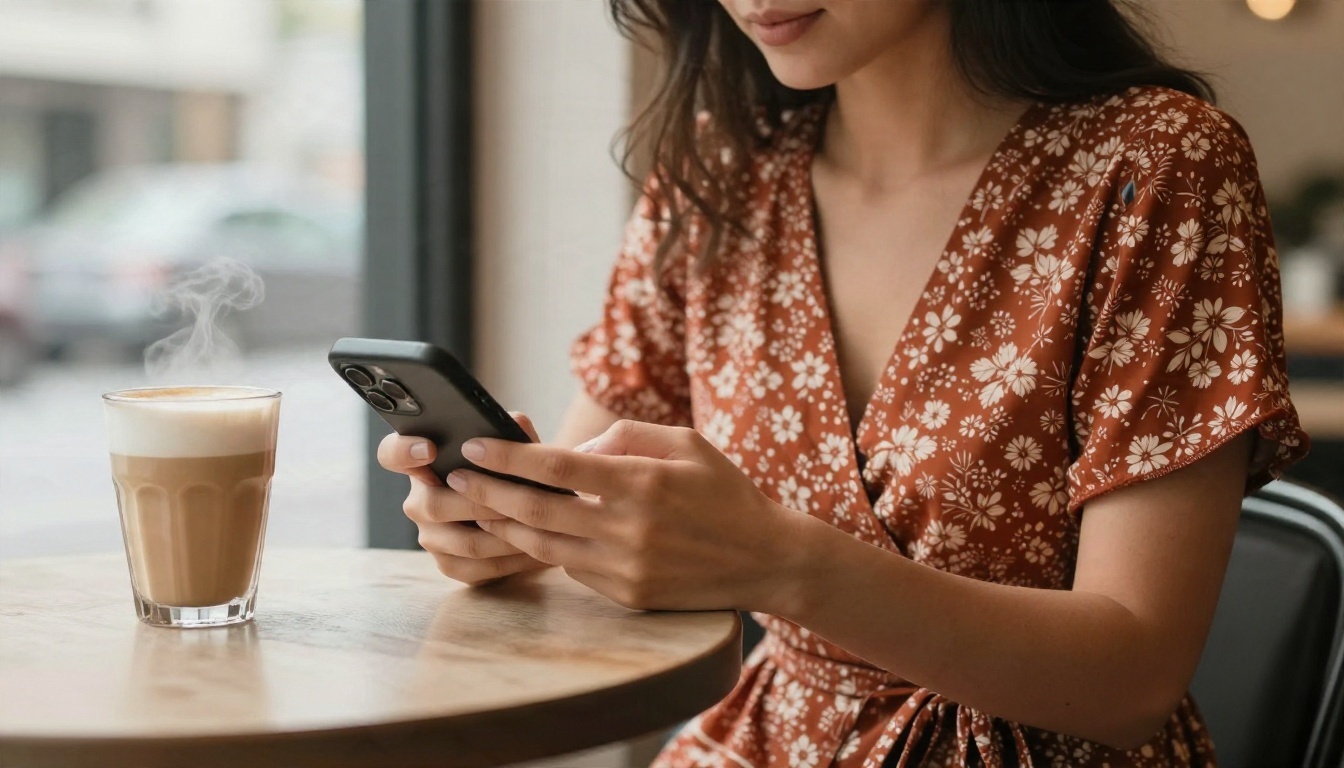
Floral or printed dresses sometimes turn into solid colors. If you want to keep the print but shift the palette, say so: "Keep the floral pattern and change the dominant color from terracotta to navy, with cream flowers."
Tips for Realistic Results
Prompts are only half of the work. A few habits will raise the quality of every recolor.
Start With a Clean Photo
- Use a picture where the dress is sharp and well lit.
- Avoid heavy filters that already shifted the colors.
- Crop out distracting objects only if they overlap with the dress.
- If the dress is partly hidden by a bag or hair, mention it: "The strap of the bag stays in front of the dress."
Match the Color to the Light
A color that looks right in the studio can look odd outdoors. Golden hour light warms every shade. Cool overcast light makes yellows look muddy. If a recolored dress looks wrong, the issue is often the match between color and light, not the edit.
| Lighting | Colors that look best | Colors that can look off |
|---|
| Golden hour | Emerald, burgundy, terracotta | Pale yellow, neon shades |
| Overcast daylight | Navy, sage, dusty rose | Mustard, orange |
| Indoor warm light | Champagne, deep red, forest green | Icy blue, silver |
| Bright midday sun | White, cobalt, coral | Very dark black on black |
Work on Light Dresses for the Easiest Wins
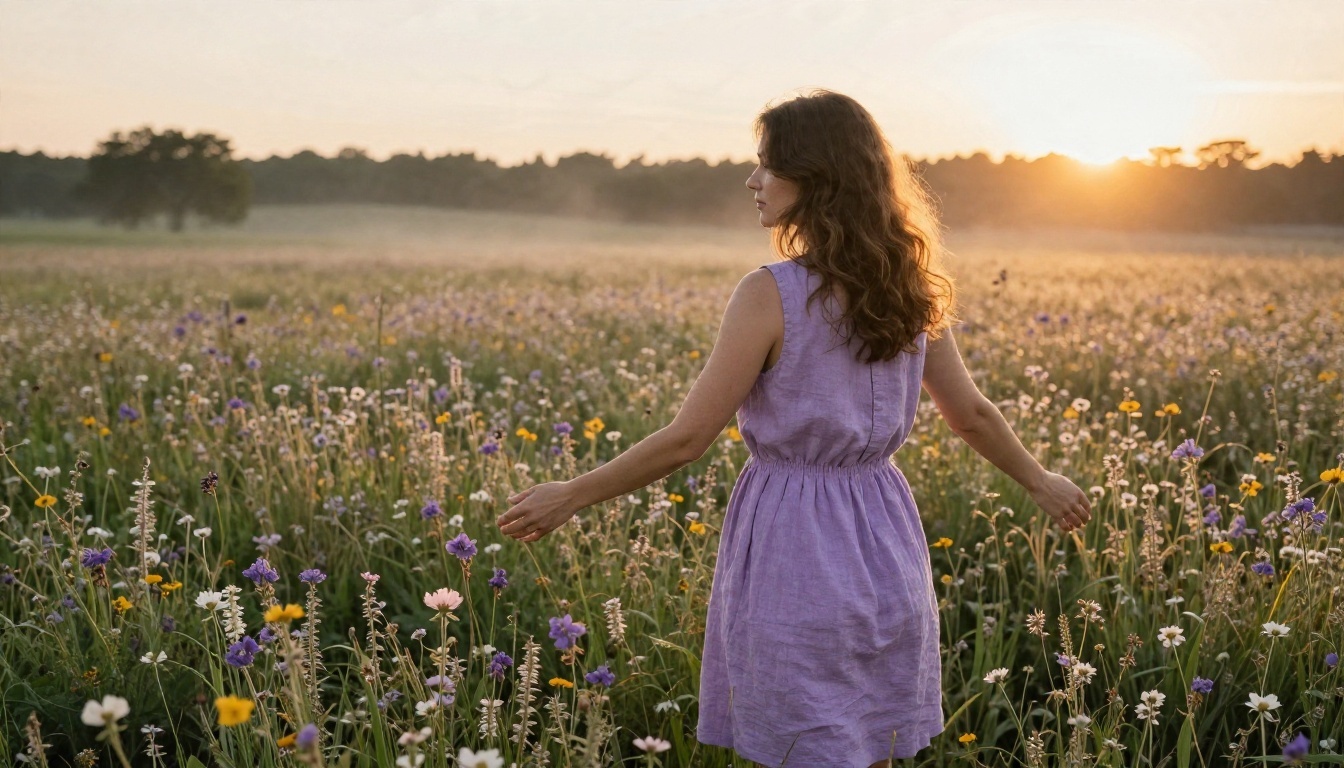
Pale and mid-tone dresses carry the most visible shading, which gives the model more to follow. Dark dresses and busy prints need more careful prompts, and you may need a few extra attempts.
Edit One Person at a Time in Group Photos
When two or more people appear, tell the editor exactly who to change: "Change only the dress of the woman on the right, from coral pink to turquoise. The woman on the left stays unchanged." Describing position and current color together removes any doubt.
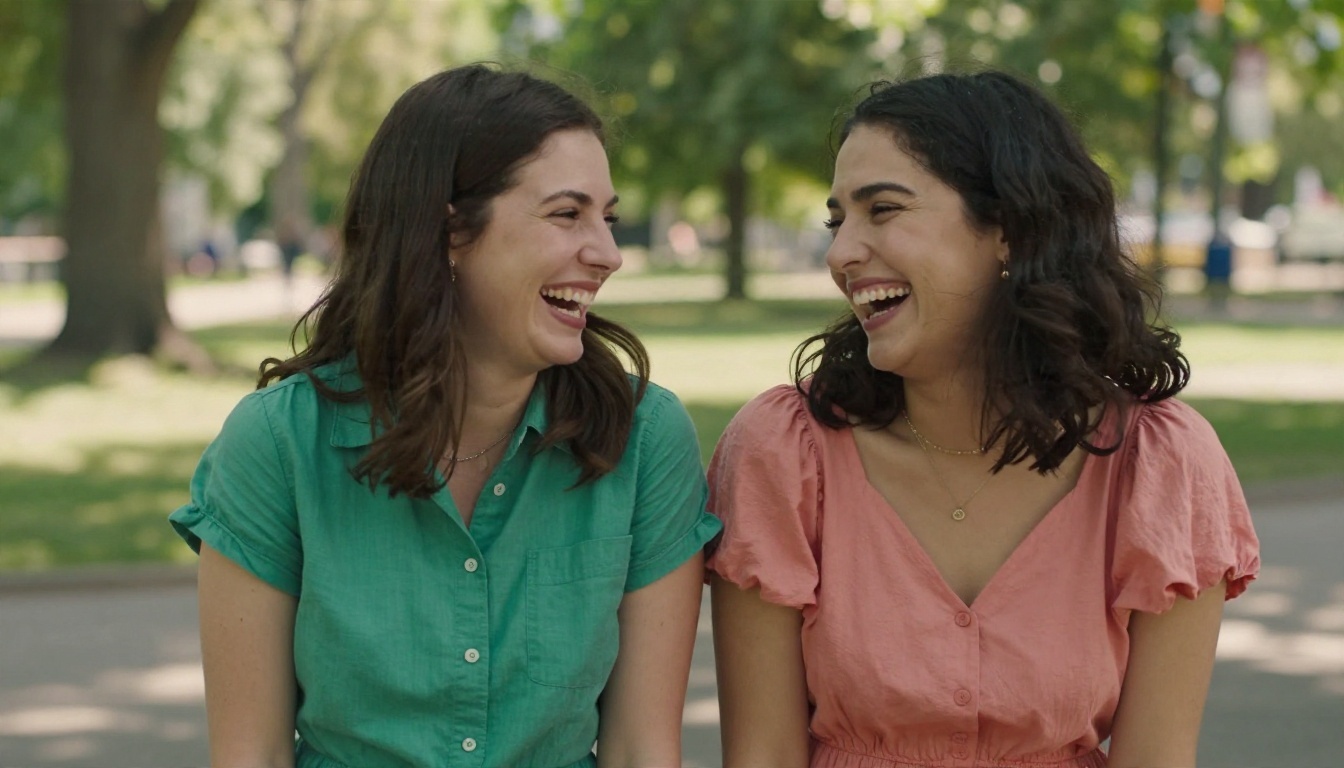
For a group photo, Qwen Image Edit Plus is a strong second option when Image Editor Pro touches the wrong person.
Who Uses This and Why
Changing a dress color might sound niche, but the use cases are wide:
- Online sellers show one dress in six colors without six photo shoots.
- Wedding planners preview bridesmaid shades on real photos before ordering.
- Fashion students test palettes for a collection quickly.
- Photographers rescue a perfect frame when the client picked the wrong outfit.
- Everyday shoppers check how a color suits them before spending money.
- Social media creators produce matching outfit variations for posts.
A note on honesty: if you are selling a product, make sure the recolored image matches the real garment. Customers return items that look different from the listing, and a recolor is a preview, not a replacement for the real fabric swatch.
Try It on Your Own Photos
You now have everything you need: a clear workflow, a prompt formula, fabric-specific phrases, and fixes for the common problems. The fastest way to see it work is to pick one photo from your phone and run it.
Here is a simple plan for your first session:
- Open PicassoIA Image Editor Pro and upload a photo with a clearly visible dress.
- Run the basic prompt with one new color.
- Generate three more versions with different shades, changing only the color word.
- Pick your favorite, and if the face or fabric looks off, repeat the same prompt in Nano Banana or Seedream 4.5.
Experiment freely. With unlimited generations in the editor, trying a color costs you nothing but a few seconds, and the best shade is often the one you did not expect. To see every image model you can switch between, browse the full list at picassoia.com/en/all-models and start creating your own versions on Picasso IA today.


