Consistent Character AI Video Generator: Free Tools and Prompts
Keep one character recognizable across every shot of an AI video. This article compares the free tools that hold a face steady, shows a reference image workflow built on PicassoIA, and gives copy-ready prompts for character sheets, motion clips and multi-scene stories.
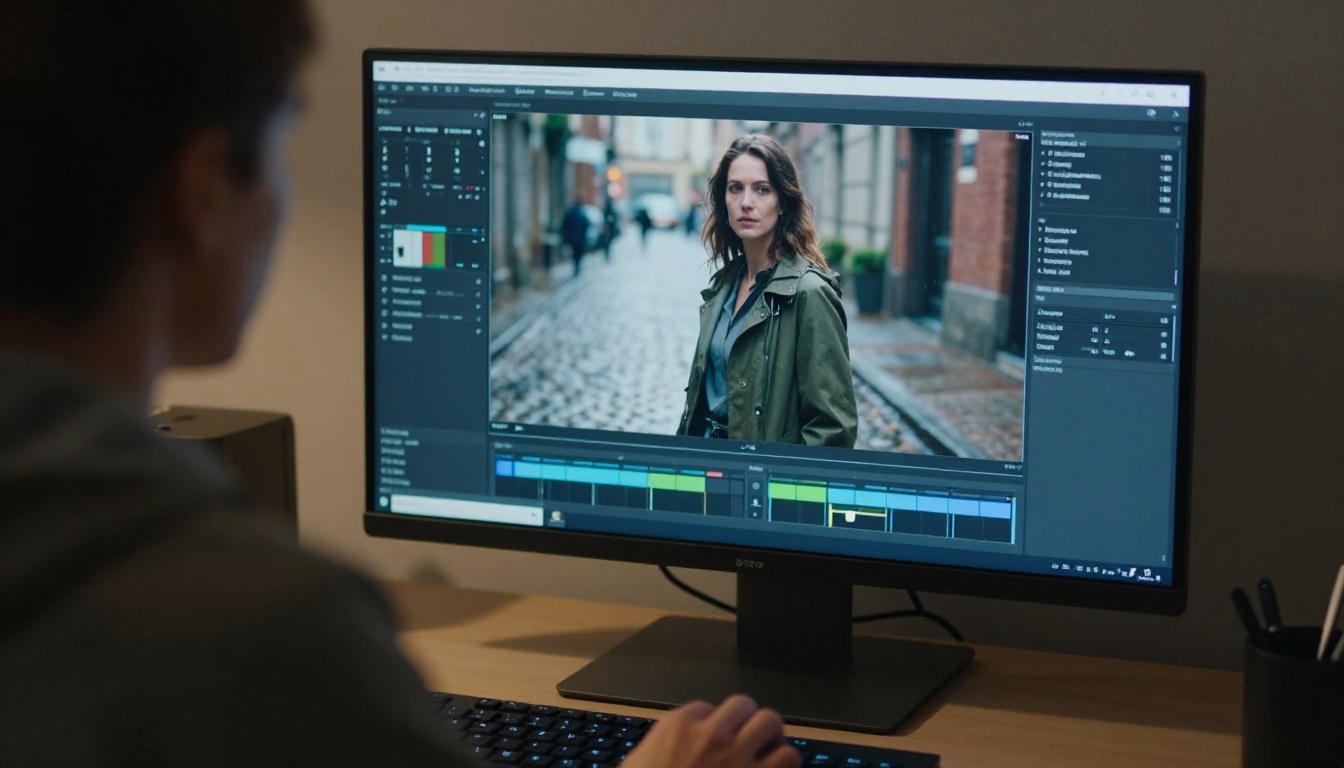
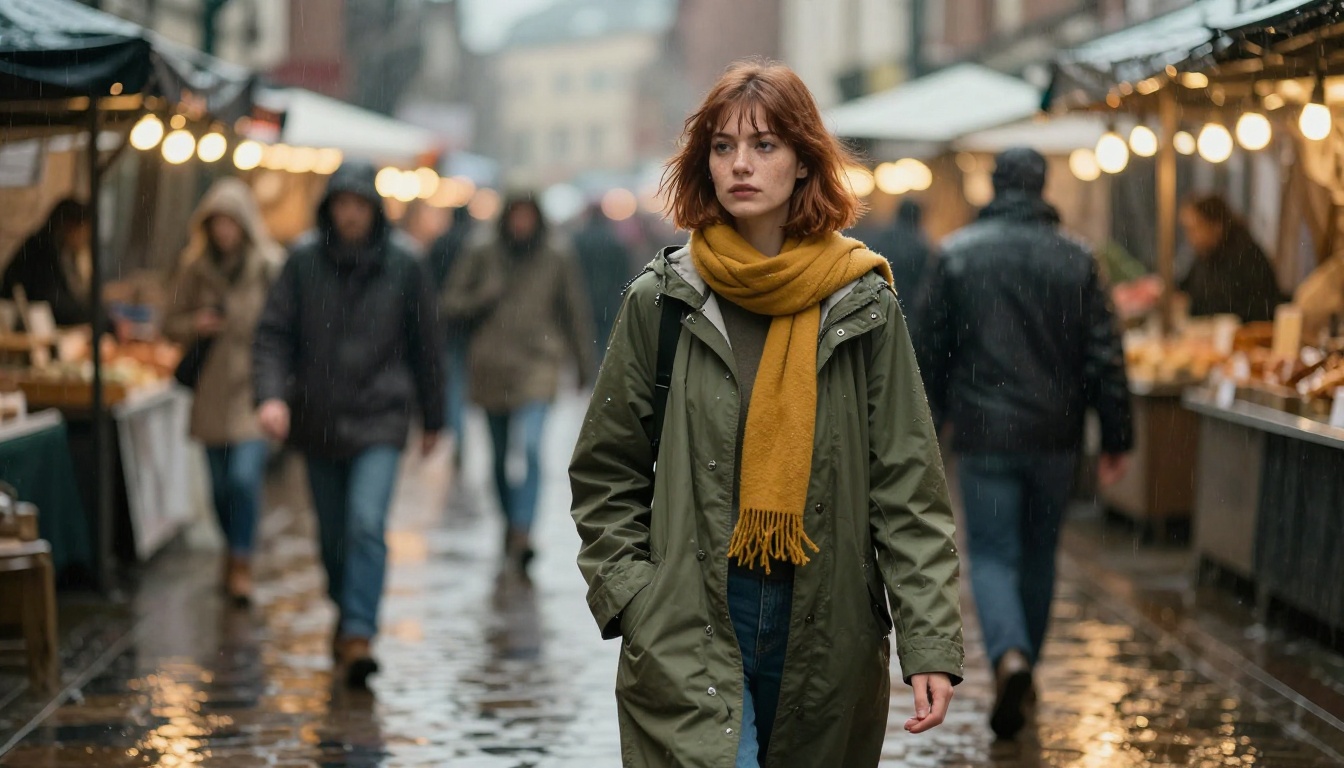
You generate a great clip of a woman in an olive raincoat walking through a rainy market. Then you generate the next shot, and she shows up with a different nose, different hair, and a coat that has quietly changed color. That is the daily headache of anyone telling a story with AI video, and it is exactly what a consistent character AI video generator workflow is built to fix. The good news: you do not need a paid studio stack. A few free tools, one strong reference image, and a repeatable prompt structure are enough to keep the same person on screen from the first clip to the tenth.
This article breaks down why characters drift, which free tools hold an identity best, a four-step reference image workflow, two hands-on tutorials on PicassoIA, and prompts you can paste straight into a generator.
Why Characters Drift Between Clips
Every AI video tool is, at heart, a probability machine. Ask it for "a woman in a raincoat" twice and you get two different women, because nothing in the request pins down who she is. Consistency is not a switch you turn on. It is something you build by giving the model more to hold on to than a sentence.
What Identity Drift Looks Like
Drift rarely shows up as one big failure. It creeps in through small changes that add up across a series of shots:
Face drift: the jawline softens, the eyes move closer together, or the nose changes shape between clips.
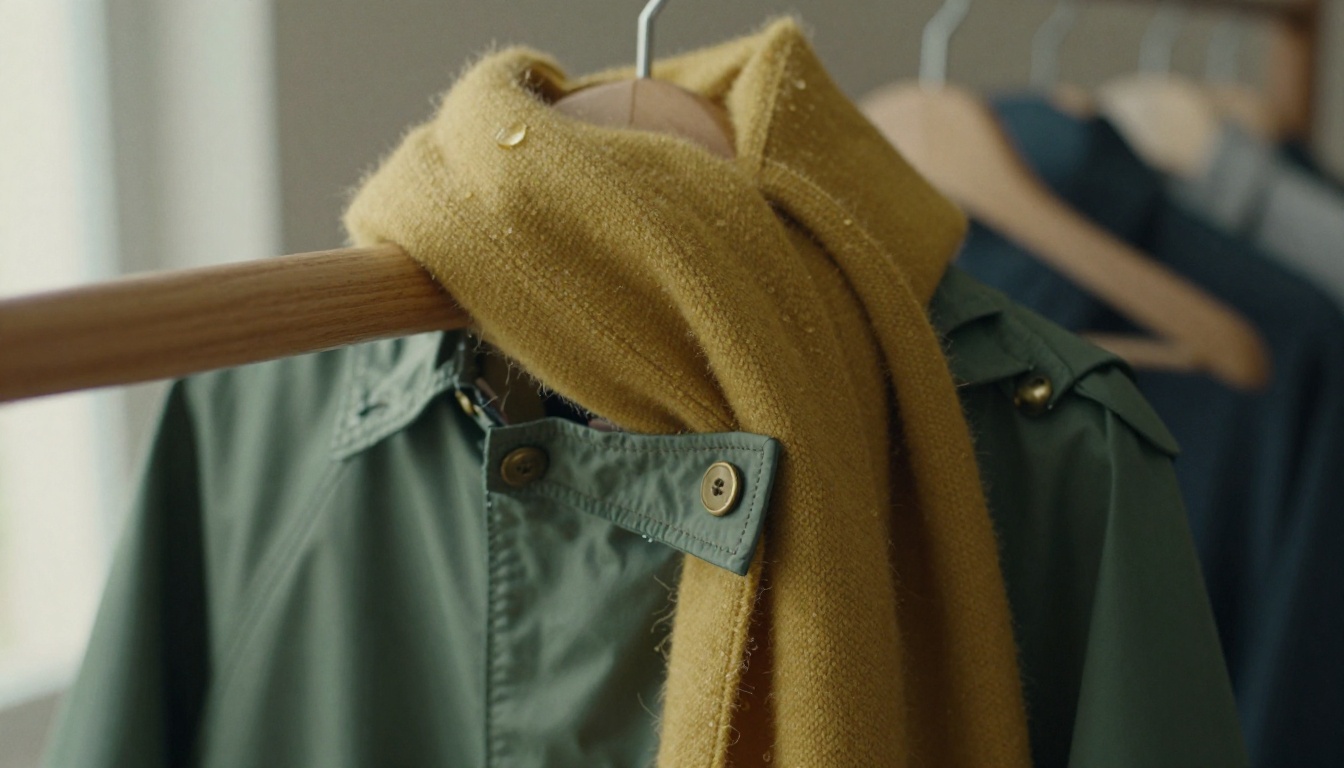
Wardrobe drift: a collar gains a button, a scarf shifts from mustard to orange, a logo appears from nowhere.
Style drift: shot one looks like grainy 35mm film, shot two looks like a glossy commercial.
Motion drift: inside a single clip, the face subtly morphs during a fast head turn or a long walk toward the camera.
Viewers spot all four in under a second, even when they cannot say what is wrong. A character who does not look the same simply stops feeling like a character.
Why It Happens
Each generation starts from random noise. A text description such as "young woman, auburn hair, freckles" fits thousands of different faces, so the model picks a new one every time. Words are a lossy description of a person. A picture is not.
That is why every reliable approach in this article anchors the model with an image instead of a longer paragraph.
💡 Rule of thumb: use images for who the character is and text for what the character does. Never ask a prompt to do the job of a reference photo.
The Free Tools That Hold a Character
Free video tools fall into three families, and each one handles identity differently:
Image to video. You supply the first frame, so the face on frame one is exactly your reference.
Reference to video. You supply one or more reference images or clips, and the model keeps the subject recognizable while it invents the scene.
Motion transfer. You supply a character image plus a video of the movement you want, and the model maps that motion onto your character.
A video model is only as consistent as the still you hand it, so most of the real work happens before the first clip renders.
The Reference Image Workflow
Four moves make up the whole process. Do them in order and skip none.
Build a Character Sheet First
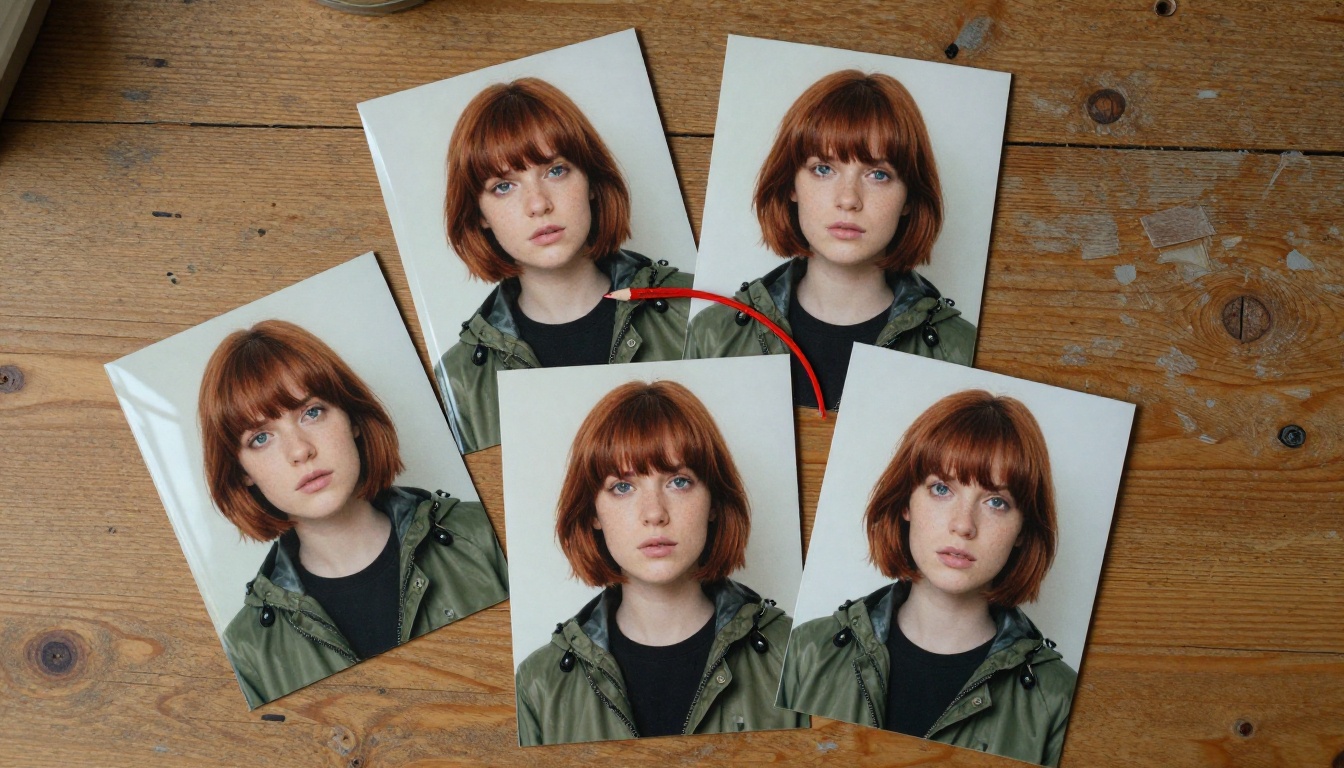
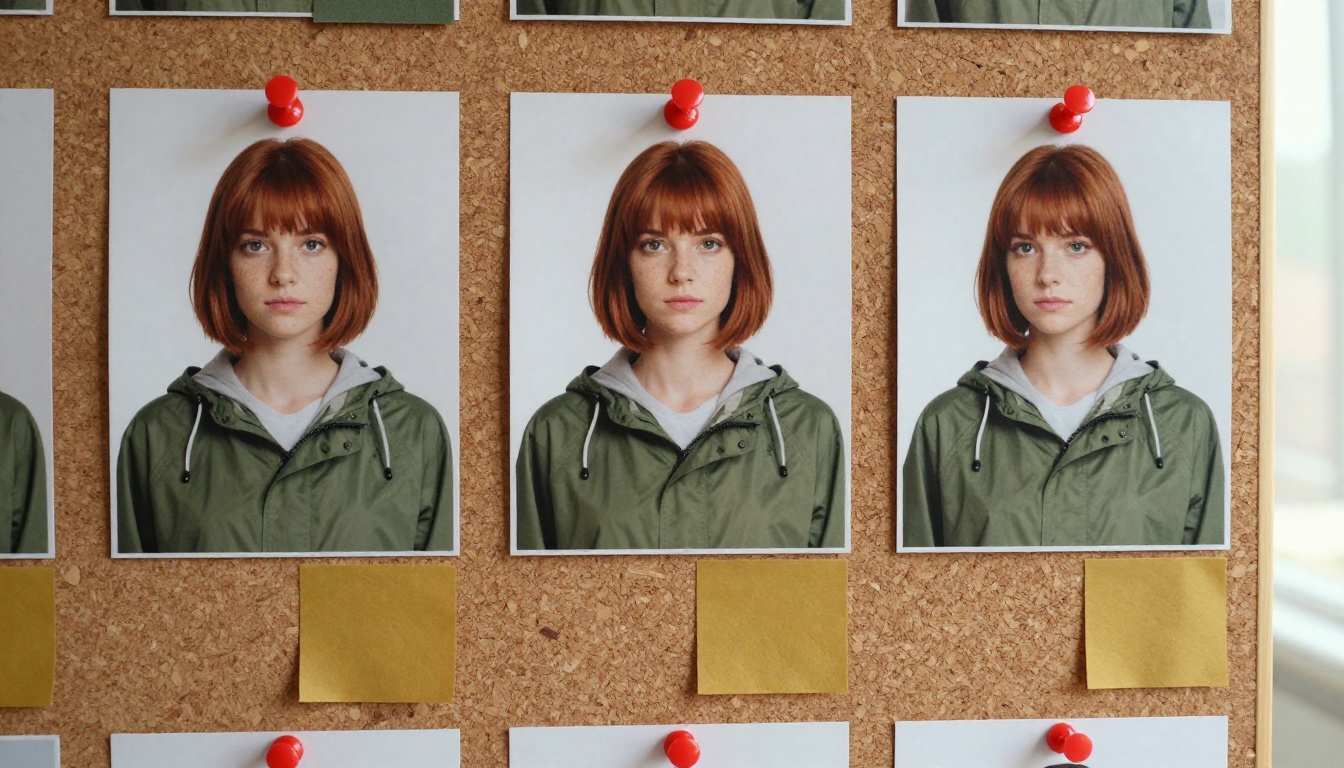
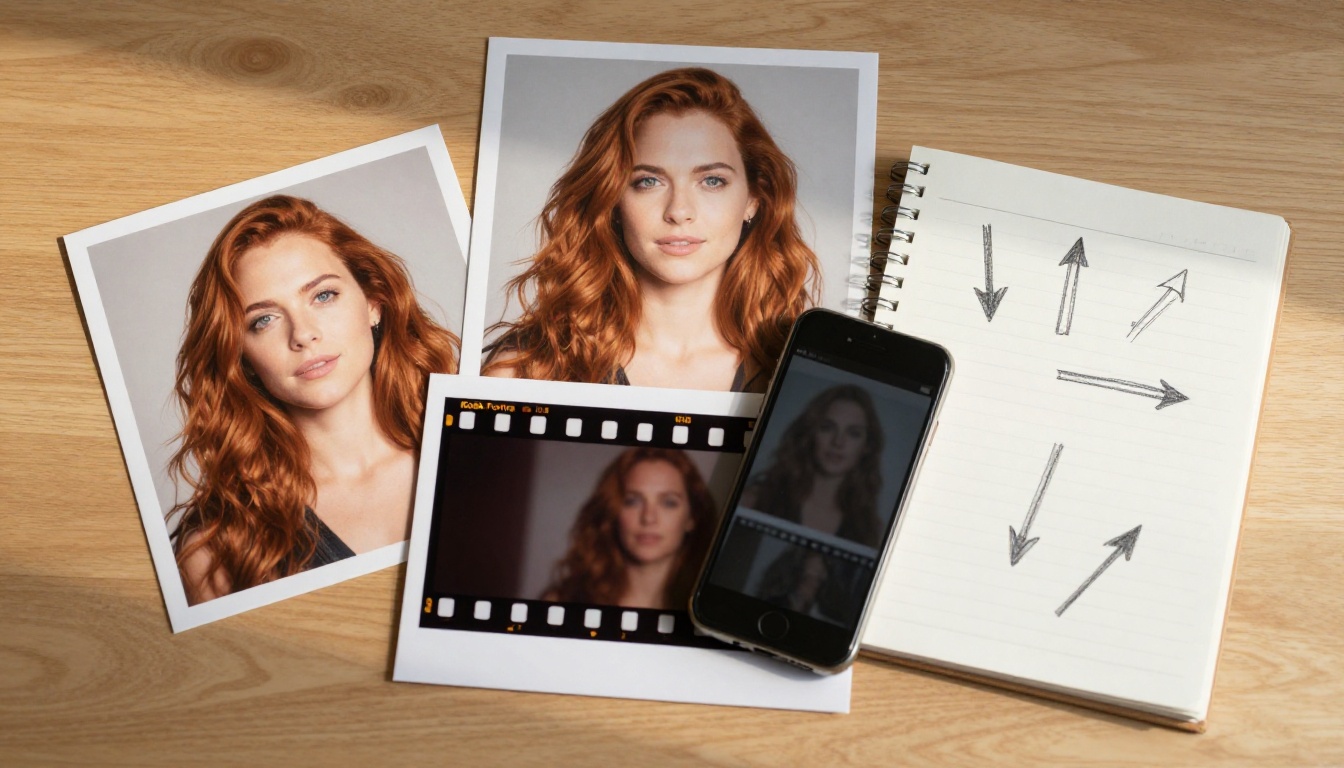
Before you touch a video tool, make a stack of still images of your character: front view, profile, three-quarter view, and one or two expressions. Nano Banana Pro fits this step well because it accepts up to 14 reference images next to your prompt. Once you have one portrait you like, feed it back in and ask for the other angles.
Then write a single identity block: one paragraph of fixed words that describes the character. Paste it, unchanged, at the start of every prompt for the rest of the project.
a woman in her late twenties with a short auburn bob, light freckles across her nose and cheeks, hazel eyes, a small silver stud earring, an olive-green waxed cotton raincoat and a mustard-yellow wool scarf
Concrete beats poetic. Hair length, one facial feature and one outfit do more than a page of adjectives.
Lock the Wardrobe and Face
Outfits cause more drift than faces. Pick one outfit with a simple silhouette and two flat colors. Logos, lettering, fringe, layered jewelry and busy patterns are drift magnets, because the model has to reinvent them in every frame.
When a still is almost right, fix it instead of regenerating it. PicassoIA Image Editor Pro takes up to three reference images and lets you address them as "image 1", "image 2" and so on inside the prompt. Try something like: "Keep the face and hair from image 1. Change only the scarf to mustard yellow." Because the model is unlimited, you can run dozens of small corrections until the sheet is clean.
Animate From the First Frame
Pick the best still and use it as the first frame of an image-to-video generation. Both Seedance 2.5 Lite and PicassoIA Video treat the input image as the opening frame and inherit its aspect ratio. That means the face on frame one is your reference, and the model only has to keep it stable for five to ten seconds.
Write the prompt about motion only. Do not describe the face again, because the image already did. Good motion lines: "turns her head toward the camera", "walks forward through light rain", "slow dolly-in". Keep one action per clip.
Chain Scenes With Last Frames
To continue the story, export the final frame of clip one from any video player and use it as the first frame of clip two. Seedance 2.5 Lite also has a Last frame image option: with a first frame set, the clip animates from that frame toward the one you provide, which is handy for planned transitions.
Keep a simple production log so you can repeat anything that worked:
Scene
Source image
Seed
Motion line
1. Market
Front view, raincoat
4821
Turns toward camera, smiles
2. Platform
Three-quarter view
4821
Checks her watch
3. Cafe
Profile view
7390
Wraps hands around a cup
💡 Tip: save the seed for every clip you like. Re-running the same prompt with the same seed reproduces the result, so you can change one word and see exactly what that word did.
Seedance 2.5 Lite Step by Step
Seedance 2.5 Lite is the lightweight edition of Seedance 2.5. It renders at 480p and 720p, produces clips up to 10 seconds with synchronized audio, and Wonder members can run it without a per-clip cost. That last part matters for consistency work, because you will regenerate a lot.
Open the model page and upload your character still to Input image. Leave Aspect ratio on match_input_image so the clip keeps the framing of your reference.
Write a motion-only prompt. Cinematic, chronological descriptions work best: what moves, how the camera moves, what changes over the shot.
Choose a resolution. Use 480p for fast drafts and 720p, the default, for versions you plan to keep.
Set the duration. Pick 5 seconds for a quick beat or 10 seconds when the action needs room.
Enter a seed. Any whole number works. Write it in your log.
Add a last frame image (optional). Upload a closing frame when you want the clip to land on a specific pose or setting.
Decide on audio.Save audio is on by default. Switch it off if you plan to add your own soundtrack.
Generate and compare. Run three or four variations, keep the best one, and note which wording caused drift.
Prefer a predictable format? PicassoIA Video works the same way with an input image, but every clip is a fixed 5 seconds at 24 frames per second, at 480p or 720p. That makes it easy to cut a whole sequence to the same length.
💡 Tip: draft at 480p until the motion looks right, then re-run the winning prompt and seed at 720p.
Wan 2.7 R2V for Reference Clips
Wan 2.7 R2V is a reference-to-video model. It reads your reference material and uses it to anchor the subject's identity across the whole video, so you can put a known character in a brand new scene without supplying a first frame. It outputs 720p or 1080p and supports 16:9, 9:16, 1:1, 4:3 and 3:4.
The settings that matter:
Reference images: one or more portraits of your character in JPG, PNG, BMP or WebP.
Reference videos: short MP4 or MOV clips of the same character, when you want look and motion to carry over.
Prompt: describe the scene and the action. Say "the woman from the reference" instead of describing her again.
Shot type:single for one subject, multi for scenes with several subjects.
Negative prompt: list what must not appear, such as a changed hairstyle or extra people.
Resolution: 720p for tests, 1080p (the default) for final renders.
Seed: any value from 0 to 2147483647 for reproducible output.
When Motion Matters Most
Some shots need a specific movement, not just a stable face. Kling v3 Motion Control takes a character image plus a short reference video and maps the movement onto your character. Standard mode renders 720p for quick previews, and Professional mode renders 1080p for final clips.
The character orientation setting changes the length limit. Set to image, the character faces the way your still does and clips run up to 10 seconds. Set to video, the character follows the person in the reference clip and clips can reach 30 seconds. Because the character comes from your still, the identity stays put while the movement comes from the clip. A short text prompt can add scene details on top.
Prompts You Can Copy
Replace the bracketed parts and leave everything else exactly as written.
Character Sheet Prompt
Photorealistic portrait of [IDENTITY BLOCK]. Neutral grey backdrop, soft window light from the left, 85mm lens, shallow depth of field, natural skin texture, relaxed expression, [front view / three-quarter view / profile view].
Run it three times and change only the bracketed view. Every other word stays identical.
Motion Prompt for First Frames
She turns her head slowly toward the camera and smiles, raindrops slide off the edge of her hood, shoppers drift past in soft focus behind her. Slow dolly-in, gentle handheld movement, late afternoon light.
Notice what is missing: hair, freckles, coat. The first frame carries all of that.
Reference Clip Prompt
The woman from the reference images walks through a rainy outdoor market, stops at a fruit stall and lifts an orange to smell it. Medium tracking shot at eye level, warm string lights, light rain, shallow depth of field.
Pair it with a negative prompt:
different face, changed hairstyle, different coat, extra people, text, watermark, blurry, distorted hands
Four-Scene Story Plan
Scene
Setting
Motion line
Camera
1
Rainy market
Walks past fruit stalls
Slow tracking
2
Train platform at dusk
Checks her watch, looks down the track
Locked off
3
Cafe window seat
Wraps both hands around a cup, glances outside
Slow push in
4
Rooftop at dawn
Pulls her scarf tighter, turns toward the sunrise
Pan right
To get a still for each setting, ask PicassoIA Image Editor Pro: "Place the woman from image 1 on a train platform at dusk. Keep her face, hair and outfit unchanged." Then animate each still with the motion line from the table.
Mistakes That Break Consistency
Rewriting the Identity Block
Swapping "auburn bob" for "short reddish hair" hands the model a new brief, and it will take the freedom. Copy and paste the block. Never retype it from memory.
Asking Too Much From One Clip
Fast spins, crowds crossing the face and long action sequences push the model to redraw the character mid-shot. Give each clip one action and cut between them.
Most other problems trace back to the same few causes:
Problem
Likely cause
Fix
Face changes mid-clip
Fast head turn or a long clip
Shorten to 5 seconds and slow the motion line
Coat changes color between scenes
Color described in different words
Reuse the identity block word for word
Clips look like different films
Lens and light wording changed
Reuse the same lens and light line in every prompt
Face looks soft or smeared
Low-resolution reference
Start from a sharper 2K or 4K still made with Nano Banana Pro
Try It With Your Own Character
The whole process fits in one afternoon. Pick a character, write the identity block, build a five-image sheet with Nano Banana Pro, polish it with PicassoIA Image Editor Pro, then animate two or three scenes with Seedance 2.5 Lite. Log every seed along the way.
Your first attempt will not be perfect, and that is fine. Each pass shows you which words hold the character steady and which ones let it slip. Open Picasso IA, create your own character images, upload your best one as a first frame and render your first consistent clip today. When you want to compare more video models side by side, browse the full catalog at picassoia.com/en/all-models.