Five minutes. That's genuinely all it takes to go from a blank prompt box to a cinematic AI video with Kling 3.0. Not five minutes with some asterisk about "basic" results. Five minutes to output something you'd actually share, post, or pitch to a client. If you've been sleeping on Kling's third-generation model because earlier versions felt clunky or slow, this is the moment to pay attention.
What Kling 3.0 Actually Changed
The gap between Kling 2.x and 3.0 is bigger than most version bumps in AI tools. KwaiVGI, the team behind Kling, made changes that hit the things that actually matter: motion consistency, prompt fidelity, and render time.
The Physics Feel Different
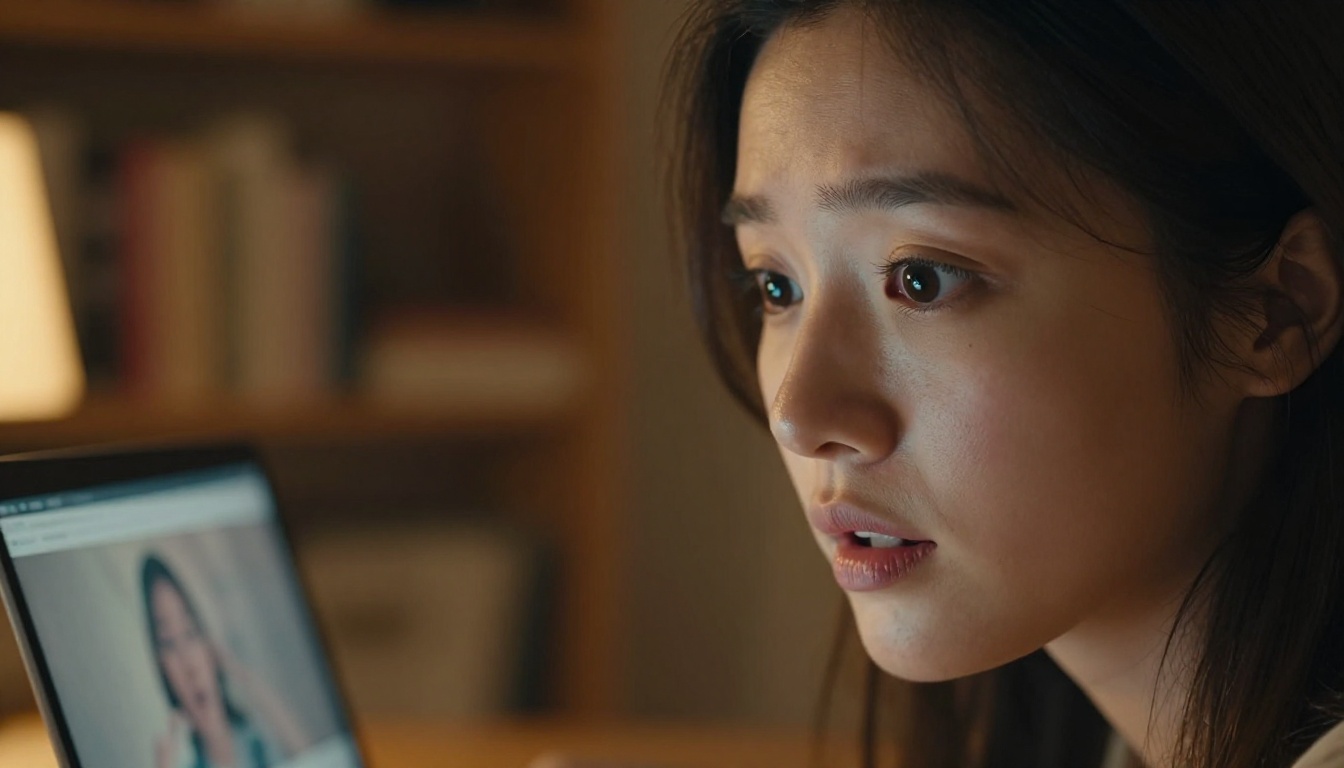
Video generation used to collapse on anything with complex movement. A person walking, water flowing, fabric blowing in wind, all of these exposed the model's limitations fast. Kling 3.0 handles these with noticeably better temporal consistency. Objects don't drift. Faces hold their structure across frames. You can prompt a woman running down a rainy street and she'll look the same at frame 1 and frame 90.
Prompt Fidelity Actually Tracks
Earlier models had a frustrating habit of ignoring specific prompt details in favor of "something close." Kling 3.0 follows instructions with greater precision. If you say "slow push-in from mid-shot to close-up," it actually executes the camera move rather than generating a static wide shot and calling it done.
💡 Tip: Kling 3.0 responds especially well to camera direction cues. Add terms like "slow dolly," "rack focus," or "aerial descent" directly in your prompt for better motion framing.
Speed Without Sacrifice
The render speed improvement is real. What took 4-6 minutes on previous versions now runs in 1-2 minutes on the standard mode, meaning you can run multiple prompts in a single session and refine your output fast.
The 3 Models You Need to Know
PicassoIA gives you direct access to three distinct Kling v3 models, each suited to different workflows. Here's how they compare:
Kling v3 Video: The Baseline
Kling v3 Video is your go-to for pure text-to-video generation. No image required, just a prompt and your settings. It's the fastest of the three and handles a wide range of scenes well, from talking people to abstract environments. Start here if you're new to the workflow.
Kling v3 Omni: Text and Image Together
Kling v3 Omni Video takes both a text prompt and a reference image as input. This is the model you reach for when consistency matters. Upload a portrait photo and prompt a walk, or use a product image and describe a camera orbit. The output stays true to the visual you provided.
Kling v3 Motion Control: Precision Movement
Kling v3 Motion Control adds a layer of direct motion input. You can provide motion reference signals, trajectory brushes, or camera path data to steer exactly how subjects and the camera move. This is not beginner territory, but the results when used correctly are unmatchable.
Your First Video in 5 Steps
This walkthrough uses Kling v3 Video specifically, since it's the fastest path to your first result.
Step 1: Open the Model
Go to Kling v3 Video on PicassoIA. No local setup, no installations. The interface loads directly in your browser with the generation form ready.
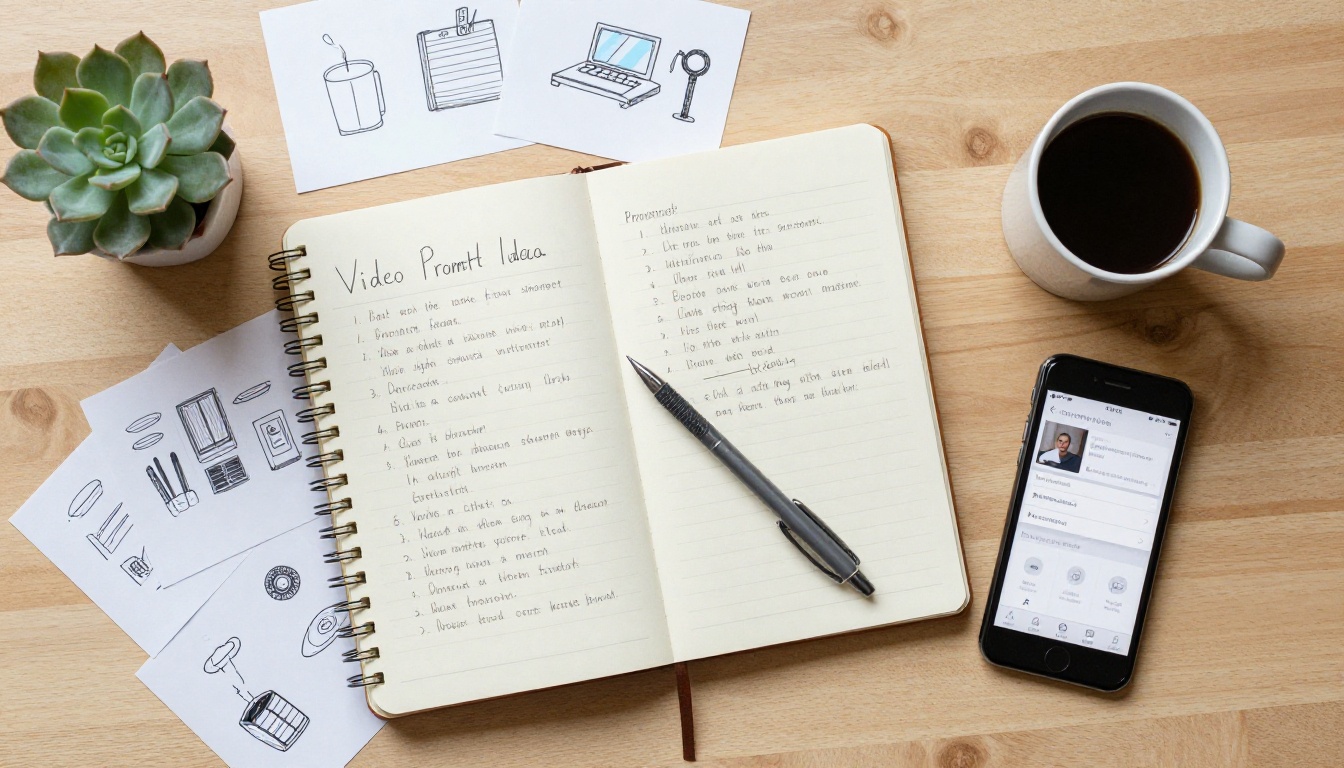
Step 2: Write a Focused Prompt
This is the part that makes or breaks everything. Don't write a sentence. Write a visual screenplay. Include:
- Subject: Who or what is in the shot
- Action: What is happening, specifically
- Camera movement: Pan, dolly, static, aerial
- Environment: Time of day, weather, location details
- Mood/tone: Cinematic, documentary, dramatic, soft
Example prompt: "A woman in a red coat walks slowly along a wet cobblestone street at dusk, shallow focus pulling her sharp as neon signs blur behind her, slow tracking shot from the right, film grain, melancholic mood."
Step 3: Set Duration and Quality
Kling 3.0 offers output durations from 5 to 10 seconds. For a first test, use 5 seconds. It generates faster and costs fewer credits. Once your prompt works, extend to 10 seconds for the final output.
Set quality to Professional if you want to share the output. The difference between Standard and Professional is visible, especially in textures and edge sharpness.
Step 4: Generate and Wait
Hit generate. On PicassoIA, Kling v3 Video typically returns results in under 2 minutes. You'll see the progress in real time. Don't close the tab.
Step 5: Download and Iterate
Download the result and watch it critically. Ask:
- Did the motion match what I described?
- Is the subject consistent across frames?
- Does the camera move the way I wanted?
If the answer to any of these is no, adjust the prompt and run again. Two or three iterations is normal. That's still within your five-minute window.
💡 Tip: Save prompts that work. A plain text file with your best-performing structures lets you build on them rather than starting from scratch each time.
Writing Prompts That Actually Work
Prompt quality is the single biggest variable in your output. The model can only render what you describe clearly.

What to Include Every Time
Camera language is non-negotiable. AI video models interpret spatial and motion language accurately. Use terms like:
- Close-up, medium shot, wide shot
- Slow zoom in, tracking left, static wide
- Bird's-eye view, low angle, over the shoulder
Lighting sets the whole tone. Phrases like "golden hour backlight," "overcast soft light," or "harsh midday sun" directly affect how the scene renders. Don't skip this.
Specify texture and material. "Silk dress" generates differently than "cotton dress." "Wet asphalt" generates differently than "dry concrete." Details matter.
What Kills Your Output
- Too many subjects at once: Prompt one or two elements, not five. Complex scenes dilute quality.
- Vague verbs: "Moving" is useless. "Sprinting," "drifting," "swaying," "crumbling" give the model something real to work with.
- Conflicting style cues: Don't mix "cinematic 35mm film" with "vibrant neon cyberpunk." Pick a lane.
3 Prompt Templates That Work
Template 1 (Person in Environment):
"[Subject description] [action] in [specific location] at [time of day], [camera movement], [lighting condition], [film style or mood]."
Template 2 (Object or Product):
"[Object] [motion or transformation] against [background], [camera angle], [lighting], [texture detail], [duration feel]."
Template 3 (Abstract or Atmospheric):
"[Atmospheric element] [behavior] over [environment], [color palette], [camera movement], [mood descriptor], [speed of motion]."
Kling 3.0 vs. What Came Before
It helps to see where Kling 3.0 sits relative to the previous versions still available on PicassoIA.

The jump from v2.6 to v3 is real but not dramatic for every use case. If you're producing quick social content, v2.6 is still excellent. If you want the highest output quality, cinematic realism, and the tightest prompt fidelity, v3 is where you go.
Also worth noting: Kling v2.5 Turbo Pro sits between v2.x and v3 in terms of raw speed. It's a strong choice for batching large numbers of clips when cost and time are both constraints.
Beyond Text: Image-to-Video Mode
Kling v3 Omni Video opens a different workflow entirely. Instead of building a scene from words alone, you start with a still image and animate it.

Why Starting With an Image Helps
When you provide a reference image, you remove one of the biggest uncertainties in text-to-video: what the subject actually looks like. The model doesn't have to interpret your description of a face, a product, or a landscape. It has the visual information directly, so the output stays true to it.
This is particularly powerful for:
- Personal portraits: Animate a photo of yourself or someone else
- Product visualization: Show a product moving, rotating, or in use
- Character consistency: Hold a character's appearance stable across multiple clips
- Location reference: Use a real location photo as the scene foundation
Best Image Types to Use
- High resolution and sharp: Blurry or compressed inputs produce blurry outputs
- Clear subject separation: Subject against a non-cluttered background gives cleaner animation
- Neutral expression for faces: Neutral gives the model flexibility to apply the emotion you describe in the prompt
- Good lighting in the source: Poor lighting compounds in the output
💡 Tip: Use a text-to-image model first to create the perfect reference image, then feed it to Kling v3 Omni Video. This two-step approach gives you maximum control over both the look and the motion.
Motion Control Changes Everything
Kling v3 Motion Control is the most specialized tool in the Kling lineup, and the one that produces the most visually striking results when used correctly.
What It Can Do
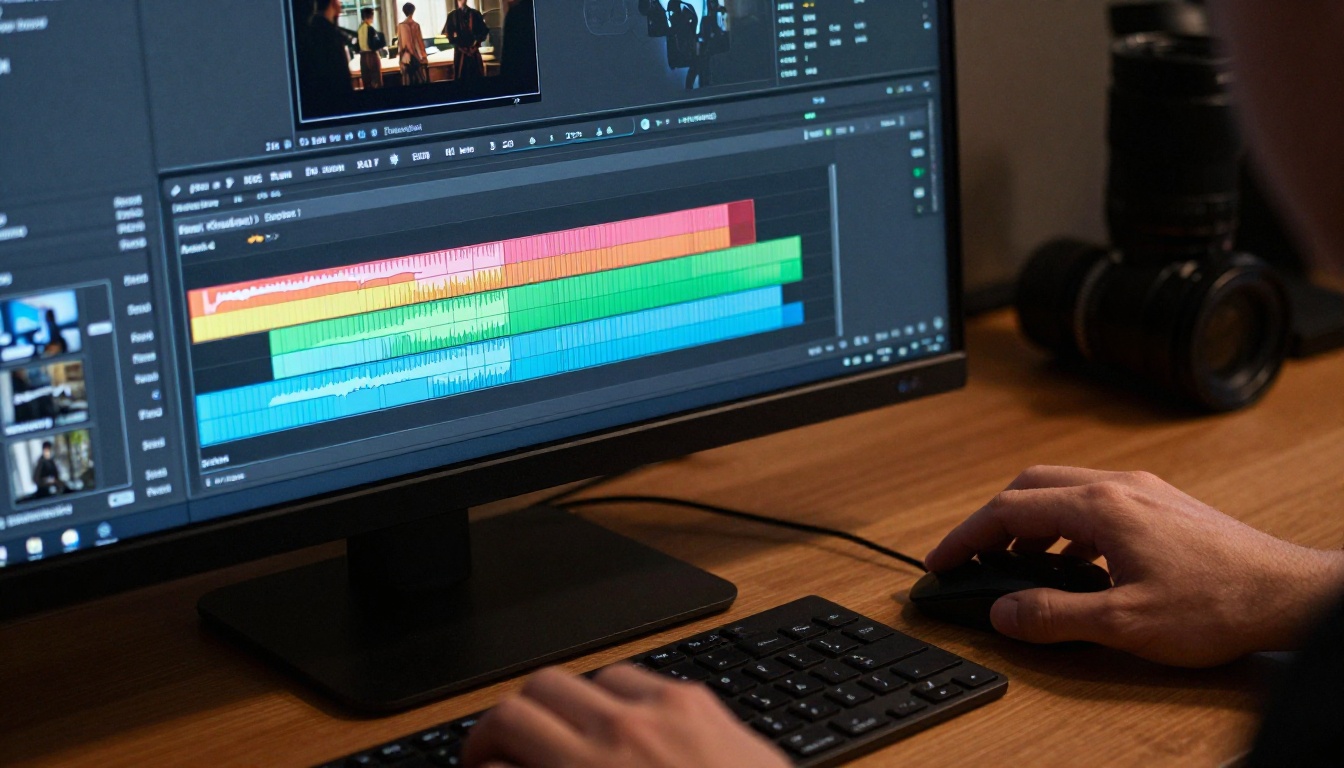
Motion Control lets you specify the trajectory of movement for subjects and camera independently. Instead of hoping the model interprets "slow pan left," you can draw the camera path directly. Instead of describing "character walks toward camera," you can define the exact motion arc.
The result is video that feels deliberate. Choreographed. The kind of motion you see in professional commercial work.
Specific capabilities:
- Subject trajectory control: Draw the path a person or object follows
- Camera path override: Define dolly, pan, tilt, and zoom independently
- Motion transfer: Apply movement patterns from one source to a different character
- Speed modulation: Vary motion speed across the clip, fast at start, slow at end
When to Use It
Use Kling v3 Motion Control when:
- The motion itself is central to the shot
- You've already gotten a solid base output from Kling v3 Video and want more precision
- You're producing multiple clips that need consistent camera behavior
- You need to match the motion style of an existing video
Don't reach for it on your first attempt. Get comfortable with Kling v3 Video first, then move to Motion Control once you know how the model responds to direction.
How PicassoIA Fits Into This
PicassoIA gives you browser-based access to all three Kling v3 models without any local setup or API configuration. You pick the model, write the prompt, adjust settings, and generate. Everything runs in the cloud.
Beyond Kling, the platform carries 89 text-to-video models spanning everything from fast social content generators to long-form cinematic tools. If a specific Kling output doesn't hit the mark, you can compare directly against Seedance 2.0, Veo 3, or PixVerse v5.6 without switching platforms.
The workflow integration also matters. If you're building a content pipeline that includes:
- Image generation for reference frames or storyboards
- AI video upscaling for polishing or stabilizing output
- Lipsync for adding speech to generated characters
- Text to speech for voiceover creation
...all of that lives on a single platform. The individual tools connect.
💡 Tip: Try running your Kling 3.0 output through an AI video upscaling model afterward. Taking a 720p Kling output to 4K adds a layer of polish that makes the final result feel significantly more professional.
The Real Workflow for Real Results
Most people who struggle with AI video use a single-pass approach: write one prompt, generate once, accept the result. That's not how you get great output.
The actual workflow that works:
- Write a detailed prompt using the templates above
- Generate a 5-second test clip at standard quality
- Identify what's wrong specifically, not vaguely
- Adjust one variable at a time: camera, subject, lighting, or action
- Generate again
- Once the prompt works, generate the full-length clip at Pro quality
- Optionally upscale the output with a video upscaling model
This isn't slow. With Kling 3.0's generation times on PicassoIA, you can run four or five iterations in under ten minutes. Each one shows you how the model responds to your specific phrasing.
The five-minute promise is real. Your first result comes in five minutes. Your best result comes after five iterations, which takes maybe fifteen. That's still faster than anything involving real cameras, crews, or editing software.
Start Generating Right Now
The only thing between you and your first Kling 3.0 video is a prompt. You now have three model options, a five-step process, a set of prompt templates, and a clear picture of what to avoid.
Kling v3 Video is waiting. Open it, write something specific, and hit generate. The first one will surprise you. The third one will be exactly what you wanted.
If you want to push further, Kling v3 Omni Video adds image reference, and Kling v3 Motion Control adds precision movement. Both are accessible the moment you're ready for them.
PicassoIA brings the full Kling 3.0 lineup and 86 other video models into a single browser tab. Your first video is a five-minute investment. Your fiftieth will look like something that needed a full production crew.


