You hit record, say something smart, and then play it back. Every third sentence has an "um," a "uh," or a "you know" stuck in the middle of it. A filler word remover is the tool that finds those little verbal crutches and cuts them out, so the recording sounds like you on your best day instead of you thinking out loud.
The good news: you no longer need to scrub through a waveform by hand. Several free online tools do most of the work in a few minutes. The less good news: free plans have real limits, and automatic cutting can leave your audio sounding choppy if you accept every suggestion blindly. This article walks through how these tools work, what the results sound like in audio and video, where the free tiers stop, and how to check your own recordings before you edit.
💡 Quick answer: For a short podcast clip or a talking-head video, a free browser tool is enough. For long episodes, batch work, or 4K exports, expect to hit a cap on minutes, file size, or export quality.
What a Filler Word Remover Does
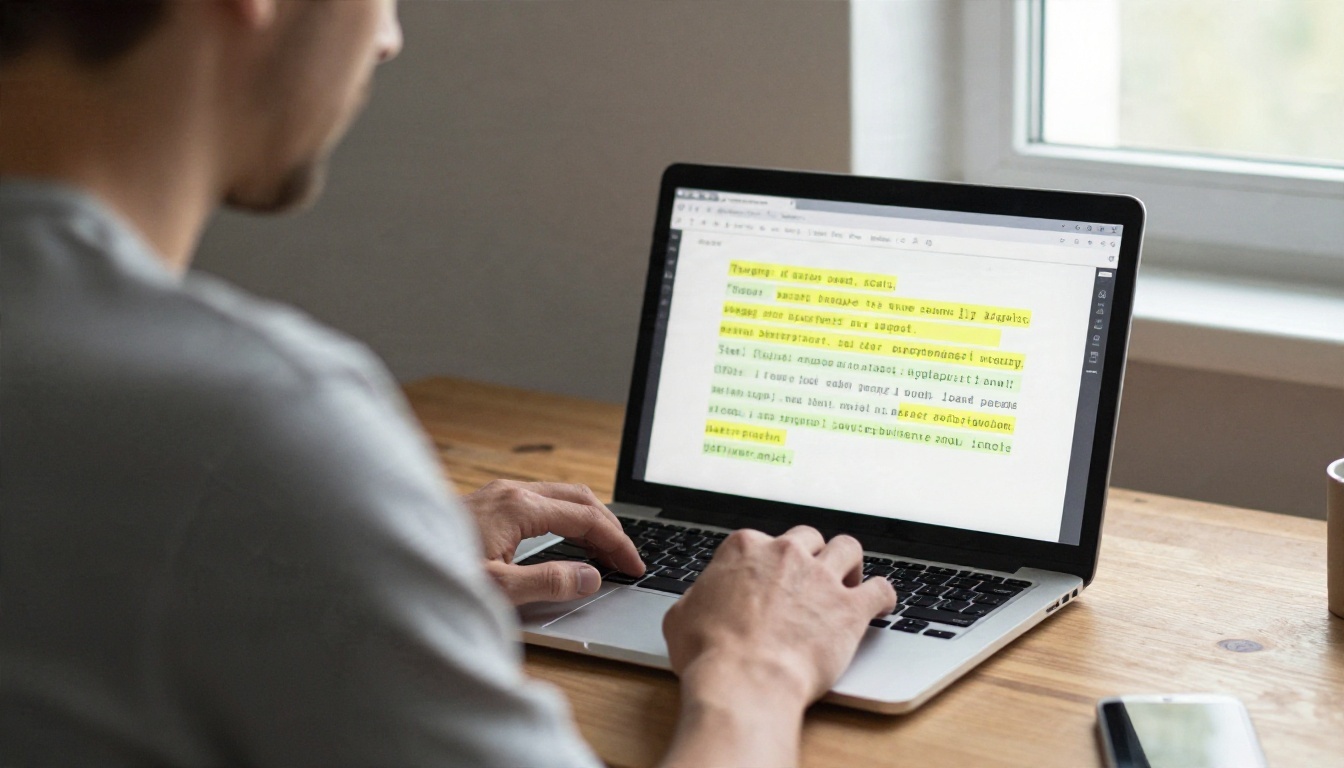
At its simplest, a filler word remover listens to your recording, turns the speech into text, flags the words you do not want, and deletes the matching slices of audio. Most tools then smooth the gap so the cut does not click or jump.
The Words It Usually Targets
Out of the box, nearly every tool catches the classic hesitation sounds. Beyond those, the list gets longer and less certain.
| Type | Examples | Easy to detect? |
|---|
| Hesitation sounds | um, uh, er, ah, hmm | Very easy |
| Discourse fillers | like, you know, I mean, sort of | Medium, context matters |
| Starters and hedges | so, basically, actually, right | Hard, often meaningful |
| Long pauses | silences over a set length | Easy, adjustable |
| Repeated words | "the the", "we we should" | Medium |
The first row is where automation shines. A hesitation sound has no meaning, so removing it is safe almost every time. The rest need a human decision, because "like" can be filler in one sentence and a real comparison in the next.
How the Process Works Under the Hood
- Transcription: speech recognition converts your audio into a word-level transcript with timestamps.
- Detection: the tool matches words against a filler list, and some also flag sounds that were not written as words.
- Cutting: each flagged span is removed from the timeline.
- Smoothing: a short crossfade hides the join so the room tone does not jump.
- Review: you listen back and restore anything that was cut by mistake.
Step five is the one people skip, and it is the step that decides whether the result sounds natural.
Search results for this topic are crowded, and a lot of the copy is promotional. Based on what the vendors publicly describe, here is a plain summary of the options people reach for most. Treat the details as a starting point, since plans change often and you should confirm current terms on each pricing page.
| Tool | Works with | Free access | Worth knowing |
|---|
| Descript | Audio and video | Free tier available | Edits by deleting words in a transcript; reviews mention a watermark and upload limits on the free plan |
| Cleanvoice | Audio and video | Free trial | Built around filler and mouth sound removal, supports 20+ languages |
| Kapwing | Video | Free to start | Browser editor with a smart cut feature for filler words, pauses, and silences |
| OpusClip | Video | Free tool page | Aimed at short clips; limits are not clearly stated |
| ScreenApp | Audio and video | Free browser editor | Removes "um" and "uh" automatically in a podcast editor |
| VoiceDash | Text and transcripts | Free | Cleans written transcripts rather than audio files |
| BlitzCut | Video | Free app, no watermark | Native app for iPhone, iPad, and Mac, transcript-based |
Audio-First Options
If your work is mostly podcasts, interviews, or voice memos, pick a tool that treats audio as the main format. Cleanvoice and Descript fit here. You upload a file, review a list of detected fillers, and export. The advantage is that these tools usually let you pick which categories to remove, so you can keep "you know" while deleting every "uh."
Video-First Options
For talking-head clips, Kapwing and OpusClip are the ones people mention most. The cut happens on the video timeline, so the picture jumps along with the sound. That brings up a visual problem we will get to in a moment: a hard cut in the middle of a shot can look like a glitch.
Text-Only Tools
VoiceDash works on text. That makes it useful if you already have a transcript and want a clean version for show notes, captions, or a script, but it does not touch your audio. Do not confuse it with a tool that edits the actual recording.
Audio Examples: Before and After
The easiest way to judge a filler word remover is to read what it does to a real sentence. These are typical examples of speech before and after automatic cleanup.
A Podcast Intro
Before: "So, um, today we're going to talk about, uh, how to, you know, price a freelance project."
After: "Today we're going to talk about how to price a freelance project."
Eight words were removed and the sentence lost nothing. This is the best case, and it is why the feature has become so popular.
An Interview Answer
Before: "I think, like, the hardest part was, um, getting the first ten customers, because, uh, nobody knew who we were."
After: "I think the hardest part was getting the first ten customers, because nobody knew who we were."
Again it works well, but notice what changed in tone. The original sounds hesitant and honest. The cleaned version sounds rehearsed. For a polished explainer that is a win. For an emotional interview it can flatten the moment, so listen before you publish.
Where It Goes Wrong
Before: "It was, like, a hundred degrees, and the room felt like an oven."
If your tool strips "like" everywhere, you might get "It was a hundred degrees," which is fine, but a different sentence, "It looked like a movie set," could lose its meaning if the word is cut. This is why every serious tool offers a review step and why you should use it.
💡 Tip: Run a first pass with only hesitation sounds (um, uh, er). Listen once. Only then add "like" and "you know" if the recording still feels cluttered.

Video Examples: Where Cuts Show
Audio is forgiving. A listener cannot see a cut. Video is not forgiving, because your face is still on screen when the sound jumps.
The Jump Cut Problem
When a tool removes half a second of speech from a talking-head clip, your head position, your mouth, and your hands all skip slightly. A few of these feel energetic, the same rhythm you see in short-form videos. Dozens of them in a minute feel nervous.
There are three common ways to handle it:
- Accept the jump cut: works for social clips and quick tutorials.
- Punch in: alternate between a normal frame and a slightly zoomed frame on each cut so it reads as intentional.
- Cover with B-roll: place an insert shot over the join while the audio continues underneath.
A Short Social Clip
A creator records a 60-second clip with seven filler words and four long pauses. After automatic cleanup the clip drops to about 50 seconds, with 11 cuts. Pacing improves, but only because the creator then punches in on alternating cuts. Without that step the same clip looks jittery.
A Lecture or Webinar Recording
Longer recordings behave differently. A 45-minute lecture with a fixed camera might have a few hundred fillers. Cutting all of them can save several minutes, but the speaker's body language keeps jumping. For this kind of content many editors remove only the longest pauses and the most obvious "um" sounds, and leave the rest.

Free Plan Limits to Expect
This is the part most landing pages skip. Free filler word removers are rarely unlimited, and the restrictions tend to cluster in the same places.
| Limit | What it looks like | Who it hurts |
|---|
| Watermark | A logo stamped on exported video | Anyone publishing publicly |
| File size cap | Large uploads rejected or slow in the browser | Long video, high bitrate files |
| Minutes per month | A fixed transcription allowance | Weekly podcasters |
| Export resolution | Lower quality on the free plan | Creators who need 1080p or 4K |
| Language support | Strong in English, weaker elsewhere | Multilingual speakers |
| Manual review only | Detection works but batch export is locked | Teams with many files |
Watermarks and Export Quality
Reviews of Descript mention a watermark on the free tier, while BlitzCut advertises that its free app has no watermark. If the clip is going on a public channel, check the export result before you invest time in the edit.
File Size and Length
Browser editors have to hold your file in memory. Long recordings make the page slow, and some tools reject big files outright. A practical fix is to split a long recording into 10 to 15 minute chunks, clean each one, and join them afterwards.
Accuracy You Should Not Assume
Some vendor pages quote accuracy percentages, and those figures are hard to verify. Accents, background noise, fast speech, and crosstalk all lower detection quality. Test any tool on your own voice and your own room before you trust it with an important recording.
💡 Rule of thumb: If a free plan lets you export a clean, watermark-free 5-minute clip, you can judge the whole product. If it does not, assume the paid plan is required for real work.
Check Your Fillers With Transcription
Before you pick a tool, it helps to know how bad the problem is. A speaker with two fillers per minute needs a light touch. A speaker with ten per minute needs a different recording habit as well as an edit. A transcript tells you the truth.
PicassoIA does not offer a one-click filler word remover, so this section is about the step before and after the edit rather than the cut itself. What it does offer is transcription and audio extraction, which are useful for auditing a recording.
Pull the Audio From a Video
If your recording is a video file, Extract Audio converts it into a standalone audio file you can send to a transcription model. That avoids uploading a heavy video just to read the words.
Transcribe and Count
Three speech-to-text models are available:
A practical routine looks like this:
- Extract the audio from your video.
- Run it through one of the transcription models above.
- Copy the text into any editor and search for "um," "uh," "like," and "you know."
- Count the matches and divide by the minutes of the recording.
- If the number is low, trim by hand. If it is high, choose a tool from the list above.

Polish the Video After the Cut
Once the filler words are gone, the picture may need work. P Video Edit lets you change a video with a text prompt, and Video Increase Resolution can upscale footage that was exported at a lower quality from a free plan. If you need to redo a line instead of cutting it, a voice model such as Speech 2.8 HD can generate a replacement, though you should only do that with your own voice rights and a clear reason.
💡 Note: These models support the workflow around filler word removal. They do not automatically delete um and uh from a timeline.
Mistakes That Make Edits Sound Robotic
Even a good tool produces a bad result if you use it carelessly. Here are the errors that show up again and again.
Removing Every Pause
Silence is part of speech. A short pause before an important point gives the listener time to absorb it. Set your pause threshold to remove only the long gaps, around one second or more, and leave the short ones.
Cutting Breaths
Some tools remove breaths along with fillers. When every breath disappears, the voice sounds airless and unnatural. Keep the breaths or reduce them rather than deleting them.
Ignoring Room Tone
When you cut audio, the background hiss or hum cuts with it. If the room tone jumps at every join, listeners notice. A good tool crossfades or fills the gap with matching room tone. If yours does not, add a very quiet room tone track underneath.
Trusting the First Export
Always listen to at least the first and last minute of the cleaned file, plus any section where you were laughing, interrupting someone, or speaking quickly. Those are the places where detection fails most often.
Cutting Fillers at the Source
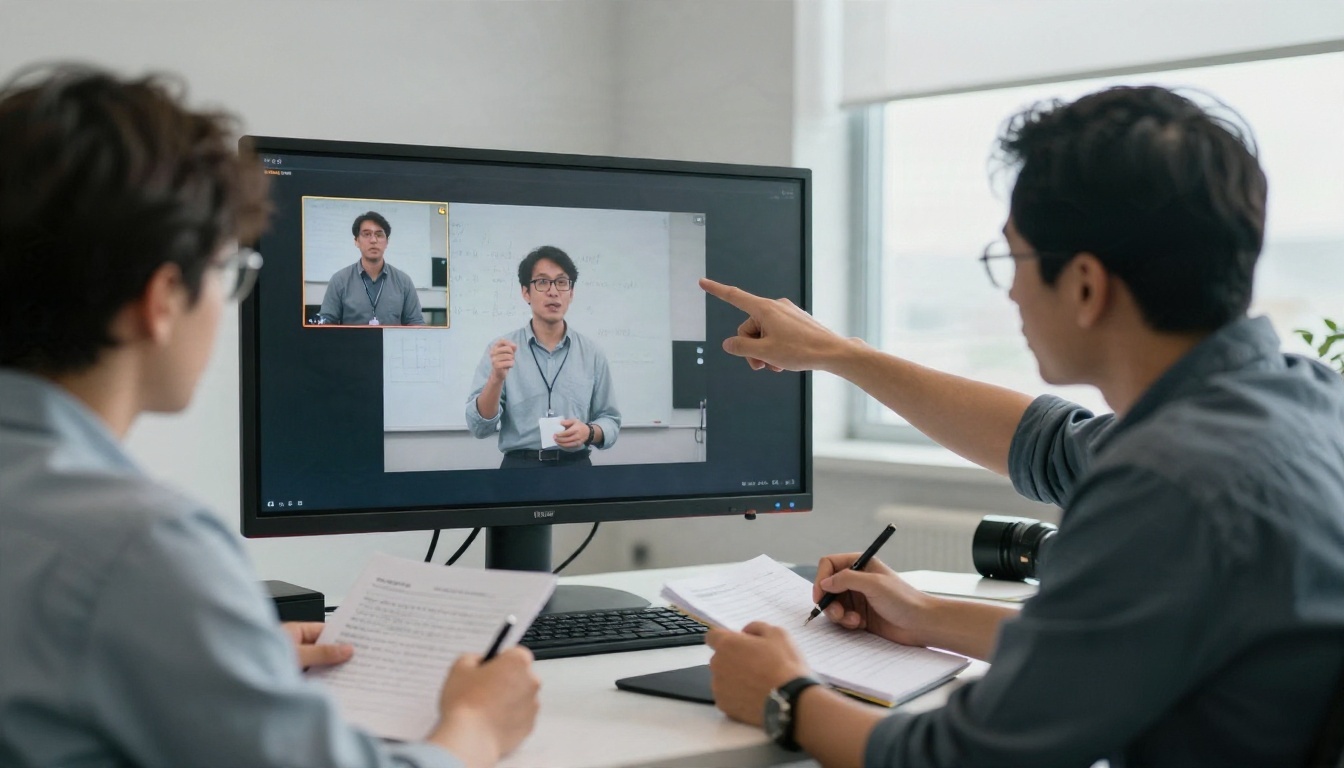
The cheapest filler word remover is a better recording habit. A few changes cut the number of edits you need.
- Write short notes, not a script: bullet points keep you moving without sounding read.
- Pause instead of saying "um": a silent beat is easy to trim and sounds confident.
- Record in short takes: stopping after a stumble is faster than editing it later.
- Watch the playback once: most people hear their own filler habits immediately.
- Slow down on the first sentence: that is where hesitation sounds cluster.
Editors who work with creators often say the same thing: the first three sentences of a recording hold the most filler words, because the speaker is still warming up. Record a throwaway intro, delete it, and start again.
Try Your Own Clean Edit
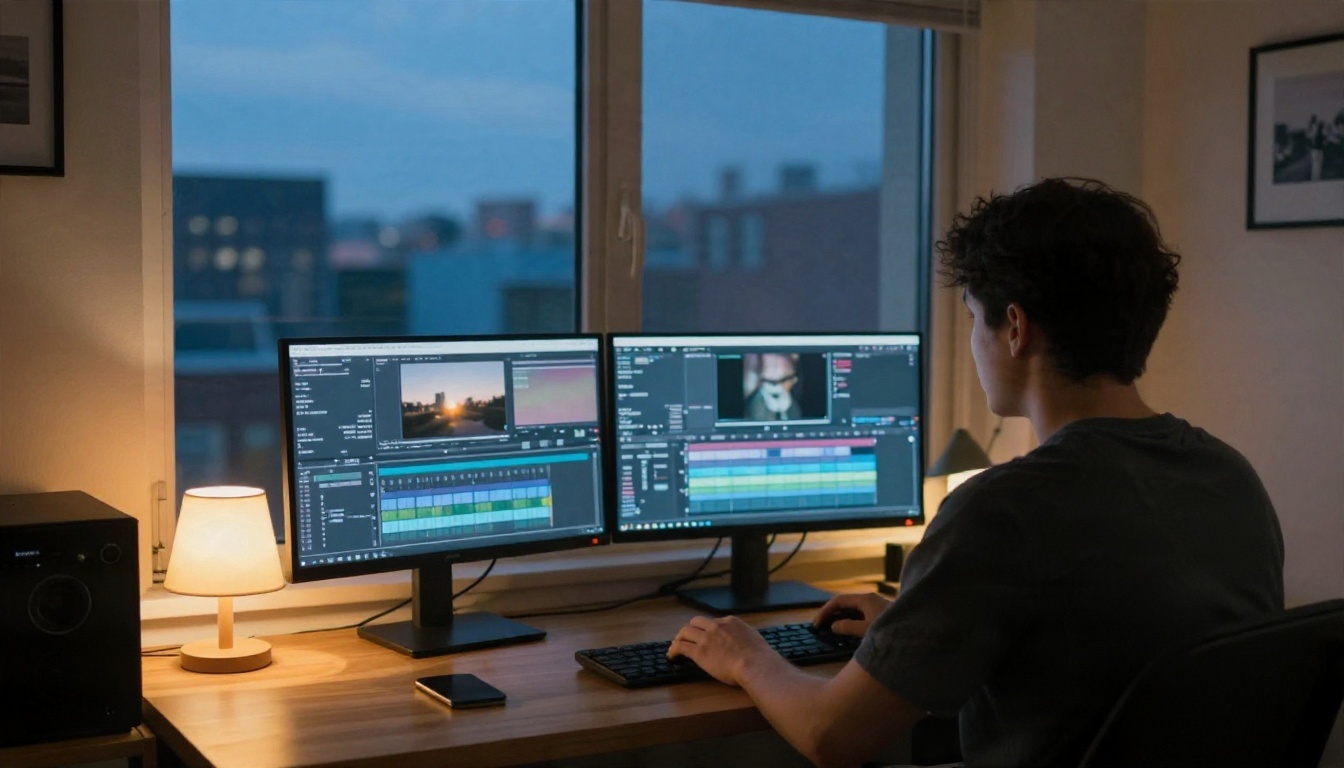
Pick one recording you already have, a podcast clip, a webinar, a voice memo, and run it through a free filler word remover from the list above. Before you do, extract the audio with Extract Audio, transcribe it with GPT 4o Transcribe, and count your own fillers per minute. Then compare the numbers after the edit.
If you want to go further with your footage, PicassoIA has video editing, upscaling, voiceover, and transcription models in one place, so you can prepare, check, and polish a recording without jumping between a dozen sites. Browse everything at picassoia.com/en/all-models and start experimenting with your next recording today.


