If you have ever tried to create a lip-synced video only to get flagged, blurred, or outright blocked by the tool you paid for, you already know the problem. Most free lipsync platforms promise freedom but deliver a checklist of forbidden topics, mandatory watermarks, and content filters that reject anything remotely suggestive. The good news is that things have changed fast. A new wave of AI lipsync models is available right now, free or nearly free, with no hidden content walls, and they are all accessible in one place.
The censorship issue in AI video tools is not random. It comes from three places: the model's own training restrictions, the platform enforcing its own moderation layer on top, and the API provider's terms sitting underneath everything. When you hit a wall, you rarely know which layer is blocking you.
The result is that creators making perfectly legal content, such as bikini fitness videos, adult comedy, suggestive storytelling, or even just a face in a low-cut outfit, get blocked constantly. Some platforms flag you for the audio, not the video. Some flag the image. Others run both through a classifier before even starting the generation.
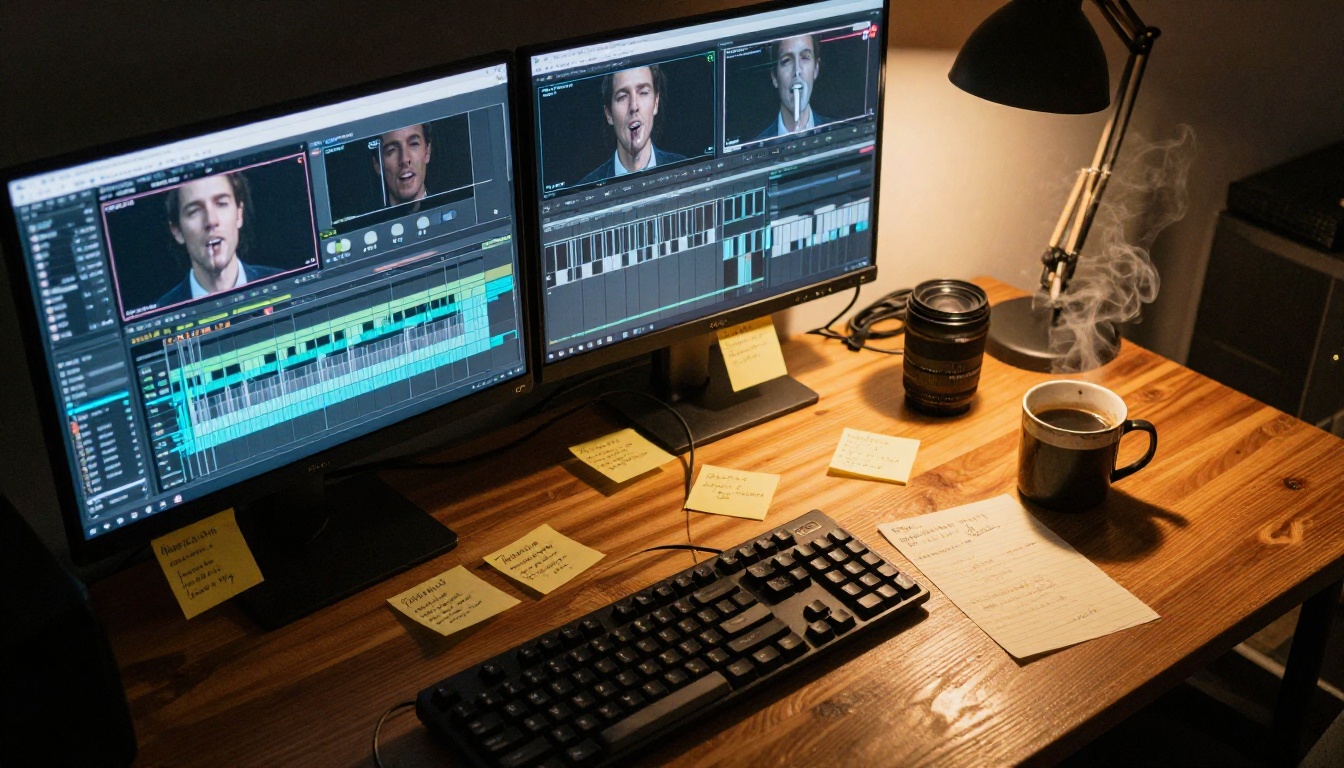
What you actually need is a platform where the models run without a paranoid content layer tacked on top of them. That is exactly what PicassoIA provides, with over a dozen dedicated lipsync models available at picassoia.com/en/all-models.
The Best Free Lipsync Models Right Now
These are not theoretical options. Every model below is live, tested, and accessible through PicassoIA's lipsync collection with no required subscription to get started.
Sync React 1: Fastest Frame-Level Precision
React 1 by Sync is built for speed without sacrificing accuracy. It analyzes incoming audio frame by frame and remaps the subject's mouth in near real-time. The output feels natural because it is not just overlaying a mouth shape: it adjusts jaw tension, lip corners, and chin movement as a unit.
Best for: Short clips where turnaround time matters, social content, reaction videos.
💡 React 1 handles fast speech particularly well. If your audio includes rapid dialogue or overlapping words, this model keeps up better than most alternatives.
Kling Lip Sync: Cinematic Realism
Kling Lip Sync by Kwaivgi brings cinematic-level quality to free AI lip syncing. Built on the same foundation as Kling's broader video generation suite, it handles subtle emotional cues in speech, such as the slight compression at the end of a breath or the way lips part before a vowel, in ways that make the result look genuinely human.
Best for: Portrait videos, influencer content, talking-head videos where realism is non-negotiable.
Lipsync 2 Pro: Professional-Grade Sync
Lipsync 2 Pro by Sync is the upgraded version of the standard Lipsync 2 model, with improved handling of accents, whispered audio, and off-axis face positions. Where the base model struggles when a subject is not perfectly front-facing, Lipsync 2 Pro compensates with a 3D facial geometry pass.
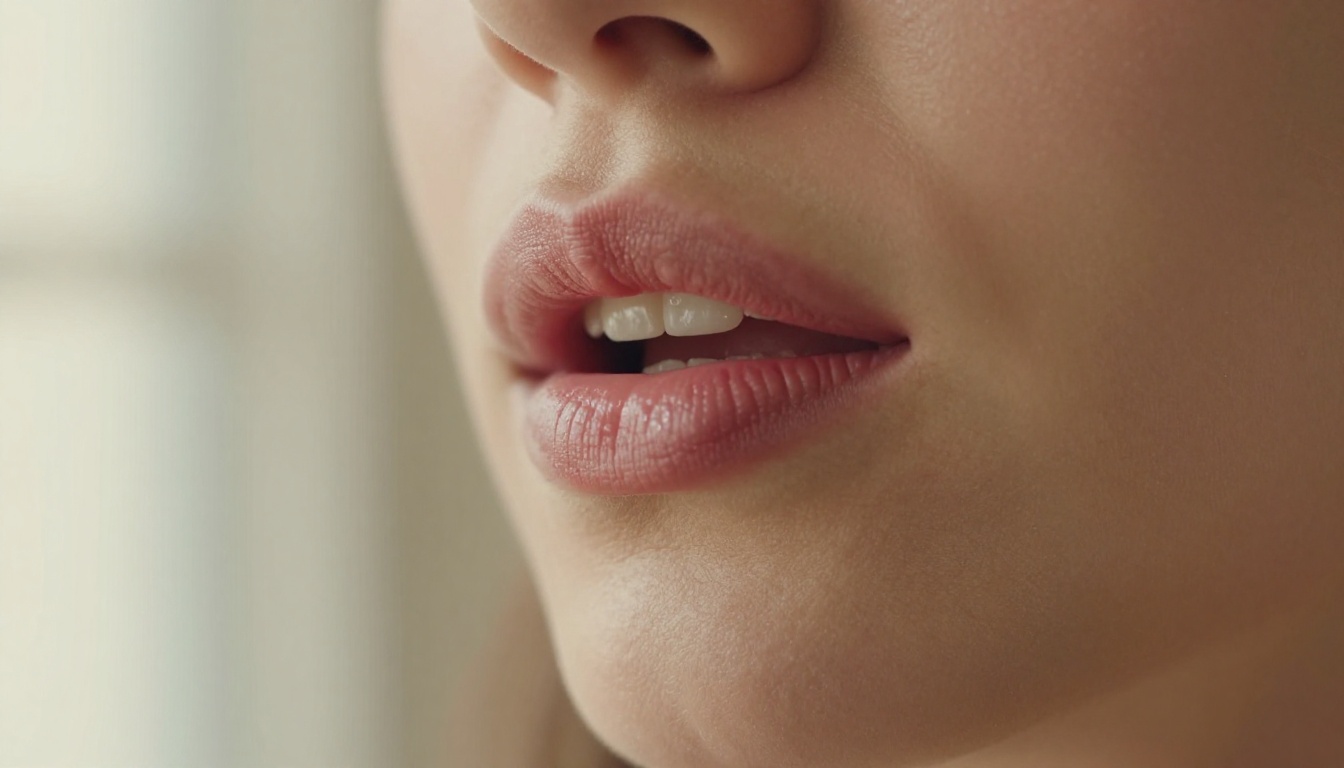
It also pairs well with Lipsync 2 as a lighter option if you want a faster run on simpler clips.
Best for: High-production content, video essays, dubbed interviews where the speaker moves naturally.
Omni Human 1.5: Photo to Talking Video
Omni Human 1.5 by ByteDance goes further than standard lipsync. Give it a single still photo and an audio track and it generates a complete talking video with synchronized body movement, natural head turns, and blinking. This is not just mouth movement over a static image: it creates a fully animated speaking portrait from scratch.
Its predecessor Omni Human is also available if you prefer a slightly lighter-weight version.
Best for: Creating talking avatar videos from photographs, virtual spokespersons, content where you only have a source image.
Pixverse Lipsync: Quick Creative Edits
Pixverse Lipsync is the most accessible entry point in the collection. Upload a video clip, attach an audio track, and get synchronized output in minutes. It prioritizes ease of use and handles a wide variety of face types, skin tones, and lighting conditions consistently.
Best for: First-time users, bulk content creation, rapid prototyping of AI lip sync free workflows.
Talking Avatars vs. Pure Lipsync: What Is the Difference
These two categories are often confused but they serve different workflows entirely.
Pure lipsync takes an existing video clip and remaps the mouth to match new audio. The body, background, and camera angle stay exactly as they are in the source footage. You are correcting or replacing what the subject says.
Talking avatar tools take a source image (sometimes just a face photo) and generate a speaking video from nothing. The result is a new video, not a modified one.
| Feature | Pure Lipsync | Talking Avatar |
|---|
| Source required | Video clip | Still image or video |
| Body movement | Unchanged from source | Generated from scratch |
| Background | Preserved | Preserved or generated |
| Best for | Dubbing, re-voicing | Creating new content |
| Speed | Fast | Moderate |
P Video Avatar: Build a Talking Character
P Video Avatar by PrunaAI is PicassoIA's own talking avatar model. Feed it a portrait image, provide a voice recording or text-to-speech output, and it builds a speaking video of that character with natural movement. The output quality is high enough for social media publishing without post-processing.
Fabric 1.0: Make Photos Come Alive
Fabric 1.0 by Veed specializes in animating still photographs into speaking clips. It handles a broader range of image styles than most avatar tools, including illustrations, AI-generated portraits, and non-photographic sources. If you want to animate a character from an image you created with a text-to-image model, Fabric 1.0 is the right pick.
How to Use Omni Human 1.5 on PicassoIA
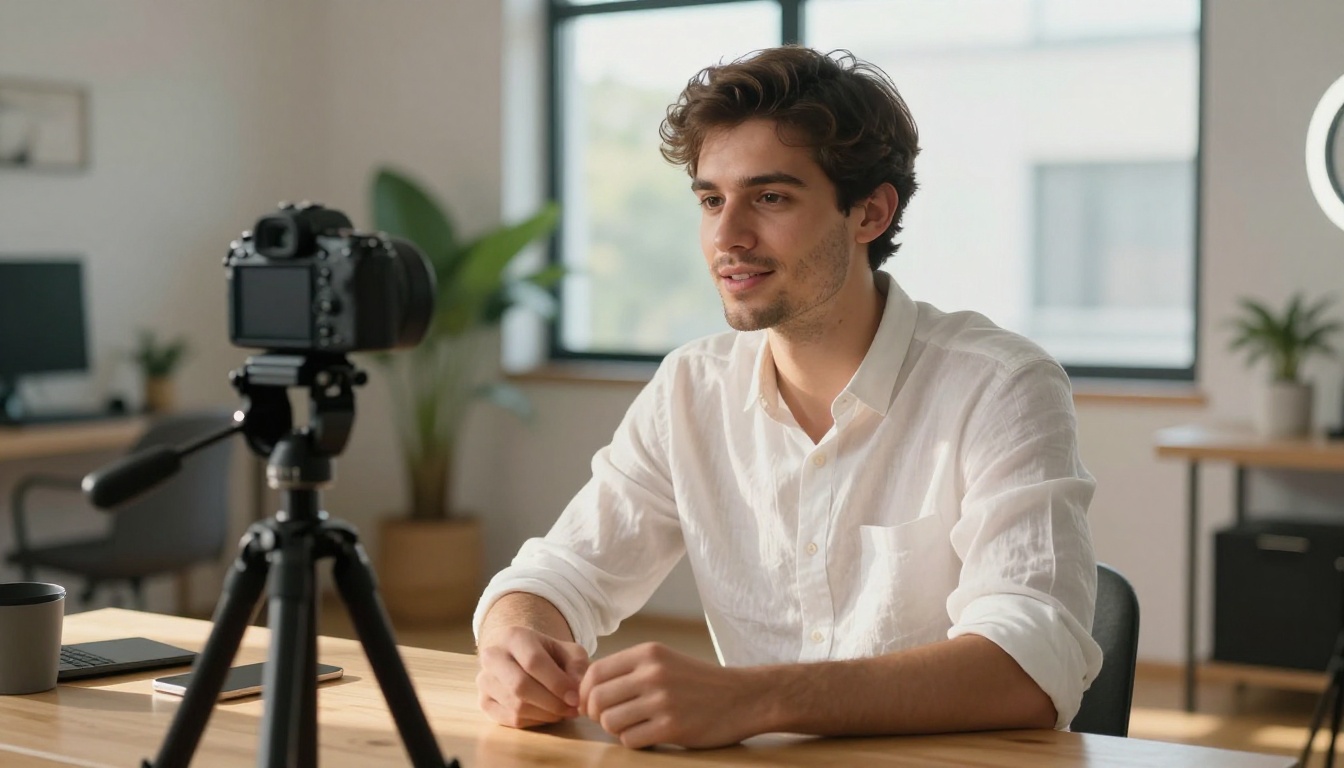
Omni Human 1.5 is the standout model for generating full talking videos from photos, and PicassoIA makes the workflow simple.
Step 1: Prepare your source image
Use a front-facing or three-quarter portrait with clear facial features and good lighting. If you are generating the image using PicassoIA's text-to-image tools first, a 512x512 or 1024x1024 crop works well.
Step 2: Prepare your audio
Export your audio as a clean WAV or MP3 file. Omni Human 1.5 reads phoneme timing directly, so the cleaner the audio, the more accurate the lip movement. If you are using AI-generated speech, PicassoIA's text-to-speech tools produce compatible output directly.
Step 3: Open the model
Go to Omni Human 1.5 on PicassoIA. Upload your image in the image field and your audio file in the audio field.
Step 4: Set parameters
- Resolution: Choose 720p or higher for publishing-quality output.
- Motion intensity: Higher values create more expressive head movement. For talking-head content, a medium setting looks most natural.
- Duration: The model matches your audio track length automatically.
Step 5: Generate and review
Run the model and review the output. Pay attention to lip-corner movement in the first and last syllables. These are the frames that most often show artifacts. If you see any, a second run with slightly different motion intensity usually corrects them.
💡 Omni Human 1.5 also supports upper-body movement, not just the face. For longer clips, this prevents the unnatural frozen-shoulder look common in cheaper talking avatar tools.
Dubbing Videos in Multiple Languages
Multilingual dubbing is one of the most practical use cases for AI lipsync tools and one that mainstream platforms handle badly. Standard video dubbing changes the audio track but leaves the original lip movement, which creates an obvious mismatch. AI lipsync fixes this by regenerating the lip movement to match the new language's phonetic patterns.
Video Translate: 150 Languages
Video Translate by HeyGen handles dubbing across more than 150 languages with automatic lipsync resynchronization. Upload a source video, select the target language, and the tool transcribes, translates, generates a dubbed voice, and remaps the mouth in one pipeline.
What makes it different from simple dubbing: It accounts for phoneme timing differences between languages. Spanish vowels, for example, have different mouth positions than English ones, and Video Translate adjusts for this instead of just pasting a generic mouth animation over translated audio.
Lipsync Precision vs. Lipsync Speed
HeyGen offers two standalone sync models for cases where you already have the translated audio and just need the lip remapping.
Lipsync Precision prioritizes accuracy, making multiple passes to align fine phonetic details. It takes longer but the output is tighter, especially on languages with complex consonant clusters.
Lipsync Speed trades some accuracy for throughput. If you are producing high-volume content and the sync does not need to be frame-perfect, Speed cuts generation time significantly.
| Model | Best for | Generation speed |
|---|
| Lipsync Precision | Interviews, formal content | Slower |
| Lipsync Speed | Social media, bulk output | Fast |
| Video Translate | Full dubbing pipeline | Moderate |
Pairing Lipsync with AI Video Generation
Lipsync does not have to be the last step in your workflow. It can be the middle one.
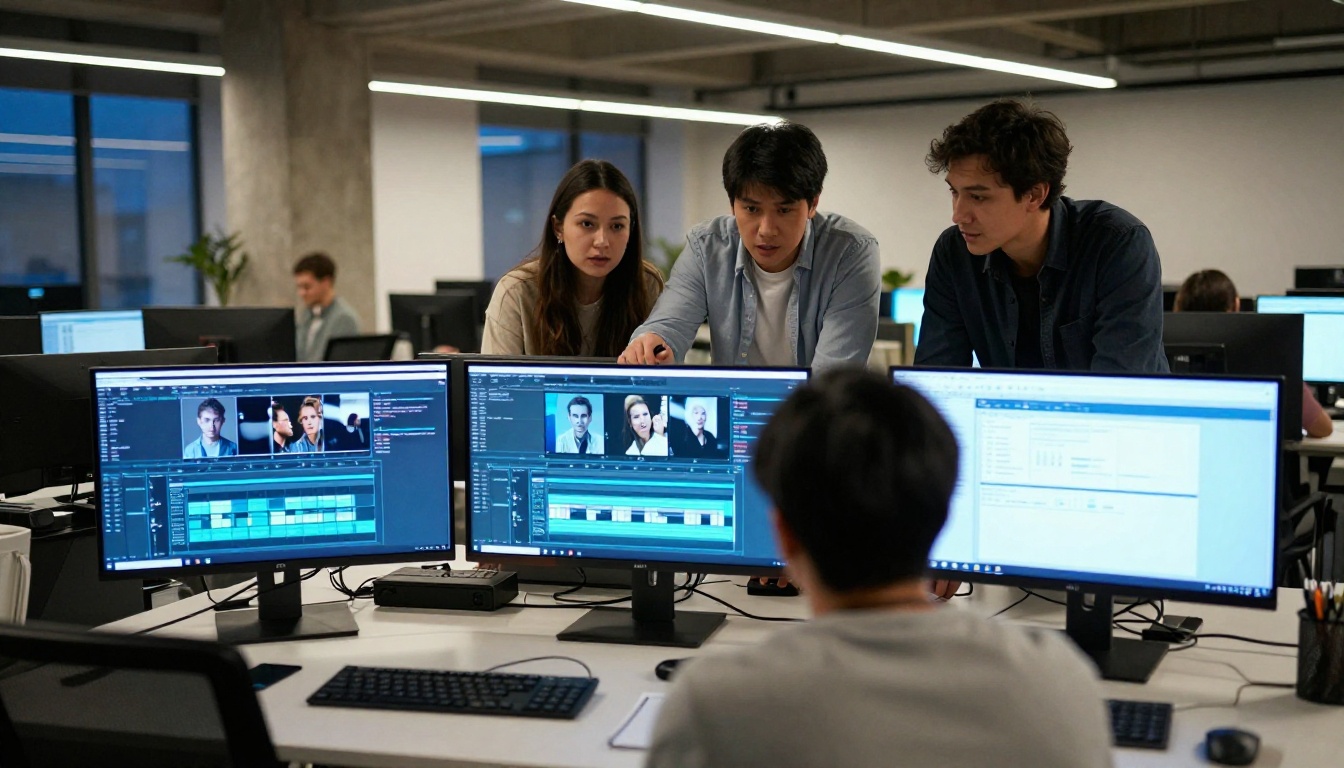
Generate your base video first using a text-to-video model, then drop that output into a lipsync tool to add a voice. This is especially useful for content where you want full creative control over the visual side before committing to dialogue.
Some models worth combining with lipsync:
- Seedance 2.5 generates high-motion 1080p video with native audio sync, which you can then replace with custom dialogue using a lipsync model.
- Kling v2.6 produces cinematic text-to-video at 1080p. Use its output as a base for lipsync when you want a fully AI-generated talking character.
- P Video creates videos from both text prompts and images, giving you a ready-made source clip for any of the lipsync models above.
The workflow looks like this:
- Generate the visual using a text-to-video or image-to-video model.
- Record or generate the voice track using a text-to-speech tool.
- Sync the audio to the video using a lipsync model.
- Publish the final result directly from PicassoIA.
This three-step pipeline replaces what used to require separate subscriptions to three different platforms.
💡 For talking avatar content with a specific character appearance, generate your character image first with a text-to-image model, then run it through Omni Human 1.5 or Fabric 1.0 with your audio. You keep full creative control over the character's look while the lipsync handles the animation.

What Free Actually Means Here
The word "free" in AI tools is often deceptive. Some platforms advertise free tiers that lock behind login walls, others give you three generations before demanding a credit card, and others watermark everything until you pay.
On PicassoIA, several lipsync models run on a genuinely free basis with no watermarks and no generation caps. The models that do require credits are priced per generation rather than by subscription, which means you only pay when you actually generate something.
The key distinction is unlimited vs. limited free access:
There are no content filter paywalls. You do not pay more to access models that handle adult or suggestive content.
4 Mistakes That Kill Lipsync Quality
Most lipsync failures come from the input, not the model. Here is what to fix before you even open the tool:
1. Poor audio quality
Compressed audio, background noise, or clipping confuses phoneme detection. Always use a clean recording at 44.1kHz or higher. If your audio has noise, run it through a noise reduction pass first.
2. Obscured mouth in the source
A hand, microphone, or hair partially covering the mouth in the source image or video forces the model to guess what is underneath. It usually guesses wrong. Keep the mouth area fully visible.
3. Extreme head angles
Most lipsync models are trained primarily on front-facing and slight three-quarter faces. Profile shots or heavy downward angles produce noticeably worse results. Stick to angles within about 45 degrees of center.
4. Mismatched audio language and face training data
Some models perform significantly better on certain languages. If you are dubbing into a language with a small training corpus, try a different model. Video Translate handles non-English languages better than a generic lipsync model given only translated audio.
Lipsync and Face Swap: A Powerful Combination
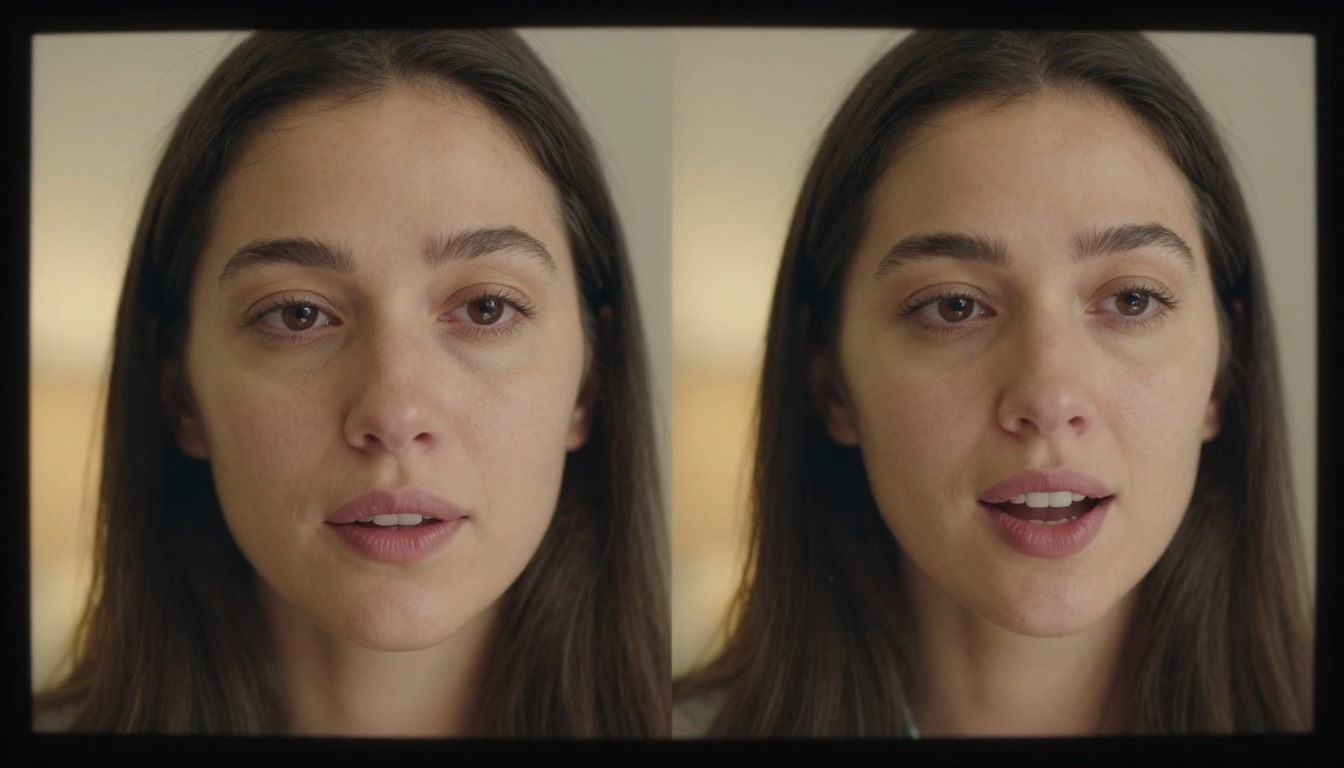
Lipsync controls what the mouth says. Face swap controls who appears to be saying it. Together, they give you complete control over a speaking character in video without ever needing that person on camera.
PicassoIA's face swap tools let you replace the face in any video or image with a reference face from a photo. Run the result through a lipsync model with your audio track and you have a fully voiced, custom-faced video in three tool calls.
This is particularly useful for:
- Protecting privacy in testimonial or interview content.
- Creating spokespersons with a consistent, controlled appearance.
- Producing multiple language versions of the same video with a localized presenter persona.
The combination of free AI dubbing tools, talking avatar models, and face animation opens up a production workflow that would have required a full production team just two years ago. Now it runs in a browser.
Start Creating with PicassoIA Now
Every model in this article is available right now at picassoia.com/en/all-models. You do not need a subscription to start. Open the lipsync collection, pick the model that fits your use case from the breakdown above, and run your first generation.
The full lipsync toolkit is there: precision sync for professional dubbing, avatar animation from photos, multilingual pipeline tools, and high-speed options for bulk output. Pair them with PicassoIA's text-to-video and text-to-image libraries and you have a complete video production pipeline, not just a single tool.
If you have a voice track and a face, the rest is already handled. Pick your model, upload your assets, and see what no-restriction AI lipsync actually feels like.


