You upload a photo, tap a button, and a still frame starts to breathe: hair moves, fabric ripples, a smile appears. That is the promise behind Grok Spicy image to video, and it is why so many people keep searching for it. The reality is messier than the promise. Spicy mode behaves differently depending on whether you start from text or from an uploaded picture, clip length changes from one guide to the next, and moderation still decides what actually renders.
This article sorts that out. You will see what the settings do, how long the clips run, which prompts give smooth motion instead of warped faces, and which alternatives let you animate photos today without fighting a paywall or a filter.
💡 Quick note on facts: xAI changes Grok Imagine often, and third-party guides disagree on several details. Where sources conflict, I say so instead of pretending there is one clean answer.
What Spicy Image to Video Really Means
Grok Imagine is xAI's image and video generator. Version 1.0 launched in early February 2026 with clips up to 10 seconds at 720p and better audio. Inside it, Spicy is a mode that loosens some content limits compared with the Normal mode, aimed at suggestive, adult-leaning creative work.
Two details trip people up right away. First, Spicy is generally described as a paid-tier feature. Second, loosened does not mean removed: reports say moderation stays active, and very explicit prompts can be blurred or blocked.
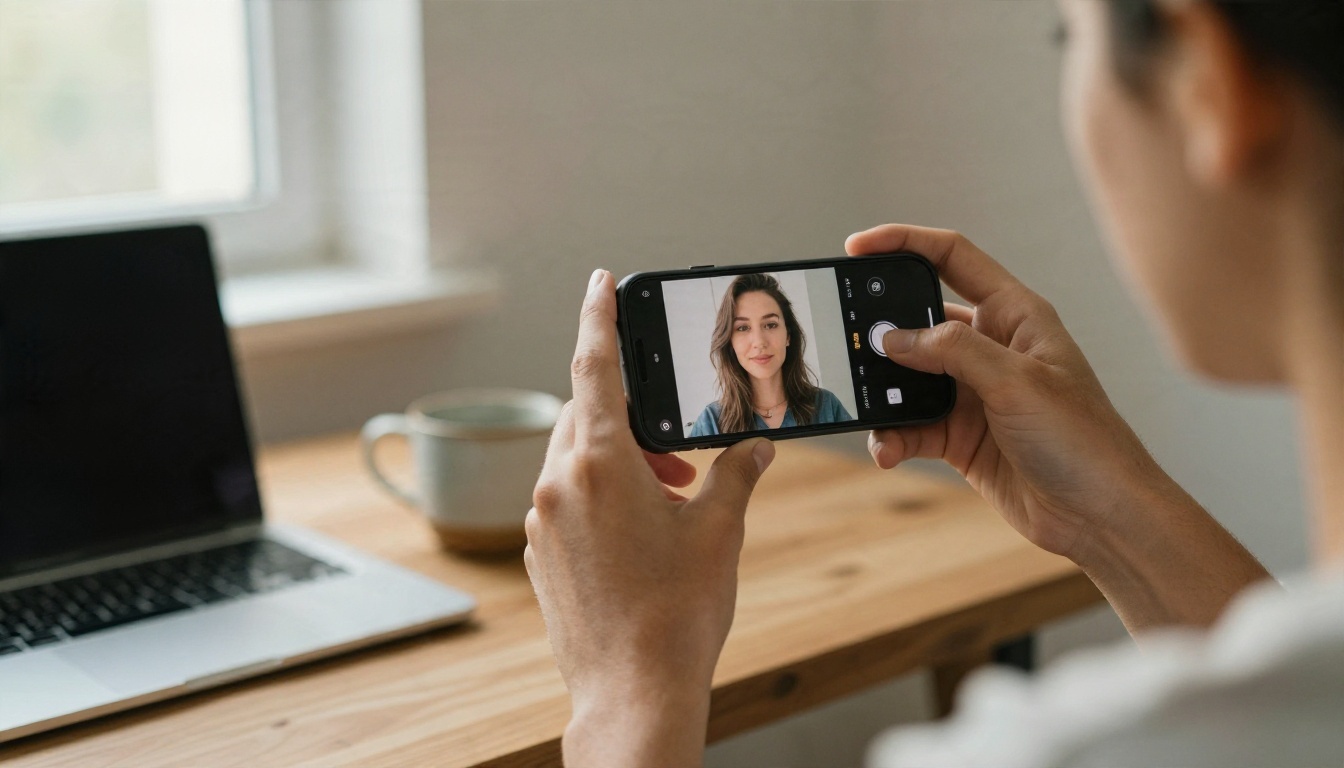
Spicy mode vs normal mode
Normal mode keeps content closer to what you would see in a lifestyle magazine. Spicy mode allows more sensual framing, such as swimwear, lingerie styling and bolder poses. Neither mode is a free pass for explicit material, and you should not expect one.
| Feature | Normal mode | Spicy mode |
|---|
| Content range | General, family-friendly to glamour | Suggestive and adult-leaning |
| Access | Free and paid tiers | Mostly paid tiers |
| Moderation | Standard | Relaxed but still active |
| Regional limits | Fewer | Can be restricted in some countries |
Why uploads behave differently
Several guides report that when you start from an uploaded image, Spicy is not offered and the app falls back to Normal. The logic is easy to guess: a real person's photo carries consent and likeness risks that a generated character does not. If you see the Spicy option vanish after an upload, that is probably why, though xAI can change the behavior at any time.
💡 Practical takeaway: Generate your own original character first, then animate that image. You avoid likeness problems, and you control the look of the first frame.
Grok Imagine Settings That Matter
Most of the quality you get comes from three settings and one habit: choosing a strong first frame. Everything else is polish.

Duration
Duration is the biggest lever. Short clips hold the subject's face together better, because the model has fewer frames to invent. Longer clips give more story but raise the odds of drift: a slightly different nose in second eight, a hand that grows an extra knuckle.
Resolution
Consumer guides list 480p and 720p inside the Grok app. Some API listings mention 1080p for image to video, but sources disagree, so check xAI's own documentation before building a workflow around it. For social posts, 720p is plenty. Draft at 480p when you are testing prompts, then render the winner at 720p.
Aspect ratio
Vertical 9:16 suits Reels, Shorts and TikTok. Horizontal 16:9 suits YouTube and website headers. If your source photo is already in the ratio you want, leave the setting on auto so the model does not crop faces or limbs.
| Setting | Best for | Tip |
|---|
| 480p | Prompt testing | Fast and cheap, good enough to judge motion |
| 720p | Final posts | Sharper skin and fabric detail |
| 9:16 | Short-form social | Keep the subject centered with headroom |
| 16:9 | Landscape video | Leave space in the direction of movement |
Video Length: What You Actually Get
This is where guides contradict each other, so here is the honest picture.
- Launch announcement: up to 10 seconds at 720p for Grok Imagine 1.0.
- App guides: clip choices of 6, 10 or 15 seconds, at 480p or 720p.
- Developer listings: 6 or 10 seconds as the main options, with 6 as the default; one source says the 1.5 API accepts anything from 1 to 15 whole seconds.
- Video edit tool: one report says edits cap at roughly 8.7 seconds.
My advice: treat 6 to 10 seconds as the safe range in the Grok app, and verify the exact options in your own account, because they depend on tier and app version.
Grok app lengths
If you want a longer story, do not stretch one clip. Generate several short ones from different source images and cut them together. A 6 second shot of a beach laugh, a 6 second shot of a poolside pause, and a 6 second shot of a city walk read as one 18 second reel, and each shot stays stable.
PicassoIA lengths
Grok Imagine Video 1.5 on PicassoIA produces clips of up to 5 seconds per run, at 720p or 480p, with synchronized audio. That is shorter than the Grok app's top options, but five seconds is exactly the length that keeps faces stable, and you can generate multiple variations of the same image in one sitting.
💡 Note that PicassoIA does not offer a Spicy toggle. The model there is the 1.5 image to video model itself, and it is best used for suggestive but tasteful glamour, fashion and lifestyle content.
Prompts That Move Photos Well
An image to video prompt is not a description of the picture. The model already sees the picture. Your prompt should describe what changes: who moves, how the camera moves, and what the light does.
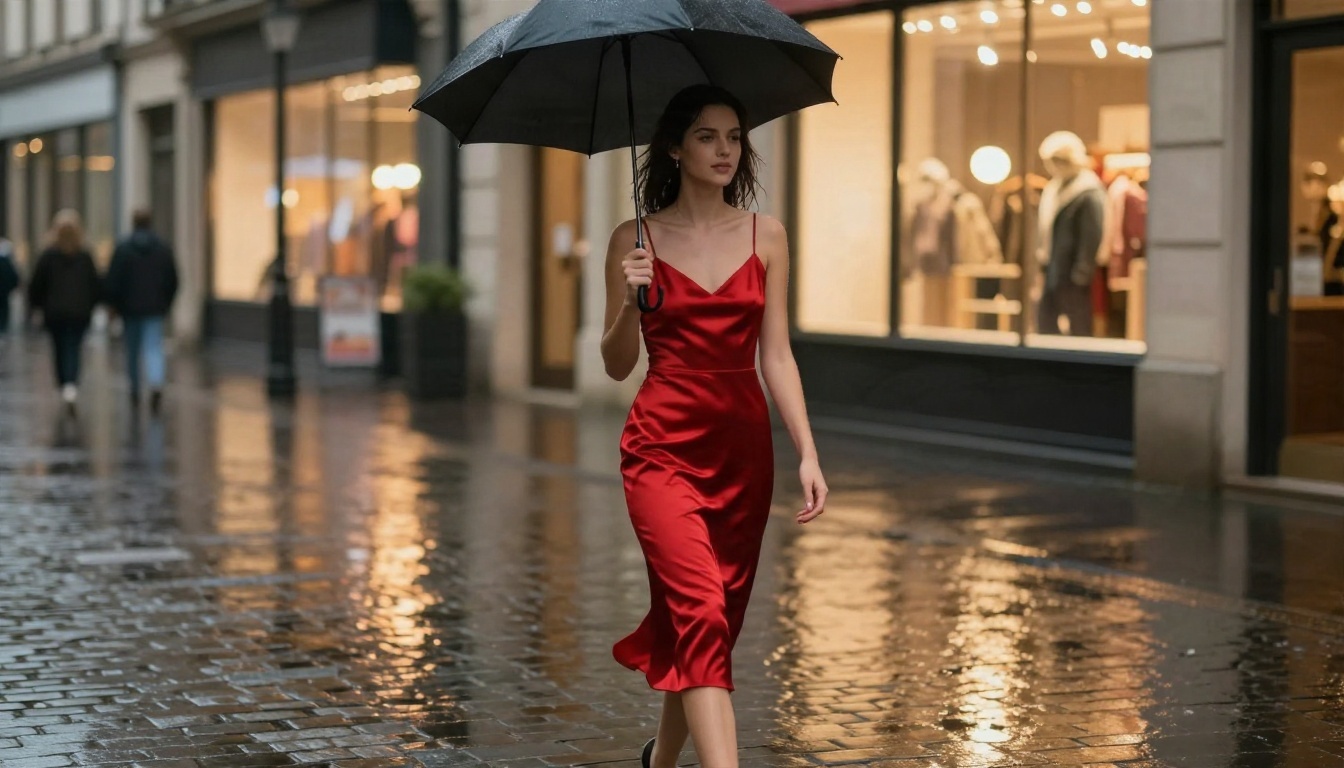
The motion prompt formula
Use this order: subject action, then camera movement, then light and atmosphere.
- Subject action: one clear movement, such as "turns her head toward the window and smiles."
- Camera movement: "slow dolly in," "gentle pan right," or "static tripod shot."
- Light and mood: "warm golden hour light flickers as clouds pass."
- Sound cue: optional, since the model generates audio, such as "soft waves and distant seagulls."
Keep it to one action and one camera move. Prompts that ask for three things at once usually produce jittery results.
Sample prompts to copy
| Source photo | Motion prompt |
|---|
| Balcony at golden hour | "She tucks her hair behind her ear and looks out to sea, breeze moves the satin dress, slow dolly in, warm sunset light, soft wind and waves" |
| Rainy street at dusk | "She walks forward slowly under the umbrella, raindrops ripple on the cobblestones, camera tracks backward at walking pace, ambient city rain" |
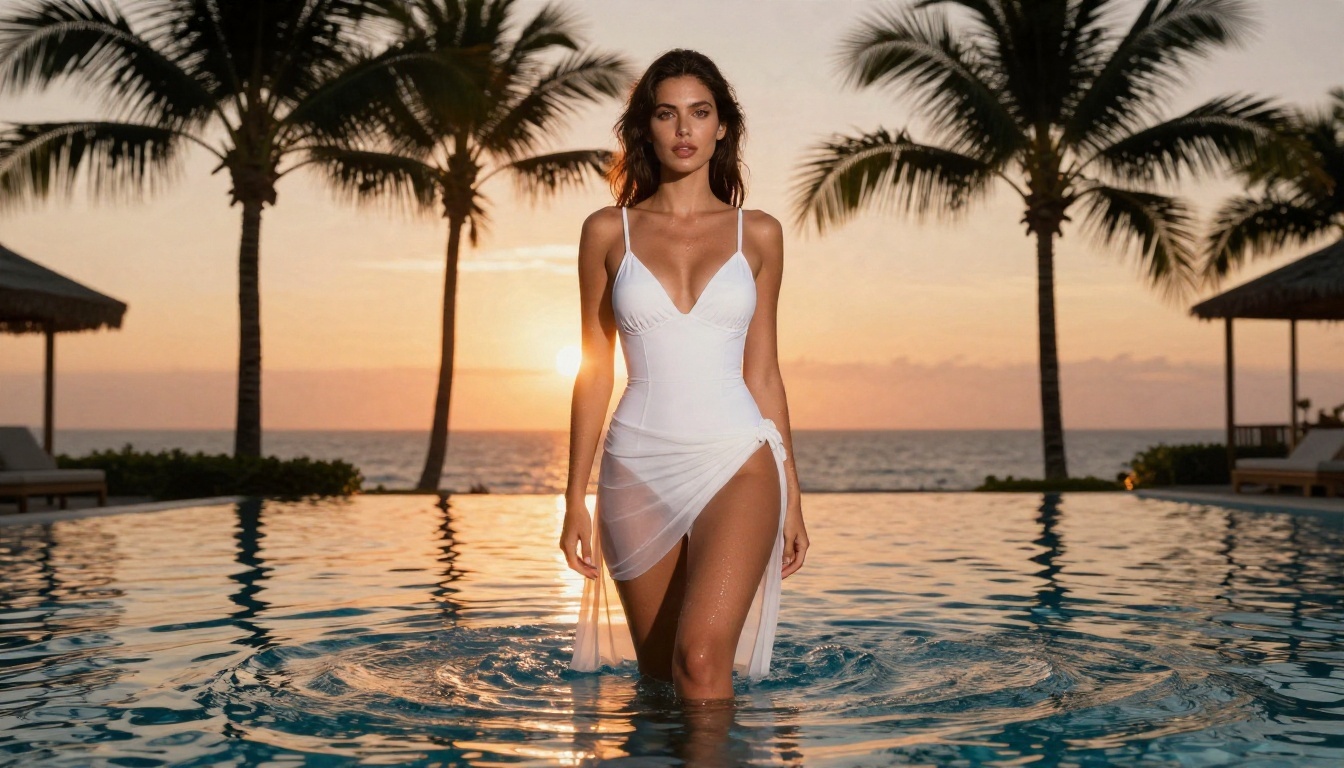
| Infinity pool at sunset | "She adjusts her sarong and turns toward the camera, palm leaves sway, water shimmers, static shot, gentle evening ambience" |
| Hotel room morning | "She glances toward the window and smiles, curtains lift slightly in the breeze, slow push in, soft morning light" |
Prompt mistakes to avoid
- Re-describing the photo. It wastes words and can confuse the model.
- Big, fast actions. "Spins and jumps" breaks anatomy. Choose slow, believable motion.
- Contradictions. "Static camera" plus "sweeping drone orbit" cancels itself out.
- Explicit wording. It will not get through moderation in Grok, and it is not the goal here. Suggestive framing, good lighting and confident styling look better anyway.
Build a Better Source Image
The first frame decides about 70 percent of the result. A sharp, well-lit photo with clear edges gives the model something solid to animate. A blurry or heavily filtered one gives you mush with sound effects.
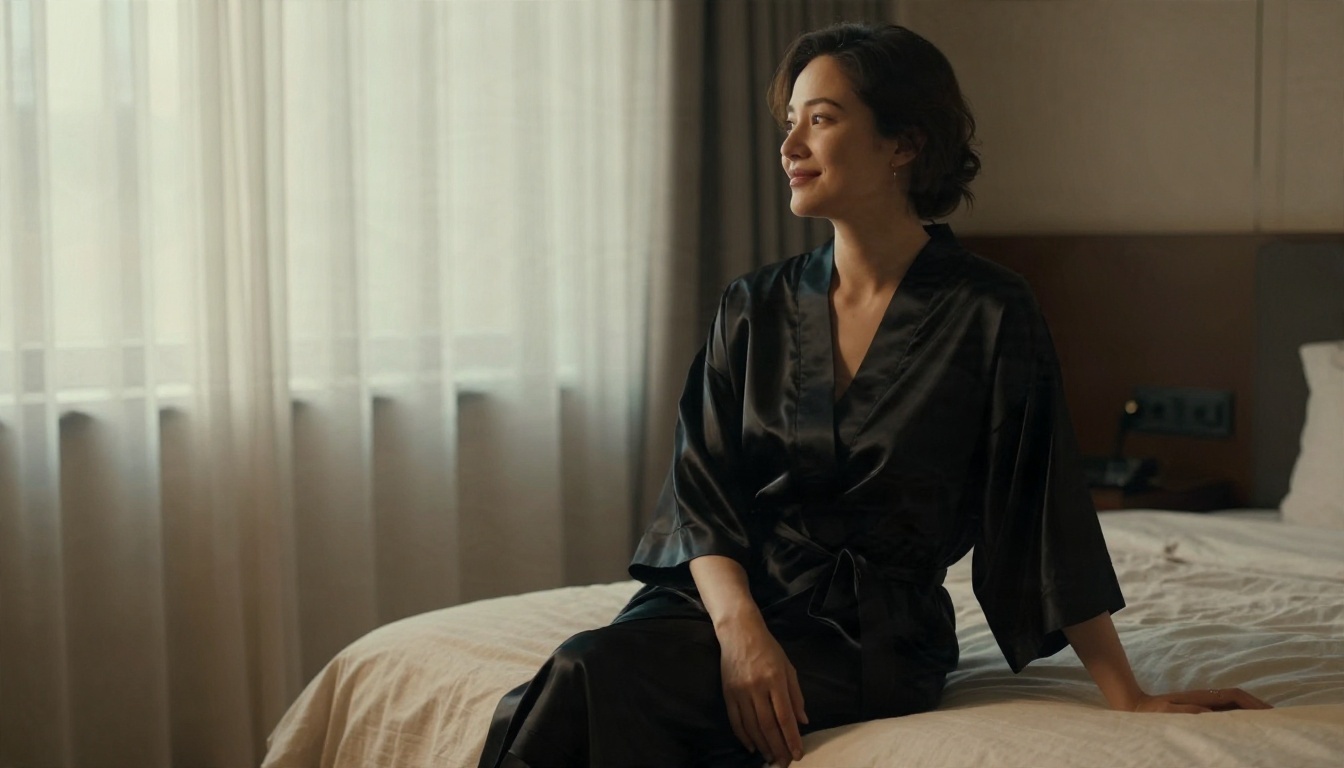
Pick the right first frame
Look for these traits before you animate:
- Visible hands and face. Hidden hands tend to appear mid-clip with odd proportions.
- Room to move. Leave empty space in front of a walking subject.
- Natural lighting. Directional light from a window or the sun makes motion look physical.
- Clean fabric edges. Satin, silk and linen animate beautifully when folds are crisp.
Generate it with Seedream 4.5
If you do not want to use a real person's photo, create an original character. Seedream 4.5 produces sharp, photorealistic 4K images with strong skin and fabric texture, which is exactly what an animation model needs. For edits, such as changing an outfit, fixing a hand or swapping a background, PicassoIA Image Editor Pro offers unlimited generations, so you can iterate until the frame is right. Another good option is Grok Imagine Image 2, which keeps the same visual style as the Grok video model and outputs 2K images.
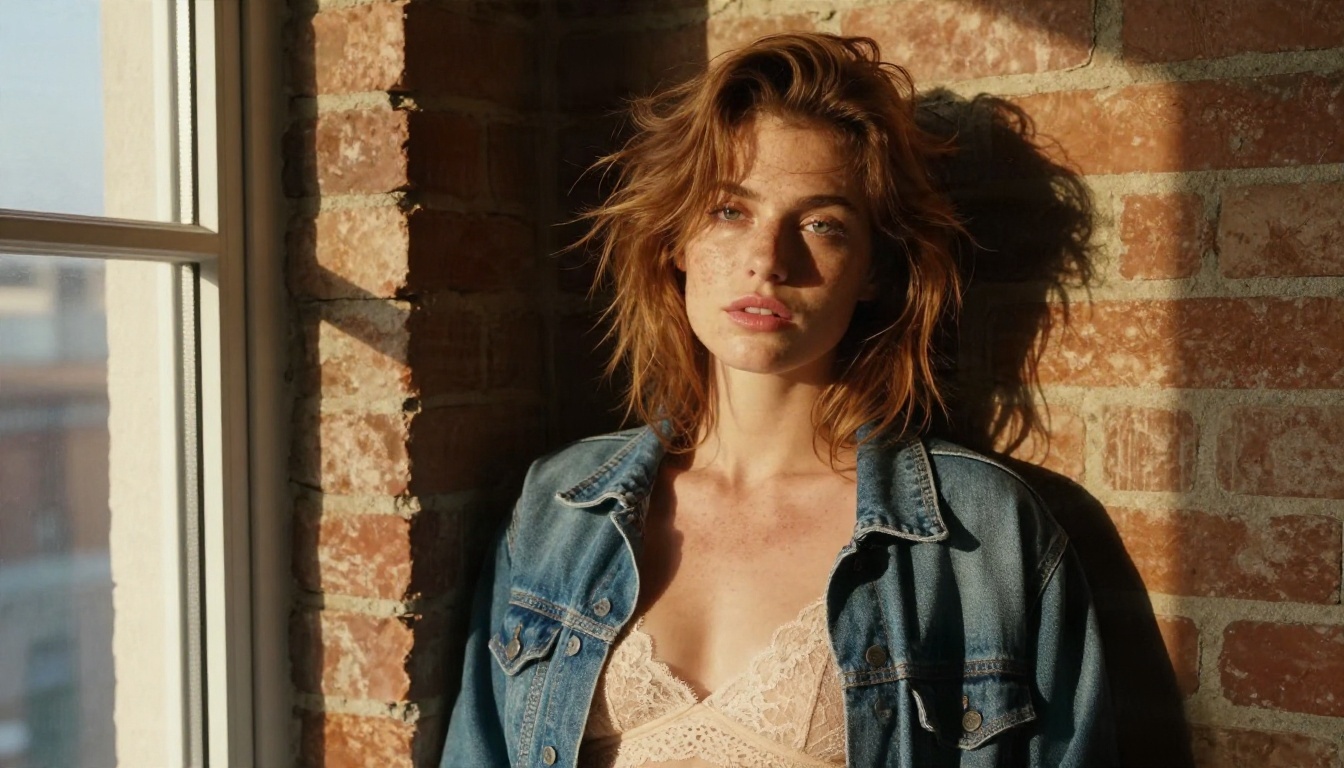
💡 Workflow tip: Make 4 to 6 candidate images, pick the one with the most natural face and the cleanest hands, then animate only that one. It saves far more time than regenerating videos.
How to Use Grok Imagine Video 1.5 on PicassoIA
Grok Imagine Video 1.5 takes a still image and a short motion description, then returns a clip with synchronized audio. No coding, no waiting list.
Step by step
- Open the Grok Imagine Video 1.5 page.
- Upload your source image. JPG, PNG and WebP all work.
- Write a motion prompt using the formula above: action, camera, light.
- Set duration (default is 5 seconds).
- Pick resolution: 480p for tests, 720p for the final render.
- Leave aspect ratio on auto unless you need a specific platform shape.
- Generate, review, and run two or three variations of the same prompt.
Parameter tips
| Parameter | Options | Recommendation |
|---|
| Duration | Seconds, default 5 | Stay at 5 for stable faces |
| Resolution | 480p or 720p | Test low, publish high |
| Aspect ratio | Auto, 16:9, 4:3, 1:1, 9:16, 3:4, 3:2, 2:3 | Auto keeps the original framing |
| Prompt | Free text | One action, one camera move |
💡 If a clip drifts, do not rewrite everything. Shorten the prompt, simplify the action, and try again. Small changes usually fix more than big ones.
Alternatives Worth Trying
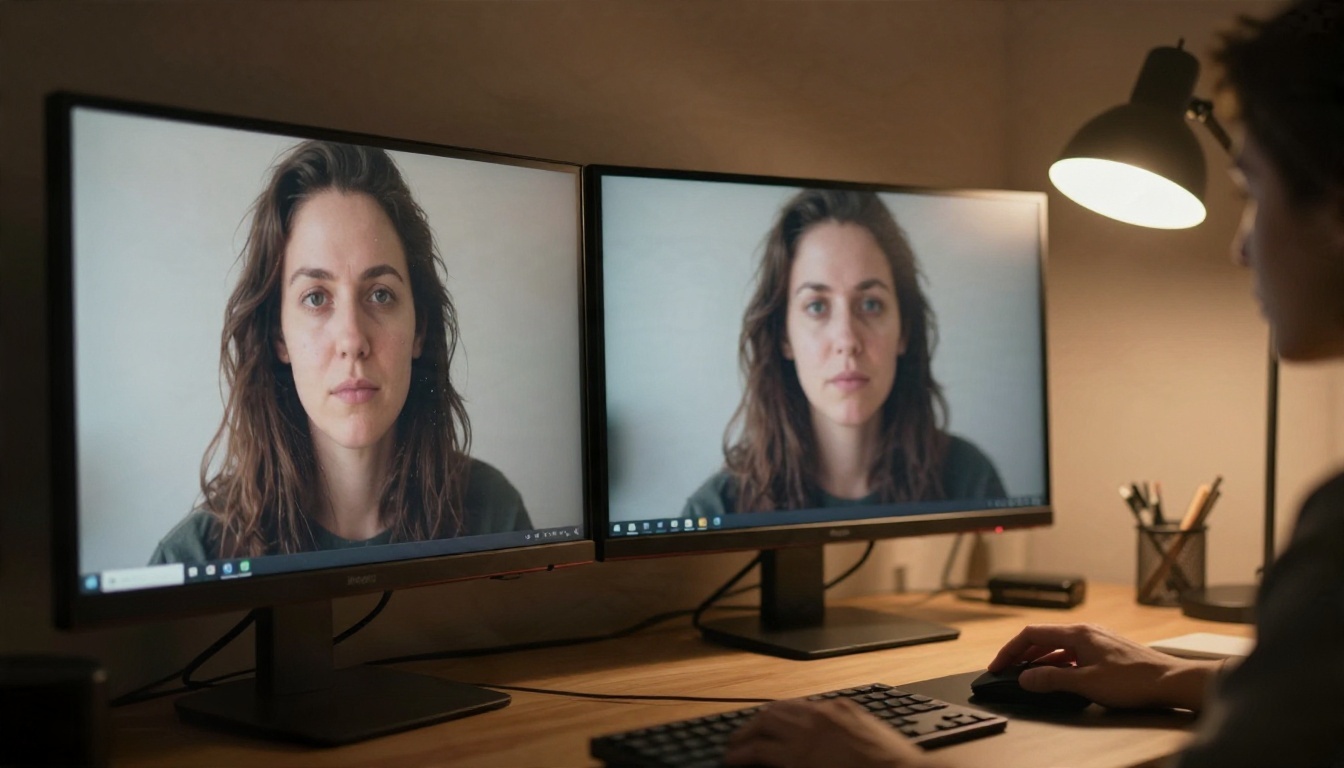
If Grok's Spicy mode is locked, hidden or disabled for uploads in your region or tier, you still have strong options. These image to video models on PicassoIA handle the same job.
Models compared
For suggestive glamour work, the order I would try is: build the image with Seedream 4.5, refine it in PicassoIA Image Editor Pro, then animate with Grok Imagine Video 1.5 or Wan 2.7 I2V. Each model reads motion prompts a little differently, so keep the same image and compare two or three outputs side by side.
💡 You can browse every available model, from image generators to video tools, at picassoia.com/en/all-models.
Start Animating Your Own Photos
Spicy mode gets the attention, but the results come from the basics: a sharp first frame, one clear motion, a short clip and a quick comparison between versions. Those habits work in Grok, in Wan, in Veo and everywhere else.
Pick one photo you already like. Write a single sentence describing how she turns, how the camera moves and how the light shifts. Run it at 480p, adjust, then render the best take at 720p. Then create your own image on PicassoIA with Seedream 4.5, animate it with Grok Imagine Video 1.5, and try the same prompt on a second model. Five minutes of experimenting will show you more than any list of settings, and you will end up with clips that are fully yours.


