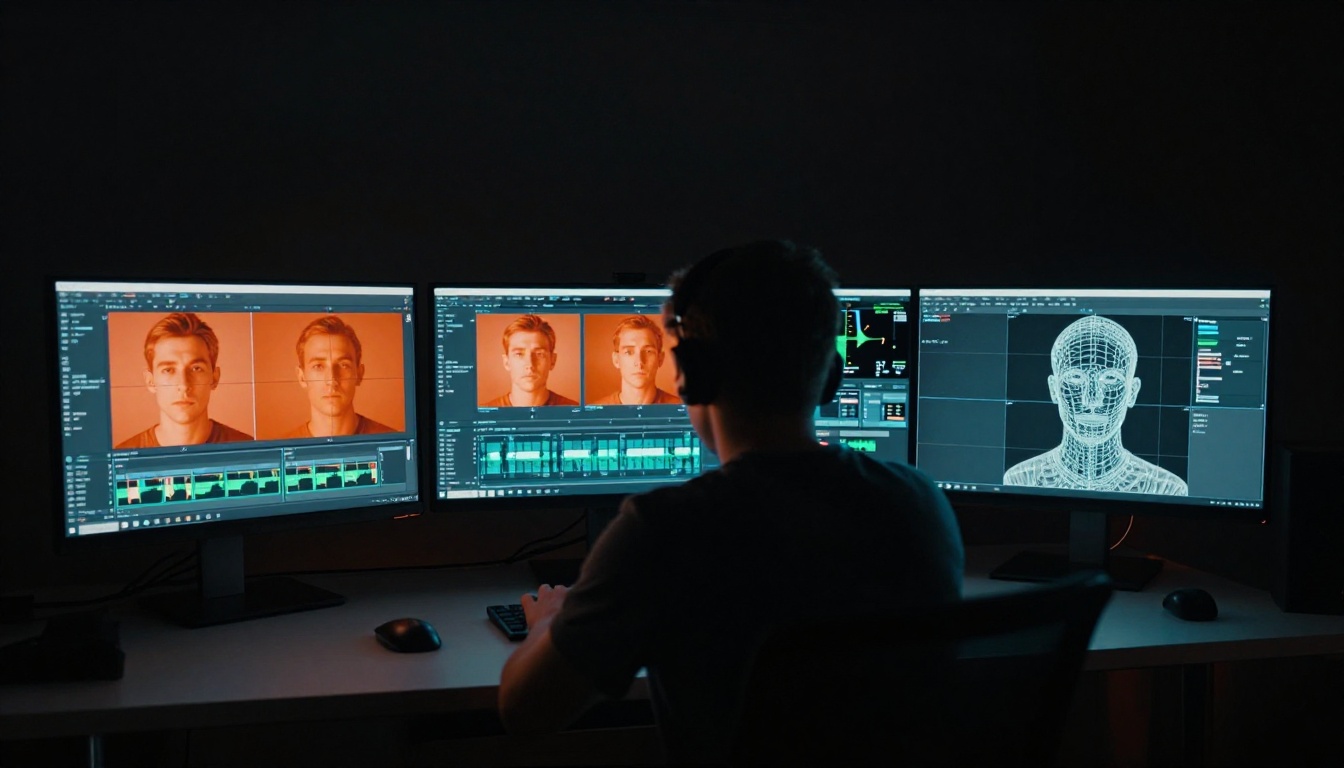
AI video generation has a notorious weak spot: faces. Whether you are using a text-to-video model to create a short clip or upscaling old footage, distorted facial features are the number one quality complaint from creators. Eyes that drift apart between frames, jaws that melt into necks, mouths that skip positions mid-sentence — these are not random glitches. They follow predictable patterns, and once you know the root causes, you can fix them fast.
This article covers every practical approach available today: prevention before you generate, post-processing repair workflows, and the PicassoIA models built specifically for restoring facial quality in AI-generated and real video.
Why AI Videos Warp Faces
The root cause: temporal inconsistency
Video generation models work frame by frame, or in short latent sequences. Unlike a static image generator that renders a face once and stops, a video model has to maintain that face across dozens or hundreds of frames. Each frame is a new inference step, and small variations in attention weights, latent noise, and temporal conditioning accumulate into visible drift.
The result: a face that looks correct in frame 1 but starts warping by frame 15. The problem worsens with longer clips, faster motion, and models that were not trained on face-dense datasets.
When does it happen most?
Face distortion is not random. It clusters around specific conditions:
- Head turns and rotations: 3/4 profile to full-face transitions expose the model's inability to maintain 3D facial topology across time.
- Talking or mouth movement: Lip articulation requires frame-level precision that most models lack at standard quality settings.
- Low resolution generation: Small latent spaces compress facial detail into blobs. Upscaling later can only partially recover this.
- Long generation sequences: Anything over 4 to 5 seconds with a prominent face risks temporal drift.
- Low prompt specificity: Vague prompts let the model interpolate facial features freely between frames.
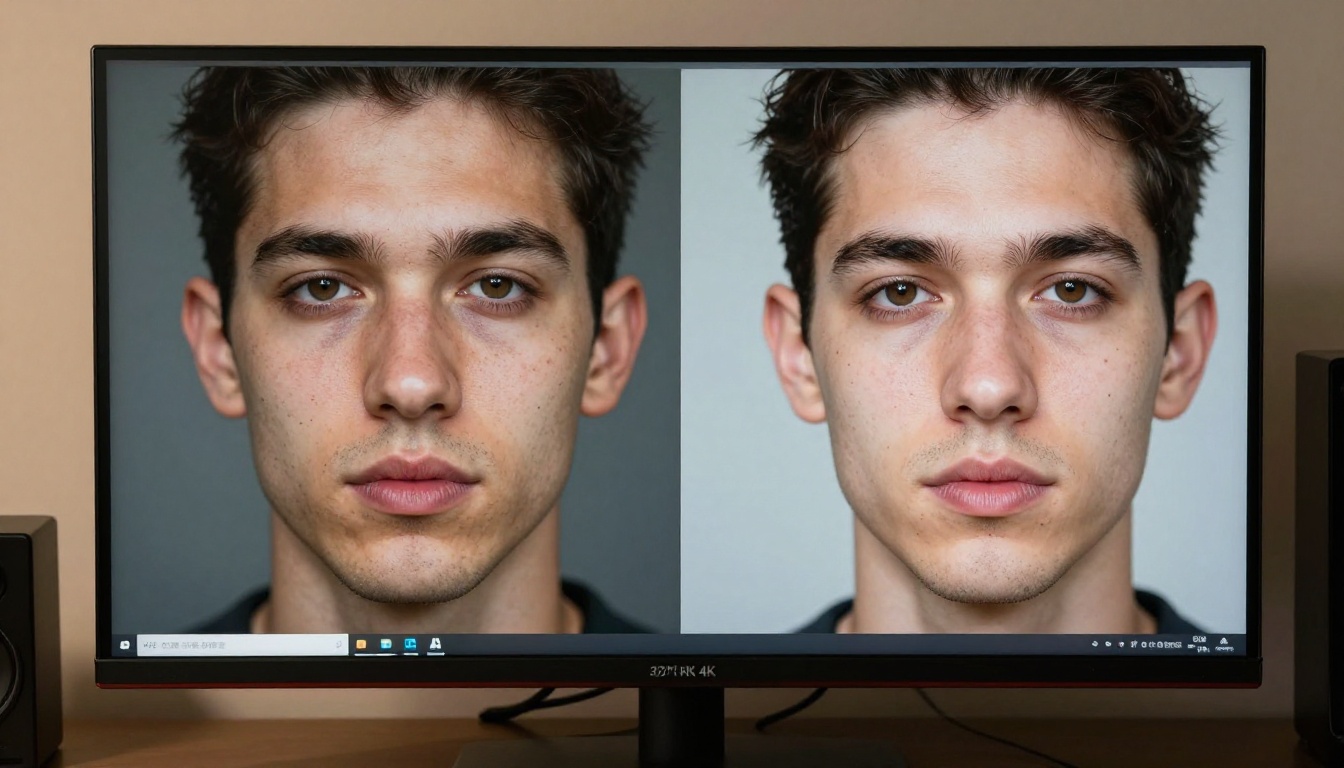
3 Types of Face Distortion in AI Video
Knowing the exact distortion type changes your repair strategy completely.
Morphing around facial boundaries
This is the most common type. The face "leaks" outward, cheekbones shift, the jawline rounds or sharpens between frames with no clear logic. On screen it looks like the face is made of soft clay being reshaped continuously. This is caused by weak landmark conditioning in the model's temporal attention layers.
Fix approach: Frame-level inpainting with a face-aware model, or full regeneration with stronger identity conditioning.
Frame-to-frame flickering
The face looks mostly correct but flickers in brightness, color, or fine detail. Skin tone shifts between frames. Eye color changes briefly. This is a temporal consistency failure at the texture level, not the geometry level.
Fix approach: Temporal smoothing via video upscaling tools, or upscaling with a model that includes temporal denoising.
Loss of identity between frames
The person in frame 1 looks noticeably different from the person in frame 30. Same hair, different nose. This is an identity drift problem — the model lost the subject's specific facial identity mid-generation.
Fix approach: Regeneration with reference image conditioning, or section-based re-editing using tools like LTX 2 Retake that let you target specific clip segments.
Fix It Before You Generate
The cheapest fix is prevention. These changes to your generation workflow dramatically reduce face distortion before you ever need to repair anything.
Prompt engineering for stable faces
Most creators write prompts that describe the scene but not the face. This forces the model to hallucinate facial detail, which leads directly to inconsistency. A better approach:
- Be specific about facial structure: "sharp defined cheekbones, symmetrical oval face, light brown eyes with visible iris detail" gives the model anchors to hold across frames.
- Avoid action verbs that cause head movement: "looking directly at camera, slight smile, no head movement" keeps the face stable.
- Add quality anchors: "photorealistic skin texture, natural pore detail, consistent facial proportions across frames" signals to the model that face quality is a priority output.
💡 Tip: Negative prompts matter more for faces than for backgrounds. Add "deformed face, asymmetrical eyes, morphing jaw, blurry features, low detail skin" to your negative prompt on every generation.
Seed locking and identity conditioning
If a model offers seed control, locking the seed between generation attempts gives you a consistent starting noise pattern. Combined with reference image inputs, you can anchor the model to a specific face identity throughout the clip.
Some models support image conditioning where you provide a portrait as a reference frame. This dramatically reduces identity drift over longer sequences. Tools like P Video Edit support text-directed edits that stabilize facial regions through natural language instructions without regenerating from scratch.
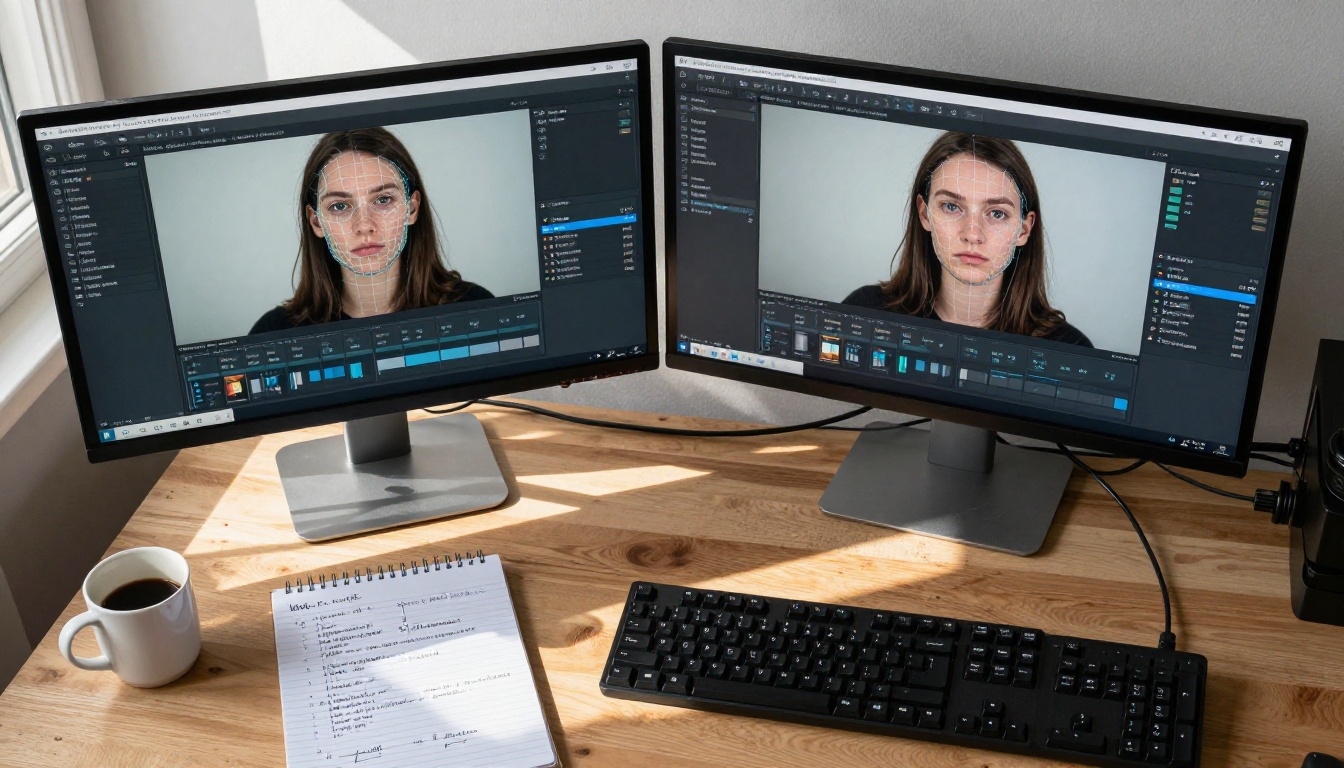
Post-Generation Fix Methods
When the video is already generated and faces are distorted, you have three main repair pathways.
Frame-by-frame restoration
Extract individual frames from the video, restore each face independently using an image restoration model, then recombine. This is the most accurate method but also the slowest. It works best for short clips under 10 seconds where temporal smoothness is less critical.
Steps:
- Export video as individual PNG frames.
- Run each frame through a face restoration model.
- Use Real ESRGAN Video for consistent 4K upscaling across all frames.
- Recombine frames back into video with the original audio.
For the image restoration step on individual frames, Clarity Pro Upscaler produces excellent face detail recovery by treating facial microstructure as a priority output. Crystal Upscaler is specifically tuned for portrait upscaling and works particularly well on faces, restoring fine details like pores, eyelashes, and lip texture that blurring artifacts destroy.
AI video editors that rewrite faces
The faster approach is a temporal video editor that can rewrite specific regions across all frames simultaneously. These tools use text prompts or reference images to guide the repair.
| Tool | Approach | Best For |
|---|
| Aleph 2 | Edit one frame, propagate to full video | Identity consistency |
| LTX 2 Retake | Target and re-render specific sections | Localized distortion |
| P Video Edit | Text-prompt driven edits | Fast general repairs |
| Lucy Edit 2 | Real-time text-to-video edits | Quick stylistic fixes |
| Kling o1 | Full video rewrite from reference | Severe distortion cases |
💡 Pro insight: For severe distortion, Gen 4 Aleph offers cinematic-quality restyling with much stronger face consistency than standard text-to-video models. It is designed specifically for recut and restyle workflows where the original structure must be preserved while the face is corrected.
Upscaling to restore detail
Resolution is the simplest dimension to fix, and it has a real impact on perceived face quality. A 480p face with temporal blur looks disturbing. The same face at 4K with restored texture looks passable even if the geometry is slightly off.
Video Upscale by Topaz Labs is the industry benchmark for this. It uses AI-trained upscaling specifically optimized for real video, not just static images, and it handles faces well because its training dataset includes face-dense content. The model pays special attention to high-frequency facial detail: eyelashes, fine skin wrinkles, iris patterns.
Upscale v1 by RunwayML takes a different approach with latent-space upscaling that preserves the temporal character of the original generation while boosting resolution. Both are available directly on PicassoIA without any software installation.
PicassoIA has several tools that directly address face quality in video. Here is how to use each one strategically.
Video Upscale for detail recovery
Video Upscale by Topaz Labs takes your video and applies a trained upscaling model that specializes in recovering facial microdetail: pores, fine hair strands, iris texture, lip definition. This does not fix geometric distortion such as melting jaws or shifting eyes, but it dramatically reduces the visual severity of temporal flickering and blur artifacts.
When to use it: After any AI video generation, before final export. Even videos without visible distortion benefit from this step, as it restores fine details lost during the generation process.

P Video Edit for text-driven fixes
P Video Edit accepts a text prompt describing what to change. You can write "fix the face proportions, sharpen the jawline, stabilize the eyes across frames" and the model applies these corrections while maintaining everything else in the clip.
This is the fastest repair path for mild to moderate distortion. It works best when:
- The face structure is mostly correct but needs sharpening.
- Skin tone flickering needs to be stabilized.
- Minor landmark drift needs to be corrected without a full regeneration.
Aleph 2 and LTX 2 Retake
Aleph 2 uses a "one-frame edit" workflow: you correct a single frame to look exactly as you want, and the model propagates that correction backward and forward through the entire clip. For face distortion where one frame is correct and others drift, this is extremely efficient.
LTX 2 Retake works on a section basis. You mark a time range, such as 2.3s to 4.7s, and re-render only those frames with new parameters. This is ideal for clips where most of the video is fine but one specific moment has a severe face distortion spike. You avoid re-generating the entire clip while still getting a clean result.
Real ESRGAN Video
Real ESRGAN Video is a frame-level upscaler that processes each frame independently and then recombines them. Unlike video-native upscalers, it has no temporal awareness, which means it can introduce minor flickering on some content. But for face restoration specifically, it sharpens detail more aggressively than temporal upscalers, making it the right choice when maximum face sharpness is the priority over smooth motion.
Best use case: Static or slow-moving face shots where sharpness matters more than temporal smoothness.
Video Increase Resolution
Video Increase Resolution by Bria upscales to 8K and includes built-in face restoration processing. It is the most accessible tool for creators who want a single-step solution: upload the video, get a higher-resolution version back with improved face quality, no manual settings required. For creators new to video repair, this is the right starting point.
Step-by-Step Fix on PicassoIA
Here is the full repair workflow for a distorted-face AI video using PicassoIA tools.
Step 1: Assess the distortion type
Play through the video at 0.25x speed. Identify whether the issue is:
- Geometric (jaws, eyes shifting position between frames)
- Textural (skin flickering, blurring, color inconsistency)
- Identity (person's face changing across the clip)
Step 2: Choose your repair path
Step 3: Run the repair
Upload your video to PicassoIA, select the appropriate model, configure the prompt or parameters based on your distortion type, and submit. Most models return results in under two minutes for clips up to 30 seconds.
Step 4: Apply final upscale
Regardless of which repair model you used, always run the output through Video Upscale or Real ESRGAN Video as a final step. This irons out remaining micro-artifacts and gives the final output a polished, broadcast-quality look.
💡 Stack your tools: The best results come from combining a geometric repair tool (Aleph 2 or P Video Edit) with a resolution upscaler (Topaz Video Upscale) in sequence. Each tool handles a different dimension of the problem.
Step 5: Quality check
Export a short segment first. Watch at full size on a large display. Check:
- Jaw and cheekbone stability across the full clip.
- Eye position consistency between frames.
- Skin tone uniformity without flickering.
- Mouth articulation that matches natural movement speed.
If any of these fail, identify which time range is worst and use LTX 2 Retake to re-render that section specifically.
When to Regenerate vs. Repair
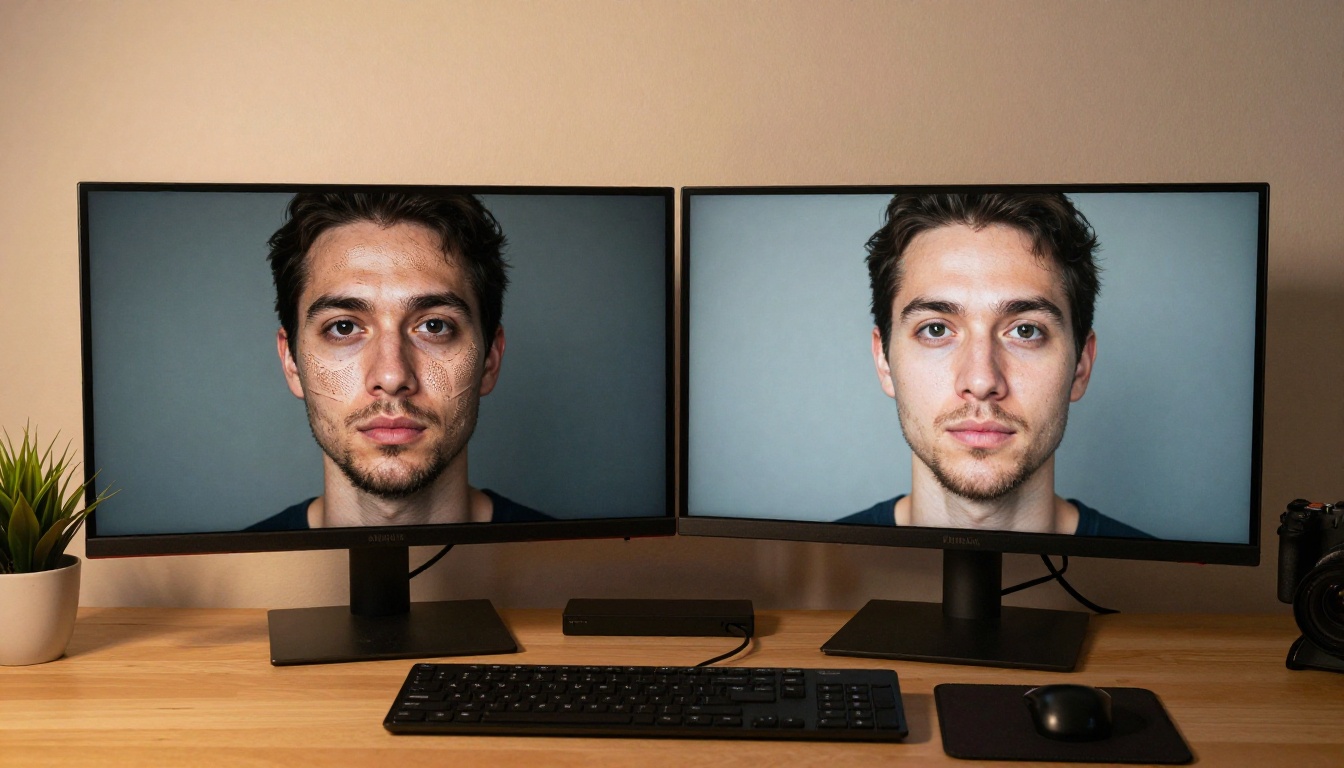
Not every distorted video is worth fixing. Some are better regenerated from scratch. This decision table helps you choose:
| Situation | Action |
|---|
| Face is correct in first 2s but drifts after | Repair with LTX 2 Retake on the drifting section |
| Face is distorted from frame 1 | Regenerate with better prompt conditioning |
| Distortion is purely textural (blur or flicker) | Repair with Video Upscale |
| Identity changes completely mid-video | Regenerate with reference image input |
| Minor shimmer on skin only | Repair with Video Increase Resolution |
| Jaw melts in 30% or more of frames | Regenerate — faster than repairing |
💡 Rule of thumb: If fixing would take longer than regenerating, regenerate. With today's fast generation models on PicassoIA, a 5-second clip can be re-generated in under a minute with adjusted parameters.
When you do regenerate, the single most impactful change you can make is adding a reference portrait image. Models that accept image inputs for face identity conditioning, like Luma Modify Video or Wan 2.7 Videoedit, maintain face consistency far better than text-only generation because they have a visual anchor to return to on each frame.
For purely textural issues, the image upscaling pipeline also works well on extracted frames. P Image Upscale restores detail in under a second per frame, and Real ESRGAN at 4x provides strong face sharpening when you need aggressive detail recovery on particularly blurry or low-resolution source material.
Fix Distorted Faces Right Now on PicassoIA
Every tool referenced in this article is live on PicassoIA with no software download, no GPU setup, and no technical configuration. Upload your video, select a model, and get results in seconds.
For face restoration specifically, the fastest paths are:
- P Video Edit for text-prompt repairs on mild to moderate distortion.
- Video Upscale for sharpness and detail recovery on any clip.
- Aleph 2 for one-frame-to-full-video consistency fixes.
These three, used in sequence, resolve the vast majority of face distortion cases without any manual frame editing. PicassoIA also gives you access to the full range of image super-resolution models, including Clarity Pro Upscaler and P Image Upscale, which are useful when you need to fix individual frames extracted from a distorted clip and want maximum sharpness before recombining.
The field of AI video quality is moving fast. Models that struggle with face consistency today are being replaced by newer architectures that treat temporal face stability as a first-class output requirement. In the meantime, the tools above give you everything you need to produce clean, distortion-free results right now.
Bring your distorted AI video to PicassoIA and see what a difference the right repair workflow makes.