Taking a single photograph and watching it breathe, move, and come alive as a video clip is no longer a special effect reserved for Hollywood studios. HunyuanVideo 2.0, the latest image animation model from Tencent, brings this capability directly to your browser, phone, or desktop, and it does so with a level of temporal consistency and photorealism that feels genuinely different from earlier attempts at this technology.

This is not about creating cartoons or stylized animations. HunyuanVideo 2.0 reads the spatial information embedded in a photograph, interprets how lighting, perspective, and subjects would realistically move, and generates video frames that extend from that frozen moment in a way that looks physically plausible. A portrait subject turns their head. Ocean waves begin to crash. A city skyline catches a passing cloud shadow. The frozen moment becomes a living scene.
What HunyuanVideo 2.0 Actually Does
Before getting into the how, it helps to understand what makes this model different from the generation of image-to-video tools that came before it.
It Reads Motion Potential, Not Just Pixels
Most early image animation models treated the input photograph as a texture to warp. They applied optical flow algorithms to simulate motion, which produced the classic "jello effect" where objects seemed to melt or stretch unnaturally across frames. HunyuanVideo 2.0 works differently. It uses a diffusion-based video generation backbone that treats the source image as the first frame of a coherent video clip, then generates subsequent frames through a learned understanding of how real-world physics, anatomy, and environment behave over time.
The result is that a photograph of a person does not just get their skin texture warped sideways. Hair moves according to how hair actually moves under gravity and air resistance. Fabric folds shift in ways consistent with the weight of the material. Background elements like trees or water respond to implied wind and gravity rather than being stretched or smeared across the frame.

The Jump from Version 1.0 to 2.0
The original HunyuanVideo was already notable for its text-to-video quality, producing some of the most fluid motion seen in open-source video models at the time of its release. Version 2.0 extended this with dedicated image conditioning, meaning you could now anchor the generation to a specific first frame. This is the feature that makes photo-to-video workflows genuinely practical, because it ensures the output video actually looks like the input image rather than using it as loose visual inspiration.
Version 2.0 also improved identity consistency across the full clip duration. Earlier versions sometimes showed subjects drifting or morphing away from the source image after the first second or two of generated footage. The updated architecture maintains identity, color accuracy, and scene composition far more reliably across the entire generation window. This is particularly noticeable with portraits, where facial identity is the most sensitive detail to preserve.
What Setting Expectations Actually Looks Like
HunyuanVideo 2.0 is not a magic button. The model generates plausible continuations of a frozen moment, but it is still constrained by what is physically reasonable. It will not add objects that were not in the original frame. It cannot create dramatic scene changes, cut to a new angle, or change the time of day. What it does do exceptionally well is bring the existing scene into motion in a way that feels natural and credible.
The sweet spot for this model is photographs with a clear subject, strong composition, and some implied motion potential. A person mid-laugh, a wave about to break, a cyclist in a corner, a product with water droplets about to fall. These already carry motion energy that the model can continue convincingly.
Why Photo-to-Video AI Changed Everything
The photographic image has been the dominant medium for personal and commercial visual content for over 150 years. Every wedding album, family archive, product catalog, and real estate listing is built on still images. The practical limitation has always been that still images are static, and static content is losing the attention war.

Static Images Had a Problem
Social platforms increasingly prioritize video content in their algorithms. A post with video gets dramatically more reach than the same post with a photograph on most major platforms. But producing video requires equipment, time, editing skills, and often a second visit to a location. For most individuals and small businesses, producing video content from every photograph they own has simply been out of reach.
Photo-to-video AI closes this gap entirely. Every photograph in your existing archive becomes a potential video clip without re-shooting anything. Your product shots become scrollable content. Your travel photographs become cinematic moments. Your portraits become animated profile assets. Your real estate exteriors become living properties with moving light and environmental detail.
What Tencent Built
Tencent's AI research team built HunyuanVideo on a transformer-based diffusion architecture trained on a vast dataset of video clips paired with corresponding first frames. This training approach allowed the model to learn the statistical relationship between a static visual and the plausible range of motions that could follow it. When you input a photograph, the model draws from these learned patterns to generate motion that is both physically plausible and aesthetically coherent.
The model is particularly strong at handling the transition zone between the foreground subject and the background, which has historically been one of the hardest problems in image-to-video generation. When a subject moves, the background behind them needs to respond consistently, revealing new background content that was occluded by the subject in the original frame. HunyuanVideo 2.0 handles this with a level of competence that earlier models could not match.
The open-source release of HunyuanVideo's weights made it one of the most accessible high-quality image animation models available, and its integration into platforms like PicassoIA means you do not need a powerful local GPU to use it. The compute runs server-side, and you get the result in your browser.
How HunyuanVideo 2.0 Compares to Other Models
HunyuanVideo 2.0 is excellent, but it is not the only strong image-to-video option available right now. Understanding where it excels and where alternatives might serve you better will help you choose the right tool for each project.

Speed vs. Quality Tradeoffs
Speed and quality pull in opposite directions across all current image-to-video models. Higher quality outputs require more diffusion steps, which means longer generation times. Faster models use fewer steps or distilled architectures that sacrifice some detail in exchange for speed.
HunyuanVideo 2.0 sits in the high-quality, moderate-speed tier. It is not the fastest option, but for portrait animation, landscape motion, and product footage it produces some of the most natural-looking results currently available at any speed tier.
The Best Alternatives Right Now
💡 For portrait photography specifically, HunyuanVideo 2.0 and Kling v2.1 consistently produce the most natural facial animation with stable identity maintained across frames.
How to Use HunyuanVideo on PicassoIA
PicassoIA hosts HunyuanVideo alongside over 80 other video generation models, which means you can run the model in your browser without any local installation or dedicated GPU hardware.

Step-by-Step for Image-to-Video
Step 1: Prepare your source image
The model performs best with photographs that have clear subjects and strong composition. Portrait shots should have the face in focus. Landscape images work best when the horizon is level and the primary subject fills most of the frame. Avoid photographs with heavy digital compression artifacts, excessive grain from high ISO settings, or extreme motion blur in the original. A clean, well-exposed photograph gives the model the most to work with.
Step 2: Open HunyuanVideo on PicassoIA
Navigate to the HunyuanVideo model page on PicassoIA. You will see the image upload field and the text prompt input. Upload your photograph directly from your device. The model accepts standard JPEG and PNG formats.
Step 3: Write your motion prompt
The uploaded image grounds the generation visually, but the text prompt directs the motion. Do not describe what is already in the image. Instead, describe what should happen during the video. "Gentle breeze moves through hair, soft bokeh shifts slowly in the background, natural subtle head tilt to the right" gives the model specific motion instructions without conflicting with the visual content of the photo.
Step 4: Adjust generation settings
For most photographs, the default duration and resolution settings produce strong results on the first attempt. If you need higher quality output and can wait longer, increasing the inference steps where available as an option will improve temporal consistency at the cost of generation time. Start with defaults and only adjust if the first output has obvious consistency issues.
Step 5: Review and iterate
AI video generation involves meaningful variation between runs. Your first output may not be exactly what you wanted. Minor changes to the motion prompt, or simply setting a different random seed, will produce noticeably different results from the same source image. Treat the first generation as a draft and iterate from there.
Writing Prompts That Work
The biggest mistake with image-to-video AI is writing prompts that describe the visual content already in the image rather than directing motion. Here is the practical difference:
Bad prompt: "A woman with long brown hair standing in a field of flowers"
This describes what the model can already see. It gives no motion direction and no useful information.
Good prompt: "Hair gently lifted by a slow warm breeze, subject shifts weight slightly to the right, wildflowers sway in the foreground, clouds drift slowly left to right in the background, camera holds steady"
This tells the model what should change over time, which elements should move, and how the scene should feel in motion.
💡 Short, specific motion verbs beat long descriptions every time. Words like "drifts," "ripples," "turns," "sways," "rises," "glances," "tilts," and "settles" give the model clear physical actions to generate across frames.
5 Types of Photos That Work Best
Not all photographs respond equally to image-to-video generation. These five categories consistently produce strong results with HunyuanVideo 2.0 and the alternatives available on PicassoIA.
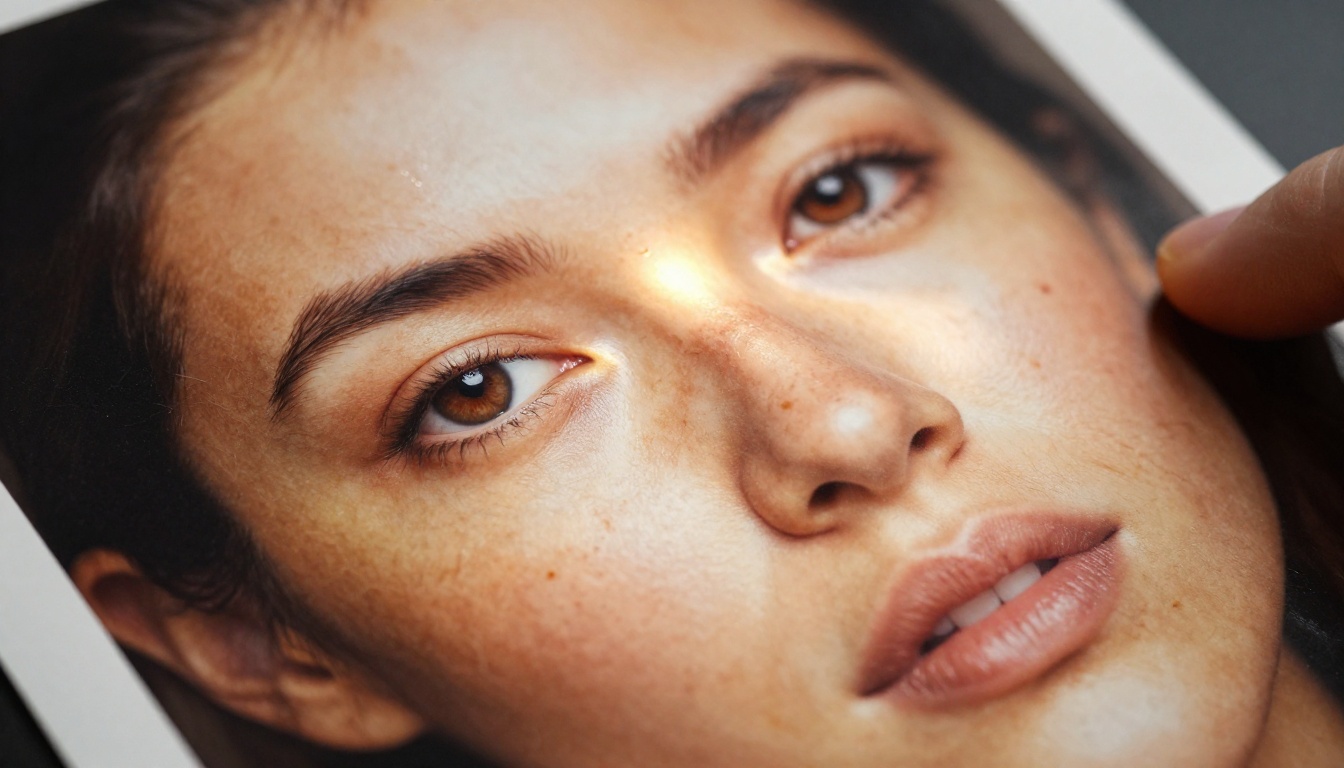
Portrait Shots
Portraits are the strongest use case for photo-to-video animation. A well-lit portrait with a clean or softly blurred background gives the model an isolated subject with clear anatomical structure. The model excels at generating realistic micro-expressions, natural hair movement, fabric shifting, and subtle head repositioning. Use a motion prompt that specifies direction and energy: "slow head turn to the left, slight smile develops, hair falls naturally across shoulder, soft breath visible."
Landscape and Nature
Natural environments have built-in motion potential: water flows, trees move, clouds drift, and light shifts across terrain. A landscape photograph with an interesting horizon and strong compositional depth will animate convincingly. Try Wan 2.7 I2V for landscape animation specifically. It handles environmental motion, including flowing water and responsive foliage, with very high temporal consistency across the generated clip.
Motion prompts for landscapes should focus on environmental physics: "waves crash and recede, white foam spreading across dark sand and pulling back, seagull drifts slowly from right to left across the upper sky."
Product and Commercial Photography
Product photography is one of the highest-value uses of photo-to-video for businesses. A still product shot can become a rotating display, a pouring liquid demonstration, or a lifestyle scene showing the product in a moment of use.

For product photography, keep motion minimal and deliberate. Avoid prompts that call for dramatic camera movements or large-scale scene changes. Instead, try: "perfume bottle catches a slow glint of warm light drifting from left to right, droplets of liquid on the glass surface settle, label sharpens slightly into focus."
P Video Animate on PicassoIA is particularly worth testing for product content. It is fast, handles fine object detail well, and produces clean outputs that suit commercial use without excessive stylization.
Architectural Images
Architecture presents strong opportunities for photo-to-video. Cloud motion, shifting light, and the natural movement of people and vehicles within the scene can all be generated convincingly from a static exterior or interior shot.
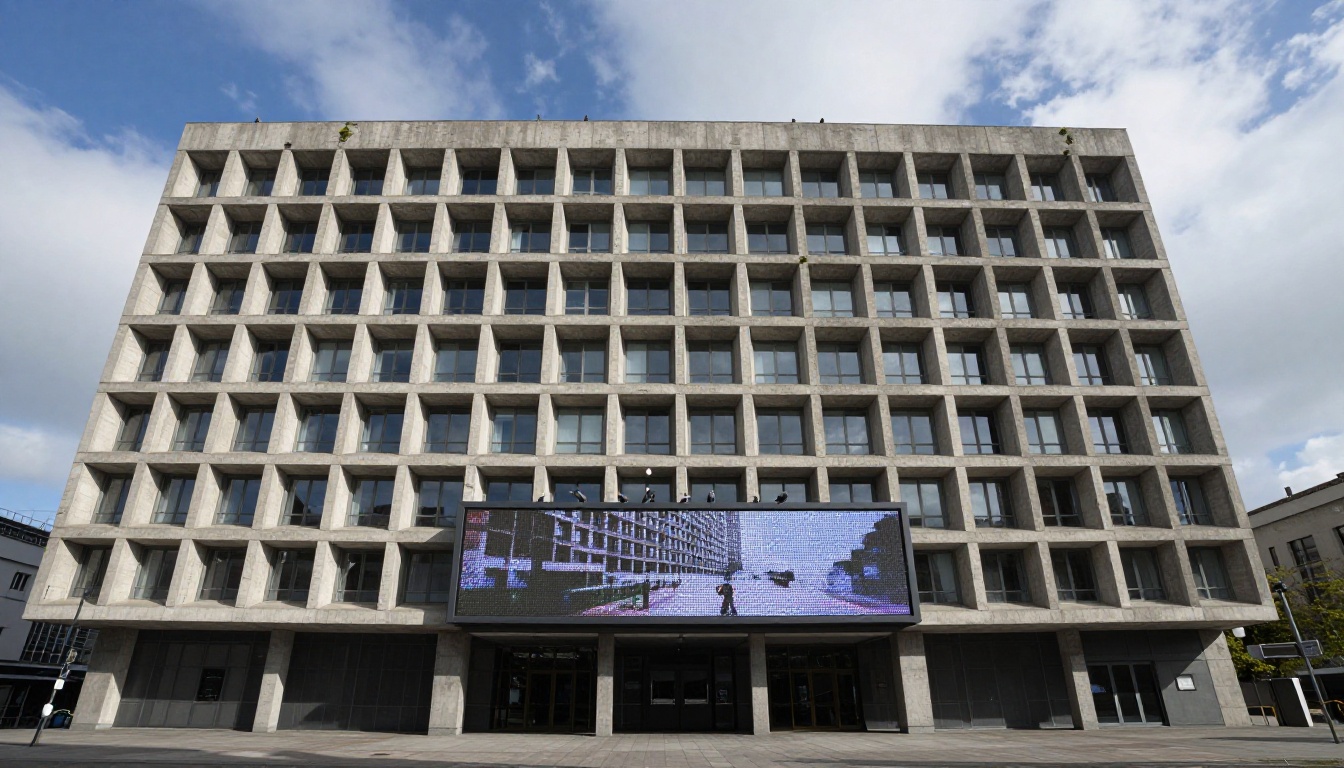
Wide-angle architectural shots produce the most satisfying results because there is more ambient scene content for the model to animate. Try: "clouds drift slowly across the upper portion of the frame, late afternoon light rakes across the concrete facade, shadow lines shift gradually as the sun moves."
Street Photography
Street photography is documentary by nature, and photo-to-video animation can restore a sense of time and motion to these frozen moments. The model can convincingly continue the implied motion already present in a frozen street scene.
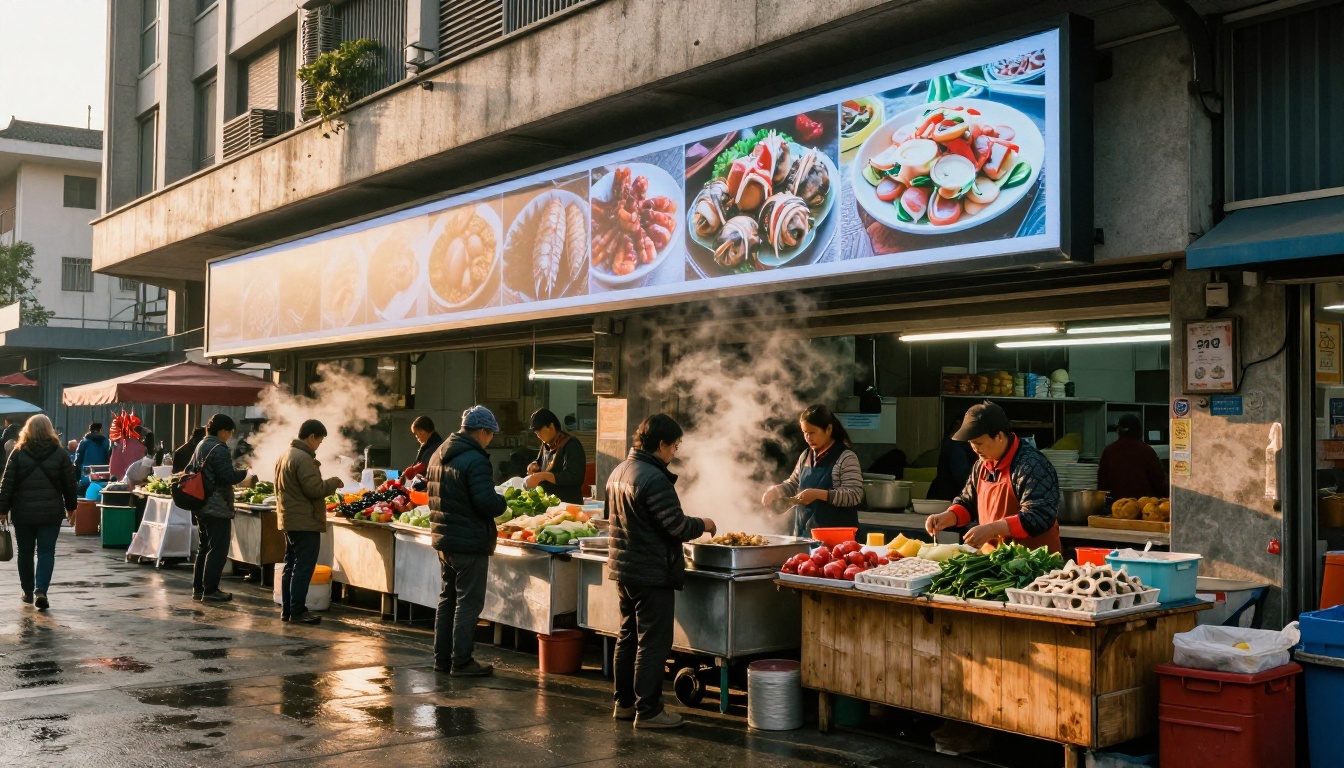
Street scenes with people in mid-motion, vendors at work, or active market activity respond particularly well to animation. Try Kling v3 Video for cinematic street animation, as it handles multi-subject scenes with strong temporal coherence across a range of subject types.
Common Mistakes and How to Avoid Them
Bad Input Quality Hurts Every Output
JPEG compression artifacts, heavy noise from high ISO settings, and motion blur in the original photograph all degrade the model's ability to read the scene accurately and generate consistent motion from it. The rule is straightforward: the quality ceiling of the output is set by the quality of the input. If you are uploading a photograph specifically to animate it, choose the highest quality version available. Use the uncompressed or lightly compressed original file rather than a social media export or a screen-grab.
If your photograph is underexposed, noisy, or otherwise degraded, consider running it through a super-resolution or restoration tool first. The super-resolution and enhancement models available on PicassoIA can upscale and denoise an image before it enters the video generation workflow, often producing dramatically better animation results from the cleaned-up version.
Prompt Conflicts with the Image
The model holds the image as a strong anchor for the first frame, but a prompt that tries to change too much from the source will produce confusing or incoherent output. If your photograph shows a person looking to the left and your prompt says "subject turns fully to face the camera," the model has to reconcile a significant geometry conflict. This usually results in warping artifacts, identity drift, or an abrupt visual discontinuity partway through the generated clip.
Stay within the plausible physical range implied by the photograph. If the subject is in profile, animate motion consistent with being in profile. If the scene is daytime with natural light, do not prompt for dramatic night lighting changes or artificially warm artificial light. Work with the image rather than against it.
💡 Think of it this way: the model continues a story already in progress. Your text prompt is the next sentence, not a rewrite of the chapter.
Start Creating Your Own Photo Animations
The tools are available, the quality is there, and the workflow is straightforward enough that you can go from a photograph to a finished video clip in a few minutes. Every photograph you have taken up to this point is now a potential source asset for video content across social platforms, commercial channels, and personal projects.
PicassoIA gives you direct access to HunyuanVideo, P Video Animate, Wan 2.7 I2V, Kling v2.1, Seedance 2.0, Gen4 Turbo, Hailuo 2.3, and over 80 other video generation models, all accessible in a browser without any local hardware requirements or software installation.
Start with a portrait. Upload a photograph you already have, write a simple motion prompt focused on what should move rather than what is in the frame, and run the generation. Then try a landscape, then a product shot. Each photograph teaches you something different about how these models read and animate visual content, and the effective prompt style clicks into place quickly after a handful of iterations.
The best photo in your archive might already be your best future video.


