Ideogram built its name on one thing: text that actually reads correctly inside an image. With version 4, the company released open weights, and ComfyUI added support on day zero. That means you can now run a model famous for typography on your own machine, inside the node graph you already use. The catch is that it is not a one click affair. You need the right files, enough VRAM, and a prompt style that behaves differently from what most people are used to.
This article walks through the whole setup: the Ideogram 4 ComfyUI workflow, the settings worth touching, free options, the licensing detail people skip, and online alternatives for when your graphics card says no.
💡 Quick answer: Update ComfyUI, download the Ideogram 4 template and model files, drop the workflow into the canvas, write a structured prompt, and queue. If your GPU has less than 24GB of VRAM, run a hosted version such as Ideogram v4 Balanced instead.
What Ideogram 4 Brings to ComfyUI
Ideogram 4 is a text-to-image model of roughly 9.3 billion parameters. It was released as open weights, with official workflow templates from the ComfyUI team so you do not have to wire the nodes yourself. Its strengths are the ones Ideogram users already know: posters, packaging, signage, logos and any image where words and layout matter.

Open weights, in plain terms
"Open weights" means you can download the model files and run them locally. It does not automatically mean "open source" or "free for any use." The code around the model and the model weights can carry different licenses, and reports from the launch period describe the weights as sitting under a non-commercial license. Read the license on the official model page before you put outputs into a paid project.
| Item | What to expect |
|---|
| Model size | About 9.3B parameters |
| Weight formats | Quantized builds (NF4, FP8) for consumer GPUs |
| Prompt input | Plain language or structured JSON |
| Typical strength | Readable text, layouts, posters, logos |
| License | Check it: commercial use may be restricted |
Why structured prompts matter
The unusual part of Ideogram 4 is that it reads prompts like a spec sheet. You can write a normal sentence, but you can also supply a structured description with separate fields for the subject, the text content, the style and the layout. When you describe a poster as "headline here, subtitle there, photo of a runner on the left," the model follows the structure far more reliably than it follows a long run-on sentence.

Hardware and Files You Need
Before you download anything, check your graphics card. This is where most failed installs begin.
The VRAM reality check
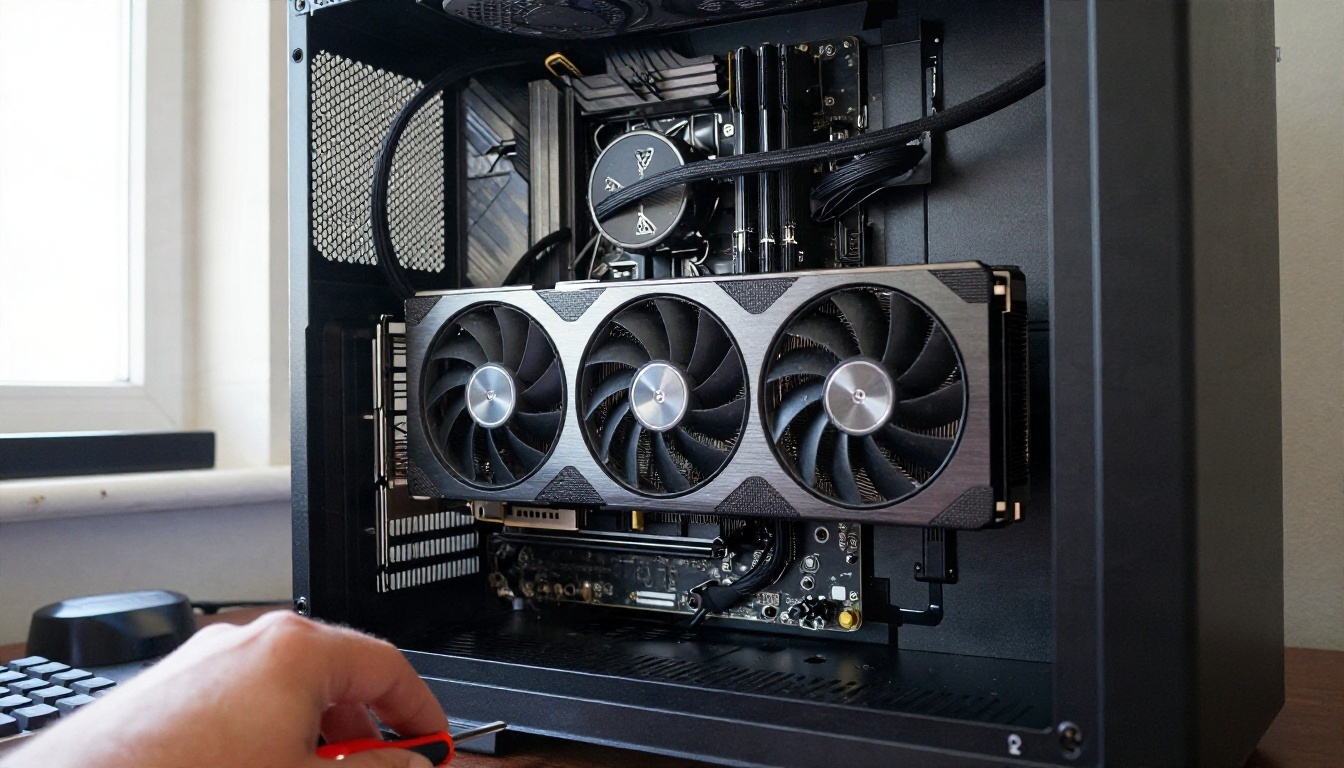
Community write-ups put the quantized NF4 build in range of a 24GB GPU. The FP8 build is heavier. If you have 12GB or 16GB, you may still get it working with offloading, but expect slower generations and the occasional out of memory error. Below that, a hosted option saves hours.
| VRAM | Realistic outcome |
|---|
| 24GB or more | Quantized builds run comfortably |
| 16GB | Possible with offloading, slower |
| 12GB | Tight, expect memory errors on larger sizes |
| 8GB or less | Use an online version instead |
The model files checklist
The official workflow template lists every file it needs, and ComfyUI usually prompts you to download missing ones. In general you will need four pieces:
- The diffusion model file in your chosen precision (NF4 or FP8).
- A text encoder, a vision language model that turns your prompt into conditioning.
- A VAE file that decodes the latent image into pixels.
- The unconditional branch the workflow uses for guidance.
Put each file in the folder the template names, restart ComfyUI, and confirm that the loader nodes show your files in their dropdowns. If a dropdown is empty, the file is in the wrong folder or has the wrong name.
💡 Tip: Some model pages sit behind a license gate. You may need to be logged in and accept the terms before the download link works.
The ComfyUI Workflow, Step by Step

Update and install
Start by updating ComfyUI. Support for a new model lives in recent builds, so an old install will show red missing nodes the moment you load the template. Update through your manager or pull the latest version, restart, and then continue.
Load the template
- Open ComfyUI and go to the workflow templates, or download the official Ideogram 4 workflow file.
- Drag the file onto the canvas.
- Let ComfyUI flag any missing models, then download them into the folders it names.
- Check that every loader node points at a real file.
The template packs the sampling logic into a single Ideogram 4 group, so the graph looks tidy. You only touch the prompt box, the size, the seed and a few sampler values.
Write your first prompt
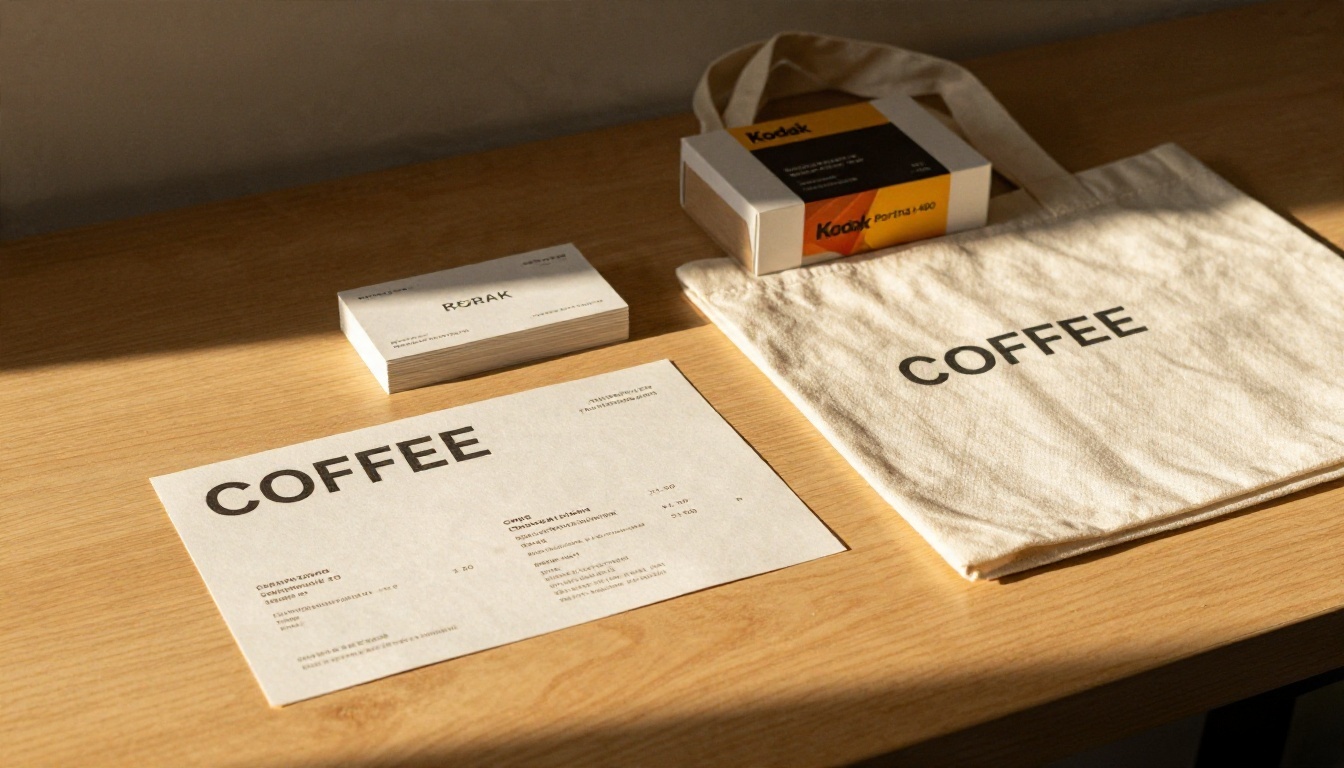
Start with something where text matters, because that is where the model shines. Try a coffee shop menu board, a book cover or a movie poster. Put the exact words you want in quotes and say where they go.
A plain language starting point:
A cream colored poster, large black headline "OPEN" at the top, small subtitle underneath, a minimalist photo of a coffee cup in the lower right, soft daylight, paper texture.
A structured version splits the same idea into fields: the overall scene, each text element with its position, and the style notes. The model treats each field as a separate instruction, which is why the output follows your layout more closely.
Queue and review
Press queue and watch the first generation. Check three things in order: is the text spelled correctly, is the layout where you asked, and does the image style match. Change one thing at a time. If you change the prompt, the seed and the size together, you will never know what helped.
Settings That Change the Result
Exact defaults differ between the quantized builds and the template versions, so treat the numbers below as starting points to test, not as official values. The template's defaults are your baseline.

Steps and guidance
More sampling steps give the model more time to refine fine detail, but the gain flattens quickly. Guidance controls how strictly the image follows your prompt. Too low and your headline drifts. Too high and the image turns stiff and oversaturated. Move guidance in small increments and keep a note of what each change did.
| Setting | Too low | Too high |
|---|
| Steps | Soft, unfinished details | Slow, little extra gain |
| Guidance | Text drifts, loose layout | Harsh contrast, stiff look |
| Resolution | Lost small text | Memory errors, slow runs |
Resolution and aspect ratio
Small text needs pixels. A tiny subtitle at a low resolution will look like noise no matter how good the model is. Generate at a decent size for the poster you want, and use an upscaler afterward if you need a print sized file. Pick the aspect ratio before you write the prompt, because a vertical poster and a wide banner need different layouts.
Seed discipline
Lock the seed when you are tuning text or layout. When the seed changes, everything changes. Once you have a composition you like, vary only the wording. When you want fresh ideas, randomize the seed and generate a batch.
Fast and Instant variants
After launch, speed distilled variants named Fast and Instant appeared for ComfyUI. They trade some fine detail for much quicker output, which suits drafts and layout checks. A practical routine: explore ideas with a fast variant, then move to the full model for the final render.
Free Options Worth Using
The word "free" hides three different things: free software, free hardware time and free credits. Here is how each one works with Ideogram 4.

- Free software, your hardware. ComfyUI is free, and the open weights cost nothing to download. If you already own a 24GB card, this is the cheapest route. Your only cost is electricity and setup time.
- Free hardware time. Some notebook services and community platforms give limited GPU hours. Sessions end, storage resets, and large model downloads eat into your time, so this suits experiments more than regular work.
- Free credits online. Hosted generators often give a few free generations. This is the fastest way to test whether a model suits your project before you invest in a local setup.
💡 Licensing note: Free to download is not the same as free for commercial use. If you sell the images, check the weight license first.
Online Alternatives That Skip the Setup
Local ComfyUI gives you control. It also costs you an evening of file wrangling, and a 24GB card is not something everyone has. Online versions give you the same family of model in a browser.

How to Use Ideogram v4 on PicassoIA
PicassoIA runs two Ideogram v4 variants in the browser: Ideogram v4 Quality for final renders and Ideogram v4 Balanced for faster, cheaper drafts. These are hosted versions, so there are no files to download and no VRAM to worry about.
- Open the Ideogram v4 Balanced page and start with it for drafts.
- Write your prompt with the exact text in quotes, and say where each element sits.
- Choose the aspect ratio first. Vertical for posters, wide for banners, square for social posts.
- Generate a batch, pick the best layout and note what worked.
- Switch to Ideogram v4 Quality for the final version using the same prompt.
- Download the result, or run it through a super resolution model if you need a larger print file.
Parameter tips: keep headlines short, three to five words render most reliably. Describe the layout in words ("headline at the top, photo lower right"). Change one variable per generation so you can tell what helped.
Other models worth testing
Different models handle different jobs. Here is a quick comparison for text and layout work:
Running these side by side on one prompt is the quickest way to find out which model fits your style. That kind of comparison is tedious in ComfyUI, where each model needs its own files and graph.
Common Mistakes and Fixes
Out of memory errors. Drop the resolution first, then switch to a smaller quantized build, then close other apps that use the GPU. If none of that helps, move the job online.
Garbled text. Shorten the text, put it in quotes, and say where it goes. Long paragraphs inside an image fail on almost every model. Keep headlines brief and let the layout carry the rest.
Red missing nodes. Your ComfyUI is out of date. Update it, restart, and reload the workflow file.
Empty model dropdowns. The files are in the wrong folder or were renamed. Match the exact names the template expects.
A licensing slip. Generating for fun is fine. Selling prints, packaging or client work may not be, depending on the weight license. Check before you publish, not after.
Changing everything at once. If you alter the prompt, seed, size and guidance together, you learn nothing. Change one value per run.
💡 Workflow habit: Save a working version of your workflow file after every improvement. A single misplaced node can break a setup that took an hour to tune.
Try It Yourself Today
ComfyUI and Ideogram 4 reward patience, and the results can be excellent once the graph is dialed in. If you would rather spend your time on the image than on the install, you can start generating right now on Picasso IA. Open Ideogram v4 Balanced, write a poster prompt with a short headline, and compare it against Ideogram v4 Quality and Seedream 4.5. Run the same prompt through each one and keep the winner.

Browse every available model at picassoia.com/en/all-models, pick a prompt you care about, and see how far a single afternoon of experimenting can take it.


