If you have priced out the Kling 3.0 Motion Control API, you already know the catch: it bills by the second, and a single 10-second clip at 1080p lands near $1.61 on one of the cheaper providers. Add a few retakes and a short project quietly becomes a real budget line. A batch of ten clips with three attempts each comes out near $48 before you have paid for a single hour of your own time.
This article lays out the published per-second rates, what a finished clip really costs once failed attempts are counted, and which free alternatives on Picasso IA can copy motion onto a character without a meter running. Prices come from provider pages checked in early October 2026, so confirm the current number before you commit a budget.
What Motion Control Actually Does
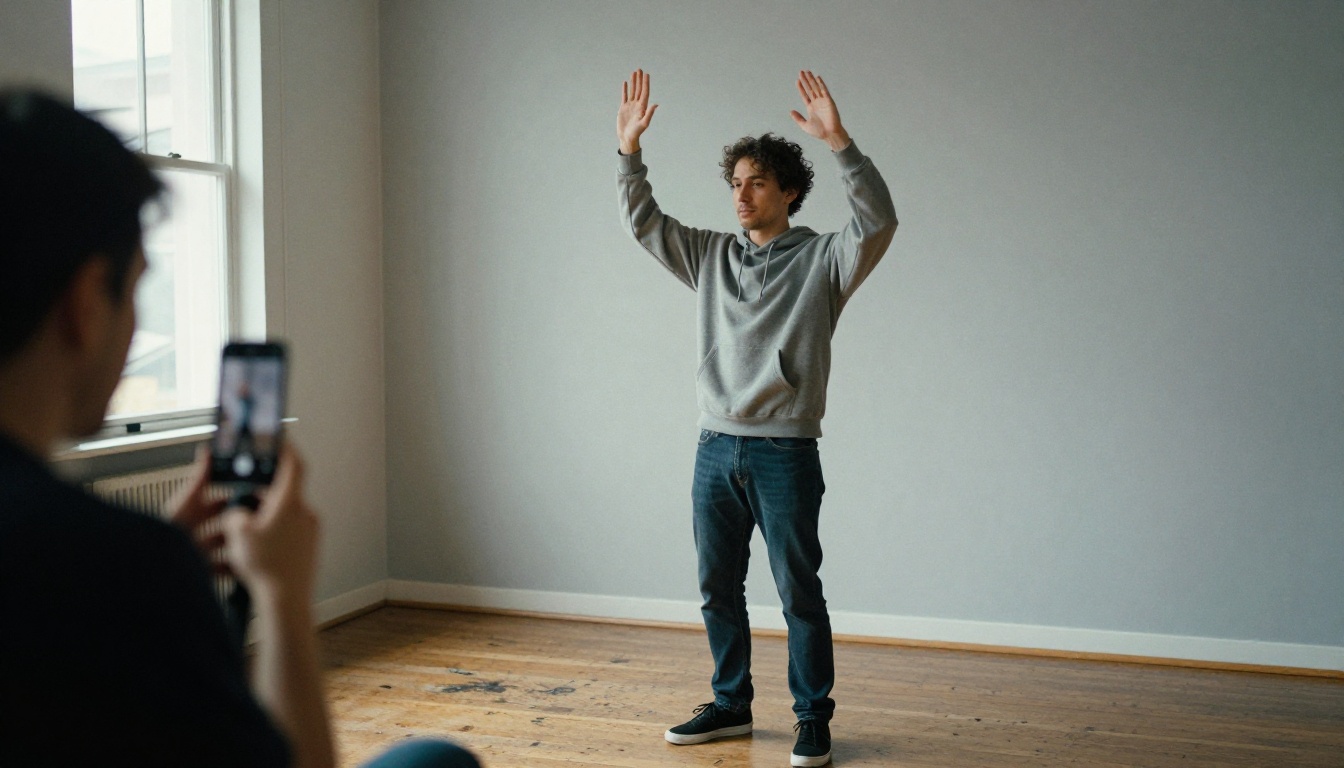
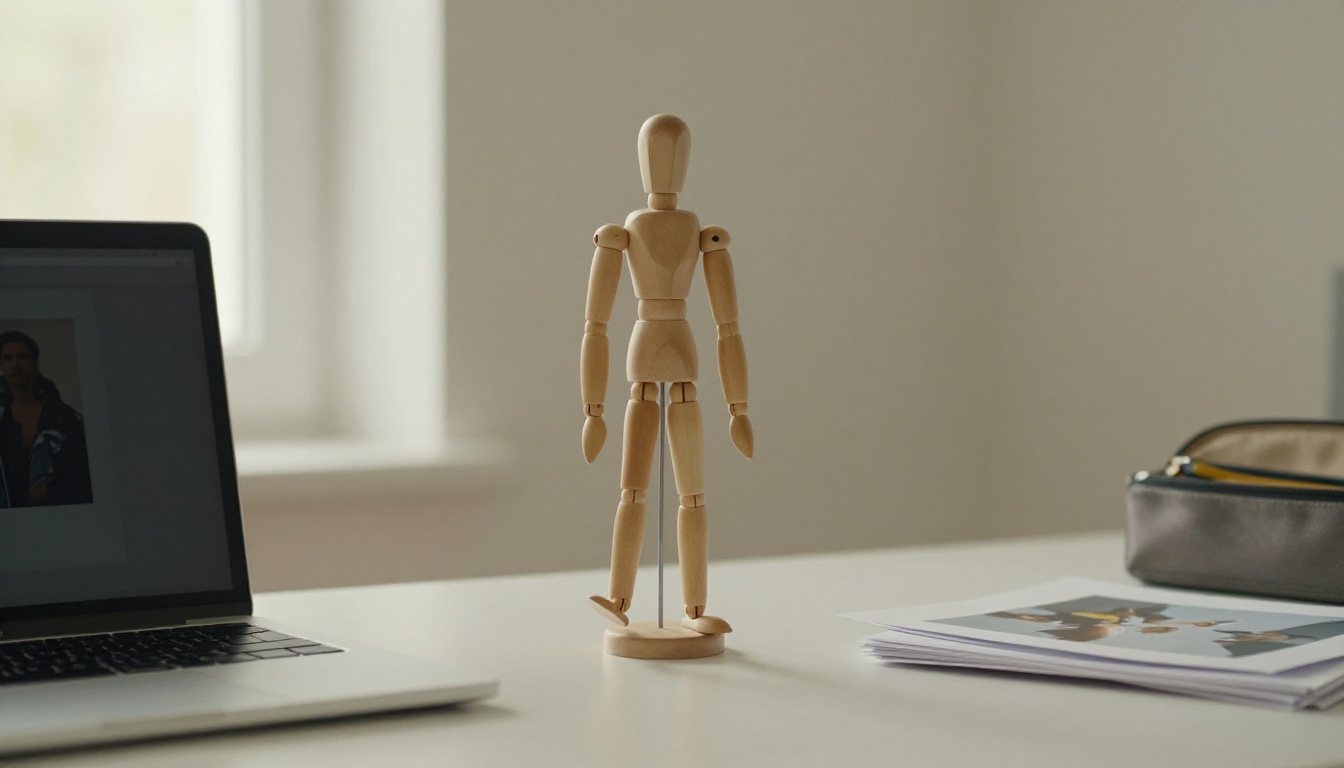
Motion control is a specific kind of video generation. Instead of describing a scene in words and hoping the model invents convincing movement, you hand it two files: a still image of the character you want to animate, and a short reference video of a person performing the movement. The model reads the motion in the clip and redraws your character doing the same thing, with the same timing and body language.
That is why it has become the go-to tool for mascots, product characters, avatars, and "bring this old photo to life" projects. You keep control of the choreography because a real person performed it, and you keep control of the look because the image is yours. It is motion capture without the suit, the studio, or the 3D software.
Typical uses fall into a few buckets: product mascots that wave, point, or dance in ads; game character prototypes before an animator touches a rig; personalized portrait clips for birthdays and tributes; and looping social posts where one reference clip animates a whole cast of characters. In every case, the economics are the same: the cheaper each attempt is, the more you can experiment, and experimentation is where good motion comes from.
Two Inputs, One Clip
The Kling 3.0 version is listed on Picasso IA as Kling v3 Motion Control. Its inputs are specific:
- Character image: JPG, JPEG, or PNG, up to 10 MB, between 340 and 3850 pixels per side, with an aspect ratio from 1:2.5 to 2.5:1.
- Reference video: MP4 or MOV, up to 100 MB, between 3 and 30 seconds depending on the orientation mode.
- Prompt (optional): extra scene elements or motion effects layered on top of the transferred movement.
- Keep original sound: on by default, so the reference audio travels into the final clip.
- Character orientation:
image follows the pose in your picture and caps the clip at 10 seconds, while video follows the performer in your reference and allows up to 30 seconds.
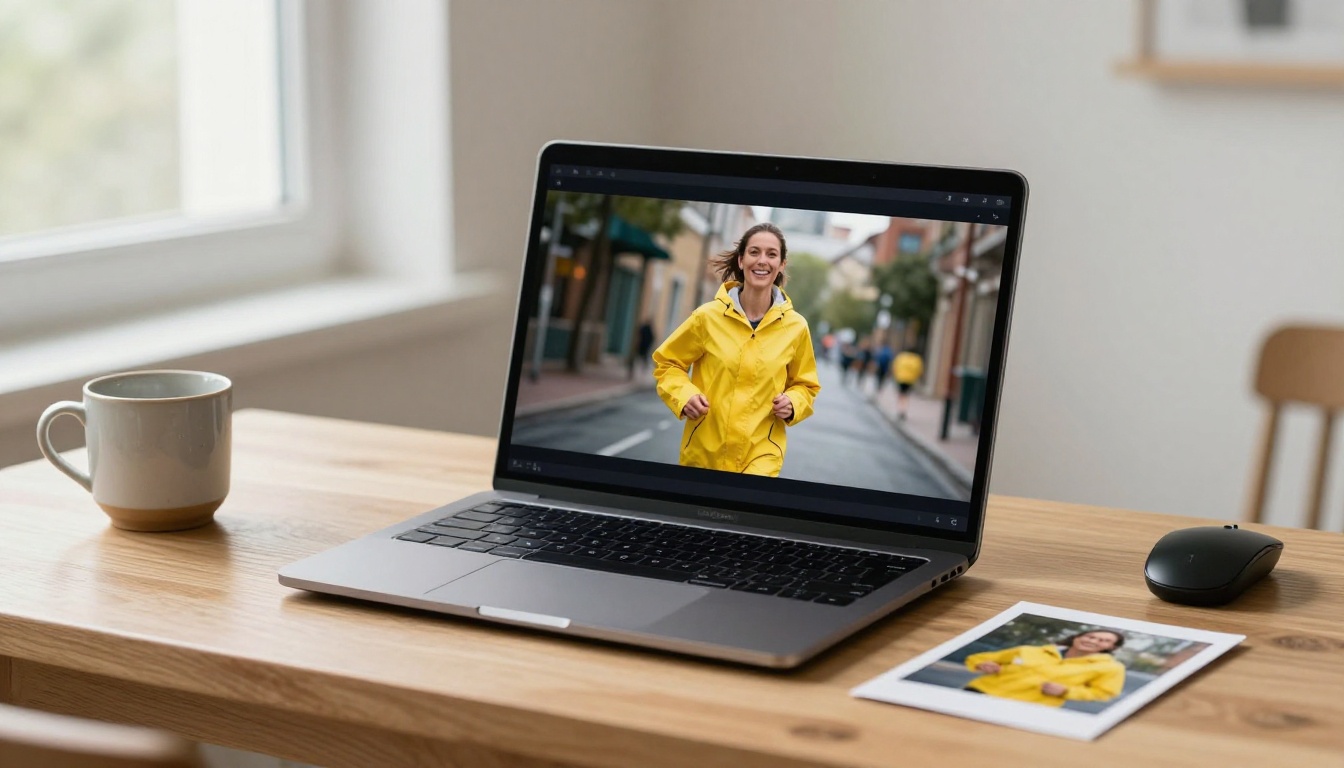
The practical result is simple. A dancer filmed on a phone becomes a cartoon mascot. A walking clip becomes a historical photograph that finally takes a step. A founder waving at a camera becomes a branded character that waves the same way, every single time.
Standard vs Pro Mode
Two modes decide both quality and price. Standard renders at 720p and is the cost-effective preview tier. Professional renders at 1080p and is the one you hand to a client. Providers bill them at separate rates, and at the ones I checked, Professional costs roughly a third more per second than Standard.
💡 Treat Standard as your sketchbook and Professional as your final print. Most wasted money in motion control comes from rendering experiments in the expensive mode.
Kling 3.0 Motion Control API Pricing
Providers quote Kling 3.0 Motion Control in dollars per second of output video, with a separate rate for each mode. Kling also sells credit-based subscription plans in its own app, but that is a different billing model: plans give you a monthly pool of credits, while API providers bill the seconds you generate. This section focuses on the API, because that is where per-second math decides your budget.
Per-Second Rates by Provider
Rates differ by reseller and they move over time, so treat this table as a snapshot, not a contract.
| Provider | Standard (720p) | Professional (1080p) |
|---|
| EvoLink | $0.121 per second | $0.161 per second |
| Pixazo | $0.126 per second | $0.168 per second |
| EmpirioLabs | $0.14 per second | $0.18 per second |
| APIDot | $0.045 per second | $0.075 per second |
Most providers sit between $0.12 and $0.18 per second. APIDot's published rates are far lower than the rest. A number that far below the pack deserves a closer look at the terms, rate limits, queue times, and uptime history before you build a product on it.
What One Clip Really Costs
Using EvoLink's rates as the example, here is the sticker price per clip:
| Clip length | Standard (720p) | Professional (1080p) |
|---|
| 5 seconds | $0.61 | $0.81 |
| 10 seconds | $1.21 | $1.61 |
| 30 seconds | $3.63 | $4.83 |
Those numbers look harmless until you account for how generation actually goes. Few clips are usable on the first attempt. If you need three attempts per keeper, a 10-second Professional clip effectively costs $4.83. Ten finished clips cost $48.30. One hundred cost $483.
Routing matters more than the rate. Render two drafts in Standard at $1.21 each, then only the final in Professional at $1.61, and each keeper costs $4.03. That is about 17 percent less for the same finished clip, and ten clips drop to $40.30.

Hidden Costs Nobody Mentions
The per-second rate is only the visible part of the bill:
- Reference footage. You need a performer, a camera, decent light, and a take that works. Reshooting a reference is cheaper than rerendering, but it still costs time.
- Source image prep. If the character comes from an image generator, every discarded image is another attempt stacked on top of the video bill.
- Waiting. The example runs on the Picasso IA model page took between roughly 7 and 13.5 minutes each. At a freelance hourly rate, idle minutes add up.
- Minimum length. Reference clips under 3 seconds are rejected, so you cannot buy a tiny test cheaply.
- Audio cleanup. With original sound on, background chatter from your reference shoot rides along into the output.
- Integration work. An API means job polling, storage, retries, and error handling, all before you generate a single frame.
A Quick Budget Check
Here is a rule of thumb. At EvoLink's Professional rate, $50 buys about 31 ten-second clips with zero retakes, or about 10 finished clips at three attempts each. If your project needs more than a dozen finished clips a month, the API bill starts to matter. If it needs fewer, a free route is easier to justify.
Take a 12-clip mascot campaign. With the draft routing above, that is 12 × $4.03 = $48.36 in generation fees, before reference footage or editing. Run the same campaign through a free model on Picasso IA and the generation fee is zero, which leaves your whole budget for better footage and better source images.
When the Paid API Makes Sense
Paying is not a mistake. It is a trade, and it pays off in specific situations.
Where It Earns Its Price
- Products with volume. If your app sells animated clips to users, you need an endpoint, a predictable rate, and room to scale. You pass the per-second cost into your own pricing.
- Client deliverables. When a client expects 1080p and takes of up to 30 seconds, Professional mode is the right tool, and the cost becomes a line item you bill.
- Automated pipelines. Scripts that animate hundreds of images overnight cannot wait on someone clicking buttons.
If you do go the API route, pick the provider on more than price. Ask about queue times at peak hours, concurrency limits, what happens when a render fails, whether output URLs expire, and whether the rate you see is the rate you are billed after fees. A cheap per-second number that comes with a long queue can cost more in delays than it saves in dollars.
Where It Does Not
- Drafting and testing. Paying per second to check whether a dance maps well onto a mascot is the most expensive way to find out.
- Social clips. A vertical clip watched on a phone does not need the 1080p tier every time.
- Solo creators iterating. If you try twenty variations to land one, the meter pushes you to stop experimenting early.
Free Alternatives That Work Today
Picasso IA hosts several models that copy or generate motion, and some run without a per-clip charge. Here is what each one does, and where it falls short.
Kling v3 Motion Control, Free Online
The first alternative is the same model. Picasso IA lists Kling v3 Motion Control as free to use online, with the same Standard 720p and Professional 1080p modes and the same 10 or 30 second limits. If you want to test Kling's motion transfer without an API token, a billing account, or integration work, this is the shortest path. Check your plan for generation limits. For a lighter test, Kling v2.6 Motion Control is the previous generation and a sensible fallback.

Wan 2.2 Animate for Motion Copy
Wan 2.2 Animate Animation takes the same two ingredients, a character image and a reference video, and outputs 24 fps video at 720p or 480p. It has a Go Fast toggle that is on by default, a seed for reproducible results, and an optional merge audio setting that is off by default and flagged as experimental, because sync may drift. No rigging, no 3D software, no frame-by-frame drawing.
The example runs on its model page ranged from about 3 minutes to about 21 minutes, so queue big jobs and let them render while you work on something else.
Its sibling, Wan 2.2 Animate Replace, works in the other direction. Instead of animating a still, it swaps a character into existing footage. That fits when you already have the video and want a different person or mascot in it. DreamActor M2.0 from ByteDance is another character animator worth testing against your own footage.
Seedance 2.5 Lite and Picasso IA Video
These two do not copy a reference video. They generate motion from a text prompt and, optionally, a first-frame image. It is a different job, but for plenty of social clips it is enough.
Seedance 2.5 Lite runs without limits for Wonder members. It produces 5 or 10 second clips at 480p or 720p with synchronized audio, and accepts both an opening and a closing frame image. Picasso IA Video is the platform's native model: a fixed 5 seconds at 24 fps, 480p or 720p, synchronized audio, free and unlimited per its model page. Use them when you want a character to move convincingly, not when you need to match exact choreography.
Free does not mean identical. Models differ in how faithfully they hold a face, a fabric pattern, and a pair of hands across a long take. The only reliable test is your own material: run one image and one reference clip through two models, then compare the results side by side before you commit to either.
Side by Side Comparison
| Option | What you provide | Resolution | Cost |
|---|
| Kling 3.0 Motion Control API | Image and reference video | 720p, 1080p | About $0.12 to $0.18 per second |
| Kling v3 Motion Control | Image and reference video | 720p, 1080p | Listed as free online |
| Wan 2.2 Animate Animation | Image and reference video | 720p, 480p | Listed as free online |
| Seedance 2.5 Lite | Prompt, optional image | 720p, 480p | Unlimited for Wonder members |
| Picasso IA Video | Prompt, optional image | 720p, 480p | Free and unlimited |
Two caveats before you pick. First, the paid rates above are third-party prices that change, while the Picasso IA entries depend on your plan, so check each model page for current limits. Second, Seedance 2.5 Lite and Picasso IA Video follow your words, not a performer, so they will never match a reference clip move for move.
Which One for Which Job
How to Use Kling v3 Motion Control
Here is the workflow for Kling v3 Motion Control on Picasso IA, from raw files to a finished clip.
Prepare Your Two Files
- Choose the character image. One clear subject, evenly lit, with the body parts that will move fully visible. Use a JPG or PNG under 10 MB with an aspect ratio between 1:2.5 and 2.5:1.
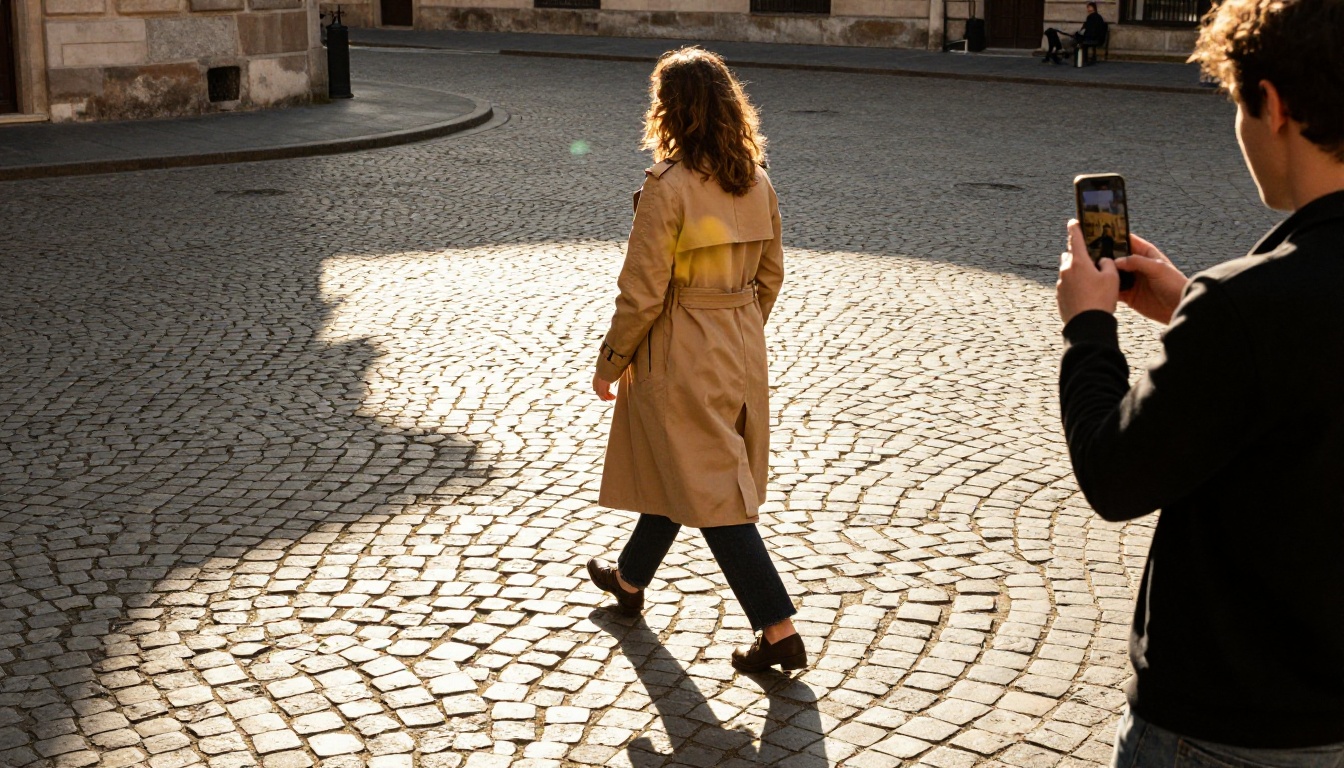
- Film the reference clip. One performer, a steady camera, a plain background, and a length between 3 and 30 seconds. Match the framing to your image: a waist-up portrait wants a waist-up reference, and a full-body character wants a full-body one.
Settings Worth Changing
- Open the model page and upload both files.
- Mode: start with
std to check the motion, and switch to pro only for the final render.
- Character orientation: pick
image for clips up to 10 seconds that keep your picture's pose, or video for clips up to 30 seconds that follow the performer.
- Prompt: leave it blank on the first pass. Add a short phrase, such as "a woman boxing" (the style used in the model's own examples), only to fix or add something.
- Keep original sound: turn it off if your reference has background noise.
- Generate, wait, and review the result before you change anything.
Cut Retakes Before They Cost You
- Test on a 3 to 5 second slice before rendering the full reference.
- If the arms look wrong, fix the reference framing or the image before touching the prompt.
- Try to match lighting direction and camera angle between the image and the reference clip. A character lit from the left and a performer lit from the right give the model conflicting cues.
- Fast moves, hands crossing the face, and heavy occlusion tend to trip any motion transfer model, so film those slower.
- Keep a folder of reference clips that worked. One good dance, walk, or wave can animate a dozen different characters.
If you prefer a fully free route, the same two-file workflow applies to Wan 2.2 Animate Animation: upload a character image and a reference video, pick 720 or 480, leave Go Fast on, and generate.
Try It Yourself on Picasso IA
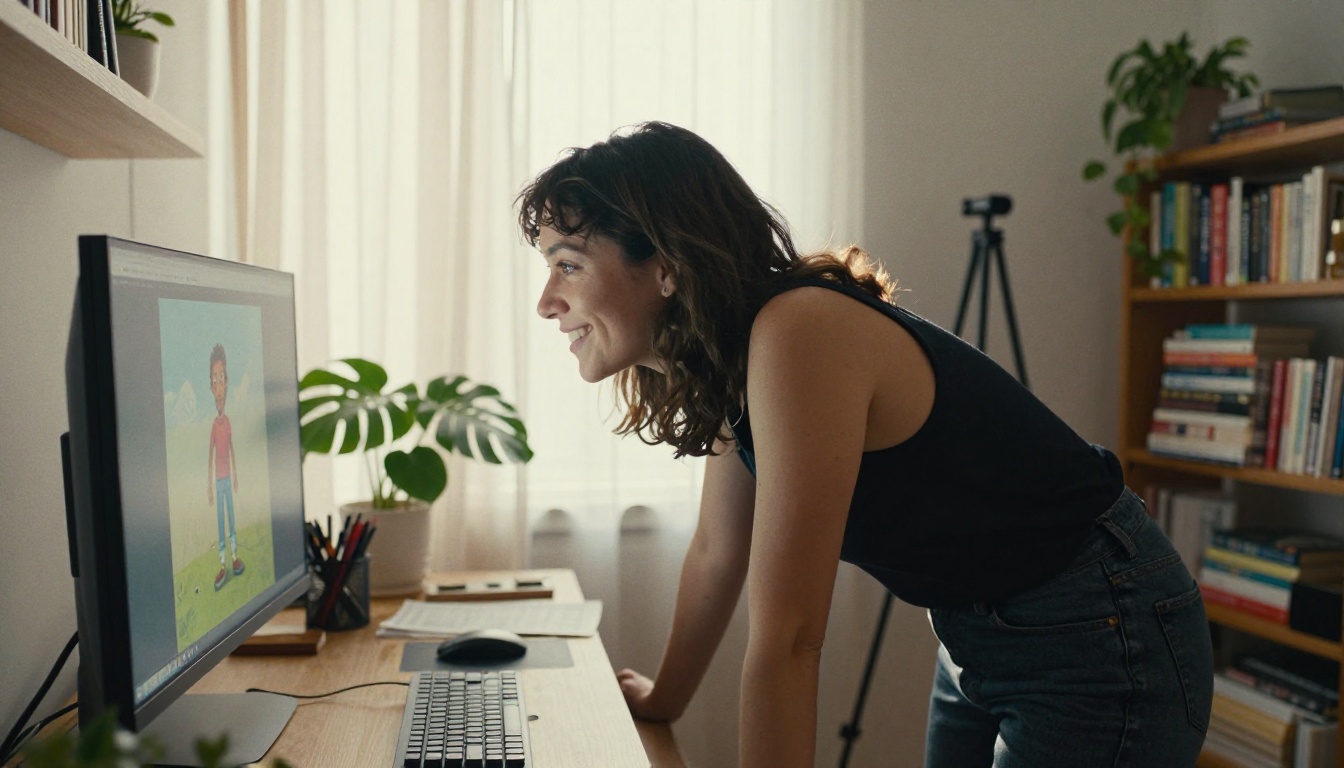
The paid API is a fine tool for products and client deliverables. For everything else, there is no reason to meter your experiments. Open Kling v3 Motion Control and animate a character from a phone clip today. Try Wan 2.2 Animate Animation when you want a second opinion on the motion, and reach for Seedance 2.5 Lite or Picasso IA Video when all you need is a convincing moving scene.
Pick one image, film one 5-second reference, and run it. You will know within minutes whether the free route gives you what you need, and you can browse the full catalog at picassoia.com/en/all-models whenever you want a different style of motion.


