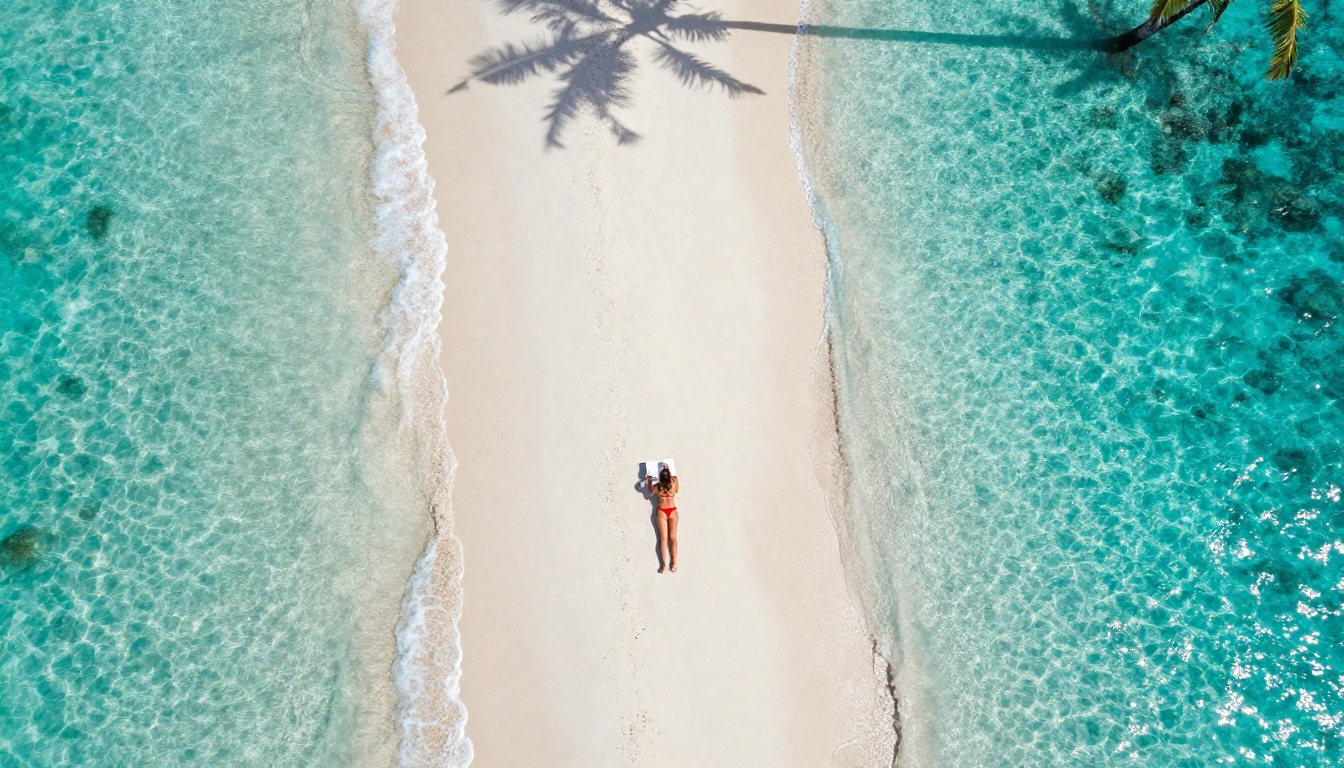
You found the perfect photo. Maybe it's an old family shot, a screenshot from a film, or a tiny image you downloaded years ago. You set it as your desktop wallpaper and it looks terrible. Pixelated, blurry, stretched beyond recognition. This is the moment AI upscaling was built for. Modern super-resolution models don't just stretch pixels; they synthesize new detail that should have been there, rebuilding your image from the ground up to full 4K clarity.
Why Small Images Fail as Wallpapers
Most monitors sold today run at 3840x2160 pixels. That's over 8 million individual pixels your screen needs to fill. A 640x480 image, a typical photo from an old digital camera or early smartphone, has just 307,200 pixels. Your operating system has to invent the missing 7.7 million pixels using simple interpolation. The result is the blur and block artifact effect that makes old photos look like they were painted with a butter knife.
The Resolution Gap Is Real
To fill a 4K screen properly, a photo needs to be at minimum 3840x2160 pixels. Most images shared on social media are capped at 1080p or even 720p. Even a high-quality Instagram photo at 1080x1350 is barely a third of what 4K needs. Print photos scanned at 300 DPI look sharp in print, but a 4x6 inch photo only has 1800x1200 pixels at that resolution, still half of 4K.
| Source | Typical Resolution | 4K Coverage |
|---|
| Old smartphone | 640x480 | 8% |
| Early digital cam | 1024x768 | 21% |
| Social media photo | 1080x1080 | 32% |
| Modern smartphone | 2160x2880 | 87% |
| 4K target | 3840x2160 | 100% |
What Happens Without AI
Without AI, enlarging an image uses bicubic or bilinear interpolation: math formulas that calculate what color a new pixel should be based on its neighbors. They work well for small enlargements, maybe 10 to 20 percent. Push them to 4x or 8x and the results deteriorate fast. You get smooth blobs instead of sharp edges, gradient banding in skies, and complete loss of fine detail like hair, fabric, and foliage.
How AI Upscaling Actually Works
AI-based super-resolution is fundamentally different from interpolation. Instead of calculating what a pixel should be from its neighbors, the model has learned from millions of image pairs: low-resolution versions and their high-resolution originals. It has built an internal understanding of how real-world textures, edges, and structures behave at different scales. When it sees a blurry eye, it doesn't guess what a blurry eye looks like at 4x size. It reconstructs what a real eye with fine detail looks like.
From Interpolation to Synthesis
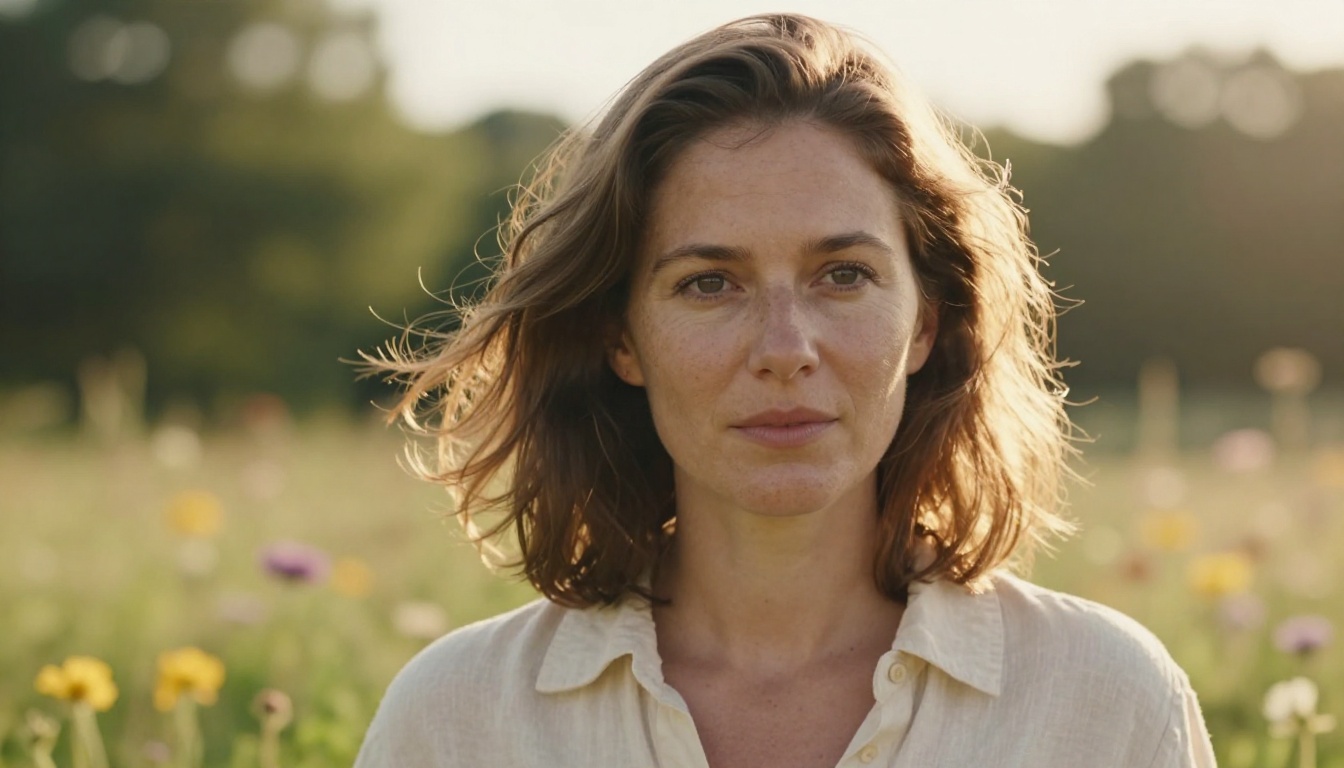
The jump from traditional to AI upscaling is the difference between stretching a rubber band and growing new rubber. Traditional methods stretch what's there. AI models synthesize what should be there. When you upscale a portrait with a modern super-resolution model, it adds actual skin texture, fine hairs, pore detail, and individually rendered eyelashes. These details weren't in the original file. The model generates them based on what it knows a face looks like at high resolution.
Note: This is why AI upscaled images sometimes look more detailed than the original low-resolution memory of taking that photo. The model adds plausible detail, not necessarily literal truth. For wallpaper purposes, this is almost always an improvement.
GAN vs Diffusion Approaches
Two main architectures dominate modern AI upscaling. Generative Adversarial Networks (GAN) like Real-ESRGAN use a generator model and a discriminator. The generator creates high-res images, the discriminator judges if they look real. This adversarial training produces sharp, textured results. Diffusion-based upscalers like Clarity Pro Upscaler use a denoising process to add detail progressively, often producing richer texture at the cost of slightly longer processing time.
The Best Models for Creating 4K Wallpapers
Not every upscaler handles every image type equally well. Each model has strengths depending on content type. Here is a breakdown of the top super-resolution models available and what they do best.
Clarity Pro Upscaler
Clarity Pro Upscaler by philz1337x is built on a diffusion backbone, which gives it a significant advantage in texture richness. When you run a landscape photo through it, you get individual rock faces, leaf veins, and atmospheric haze that feel genuinely photographed. It's the top choice for nature photography, architecture, and any image where surface texture is the main selling point of the wallpaper.
Best for: Landscapes, architecture, macro photography
Real-ESRGAN
Real-ESRGAN is one of the most battle-tested AI upscalers available. Its GAN-based architecture was specifically trained on degraded, compressed, and noisy real-world images, not just clean laboratory pairs. This makes it particularly effective at restoring old photos that have JPEG compression artifacts, scan noise, or color fade. If you're trying to make a 4K wallpaper from an old photo album scan, Real-ESRGAN is your first call.
Best for: Old photos, scanned images, JPEG-compressed sources
Topaz Image Upscale
Topaz Image Upscale is the professional photographer's choice and it shows in the output. Topaz Labs has built a reputation for producing the most photographically accurate upscales with the least amount of hallucinated or synthetic-looking detail. It supports upscaling up to 6x, meaning a 640p image can reach beyond 4K. The sharpness control and noise reduction integration make it the most versatile option for professional photo restoration.
Best for: Professional photos, portraits, maximum quality requirements
Google Upscaler
Google Upscaler brings research-grade AI to image enlargement, supporting 4x upscaling with strong performance across diverse image types. Its training data breadth means it handles unusual subjects, technical photography, and mixed-content images better than more specialized models. A solid all-around choice when you're unsure which model to use.
Best for: General use, mixed content, technical images
Bria Increase Resolution
Bria Increase Resolution is optimized for commercial image quality and consistency. It handles product photos, headshots, and marketing imagery with particular precision, maintaining color accuracy and avoiding the over-sharpening artifacts that some AI upscalers introduce. For wallpapers featuring people or brand imagery, Bria delivers clean, professional results.
Best for: Portraits, product photos, consistent color accuracy
Crystal Upscaler
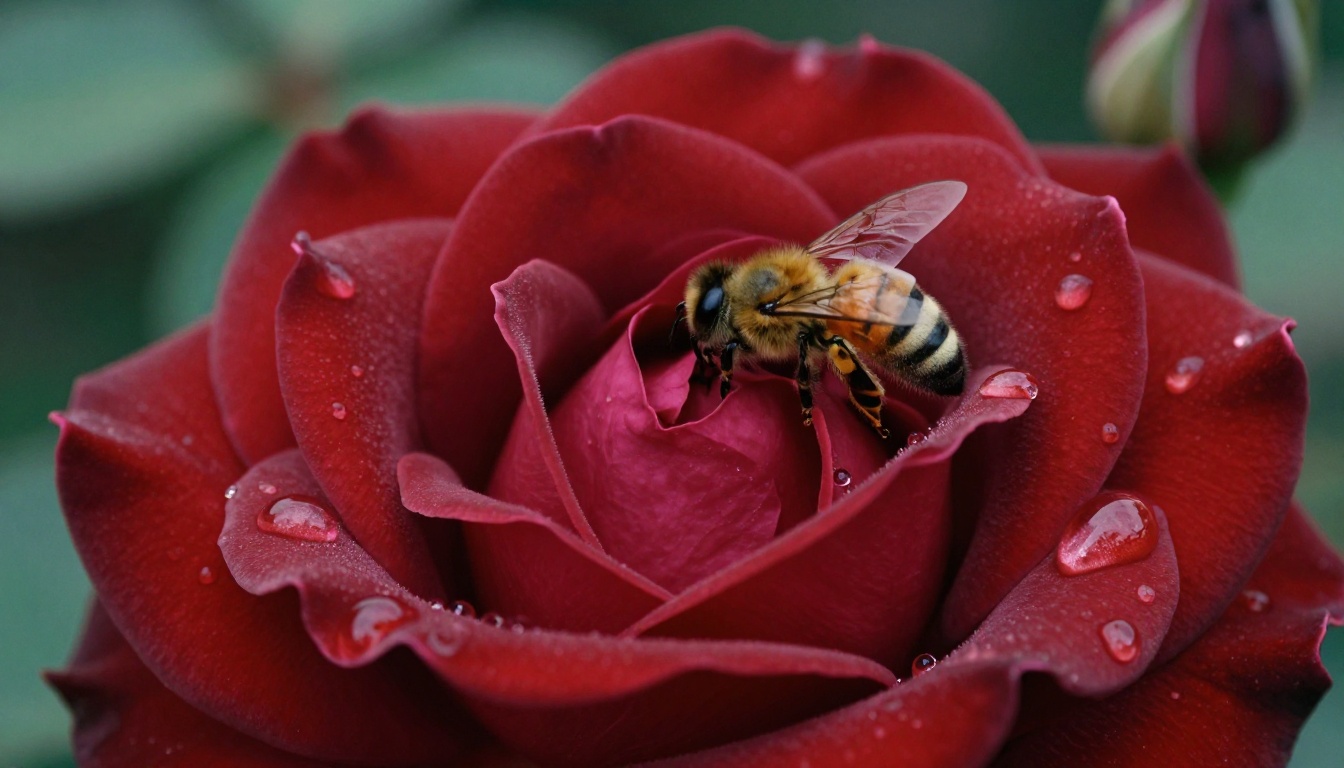
Crystal Upscaler is a portrait specialist from the same developer as Clarity Pro. Specifically tuned for face and skin rendering, it's the ideal choice when your wallpaper centers on a person. The model adds realistic skin texture, sharpens eye detail, and handles hair rendering with particular care. Where a general upscaler might produce plastic-looking skin, Crystal produces the subtle imperfections and texture variation that make a face look real.
Best for: Portraits, fashion photography, beauty shots
Recraft Crisp Upscale
Recraft Crisp Upscale focuses on clean, artifact-free enlargement with strong edge definition. If your wallpaper has clear geometric lines, typography, or distinct color borders, Recraft's approach preserves those hard edges better than texture-heavy models. Architecture, graphic design, and interface screenshots benefit most.
Best for: Architecture, graphics, images with strong geometric composition
P Image Upscale
P Image Upscale by prunaai is optimized for speed without sacrificing output quality. When you're processing multiple images for a wallpaper set, this model delivers sharp, detailed upscales in about one second per image. A practical choice for batch processing workflows or when you need results quickly.
Best for: Speed, batch processing, quick iterations
How to Make 4K Wallpapers on PicassoIA
PicassoIA gives you access to all of these upscaling models in one place, with no setup, no specialized software, and no batch queue. Here is the exact process from start to finish.
Step 1: Pick Your Source Image
The starting quality of your image matters more than people think. AI upscaling synthesizes new detail, but it works best when given something to work with. A 500x500 JPEG with heavy compression artifacts produces a different result than a 500x500 PNG with clean, uncompressed data. If you have options, choose the less compressed format. If you're scanning old photos, scan at the highest DPI your scanner supports, ideally 600 DPI or higher.
Tip: A slightly blurry but uncompressed image upscales better than a sharp but heavily compressed one. JPEG compression creates block artifacts that confuse AI upscalers.
Step 2: Choose the Right Model
Navigate to PicassoIA's super-resolution collection and select the model that matches your content:
Step 3: Upload and Process
Each model page has a simple upload interface. Drag your image into the upload area, set the upscale factor (2x, 4x, or higher depending on the model), and click generate. Processing takes between 1 and 30 seconds depending on the model and image size. The output downloads directly at full resolution.
Step 4: Set It as Your Wallpaper
Download the upscaled image. On Windows, right-click the file and select "Set as desktop background." On Mac, go to System Preferences, Desktop, and select the image. The result at 4K should look as sharp at pixel level as a photo taken natively at that resolution.
What Images Work Best
Not all images upscale equally. Understanding which content benefits most helps you choose what to process.
Portraits and People
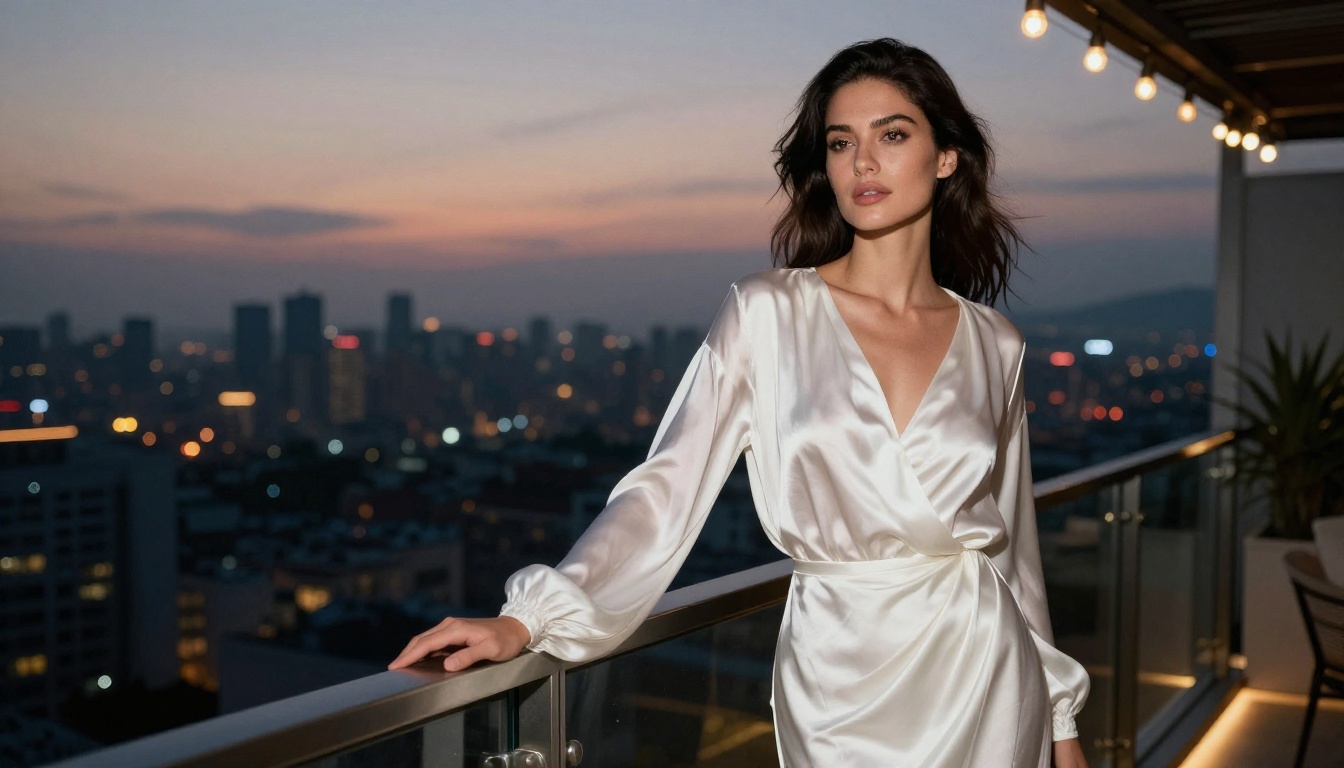
Human faces are the most demanding subject for AI upscaling because viewers are extremely sensitive to faces that look slightly wrong. The best results come from images where the face is the primary subject, well-lit, and not motion-blurred. Crystal Upscaler addresses this sensitivity with facial feature enhancement that adds realistic skin texture without making the face look over-processed.
Hair is notoriously difficult to upscale because it requires rendering hundreds of fine overlapping strands. Modern AI models handle this significantly better than older versions, but starting with an image where hair is distinct from the background gives the model clearer information to work with.
Landscapes and Nature
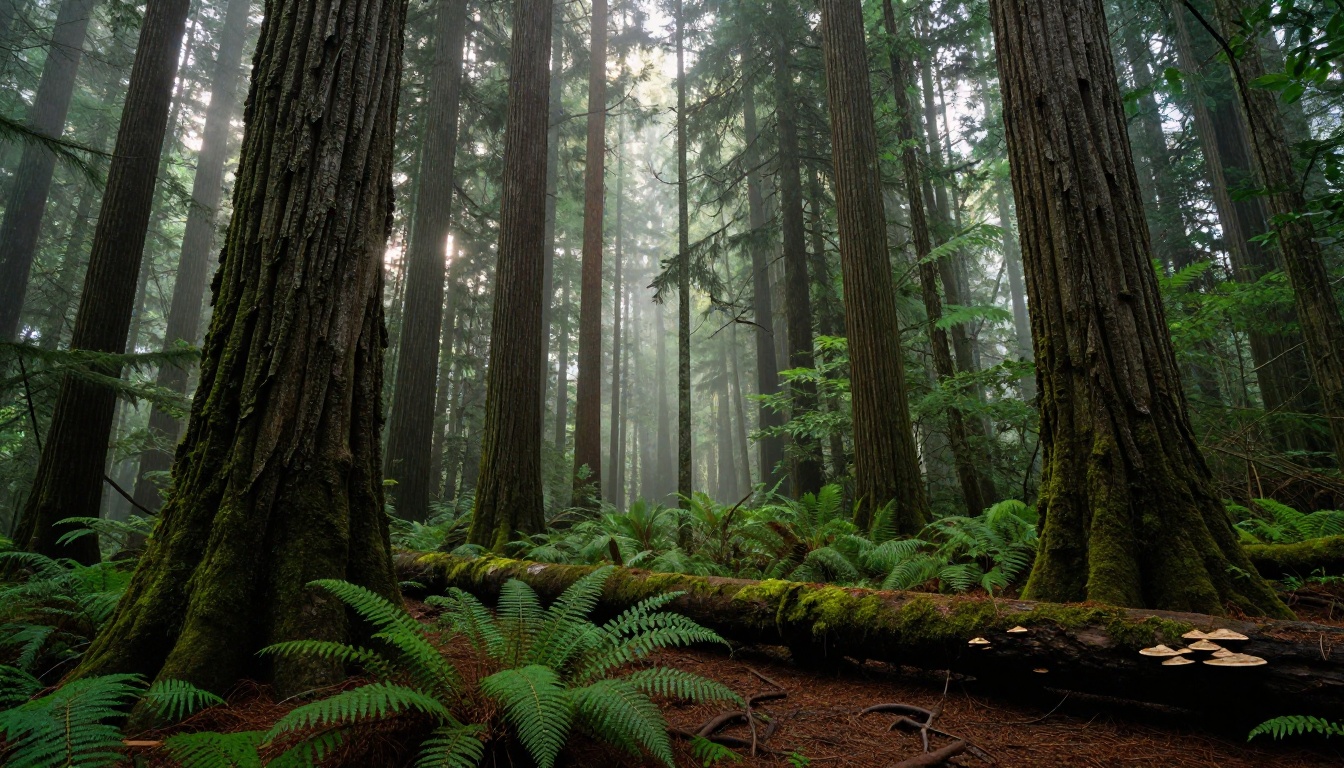
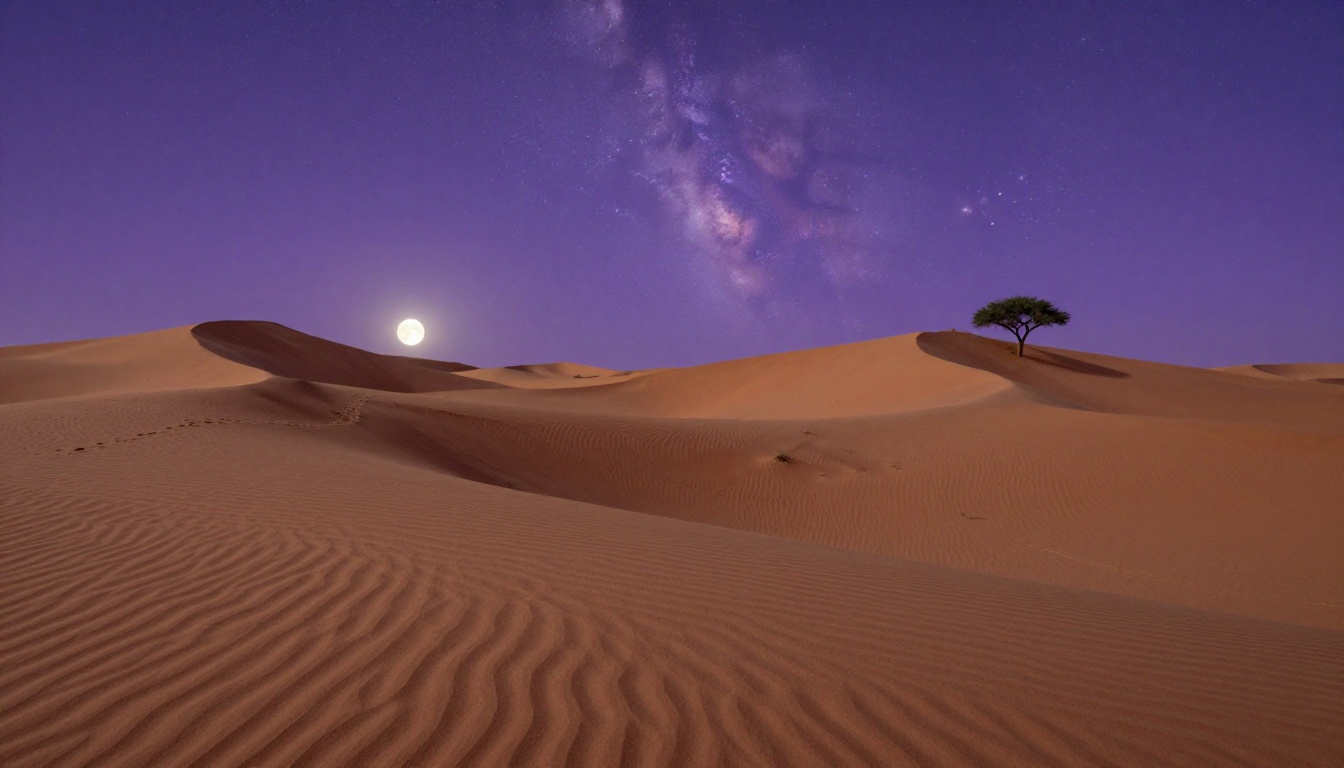
Landscapes are probably the easiest category to upscale effectively because they contain large areas of repeating texture. Grass, water, rock, bark, and sand are all patterns that AI models have seen millions of examples of. When you feed a landscape photo into Clarity Pro Upscaler, it doesn't have to guess what a blade of grass looks like at 4x size. It knows, in extraordinary detail.
The biggest gains come in sky rendering. Clouds at low resolution have no internal structure. At 4K through an AI upscaler, you start seeing the wispy tendrils of cirrus clouds, the shadow depth in cumulus formations, and the subtle color gradients in the atmosphere that make a sky feel three-dimensional.
Architecture and Cityscapes
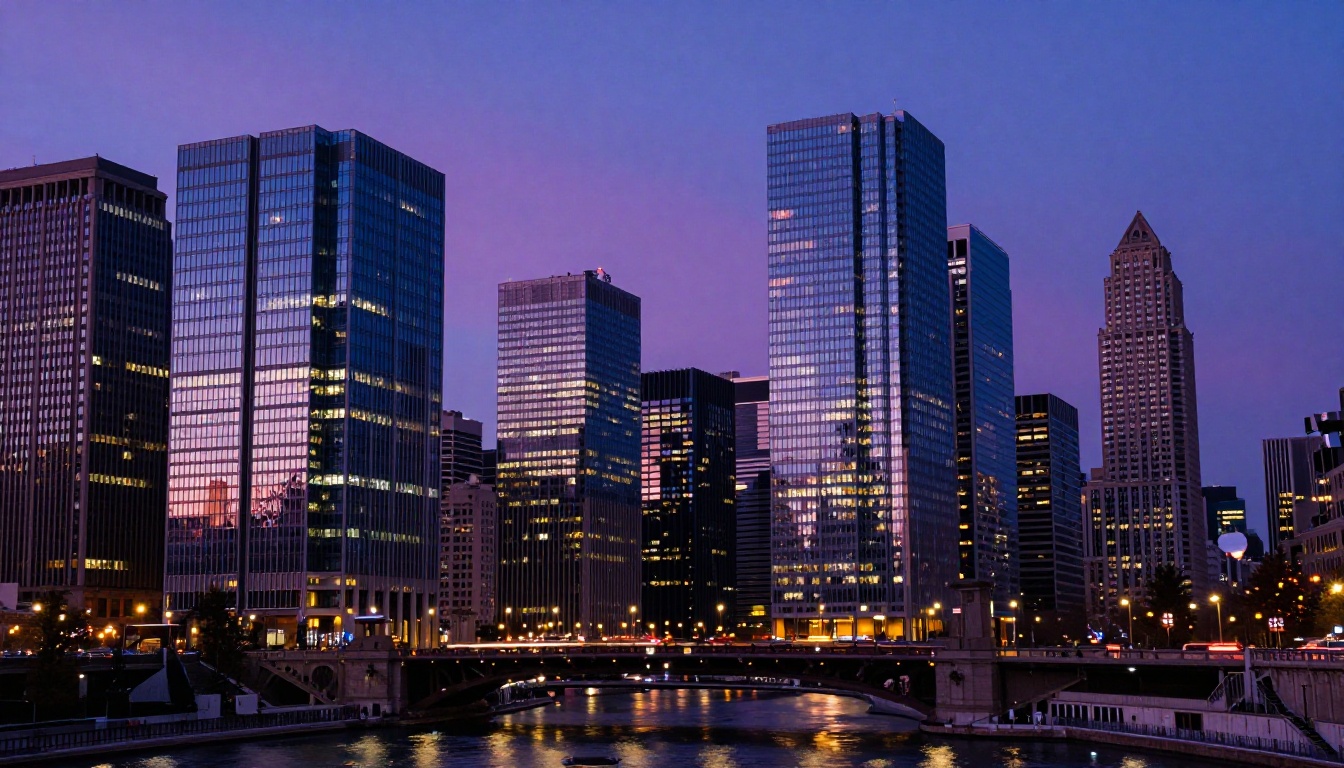
Buildings have strong edge definition, repetitive structural detail, and clear geometric logic. AI upscalers use this geometric consistency to reconstruct fine detail like window frames, brick mortar lines, cornice moldings, and surface weathering with high accuracy. Recraft Crisp Upscale is built for this content, preserving clean architectural lines without the over-sharpening halo artifacts common in other models.
Common Problems and How to Fix Them
Even with the best AI tools, some upscaling attempts fall short. Here's what causes the most common issues and how to address them.
Over-Sharpening Artifacts
Some upscalers apply too much sharpening, creating a "crunchy" look around edges. This is common when using high-enhancement settings on already-sharp images. The fix: use a lower enhancement factor, or switch to a model known for naturalistic output like Topaz Image Upscale or Bria Increase Resolution.
Hallucinated Details That Look Wrong
When a model adds detail that doesn't match the content, you may notice faces that look slightly off or textures that don't match the expected material. This usually happens when using a general model on a specialized subject. Switching to a content-specific model, like Crystal Upscaler for faces, usually resolves this immediately.
Colors That Shift After Upscaling
Some AI models introduce subtle color shifts, especially in skin tones and skies. If color accuracy matters more than added texture, Bria Increase Resolution is the most color-conservative option in the collection, designed for commercial use where color accuracy is non-negotiable.
Tip: If you're upscaling an image for a dual-monitor setup, process each monitor's portion separately to maintain the highest possible quality for each half of the final composition.
Comparing Upscale Factors
The amount you upscale matters as much as the model you choose. Here's a practical breakdown:
| Upscale Factor | Use Case | Output from 720p |
|---|
| 2x | Minor quality boost, 1080p to 2K | 1440x1080 |
| 4x | Major restoration, 720p to near 4K | 2880x2160 |
| 6x | Old photo rescue, 480p to beyond 4K | 2880x2160+ |
For most wallpaper creation workflows, 4x is the sweet spot. It delivers enough of a quality jump to be genuinely useful without pushing the model into territory where hallucinated detail becomes visible.
Before You Start: Quick Checklist
- Is your source image the highest quality version available?
- Is the image saved in a lossless or minimally compressed format?
- Does the content type match the model you've chosen?
- Do you need exact color accuracy or is texture richness the priority?
- Are you processing one image or a batch?
Answering these questions before you start saves time and produces better results on the first attempt.
Try It Right Now
Every screen you look at deserves a wallpaper that matches its resolution. Blurry, stretched images are a problem that was solved years ago by AI research, but only recently made accessible to everyone without specialized software or hardware requirements.
PicassoIA gives you nine different super-resolution models, each tuned to a different type of image content. Whether you're rescuing a decades-old family photo, converting a social media image into desktop art, or processing a whole library of travel photography for a 4K wallpaper rotation, the tools are ready.
Start with Real-ESRGAN for compressed or old images. Use Clarity Pro Upscaler for landscapes. Choose Crystal Upscaler for portraits. Let Topaz Image Upscale handle anything that needs professional-grade precision.
Upload your first image, run it through 4x upscaling, and see what your small images actually looked like all along.