Meshy 7 arrived on August 10, 2026 with a narrow promise: the 3D model you get back should look like the picture you uploaded. Tripo has been making a similar promise for longer, and its H3.1 model leans on dense, production-ready geometry. So which one deserves your credits? This review pulls together Meshy's launch notes, the 7.1 update from September, and an independent same-photo test run on September 28, then sets Meshy 7 against Tripo on accuracy, speed, price, mesh quality and day-to-day usefulness.
The short version: Meshy 7 is the stronger pick when fidelity to a reference image and game-ready PBR output matter, while Tripo wins on speed and cost for quick drafts. Neither is a PicassoIA model, but PicassoIA does run Hunyuan 3D 3.1 and Rodin for image-to-3D work, and there is a step-by-step tutorial near the end.
Meshy 7 at a Glance
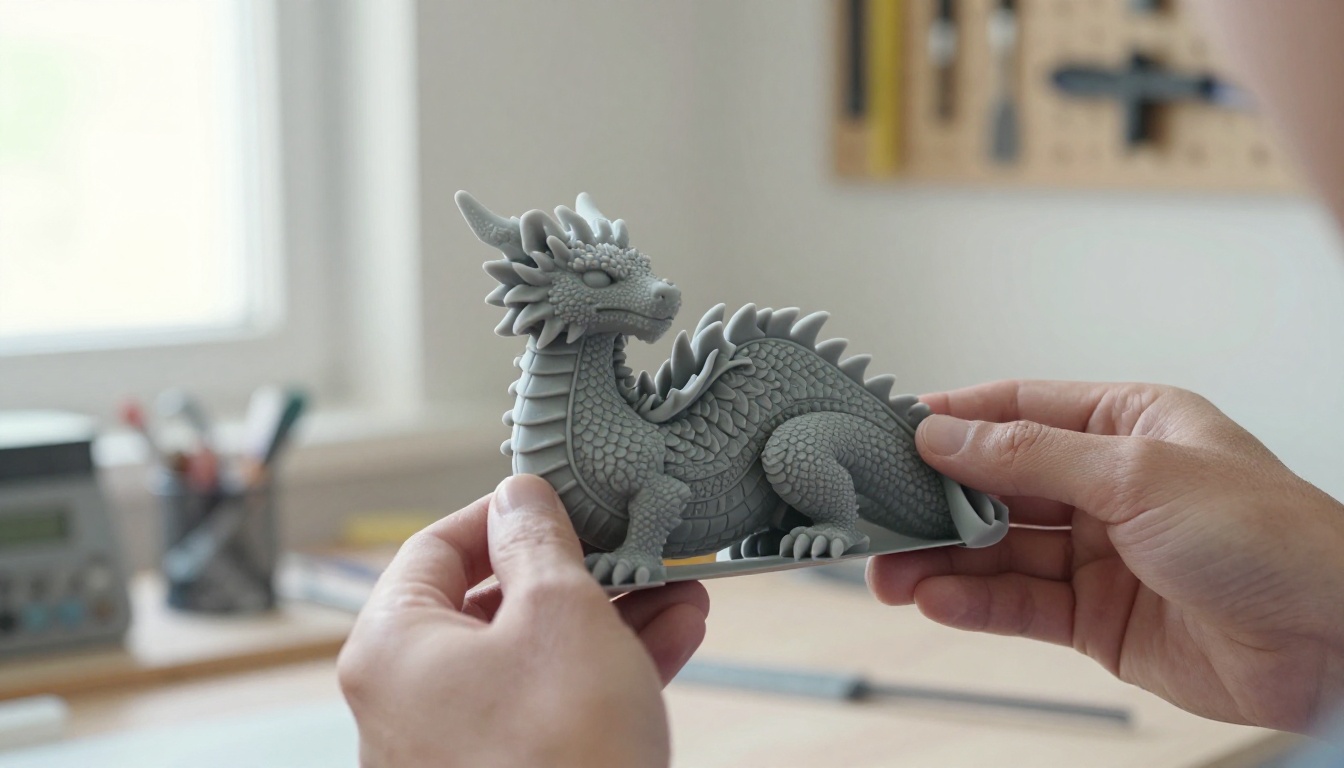
What Meshy 7 Actually Is
Meshy 7 is an image-to-3D foundation model built around one idea: alignment, meaning how closely the generated geometry agrees with the image you supplied. According to Meshy's launch post, three things changed:
- A sharper image encoder. It reads the input at multiple scales and accepts higher resolution, so fine shape information survives instead of being averaged out.
- Cleaner training data. Every sample now corresponds exactly to its target geometry, with style, lighting and background removed.
- Alignment inside the loop. Geometry alignment is tracked in every training cycle instead of being checked at the end.
💡 Meshy scores alignment with its own metric, comparing generated geometry against reference models held out of training. That makes it a vendor benchmark, so read the percentages below as directional, not as a final verdict.
Why should a buyer care? Because alignment decides how many times you rerun a generation. A model that drifts from the photo means extra retries, extra credits and extra cleanup in a sculpting tool. A model that sticks to the photo lets you go from reference image to usable asset in fewer passes, which is the real promise behind the 3D model generator pitch.
Meshy 7 is available on every subscription tier, but model downloads need a Pro plan or higher.
Meshy 7.1 and Ultra 4K
On September 10, 2026, Meshy shipped version 7.1. Its headline is Ultra 4K, which lifts geometry resolution from 2048³ to 4096³ and can produce raw meshes of up to 80 million triangles before simplification, according to a VoxelMatters review. Ultra 4K works with single-image input only and sits behind paid tiers. The same review tested Multicolor 2.0 and Auto Split, both aimed at 3D printing, and concluded that Meshy delivers visually faithful 3D rather than CAD. That is fine for visualization, prototyping and printing, and wrong for parts with tight engineering tolerances.
New Features Worth Your Time
Ultra Mode and Surface Detail
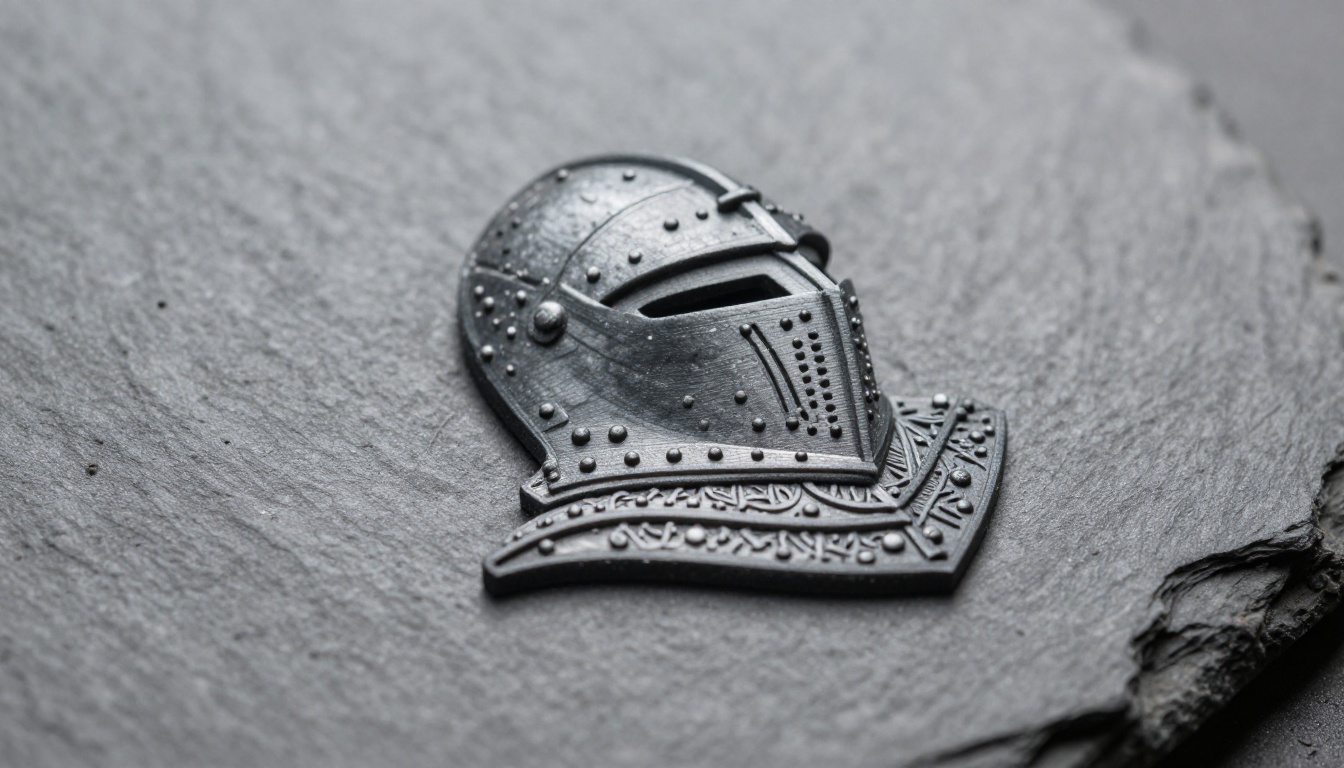
Ultra Mode, introduced with Meshy 7, goes after finer surface detail: rivets, engraved trim, thin ridges. It matters because surface detail is the weakest of the three alignment scores (59.8% in Meshy's own test, against 81.0% for overall proportion), so it has the most room to improve. At launch, Ultra Mode supported single-image generation only, with multi-view support planned for later. If you print miniatures or build close-up hero props, test this first.
Texture and PBR Materials
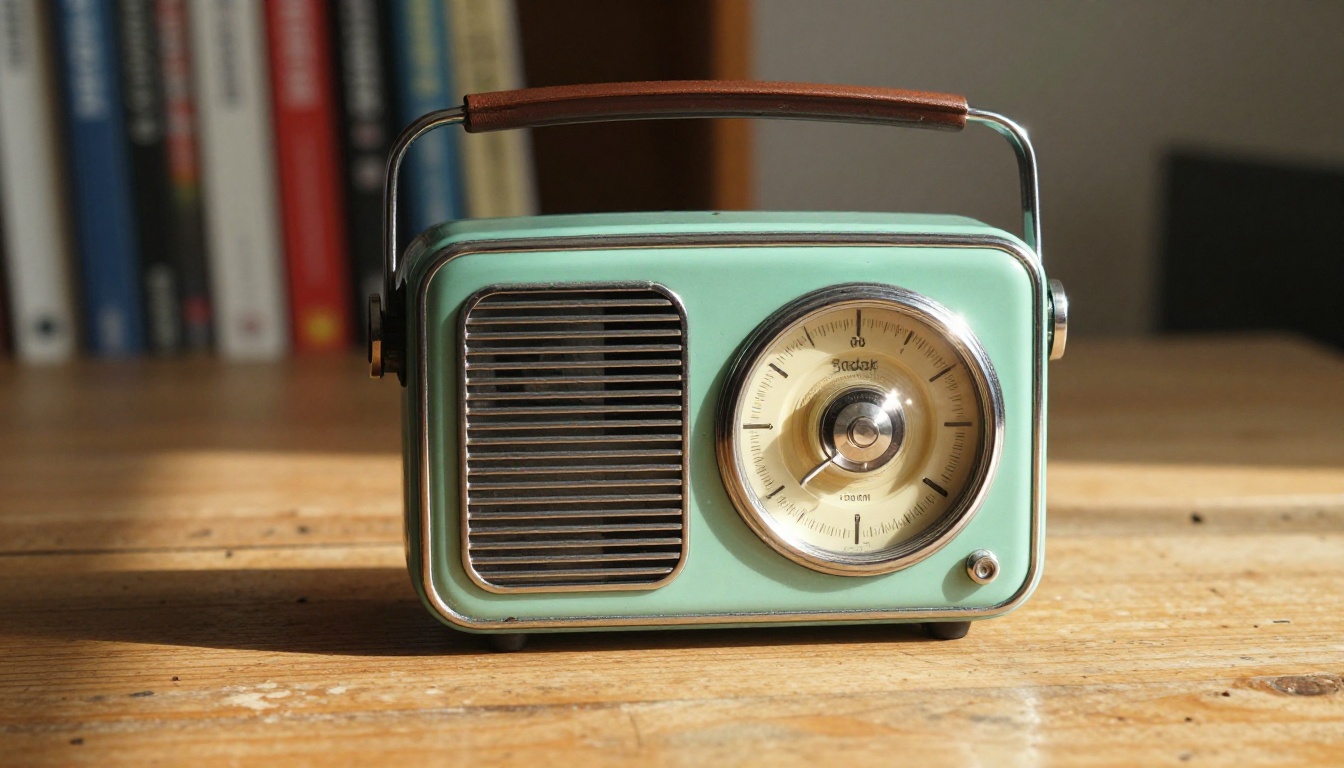
Meshy 7 Texture promises sharper surface detail and cleaner PBR materials than Meshy 6, and it accepts up to four ordered views of the same object for texturing. PBR, short for physically based rendering, is what lets chrome look like chrome and leather look like leather under any light. Meshy outputs albedo, normal, metallic and roughness maps, which is the set that Unity, Unreal and Blender expect.
Multicolor Printing and Auto Split
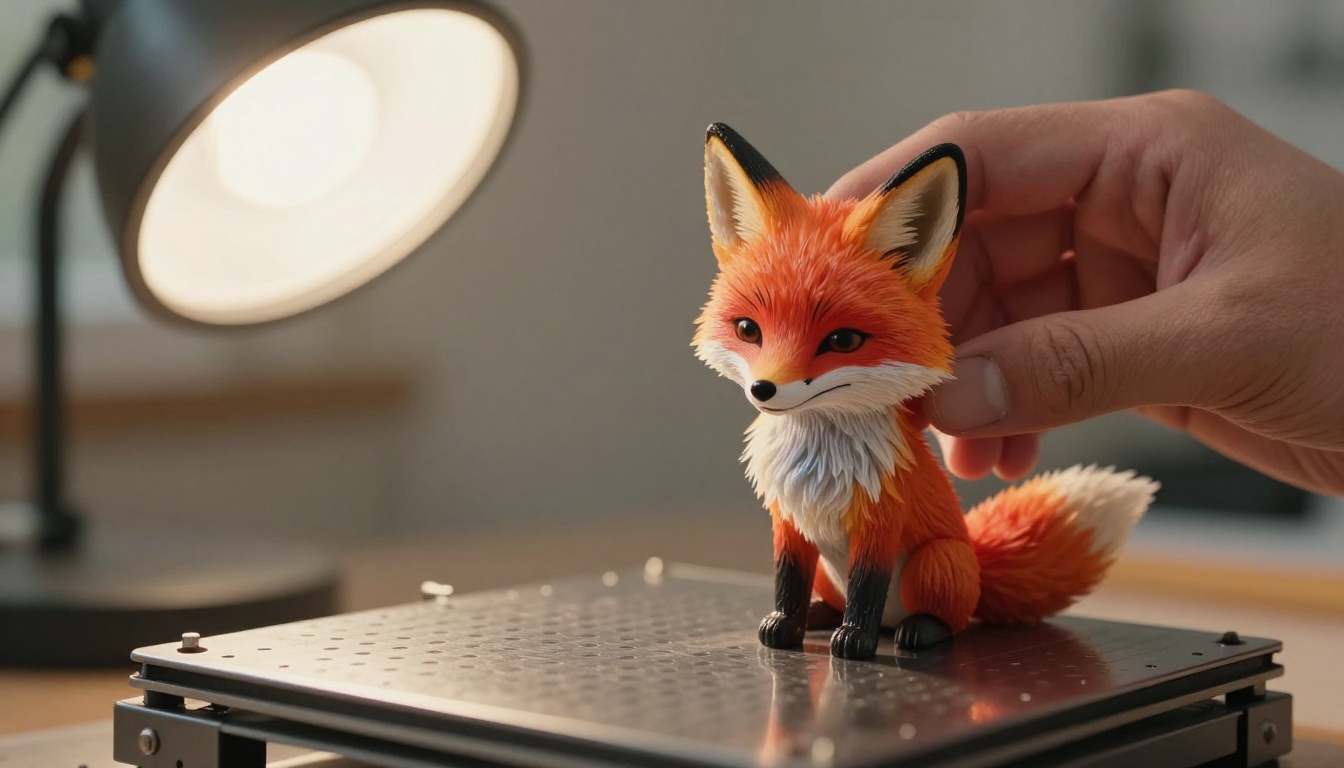
Multicolor 2.0 exports a textured model as a printable multicolor file, in realistic or cartoon style. Auto Split cuts a model into printable parts and, per Meshy's comparison page, arranges them on the build plate. Meshy also lists one-click sending to eight slicers, including Bambu Studio and OrcaSlicer, and export to eight formats such as GLB, FBX, STL and 3MF. Tripo exports GLB, FBX, OBJ, STL and 3MF, but according to that same page it has no native slicer link.
Meshy 7 vs Tripo Head to Head
💡 Both companies publish comparisons that favor themselves. Tripo even has a post titled "Tripo H3.1 vs Meshy 7". The numbers below mix Meshy's own benchmarks with an independent test, and each one is labeled.
Accuracy From One Photo
On single-image input, Meshy's published benchmark puts Meshy 7 ahead of Tripo on all three geometry metrics:
| Metric | Meshy 7 | Tripo | Gap |
|---|
| Overall proportion | 81.0% | 79.0% | 2.0 points |
| Spatial distribution | 79.7% | 78.4% | 1.3 points |
| Surface details | 59.8% | 51.7% | 8.1 points |
Look at where the gap sits. Proportion and spatial layout are close; surface detail is where Meshy 7 pulls away. With four combined views, every tested model improves and the field converges to within about two points. Meshy says it keeps its lead there, while at least one third-party summary has Meshy 7 slipping behind on some metrics. Treat four-view results as a tie.
Speed and Cost Per Model

Here the marketing and the stopwatch disagree. Meshy's comparison page claims about a minute for a fully textured Meshy 7 model, and about 60 to 100 seconds for Tripo's standard raw output. In the independent Fuser test of September 28, one studio photo of a retro radio went through each tool at default settings, once, with no retries:
- Tripo 2.5: about 90 seconds, and the cheapest of the three
- Rodin Gen-2.5: about 150 seconds, at roughly half the cost of Meshy 7
- Meshy 7: about 330 seconds, and the most expensive at roughly twice a Rodin High generation
That test used Tripo 2.5, not the newer H3.1, so it does not settle the Meshy 7 vs Tripo H3.1 question. It does show that Meshy 7 trades speed for finished output.
Mesh and Texture Output
The same radio test shows how differently the tools deliver a model:
| Meshy 7 | Rodin Gen-2.5 | Tripo 2.5 |
|---|
| Triangles | 30,076 | 500,000 | 501,532 |
| File size | 11.0 MB | 34.3 MB | 15.9 MB |
| Textures | Three 2048 px PBR maps | Three 2048 px PBR maps | One 2048 px color map |
| Chrome grille | Rendered as metal | Rendered as metal | Matte grey |
Meshy 7 used adaptive decimation: dense geometry around the grille holes and larger triangles on flat panels. That is a game-ready polycount with PBR straight away. Rodin carved the dial tick marks into real geometry, which suits product renders. Tripo's default output was a single color texture with no PBR unless enabled, and its grille holes were the roundest and most even of the three. Tripo H3.1 targets this gap with geometry of up to 2 million faces, PBR materials, native text, image and multiview input, and textures up to 8K, according to Tripo's March 2026 launch.
Remeshing changes the math. Fuser also ran Rodin's 500,000 triangle mesh through Meshy 5 Remesh with a quad topology target of 30,000. The result dropped to 67,416 triangles and an 11.6 MB file, and it kept the shape and the color and metallic maps. It lost the carved dial details and the normal map. The lesson: a dense mesh is not automatically better, and a light mesh is not automatically worse. What counts is whether the detail you need survived the trip to your target polycount. Meshy builds that step into its pipeline with a Remesh API for quad topology, while Tripo offers Smart Mesh P1.0, a quad-dominant option.
Plans and Pricing Compared
Prices below come from Meshy's comparison page. Confirm current numbers on each site before you pay.
| Tier | Meshy | Tripo |
|---|
| Free | $0, 100 credits per month | $0, 200 credits per month |
| Entry paid | Pro, $20 per month, 1,000 credits | Pro, $19.9 per month, 3,000 credits |
| Mid | Premium, $40 per month, 3,000 credits | Max, $89.9 per month, 25,000 credits |
| Top | Ultra, $100 per month, 8,000 credits | Team, $109.9 per month per seat |
A standard Meshy generation costs 20 credits, so the $20 Pro plan buys about 50 of them. Tripo's default high-precision setting costs around 55 credits, so its $19.9 plan buys about 54. Per generation, the two are closer than the plan sizes suggest. Other Meshy modes may price differently, so check the credit cost shown before running Ultra.
The quick version, before the details:
| Your goal | Better pick | Why |
|---|
| Game or AR asset with PBR | Meshy 7 | Adaptive polycount, full PBR maps, rigging |
| Printable figurine | Meshy 7 | Auto Split, multicolor, printability checks |
| Twenty concept drafts today | Tripo | About 90 seconds per model, lower cost |
| Product render with true materials | Rodin | Carved detail and correct metal in the test |
| Highest geometry resolution | Meshy 7.1 Ultra 4K | 4096³ resolution, single-image input only |
Game and Real-Time Assets
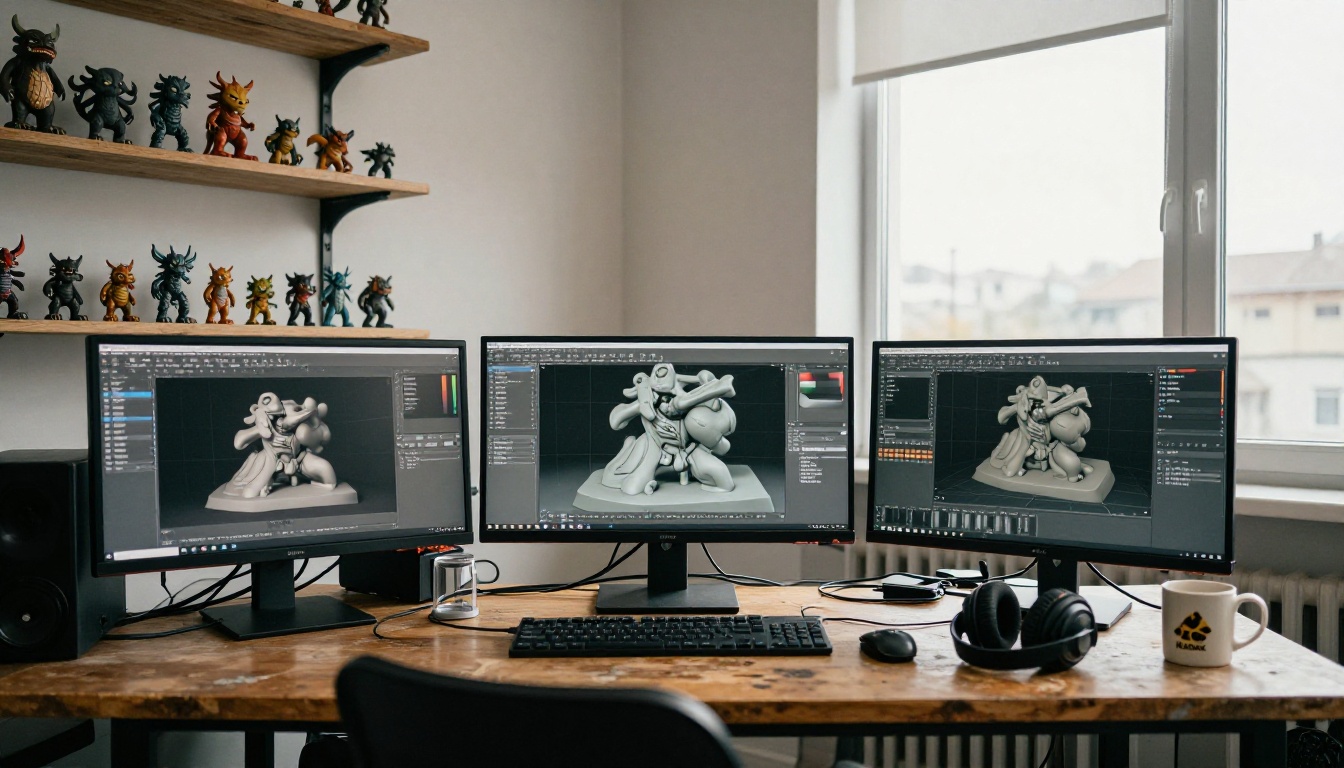
Pick Meshy 7. The adaptive polycount, full PBR set and rigging tools save cleanup time. Meshy offers auto-rigging for humanoid, biped, quadruped and stylized characters, and a library of 600+ preset animations. Tripo also rigs humanoids and quadrupeds, but with a smaller preset library according to Meshy's page.
3D Printing and Prototypes
Both work, for different reasons. Meshy 7 brings printability checks, watertight auto-repair, Auto Split and multicolor export. Tripo is fast and cheap, which suits a printer that spends all day producing prototypes. If you want one finished figurine, Meshy saves steps. If you want twenty rough shapes by lunch, Tripo does.
Fast Concept Drafts
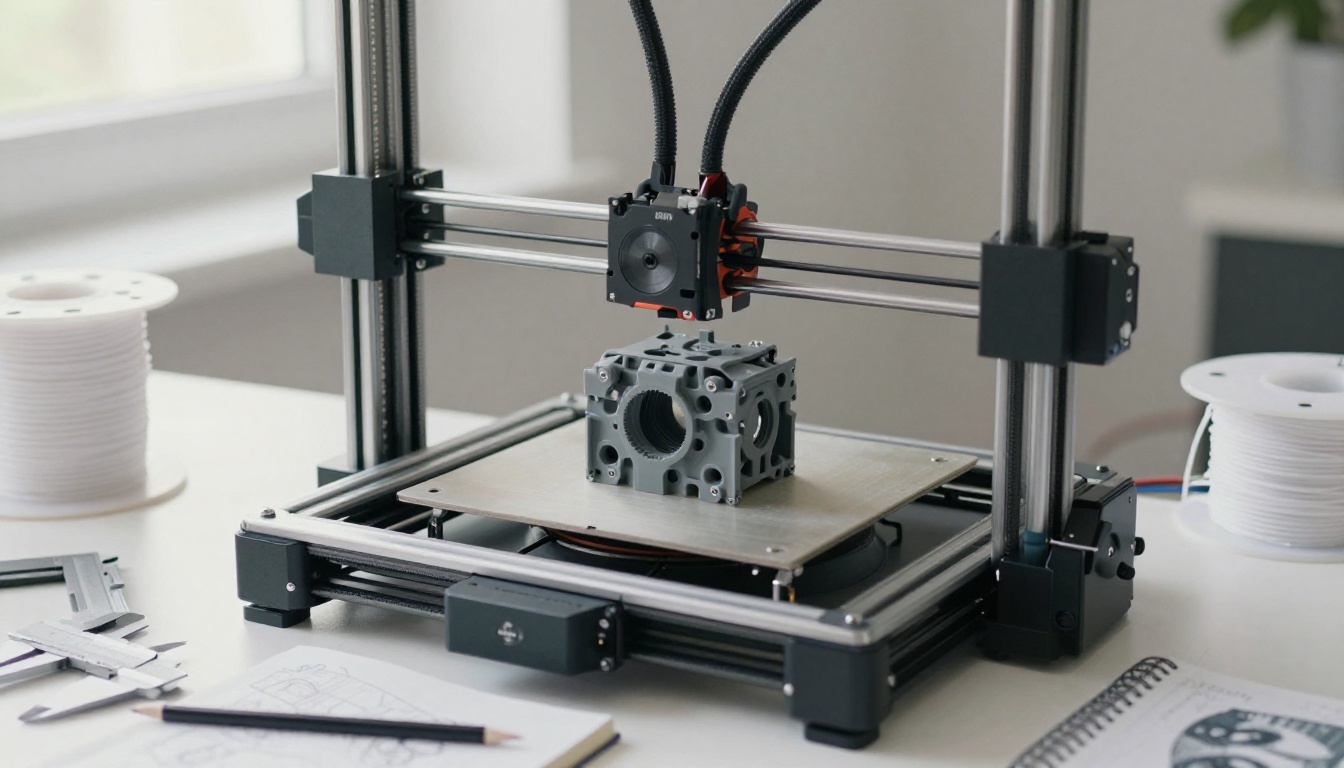
Pick Tripo. At roughly 90 seconds per model in the Fuser test, you can try a dozen ideas in the time one Meshy 7 run takes. Clean topology on geometric and mechanical shapes is another reason people reach for it. The workflow is simple: generate a batch, discard the weak ones, and spend your slow, expensive passes only on the shapes that survive. If one draft earns a place in a game level or on a build plate, regenerate that single idea in the tool that gives you the finish you need.
Weak Spots on Both Sides
Meshy 7
- Slowest of the three in the independent test (about 330 seconds)
- Most expensive per generation at list prices
- Ultra Mode and Ultra 4K are single-image only, and downloads need Pro
- Output is visually faithful, not engineering-grade
Tripo
- Default output in the radio test had one color texture and no PBR
- Chrome came out matte grey, and Tripo invented details that were absent from the photo
- Fewer print-specific tools such as printability checks and Auto Split, per Meshy's page
- The test numbers above come from Tripo 2.5, not H3.1, so treat them with care
💡 Whichever tool you choose, the reference photo drives the result. A single object, plain background, no text and the subject filling more than half the frame gives any image-to-3D model its best shot.
How to Use Hunyuan 3D on PicassoIA
Meshy and Tripo are standalone products. If you want to try image-to-3D without a new subscription, Hunyuan 3D 3.1 turns a photo or a text prompt into a textured 3D model right in the browser. It is also one of the competitors that the VoxelMatters review of Meshy 7.1 benchmarked against, next to Tripo 3.1, Rodin 2.5 and Hi3D 3.0.
Prepare the Reference Photo
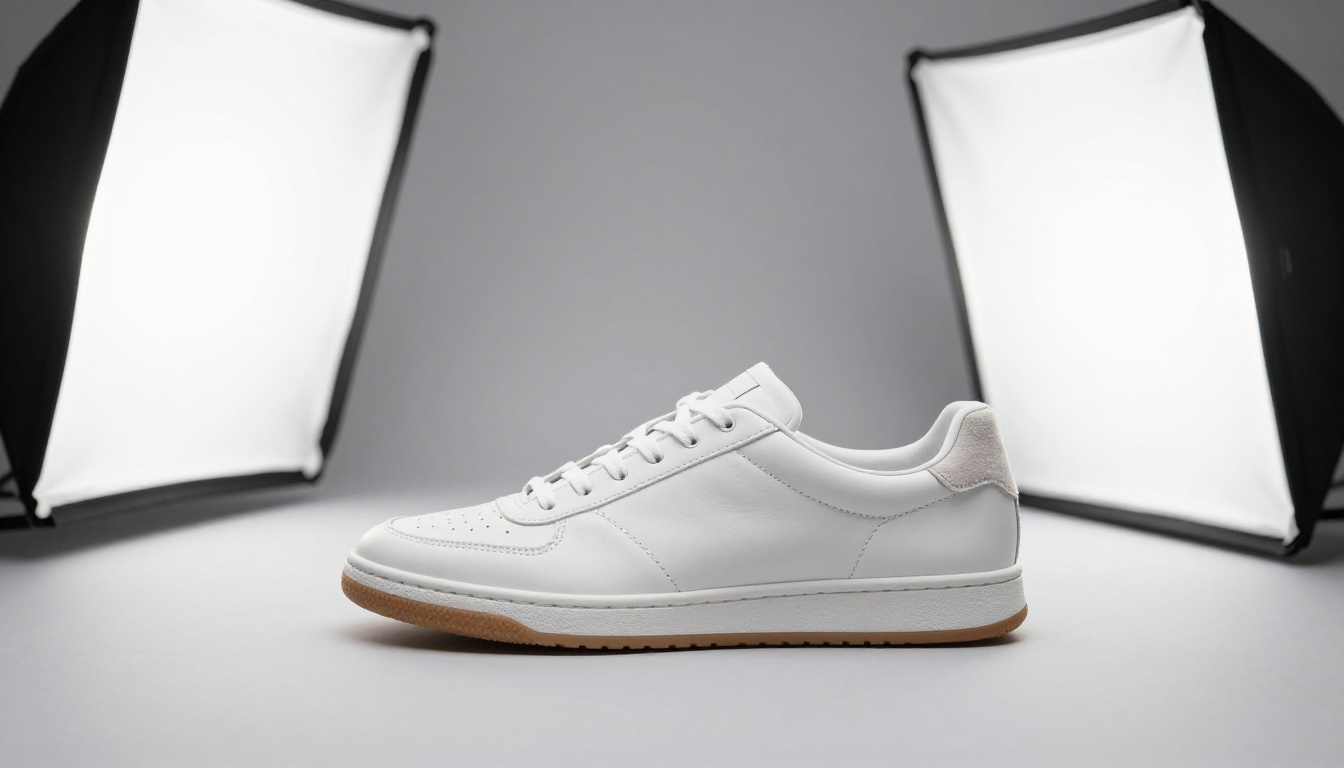
You have two routes. Shoot your own photo, or generate a clean product shot with Flux 2 Pro, the same approach the Fuser test used for its radio. Hunyuan 3D 3.1 accepts JPG, PNG, JPEG and WebP files up to 6 MB and 5000 px per side. Use a single object, a simple background, no text, and make the object fill more than half the frame.
Pick Mode, PBR and Face Count
Open the model page and set your options:
- Input: provide either an image or a text prompt (up to 1024 characters), never both.
- Generate type: choose Normal for a textured model, or Geometry for a clean white mesh you plan to texture by hand.
- Enable PBR: switch it on if the model is headed to a game engine or renderer.
- Face count: the default is 500,000. Lower it for a web viewer, keep it high for print.
Run, Check and Export
Run the generation and check the result from several angles. The model's published example took about 145 seconds at default settings. Use this short checklist on every result:
- Silhouette: does it match the photo from the front and the side?
- The hidden side: the back of the object was never photographed, so check it for blurry textures and invented shapes.
- Holes and thin parts: straps, handles and grille openings often fill in or fuse together.
- Materials: with PBR on, metal should look metallic and fabric should look matte.
- Polycount: if the file feels heavy, rerun with a lower face count.
Download the file and drop it into your slicer, Blender or game engine. If a result misses, change the reference photo before changing settings, because the photo matters more.
Want another route? Rodin also generates 3D models from photos. Once you have a render, Kling V3 or Seedance 2.0 can animate a turntable clip for your portfolio, and GPT Image 2 can produce clean concept art to feed back into the 3D step.
Make Your Own 3D Models Today
Reading about Meshy 7 and Tripo gets you only so far. The quickest way to find out what image-to-3D can do for your work is to run a few photos through it and look at the meshes yourself. Start with one object you own, shoot it on a plain surface, and send it through Hunyuan 3D 3.1 on Picasso IA. Then generate a second reference image with Flux 2 Pro and compare the two results.
Picasso IA brings 3D models, image generation and video generation into one place, so you can go from a prompt to a reference photo, to a 3D asset, to an animated preview without switching tools. Open the platform, pick a model, and make something this week.


