You have a photo you like, and you want it to move. A grandmother's wedding portrait, a harbor at dawn, a product shot that sits flat on a listing page. Not long ago that meant hiring an animator or sitting through a video editing course. Today it takes one upload and a sentence of description, and the first clips can cost nothing. The catch is that "free" means very different things from one tool to the next. Some give you three watermarked trials and then a paywall. Others give you unlimited clips with a hard length cap.
This article sorts the options by what they actually allow. You will see which photo to video AI free generators deserve your time, how phone apps compare with browser tools, how to prepare a photo so the motion looks natural, and which prompts keep faces, hands and backgrounds stable. Every model mentioned links to its page, so you can check the current limits yourself before you spend a minute on it.
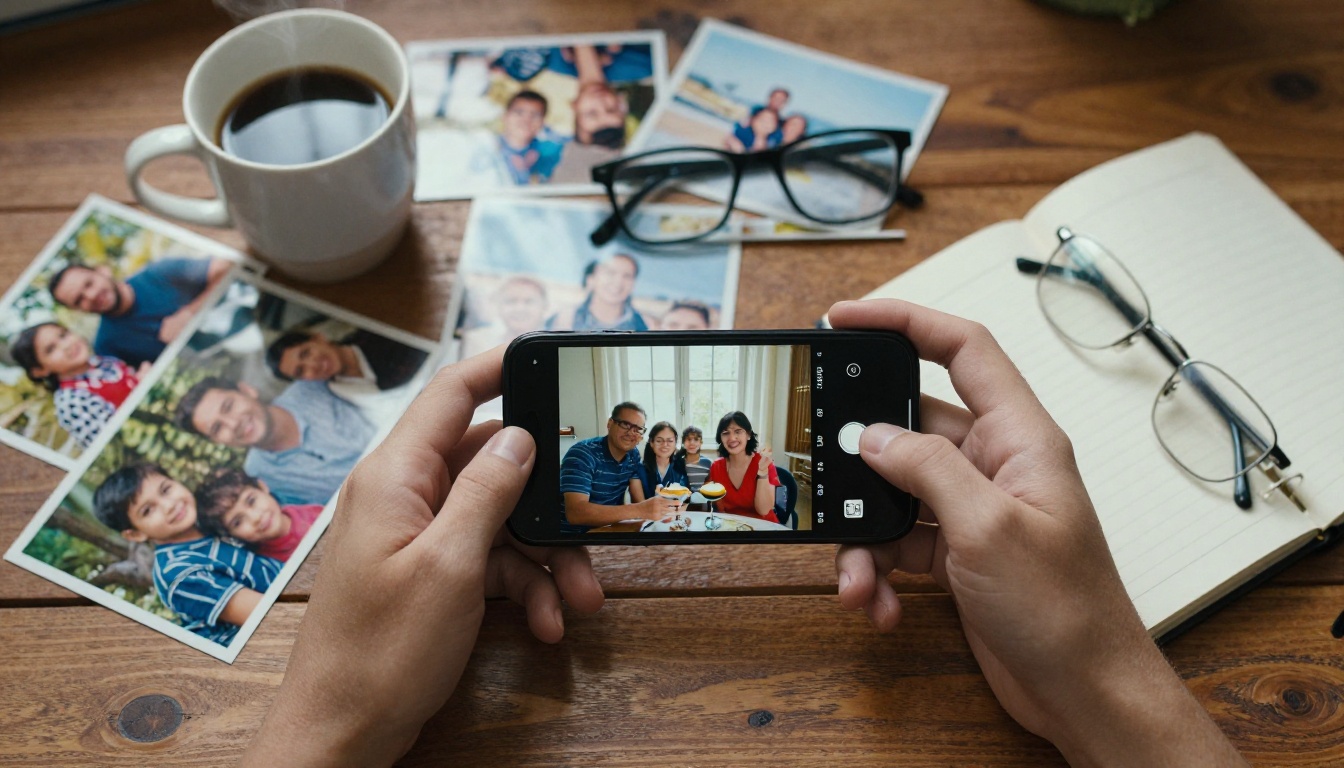
What Free Really Means
The word free hides three different deals, and mixing them up is how people waste an afternoon. A tool that gives you three clips and a paywall is a demo. A tool with a daily counter is a habit builder. A tool with no counter is a workshop. Decide which one you are looking at before you pick a generator.
Free Trials vs Unlimited Models
A free trial gives you a fixed number of clips, usually a handful, and then asks for payment. That works for one project and frustrates you the moment you want a second take. An unlimited model has no per-clip counter, so you can run ten variations of the same photo until one looks right. That matters more than it sounds, because image-to-video is a numbers game. The first result is rarely the best one, and motion quality changes noticeably from seed to seed.
On PicassoIA, two models are built around this idea. Picasso IA Video is listed as a free, unlimited generator for text or image input, and Seedance 2.5 Lite runs without a per-clip cost for Wonder members. Both are described in detail further down.
Watermarks, Caps and Queues
Before you commit to any tool, check six things on its page. Nearly every bad experience traces back to one of them:
- Watermark: Is it stamped on free clips, and can it be removed?
- Daily or monthly cap: How many clips before the counter hits zero?
- Clip length: Five seconds is the common default, ten is generous.
- Resolution: 480p suits quick tests, 720p suits posting.
- Queue time: Free users on some services wait in line for a long time.
- Usage rights: Can you publish the clip on a business account?
💡 Tip: Test every generator with the same photo and the same one-line prompt. Differences in motion quality jump out in a side-by-side, and you stop judging tools by their marketing samples.
Best Free Photo to Video Generators
These are the generators worth testing first. The table summarizes what each model page lists today. Limits can change, so confirm them on the page before you plan a big project.
| Model | Input | Clip length | Resolution | Free access |
|---|
| Picasso IA Video | Photo or text | 5 s at 24 fps | 480p, 720p | Listed as free and unlimited |
| Seedance 2.5 Lite | Photo or text | 5 s or 10 s | 480p, 720p | Unlimited for Wonder members |
| Wan 2.1 I2V 720p | Photo (required) | About 5 s | 720p | Listed as free |
Picasso IA Video: Free and Unlimited
Picasso IA Video is the simplest place to begin. You upload a photo, describe the motion, and get a 5-second clip at 24 frames per second with synchronized audio. The clip inherits the aspect ratio of your photo, so a vertical portrait stays vertical and a wide landscape stays wide. Pick 480p for the fastest renders or 720p for sharper output, and lock a seed when you want to reproduce a result later.
Render time is reasonable. The example clips on the model page took between roughly 30 and 80 seconds each. Because there is no counter to watch, it is the best fit for batch testing: upload one photo, try four different prompts, and keep the winner. It also accepts plain text with no photo, which helps when you need a source image first.
Seedance 2.5 Lite: Up to 10 Seconds
Seedance 2.5 Lite is the lightweight edition of Seedance 2.5. It is tuned for 480p and 720p, which is what makes unlimited use possible for Wonder members. The big difference is length: you choose 5 or 10 seconds, which leaves room for a full action instead of a quick twitch of the head.
It also accepts an optional last frame image. Give it a starting photo and an ending photo, and the clip animates from one to the other. That suits before-and-after reveals, a product moving from one pose to another, or a seasonal change in the same location. Audio is generated in sync by default, and you can switch it off for a silent clip.
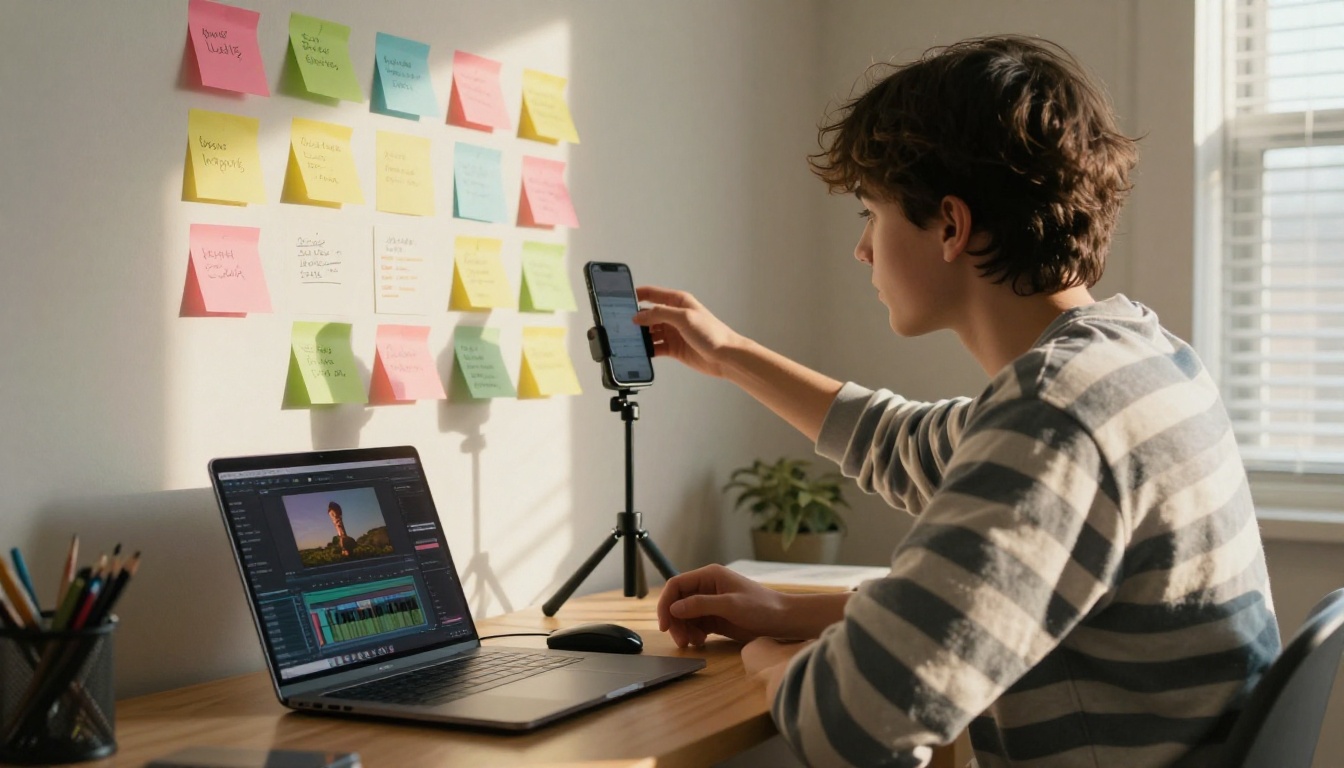
If you need more power later, the full Seedance 2.5 sits one tier up. For free work, the Lite build is the practical pick. Creators who iterate a lot tend to settle into a routine: three or four seeds per photo, keep the best, move on to the next.
Wan Models for Fast Motion
The Wan family is a dependable choice when you want natural motion from a still. Wan 2.1 I2V 720p needs a photo and a text prompt, outputs 16:9 or 9:16, and offers three speed modes: Off, Balanced and Fast. Faster modes can lower quality a little, so use Fast for drafts and Off for the final render. It also supports negative prompts, where you list what to avoid, such as flicker or warped hands. Example runs on its page took roughly 110 to 165 seconds.
Newer builds are available if you want to compare: Wan 2.2 I2V Fast, Wan 2.6 I2V Flash and Wan 2.7 I2V. Check each page for its current access terms before relying on one for a deadline.
Other Models Worth a Test
When the free options do not suit a particular photo, a short test run on one of these can save the shot. Some use credits, so read each page first:
Both work. They solve different problems, and choosing the wrong type is the second most common reason a first attempt disappoints.
Phone Apps: Fast but Limited
Phone apps shine when the photo already lives on your device and you want a clip for a story within a minute. The upload is instant, templates nudge you toward popular looks, and posting is one tap away. The trade-offs show up quickly. Free tiers often lean on watermarks, template-driven motion gives you little say over what actually moves, and exports can be capped at short lengths or lower resolutions.

Use an app when speed beats control: a birthday story, a quick social post, a one-off gift for a friend.
Browser Tools Give More Control
A browser-based generator trades convenience for control. You write the motion yourself, choose resolution and aspect ratio, set a seed, and rerun until the clip looks right. It also works from any device with a browser, so the same account follows you from phone to laptop. For anything you plan to publish, such as a product listing, a blog header or an ad concept, that control is worth the extra thirty seconds of typing.
| Need | Phone app | Browser generator |
|---|
| Speed for one clip | Fastest | Fast |
| Control over motion | Low | High |
| Repeatable results | Rare | Yes, with a seed |
| Resolution choice | Often fixed | You choose |
| Best for | Quick stories | Published content |
How to Use Picasso IA Video
The steps below use Picasso IA Video because it is free and has the simplest set of controls. The same logic carries over to the other image-to-video models.
Upload and Pick Resolution
- Open the model page and add your photo as the input image. The clip uses it as the opening frame and inherits its aspect ratio, so crop first if you need a specific shape.
- Leave resolution at 720p for anything you plan to post. Drop to 480p for quick tests.
- Skip the aspect ratio setting when you supply a photo. It is ignored for image input because the clip matches the photo.
- Keep save audio on for synchronized sound, or switch it off for a silent clip.
Write the Motion Prompt
Describe what moves, how the camera behaves and what the light does, in the order it happens. The model page recommends cinematic, chronological descriptions. One example prompt from the page shows the pattern well:
The woman slowly turns her head to look directly at the camera, her hair gently swaying. She breaks into a warm natural smile. Soft studio lighting with shallow depth of field.
Notice the structure: one main action, one secondary motion, one lighting note. A short prompt with two or three movements beats a long one that asks for ten things at once.
Lock a Seed and Iterate
Generate once, then change only one thing at a time: the prompt, the resolution or the seed. When a clip is close, note its seed and rerun with a small prompt edit so the base motion stays the same. Plan on three or four runs per photo. That is not wasted effort. It is how a decent clip becomes the one you post.
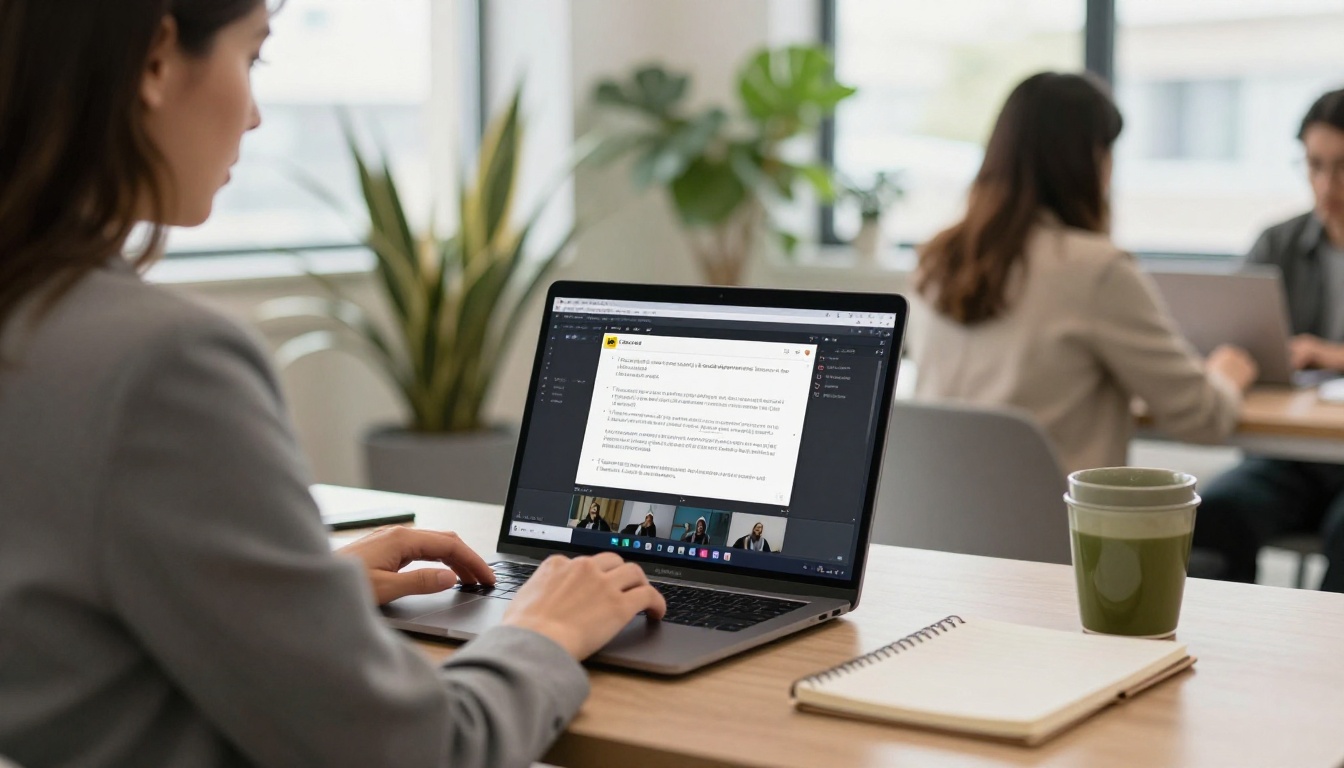
💡 Tip: Keep a note of every prompt and seed that worked. After a week you will have a personal library of motion phrases that you can paste into new photos.
Prepare Your Photo First
The photo decides most of the result. A model can only animate what it can read in the frame, so a sharp, evenly lit image with a clear subject gives it far more to work with than a soft or cluttered one.
Pick Photos That Animate Well
Look for these traits before you upload:
- A clear subject: Separated from the background by light, color or depth.
- Implied motion: Hair, water, clouds, fabric, steam, leaves.
- Sharp focus: Blur in the source becomes shimmer in the clip.
- Open space: Room in the frame for the subject or camera to move into.
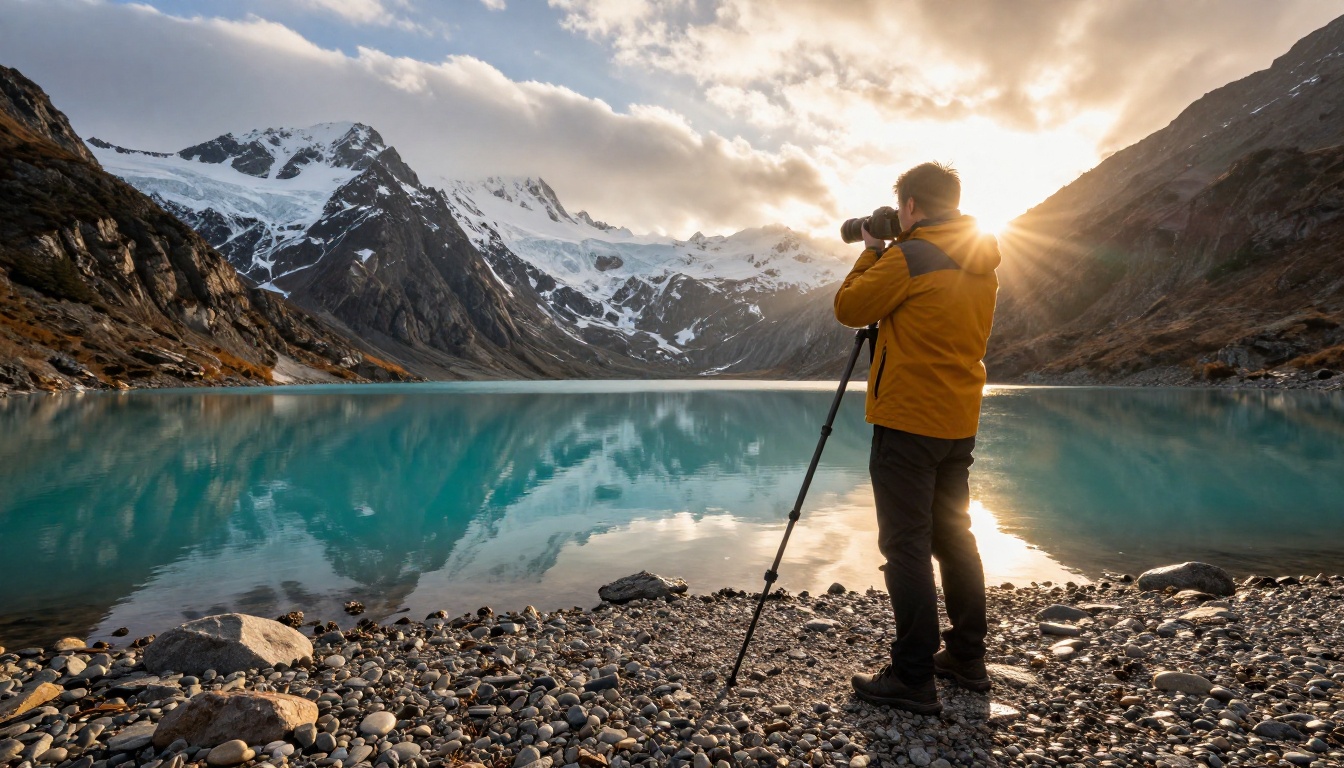
Landscapes with water and sky animate especially well because the job is easy: drift the clouds, ripple the surface, leave the mountains alone. Crowded group shots with many small faces are harder, since every face is another chance for a distortion.
Fix Old Prints First
Scanned family prints carry scratches, fading and dust, and animation tends to amplify every flaw. Repair the photo first. Flux Kontext Restore Image is made for restoring images, and Picasso IA Image Editor Pro handles edits such as removing clutter from the background.
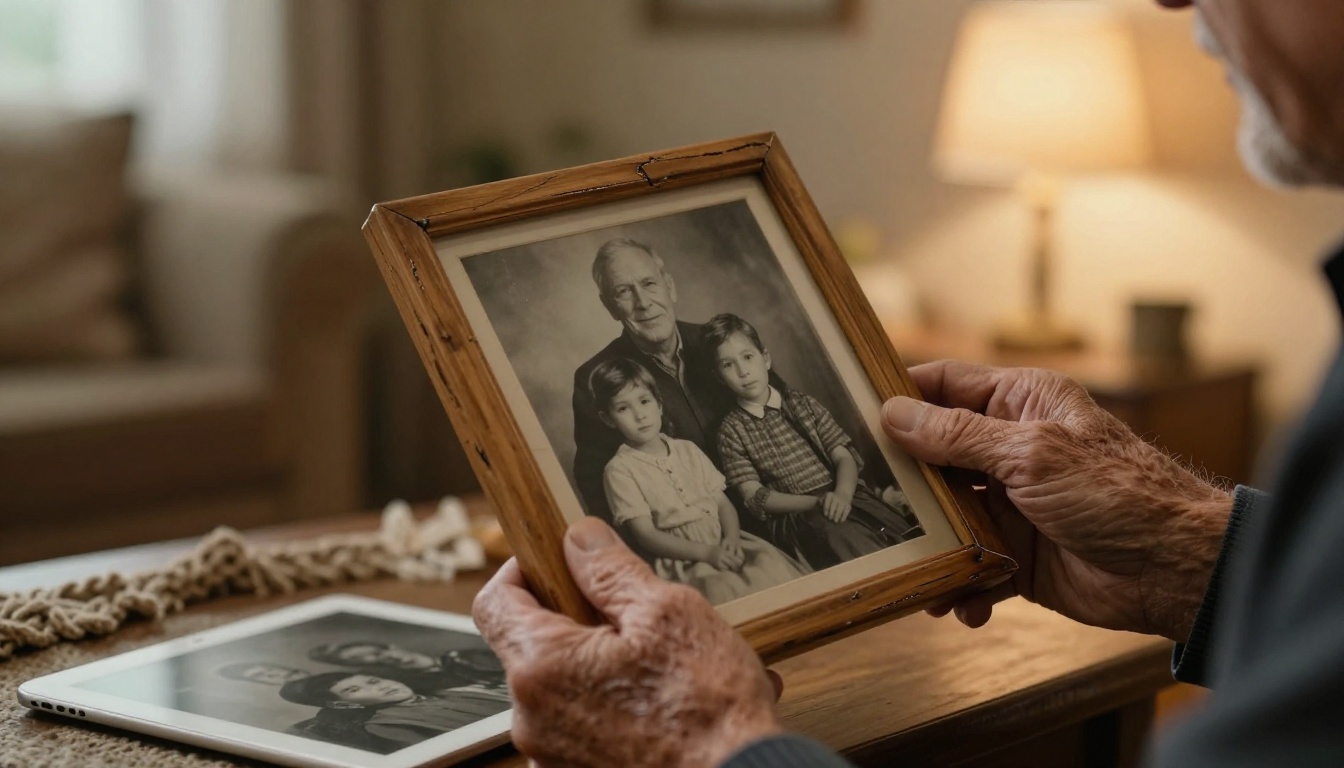
A reliable order of work: scan at a high resolution (a 4x6 print at 600 dpi gives you roughly 2400 by 3600 pixels), restore the damage, crop to the shape you want, then animate. Skipping the restore step is the most common reason an old portrait looks haunted instead of warm.
Prompts That Produce Smooth Motion
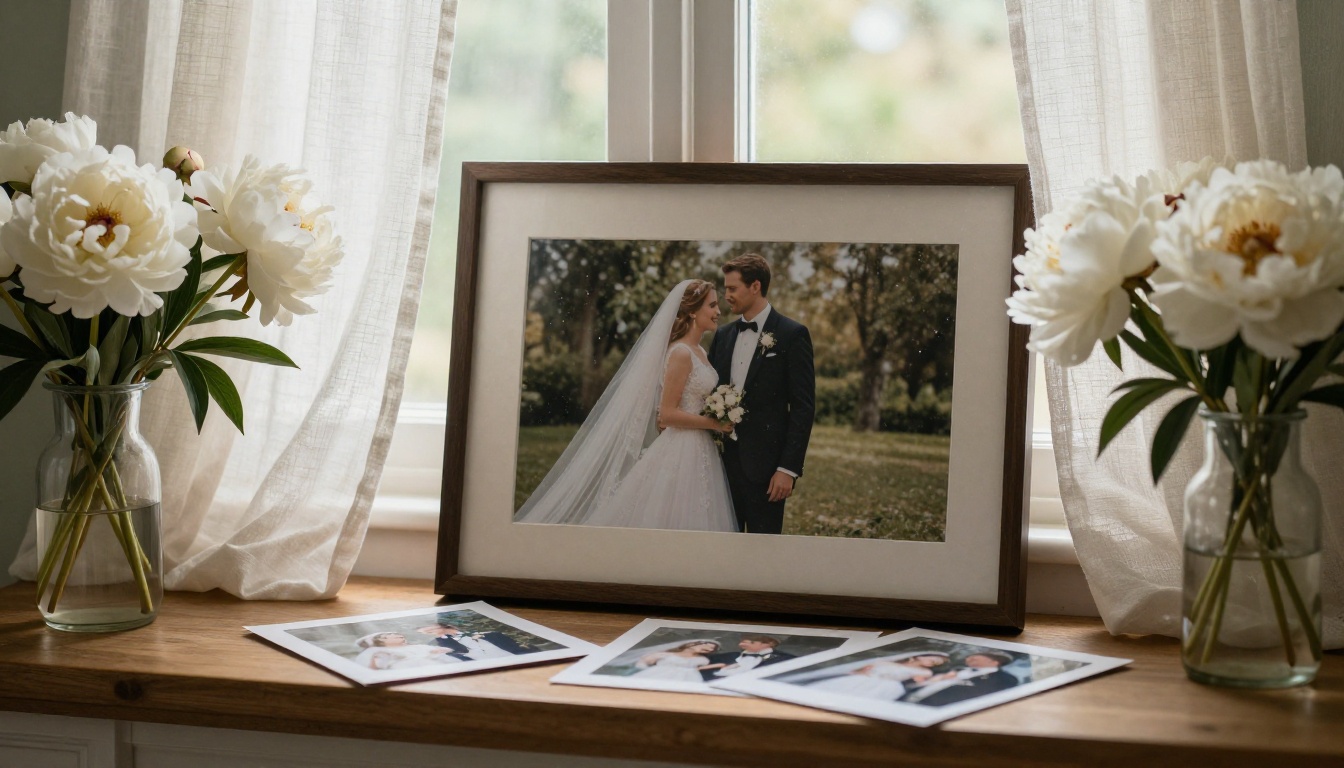
Subtle motion beats dramatic motion. Curtains lifting in a breeze, a slow push toward a face, a blink and a small smile: these are the movements image-to-video models handle best, because they stay close to what the photo already shows.
Camera Moves That Work
Pair one subject motion with one camera instruction. These phrasings are reliable starting points:
| Goal | Prompt phrase |
|---|
| Draw attention to a face | "The camera slowly pushes in toward her face" |
| Reveal a wide scene | "The camera pans gently left across the harbor" |
| Keep a calm mood | "The camera stays still while clouds drift overhead" |
| Add life to a still life | "A light breeze moves the curtains and petals" |
3 Common Mistakes
- Asking for too much. Five simultaneous actions produce mush. Pick one main movement and one supporting detail.
- Describing the photo instead of the motion. The model already sees the image. Spend your words on what changes over the next five seconds.
- Judging after a single run. Seeds vary. A clip that looks wrong on the first try may look right on the third with the same prompt.
Where Animated Photos Pay Off
Short clips from still images earn their place in more workflows than most people expect:
- Product listings: A slow rotation or a steam curl over a mug turns a flat photo into a short demo.
- Social stories: Vertical clips from portraits and travel shots keep a feed from looking static.
- Family memories: Gentle motion on old portraits makes them feel present without overdoing it.
- Blog headers and landing pages: A five-second loop behind a headline holds attention longer than a still.
- Pitch decks and storyboards: Show motion intent before anyone films a frame.
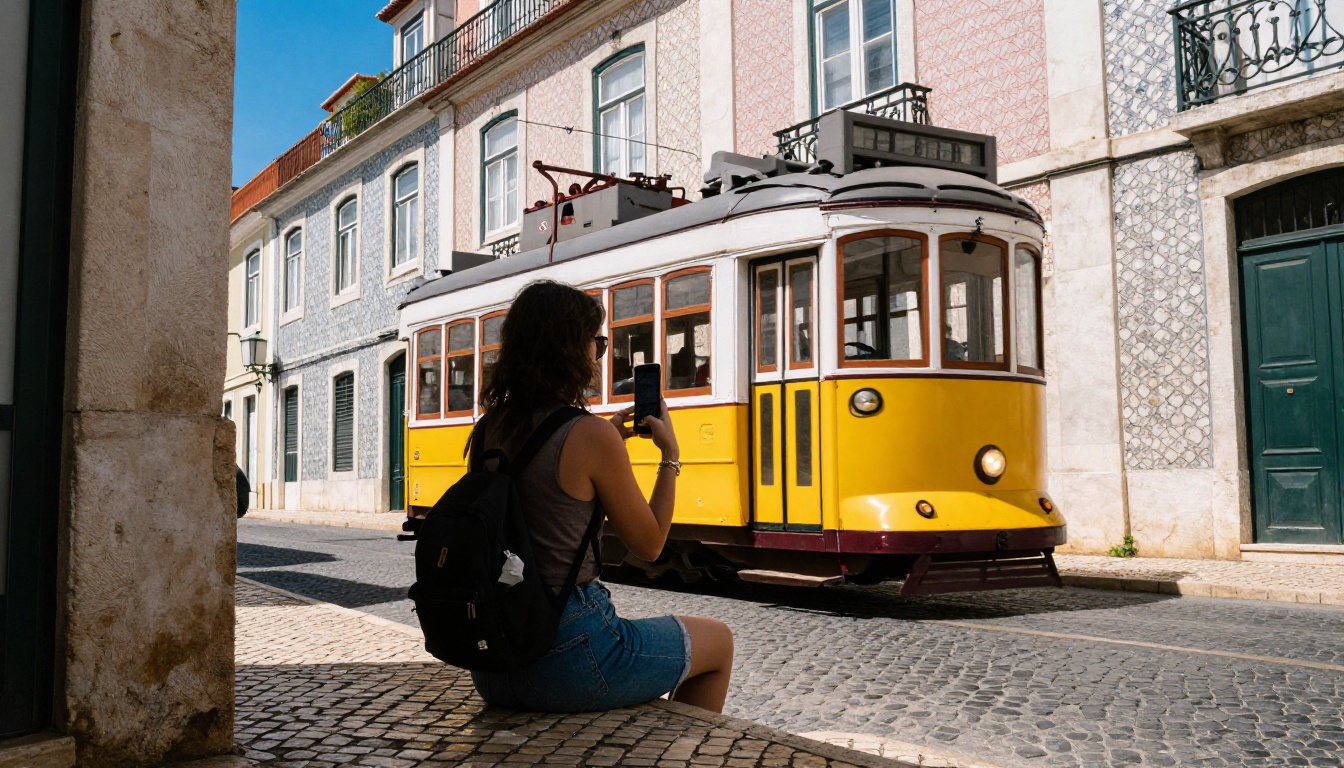
Travel creators get the most from vertical output. A cobblestone street, a passing tram and a phone held high make a strong still, and a few seconds of motion on that frame often outperforms a full clip shot in a hurry.
Try Your Own Photo Now
Pick one photo you care about and run it through Picasso IA Video today. Use one sentence for the motion, leave resolution at 720p, and render three seeds. Then run the same photo through Seedance 2.5 Lite with a 10-second duration and compare. Ten minutes of testing will tell you more than any list of features.
No source photo yet? Create one. Picasso IA Image generates images from a text prompt, and Nano Banana Pro and Seedream 4.5 are strong alternatives when you want a different look. Generate the image, then send it straight to a video model. The whole path from idea to moving clip fits in one session.
Browse every available model at picassoia.com/en/all-models, pick the one that matches your photo, and start creating your own images and clips with Picasso IA.


