You typed "Picasso video editor" into a search bar and got a pile of unrelated results: photo apps, template makers, timeline software with a watermark stamped across your export. Fair enough. There is no single product with that exact name, and that is the first thing worth knowing before you spend an evening testing the wrong tools.
What does exist is a growing set of AI video editing tools inside PicassoIA, plus a crowded field of free browser editors that compete for the same job. This article sorts through both. You will see which free online options are worth opening, which features actually save time, the prompts that give clean results, and what each route costs once the "free" label wears off.
💡 Quick answer: If you want to cut, trim and caption clips by hand, a traditional free browser editor is fine. If you want to describe an edit in plain English (remove an object, restyle a scene, change the weather), an AI video editor does it faster. Most people end up using both.
What "Picasso Video Editor" Means
One editor or a toolbox?
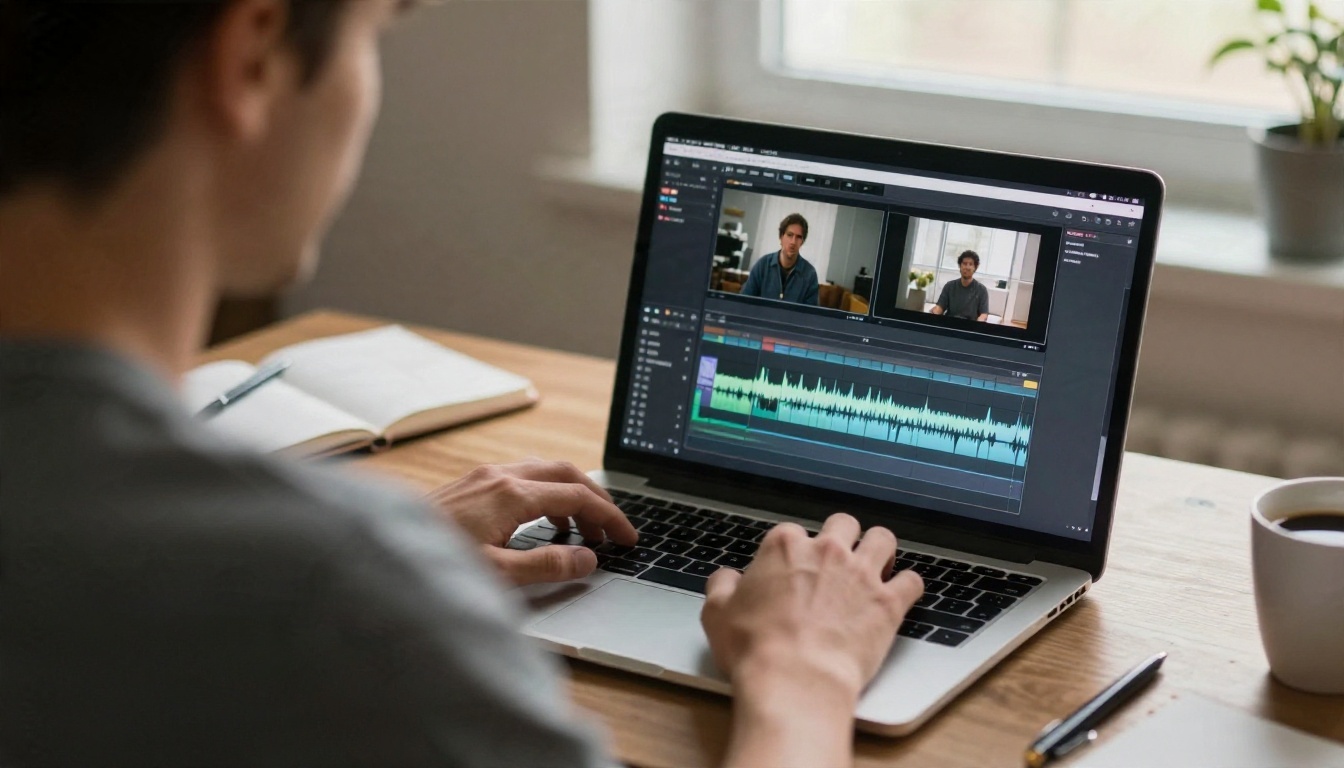
PicassoIA does not hand you a single timeline with fifty buttons. It gives you a collection of specialist video editing models, each built for one job. One removes an object. One restyles the whole clip. One trims. One adds sound. You pick the tool for the task, run it, and download the result.
That sounds like a downside until you try it. A single all-in-one editor tends to be mediocre at everything. Dedicated models are usually excellent at one thing, and you can chain them: generate a clip, clean it, upscale it, add audio.
Who it suits best
This approach fits three kinds of people particularly well:
- Social creators who need fast fixes: reframing, captions, quick restyles.
- Marketers and small teams who edit product clips without a dedicated editor on payroll.
- Filmmakers and hobbyists who want to patch a bad take instead of reshooting it.
If you edit feature-length projects with dozens of tracks, a classic desktop editor still wins. AI editing shines on short clips, usually under a minute.
Free Online Options Compared
Browser editors with free plans
Based on what I found while researching this topic, the mainstream free browser editors share a pattern: generous to start, restrictive at export. Flixier, for example, offers a free plan with no card required, but limits you to about 10 minutes of export per month, caps resolution at 720p and adds a watermark. Picsart and Magnific both run free online video editors, with Magnific describing its editor as free to use for uploading footage or AI-generated clips. Veed also lists a free tier, and DaVinci Resolve remains a free desktop option for heavier work.
Plans change often, so treat these numbers as a snapshot and check each product's pricing page before you commit.
AI-first free options
AI editors work differently. Instead of dragging clips, you upload a video and write an instruction. Several of the PicassoIA models do exactly this:
- P Video Edit edits any clip from a text prompt.
- Lucy Edit 2 handles text-driven changes to people, objects and style.
- Wan 2.7 Videoedit is another text-based option for reworking existing footage.
- Kling o1 rewrites a video with a text instruction.
Side-by-side snapshot
| Option type | Best for | Typical free limit | Main trade-off |
|---|
| Browser timeline editor | Manual cuts, captions, templates | Watermark, 720p, monthly export caps | Slow for complex fixes |
| Free desktop editor | Long projects, color work | No export limit | Steep setup, needs a strong PC |
| AI text-prompt editor | Restyle, object swaps, quick fixes | Varies by model | Short clips, results vary |
| Single-purpose AI tool | Trim, merge, upscale, captions | Varies by model | One job per run |
Features Worth Using

Edit by describing the change
This is the headline feature. Upload a clip, write "turn the daytime street into a rainy evening," and the model rebuilds the footage. Aleph 2 is built around this idea: edit a single frame and the change carries across the full video. Gen 4 Aleph recuts and restyles in a similar way, and Modify Video restyles footage while keeping the original motion.
Remove what should not be there
A stray cable, a passer-by, a logo you cannot show. Video Erase Object removes it across frames, and Video Remove Background strips the background without a green screen. For a section that simply went wrong, LTX 2 Retake regenerates just that part of the clip.
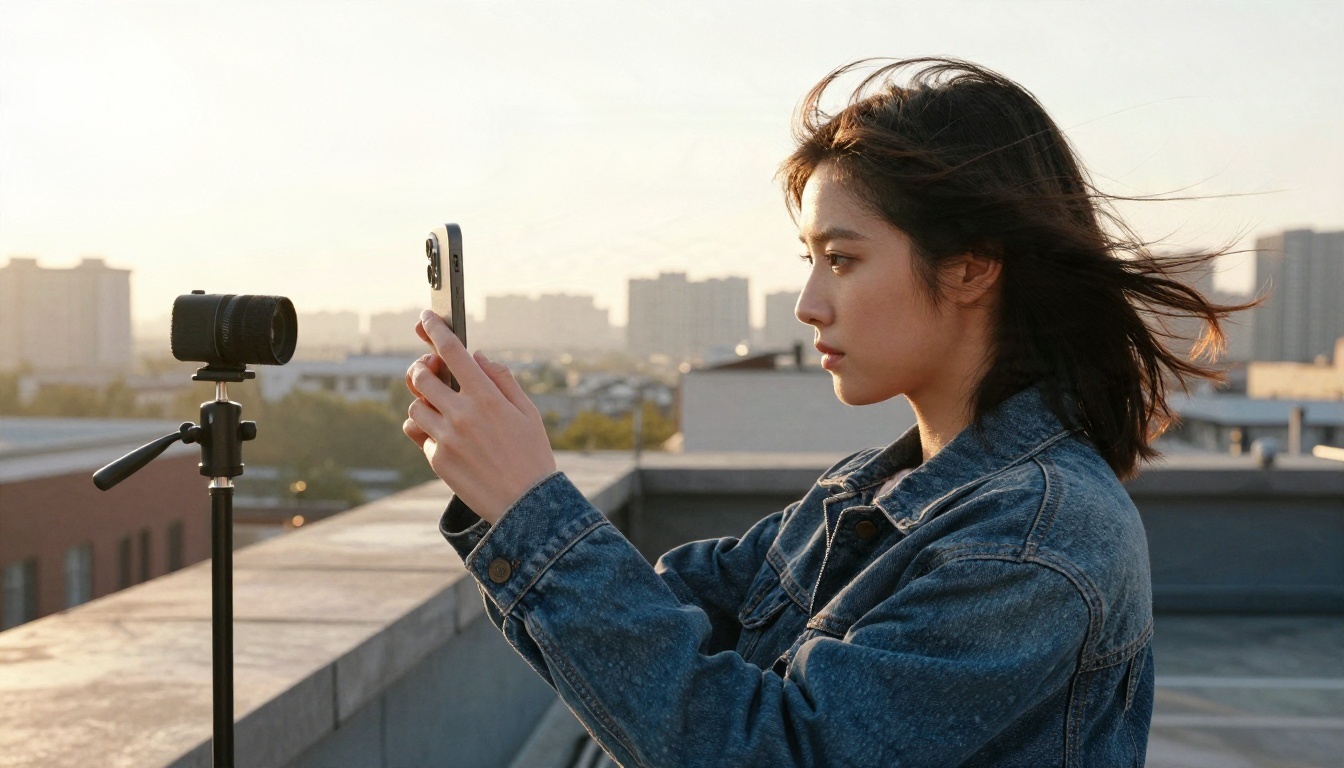
Trim, split, merge, reframe
The basics are still there, and they are quick:
Sharper footage
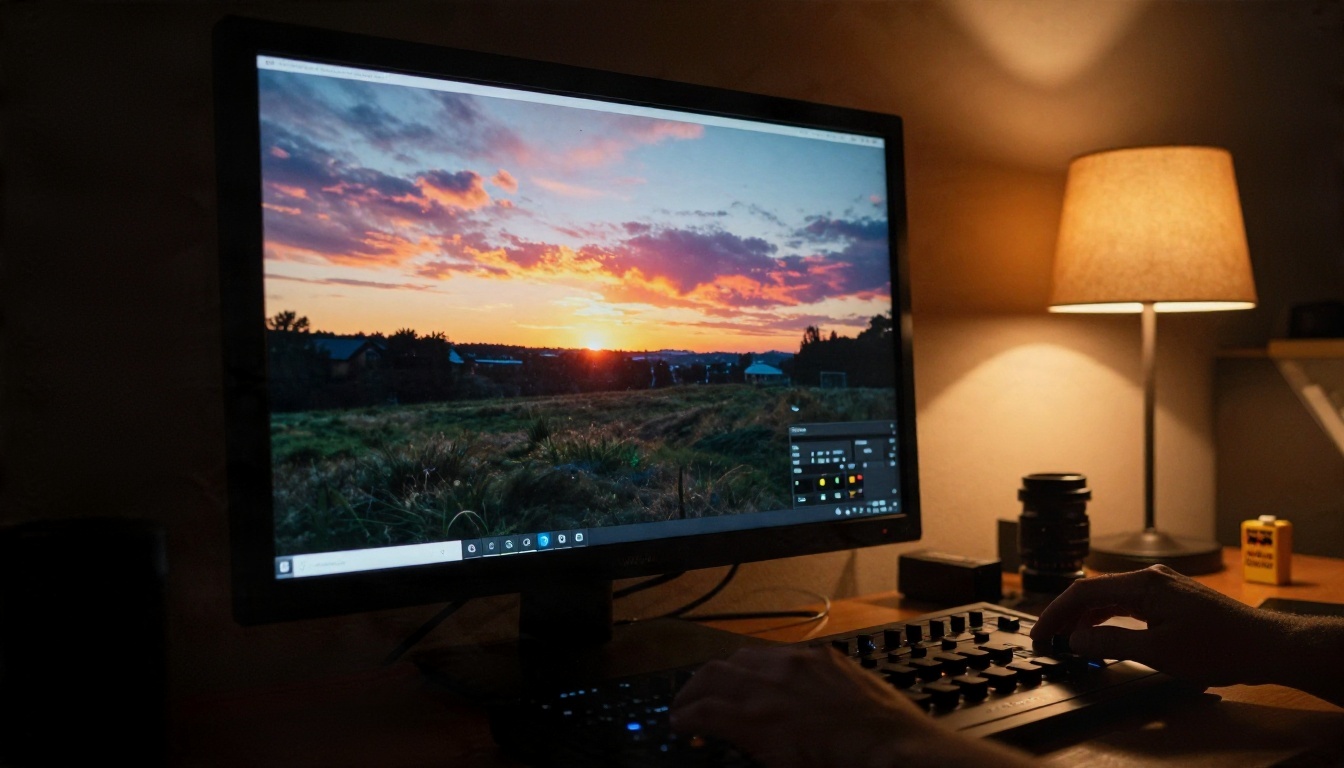
Low-resolution clips are the most common reason a video looks cheap. Video Increase Resolution, Real ESRGAN Video, Video Upscale and Upscale v1 all push footage toward 4K. If you are not sure which to use, run the same 5-second clip through two of them and compare skin, text and fine edges.
Sound and captions
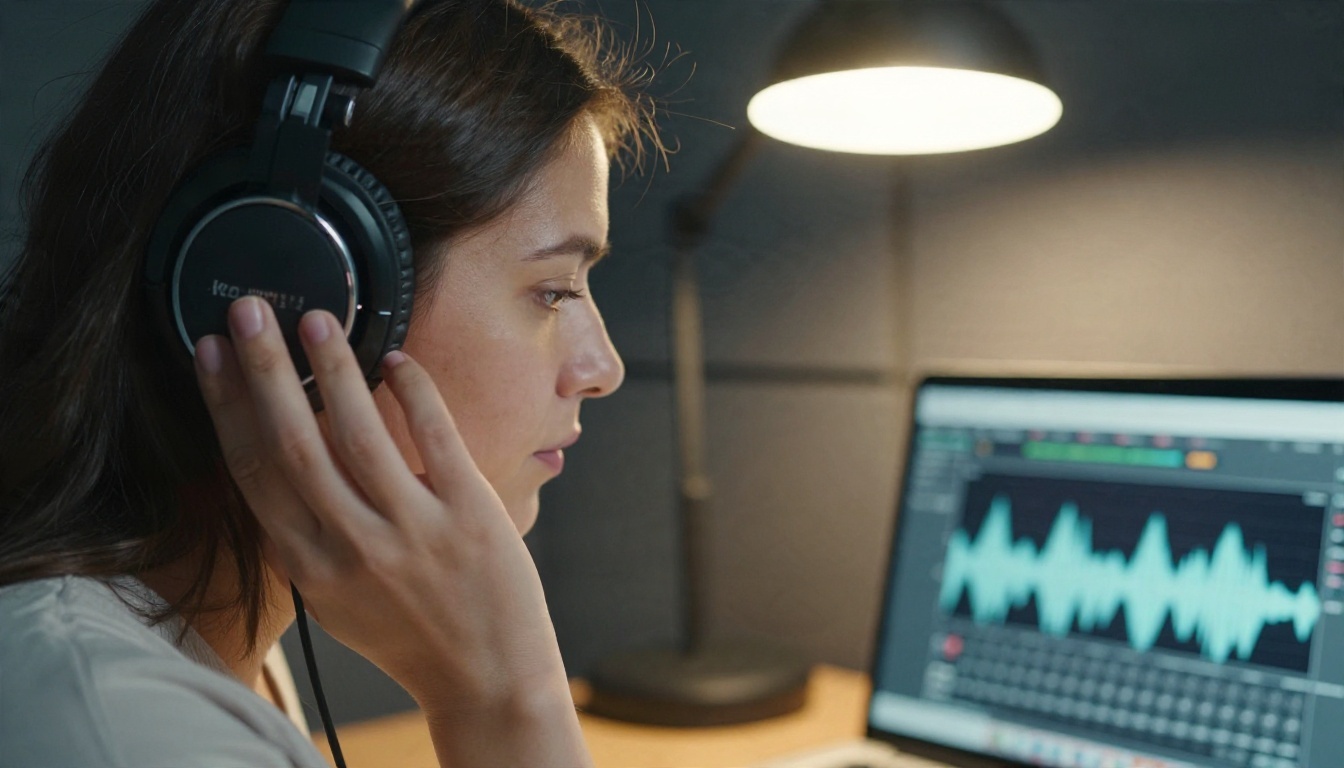
Silent AI clips feel unfinished. Video To SFX v1.5 adds sound effects that match the action on screen, MMAudio and Thinksound generate contextual audio, and Video Audio Merge replaces or mixes a soundtrack. Autocaption burns in subtitles, which matters because most social video is watched on mute.
Prompts That Work

The anatomy of a good edit prompt
Text-based editors respond best to a short, specific instruction built from four parts:
- What to change (the object, background or style).
- What to change it into (the exact result).
- What to keep (motion, faces, camera angle).
- The look (lighting, film stock, mood).
A weak prompt: "make it better." A strong one: "Replace the grey sky with a warm sunset, keep the camera movement and the person's face unchanged, natural film look."
Ten prompts to copy
- Change the season to autumn, orange leaves on the trees, keep the people and camera motion identical.
- Make the daytime scene look like blue hour, soft street lamps, no change to the subject.
- Remove the person in the red jacket in the background, fill with the existing pavement.
- Restyle as 16mm film, warm grain, slightly faded blacks, keep every movement.
- Replace the white wall behind the speaker with a bookshelf, shallow depth of field.
- Add light rain and wet reflections on the road, keep the car and driver unchanged.
- Change the product color from black to matte forest green, keep reflections realistic.
- Make the sky overcast and moody, lower the saturation slightly, leave the foreground untouched.
- Remove the logo on the cap, keep the fabric texture and folds.
- Extend the shot with the camera slowly pulling back, same lighting and location.
💡 Tip: Write the "keep" clause every time. Without it, models sometimes alter faces or camera motion while chasing your main instruction.
Mistakes that waste credits
- Stacking five changes in one prompt. Edit once per run, then combine.
- Using vague style words like "cinematic" with nothing concrete behind them.
- Starting from a blurry source. Upscale first, edit second.
- Ignoring clip length. Many models work best on short clips, so split long footage first.
A Simple Editing Workflow
Start with strong raw footage
If you do not have footage, generate it. Kling v3 Video, Veo 3.1 Fast and Seedance 2.5 Lite all create clips from text, and Seedance 2.5 Lite is listed as a free, unlimited generator for clips up to 10 seconds. Those clips then become the raw material for editing.
The five-step order
- Trim the clip to the part you need with Trim Video.
- Fix problems first: erase objects, remove backgrounds, retake bad sections.
- Restyle with a text editor such as P Video Edit or Lucy Edit 2.
- Upscale the approved version, never the draft.
- Finish with sound, captions and a reframe for each platform.
Doing it in this order saves credits. Upscaling is the most expensive step, so you only pay for it on footage you already like.
Compress before you publish
Large files upload slowly and get recompressed by social platforms anyway. Featured Vid shrinks a video for the web, so what you publish is what viewers actually see.
Pricing: What You Pay

Free versus paid, honestly
I could not find independent reviews that confirm exact limits for PicassoIA's tools, and per-model pricing can change, so check the model page before you run a long job. What I can say from the platform listings is that some models are positioned as free and unlimited, with Seedance 2.5 Lite as the clearest example, while premium models use credits.
For comparison, the free tiers of mainstream browser editors usually look like this:
| Cost factor | Browser editor free plan | AI model editor |
|---|
| Watermark | Often yes | Depends on the model |
| Export resolution | Often capped near 720p | Varies, upscalers reach 4K or higher |
| Time limits | Monthly export minutes | Per-run clip length |
| Cost to fix a mistake | Re-export, no extra cost | May use credits again |
Hidden costs to watch
- Re-runs. A vague prompt can cost you three attempts instead of one.
- Upscaling twice. Run it once, on the final cut.
- Subscriptions you forget. Free trials that need a card tend to renew quietly.
- Your time. A free editor that takes two hours is not cheaper than a credit-based tool that takes ten minutes.
💡 Budget rule: test every new prompt on a 3 to 5 second clip. Only commit to a full-length run once the short version looks right.
Which Option Fits You
Match the tool to the job instead of searching for one editor that does everything:
- You need captions, cuts and templates: a free browser editor is enough. Accept the watermark or export limit, or pay for one month.
- You need to fix or restyle footage: use a text-based model such as P Video Edit or Modify Video.
- You need clean cleanup work: use Video Erase Object and Video Remove Background.
- You need a polished export: upscale, add sound with Video To SFX v1.5, caption with Autocaption.
- You have no footage at all: generate it with Kling v3 Video or Veo 3.1 Fast first.
A realistic setup for most solo creators is one free browser editor for the timeline plus two or three AI models for the parts a timeline cannot do. That keeps costs near zero and the quality high.
Make Your Own Video Today
The fastest way to settle the free-versus-paid question is to try it on one real clip. Pick a 5-second piece of footage you already have, run it through P Video Edit with one of the prompts above, then upscale the version you like. You will know within ten minutes whether text-based editing fits your workflow.
Open PicassoIA, choose a video editing model, and test a prompt of your own. Change the weather, remove an object, restyle the scene, then compare the result with your original. When you want to see everything on offer, browse the full list of models at picassoia.com/en/all-models and build the toolbox that fits how you edit.


