You shot a perfect ten-second clip, but the sky is gray, a stranger walks through the background, and the client wants the jacket in red. Ten years ago that meant masking, tracking and a long evening. Now you type one sentence, wait a minute, and the model rewrites the footage while keeping the motion you filmed. Prompt based video editing is real, it is usable today, and some of it is free. It also has hard limits that most tutorials skip. This article covers the tools, the exact prompts that work, the settings worth touching, and where the technology still breaks.
What Prompt Based Video Editing Means
Text in, changed footage out
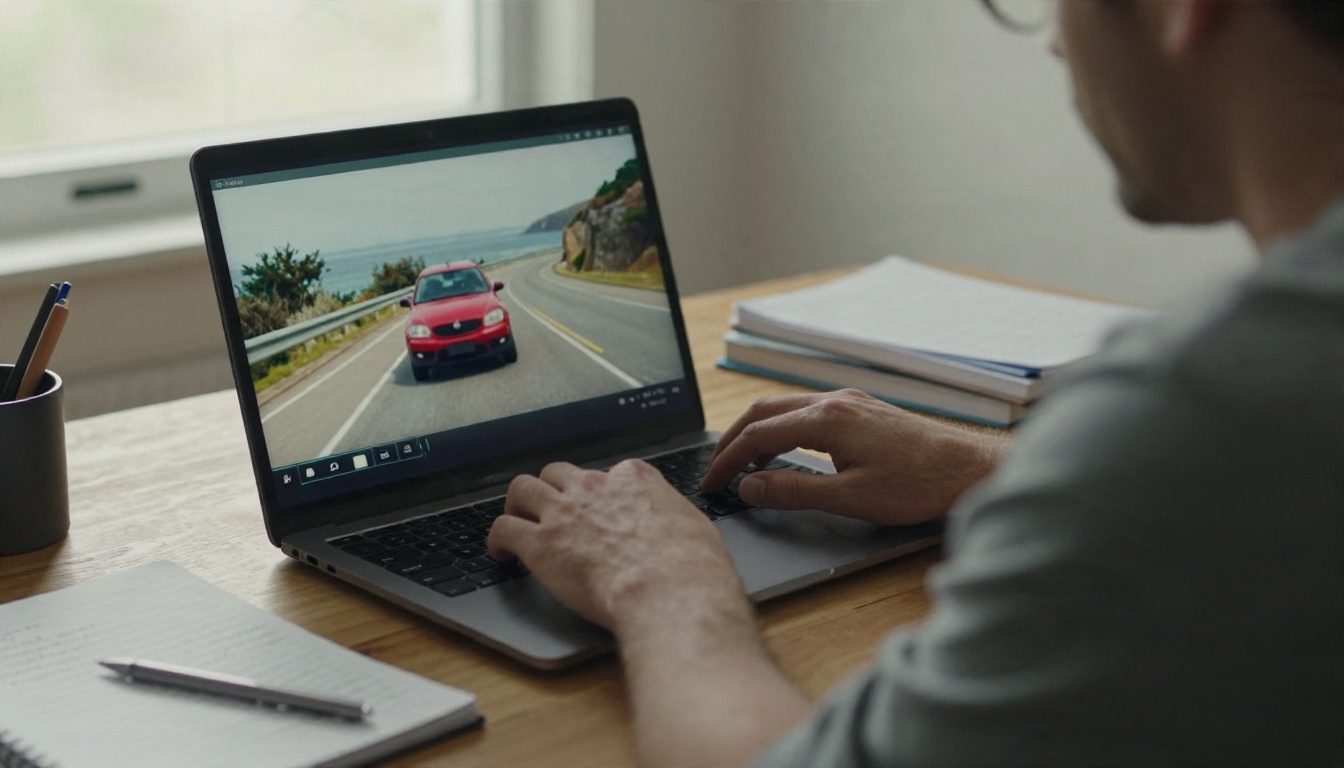
You upload an existing video, write an instruction such as "make the car blue and the road wet", and the model returns a new clip. The camera move, timing and subject motion stay. Only the things you described change. That is the whole idea, and it is why people call it editing rather than generation.
The model reads your clip as a sequence of frames, applies your instruction to each one, and keeps the result consistent from frame to frame. No timeline, no masks, no keyframes. The skill moves from clicking tools to writing a precise sentence.
How it differs from generation
A text to video model invents footage from nothing. A prompt based editor starts from footage you already have. That changes what you should expect:
- Motion is inherited. If your original shot is a slow pan, the edit is a slow pan.
- Composition is locked. You can swap a subject, but you cannot ask for a new camera angle.
- Prompts are shorter. You describe the change, not the whole scene.
- Results are more predictable. The source clip anchors the output.
💡 Rule of thumb: if you are describing things that are already in your clip, you are doing it wrong. Describe only what should be different.
Free options on PicassoIA
P Video Edit is the easiest place to begin. You upload a clip of up to 15 seconds, write a prompt, and optionally attach up to four reference images. It has a draft mode that renders a fast, lower quality preview so you can test a prompt before committing to the final render, and it keeps the original audio by default.
If you need a source clip first, Seedance 2.5 Lite is a free generator that produces videos up to 10 seconds, which you can then feed into an editor. For cleanup after the edit, Real ESRGAN Video upscales to 4K and Trim Video cuts the clip to the exact length you need.
Free tiers elsewhere
Several outside products also offer prompt based editing with a free plan, including Dreamina, Magic Hour and DeeVid. Runway sells prompt edits on paid plans. Most of these comparison pages are written by the vendors themselves, so treat rankings with caution. What does repeat across them is the shape of the free tier:
| Free tier restriction | What it means for you |
|---|
| Watermark | Fine for testing, unusable for client work |
| 720p cap | Looks soft on a large screen |
| Short expiry | Download your result the same day |
| Credit wall | A few edits, then a paywall |
| Short clip limit | You must trim before uploading |
Always check the current pricing page before you plan a project around any free plan, because these limits change often.
Prompt Examples That Work
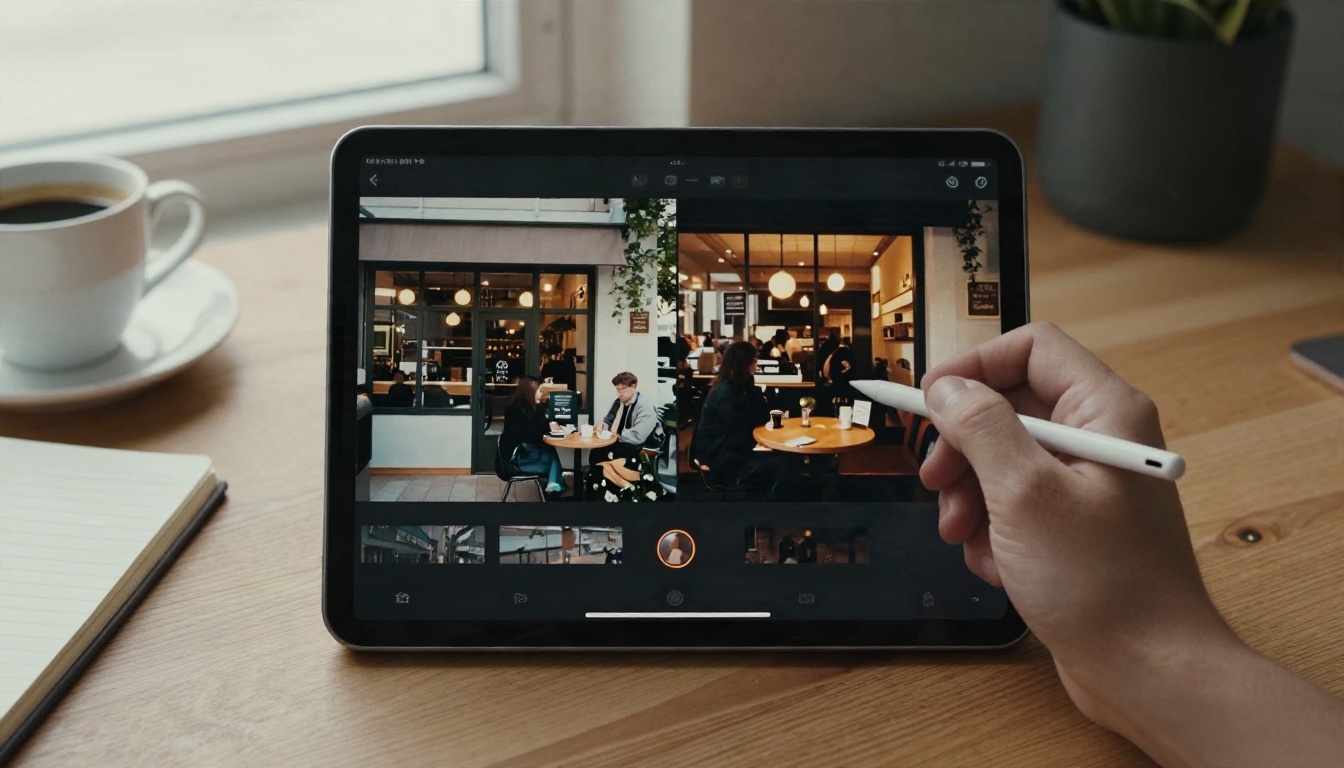
The pattern that works best is verb, target, new state, what stays the same. Short, concrete, one change at a time.
Swap an object
"Replace the red car with a matte black vintage motorcycle. Keep the road, the camera movement and the lighting unchanged."
This is the most reliable type of edit. Lucy Edit 2 is built for it: swap props, clothing or accessories, and attach a reference image of the exact object you want, such as a specific pair of sunglasses or a logo.
Change time of day
"Change the daytime scene to golden hour dusk with long warm shadows. Keep all people and movement exactly the same."
Lighting changes are forgiving because there are no edges to get wrong. If you are editing a café or street shot, this is a good first test.
Restyle the whole clip
"Restyle as a 1970s 35mm film look with warm tones and visible grain. Do not change the composition."
Modify Video from Luma is designed for restyling, and Kling o1 can rewrite a clip from realistic to any visual look you describe while preserving the original motion.
Remove something
"Remove the person walking in the background. Fill the space with the empty pavement."
For clean removals, a dedicated tool is often better than a general editor. Video Erase Object removes things from a clip, and Video Remove Background handles the background without a green screen.
Here is a quick reference of prompt patterns and how each tends to behave:
| Edit type | Example prompt | Reliability |
|---|
| Color change | "Make the jacket deep red" | High |
| Object swap | "Replace the mug with a glass teapot" | High |
| Time of day | "Make it a rainy evening" | High |
| Style change | "Look like 16mm documentary film" | Medium to high |
| Background change | "Place the speaker in a sunlit library" | Medium |
| Object removal | "Remove the bicycle on the left" | Medium |
| Adding a person | "Add a child running through frame" | Low to medium |
Settings That Change the Result
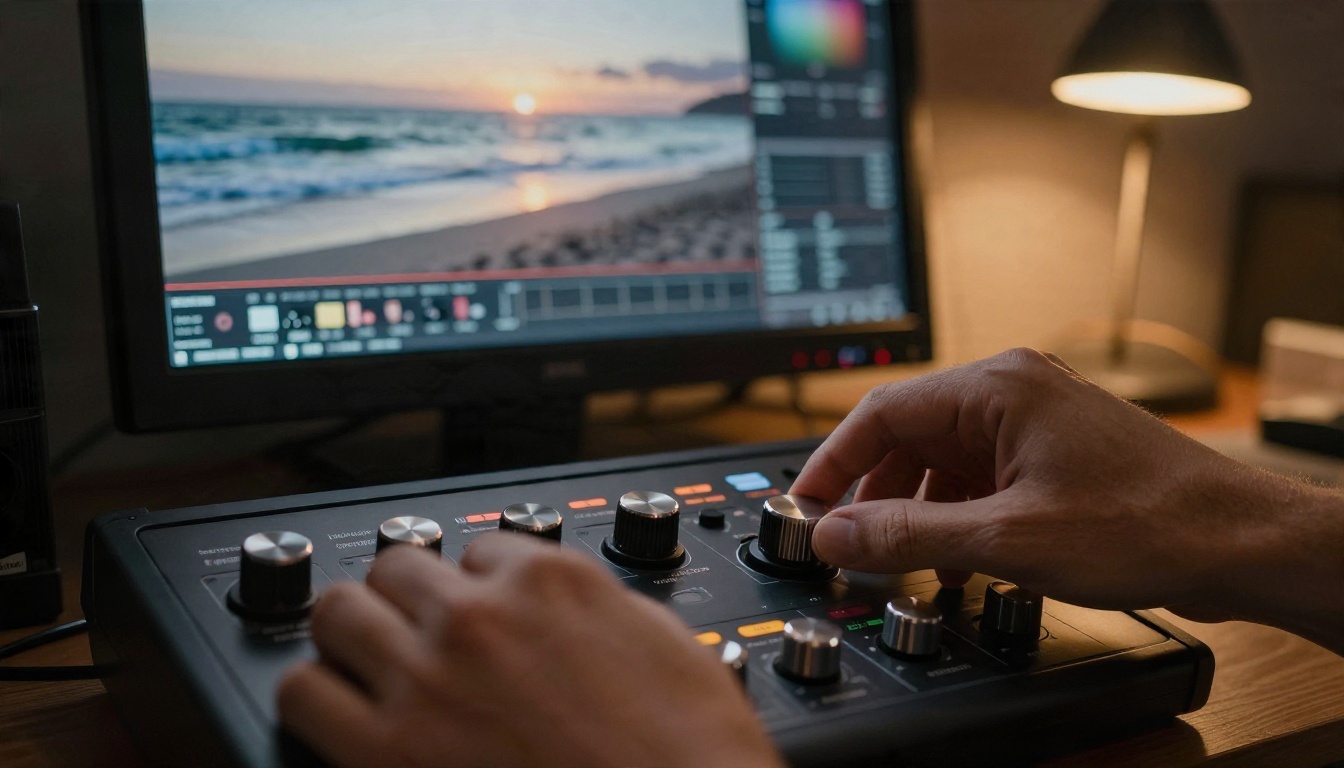
Prompts get the attention, but a handful of settings decide whether an edit is usable.
Draft mode and seed
P Video Edit has a draft switch. Turn it on while you iterate. It renders a faster, lower quality preview, so you can burn through five prompt variations in the time one final render would take. Once the edit looks right, turn it off for the final pass.
The seed setting works the same way across most models. If you like an edit but want a small change, keep the same seed and adjust only the prompt. A new seed gives you a different take on the same prompt.
Audio, resolution, aspect ratio
Wan 2.7 Videoedit exposes the most output controls:
- Resolution: 720p or 1080p. Use 720p for tests.
- Aspect ratio: auto, 16:9, 9:16, 1:1, 4:3 or 3:4. Auto matches your source.
- Audio setting: "origin" keeps your original sound, "auto" lets the model decide whether to regenerate it.
- Duration: shorten the output if you only need part of the clip.
Kling o1 has a "keep original sound" toggle and a std or pro mode. Std costs less and is fine for tests, while pro gives higher quality. Note that for base editing mode, the output length follows your input clip.
Reference images
Reference images are the strongest tool when words are not precise enough. "A vintage motorcycle" could mean a hundred things, but a photo of one is exact. P Video Edit accepts up to four, Lucy Edit 2 accepts one, and Kling o1 accepts up to four alongside a video.
| Setting | Where | Best use |
|---|
| Draft mode | P Video Edit | Fast prompt tests |
| Prompt upsampling | P Video Edit | Short, vague prompts |
| Prompt optimizer | Lucy Edit 2 | Rewrites your text into a precise instruction |
| Audio setting | Wan 2.7 Videoedit | Keep original dialogue |
| Std or pro mode | Kling o1 | Balance cost and quality |
| Reference image | Most editors | Exact objects, logos, looks |
💡 Tip: leave prompt upsampling on for short prompts, and turn it off once you write long, precise instructions, because the model may add details you did not ask for.
Limits You Will Hit
Clip length
This is the biggest wall. P Video Edit accepts up to 15 seconds. Wan 2.7 Videoedit takes clips between 2 and 10 seconds in mp4 or mov. Kling o1 accepts 3 to 10 seconds with a 200 MB cap. Lucy Edit 2 wants an mp4 in 16:9 or 9:16, also up to 200 MB.
For longer footage, split the video into short segments with Video Split, edit each one with the same prompt and seed, then rejoin them with Video Merge. Expect small differences at the joins.
Faces, hands and text
Even good models struggle in three areas:
- Faces that move a lot. A face turning away and back can drift in identity.
- Hands. Fingers touching objects may warp during an edit.
- Readable text. Signs, labels and logos often change between frames.
If your clip depends on any of these, test a short section first. When one section needs fixing, LTX 2 Retake lets you redo a specific part of a video rather than the whole clip.
One change at a time
Stacking changes, such as "new background, new outfit, new lighting and a different style", is the most common cause of bad results. The model compromises on all of them. Do one change per pass. Chain the edits: background first, then lighting, then style.
Free tier walls
Free plans on outside tools often come with a watermark, a 720p cap or a short expiry. When quality matters, upscale the finished result with Video Increase Resolution and download it right away.
Edit a Clip in Five Steps
This workflow uses P Video Edit on PicassoIA, and the same logic applies to the other editors.
- Prepare the source. Trim the clip to the shortest useful length, under 15 seconds. Use stable, well lit footage with a clear subject. Blurry or very dark clips give weak edits.
- Open the model page. Upload your video in the video field.
- Write one instruction. Use the pattern: verb, target, new state, what stays the same. For example: "Change the jacket to dark green. Keep the face, motion and background unchanged."
- Run a draft. Turn draft mode on, check the result for flicker, drifting faces or wrong colors, and adjust the prompt. Set a seed once you like the direction.
- Render and finish. Turn draft off, keep audio on, and render. If you need a different length or sound, use Trim Video or Video Audio Merge.
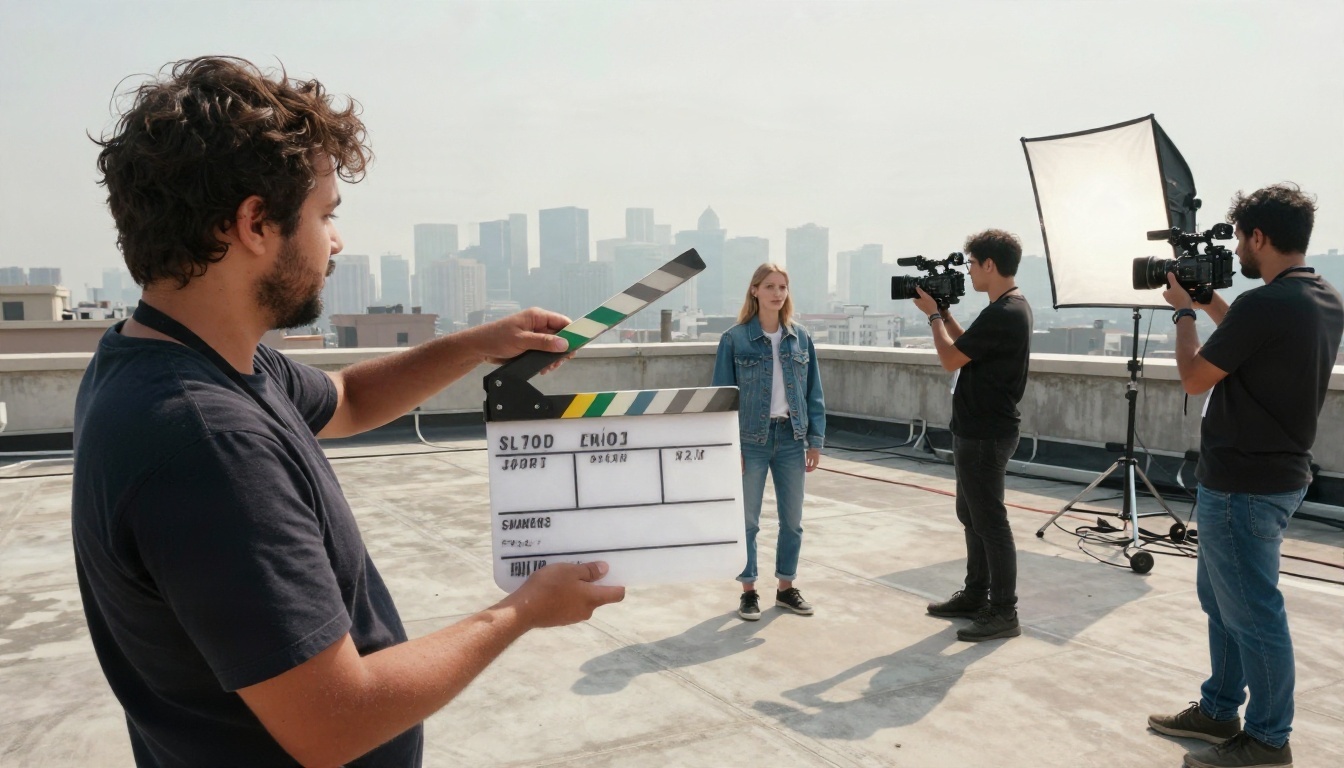
💡 Shoot for the edit. Steady shots, even light and a subject that fills a good part of the frame give editors more to work with. A shaky, backlit phone clip will fight you at every step.
Which Model for Which Job
Different editors have different strengths. Use this table to pick:
| Job | Try this | Why |
|---|
| Quick tests with reference images | P Video Edit | Draft mode, up to four references |
| Object and outfit swaps | Lucy Edit 2 | Strong at replacement with a reference photo |
| Controlled output format | Wan 2.7 Videoedit | 1080p, aspect ratio and audio options |
| Subjects, environments, styles | Kling o1 | Rewrites the scene while keeping motion |
| Edit one frame, restyle everything | Aleph 2 | Frame based approach to restyling |
| Recut and restyle | Gen 4 Aleph | Recutting and restyling in one tool |
| Whole clip restyle | Modify Video | Looks and moods |
| Change aspect ratio | Reframe Video | Vertical, square or wide versions |
A sensible habit: test the same prompt on two models using a draft or standard setting, keep the better one, and only then spend on a final render.
Try Your Own First Edit

Prompt based video editing will not replace a skilled editor with a timeline. It will, however, take over the small, tedious jobs: recoloring a product, changing the weather, removing a distraction, producing a vertical version for social media. Those jobs used to eat an afternoon, and now they take a sentence and a minute.
The fastest way to see what it does is to run one yourself. Take a clip you already have, keep it under ten seconds, and open P Video Edit on PicassoIA. Turn on draft mode, write one clear change, and compare the result. Then try the same prompt in Kling o1 or Wan 2.7 Videoedit to see how the models differ. When you are ready to go further, browse every editing and generation model at picassoia.com/en/all-models.


