Your mom has a shoebox full of faded, yellowed photographs from the 1970s. Your dad keeps asking you to "do something" about that blurry wedding photo on the mantle. And neither of them has any interest in learning software. Here is the good news: they do not have to.
Today's best simple AI tools require no account, no tutorial, and no tolerance for confusing menus. You upload a photo, click one button, and something remarkable happens. That is the entire experience for most of these tools. The technology has gotten so good, and so simple, that the idea that "AI is only for tech people" is simply outdated.
This article covers the best simple AI tools your parents can use today, right now, without asking anyone for help.
Why AI Feels Complicated (But Is Not)
Most people who feel intimidated by AI are not intimidated by the results. They are intimidated by the interface. Early software tools were built for experts who expected complexity. The menus were deep, the terminology was technical, and the assumption was that users would read a manual first.
That era is over.
The Real Barrier Was Never Intelligence
The problem was never that older adults could not figure out how to use technology. It was that older tools were not designed with them in mind. Tiny text. Unexplained icons. Processes that required five steps when one would do.
The best AI tools being released today are different by design. They are built around a single goal: give the user a result as fast as possible, with as little friction as possible.
What Changed in the Last Two Years
The shift happened when AI image tools stopped being "features inside professional software" and started being standalone apps. Instead of opening Photoshop, navigating to a filter panel, and adjusting 12 sliders, a tool like Image Colorization simply takes your photo and returns it in full color. No sliders. No adjustments. Just results.
This is the category of tools this article focuses on: single-purpose, zero-setup, one-click AI tools that work for anyone with a browser and a photo.
These are not theoretical. Each of these tools is available today with no technical setup required. Your parents can use them on a phone, tablet, or laptop with the same ease.
1. Color Old Black-and-White Photos
This is the one that tends to stop people in their tracks.
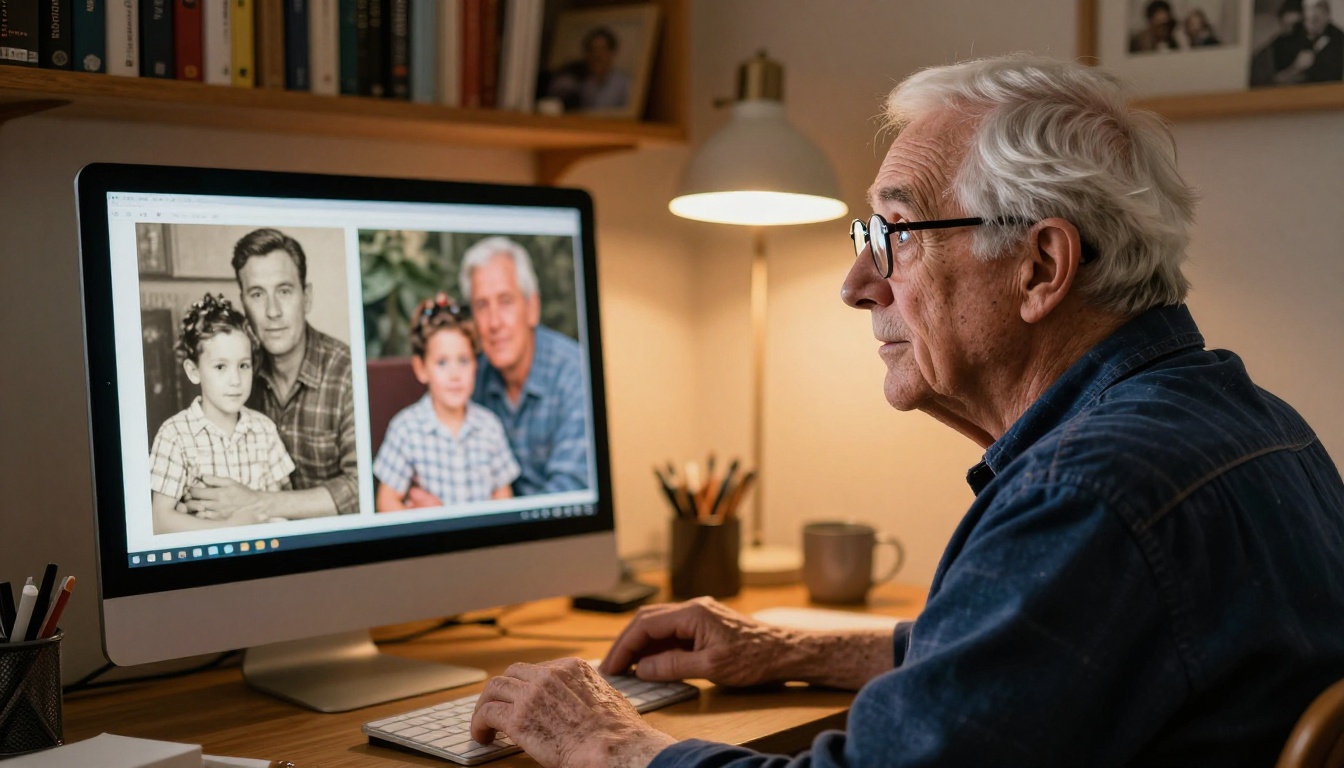
You have a black-and-white photo of your grandmother from 1955. You upload it. In less than a minute, you have a full-color version with realistic skin tones, natural backgrounds, and period-accurate hues that the AI infers from context and historical data.
The Image Colorization tool analyzes every pixel of the original image and applies intelligent color based on what it knows about textures, lighting, and historical photographs. The result is not a cartoon filter. It looks like the photo was always in color.
What makes it easy:
- Upload your photo from your phone or computer
- The AI applies color automatically
- Download the result with one click
No settings to adjust. No choices to make. Just a dramatically improved photograph of someone your family loves.
💡 Tip: This works best with portraits and outdoor scenes. Wedding photos, graduation pictures, and holiday snapshots all respond beautifully to colorization.
2. Fix Scratched and Faded Photos
Old photos degrade. Paper yellows, surfaces scratch, corners fold, and moisture creates spots and stains. For decades, fixing this required either a professional retouching service or Photoshop skills most people never develop.
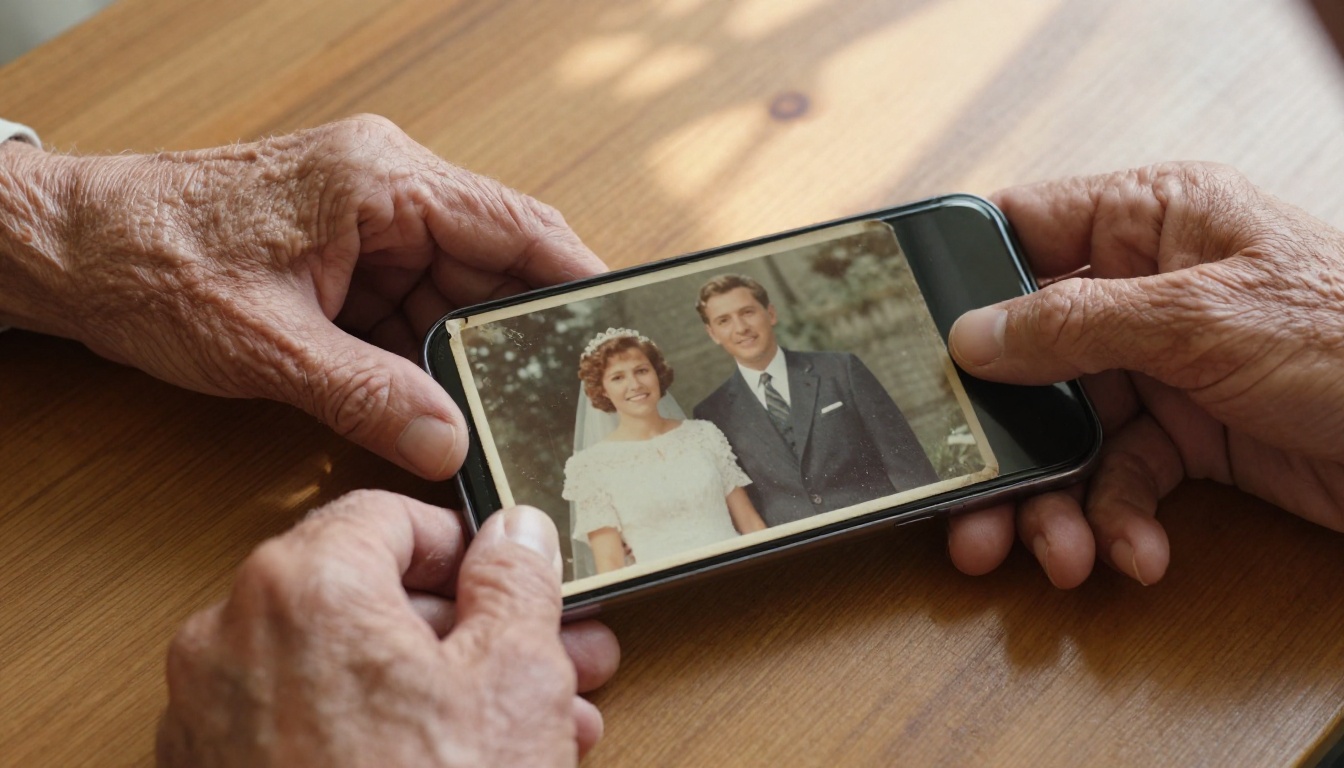
The Dust and Scratch v2 tool analyzes each damaged area and rebuilds it intelligently. It fills in scratches with surrounding texture, removes dust spots, and reconstructs details that have been partially lost to time. The results can be genuinely emotional, especially when the photo holds real family history.
Best results with:
- Printed photographs stored in shoeboxes or albums
- Photos with visible lines, spots, or yellowing
- Images that have been folded or handled many times over the years
3. Sharpen and Upscale Blurry Photos
Every family has at least one important photo that is slightly too blurry. The camera moved. The lighting was poor. It was the only shot taken at that moment, and now it has to do.
AI upscaling tools can recover sharpness from photos that would otherwise be unusable. Image Upscale by Topaz Labs increases resolution up to 6x while adding real detail rather than simply stretching pixels. The result is a sharp, high-resolution version of an image that used to be blurry and small.

Several excellent options exist for sharpening and resolution improvement:
All of these follow the same pattern: upload your photo, get a sharper version back. Nothing else to configure.
4. Remove Backgrounds Instantly
This one surprises people who have only seen it done manually.
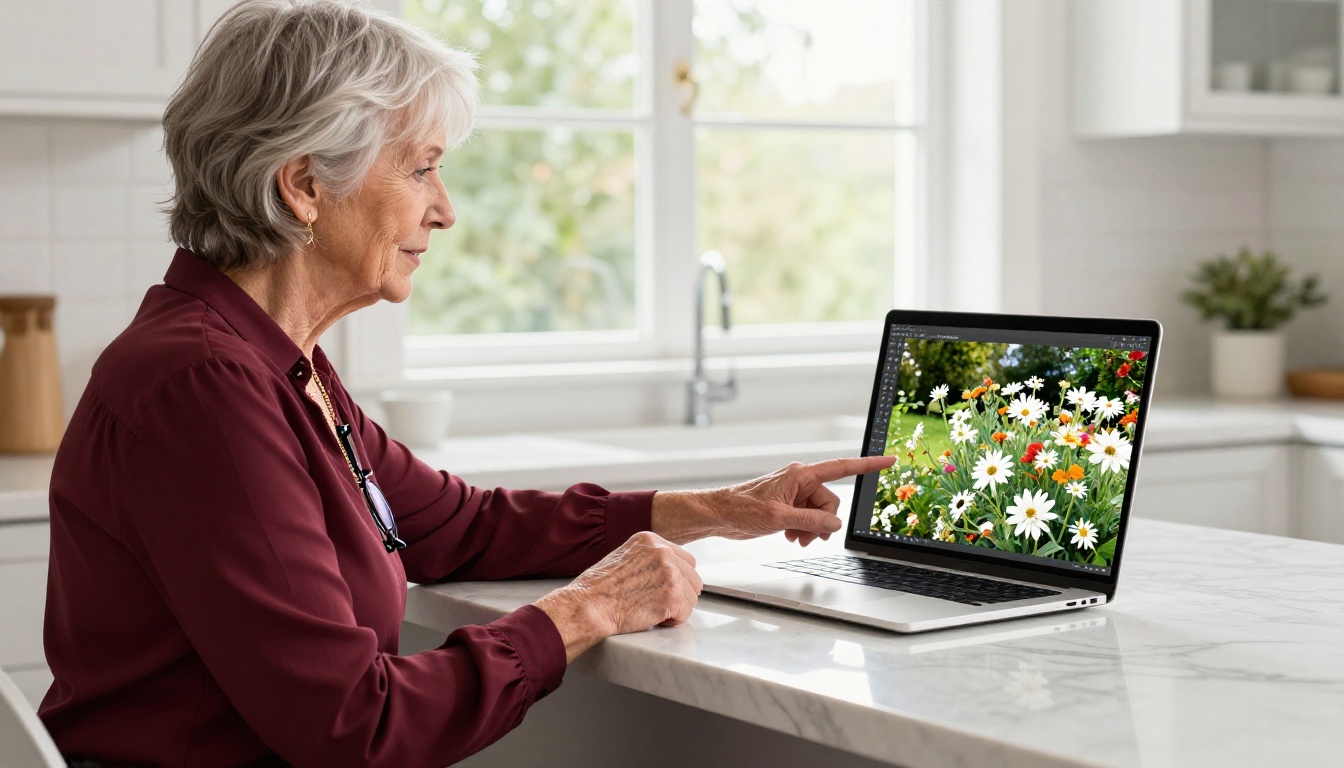
Removing a background from a photo used to take several minutes in Photoshop and often left jagged edges or missed fine details like hair. The Remove Background tool does it in about one second. Upload a photo and get the person or object back with a perfectly clean cutout, ready to place on any background.
Why this works for non-tech users:
- No selection tools or manual tracing required
- Works on any photo taken with a phone camera
- Results are clean enough for printing or sharing on social media
This is useful for profile pictures, greeting cards, product photos, or any time someone wants a clean image without a distracting background.
5. Create New Images from Words
This is the category that feels the most like magic.
You type: "a sunny garden with roses in the morning light." You press generate. An image appears that did not exist anywhere before that moment, created entirely from your words. No photography. No editing. Just a description and a result.
The GPT Image 2 model is one of the most capable text-to-image tools available today, and it responds well to simple, plain-language descriptions. Your parents do not need to write technical "prompts." They can describe what they want in normal language and the model interprets it with impressive accuracy.
Flux 2 Klein 9B Base LoRA is another strong option that produces stylized results from straightforward text descriptions, ideal for anyone who wants to experiment with different visual styles.
💡 Tip: Start with simple descriptions. "A dog sitting in a park on a sunny day" works just as well as a complex technical prompt. The AI fills in the details you do not specify.
Step-by-Step: Fix an Old Photo Today
This section walks through the process of restoring a family photo from start to finish, so your parents know exactly what to expect before they try.
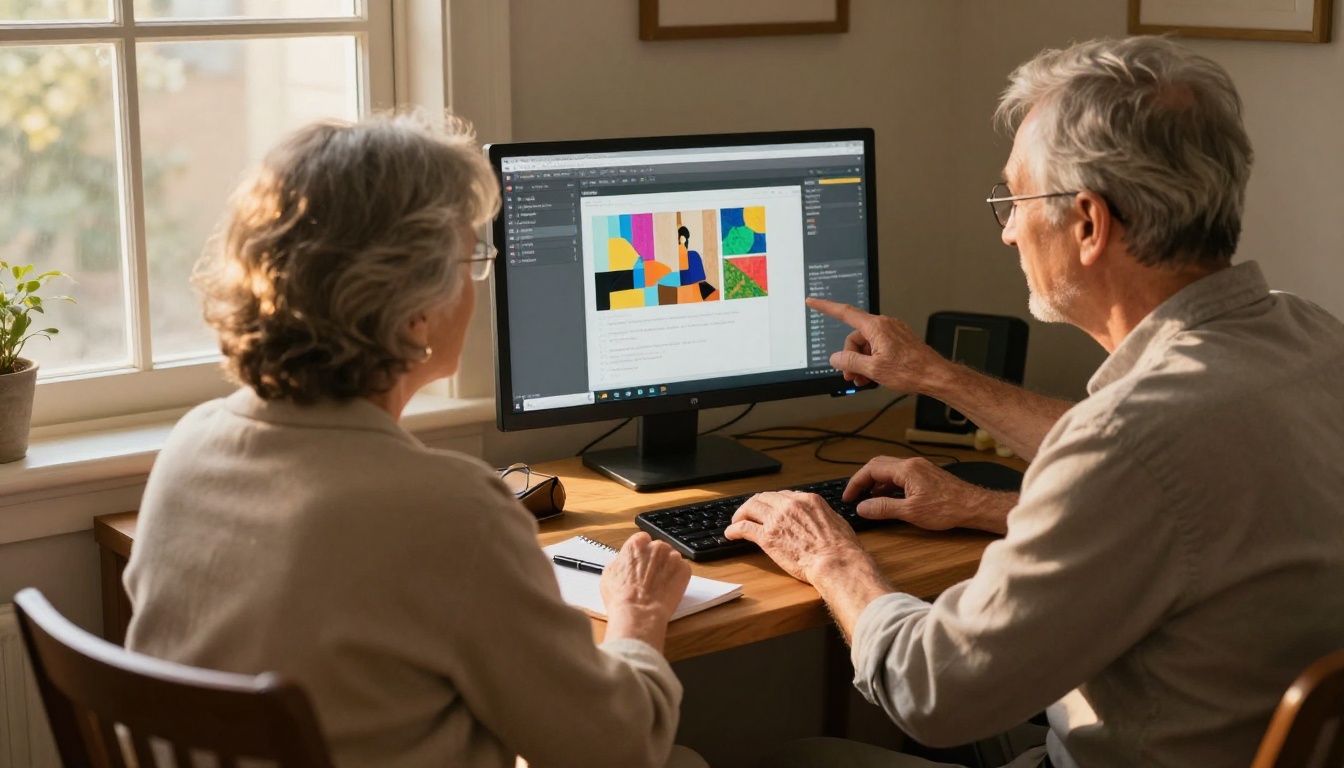
Step 1: Find a Photo That Needs Work
Dig out the best candidate. This might be a photo that is faded, yellowed, scratched, blurry, or in black-and-white. If the photo is a physical print rather than a digital file, take a picture of it using a phone camera held directly above it in good natural light. That gives you a clean digital copy to work with.
For best results, photograph the print against a flat white surface near a window.
Step 2: Pick the Right Tool
Match the problem to the solution:
Step 3: Upload and Wait
Every tool on PicassoIA follows the same basic process. Open the tool page. Find the upload button. Select your photo from your device. The AI processes it and returns the result, usually within 10 to 30 seconds.
Download the result. Share it with family. That is the whole process.
There is a clear pattern among tools that work well for non-tech users. They have exactly one job, they do it automatically, and they never ask the user to make a decision they do not feel qualified to make.

No Account Needed for Most Tools
Many tools on PicassoIA do not require any registration to try. There is no sign-up form, no password to create, and no personal information to share before getting a result. Your parents can go directly to a tool, upload their photo, and get something back without creating any account.
This removes one of the biggest friction points for non-tech users. The question "do I have to sign up for something?" is often enough to stop someone before they even start.
Works on Any Device
Every tool on PicassoIA is accessible from a browser. This means it works on a Windows computer, a Mac, an iPhone, an Android phone, or any tablet. There is nothing to download and install. No app update prompts. No compatibility issues.
If your parent has a device that can open a website, they have access to every tool on the platform.
💡 Tip: The tablet experience is particularly good for older adults because the larger screen makes buttons and upload areas easier to see and tap accurately.
Real Things to Try This Weekend
Here are three specific projects worth attempting right now, with the exact tools to use for each one.
Fix a Blurry Old Wedding Photo
Wedding photos from the 1970s and 1980s were often taken on consumer film cameras with limited sharpness. Many exist only as small printed photos that have never been properly digitized.
Take a flat photo of the print with a phone. Use Image Upscale to enlarge and sharpen it. Then use Dust and Scratch v2 to remove any visible damage. The final result can be printed at a much larger size than the original.
Create a Personalized Portrait
Using GPT Image 2, try generating a portrait in a style your parent enjoys. "An oil painting portrait of a woman with grey hair and a warm smile, in a classical style" produces a result that can be framed and given as a gift. The image is entirely new, created from a description alone.
Clean Up a Profile Picture
Social media profile photos taken in poor lighting or on old phone cameras often look flat or blurry. Use Recraft Crisp Upscale to sharpen any portrait. Then use Remove Background to replace a cluttered background with something clean.
Start Experimenting on PicassoIA
The tools above are available right now. No downloads required, no prior experience needed, and no learning curve worth worrying about.
The best place to start is with a photo you already care about. An old portrait of a grandparent. A blurry snapshot from a family holiday. A black-and-white photo from before anyone in your family was born. Pick one, take it to one of the tools listed above, and see what the result looks like.

PicassoIA offers more than 90 text-to-image models alongside tools for upscaling, background removal, photo restoration, colorization, and much more, all accessible directly from a browser. Whether your parents want to restore family history or create something entirely new, the tools are simple enough to use on the first try and remarkable enough to make it worth doing.
Start with Photo Colorization or try the Image Upscaler. The results will do the convincing.


