You have a great photo. A portrait, a product shot, a quiet street at dawn. And you want it to move, with rain falling, a coat swaying and street noise drifting in, all from one still frame. That is exactly what Veo 3 image to video promises, and it is why so many creators keep searching for a free way to try it.
The catch is that the details are messy. Free access has changed several times, third-party blogs contradict each other, and the audio and length limits are rarely spelled out in one place. This article sorts that out in plain language: what image to video means with Veo 3, which free routes people talk about, how to write prompts that animate a photo well, what to expect from the sound, and what to do if you want something you can open and use right now.
💡 Quick answer: Veo 3 is Google's video model with native audio. Free access, when it exists, comes with tight daily caps and can change without notice. Veo 3 itself is not on PicassoIA, but Veo 3.1 Fast, Veo 3.1 and Seedance 2.5 Lite are, and all three accept a starting image.
What Veo 3 Image to Video Means
Image to video takes a single still picture as the first frame and asks the model to continue the scene. You add a text prompt that says what should happen: who moves, where the camera goes, what sounds appear. The model keeps the faces, colours, lighting and composition of your photo and invents the motion between frames.

Text to video versus image to video
With text to video you describe everything and the model invents the subject, the room and the light. With image to video, your photo is the anchor. That gives you far more control over how a character looks or how a product is shaped, which is why marketers and photographers prefer it.
| Feature | Text to video | Image to video |
|---|
| Starting point | A written description | Your own still photo |
| Control over look | Medium | High |
| Risk of "off model" faces | Higher | Lower |
| Best for | Fresh concepts | Portraits, products, brand assets |
| Prompt length needed | Long, descriptive | Short, motion focused |
Why Veo 3 got so much attention
Veo 3 was the model that made people notice native audio. Instead of silent clips that needed a separate sound pass, it produced dialogue, footsteps, ambience and music together with the picture. Later releases in the Veo 3.1 line pushed further on image-based control, such as supplying a starting frame and an ending frame. That is the reason image to video became the most searched way to use the family.
Is Veo 3 Really Free?
Short answer: sometimes, in small doses. The longer answer depends on when you read this, because Google has adjusted its free and paid plans repeatedly, and the guides online do not agree with each other. Some claim wide free access for any Google account. Others say the Gemini app needs a paid plan and that the free route has daily caps and a watermark. I could not confirm exact numbers against a single reliable source, so treat any specific figure you see in a blog post as unverified.
The usual free routes
Here is how people typically get a few clips without paying:
- Promotional trials. Google has attached short trials of its AI plans to new accounts and to some phones. These come and go.
- Limited daily credits. Some Google tools give a small allowance of generations per day, enough for a handful of clips.
- Student or regional offers. Occasional bundles that include video generation for a set period.
- Third-party sites reselling access. Many of these advertise "free Veo 3" and then throttle you hard or ask for a card after one clip.
⚠️ Watch for lookalike sites. If a page promises unlimited free Veo 3 with no account, no limit and no watermark, be sceptical. Real compute costs money, so something is being traded: your data, your time in a queue, or the quality of the output.
What "free" usually costs you
Even when a free tier is real, expect one or more of these trade-offs:
- A low daily cap, often only a few generations.
- Lower resolution or a visible watermark.
- Queue time, since free jobs run behind paid ones.
- Feature gaps, such as no image input or no ending frame option.
If you want a fair comparison, check Google's own pricing pages on the day you plan to produce, because anything written weeks ago may already be stale.
How Audio Works in Image to Video
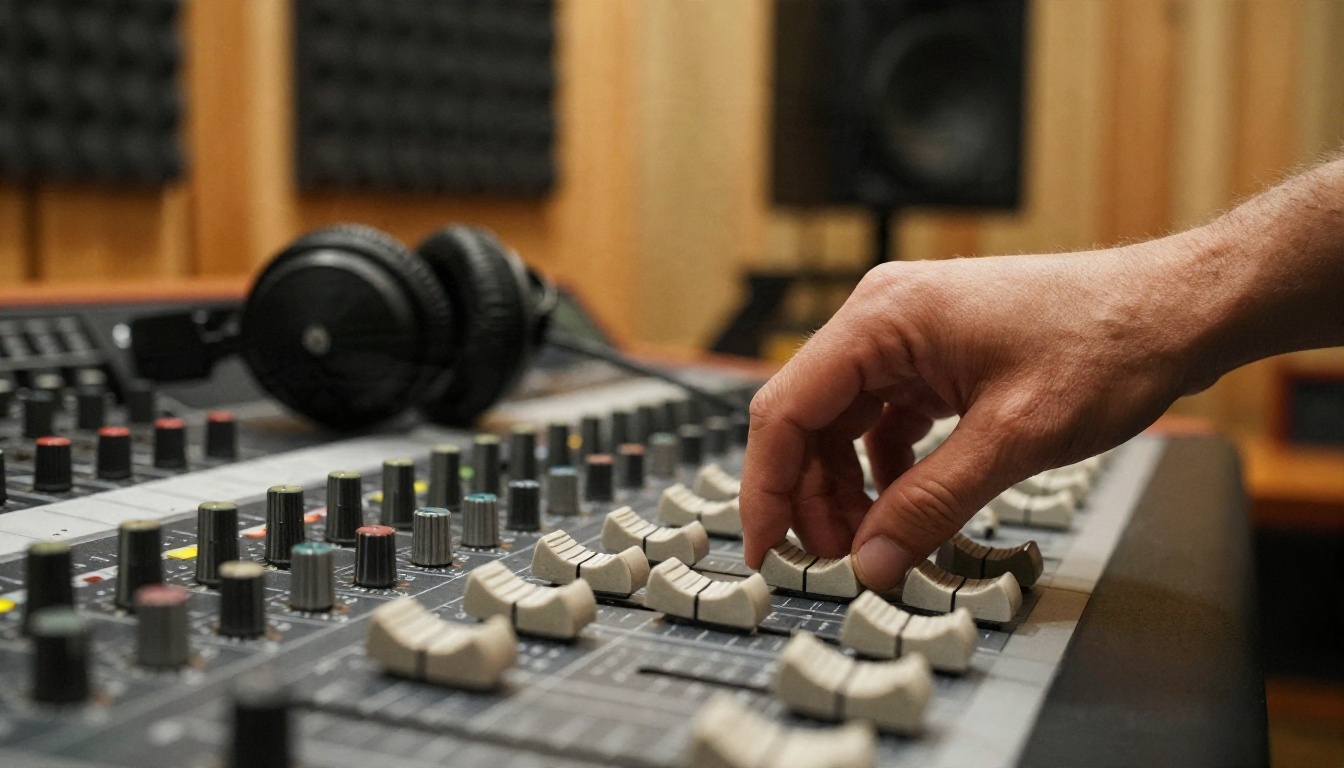
Sound is the real reason to pick a Veo-style model. You do not need to record anything. The model reads your prompt and the picture and generates matching audio at the same time.
What the model can generate
- Ambient sound: wind, traffic, rain on glass, café chatter.
- Effects: footsteps, a cup placed on a saucer, a door closing.
- Music: a light background bed that fits the mood.
- Speech: short spoken lines when you put them in the prompt.
How to steer the sound
Write audio into the prompt the same way you write motion. Name the sound and say when it happens. "Rain taps on the window, a soft cello note fades in at the end" works much better than "add sound". If you do not want speech or music, say so with a short line like "no music, no dialogue, only room tone".
Where audio can go wrong
Audio is the part that fails most often. Lips and spoken words can drift out of sync, background music can appear when you did not ask for it, and long lines of dialogue tend to get cut off. Keep spoken text to a single short sentence and expect to run a few takes.
Prompts That Animate a Photo
Because the image already tells the model what the scene looks like, your prompt should be about change: what moves, how the camera behaves, what you hear.
A simple prompt formula
Use this order and keep it to two or three sentences:
Subject action + camera move + light or atmosphere + sound
Example for a portrait: "The woman turns her head toward the camera and smiles slightly, her coat shifts in a light breeze. Slow push-in. Soft overcast light, rain on cobblestones, distant tram bell and quiet footsteps."
Prompt examples by photo type
| Photo type | Prompt idea |
|---|
| Portrait | Subject blinks, turns slightly, hair moves in a breeze. Slow push-in. Quiet room tone. |
| Landscape | Mist drifts between trees, branches sway. Gentle pan right. Birds and soft wind. |
| Product | Steam rises, label stays sharp, camera orbits a few degrees. Subtle kitchen ambience. |
| Street scene | Pedestrians walk past, headlights pass. Static camera. City hum and distant sirens. |
| Food | Hands place a garnish, sauce glistens. Slow dolly-in. Pan sizzle and cutlery clinks. |
Common prompt mistakes
- Asking for too much. One main action per clip. Three actions usually produce a mess.
- Contradicting the photo. If the photo is a sunny beach, asking for a snowstorm breaks the frame.
- Describing the image again. The model can already see it. Spend your words on motion.
- Forgetting the camera. Without a camera instruction the model may choose an odd one. "Static camera" is a valid, useful choice.
💡 Tip: Start with a prompt under 40 words. Add details only after you see what the first take gets wrong.
Picking the Right Source Photo
A weak starting image gives a weak clip no matter how good the prompt is. A few habits help a lot.
Choose clear subjects and clean edges
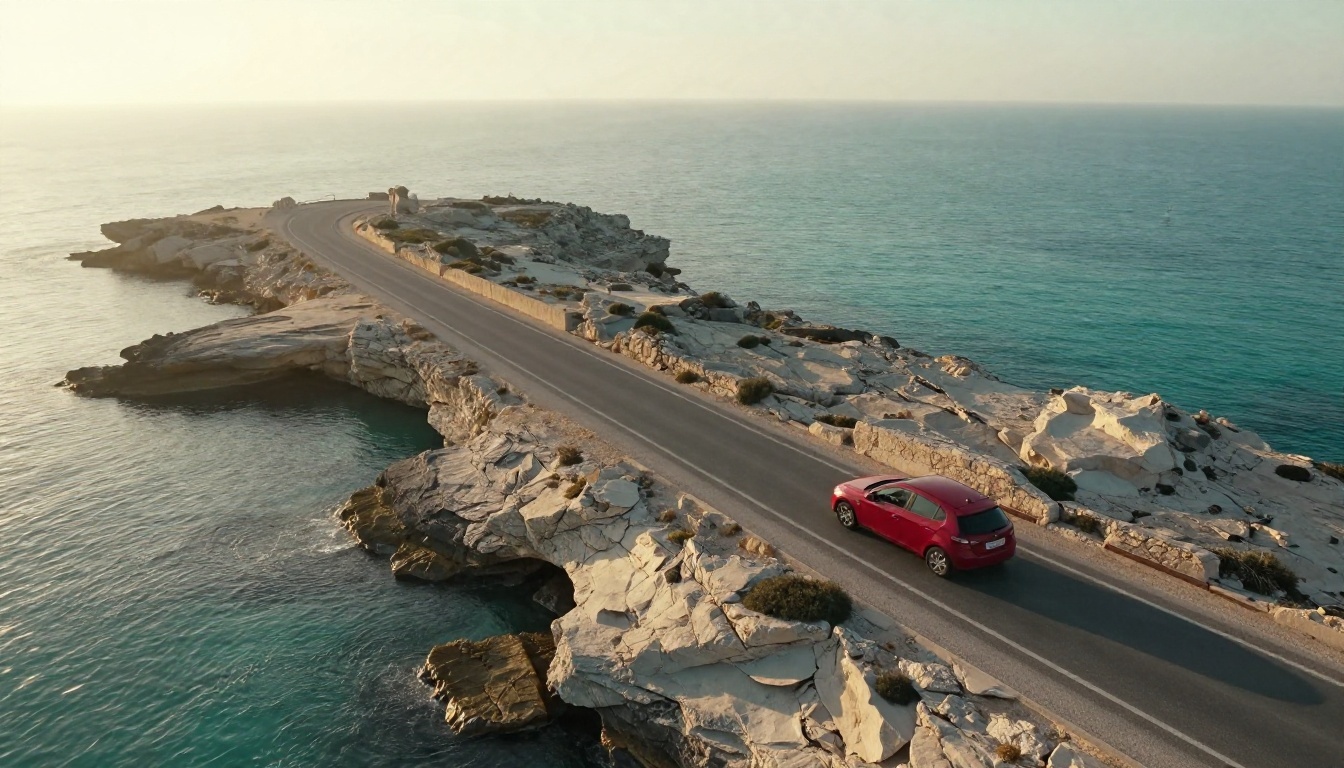
Photos with one obvious subject and clear space around it animate best. The aerial coastal road above is a good example: the car is small and distinct, the sea has natural motion, and there is room for the camera to move.
Match the aspect ratio
Most video models output 16:9 landscape or 9:16 vertical. If your photo is a different shape, crop it first. Otherwise the tool may crop for you and cut off the part you care about.
Avoid busy faces and hands
Crowds, many hands and tiny text are where artifacts appear. A single face at a decent size, like the café portrait below, usually holds together.
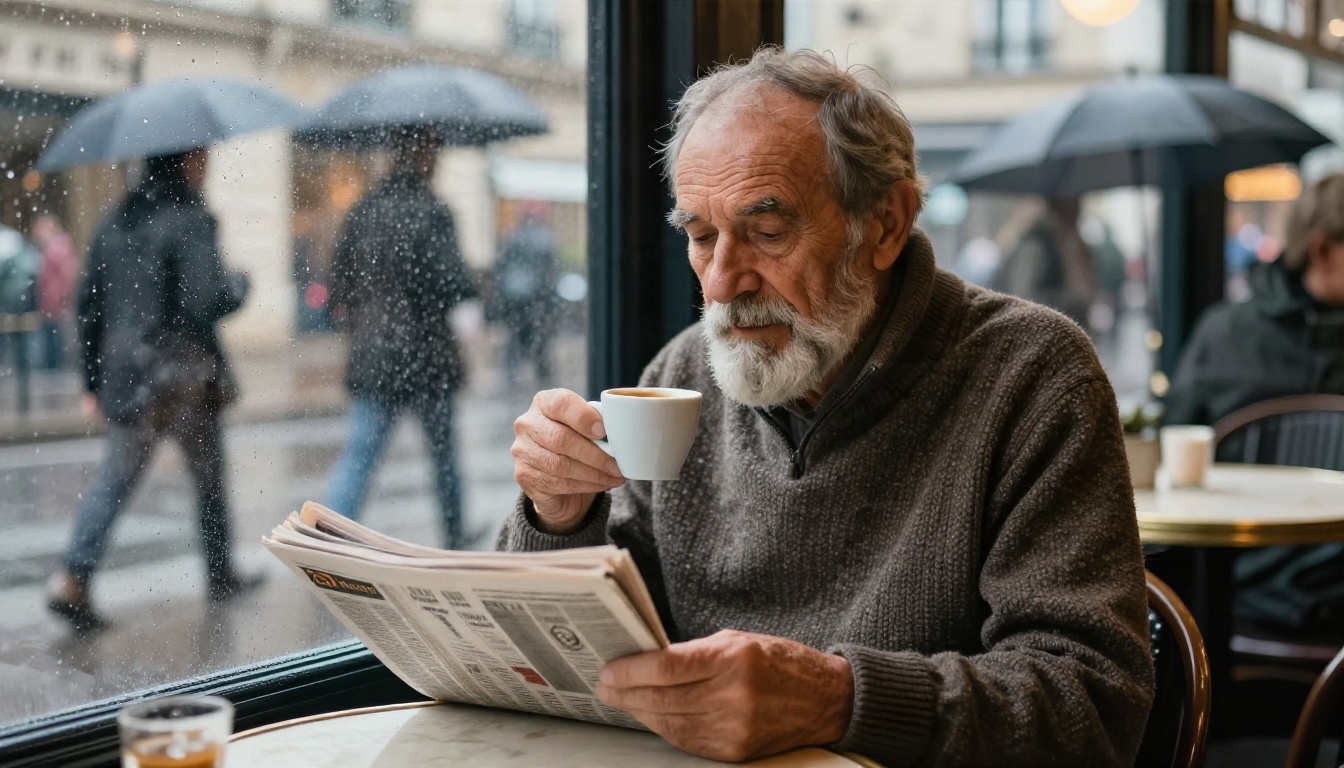
For a shot like that, a good motion prompt would be: "He lifts the cup slowly and takes a sip, raindrops slide down the glass behind him. Static camera, soft overcast light, quiet café murmur and rain."
Limits to Plan Around
Every image to video tool has ceilings. Knowing them before you start saves frustration.
Clip length
Veo-family clips are short, in the range of a few seconds up to around eight. That is enough for a social post or a b-roll shot, not for a scene with a story. If you need a longer sequence, plan on stitching several clips together.
Resolution and daily quotas
Free tiers usually trade resolution or quantity. Paid tiers raise both. Quotas reset on a schedule that differs from service to service, so check your account page instead of guessing.
Consistency across clips
Each generation is independent. A character in clip two may not look exactly like clip one, even with the same photo. To keep a look consistent, reuse the same source image or use an ending frame so the clips line up.
Content rules
Models of this kind refuse some requests, such as real public figures, explicit material or violent content. If a prompt is rejected, rewrite it to be more neutral rather than retrying the same text.
| Limit | What to expect | What to do |
|---|
| Length | A few seconds per clip | Stitch clips in an editor |
| Resolution | Varies by plan | Pick the highest your plan allows |
| Daily cap | Small on free routes | Plan your best prompts in advance |
| Audio | Can drift or be cut | Keep speech very short |
| Consistency | Varies between takes | Reuse the same starting photo |
Veo 3 Alternatives on PicassoIA
Veo 3 is not on PicassoIA yet. For similar results today, these models are, and each one can start from your own photo or work from text.
Veo 3.1 Fast
Veo 3.1 Fast is the closest match for the workflow people want from Veo 3. It supports an input image, an optional last frame for transitions, 16:9 and 9:16 output, 720p or 1080p, durations of 4, 6 or 8 seconds, a negative prompt field, and a switch to generate audio.
Veo 3.1
Veo 3.1 is the full model of the same line, built for 1080p video with matching audio. Pick it when you care more about quality than speed.
Seedance 2.5 Lite
Seedance 2.5 Lite is a good pick for repeated testing. It animates an input image, makes clips of 5 or 10 seconds at 480p or 720p, includes synchronized audio you can switch off, and is listed as unlimited for Elite and Infinite members.
Veo 3 Fast
Veo 3 Fast is a lighter sibling that makes videos with audio from text. It is a useful way to sketch an idea before you commit to a photo.
| Model | Image input | Audio | Length | Best for |
|---|
| Veo 3.1 Fast | Yes, plus last frame | Yes | 4, 6 or 8 s | Fast, polished clips |
| Veo 3.1 | Image workflows in the Veo 3.1 line | Yes | Short clips | Top quality at 1080p |
| Seedance 2.5 Lite | Yes, plus last frame | Yes, optional | 5 or 10 s | High volume testing |
| Veo 3 Fast | Text prompts | Yes | Short clips | Quick idea sketches |
How to Get Similar Results on PicassoIA
Here is the step-by-step routine with Veo 3.1 Fast, the model closest to what Veo 3 image to video offers.
Step by step
- Open the model page. Go to Veo 3.1 Fast and sign in.
- Upload your starting photo. In the Image field, add a 16:9 or 9:16 photo. Around 1280x720 or 720x1280 works best.
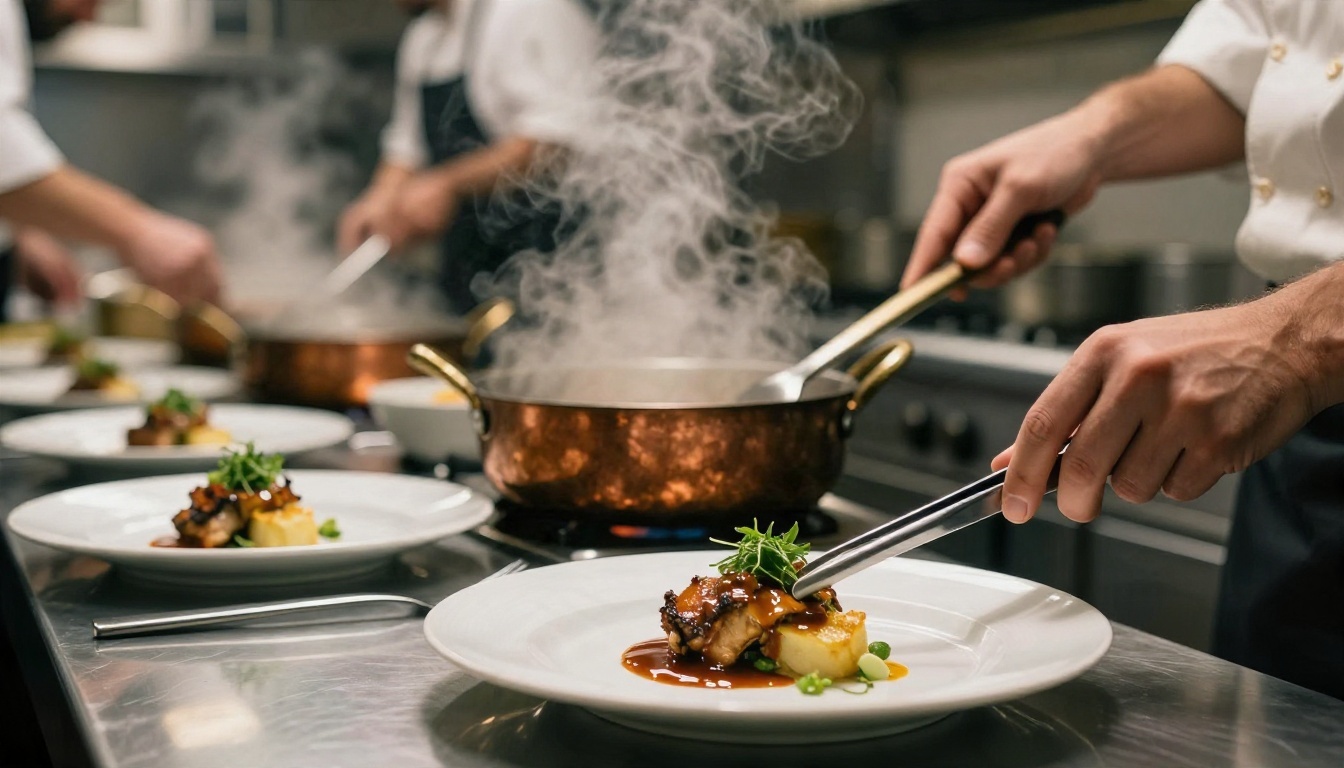
- Write a short motion prompt. Use the formula from earlier: action, camera, light, sound. The chef photo above would take "His hands set a sprig of herbs on the plate, steam curls upward. Slow dolly-in, warm kitchen light, pan sizzle and quiet clinks."
- Set the aspect ratio. Choose 16:9 for landscape or 9:16 for vertical, matching your photo.
- Choose duration and resolution. Start with 4 seconds at 720p for a quick test, then raise to 8 seconds and 1080p for the final take.
- Keep audio on. Generate Audio is on by default. Turn it off if you plan to add your own music.
- Add a negative prompt if needed. Something like "text, watermark, distorted hands" can cut common artifacts.
- Generate and compare. Run two or three takes. Change one thing at a time.
Parameter tips
- Seed: Set a fixed number when you like a result and want to tweak only the prompt.
- Last frame: Add a second image to create a smooth transition from the first photo to the second. This is the best tool for before and after reveals.
- Duration: Shorter clips tend to stay more stable. Use 4 seconds for faces and 8 seconds for landscapes.
- Resolution: Test at 720p, finish at 1080p.
💡 Workflow tip: Generate your starting photos with a text-to-image model on PicassoIA first. That way you control the look from the very first frame, and the animation matches your brand or story.
A Practical Workflow That Saves Time
Whether you use Veo-family models or something else, this routine keeps costs and frustration low.
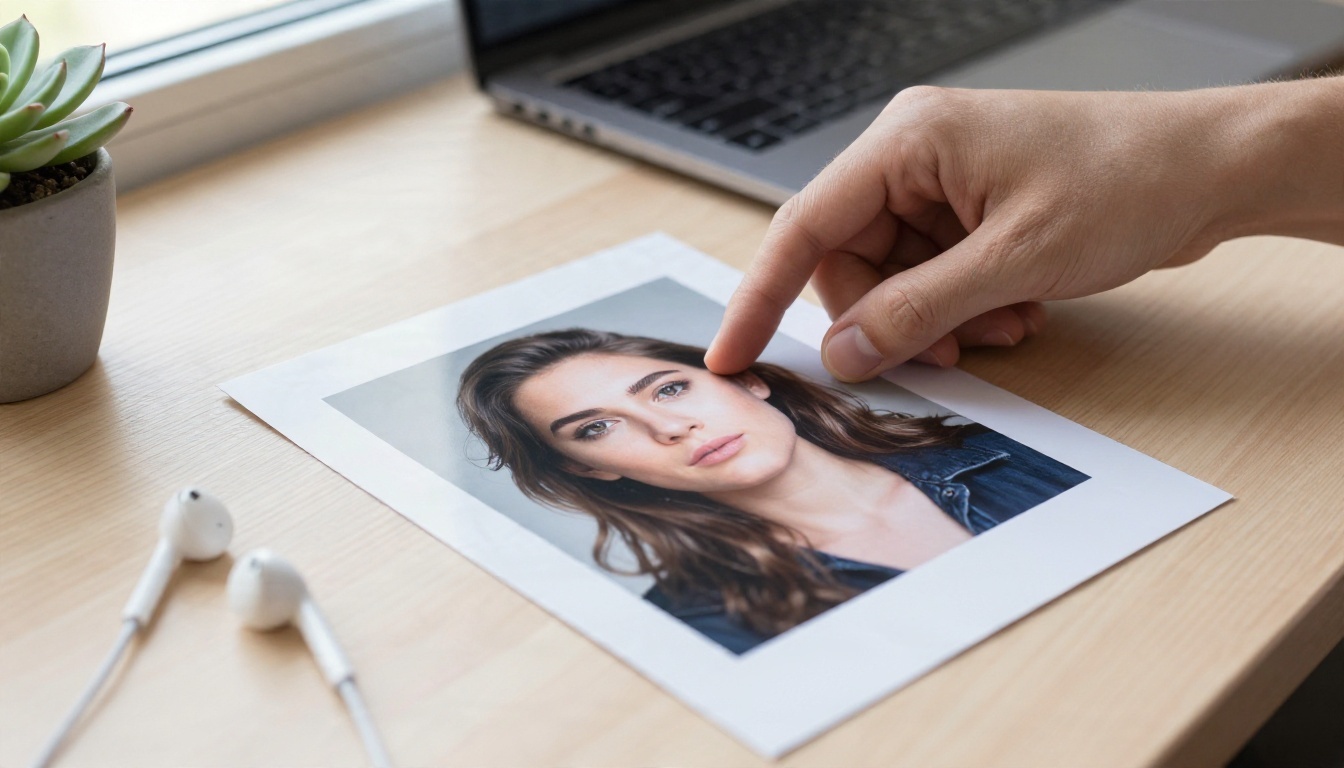
Build a small shot list
Write down three to five shots before you generate anything: subject, motion, camera, sound. Treat each as a separate clip. This stops you from burning your daily allowance on random experiments.
Test short, finish long
Always test with the shortest duration and lowest resolution. Only when the motion looks right do you run the final, longer, sharper version.
Fix audio last
If the picture works but the sound does not, regenerate with a revised audio line, or turn audio off and add your own track in an editor. Treating sound as a separate pass is usually faster than chasing a perfect single take.
Keep a prompt log
Save the prompts, seeds and settings that worked. Reusing a tested prompt on a new photo of the same type is the quickest route to a good clip.
Try It With Your Own Photos
Veo 3 image to video is exciting because it turns a still photo into something with motion and sound, but its free options are narrow and always shifting. You do not have to wait for a perfect free tier. Pick a photo you already love, write a two-sentence motion prompt, and run it through Veo 3.1 Fast or Seedance 2.5 Lite. Compare a few takes, adjust one detail at a time, and you will have a short clip with real sound in minutes.
Want to see everything on offer? Browse the full catalogue at picassoia.com/en/all-models, pick the model that suits your clip, and start animating your own images with PicassoIA today.


