You open a chatbot, tap the microphone, say a full sentence, and get back a garbled mess or a silent screen. Everyone who has tried a voice recognition chatbot has hit that wall at least once. The good news: most of the problems come from a short list of causes, and the tools that work well are mostly free. This article walks through the apps worth installing, the browser options that need no download, the settings that change accuracy the most, and the fixes to try when voice input refuses to cooperate.
What a Voice Recognition Chatbot Does
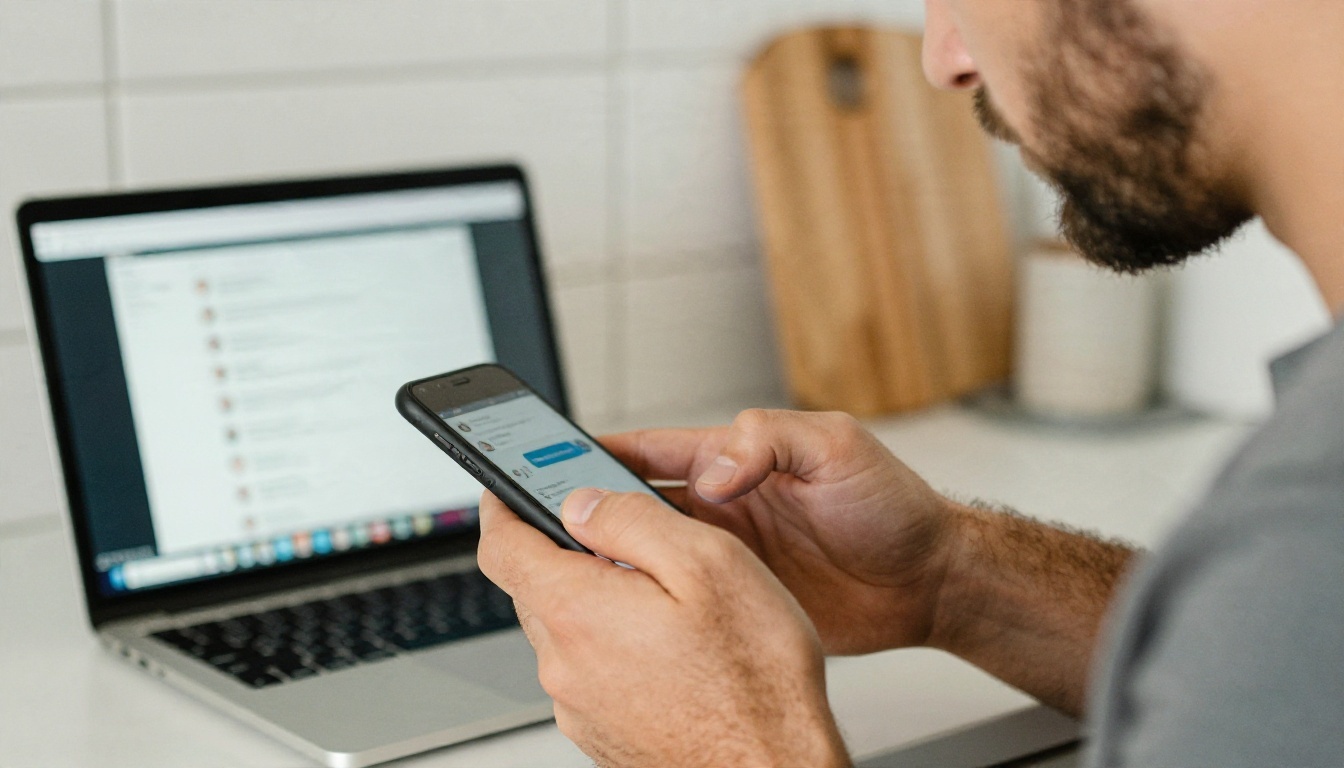
A voice recognition chatbot listens to your speech, turns it into text, sends that text to a language model, and then shows or reads out the answer. Three separate systems are involved, and when something breaks, it helps to know which one failed.
Speech Recognition vs. Voice Reply
Speech recognition (also called speech to text) converts the sound of your voice into written words. The chatbot reads those words and writes a response. Some apps then add text to speech, which reads the answer aloud in a synthetic voice.
If your words appear on screen wrongly, the recognition step is the problem. If the words are correct but the answer is odd, the language model is at fault. If the answer shows up but you hear nothing, the voice output or your speaker settings need attention.
Why Accuracy Varies
Recognition quality depends on a handful of things: microphone quality, background noise, how far you sit from the device, your accent, and whether you speak in clear phrases. A cheap built-in laptop microphone in a kitchen with a running dishwasher will lose to a basic headset in a quiet room, every time.
💡 Tip: Before blaming the app, record yourself with your phone's voice memo tool. If the recording sounds muffled or quiet to you, the chatbot will struggle too.
Free Apps Worth Installing
You do not need a paid plan to talk to a chatbot. Most of the big names offer free voice input, though limits on usage and available voices change often, so check the current terms inside each app.
Phone Built-Ins
Every modern phone ships with system-level dictation. The microphone icon on your on-screen typing panel works in any text box, including inside chatbot apps. It is fast, free, and works in many languages. Siri on iPhone and Google Assistant or Gemini on Android also handle spoken questions directly.
The upside is zero setup. The downside is that these tools usually give short, surface-level answers compared with a dedicated chatbot app.
Standalone Chatbot Apps
ChatGPT, Gemini, Claude, and Microsoft Copilot all offer mobile apps with a microphone button or a live voice mode. Free tiers typically allow some daily voice use, and the paid tiers raise the limits. For casual use, any of them is fine. Pick the one whose answers you already like reading.
| Option | Voice Input | Spoken Replies | Typical Cost |
|---|
| Phone dictation | Yes | No | Free |
| ChatGPT app | Yes | Yes | Free tier available |
| Gemini app | Yes | Yes | Free tier available |
| Claude app | Yes | Varies by platform | Free tier available |
| Microsoft Copilot | Yes | Yes | Free tier available |
Availability and limits shift between releases, so treat the table as a starting point and confirm inside the app.
Dictation and Note Apps
If your goal is to capture long thoughts and not to chat, a dedicated dictation or notes app may serve you better. Google Docs has voice typing on desktop browsers, and most phone notes apps accept dictated text. Paste the result into a chatbot afterward and ask it to tidy the wording.
Online Options in Your Browser
No installation is needed for these. They suit people on shared computers, managed work laptops, or anyone who wants to test a chatbot before committing to an app.
Browser Dictation Basics
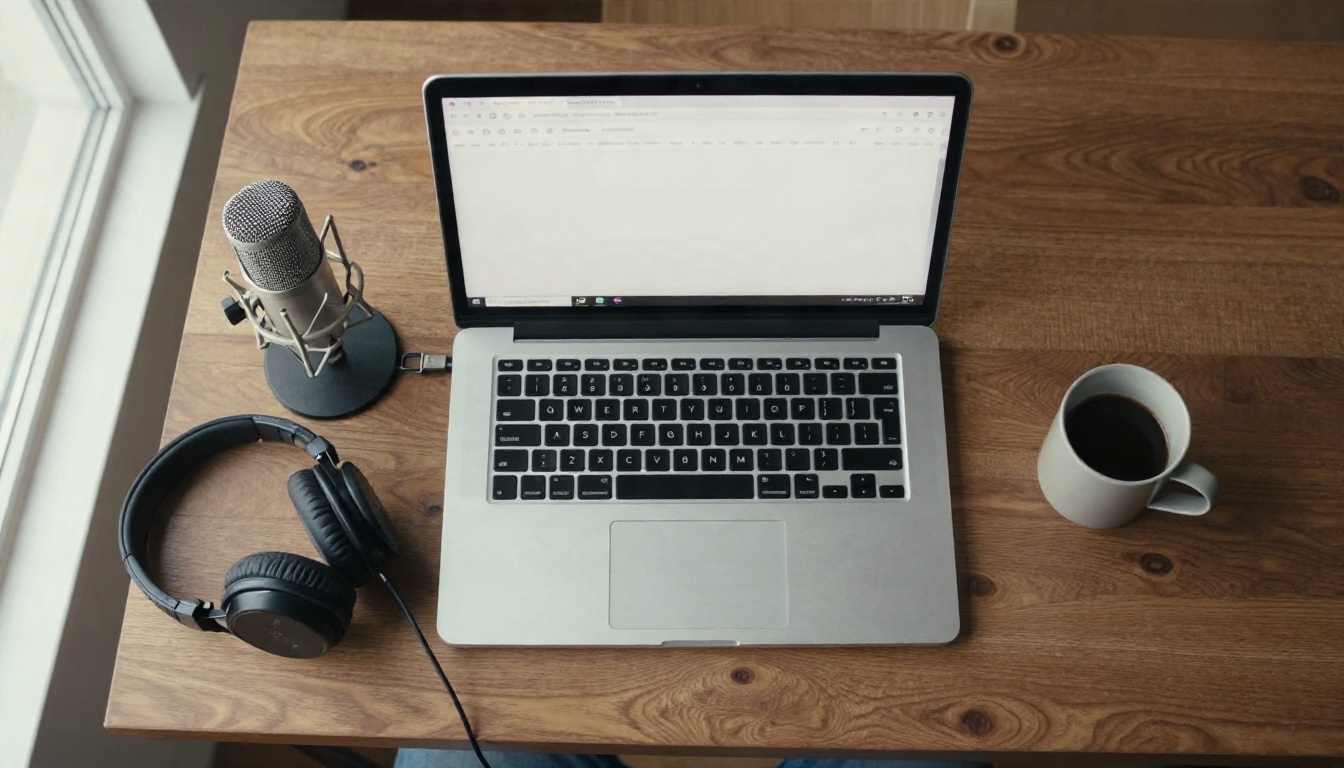
Most chatbot websites now include a microphone icon in the message box. Click it, allow microphone access when your browser asks, and speak. Chrome, Edge, and Safari all handle microphone permissions slightly differently, but the pattern is the same: the site asks once, and you can change the answer later in the address bar's site settings.
A few habits make browser dictation work better:
- Use a wired or USB microphone when you can. Bluetooth headsets often switch to a lower quality mode when the microphone activates.
- Close other tabs that use the microphone, such as video calls.
- Speak in whole sentences, with a short pause at the end so the system knows you finished.
Upload Audio Instead
Live dictation is not the only route. If you already have a voice memo, meeting recording, or interview file, an audio transcription tool turns the whole file into text in one pass. You can then drop that text into any chatbot and ask for a summary, action items, or a cleaned up version. This approach avoids live microphone problems entirely, since the sound is already captured. A later section shows how to do this on PicassoIA.
Settings That Improve Accuracy
Most voice trouble is a setting, not a bug. Check these three areas first.
Language and Region
Recognition systems tune themselves to a language and a regional variant. If your phone is set to US English and you speak with a strong Scottish or Indian English accent, switching the dictation language to the closest regional match can noticeably cut errors. Many apps also let you set the spoken language separately from the interface language, so check both.
If you switch between languages mid-sentence, expect mistakes. Most tools work best when you pick one language per message.
Microphone Permissions
A chatbot that cannot hear you is often a chatbot that was never allowed to. On a phone, open the system settings, find the app, and confirm the microphone toggle is on. On a computer, check the browser's site permissions and the operating system's privacy settings for microphone access.
💡 Tip: On Windows and Mac, the operating system can block the microphone for every browser at once. If no site can hear you, start with the system privacy page, not the site.
Noise and Distance
Hold a phone about a hand's width from your mouth, or keep a headset microphone near the corner of your lips and out of the direct breath path. Turn off fans where possible. If you work in a loud place, a headset with noise reduction usually helps more than any software tweak.
| Setting | Best Choice | Why It Matters |
|---|
| Microphone distance | 10 to 20 cm | Keeps voice louder than room noise |
| Input device | Wired or USB headset | Avoids Bluetooth quality drops |
| Dictation language | Closest regional match | Matches your accent and vocabulary |
| Speaking pace | Steady, with pauses | Gives the system clear sentence breaks |
| Background audio | Off | Prevents music and video from being transcribed |
When the microphone icon does nothing, or the words come out wrong, work through the list below from top to bottom. Each step takes under a minute.

Quick Checks First
- Restart the app. A stuck audio session is a common cause.
- Check the mute switch and volume. A muted device can look like a broken one.
- Confirm internet access. Cloud based recognition fails quietly on weak connections.
- Update the app and the operating system. Old versions often carry known voice bugs.
- Test the microphone elsewhere. Record a voice memo or join a test call to see whether the hardware works.
Phone Fixes
If the quick checks did not help, try these on a phone:
- Remove the case, since a thick one can block the microphone opening.
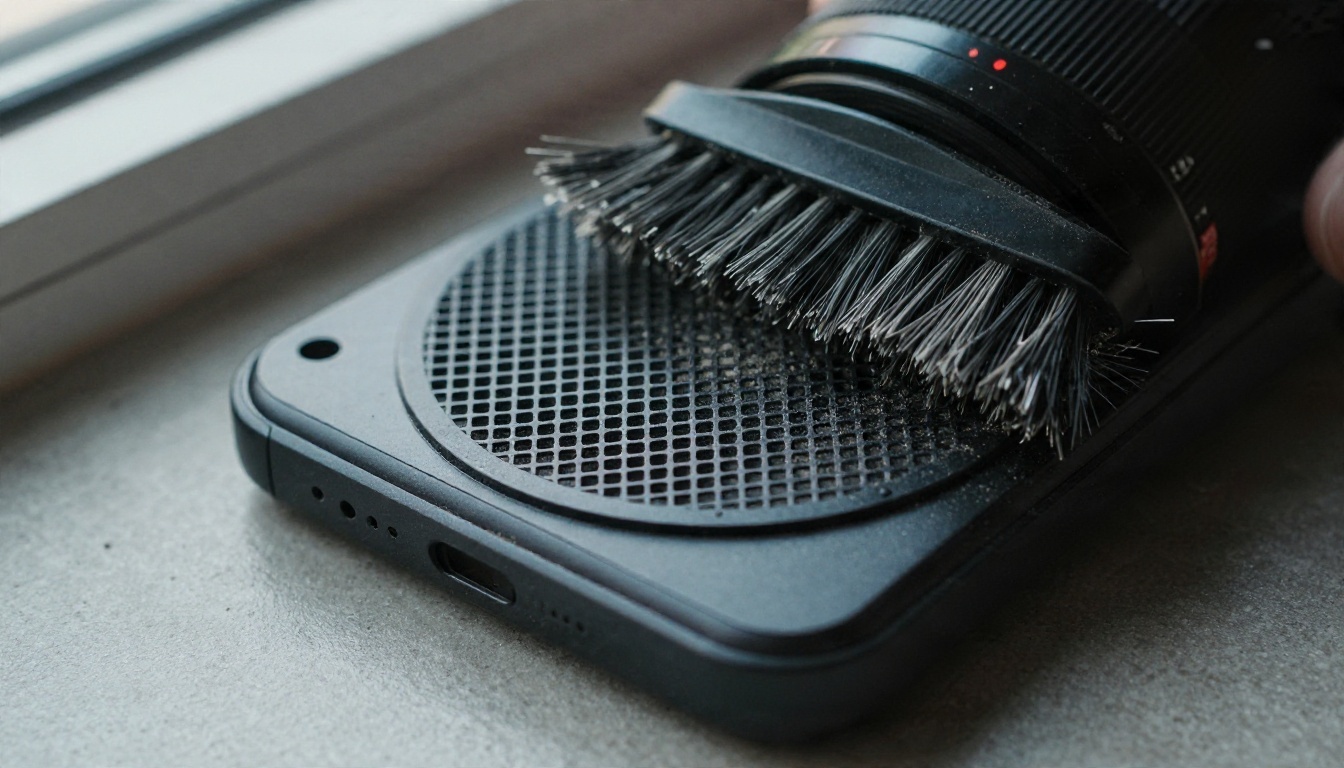
- Clean the microphone grille gently with a soft dry brush. Lint and dust build up faster than you would expect.
- Disconnect Bluetooth devices. The phone may be sending audio input to a headset in your bag.
- Reset the app's permissions: turn the microphone toggle off, then on again.
- As a last step, reinstall the app. Your chat history usually lives in your account, not on the device.
Browser and Desktop Fixes
On a computer, the browser is the usual suspect:
- Click the lock or tune icon in the address bar and set the microphone to Allow for the site.
- Pick the correct input device in the site's audio settings or the system sound panel. Laptops often default to a webcam microphone you never intended to use.
- Disable browser extensions that touch audio, especially ad blockers and privacy tools, then test again.
- Try a different browser. If it works there, clear cache and cookies in the first one.
- Close video call apps. Only one program may hold the microphone on some systems.
When Accents or Names Fail
Sometimes the microphone works and the recognition is just poor for your voice or vocabulary. Here is what helps:
- Spell out unusual names once, then let the chatbot reuse them from context.
- Slow down by about ten percent, without speaking robotically.
- Dictate shorter chunks. Two clear sentences beat one long run on.
- Fix errors by voice, such as telling the chatbot "the name is spelled with a K, not a C" in the next message.
- Switch the recognition engine. If one app keeps mishearing you, another tool built on a different model may do better.
Transcribe Audio on PicassoIA
When live dictation keeps failing, or you work from recordings, upload the audio and let a transcription model do the work. PicassoIA offers speech to text models that accept audio files and return written text.

Step by Step
GPT 4o Transcribe is a strong first choice for accuracy on clear recordings. Here is the process:
- Open the model page and choose the audio upload field.
- Add your file, such as a voice memo, interview, or meeting recording.
- Set the language if the model offers a language field. Naming it helps with accents.
- Run the model and wait for the text to appear.
- Copy the transcript into a chatbot and ask for a summary, a cleaned version, or a list of tasks.
Parameter Tips
- Pick the speech language whenever the option is available instead of leaving it on automatic.
- Split very long recordings into shorter files for easier checking and editing.
- Record close to the microphone. No model can recover words that never reached the recording.
If you want a lighter and faster option for short clips, try GPT 4o Mini Transcribe. For recordings where you also want the model to reason about the content, Gemini 3 Pro accepts audio and handles transcription as well.
💡 Tip: Run the same short clip through two models and compare the results. Accuracy on your voice, your accent, and your subject vocabulary is what counts, not a general ranking.
Once the words are on the screen, a language model can do the heavy lifting. PicassoIA lists several in the Large Language Models category, and each suits a slightly different job.

Fast Replies for Everyday Questions
Gemini 3.5 Flash and GPT 5.6 Luna are built for quick answers. They work well when you dictate a question while walking, cooking, or driving to a stop, and want a short reply you can read at a glance.
Longer Writing and Reasoning
For longer jobs, such as turning a rambling voice note into a tidy email or a structured outline, Claude Sonnet 5 is a solid pick. Paste your transcript, state the format you want, and ask for edits in plain language.
Add a Spoken Reply
If you want the chatbot to talk back, text to speech models handle that step. Gemini 3.1 Flash TTS offers many voices and languages, and Realtime TTS 2 is designed for low delay output. Combining transcription, a chat model, and a voice model gives you a basic voice assistant you control step by step.
Who Benefits Most From Voice Chat
Voice input is not a gimmick. For some people it changes how often they use a chatbot at all.

- People with limited hand mobility or vision can use a chatbot without a typing panel, which makes everyday tasks far easier.
- Older users often find speaking more natural than tapping small buttons.
- Busy professionals can dictate emails, summaries, and meeting notes while commuting or between calls.
- Students and writers capture ideas quickly, then clean them up afterward with a chatbot.
- Language practice becomes simpler when you can speak and read the transcript back to spot pronunciation problems.
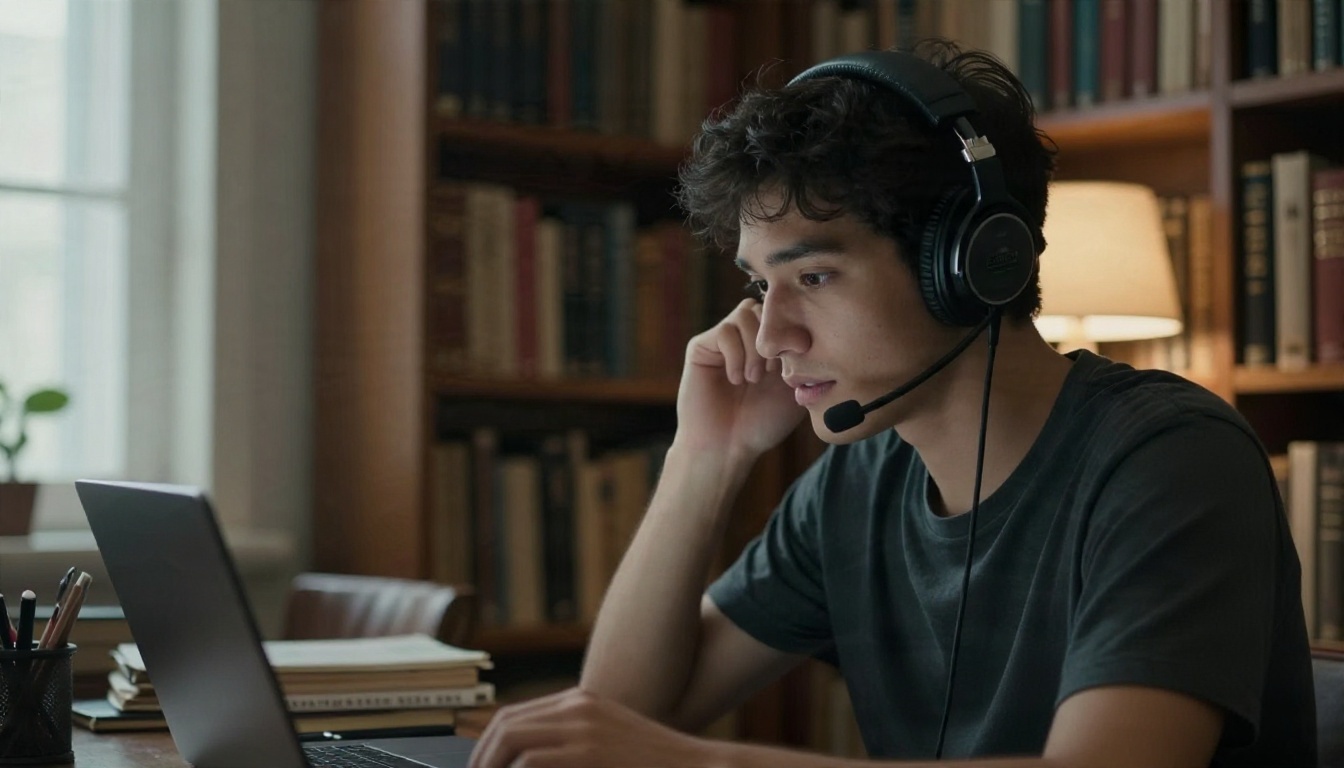
A headset setup helps all of these groups. A wired headset with a boom microphone gives consistent input quality, which matters more than any single app choice.
Try It Yourself on Picasso IA
You do not have to pick one tool and hope it fits. Record a short clip in your own voice, upload it to a transcription model on Picasso IA, and read what comes back. Then paste the text into a chat model and ask for a summary or a cleaner draft. Try a second transcription model on the same clip and compare. In ten minutes you will know which setup hears you best.
Ready to try it? Open the Speech to Text collection, pick a model, and run your first transcript today. Once you see how much faster talking can be than typing, you will probably keep the microphone on.


