You typed a sentence, pressed a button, and eight seconds later a short film clip appeared, complete with footsteps, wind and a line of dialogue. That is Veo 3.1 in one breath. It is Google's video model, and it is the one people keep asking about because it produces sound together with picture. The questions come in a predictable order: what is it, can I use it for free, how many clips can I make, what does it cost, and what happens when a prompt gets a little spicy? This article answers all five in plain language, with the numbers hedged where sources disagree.

What Veo 3.1 Actually Is
Veo 3.1 is a text-to-video and image-to-video model built by Google DeepMind. You describe a scene, or hand it a still image, and it generates a short clip with synchronized audio. Dialogue, ambient noise, music cues and sound effects arrive in the same file as the picture, so you do not need a second tool to add a soundtrack.
It sits in the same family as the earlier Veo 3, with refinements to prompt adherence, realism of motion and control over how a clip begins and ends. Think of it as the version where the rough edges were sanded down.
The headline features
- Native audio: speech, footsteps, rain, crowd murmur and score generated alongside the video.
- Image-to-video: upload a photo and animate it, keeping the same subject and lighting.
- Reference images: supply a few pictures to keep a character or product consistent.
- First and last frame control: define where a shot starts and where it lands.
- Scene extension: continue a clip so a short shot grows into a longer sequence.
- Output up to 1080p in landscape or portrait formats.
💡 Tip: Veo clips are short by design, usually around 8 seconds each. Plan your story as a chain of shots, the way a film editor would, instead of hoping for one long take.
Three versions, three jobs
Google ships Veo 3.1 in tiers, and the naming matters because the free allowance and the credit price change by tier.
| Version | Best for | Speed | Cost level |
|---|
| Veo 3.1 (Quality) | Final hero shots, ads, polished scenes | Slowest | Highest |
| Veo 3.1 Fast | Drafts, social clips, quick iterations | Quick | Medium |
| Veo 3.1 Lite | Cheap tests, prompt experiments | Quickest | Lowest |

Is Veo 3.1 Free?
Partly, and the details shift often. Here is the honest picture as reported by several pricing trackers, which do not always agree with each other.
Free access inside Google's apps
Google's creative tool Flow has been reported to give free accounts a small starter balance of credits plus a daily top-up. One tracker lists around 100 starter credits and 50 daily credits, another mentions only the 50 daily ones. Either way, the daily allowance resets and does not pile up.
The Gemini app is the other door. Free users there have been described as getting a very limited number of Veo 3.1 generations per day, and Google has sometimes run promotional windows that make video generation temporarily more generous. A March 2026 usage roundup noted exactly that kind of promotion, so treat any "free forever" claim with suspicion.
What free usually means in practice
- A couple of Fast or Lite clips per day, not a production pipeline.
- Quality mode is expensive in credits, so free balances disappear quickly if you pick it.
- Free allowances can change without warning, so check Google's current plan page before building a workflow around them.
💡 Tip: Spend free credits on Lite or Fast while you refine the prompt. Switch to the top tier only when the wording is locked.
API access is not free
Developers calling Veo through Google's API pay per second of generated video. Sources agree there is no free tier on that route. If you only want to make clips, the API is the wrong door.
Limits You Will Hit
Even with money on the table, Veo 3.1 has ceilings. Knowing them in advance saves wasted credits.
Length and resolution
Each generation is a short clip, typically 8 seconds. Longer scenes come from extension or from editing several clips together. Resolution tops out at 1080p, and some tiers or plans cap you lower.
Credits per clip
A pricing roundup lists the following credit costs for one 8-second generation. Treat these as a snapshot, not a promise.
| Mode | Credits per clip (standard) | Credits per clip (top plan) |
|---|
| Lite | About 10 | About 5 |
| Fast | About 20 | About 10 |
| Quality | About 100 | About 100 |
Do the math on a free daily allowance of 50 credits: that is roughly two Fast clips or five Lite clips a day, and half a Quality clip, which means none.
Other practical limits
- Queue time grows at peak hours, especially in Quality mode.
- Failed generations caused by safety filters may or may not refund credits, depending on the product.
- Unused monthly credits on paid plans generally do not roll over.
- Watermarks and provenance marks are applied on many outputs, so check the rules of whichever product you use.

The Real Cost of Veo 3.1
Prices differ by source, and Google adjusts them. These are the ranges reported in recent trackers, shown to help you plan, not to quote.
Subscription route
| Plan | Reported monthly price | What you get |
|---|
| Free account | $0 | Small daily credit allowance |
| Google AI Pro | About $19.99 | A monthly credit pool, figures vary by source |
| Google AI Ultra | Reported between $99.99 and $249.99 | Largest pool, cheaper credit use, best access |
One tracker claims Pro includes about 1,000 monthly Flow credits, while another says closer to 100. That gap is large enough that you should read Google's own plan page on the day you subscribe.
Pay per second route
Through an API, you pay by the second of output. For a casual creator this tends to cost more per clip than a subscription once you iterate, because every failed attempt is billed.
Cost per usable clip
The number that matters is not the price of one generation. It is the price of one clip you actually keep. If you need four tries to get a good shot, multiply accordingly. This is why drafting in a cheap tier pays off.
💡 Tip: Write a "prompt card" with subject, setting, lighting, camera move and sound. Reusing that structure cuts retries sharply.
How to Use Veo 3.1 on PicassoIA
If you want the model without juggling Google plans, Veo 3.1 is available on PicassoIA, alongside Veo 3.1 Fast and Veo 3.1 Lite. The page descriptions highlight 1080p output and native audio on these models.
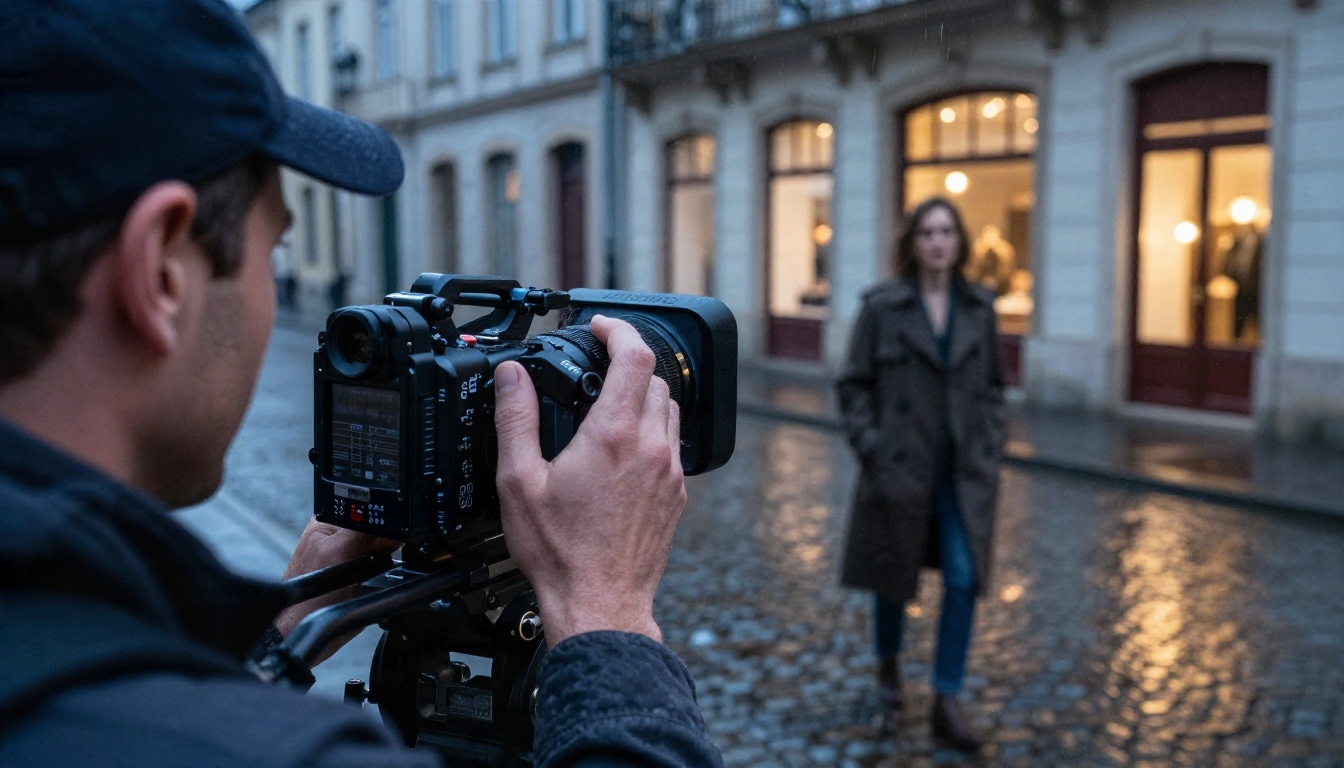
Step by step
- Open the model page. Start with Lite or Fast for a draft, then move to the main Veo 3.1 page for the final render.
- Write the prompt in one paragraph. Put the subject first, then the setting, lighting, camera move and any sound.
- Add a source image if you have one. Image-to-video keeps faces, outfits and colors stable.
- Choose resolution and duration. Keep drafts small, raise resolution only for the keeper.
- Generate, review, adjust one thing. Change a single variable per attempt so you know what caused the difference.
- Re-render the winner in the top version.
Parameter tips
- Describe one camera move only: slow dolly-in, gentle pan, handheld drift.
- Put spoken lines in quotation marks and name who says them.
- Write the sound you want: "distant traffic, soft jazz from a café."
- Keep negative wording short. Say what you want, not a list of what you fear.
Prompt that works
A woman in a cream knit sweater sits at a wooden desk in a loft at golden hour, studying a monitor. Warm window light from the left. Slow dolly-in on her face as she smiles. Soft room tone, a mug clinking on the desk.
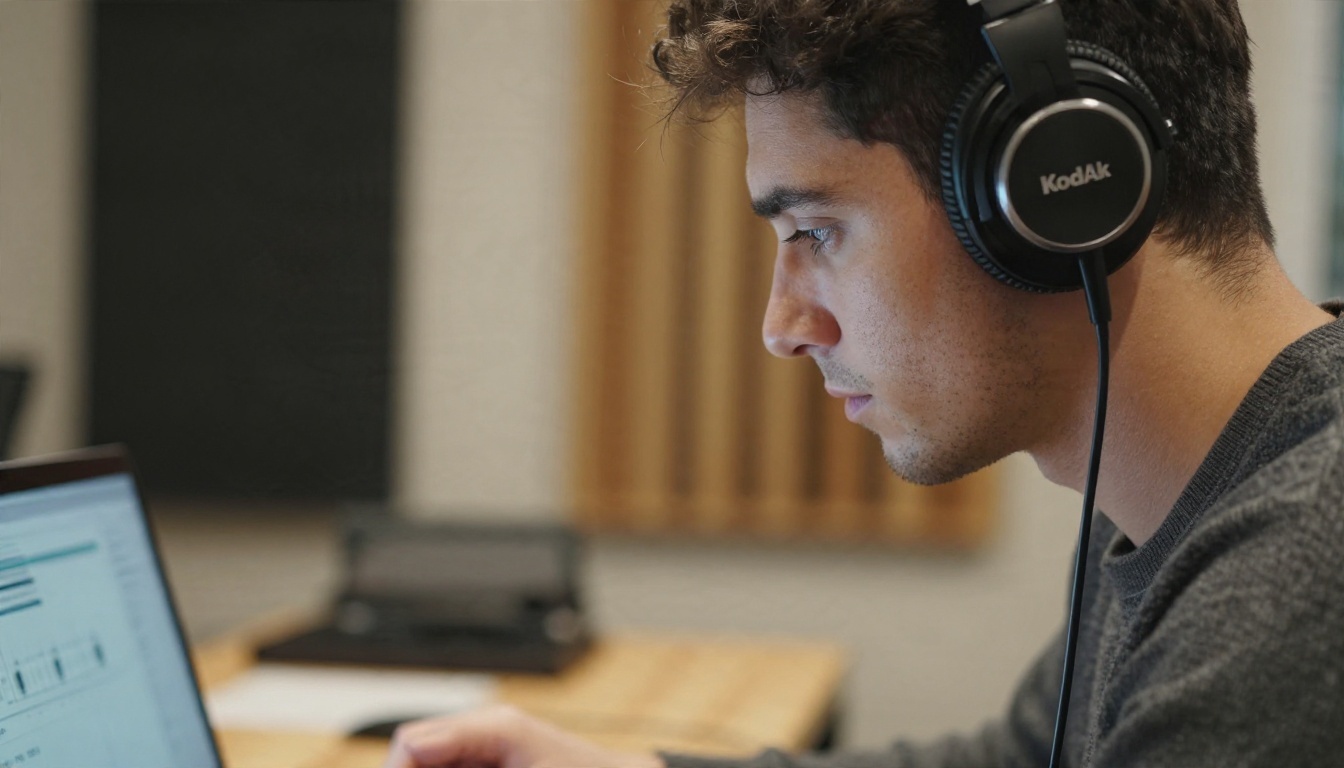
Writing Audio Into Your Prompt
Native sound is the feature that separates Veo 3.1 from most rivals, and it is also the easiest to waste. Most people never describe it, so the model guesses.
Three layers of sound
- Dialogue: short lines work best. Long speeches drift.
- Ambience: room tone, street, forest, restaurant.
- Effects and music: footsteps on gravel, a door closing, a faint piano.
Common audio mistakes
- Asking for a full song. Veo makes background score, not a finished track.
- Stacking five speakers in one 8-second clip.
- Leaving the soundscape blank and then complaining about silence.
For a polished voice-over or a proper song, pair your clip with a dedicated text-to-speech or music model on PicassoIA instead.
NSFW Prompt Tips That Actually Work
Here is the straight answer on adult content: Veo 3.1 is not an adult tool. Google applies safety filters that block explicit sexual material, and prompts that push too hard are rejected or return nothing. Credits may be spent on the attempt. Pushing against the filter is a poor use of money.
What works is the language of fashion, boudoir and glamour photography: suggestive, stylish, fully covered, and focused on mood.
Words that pass, words that fail
| Works well | Gets blocked or softened |
|---|
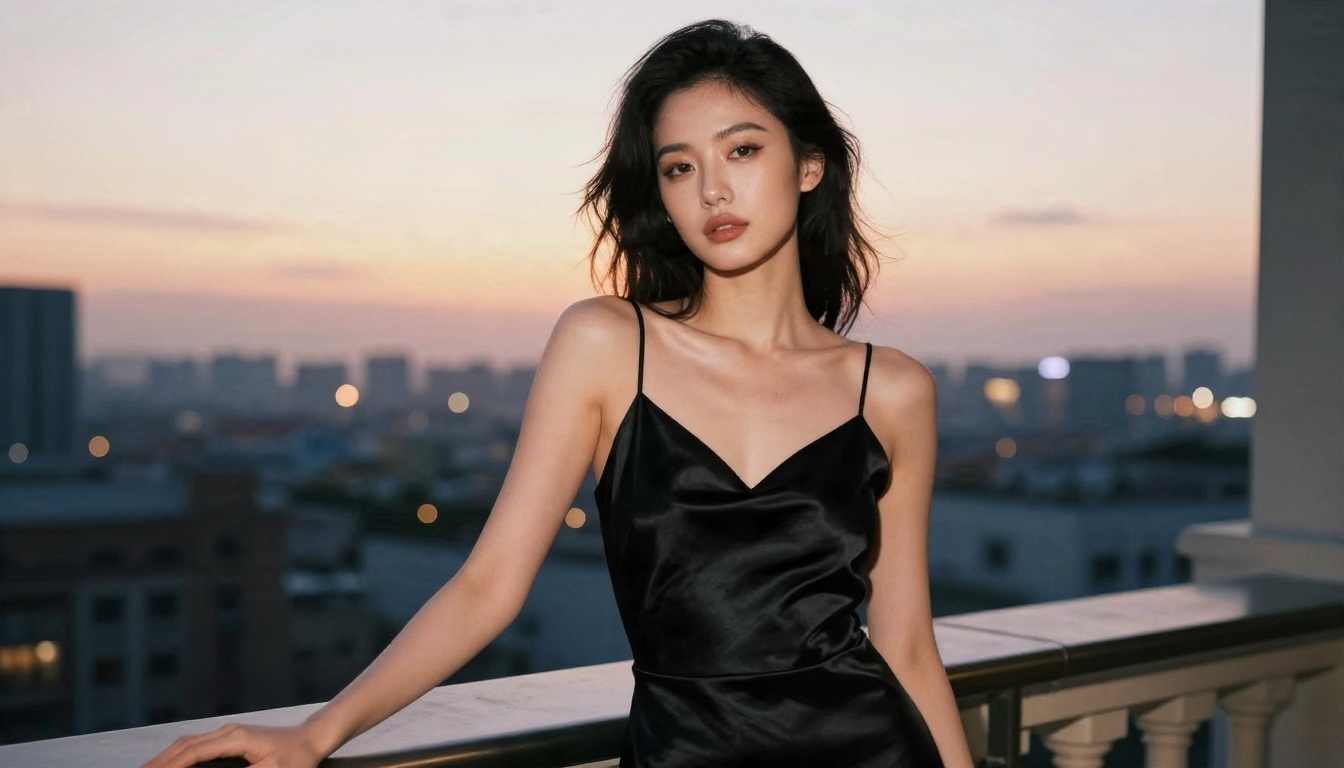
| "Satin slip dress, rim light, dusk balcony" | Explicit anatomy or acts |
| "Bikini, sunrise beach, windblown hair" | Fetish or violent framing |
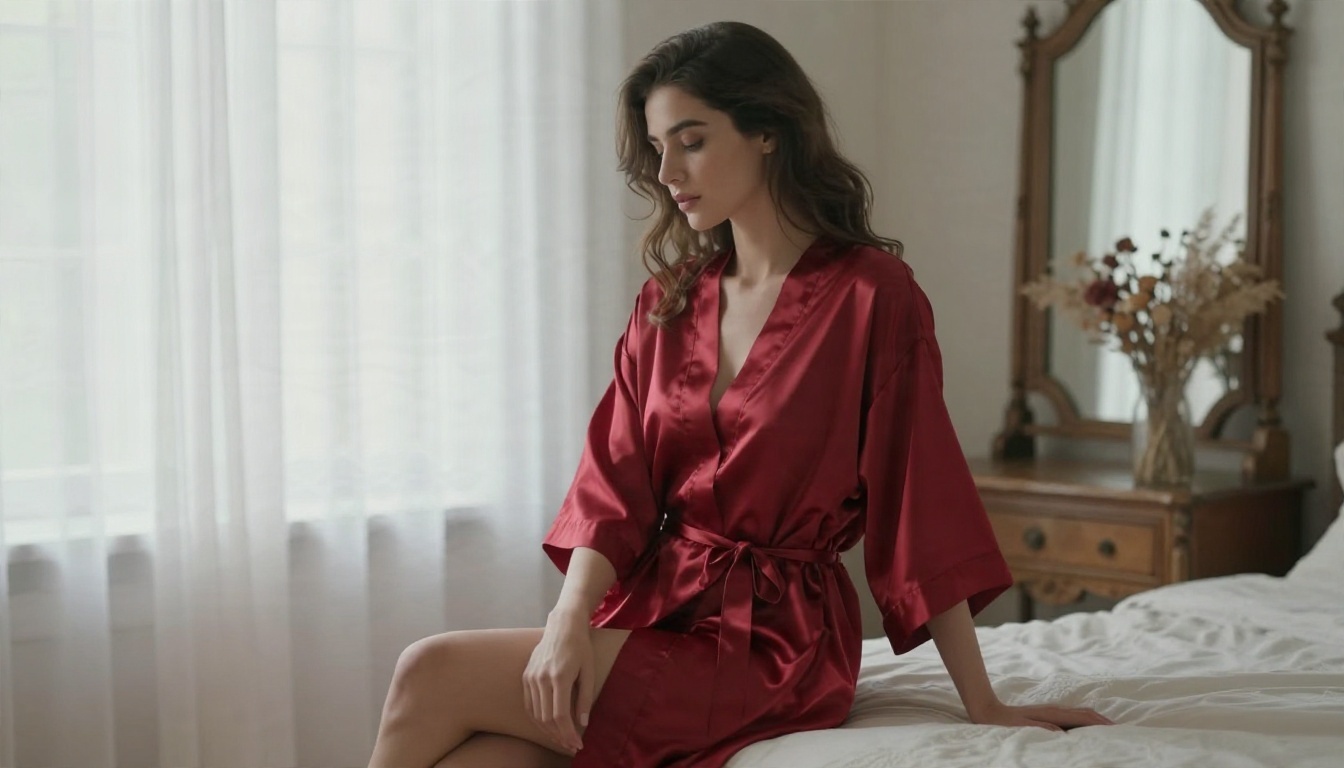
| "Silk robe, sheer curtains, soft window light" | Anything involving minors, real celebrities or non-consent |
| "Confident glance to camera, slow push-in" | Keyword stuffing with sexual terms |
A tasteful template
Use this structure for glamour clips:
- Subject and outfit: "A woman in a red silk robe."
- Place and light: "Sunlit boudoir, sheer curtains, diffused window light from the left."
- Camera: "85mm look, slow dolly-in, shallow depth of field."
- Mood and sound: "Intimate and calm, faint fabric rustle, soft breathing of the room."
Beach and swimwear scenes
Swimwear is a safe, popular category. Anchor the prompt in the location, the light and the motion of water and hair, not in the body.
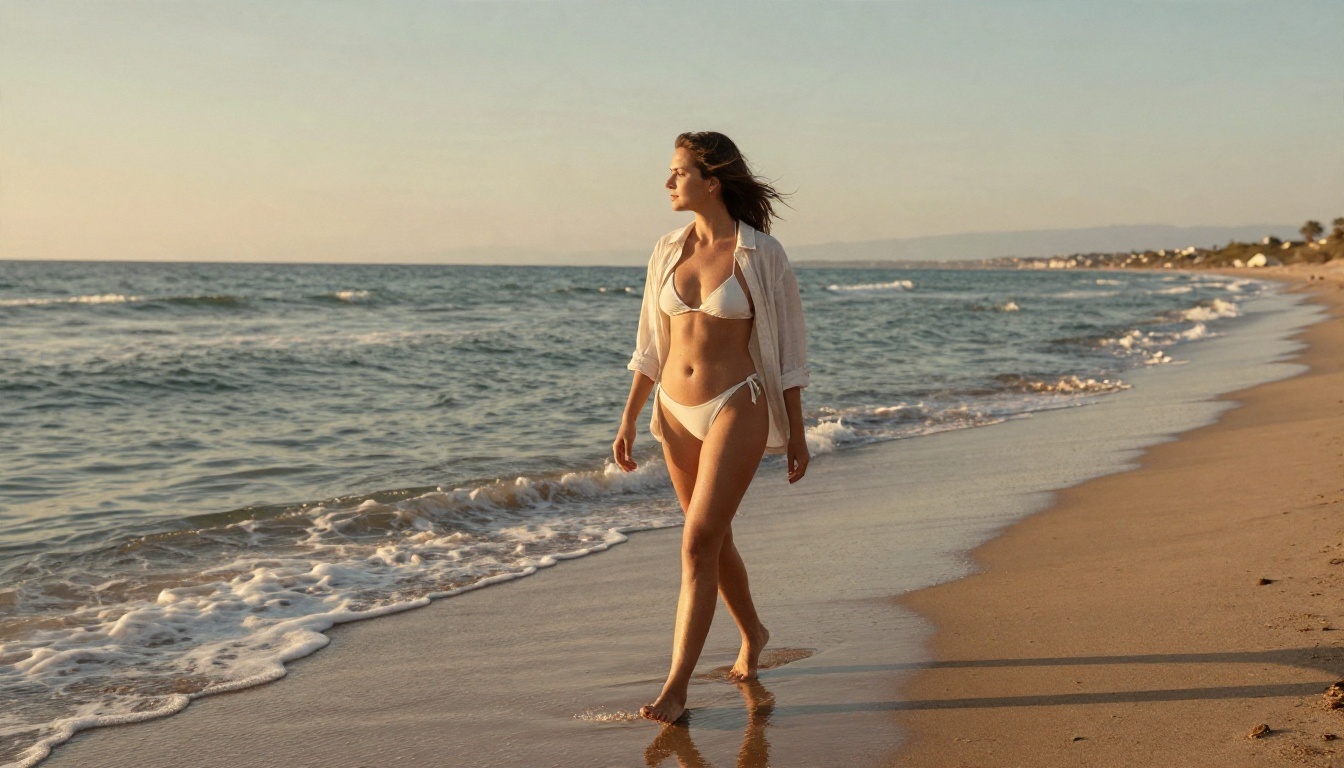
💡 Tip: Use image-to-video. Start from a tasteful still, then let Veo add gentle motion: a breeze through hair, waves around the ankles, a slow turn. This is far more reliable than describing everything in text.
Boudoir mood without the trouble
Soft light and fabric carry the whole look. Ask for sheen on silk, drifting curtains, dried flowers, a vintage mirror. The less you say about the body and the more you say about atmosphere, the better the result and the lower the refusal rate.
Better Models for Adult Content
If your project needs fewer restrictions than Google allows, build the still image in a tool made for it, then animate it.
Start with the right image model
- Seedream 4.5 is the first stop. It produces sharp, photorealistic 4K stills with natural skin and fabric detail, and it is the strongest base for glamour and swimwear imagery.
- PicassoIA Image Editor Pro offers unlimited generations, which matters when you are iterating on a look. It edits and restyles photos quickly and does not make you ration attempts.
Both are fast, and both give you far more room than a filtered video model. Generate the still, polish it, then feed it into a video model as the first frame.
A simple adult-content workflow
- Create the base portrait or scene in Seedream 4.5.
- Refine outfit, lighting or background in Image Editor Pro, as many times as needed.
- Animate the finished still with an image-to-video model.
- Add sound or voice with a separate audio model if the clip needs it.
💡 Tip: Keep the still non-explicit if you plan to animate it in a mainstream video model. The filter reads the image as well as the text.
Browse the full catalogue of models at picassoia.com/en/all-models to see every image and video option side by side.

Alternatives Worth Testing
Veo 3.1 is excellent, but it is not the only option, and a mix of tools often beats loyalty to one.
Other video models on PicassoIA
- Wan 3 produces cinematic video and is a strong second opinion on motion.
- Wan 3 Prime targets 1080p output from text.
- LTX 2.5 Fast is built for speed, so it suits rapid drafting.
- Kling v1.5 Pro is a reliable choice for 1080p text-to-video.
Quick comparison
| Need | Pick |
|---|
| Sound inside the clip | Veo 3.1 family |
| Fast drafts | LTX 2.5 Fast or Veo 3.1 Lite |
| Cinematic motion | Wan 3 or Wan 3 Prime |
| Editing an existing video by text | Kling o1 |
Common Mistakes to Avoid
Burning credits on vague prompts
"A beautiful woman at the beach" gives the model nothing to hold. Add light, lens, motion and sound.
Changing five things at once
When a clip fails, adjust one variable. Otherwise you never find the cause.
Forgetting the edit
Eight seconds is a shot, not a film. Cut several clips together, keep the same reference image, and the sequence feels consistent.
Trusting a single price source
Pricing pages go stale within weeks. Check the live plan page before paying.
Make Your First Clip Today
Veo 3.1 rewards people who write like directors: one subject, one light source, one camera move, one layer of sound. Start in a cheap tier, keep the glamour tasteful, and save the expensive render for the take you already love.
Ready to try it yourself? Open Veo 3.1 on PicassoIA, run a draft in Veo 3.1 Lite, and build your starting image with Seedream 4.5 or the unlimited PicassoIA Image Editor Pro. Then see what else is waiting at picassoia.com/en/all-models. Pick a scene, write the prompt, and press generate.


